
RecursosBibliotecas de símbolos DWG
Free building envelope section details for AutoCAD (DWG): walls, roofs, floors, windows, curtain wall
Building envelope section details: 119 blocos prontos de AutoCAD (DWG), de download gratuito e uso nos seus próprios projetos, em ZIP ou um símbolo por vez.
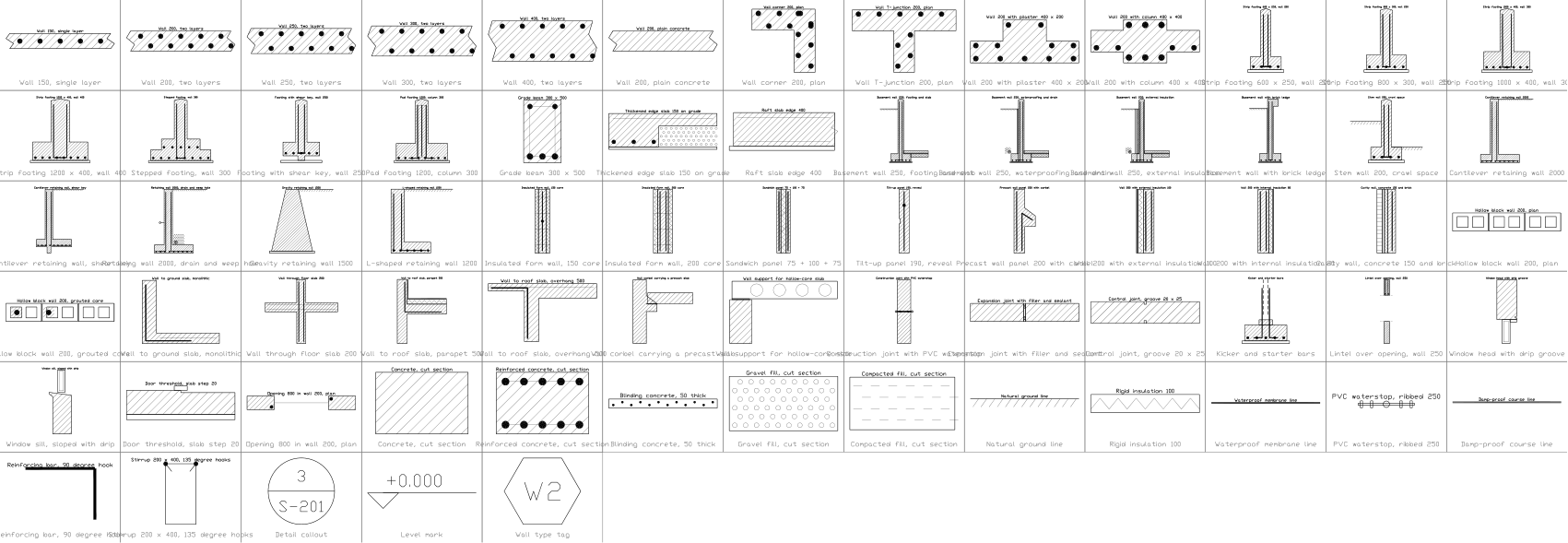
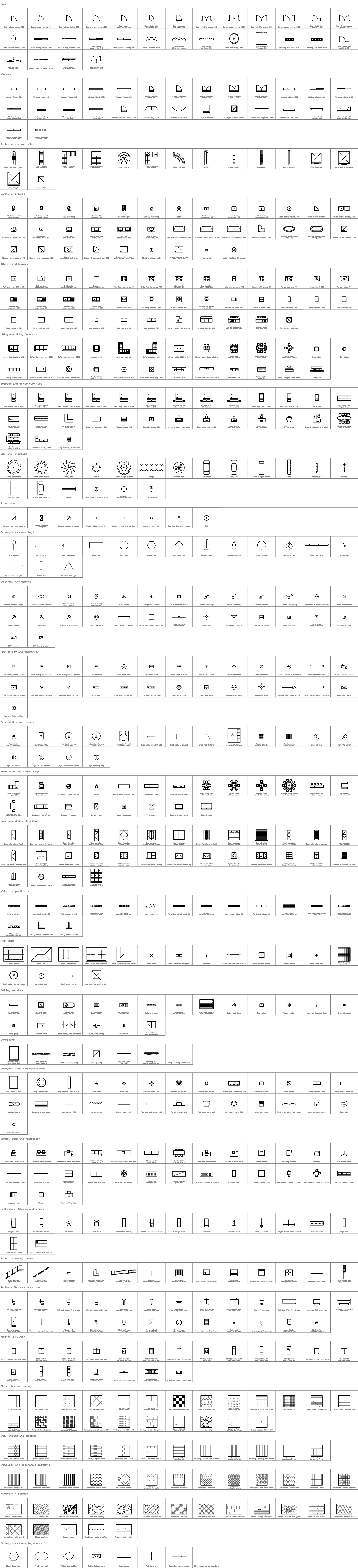
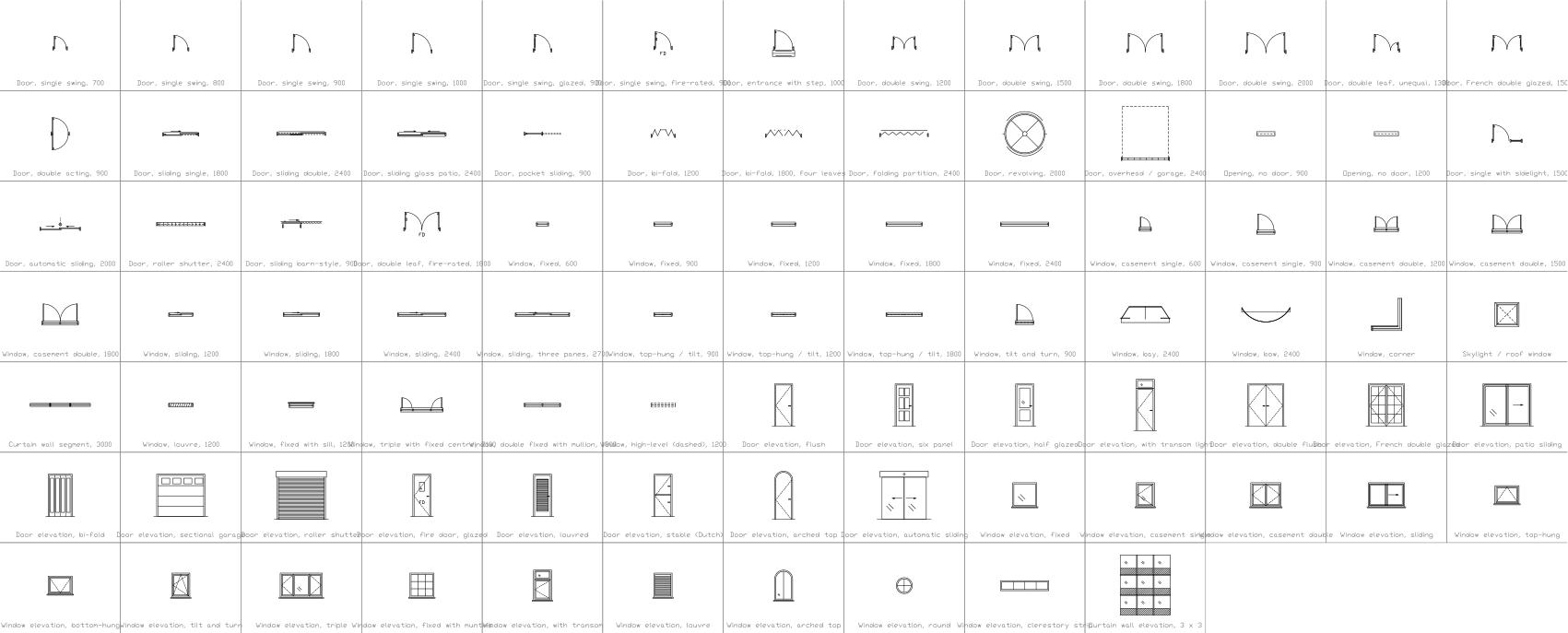
119 section detail blocks for the building envelope at real size in millimetres, with every material in its usual hatch: exterior wall build-ups (brick and block cavity walls, rendered and externally insulated masonry, concrete with brick, render or ventilated cladding, timber frame, structural insulated panels, cross-laminated timber, steel stud walls, insulated metal panels); partitions (plasterboard, timber stud, block, brick, concrete, glass); roof build-ups (warm, inverted, green, metal deck, timber, pitched, panel and cross-laminated timber roofs); floor and ceiling build-ups (ground slabs, suspended floors, timber floors, raised access floors, composite decks, suspended ceilings); wall base, floor and eaves details; pitched roof details (eaves, ridge, verge, abutment); flat roof details (parapet, edge, outlet, door upstand, expansion joint, rooflight kerb); windows and doors in the wall (head, sill and jamb, thresholds); curtain wall and glazing (mullion, transom, corner post, slab edge, shopfront, silicone joint); material swatches; and detail markers.
Usa o AutoCAD 2017 ou uma versão anterior? Baixar o formato 2010
Copyright CADXChange. Use e modifique os símbolos livremente nos seus desenhos e projetos, inclusive comerciais; crédito e link só são necessários se você os publicar. Não redistribua nem revenda a biblioteca. Cada ZIP contém um arquivo DWG simples no formato do AutoCAD 2018 e um README; não é preciso nenhum plug-in. Fornecido no estado em que se encontra, sem garantia. Termos da biblioteca (CXL-1.0)
Bibliotecas de símbolos relacionadas
Todos os 119 símbolos
119 de 119 símbolos
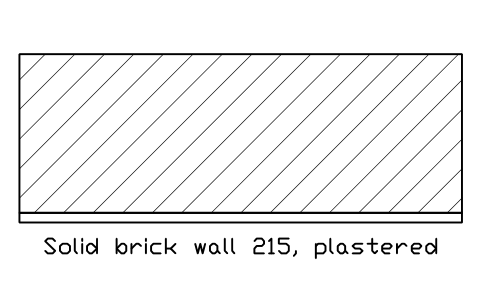
Parede de tijolo maciço 215, rebocada
Solid brick wall 215, plastered
BED_W_BRICK_SOLID_215Atributos
DESIGNATIONSIZEMATERIALFIRE_RATINGU_VALUE_W_M2KFINISHDETAIL_NOMANUFACTURERREMARKSDESC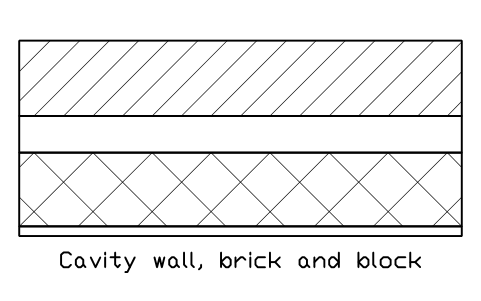
Parede dupla, tijolo e bloco
Cavity wall, brick and block
BED_W_CAVITY_EMPTYAtributos
DESIGNATIONSIZEMATERIALFIRE_RATINGU_VALUE_W_M2KFINISHDETAIL_NOMANUFACTURERREMARKSDESC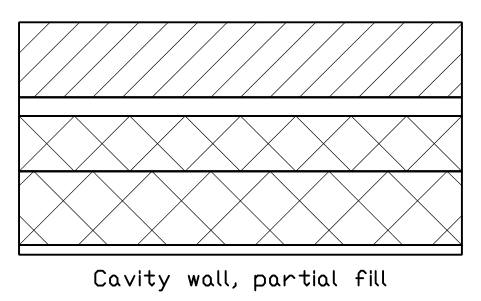
Parede dupla, isolamento parcial
Cavity wall, partial fill
BED_W_CAVITY_PARTIALAtributos
DESIGNATIONSIZEMATERIALFIRE_RATINGU_VALUE_W_M2KFINISHDETAIL_NOMANUFACTURERREMARKSDESC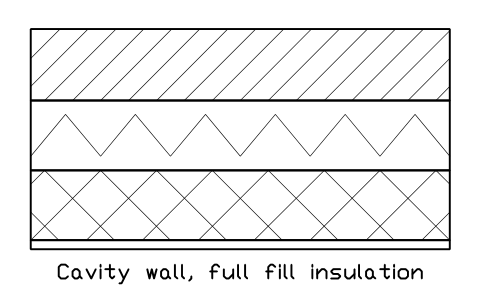
Parede dupla, isolamento total
Cavity wall, full fill insulation
BED_W_CAVITY_FULLAtributos
DESIGNATIONSIZEMATERIALFIRE_RATINGU_VALUE_W_M2KFINISHDETAIL_NOMANUFACTURERREMARKSDESC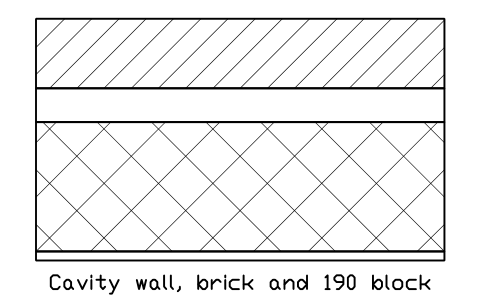
Parede dupla, tijolo e bloco 190
Cavity wall, brick and 190 block
BED_W_CAVITY_190Atributos
DESIGNATIONSIZEMATERIALFIRE_RATINGU_VALUE_W_M2KFINISHDETAIL_NOMANUFACTURERREMARKSDESC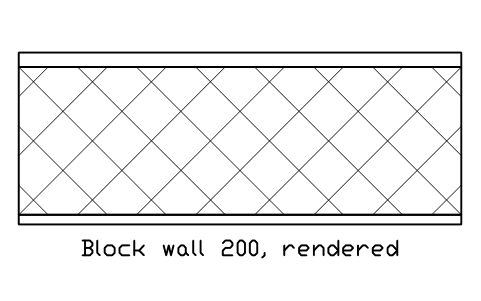
Parede de blocos 200, rebocada
Block wall 200, rendered
BED_W_BLOCK_RENDERAtributos
DESIGNATIONSIZEMATERIALFIRE_RATINGU_VALUE_W_M2KFINISHDETAIL_NOMANUFACTURERREMARKSDESC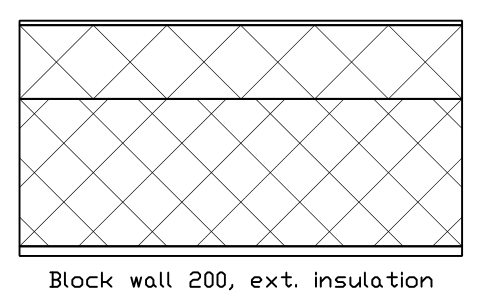
Parede de blocos 200, ETICS
Block wall 200, ext. insulation
BED_W_BLOCK_ETICSAtributos
DESIGNATIONSIZEMATERIALFIRE_RATINGU_VALUE_W_M2KFINISHDETAIL_NOMANUFACTURERREMARKSDESC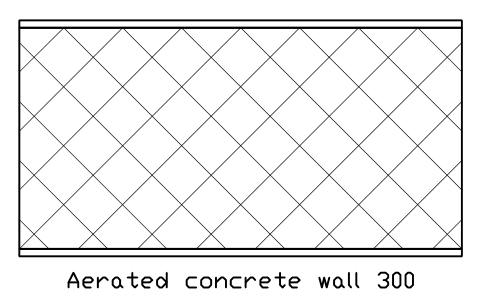
Parede de concreto celular 300
Aerated concrete wall 300
BED_W_AAC_300Atributos
DESIGNATIONSIZEMATERIALFIRE_RATINGU_VALUE_W_M2KFINISHDETAIL_NOMANUFACTURERREMARKSDESC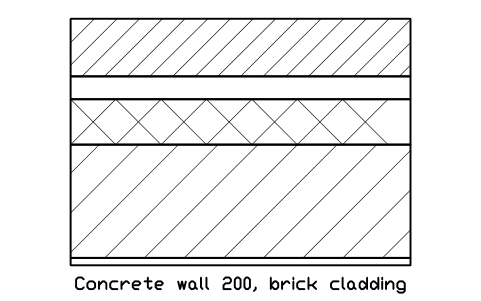
Parede de concreto 200, revestimento de tijolo
Concrete wall 200, brick cladding
BED_W_CONC_BRICKAtributos
DESIGNATIONSIZEMATERIALFIRE_RATINGU_VALUE_W_M2KFINISHDETAIL_NOMANUFACTURERREMARKSDESC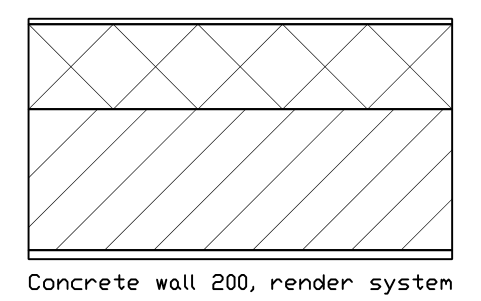
Parede de concreto 200, sistema ETICS
Concrete wall 200, render system
BED_W_CONC_ETICSAtributos
DESIGNATIONSIZEMATERIALFIRE_RATINGU_VALUE_W_M2KFINISHDETAIL_NOMANUFACTURERREMARKSDESC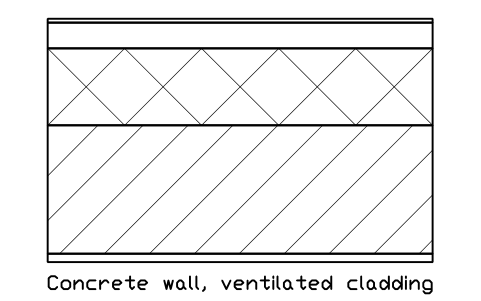
Parede de concreto, fachada ventilada
Concrete wall, ventilated cladding
BED_W_CONC_CLADDINGAtributos
DESIGNATIONSIZEMATERIALFIRE_RATINGU_VALUE_W_M2KFINISHDETAIL_NOMANUFACTURERREMARKSDESC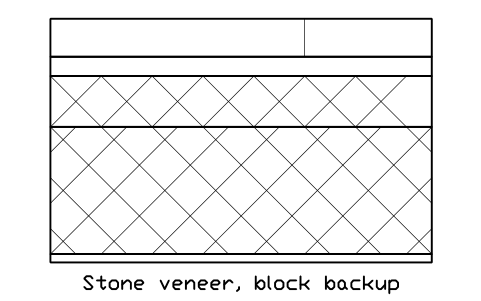
Revestimento de pedra, parede de fundo em bloco
Stone veneer, block backup
BED_W_STONE_CAVITYAtributos
DESIGNATIONSIZEMATERIALFIRE_RATINGU_VALUE_W_M2KFINISHDETAIL_NOMANUFACTURERREMARKSDESC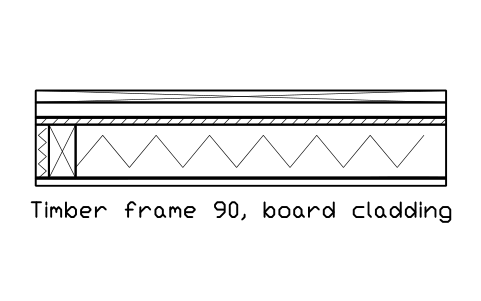
Parede de madeira 90, revestimento de tábuas
Timber frame 90, board cladding
BED_W_TF_90_BOARDSAtributos
DESIGNATIONSIZEMATERIALFIRE_RATINGU_VALUE_W_M2KFINISHDETAIL_NOMANUFACTURERREMARKSDESC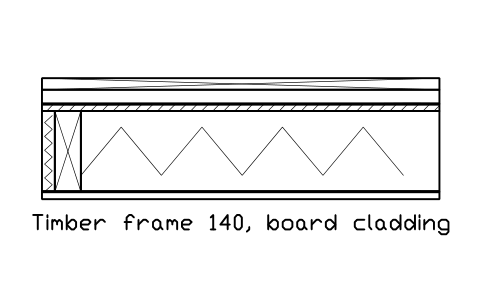
Parede de madeira 140, revestimento de tábuas
Timber frame 140, board cladding
BED_W_TF_140_BOARDSAtributos
DESIGNATIONSIZEMATERIALFIRE_RATINGU_VALUE_W_M2KFINISHDETAIL_NOMANUFACTURERREMARKSDESC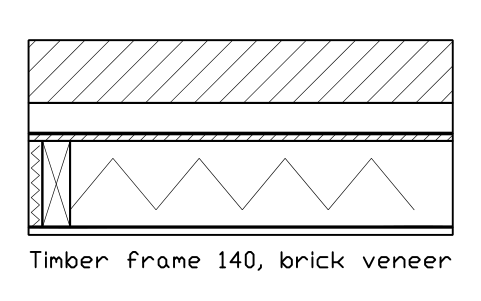
Parede de madeira 140, revestimento de tijolo
Timber frame 140, brick veneer
BED_W_TF_140_BRICKAtributos
DESIGNATIONSIZEMATERIALFIRE_RATINGU_VALUE_W_M2KFINISHDETAIL_NOMANUFACTURERREMARKSDESC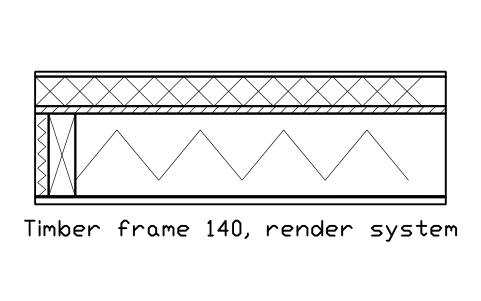
Parede de madeira 140, sistema de reboco
Timber frame 140, render system
BED_W_TF_140_RENDERAtributos
DESIGNATIONSIZEMATERIALFIRE_RATINGU_VALUE_W_M2KFINISHDETAIL_NOMANUFACTURERREMARKSDESC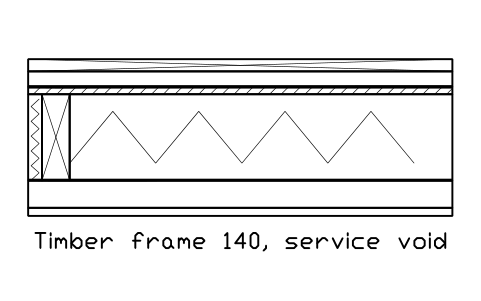
Parede de madeira 140, vazio de instalações
Timber frame 140, service void
BED_W_TF_SERVICE_VOIDAtributos
DESIGNATIONSIZEMATERIALFIRE_RATINGU_VALUE_W_M2KFINISHDETAIL_NOMANUFACTURERREMARKSDESC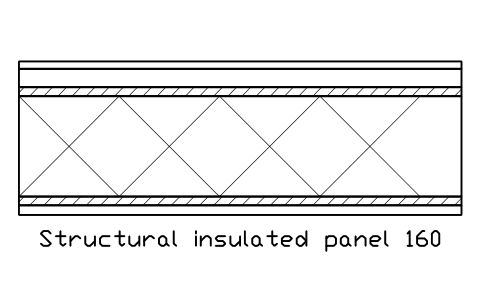
Painel estrutural isolado 160
Structural insulated panel 160
BED_W_SIP_160Atributos
DESIGNATIONSIZEMATERIALFIRE_RATINGU_VALUE_W_M2KFINISHDETAIL_NOMANUFACTURERREMARKSDESC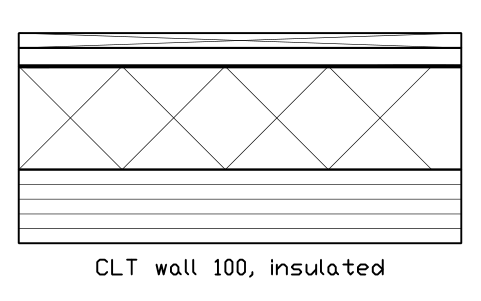
Parede de CLT 100, isolada
CLT wall 100, insulated
BED_W_CLT_100_INSAtributos
DESIGNATIONSIZEMATERIALFIRE_RATINGU_VALUE_W_M2KFINISHDETAIL_NOMANUFACTURERREMARKSDESC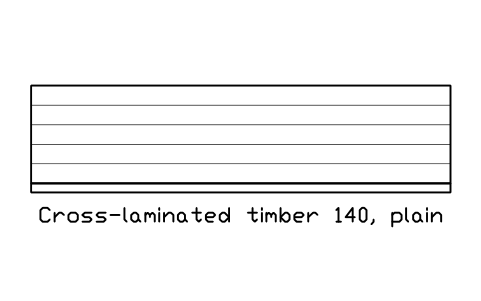
CLT 140, aparente
Cross-laminated timber 140, plain
BED_W_CLT_140_BAREAtributos
DESIGNATIONSIZEMATERIALFIRE_RATINGU_VALUE_W_M2KFINISHDETAIL_NOMANUFACTURERREMARKSDESC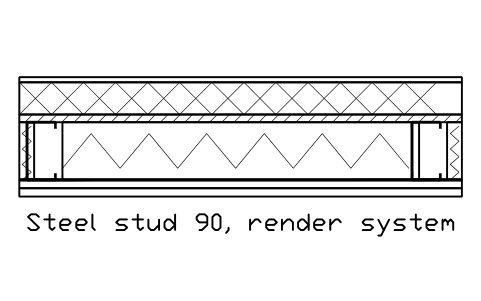
Perfis de aço leve 90, sistema de reboco
Steel stud 90, render system
BED_W_LGS_90_RENDERAtributos
DESIGNATIONSIZEMATERIALFIRE_RATINGU_VALUE_W_M2KFINISHDETAIL_NOMANUFACTURERREMARKSDESC
Perfis de aço leve 90, revestimento de tijolo
Steel stud 90, brick veneer
BED_W_LGS_90_BRICKAtributos
DESIGNATIONSIZEMATERIALFIRE_RATINGU_VALUE_W_M2KFINISHDETAIL_NOMANUFACTURERREMARKSDESC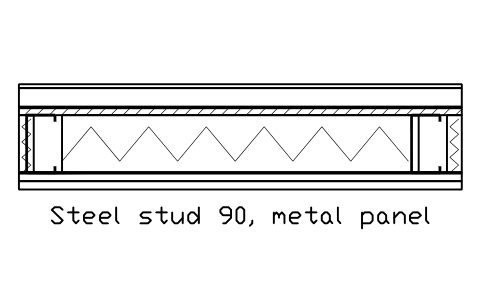
Perfis de aço leve 90, painel metálico
Steel stud 90, metal panel
BED_W_LGS_METAL_PANELAtributos
DESIGNATIONSIZEMATERIALFIRE_RATINGU_VALUE_W_M2KFINISHDETAIL_NOMANUFACTURERREMARKSDESC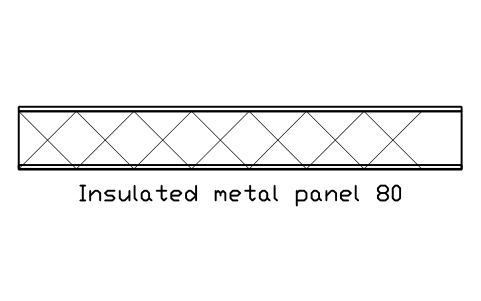
Painel sanduíche metálico 80
Insulated metal panel 80
BED_W_SANDWICH_80Atributos
DESIGNATIONSIZEMATERIALFIRE_RATINGU_VALUE_W_M2KFINISHDETAIL_NOMANUFACTURERREMARKSDESC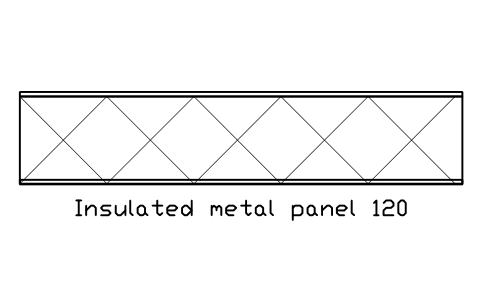
Painel sanduíche metálico 120
Insulated metal panel 120
BED_W_SANDWICH_120Atributos
DESIGNATIONSIZEMATERIALFIRE_RATINGU_VALUE_W_M2KFINISHDETAIL_NOMANUFACTURERREMARKSDESC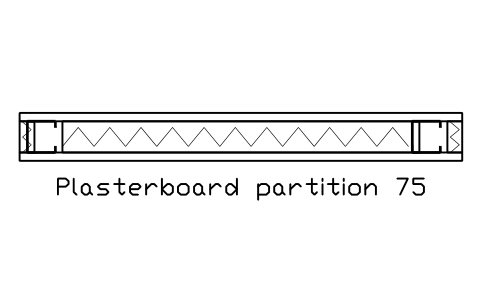
Divisória de drywall 75
Plasterboard partition 75
BED_P_GYPSUM_75Atributos
DESIGNATIONSIZEMATERIALFIRE_RATINGU_VALUE_W_M2KFINISHDETAIL_NOMANUFACTURERREMARKSDESC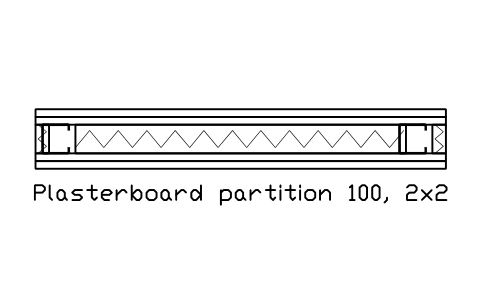
Divisória de drywall 100, 2×2 chapas
Plasterboard partition 100, 2x2
BED_P_GYPSUM_100Atributos
DESIGNATIONSIZEMATERIALFIRE_RATINGU_VALUE_W_M2KFINISHDETAIL_NOMANUFACTURERREMARKSDESC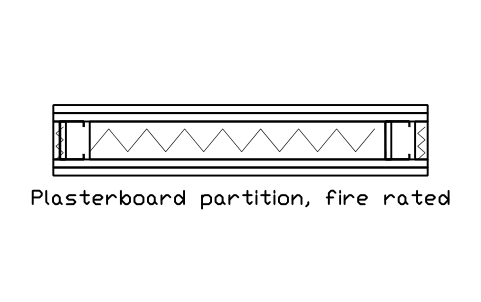
Divisória de drywall, resistente ao fogo
Plasterboard partition, fire rated
BED_P_GYPSUM_FIREAtributos
DESIGNATIONSIZEMATERIALFIRE_RATINGU_VALUE_W_M2KFINISHDETAIL_NOMANUFACTURERREMARKSDESC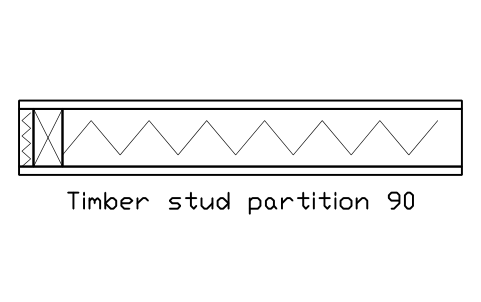
Divisória de madeira 90
Timber stud partition 90
BED_P_TIMBER_90Atributos
DESIGNATIONSIZEMATERIALFIRE_RATINGU_VALUE_W_M2KFINISHDETAIL_NOMANUFACTURERREMARKSDESC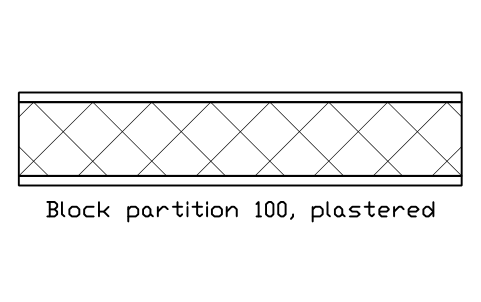
Divisória de blocos 100, rebocada
Block partition 100, plastered
BED_P_BLOCK_100Atributos
DESIGNATIONSIZEMATERIALFIRE_RATINGU_VALUE_W_M2KFINISHDETAIL_NOMANUFACTURERREMARKSDESC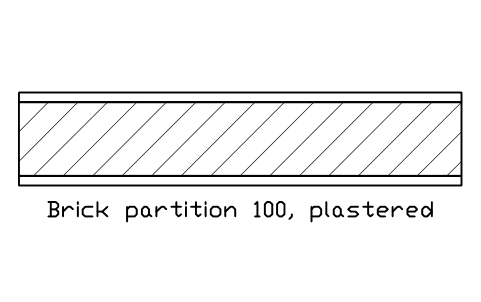
Divisória de tijolo 100, rebocada
Brick partition 100, plastered
BED_P_BRICK_100Atributos
DESIGNATIONSIZEMATERIALFIRE_RATINGU_VALUE_W_M2KFINISHDETAIL_NOMANUFACTURERREMARKSDESC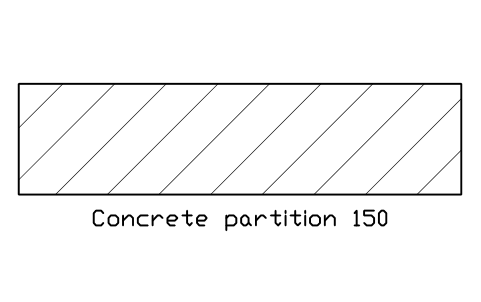
Divisória de concreto 150
Concrete partition 150
BED_P_CONC_150Atributos
DESIGNATIONSIZEMATERIALFIRE_RATINGU_VALUE_W_M2KFINISHDETAIL_NOMANUFACTURERREMARKSDESC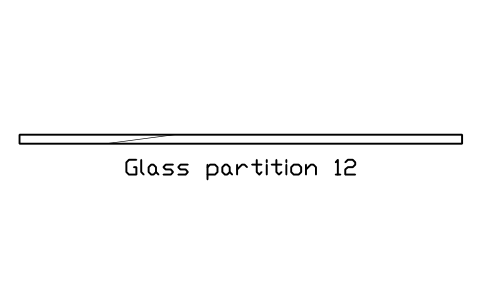
Divisória de vidro 12
Glass partition 12
BED_P_GLASS_12Atributos
DESIGNATIONSIZEMATERIALFIRE_RATINGU_VALUE_W_M2KFINISHDETAIL_NOMANUFACTURERREMARKSDESC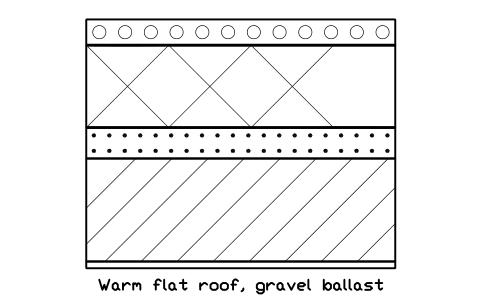
Cobertura quente, lastro de brita
Warm flat roof, gravel ballast
BED_R_WARM_BALLASTAtributos
DESIGNATIONSIZEMATERIALFIRE_RATINGU_VALUE_W_M2KFINISHDETAIL_NOMANUFACTURERREMARKSDESC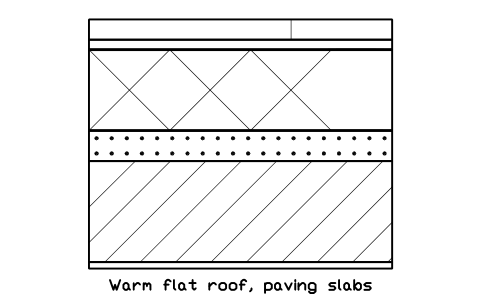
Cobertura quente, piso de placas
Warm flat roof, paving slabs
BED_R_WARM_PAVEDAtributos
DESIGNATIONSIZEMATERIALFIRE_RATINGU_VALUE_W_M2KFINISHDETAIL_NOMANUFACTURERREMARKSDESC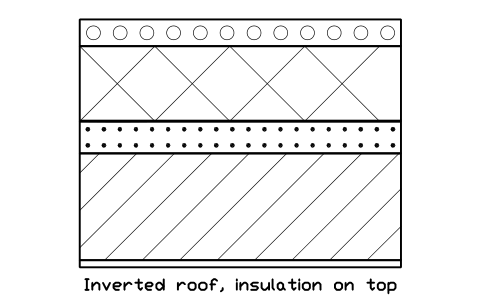
Cobertura invertida, isolamento acima
Inverted roof, insulation on top
BED_R_INVERTEDAtributos
DESIGNATIONSIZEMATERIALFIRE_RATINGU_VALUE_W_M2KFINISHDETAIL_NOMANUFACTURERREMARKSDESC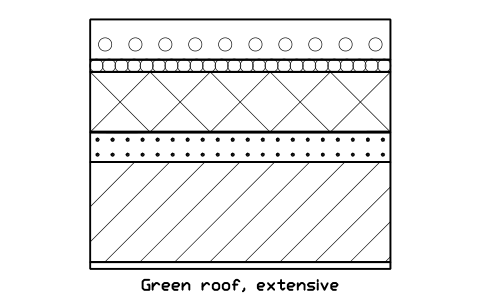
Telhado verde, extensivo
Green roof, extensive
BED_R_GREEN_EXTAtributos
DESIGNATIONSIZEMATERIALFIRE_RATINGU_VALUE_W_M2KFINISHDETAIL_NOMANUFACTURERREMARKSDESC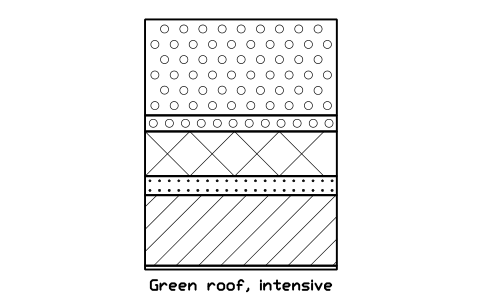
Telhado verde, intensivo
Green roof, intensive
BED_R_GREEN_INTAtributos
DESIGNATIONSIZEMATERIALFIRE_RATINGU_VALUE_W_M2KFINISHDETAIL_NOMANUFACTURERREMARKSDESC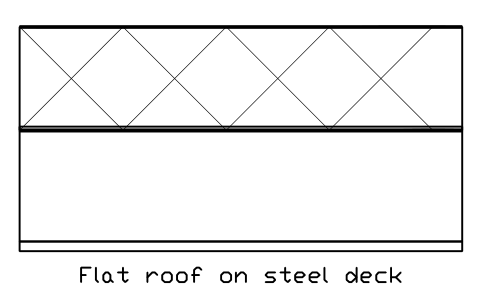
Cobertura plana sobre chapa de aço
Flat roof on steel deck
BED_R_METAL_DECKAtributos
DESIGNATIONSIZEMATERIALFIRE_RATINGU_VALUE_W_M2KFINISHDETAIL_NOMANUFACTURERREMARKSDESC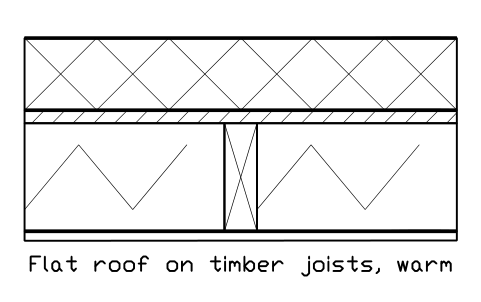
Cobertura plana de madeira, quente
Flat roof on timber joists, warm
BED_R_TIMBER_WARMAtributos
DESIGNATIONSIZEMATERIALFIRE_RATINGU_VALUE_W_M2KFINISHDETAIL_NOMANUFACTURERREMARKSDESC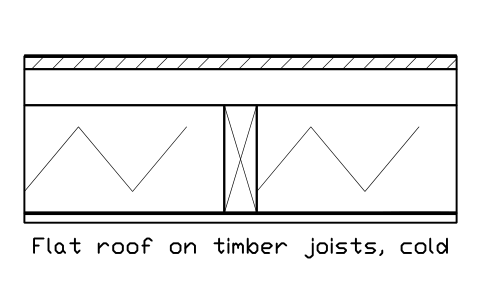
Cobertura plana de madeira, ventilada
Flat roof on timber joists, cold
BED_R_TIMBER_COLDAtributos
DESIGNATIONSIZEMATERIALFIRE_RATINGU_VALUE_W_M2KFINISHDETAIL_NOMANUFACTURERREMARKSDESC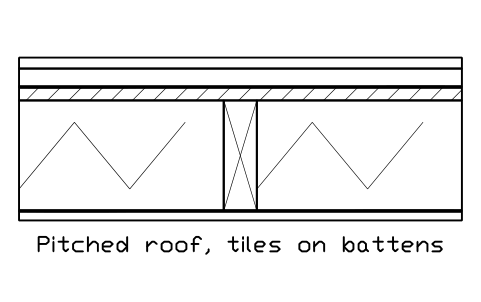
Telhado inclinado, telhas sobre ripas
Pitched roof, tiles on battens
BED_R_PITCHED_TILEAtributos
DESIGNATIONSIZEMATERIALFIRE_RATINGU_VALUE_W_M2KFINISHDETAIL_NOMANUFACTURERREMARKSDESC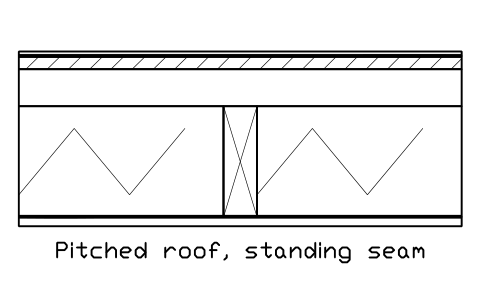
Telhado inclinado, junta de pé
Pitched roof, standing seam
BED_R_PITCHED_METALAtributos
DESIGNATIONSIZEMATERIALFIRE_RATINGU_VALUE_W_M2KFINISHDETAIL_NOMANUFACTURERREMARKSDESC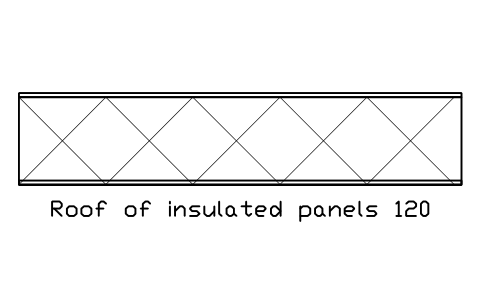
Cobertura de painéis sanduíche 120
Roof of insulated panels 120
BED_R_SANDWICHAtributos
DESIGNATIONSIZEMATERIALFIRE_RATINGU_VALUE_W_M2KFINISHDETAIL_NOMANUFACTURERREMARKSDESC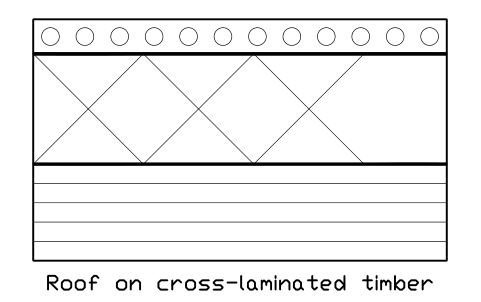
Cobertura sobre CLT
Roof on cross-laminated timber
BED_R_CLT_WARMAtributos
DESIGNATIONSIZEMATERIALFIRE_RATINGU_VALUE_W_M2KFINISHDETAIL_NOMANUFACTURERREMARKSDESC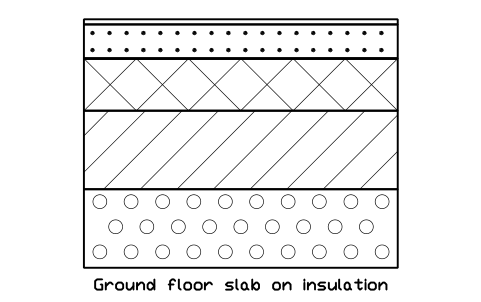
Laje sobre solo isolada
Ground floor slab on insulation
BED_F_GROUND_SLABAtributos
DESIGNATIONSIZEMATERIALFIRE_RATINGU_VALUE_W_M2KFINISHDETAIL_NOMANUFACTURERREMARKSDESC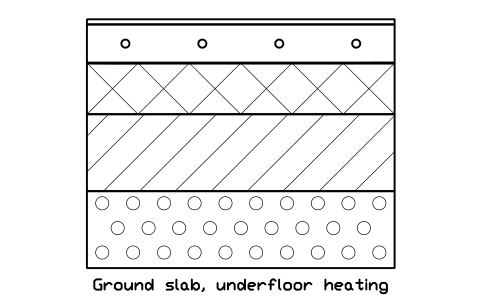
Laje sobre solo, piso radiante
Ground slab, underfloor heating
BED_F_GROUND_SLAB_UFHAtributos
DESIGNATIONSIZEMATERIALFIRE_RATINGU_VALUE_W_M2KFINISHDETAIL_NOMANUFACTURERREMARKSDESC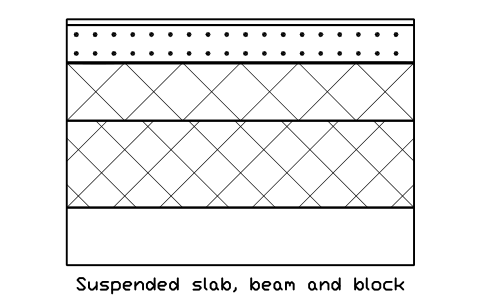
Laje de vigotas e blocos
Suspended slab, beam and block
BED_F_SUSPENDED_BEAMAtributos
DESIGNATIONSIZEMATERIALFIRE_RATINGU_VALUE_W_M2KFINISHDETAIL_NOMANUFACTURERREMARKSDESC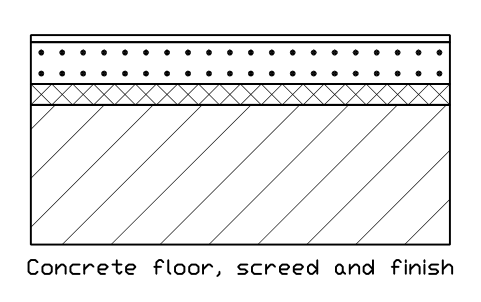
Laje de concreto, contrapiso e acabamento
Concrete floor, screed and finish
BED_F_CONC_SCREEDAtributos
DESIGNATIONSIZEMATERIALFIRE_RATINGU_VALUE_W_M2KFINISHDETAIL_NOMANUFACTURERREMARKSDESC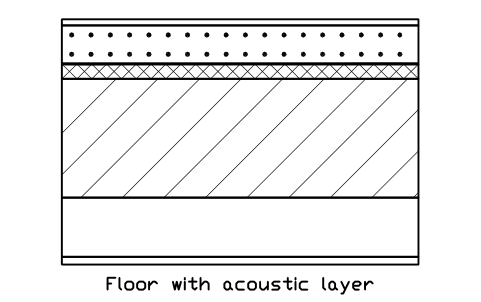
Laje com camada acústica
Floor with acoustic layer
BED_F_ACOUSTICAtributos
DESIGNATIONSIZEMATERIALFIRE_RATINGU_VALUE_W_M2KFINISHDETAIL_NOMANUFACTURERREMARKSDESC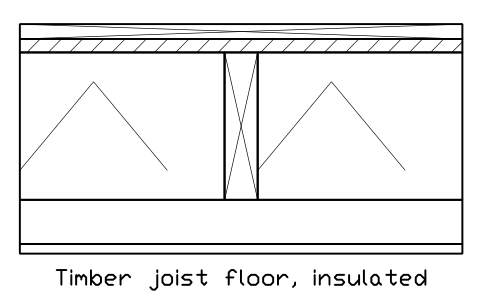
Piso de vigas de madeira, isolado
Timber joist floor, insulated
BED_F_TIMBER_JOISTAtributos
DESIGNATIONSIZEMATERIALFIRE_RATINGU_VALUE_W_M2KFINISHDETAIL_NOMANUFACTURERREMARKSDESC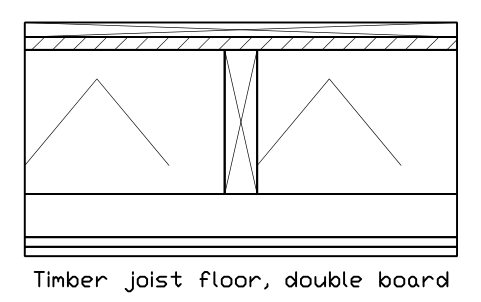
Piso de vigas de madeira, chapa dupla
Timber joist floor, double board
BED_F_TIMBER_INSAtributos
DESIGNATIONSIZEMATERIALFIRE_RATINGU_VALUE_W_M2KFINISHDETAIL_NOMANUFACTURERREMARKSDESC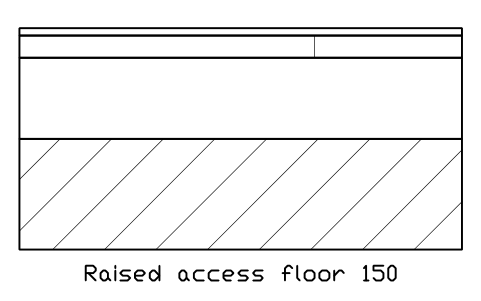
Piso elevado 150
Raised access floor 150
BED_F_RAISED_ACCESSAtributos
DESIGNATIONSIZEMATERIALFIRE_RATINGU_VALUE_W_M2KFINISHDETAIL_NOMANUFACTURERREMARKSDESC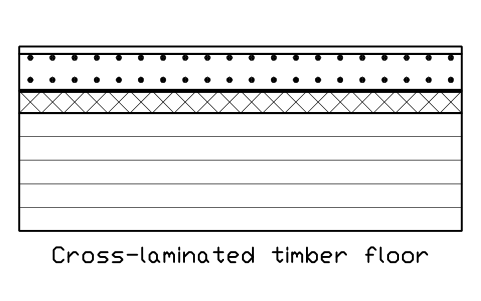
Laje de CLT
Cross-laminated timber floor
BED_F_CLTAtributos
DESIGNATIONSIZEMATERIALFIRE_RATINGU_VALUE_W_M2KFINISHDETAIL_NOMANUFACTURERREMARKSDESC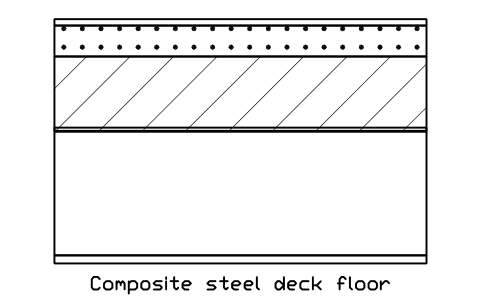
Laje mista com steel deck
Composite steel deck floor
BED_F_COMPOSITE_DECKAtributos
DESIGNATIONSIZEMATERIALFIRE_RATINGU_VALUE_W_M2KFINISHDETAIL_NOMANUFACTURERREMARKSDESC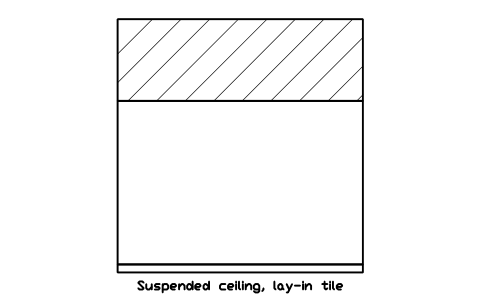
Forro suspenso, placas removíveis
Suspended ceiling, lay-in tile
BED_C_SUSPENDED_TILEAtributos
DESIGNATIONSIZEMATERIALFIRE_RATINGU_VALUE_W_M2KFINISHDETAIL_NOMANUFACTURERREMARKSDESC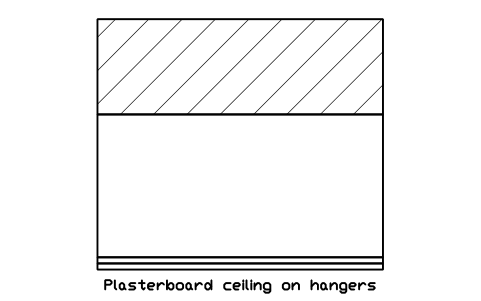
Forro de drywall com pendurais
Plasterboard ceiling on hangers
BED_C_PLASTERBOARDAtributos
DESIGNATIONSIZEMATERIALFIRE_RATINGU_VALUE_W_M2KFINISHDETAIL_NOMANUFACTURERREMARKSDESC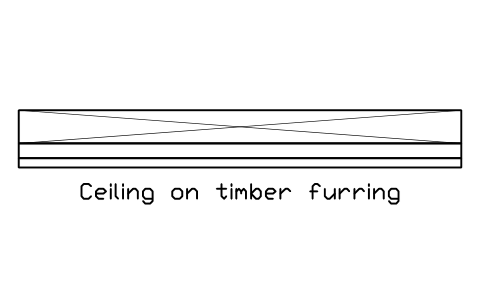
Forro sobre ripas de madeira
Ceiling on timber furring
BED_C_TIMBER_FURRINGAtributos
DESIGNATIONSIZEMATERIALFIRE_RATINGU_VALUE_W_M2KFINISHDETAIL_NOMANUFACTURERREMARKSDESC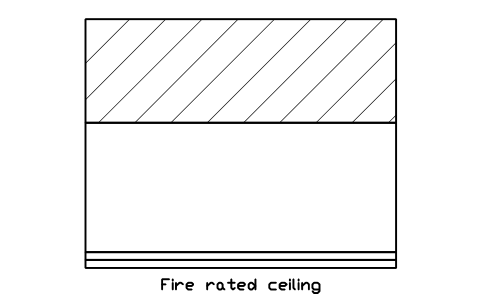
Forro resistente ao fogo
Fire rated ceiling
BED_C_FIRE_RATEDAtributos
DESIGNATIONSIZEMATERIALFIRE_RATINGU_VALUE_W_M2KFINISHDETAIL_NOMANUFACTURERREMARKSDESC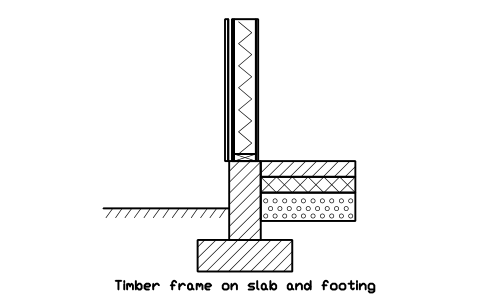
Parede de madeira sobre laje e sapata corrida
Timber frame on slab and footing
BED_TF_BASE_SLABAtributos
DESIGNATIONSIZEMATERIALFIRE_RATINGU_VALUE_W_M2KFINISHDETAIL_NOMANUFACTURERREMARKSDESC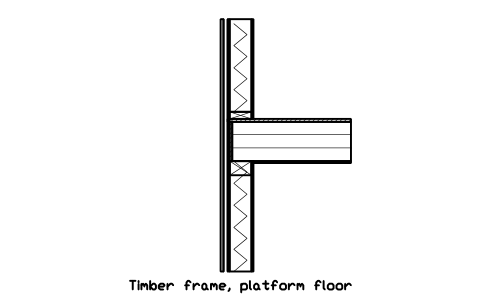
Parede de madeira, piso em plataforma
Timber frame, platform floor
BED_TF_FLOOR_PLATFORMAtributos
DESIGNATIONSIZEMATERIALFIRE_RATINGU_VALUE_W_M2KFINISHDETAIL_NOMANUFACTURERREMARKSDESC
Parede de madeira, beiral com apoio da tesoura
Timber frame, truss heel eaves
BED_TF_EAVE_TRUSSAtributos
DESIGNATIONSIZEMATERIALFIRE_RATINGU_VALUE_W_M2KFINISHDETAIL_NOMANUFACTURERREMARKSDESC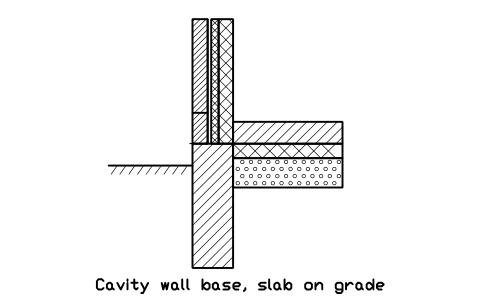
Base de parede dupla, laje sobre solo
Cavity wall base, slab on grade
BED_M_CAVITY_BASEAtributos
DESIGNATIONSIZEMATERIALFIRE_RATINGU_VALUE_W_M2KFINISHDETAIL_NOMANUFACTURERREMARKSDESC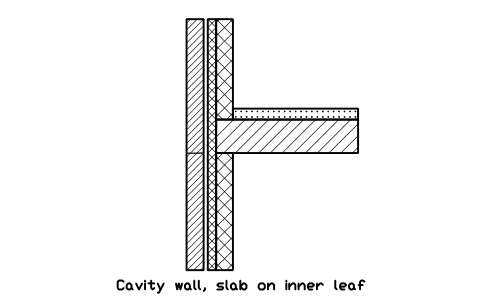
Parede dupla, laje apoiada na parede interna
Cavity wall, slab on inner leaf
BED_M_FLOOR_BEARINGAtributos
DESIGNATIONSIZEMATERIALFIRE_RATINGU_VALUE_W_M2KFINISHDETAIL_NOMANUFACTURERREMARKSDESC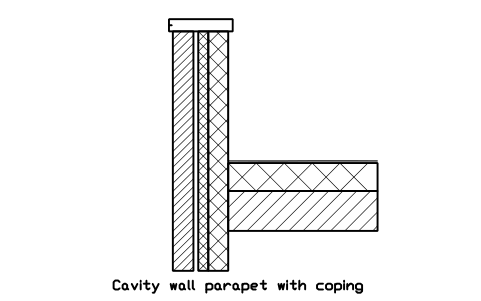
Platibanda de parede dupla com rufo
Cavity wall parapet with coping
BED_M_PARAPET_CAVITYAtributos
DESIGNATIONSIZEMATERIALFIRE_RATINGU_VALUE_W_M2KFINISHDETAIL_NOMANUFACTURERREMARKSDESC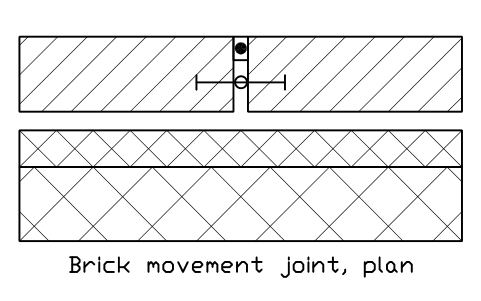
Junta de dilatação em tijolo, planta
Brick movement joint, plan
BED_M_MOVEMENT_JOINTAtributos
DESIGNATIONSIZEMATERIALFIRE_RATINGU_VALUE_W_M2KFINISHDETAIL_NOMANUFACTURERREMARKSDESC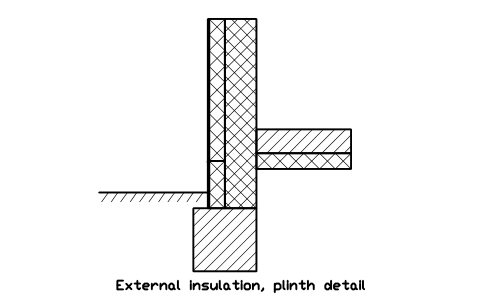
ETICS, detalhe do rodapé
External insulation, plinth detail
BED_M_ETICS_BASEAtributos
DESIGNATIONSIZEMATERIALFIRE_RATINGU_VALUE_W_M2KFINISHDETAIL_NOMANUFACTURERREMARKSDESC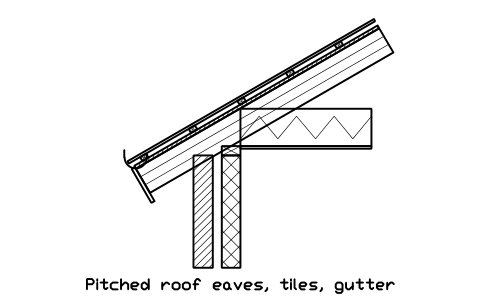
Beiral de telhado, telhas e calha
Pitched roof eaves, tiles, gutter
BED_PR_EAVES_TILEAtributos
DESIGNATIONSIZEMATERIALFIRE_RATINGU_VALUE_W_M2KFINISHDETAIL_NOMANUFACTURERREMARKSDESC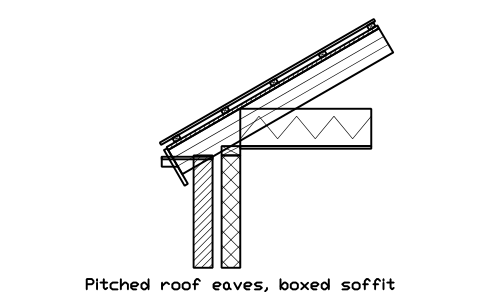
Beiral de telhado, forro de beiral
Pitched roof eaves, boxed soffit
BED_PR_EAVES_BOXEDAtributos
DESIGNATIONSIZEMATERIALFIRE_RATINGU_VALUE_W_M2KFINISHDETAIL_NOMANUFACTURERREMARKSDESC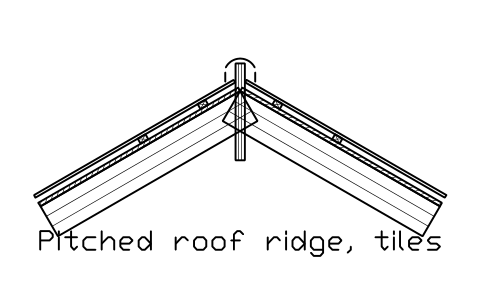
Cumeeira de telhado, telhas
Pitched roof ridge, tiles
BED_PR_RIDGE_TILEAtributos
DESIGNATIONSIZEMATERIALFIRE_RATINGU_VALUE_W_M2KFINISHDETAIL_NOMANUFACTURERREMARKSDESC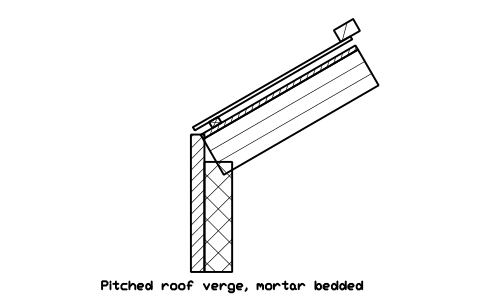
Rincão lateral, fixado com argamassa
Pitched roof verge, mortar bedded
BED_PR_VERGEAtributos
DESIGNATIONSIZEMATERIALFIRE_RATINGU_VALUE_W_M2KFINISHDETAIL_NOMANUFACTURERREMARKSDESC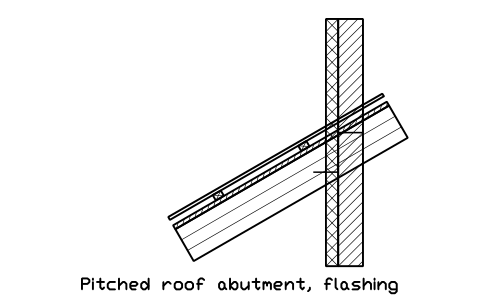
Encontro telhado-parede, rufo escalonado
Pitched roof abutment, flashing
BED_PR_ABUTMENTAtributos
DESIGNATIONSIZEMATERIALFIRE_RATINGU_VALUE_W_M2KFINISHDETAIL_NOMANUFACTURERREMARKSDESC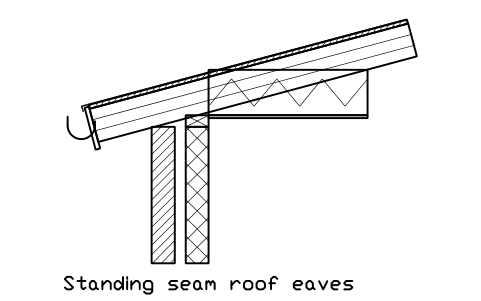
Beiral de telhado de junta de pé
Standing seam roof eaves
BED_PR_SEAM_EAVESAtributos
DESIGNATIONSIZEMATERIALFIRE_RATINGU_VALUE_W_M2KFINISHDETAIL_NOMANUFACTURERREMARKSDESC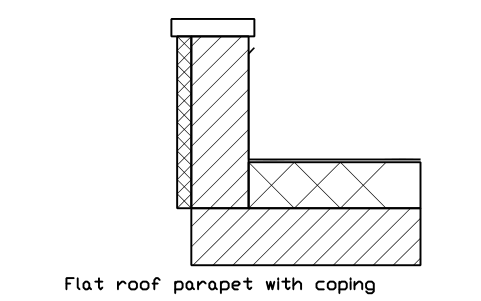
Platibanda de laje com rufo
Flat roof parapet with coping
BED_FR_PARAPET_COPINGAtributos
DESIGNATIONSIZEMATERIALFIRE_RATINGU_VALUE_W_M2KFINISHDETAIL_NOMANUFACTURERREMARKSDESC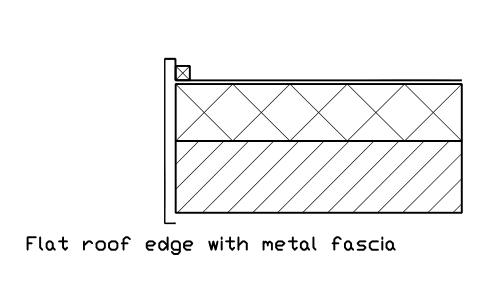
Borda de laje, testeira metálica
Flat roof edge with metal fascia
BED_FR_EDGE_FASCIAAtributos
DESIGNATIONSIZEMATERIALFIRE_RATINGU_VALUE_W_M2KFINISHDETAIL_NOMANUFACTURERREMARKSDESC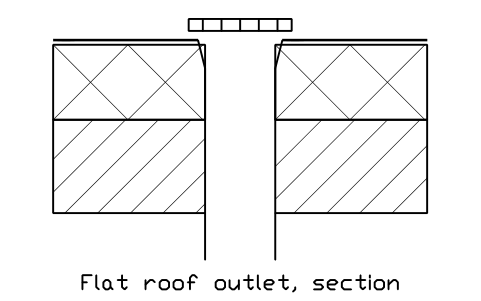
Ralo de laje, corte
Flat roof outlet, section
BED_FR_DRAINAtributos
DESIGNATIONSIZEMATERIALFIRE_RATINGU_VALUE_W_M2KFINISHDETAIL_NOMANUFACTURERREMARKSDESC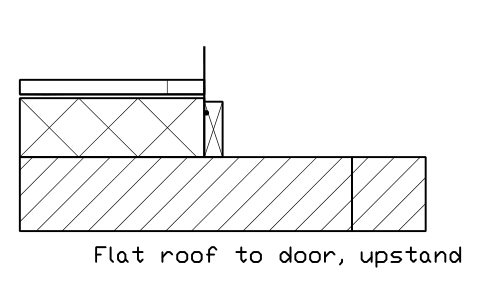
Laje junto à porta, soleira elevada
Flat roof to door, upstand
BED_FR_DOOR_UPSTANDAtributos
DESIGNATIONSIZEMATERIALFIRE_RATINGU_VALUE_W_M2KFINISHDETAIL_NOMANUFACTURERREMARKSDESC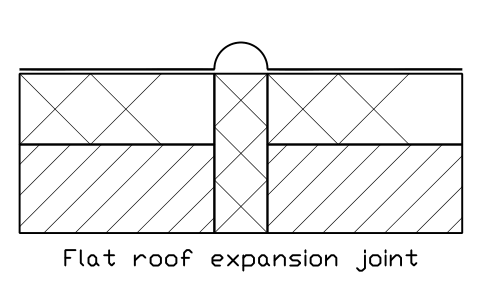
Junta de dilatação de laje
Flat roof expansion joint
BED_FR_EXP_JOINTAtributos
DESIGNATIONSIZEMATERIALFIRE_RATINGU_VALUE_W_M2KFINISHDETAIL_NOMANUFACTURERREMARKSDESC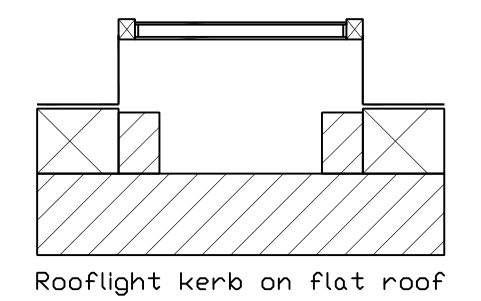
Base de claraboia em laje
Rooflight kerb on flat roof
BED_FR_ROOFLIGHT_KERBAtributos
DESIGNATIONSIZEMATERIALFIRE_RATINGU_VALUE_W_M2KFINISHDETAIL_NOMANUFACTURERREMARKSDESC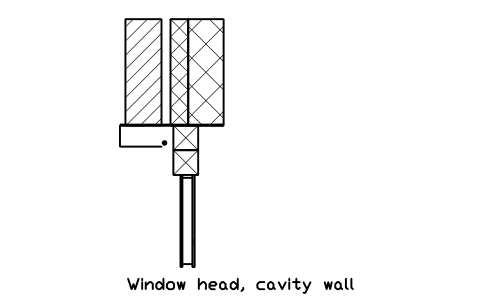
Verga de janela, parede dupla
Window head, cavity wall
BED_WIN_HEAD_CAVITYAtributos
DESIGNATIONSIZEMATERIALFIRE_RATINGU_VALUE_W_M2KFINISHDETAIL_NOMANUFACTURERREMARKSDESC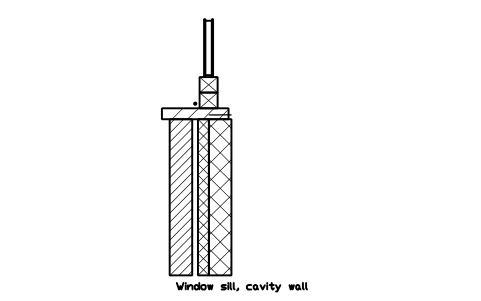
Peitoril de janela, parede dupla
Window sill, cavity wall
BED_WIN_SILL_CAVITYAtributos
DESIGNATIONSIZEMATERIALFIRE_RATINGU_VALUE_W_M2KFINISHDETAIL_NOMANUFACTURERREMARKSDESC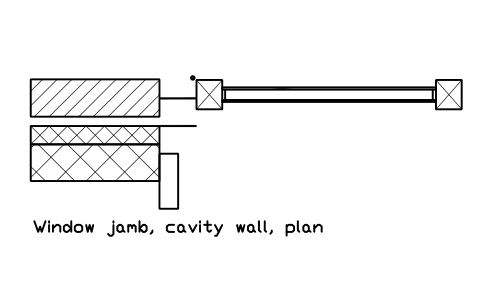
Ombreira de janela, parede dupla, planta
Window jamb, cavity wall, plan
BED_WIN_JAMB_CAVITYAtributos
DESIGNATIONSIZEMATERIALFIRE_RATINGU_VALUE_W_M2KFINISHDETAIL_NOMANUFACTURERREMARKSDESC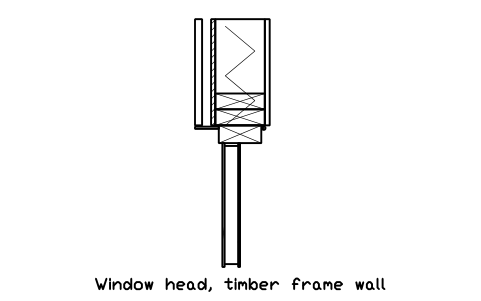
Verga de janela, parede de madeira
Window head, timber frame wall
BED_WIN_HEAD_TFAtributos
DESIGNATIONSIZEMATERIALFIRE_RATINGU_VALUE_W_M2KFINISHDETAIL_NOMANUFACTURERREMARKSDESC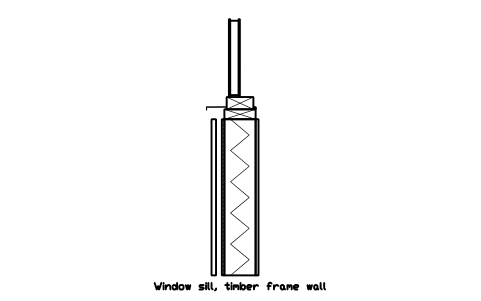
Peitoril de janela, parede de madeira
Window sill, timber frame wall
BED_WIN_SILL_TFAtributos
DESIGNATIONSIZEMATERIALFIRE_RATINGU_VALUE_W_M2KFINISHDETAIL_NOMANUFACTURERREMARKSDESC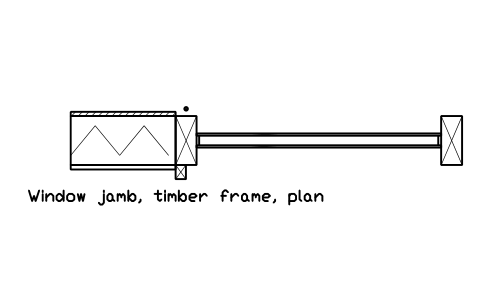
Ombreira de janela, parede de madeira, planta
Window jamb, timber frame, plan
BED_WIN_JAMB_TFAtributos
DESIGNATIONSIZEMATERIALFIRE_RATINGU_VALUE_W_M2KFINISHDETAIL_NOMANUFACTURERREMARKSDESC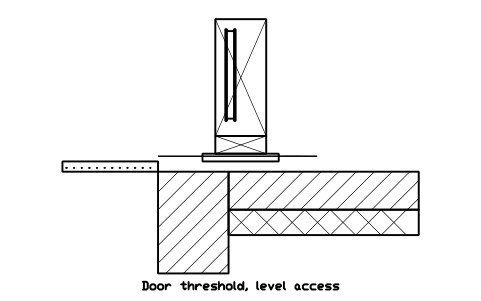
Soleira de porta, sem degrau
Door threshold, level access
BED_DOOR_SILL_LEVELAtributos
DESIGNATIONSIZEMATERIALFIRE_RATINGU_VALUE_W_M2KFINISHDETAIL_NOMANUFACTURERREMARKSDESC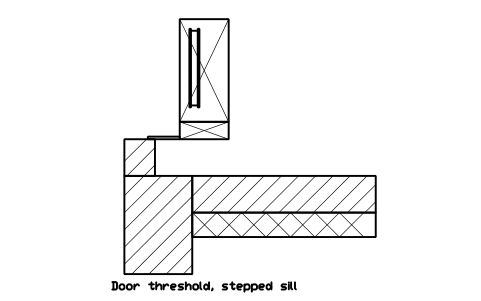
Soleira de porta, com degrau
Door threshold, stepped sill
BED_DOOR_SILL_STEPAtributos
DESIGNATIONSIZEMATERIALFIRE_RATINGU_VALUE_W_M2KFINISHDETAIL_NOMANUFACTURERREMARKSDESC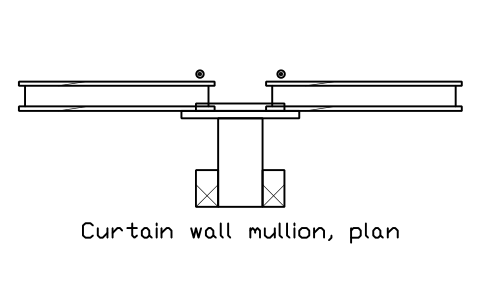
Fachada cortina, montante em planta
Curtain wall mullion, plan
BED_CW_MULLION_PLANAtributos
DESIGNATIONSIZEMATERIALFIRE_RATINGU_VALUE_W_M2KFINISHDETAIL_NOMANUFACTURERREMARKSDESC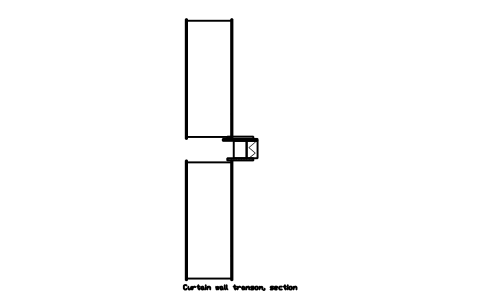
Fachada cortina, travessa em corte
Curtain wall transom, section
BED_CW_TRANSOM_SECTIONAtributos
DESIGNATIONSIZEMATERIALFIRE_RATINGU_VALUE_W_M2KFINISHDETAIL_NOMANUFACTURERREMARKSDESC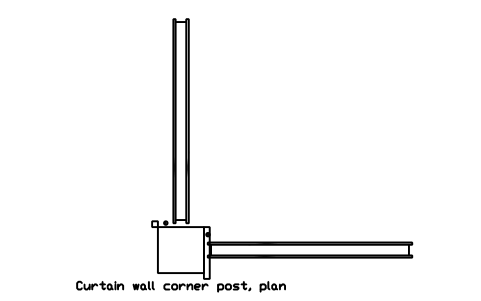
Fachada cortina, montante de canto em planta
Curtain wall corner post, plan
BED_CW_CORNER_PLANAtributos
DESIGNATIONSIZEMATERIALFIRE_RATINGU_VALUE_W_M2KFINISHDETAIL_NOMANUFACTURERREMARKSDESC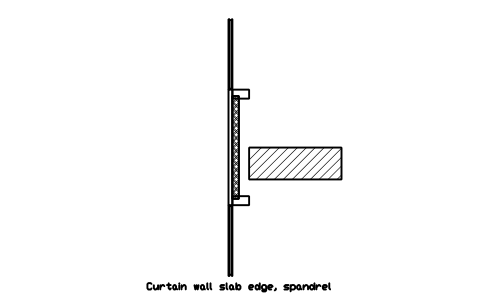
Fachada cortina na borda da laje, peitoril
Curtain wall slab edge, spandrel
BED_CW_SLAB_EDGEAtributos
DESIGNATIONSIZEMATERIALFIRE_RATINGU_VALUE_W_M2KFINISHDETAIL_NOMANUFACTURERREMARKSDESC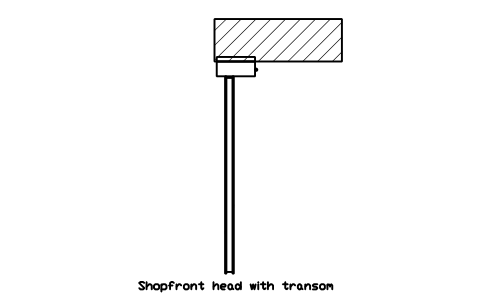
Vitrine, verga com travessa
Shopfront head with transom
BED_CW_SHOPFRONT_HEADAtributos
DESIGNATIONSIZEMATERIALFIRE_RATINGU_VALUE_W_M2KFINISHDETAIL_NOMANUFACTURERREMARKSDESC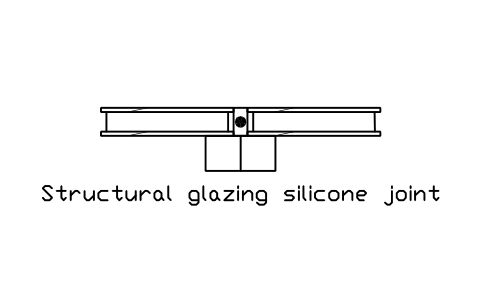
Junta de silicone de vidro estrutural
Structural glazing silicone joint
BED_CW_STRUCT_JOINTAtributos
DESIGNATIONSIZEMATERIALFIRE_RATINGU_VALUE_W_M2KFINISHDETAIL_NOMANUFACTURERREMARKSDESC
Bloco de concreto, corte
Concrete block, cut section
BED_S_BLOCKAtributos
DESIGNATIONSIZEMATERIALDETAIL_NOREMARKSDESC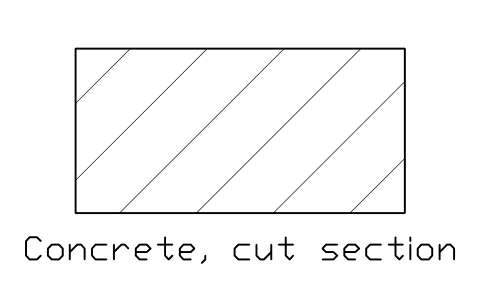
Concreto, corte
Concrete, cut section
BED_S_CONCRETEAtributos
DESIGNATIONSIZEMATERIALDETAIL_NOREMARKSDESC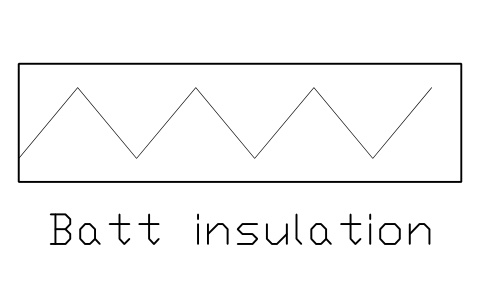
Isolamento em manta
Batt insulation
BED_S_INSULATION_BATTAtributos
DESIGNATIONSIZEMATERIALDETAIL_NOREMARKSDESC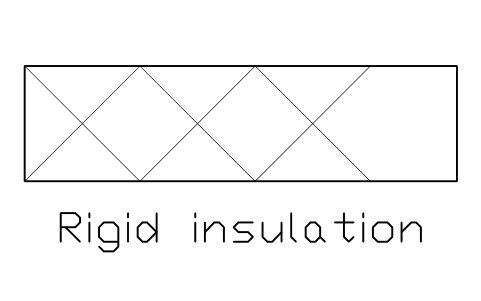
Isolamento rígido
Rigid insulation
BED_S_INSULATION_RIGIDAtributos
DESIGNATIONSIZEMATERIALDETAIL_NOREMARKSDESC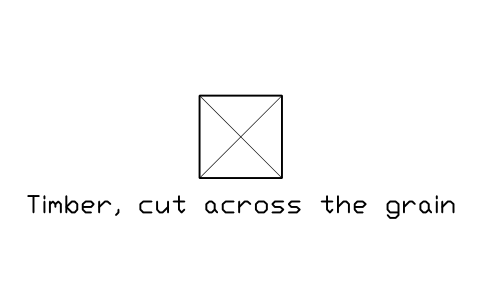
Madeira, seção transversal
Timber, cut across the grain
BED_S_TIMBER_ENDAtributos
DESIGNATIONSIZEMATERIALDETAIL_NOREMARKSDESC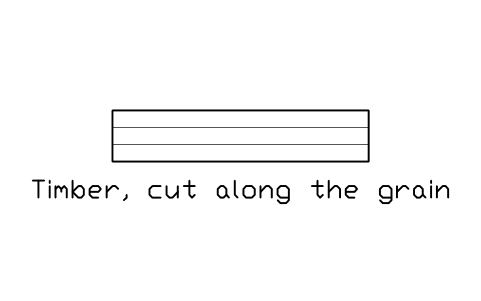
Madeira, seção longitudinal
Timber, cut along the grain
BED_S_TIMBER_LONGAtributos
DESIGNATIONSIZEMATERIALDETAIL_NOREMARKSDESC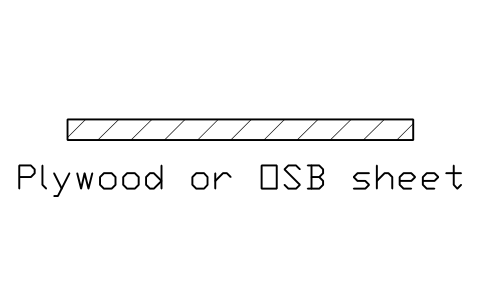
Compensado ou OSB
Plywood or OSB sheet
BED_S_PLYWOODAtributos
DESIGNATIONSIZEMATERIALDETAIL_NOREMARKSDESC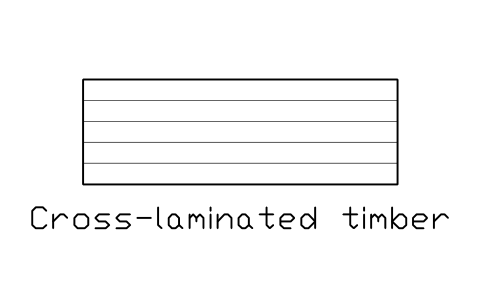
Madeira laminada cruzada
Cross-laminated timber
BED_S_CLTAtributos
DESIGNATIONSIZEMATERIALDETAIL_NOREMARKSDESC
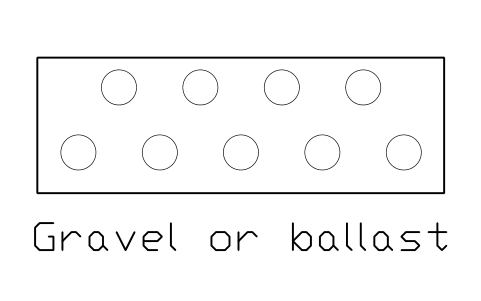
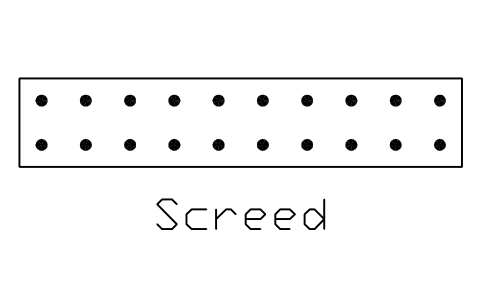
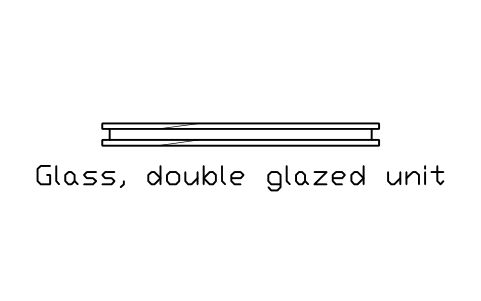
Vidro, vidro duplo
Glass, double glazed unit
BED_S_GLASSAtributos
DESIGNATIONSIZEMATERIALDETAIL_NOREMARKSDESC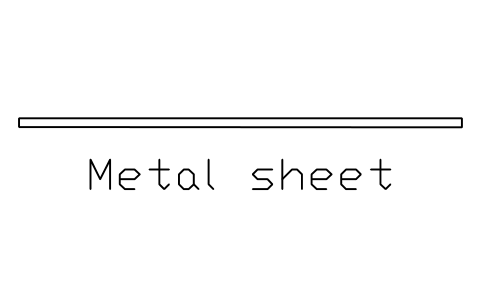

Perfil de aço, planta
Steel stud, plan
BED_S_STEEL_STUDAtributos
DESIGNATIONSIZEMATERIALDETAIL_NOREMARKSDESC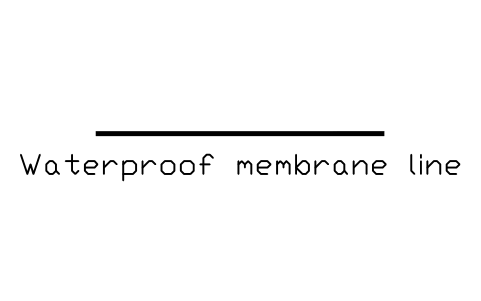
Linha de manta impermeabilizante
Waterproof membrane line
BED_S_MEMBRANEAtributos
DESIGNATIONSIZEMATERIALDETAIL_NOREMARKSDESC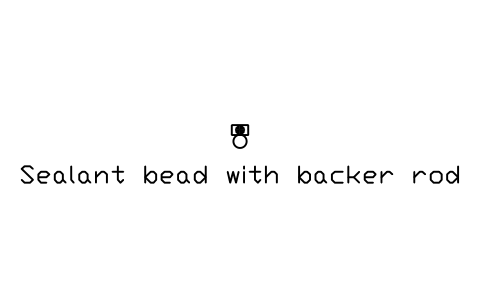
Selante com cordão de apoio
Sealant bead with backer rod
BED_S_SEALANTAtributos
DESIGNATIONSIZEMATERIALDETAIL_NOREMARKSDESC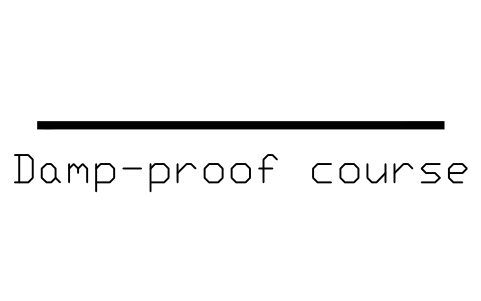
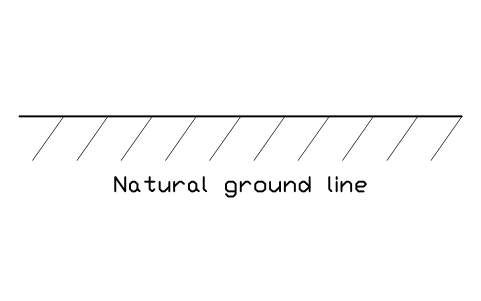
Linha do terreno natural
Natural ground line
BED_S_EARTH_LINEAtributos
DESIGNATIONSIZEMATERIALDETAIL_NOREMARKSDESC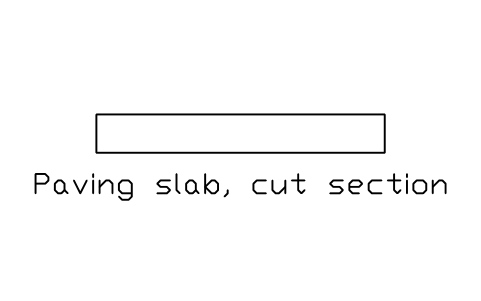
Piso de placas, corte
Paving slab, cut section
BED_S_PAVERAtributos
DESIGNATIONSIZEMATERIALDETAIL_NOREMARKSDESC
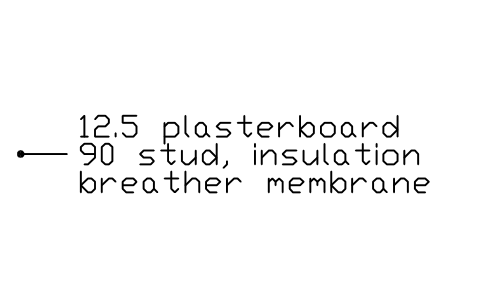
Nota de camadas com linha de chamada
Layer note with leader
BED_LAYER_NOTEAtributos
LAYER_1LAYER_2LAYER_3DESC
Faltou um símbolo? Diga qual.
Atributos para listas de materiais
Every block has a visible designation next to it (for example Cavity wall, brick and block). The invisible attributes are SIZE, MATERIAL, FIRE_RATING, U_VALUE_W_M2K, FINISH, DETAIL_NO, MANUFACTURER and REMARKS; the swatches carry SIZE, MATERIAL, DETAIL_NO and REMARKS.
Export the details of a drawing sheet to Excel with BlockSync to get a detail list with materials, U-values, fire ratings and detail numbers. Check it against the drawing and write corrections back in one run, with preview and backup.
Como usar a biblioteca
- Unzip the file and open the DWG. Copy the details you need into your sheet, or drag the blocks in from DesignCenter (ADCENTER).
- The blocks are drawn at real size, 1 drawing unit = 1 mm. Insert them at scale 1 into a drawing in millimetres, or draw the detail at 1:1 and scale the viewport; on a metre drawing scale them by 0.001. The catalog sheet shrinks every block to fit its cell, the blocks themselves stay at real size.
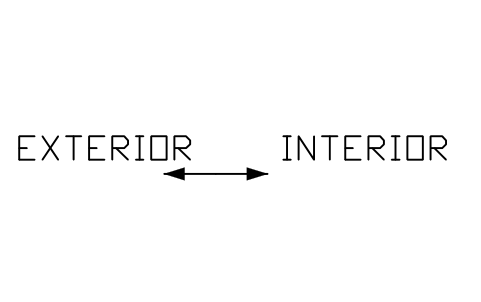
- Layered build-ups have the outside (or the top of a roof or floor) at the top and the origin at the centre of the cut. In the junction details the outside is on the left and the inside on the right, with Y = 0 at the top of the finished floor or structure; use MIRROR for the other hand. Cut materials carry the usual hatches, drawn as plain lines so they print the same everywhere.
- The details are typical sections, not a particular design or product: take the exact layers, thicknesses, U-values, fire ratings and manufacturers' data from your project and the data sheets. The junctions show one sensible arrangement to start from; explode a block to change a layer.
About the sizes
There is no single standard drawing for these details, so the blocks use thicknesses that are common in practice: 100 to 215 mm masonry, 100 to 200 mm insulation, 12.5 mm plasterboard, 150 mm raised floor, 50 mm screed. Change them to suit your project; the blocks are meant to save drawing time, not to fix a size.
The blocks are our own drawings and the library is not certified. They show the principle and the layers of a detail, not a design: insulation thickness, U-value, fire resistance, vapour control, flashing and fixings come from the design and the building regulations that apply to your site, and have to be checked by the responsible designer.
Perguntas frequentes
- Which details are in the library?
- Exterior wall, partition, roof, floor and ceiling build-ups, wall base, floor and eaves junctions, pitched and flat roof details, windows and doors in the wall, curtain wall and glazing, material swatches and detail markers. The architectural libraries have doors, stairs and furniture in plan; this library adds the sections through the envelope.
- Can I get a detail list from the drawing?
- Yes. Every detail carries SIZE, MATERIAL, FIRE_RATING, U_VALUE_W_M2K, FINISH and DETAIL_NO as invisible attributes. Fill them in the attribute editor, export the blocks with BlockSync and sort by detail number or sheet. The sample values are placeholders, not design values.
- Can I use the symbols in commercial projects?
- Yes. They are free to use and modify in your own projects, including commercial ones. They are provided as is, without warranty. Please do not redistribute or resell the library; see the library terms.
- How is this different from the concrete wall section library?
- The concrete wall section library goes deep into concrete walls, footings and basements with their bars. This library covers the whole envelope in layers: masonry, timber, steel stud and panel walls, roofs, floors, windows and curtain wall. The blocks use the same style, so you can mix them in one sheet.
- Can I change a symbol or add attributes?
- Yes. Open the DWG, edit a block with BEDIT to change it or add attributes, and save. To update drawings that already contain the block, run ATTSYNC or replace the block. Make a backup first: attribute values can be lost if ATTSYNC is used carelessly.
- Onde encontro um conjunto pronto destes símbolos para o AutoCAD?
- O AutoCAD traz só uns poucos blocos de exemplo, então um conjunto completo de símbolos precisa vir de uma biblioteca. Baixe o ZIP desta página e abra o DWG: cada símbolo é um bloco. Insira um com o comando INSERT (paleta Blocos, guia Bibliotecas, depois escolha o DWG) ou arraste-o do DesignCenter (ADCENTER). Também é possível baixar um símbolo isolado.