
ガイド/シンボルとブロック
AutoCAD Auto-Increment Block Attribute Numbers — Tag Symbols -Q1, -Q2, -Q3 as You Place Them
更新日: November 13, 2026
CADXChange Symbols for AutoCAD を使用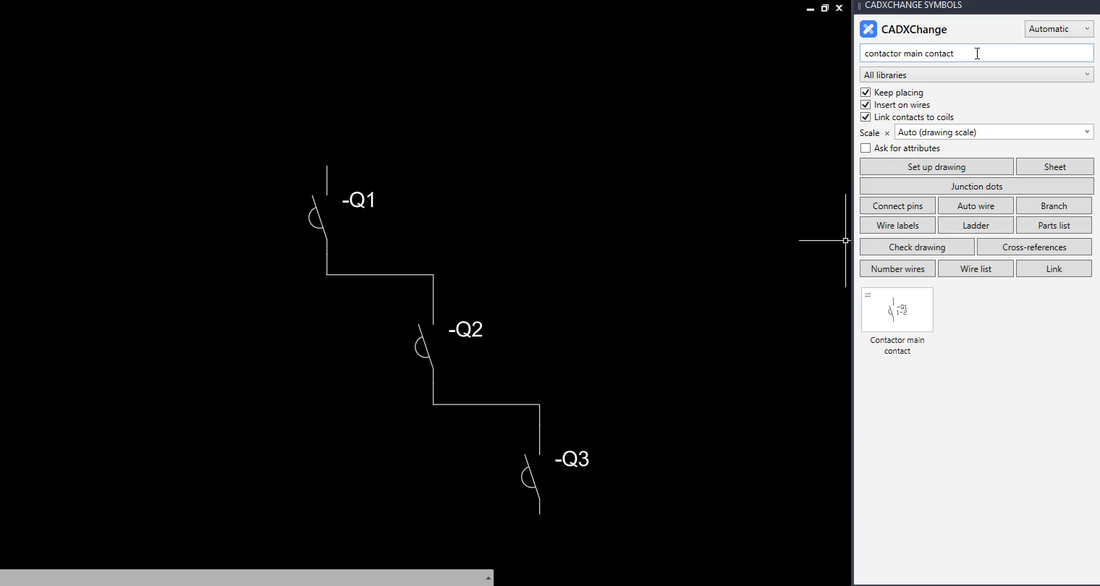
You place the first breaker and type -Q1 into its TAG attribute. The second is -Q2, the third -Q3, and by the thirtieth you have typed the same dialog thirty times, lost count once, and found two -Q14s at plot time. A tag is a number that should count up on its own.
Plain AutoCAD does not do that when you insert a block. This guide shows what the standard tools can do, where each one stops, and how a symbol palette places symbols whose tags count up as you click and whose other values (rating, voltage, device) carry on to the next one.
1. Know where the number lives
In a schematic or a P&ID the tag (-Q1, K3, P-101) is an attribute of the block. The symbol is the same block every time; the tag is the one value that must differ on each copy. That is why copy, paste and edit is the default way of working, and why duplicates creep in: a copy keeps the old tag until you remember to change it.
2. What plain AutoCAD gives you
The Express Tool TCOUNT adds sequential numbers to text and mtext objects. You select the objects, choose the order (by X, by Y, or in the order you picked them), give a start number and an increment, and it writes the number as a prefix, a suffix or in place of the text. It suits loose labels, seat numbers and room numbers, and Autodesk's own example is Seat 1, Seat 2, Seat 3. If the Express Tools tab is missing from the ribbon, it has to be added to the installation.
For tags that sit inside block attributes, the usual routes are to double-click each block and edit it in the Enhanced Attribute Editor, or to use a LISP routine written for the purpose. Both work, and neither counts up while you place.
3. Place symbols with a palette so the tag counts up
With the CADXChange symbol palette docked next to the drawing, pick a symbol and it follows your cursor. Click to place it, and keep clicking to place more. The tag counts up by itself: in the picture the three contactor contacts carry -Q1, -Q2 and -Q3, and the cursor is ready for the fourth. The prefix comes from the symbol, so you do not choose it for each one.
The symbols are ordinary blocks with ordinary attributes. The drawing opens in any AutoCAD and in any DWG viewer, with or without the palette.
4. Type a value once, not on every symbol
Values that are the same along a row of devices, such as the rating, the voltage or the manufacturer, are filled in once. The next symbols you place arrive with those values and only the tag counts up. The Ask for attributes option in the palette decides whether the attribute dialog opens for each symbol you place.
5. Read the tags back as a parts list
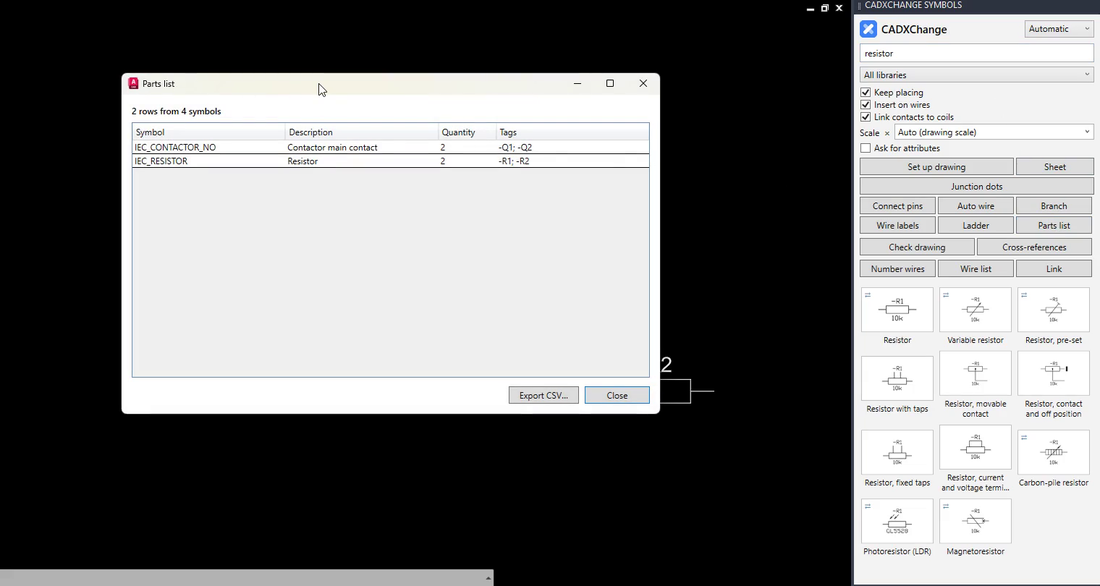
Because every symbol carries its tag as an attribute, the list comes from the drawing instead of from retyping. The Parts list button shows each kind of symbol once, with its description, its quantity and all of its tags, and Export CSV opens in Excel. In the picture, two contactor contacts (-Q1, -Q2) and two resistors (-R1, -R2) are four symbols in two rows.
Counting up while you place removes the most common source of duplicate tags: a copy that kept its old number. For loose text labels that need numbering after the fact, TCOUNT is the quickest tool AutoCAD offers itself. For a schematic you are about to hand over, run the drawing check as well and let it list any tag that is used twice.
The palette installs free. Every symbol and tool is open for 14 days, and 12 symbols stay free afterwards. It works with the full AutoCAD 2021 to 2027 on Windows; AutoCAD LT is not supported.
Try it in your own drawing
The palette installs free and opens every symbol and tool for 14 days, Pro features included. After that the 12 free symbols stay open. Your drawings stay normal DWG files that open anywhere.
See the palette and download the free trial →