
Guias/Symbols & blocks
Draw a Motor Start-Stop Circuit in AutoCAD with IEC Symbols — Power and Control Circuit
Atualizado em October 28, 2026
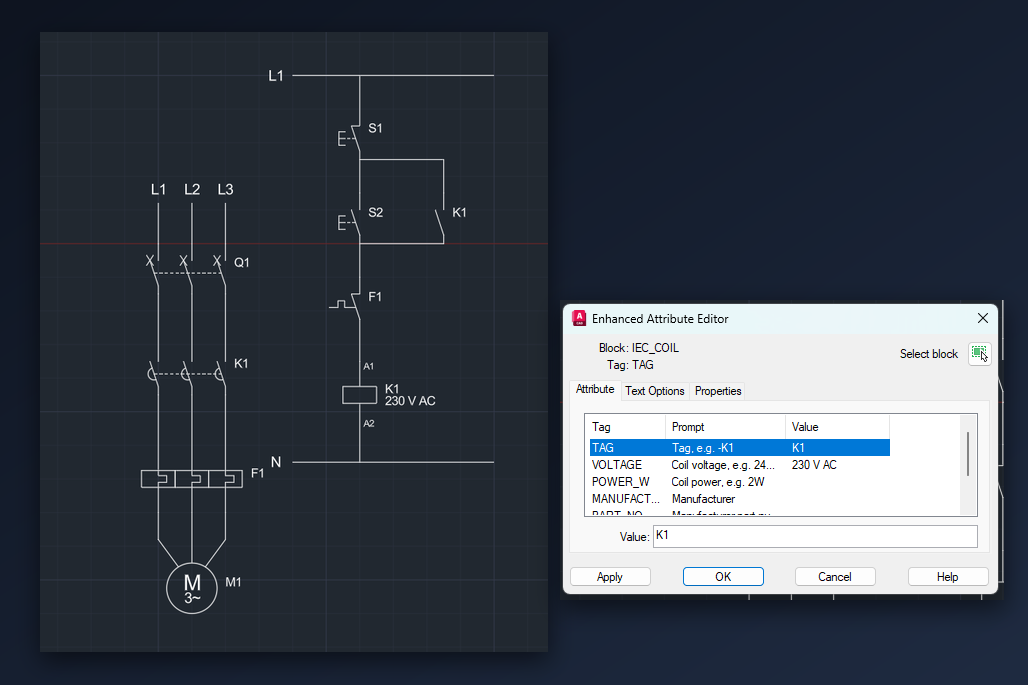
A motor starter is the classic first electrical drawing: a power circuit that runs through a breaker, a contactor and an overload relay to the motor, and a control circuit with a stop button, a start button and the contactor coil. You do not need a dedicated electrical package to draw it. With a library of symbols as blocks, plain AutoCAD (LT included) is enough, and the result is a normal DWG that anyone can open.
This guide builds the circuit with two free IEC 60617 libraries from CADXChange: one with contacts, relays and protection, one with machines and transformers. It assumes you know how to point the Blocks palette at a library file; if not, the guide on inserting blocks from a DWG symbol library shows it step by step. Everything below uses only blocks from those two files and the LINE command.
1. Set up the drawing and open both libraries
Start a new drawing in millimetres. Turn on snap and set it to 5: the symbols in these libraries are 15 or 20 units tall, and the three poles of a three-pole symbol are 10 apart, so with a 5 mm snap every connection point of the symbols used here lands on a grid point and wires meet them without any object snap work.
Open the Blocks palette (BLOCKS), go to the Libraries tab and point it at the folder that holds the two IEC 60617 DWG files. Each symbol hangs down from its insertion point: the upper terminal is the insertion point, the lower terminal is 15 or 20 units below it. Place a symbol by its upper terminal and the wire to the symbol above it is a straight vertical line.
Draw the circuit on layer 0 or on your own layers; the blocks do not force a layer on you.
2. Place the control circuit between L1 and N
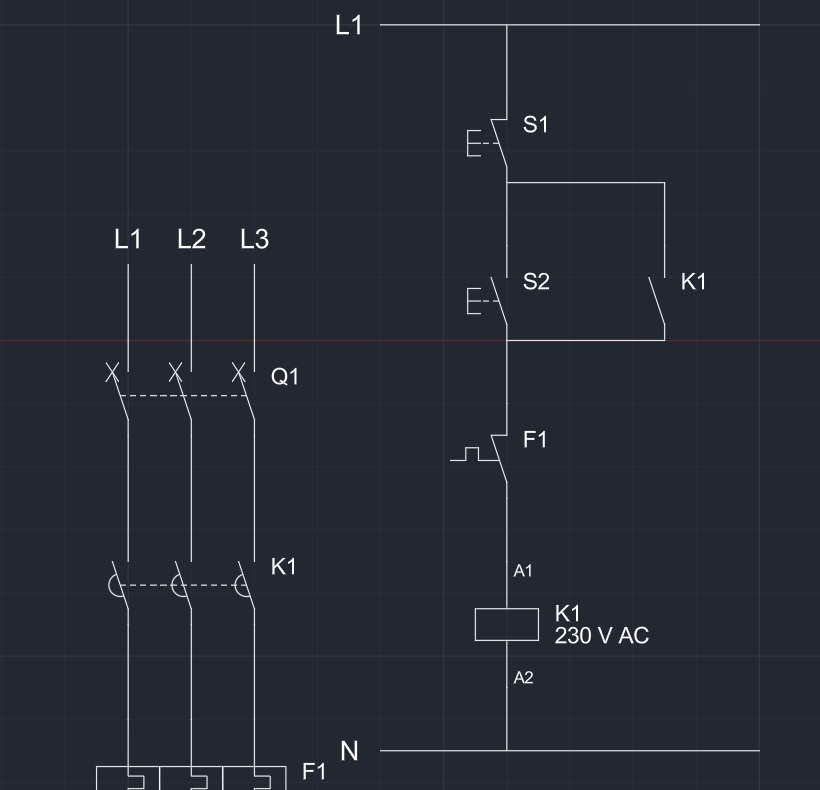
Draw two horizontal lines for the supply, L1 at the top and N at the bottom, about 60 units long. Between them, one branch from the top down: the stop button (IEC_PUSHBUTTON_NC, normally closed), the start button (IEC_PUSHBUTTON_NO), the thermal contact of the overload relay (IEC_THERMAL_CONTACT_NC) and the contactor coil (IEC_COIL). Place each block by its upper terminal, 10 units below the lower terminal of the one above, then join them with short vertical lines.
Next to the start button, place an auxiliary contact of the contactor (IEC_AUX_CONTACT_NO) and wire it in parallel with the start button: a line across at the top and one at the bottom. This is the self-holding contact. After a short press on start the coil stays energised through it, until the stop button or the overload contact opens the branch.
Use the Endpoint object snap for the lines if you prefer it to the grid. The wire from the coil to N and from L1 to the stop button finish the branch.
3. Draw the power circuit
Left of the control circuit, place the three-pole symbols one under the other: the circuit breaker (IEC_CIRCUIT_BREAKER_3P), the contactor with its three main contacts (IEC_CONTACTOR_3P) and the overload relay (IEC_THERMAL_RELAY_3P). Their three terminals are 10 units apart, so three parallel vertical lines connect them: one for each phase, L1, L2 and L3, which you label above the breaker.
The motor (IEC_MOTOR_3PH, from the machines library) is a circle with M and 3~. Place it below the relay and run the three wires from the relay down to the circle. The dashed line between the poles of the breaker and of the contactor is part of the symbols: it shows that the poles move together.
4. Give every device its tag, and use the same tag where the standard does
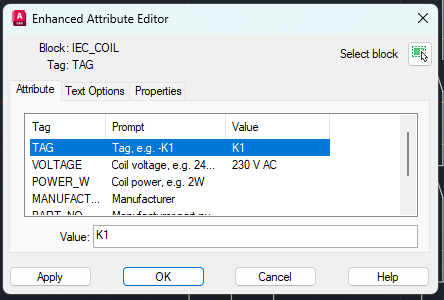
Double-click a block to open the Enhanced Attribute Editor. Every symbol in these libraries has a TAG attribute with the prompt, for example, Tag, e.g. -K1, and the electrical ones also carry VOLTAGE, POWER_W, MANUFACTURER and PART_NO. Give the devices their tags: Q1 for the breaker, K1 for the contactor, F1 for the overload relay, S1 for stop, S2 for start, M1 for the motor.
A contactor is one device drawn in several places, so its coil, its three main contacts and its auxiliary contact all get the tag K1. The same goes for the overload relay: the thermal relay in the power circuit and its contact in the control circuit are both F1. This is how a reader finds which contact belongs to which coil. If the coil voltage matters to the reader, fill in VOLTAGE on the coil, as 230 V AC here; it is shown beside the symbol.
5. Check the drawing against the circuit logic
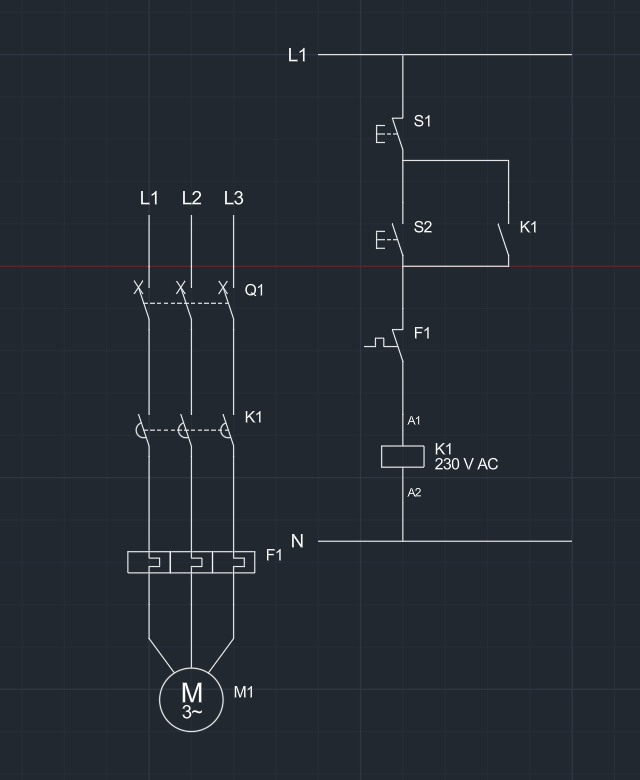
Read the control branch from top to bottom: L1, stop (closed), start (open) in parallel with the K1 auxiliary contact, the overload contact (closed), the coil K1, N. Pressing start closes the path, the coil pulls in, the contactor closes its three main contacts and the auxiliary contact, and the motor runs. Pressing stop or a tripped overload opens the branch and everything drops out.
Look at the power circuit as well: breaker, contactor, relay, motor in one line, three phases, no wire left open at a terminal. This drawing shows the principle of the circuit; sizes of the breaker, the relay setting and the cable are a design decision that stays with you and the rules that apply to your installation.
6. Get a parts list from the tags
Because the devices are blocks with attributes, the parts list is a data export, not retyping. Export the attributes of the blocks to Excel (the DATAEXTRACTION command can, and BlockSync does the same for one drawing or a whole folder of drawings) and you get one row per block with its TAG, VOLTAGE, MANUFACTURER and PART_NO.
Remember that the contacts of K1 carry the same tag as its coil. For a purchase list, keep the rows of the coil block and the three-pole blocks and group by tag; for a contact list, keep them all. Fill in MANUFACTURER and PART_NO before the export if you want the list to be ready to order from.
That is the whole method: symbols as blocks with attributes, a 5 mm grid so that terminals meet, and the same tag wherever a device appears. The same blocks build a star-delta starter, a reversing starter or a lighting circuit; only the symbols change.
The IEC 60617 libraries may be used and modified freely in your own drawings and projects, commercial ones included. A credit to CADXChange with a link is needed only when you publish the symbols, for example in screenshots; please do not redistribute the library itself.