
Guias/Drawing standards
Add a Title Block in AutoCAD with a Free DWG Template — Insert the Layout, Set the Scale, Fill In the Details
Atualizado em October 28, 2026
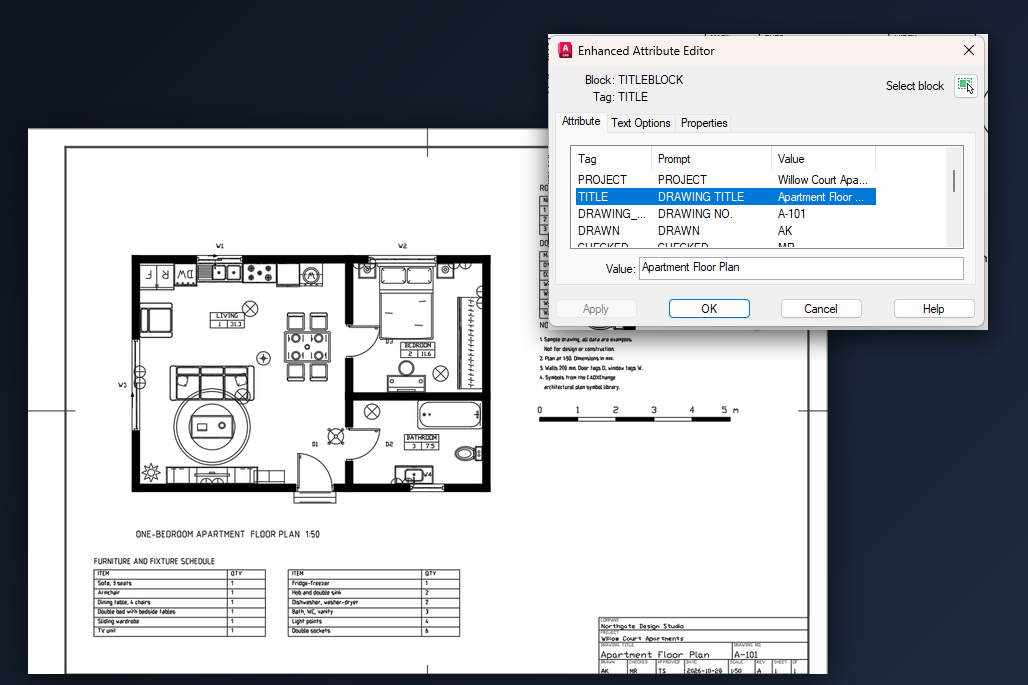
Every drawing that leaves the office needs a sheet around it: a frame, a title block with the project, the drawing title, the number and the revision, and a viewport that shows the model at the right scale. You can draw all of that once, or you can bring it in from a template in a minute. AutoCAD can copy a layout out of another DWG file, so a finished sheet is only a few clicks away.
This guide uses the free title block templates from CADXChange: one DWG per sheet size, with the frame, the title block and a locked viewport already set up. It works in AutoCAD and AutoCAD LT. You will insert the layout into your own drawing, set the scale of the viewport, fill in the title block and plot.
1. Pick the sheet and the title block, and download the ZIP
Open the title block templates page and choose the sheet your drawing will be plotted on: ISO A4 to A0, ANSI A to E, ARCH C to E or Chinese GB A4 to A0, each in landscape and in portrait. Then choose the title block style: Basic, Basic with revision table, Mechanical, Architectural, or Electrical and process. Every style comes in nine label languages. The labels and the prompts change with the language; the attribute names (PROJECT, TITLE, DRAWING_NO, REV and so on) stay English, so a script or a spreadsheet that fills them works the same in every language.
You get a ZIP with one DWG and a short README. Unzip it into a folder you can find again. The file opens as a normal drawing, but you will not work in it: you take the layout out of it. If you want to look first, open it once. You will see one paper space layout named after the sheet, for example ISO-A3, with the frame, the centring marks on the four edges, the title block at the bottom right and one viewport over the whole frame.
2. Insert the layout into your own drawing with From Template
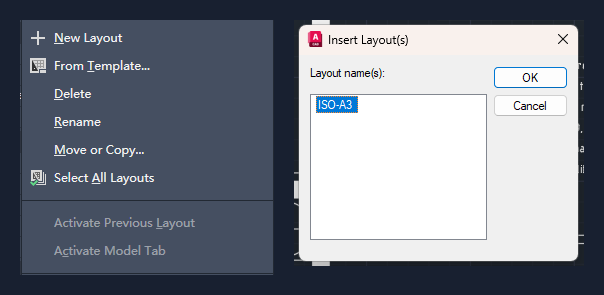
Open the drawing you want to put on the sheet. Right-click a layout tab at the bottom, for example Layout1, and choose From Template. The command is LAYOUT with the Template option. AutoCAD asks for a file: pick the DWG you just unzipped. The file dialog filters for DWT templates at first, so change the file type to DWG or type the full path.
The Insert Layout(s) dialog lists the layouts in that file. Select the sheet, for example ISO-A3, and click OK. A new layout tab appears with the frame, the title block and the viewport. Only the paper space of the template comes across: your model space stays exactly as it was. If nothing opens and the command line asks for a file name, the system variable FILEDIA is 0; set it to 1 to get the dialog back, or simply type the full path at the prompt.
3. Set the scale of the viewport and bring your drawing into the frame
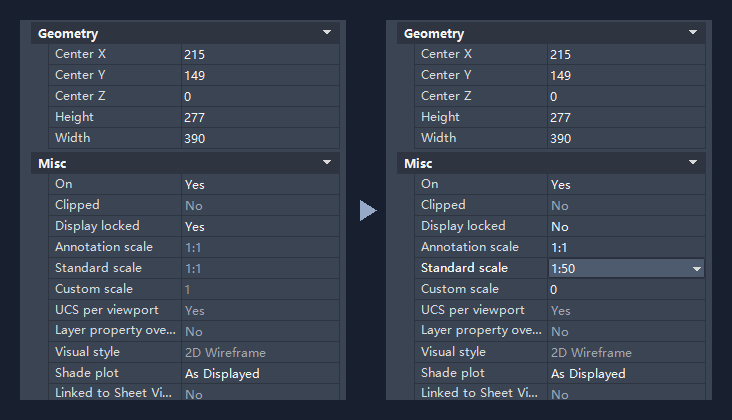
Switch to the new layout. The viewport shows your model at 1:1, so a building or a machine drawn in real size is either far off to one side or fills the frame with a tiny part of it. That is expected: the template cannot know your scale. The viewport is also locked, so scrolling the mouse wheel inside it does nothing.
Click the border of the viewport to select it. In the Properties palette set Display locked to No, then pick the Standard scale you need, for example 1:50. The sheet is the paper, so the scale tells you how much of the model fits: on the 390 by 277 mm viewport of an ISO A3 sheet a 1:50 viewport shows 19.5 by 13.85 metres. Choose the scale that makes your drawing fit with room for the notes.
Now double-click inside the viewport to work in it, pan until the drawing sits where you want it (the scale stays at 1:50 as long as you pan and do not zoom), and double-click outside the viewport to come back to paper space. Finally select the viewport again and set Display locked back to Yes, so a stray mouse wheel does not change the scale after you have checked the sheet.
4. Fill in the title block
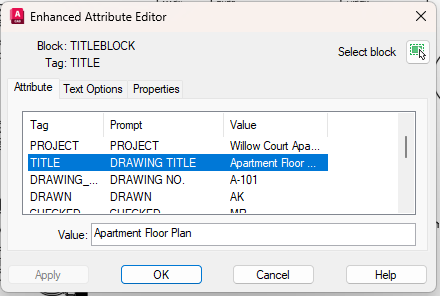
Double-click the title block to open the Enhanced Attribute Editor. The list shows every field of the block: COMPANY, PROJECT, TITLE, DRAWING_NO, DRAWN, CHECKED, APPROVED, DATE, SCALE, REV, SHEET and SHEET_OF in the basic style, and a few more in the other styles. Click a row, type the value in the box below the list, move on to the next one and finish with OK.
Each field is as wide as its cell on the printed sheet. A long title does not shrink; it runs into the next field. Shorten the text, for example Apartment Floor Plan instead of a full sentence, and put the details into the notes of the drawing. Type the scale into the SCALE field yourself: the title block does not read it from the viewport, so after you change the viewport scale update the field to match.
5. Check the sheet and plot it
Look at the whole layout once. The frame, the title block and the drawing should sit inside the margin, the title should read correctly and the scale in the title block should match the viewport. The border of the viewport is on its own layer that does not plot, so you will not see a line around the drawing on paper.
The layout comes with the plotter set to DWG To PDF, the sheet size set for the template and a plot scale of 1:1, because the drawing scale lives in the viewport. Press Ctrl+P, check the preview and plot, or send the layout to PDF through PUBLISH together with the other sheets of the set.
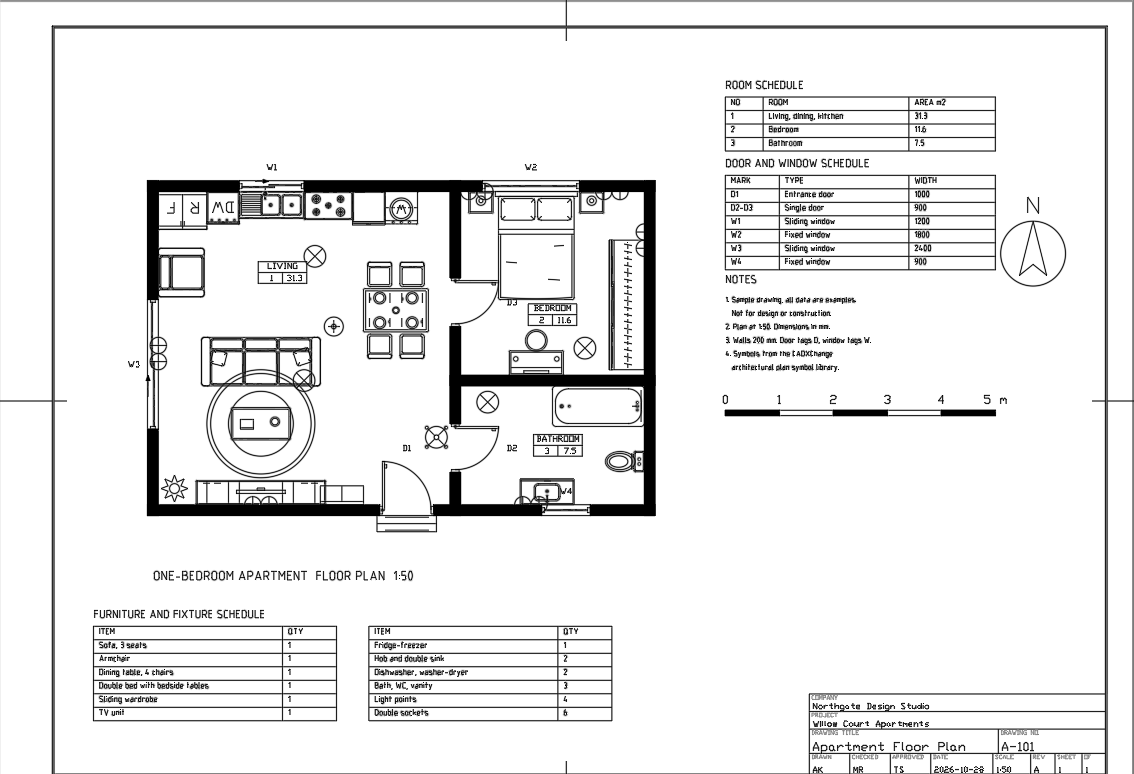
6. Reuse the sheet for the next drawings
For the next sheet of the same project, copy the layout inside the drawing (right-click the tab, Move or Copy, tick Create a copy) or insert the template layout again. Set the scale and fill in the fields that change: the title, the number and the revision.
When many drawings need the same project, client and date, typing the fields in each one is slow and error-prone. BlockSync reads and writes block attributes in a whole folder of drawings, so it can fill the title blocks of all of them from one Excel sheet. The guide on batch updating title block attributes shows the workflow.
That is the whole method: take the sheet from the template with From Template, set the scale in the viewport, fill in the attributes and plot. The model of your drawing is never touched, which is why the same template layout works for any drawing.
These templates follow common practice for sheet sizes and margins, in the spirit of ISO 5457, ISO 7200 and ASME Y14.1, but they are not certified against a standard. Check your company or client standard and adjust the block if it asks for other fields. The templates are free to use and modify in your own projects, including commercial ones.