
RecursosSímbolos de anotação e GD&T
Welded structure drawings: sample DWG files with weld symbols and mechanical template
Two complete drawings of the same welded support: a base plate, a square tube in two sections and two gussets, shown in front and side view at 1:2.5 with dimensions. One drawing uses ISO 2553 weld symbols, the other AWS A2.4, so you can compare how the same four welds are written: a fillet weld all around, a single-V butt weld made on site, and two double fillet welds. Each has a parts list, a weld schedule, notes and a filled-in title block, and every weld symbol is a block with its attributes filled in (weld number, process, filler, procedure).
Free to use and modify in your own projects, including commercial ones. The ZIP holds the sample drawing, a template, a plot style table and a README; no add-in needed. The data in the drawing is made up, so it is not for design or construction. Provided as is, without warranty.
ISO 2553 weld symbols
Welded support in front and side view with the four welds marked to ISO 2553: all-around fillet, single-V butt weld made on site, two double fillet welds, with throat thickness a and process number 135.
AWS A2.4 weld symbols
The same welded support with the four welds marked to AWS A2.4: all-around fillet, single-V groove weld with root opening and groove angle made in the field, two double fillet welds, leg size and process GMAW.
This sample uses these resources
The symbols are blocks from our own libraries, with their attributes filled in. The sheet and its title block come from our ISO A3 title block template. Download them to draw your own diagrams.
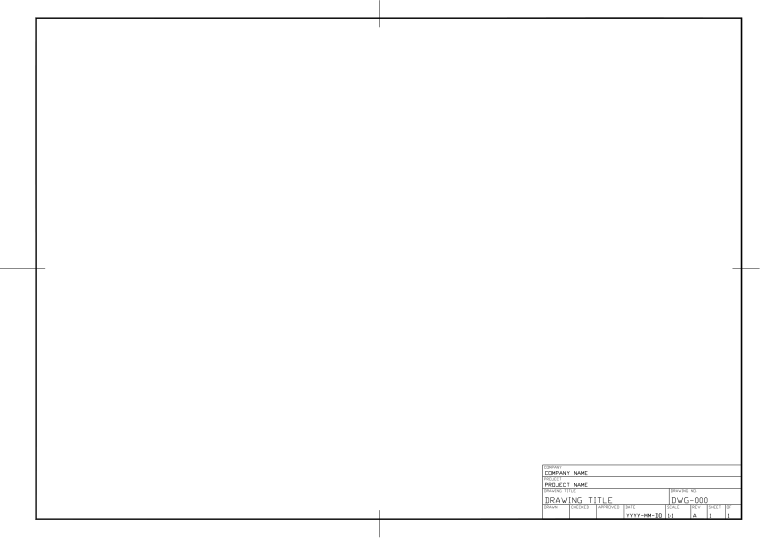
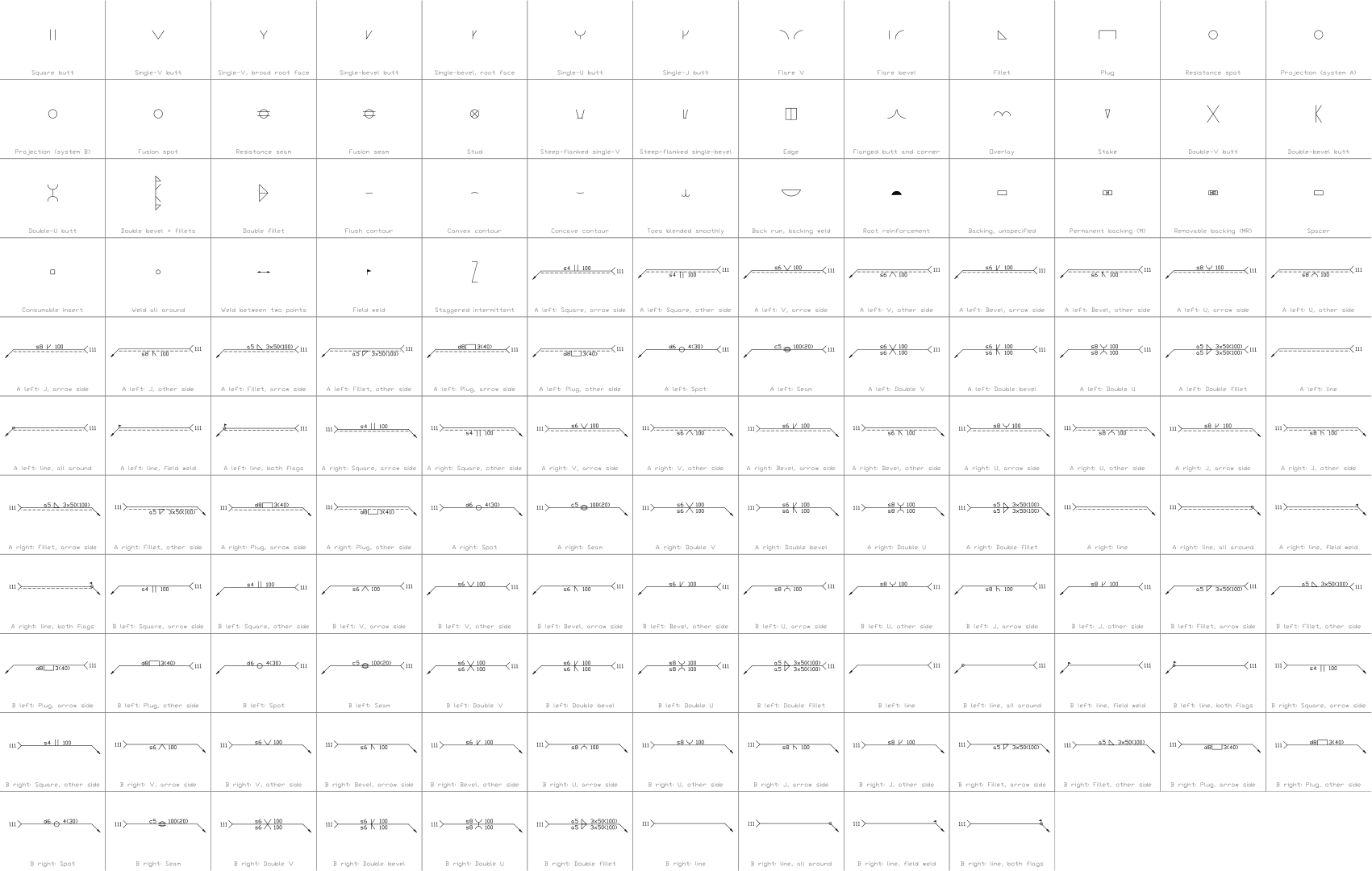
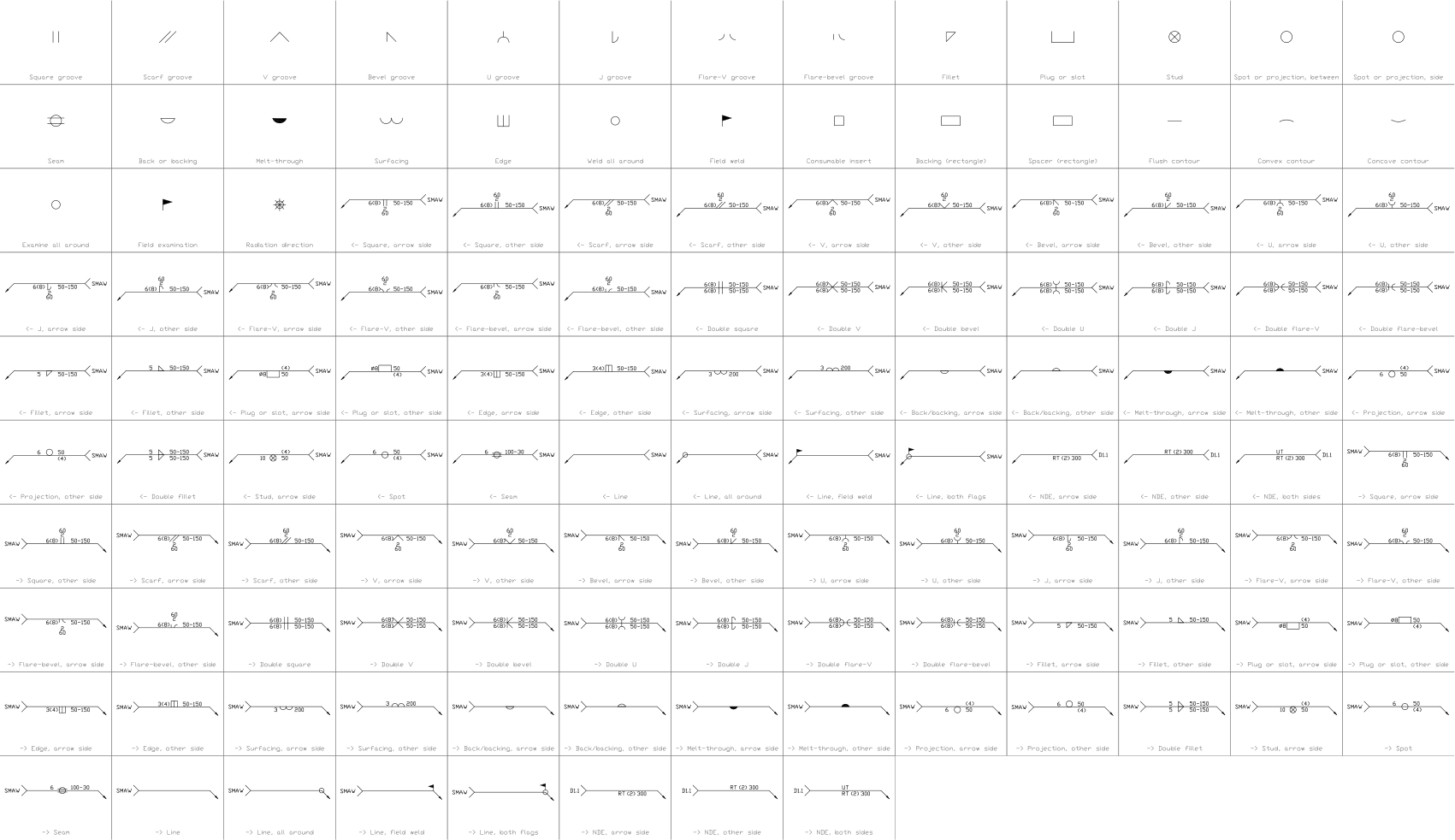
What is in the ZIP
- Welded-Structure-ISO-Sample.dwg
Sample drawing (DWG, AutoCAD 2018 format) - Welded-Structure-AWS-Sample.dwg
Sample drawing (DWG, AutoCAD 2018 format) - Mechanical-Template-ISO-A3.dwt
Template (DWT) that the drawing was made on - CADXChange-Monochrome.ctb
Plot style table (CTB) that prints every colour black - README.txt
README with the layer list and how to use the files
Every ZIP holds its own drawing together with the template, the plot style table and the README.
The template
The mechanical template has 11 layers with colours, line weights and linetypes (visible outlines, hidden edges, centre lines, adjacent parts, thin lines, weld beads, symbols, dimensions, balloons, text and notes), the text styles ISO-2.5 to ISO-5, the dimension style ISO-25 and an ISO A3 layout with a title block and revision table. The layer names are a common convention, not a standard; rename them to match your company's rules.
Layers defined
Every layer in the template with its colour, line weight and linetype, and how many objects of this sample are on it. Layers the sample does not use are still defined, ready for your own drawing.
| Layer | Colour | Line weight | Linetype | Used for | ISO 2553 weld symbols | AWS A2.4 weld symbols |
|---|---|---|---|---|---|---|
| Mechanical layers | ||||||
| MECH-OUTLINE | 7 | 0.50 mm | Continuous | Visible outlines and edges | 11 | 11 |
| MECH-HIDDEN | 8 | 0.25 mm | HIDDEN | Hidden outlines and edges | 4 | 4 |
| MECH-CENTER | 1 | 0.18 mm | CENTER | Centre lines and axes | 2 | 2 |
| MECH-PHANTOM | 6 | 0.18 mm | PHANTOM | Adjacent parts, alternate positions, cutting planes | not used here | not used here |
| MECH-THIN | 7 | 0.18 mm | Continuous | Thin lines: seams, projection and construction lines | not used here | not used here |
| MECH-WELD | 3 | 0.35 mm | Continuous | Weld bead outlines | 4 | 4 |
| SYMBOL | 7 | 0.25 mm | Continuous | Symbols (the layer the symbol libraries use) | 7 | 7 |
| MECH-DIM | 3 | 0.18 mm | Continuous | Dimensions and tolerances | 5 | 5 |
| MECH-BALLOON | 7 | 0.25 mm | Continuous | Item balloons and leaders | not used here | not used here |
| MECH-TEXT | 7 | 0.18 mm | Continuous | General text, view titles, tables | 82 | 82 |
| MECH-NOTES | 7 | 0.18 mm | Continuous | Notes | 6 | 6 |
| Sheet and symbol layers | ||||||
| 0 | 7 | default | Continuous | Default layer, keep it empty | not used here | not used here |
| FRAME | 7 | default | Continuous | Sheet border | 5 | 5 |
| TITLEBLOCK | 7 | default | Continuous | Title block and revision table | 1 | 1 |
| VIEWPORT | 8 | default | Continuous | Layout viewport frame (does not plot) | 2 | 2 |
| DRAWING-AREA | 8 | default | Continuous | Boundary of the model drawing area (does not plot) | 2 | 2 |
Styles defined
The text styles, the dimension style and the linetypes that the template defines, so you do not have to set them up in each new drawing.
| Kind | Name | Settings |
|---|---|---|
| Text style | ISO | isocp.shx, 15°, variable height |
| Text style | ISO-2.5 | isocp.shx, 15°, 2.5 mm high |
| Text style | ISO-3.5 | isocp.shx, 15°, 3.5 mm high |
| Text style | ISO-5 | isocp.shx, 15°, 5 mm high |
| Text style | TB-en | Arial, used by the title block |
| Dimension style | ISO-25 | Text 2.5 mm, arrows 2.5 mm, extension lines 1.25 mm beyond the dimension line and 0.625 mm from the object, dimension lines 3.75 mm apart, 0 decimals |
| Linetype | Continuous | Solid line |
| Linetype | DASHED | Dashed |
| Linetype | DASHDOT | Dash-dot |
| Linetype | CENTER | Centre line |
| Linetype | PHANTOM | Phantom line |
| Linetype | HIDDEN | Hidden line |
Sheet and drawing setup
How the sheet is set up, so your own drawings print the same way.
- Sheet
- ISO A3 landscape, 420 × 297 mm.
- Layout
- One layout named ISO-A3, plotted at 1:1 on full-bleed A3 media, so the sheet has no printer margin.
- Border
- 20 mm from the left edge (binding side) and 10 mm from the other edges; the drawing area inside is 390 × 277 mm.
- Model space
- Units are millimetres. The drawing area is shown at 1:1, so 1 mm in the drawing is 1 mm on paper.
- Title block
- 160 × 79 mm at the lower right, with a four-line revision table above the company, project, title and approval fields.
- Text size
- 2.5 mm for labels and notes, 3.5 mm and 5 mm for headings.
- Linetype scale
- 1, so dashes are sized for plotting at 1:1.
- Plot style
- None set. Pick the CTB from the ZIP in the page setup for black-and-white plots.
ISO 2553 weld symbols
Title block fields
The attributes of the title block. Double-click it to fill them in, or write them for a whole set of drawings with BlockSync.
| Attribute | Field on the sheet | Value in this sample |
|---|---|---|
| COMPANY | COMPANY | CADXChange |
| PROJECT | PROJECT | Support Structure |
| AREA | AREA | Workshop |
| SYSTEM | SYSTEM | Support structure |
| CLIENT | CLIENT | Sample |
| TITLE | DRAWING TITLE | Welded support structure, ISO 2553 symbols |
| DRAWING_NO | DRAWING NO. | M-601 |
| CONTRACT_NO | CONTRACT NO. | — |
| REV | REV | A |
| DRAWN | DRAWN | — |
| CHECKED | CHECKED | — |
| APPROVED | APPROVED | — |
| DATE | DATE | 2026-10-21 |
| SCALE | SCALE | 1:2.5 |
| SHEET | SHEET | 1 |
| SHEET_OF | OF | 1 |
Revision table: R1 to R4, each with REV, DATE, DESCRIPTION and BY (16 attributes, empty in this sample).
Blocks in the drawing
The equipment list of the drawing: block name, symbol and how many times it is placed. BlockSync exports the same list from your own drawings.
| Symbol | Block | Placed |
|---|---|---|
 Weld all around Weld all around | WLI_SUPP_ALL_AROUND | 2 |
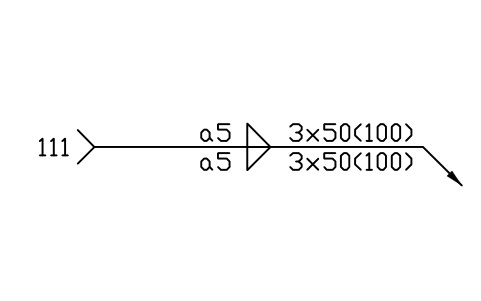 A right: Double fillet A right: Double fillet | WLI_A_R_DOUBLE_FILLET | 2 |
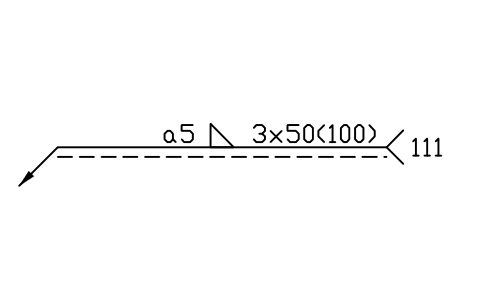 A left: Fillet, arrow side A left: Fillet, arrow side | WLI_A_L_FILLET_ARROW | 1 |
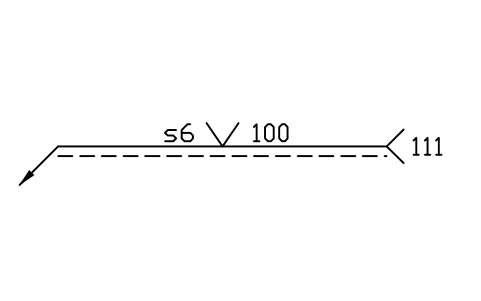 A left: V, arrow side A left: V, arrow side | WLI_A_L_V_ARROW | 1 |
 Field weld Field weld | WLI_SUPP_FIELD_WELD | 1 |
Equipment schedule
One row per placed symbol, read from the attributes of the blocks in the drawing: what is shown on the sheet, and the schedule attributes that were filled in but are not shown. BlockSync exports these same attributes from your own drawings.
| Tag | Description | Shown on the sheet | Filled in, not shown |
|---|---|---|---|
| W1 | A left: Fillet, arrow sideWLI_A_L_FILLET_ARROW | SIZE = a5 | PROCESS = 135QUALITY_LEVEL = CPOSITION = PBFILLER = G3Si1WPS_NO = WPS-001MATERIAL = S355J2 / S355J2HNDT = VT 100 % |
| W2 | A left: V, arrow sideWLI_A_L_V_ARROW | SIZE = s6 | PROCESS = 135QUALITY_LEVEL = CPOSITION = PAFILLER = G3Si1WPS_NO = WPS-001MATERIAL = S355J2 / S355J2HNDT = VT 100 % |
| W3 | A right: Double filletWLI_A_R_DOUBLE_FILLET | SIZE = a5 | PROCESS = 135QUALITY_LEVEL = CPOSITION = PBFILLER = G3Si1WPS_NO = WPS-001MATERIAL = S355J2 / S355J2HNDT = VT 100 % |
| W4 | A right: Double filletWLI_A_R_DOUBLE_FILLET | SIZE = a4 | PROCESS = 135QUALITY_LEVEL = CPOSITION = PBFILLER = G3Si1WPS_NO = WPS-001MATERIAL = S355J2 / S355J2HNDT = VT 100 % |
Manufacturer, model and remarks are left empty on every block, ready for your data. The values are examples.
AWS A2.4 weld symbols
Title block fields
The attributes of the title block. Double-click it to fill them in, or write them for a whole set of drawings with BlockSync.
| Attribute | Field on the sheet | Value in this sample |
|---|---|---|
| COMPANY | COMPANY | CADXChange |
| PROJECT | PROJECT | Support Structure |
| AREA | AREA | Workshop |
| SYSTEM | SYSTEM | Support structure |
| CLIENT | CLIENT | Sample |
| TITLE | DRAWING TITLE | Welded support structure, AWS A2.4 symbols |
| DRAWING_NO | DRAWING NO. | M-602 |
| CONTRACT_NO | CONTRACT NO. | — |
| REV | REV | A |
| DRAWN | DRAWN | — |
| CHECKED | CHECKED | — |
| APPROVED | APPROVED | — |
| DATE | DATE | 2026-10-21 |
| SCALE | SCALE | 1:2.5 |
| SHEET | SHEET | 1 |
| SHEET_OF | OF | 1 |
Revision table: R1 to R4, each with REV, DATE, DESCRIPTION and BY (16 attributes, empty in this sample).
Blocks in the drawing
The equipment list of the drawing: block name, symbol and how many times it is placed. BlockSync exports the same list from your own drawings.
| Symbol | Block | Placed |
|---|---|---|
 Weld all around Weld all around | WLA_SUP_ALL_AROUND | 2 |
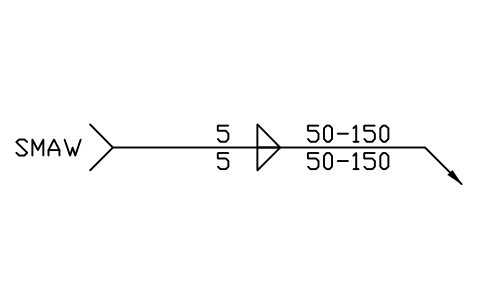 -> Double fillet -> Double fillet | WLA_R_DOUBLE_FILLET | 2 |
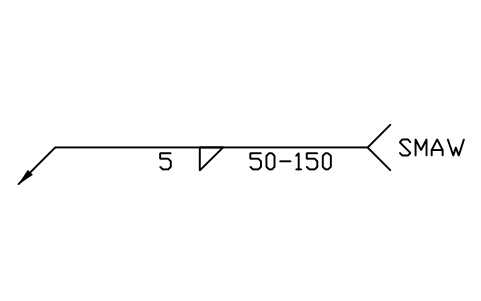 <- Fillet, arrow side <- Fillet, arrow side | WLA_L_FILLET_ARROW | 1 |
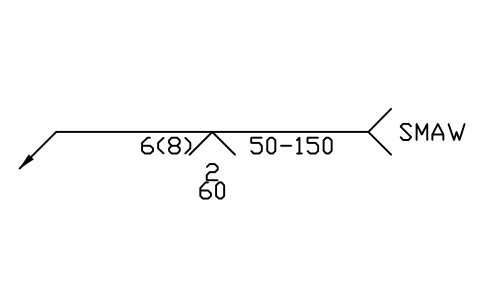 <- V, arrow side <- V, arrow side | WLA_L_V_ARROW | 1 |
 Field weld Field weld | WLA_SUP_FIELD_WELD | 1 |
Equipment schedule
One row per placed symbol, read from the attributes of the blocks in the drawing: what is shown on the sheet, and the schedule attributes that were filled in but are not shown. BlockSync exports these same attributes from your own drawings.
| Tag | Description | Shown on the sheet | Filled in, not shown |
|---|---|---|---|
| W1 | <- Fillet, arrow sideWLA_L_FILLET_ARROW | SIZE = 5 | PROCESS = GMAWSPECIFICATION = AWS D1.1FILLER = ER70S-6WPS_NO = WPS-001POSITION = 2FJOINT_TYPE = T-jointMATERIAL = ASTM A36 / A500 Gr BNDE = VT |
| W2 | <- V, arrow sideWLA_L_V_ARROW | SIZE = 6 | PROCESS = GMAWSPECIFICATION = AWS D1.1FILLER = ER70S-6WPS_NO = WPS-001POSITION = 1GMATERIAL = ASTM A36 / A500 Gr BNDE = VT |
| W3 | -> Double filletWLA_R_DOUBLE_FILLET | SIZE = 5 | PROCESS = GMAWSPECIFICATION = AWS D1.1FILLER = ER70S-6WPS_NO = WPS-001POSITION = 2FJOINT_TYPE = T-jointMATERIAL = ASTM A36 / A500 Gr BNDE = VT |
| W4 | -> Double filletWLA_R_DOUBLE_FILLET | SIZE = 4 | PROCESS = GMAWSPECIFICATION = AWS D1.1FILLER = ER70S-6WPS_NO = WPS-001POSITION = 2FJOINT_TYPE = T-jointMATERIAL = ASTM A36 / A500 Gr BNDE = VT |
Manufacturer, model and remarks are left empty on every block, ready for your data. The values are examples.
How to use it
- Open the sample drawing to see how layers, text and the title block are used, or open it in the browser first, nothing to install.
- Start your own drawing from the template (NEW, then pick the DWT file). Copy the CTB file to your plot styles folder if you want black-and-white plots.
- Insert blocks from the symbol library into your drawing. The blocks in the sample are copies; they do not change when a library changes.
- Double-click the title block to fill it in, then export the equipment list with BlockSync.
Frequently asked questions
- Can I use the drawing for a real project?
- As a starting point for layout and layers, yes. The ratings, settings and cable sizes are made up, so the diagram has to be checked and changed for your project before it is used for design or construction.
- Why are the layers coloured?
- Colours and line weights follow the layers: power circuits are red and heavy, control is cyan, signal is green. The plot style table in the ZIP prints everything black and keeps the line weights, so you can plot in black and white as well.
- Which CAD programs open it?
- The drawing and the template are in AutoCAD 2018 format, which AutoCAD 2018 and later open, and so do other CAD programs that read this format. The browser viewer needs nothing installed.