
BlockCopy Documentation
BlockCopy has five modes, switched from the pill in the title bar: Distribute, Copy Reference, Sync Update, Upgrade Version, and Delete Blocks. The first four share the same Source (left) / Target files (right) layout; Delete Blocks has no source drawing, since block definitions and layers are scanned from the target files themselves. Every mode backs up a target file before writing to it, by default — not just the two modes that touch existing content. Free tier caps every mode at 3 target files per run and 1 file processed at a time; no mode is Pro-only.
Getting started
Screenshots reflect a recent release — minor visual details may differ from the version you have installed.
Distribute
Distribute
Clone a block definition into files that don't already have it.
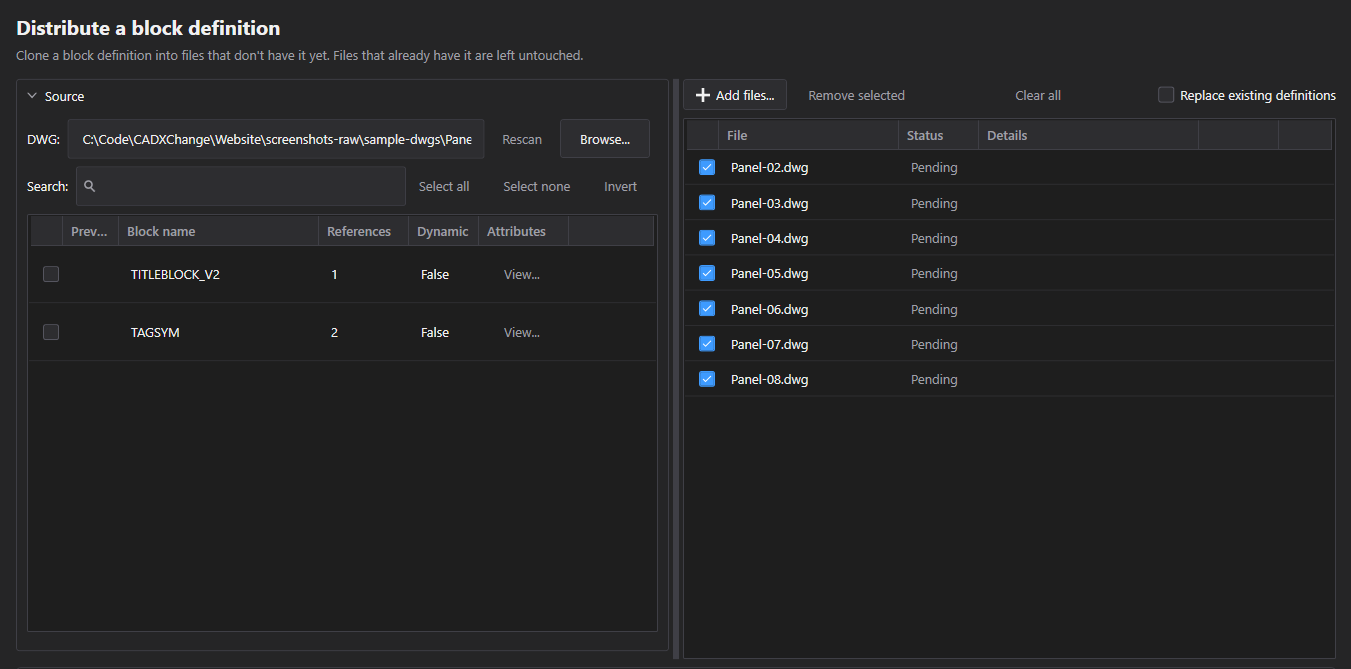
- Browse to the source DWG, check the block(s) to distribute in the source list (reference count, dynamic flag and attribute presence are shown per block, with a View… button to see a block's full attribute list).
- Add Files… builds the target list. By default a target that already has the block is left untouched — tick Replace existing definitions to force an overwrite. (Layers, text styles and linetypes the block depends on are still refreshed into the target even when the block itself is skipped.)
- Clone Now copies geometry, attribute tag layout and dynamic properties into every target that doesn't already have it.
Copy Reference
Copy Reference
Duplicate one filled-in block instance, values included, into other files.
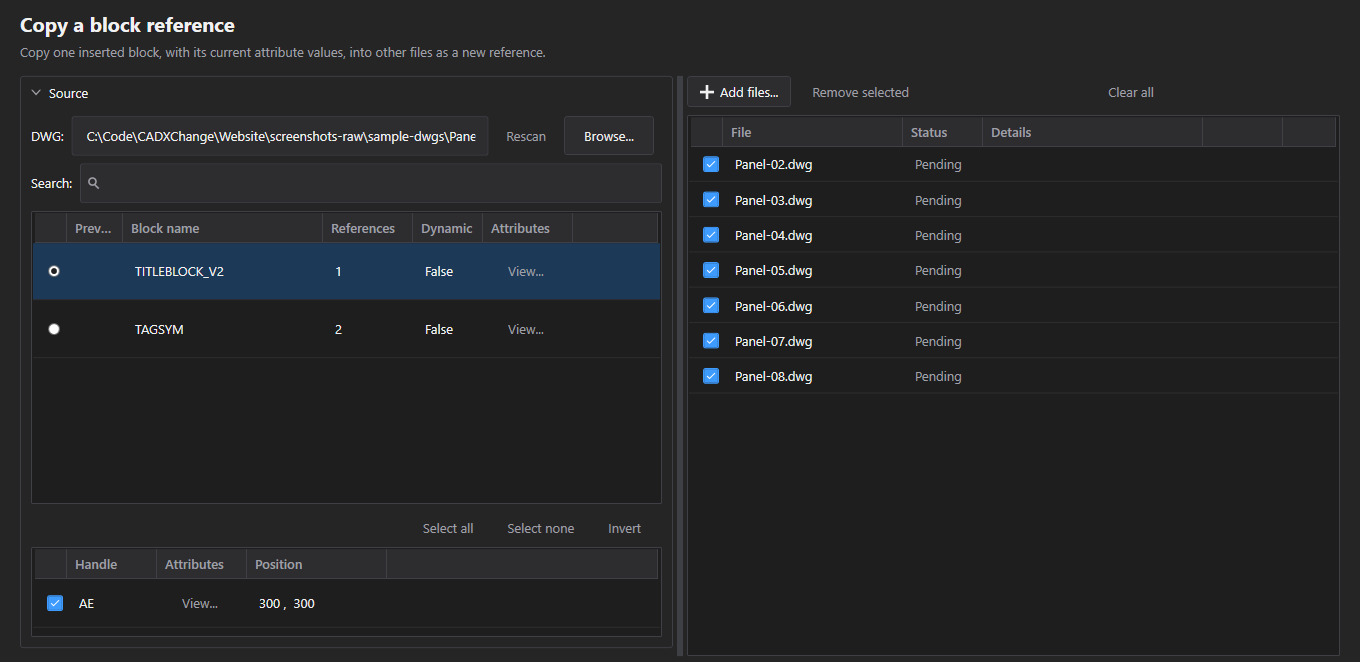
- Pick one specific block definition in the source list (a single choice, not a checklist) — BlockCopy then scans and lists every inserted reference of that block, with its Handle, Position and an Attributes view. Check the one instance to copy.
- Add Files… picks the targets; Insert Now inserts a new reference of that exact instance — same position, rotation and attribute values as the source — into each target.
- Scale isn't carried over: the new reference always inserts at the block's default scale, even if the source instance was scaled. Upgrade Version (below) does preserve scale, so this is worth knowing if the source instance isn't at 1:1.
Sync Update
Sync Update
Push a revised block definition without wiping attribute values.
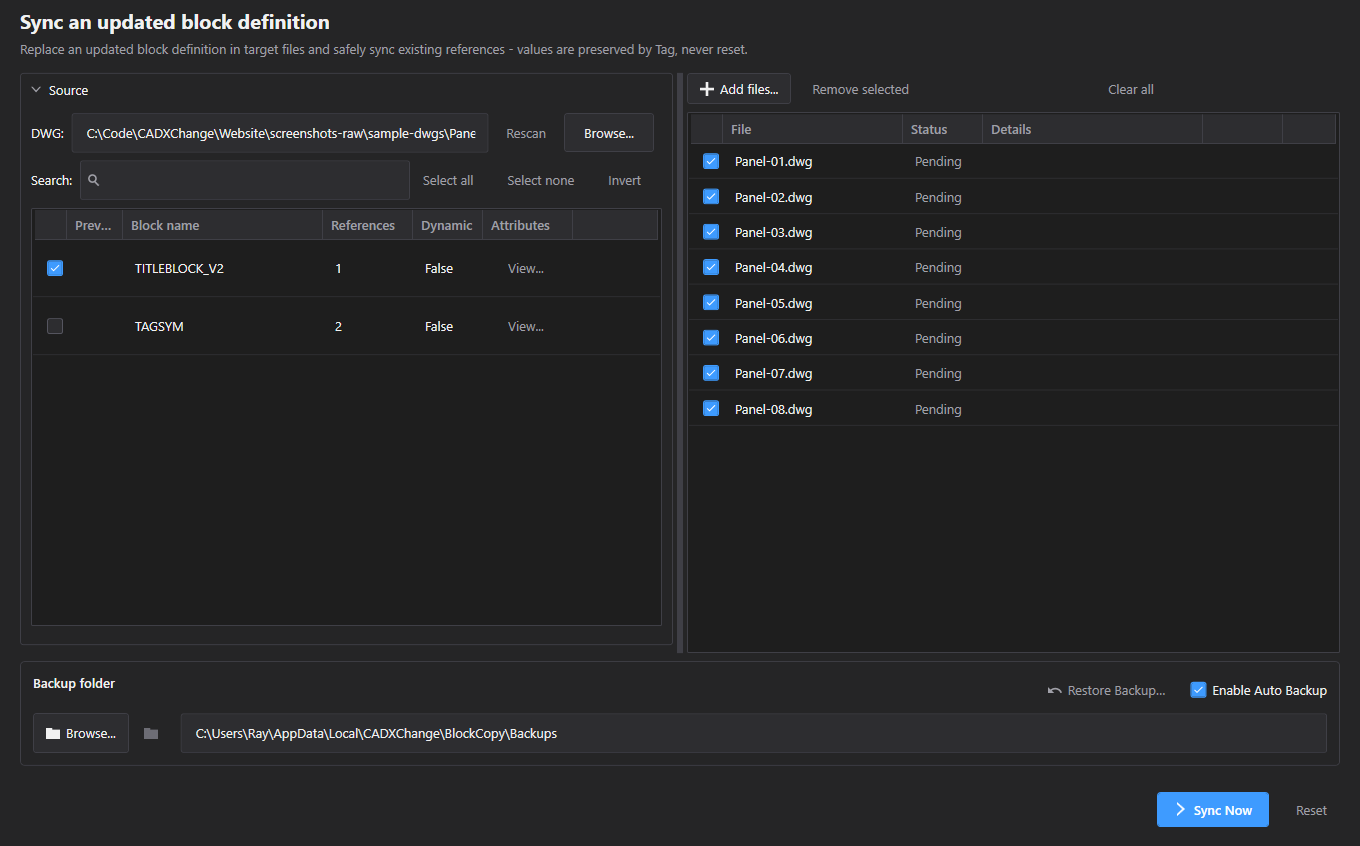
- Browse to the source DWG holding the revised definition, add target files, then Sync Now replaces the definition and re-syncs every existing reference.
- Values are matched by attribute tag name, not position — reordering attributes in the revision doesn't scramble which value lands where.
- After writing, BlockCopy reads the file back and compares every attribute value against what it expects. A mismatch only flags that one file as failed (in its Details popup) — it doesn't stop the rest of the batch, and nothing is rolled back automatically. Use the Details popup's Rollback button, or Restore Backup…, to recover that specific file.
Upgrade Version
Upgrade Version
Retire an old block definition (v1) for a new one (v2) across every reference.
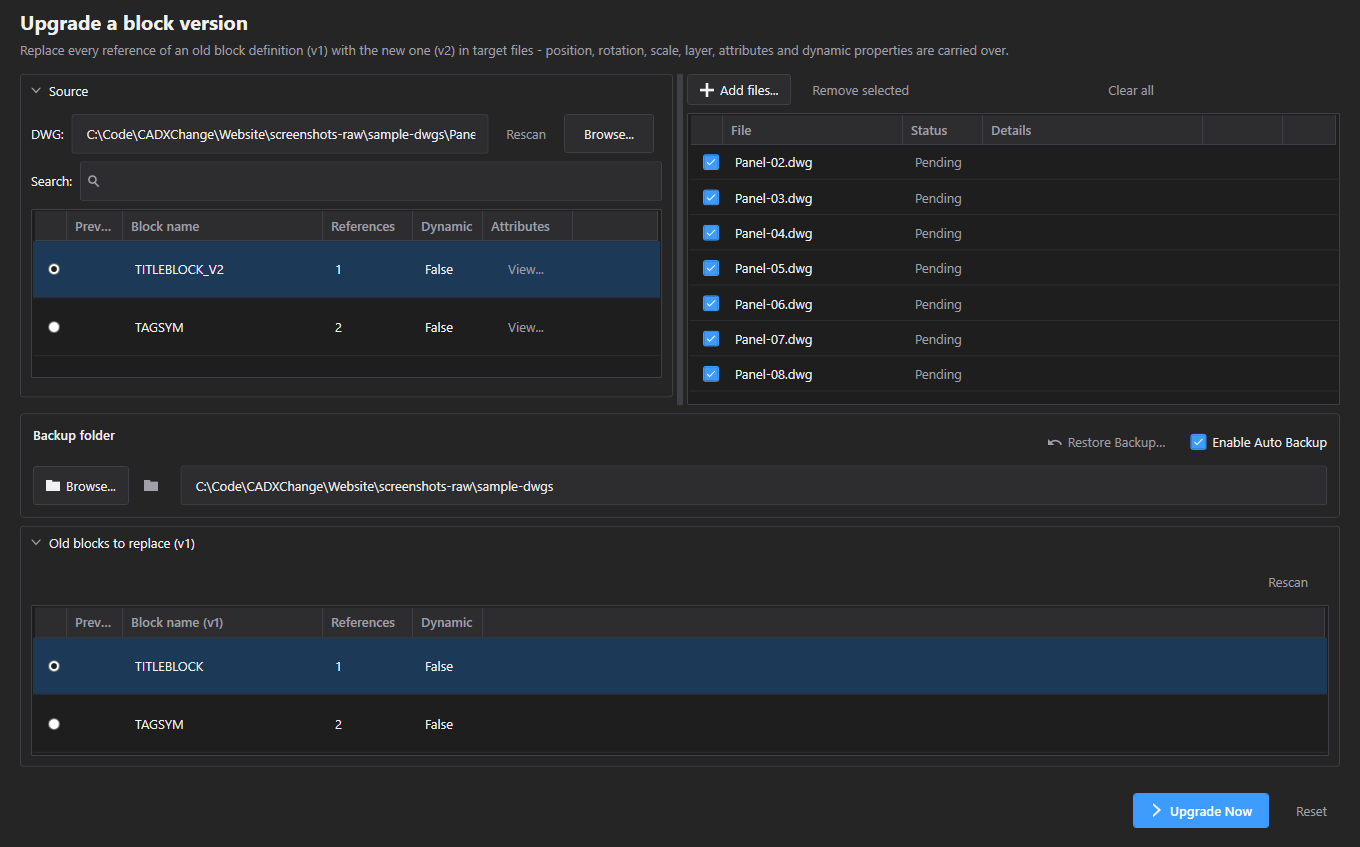
- Add target files, then use the Old Blocks picker to scan targets for v1 candidates and choose the definition to retire, and the new (v2) definition to replace it with.
- Upgrade Now swaps every v1 reference for v2 in place — position, rotation, scale and layer are always carried over. Attributes are matched by tag: a v1 value survives only if v2 still has that same tag; a tag that only exists in v2 is created with its own default value, not filled in from v1. Dynamic properties carry over too, but only when the new block is itself dynamic.
- The old (v1) block definition itself is left in the file untouched — only the individual references are swapped to point at v2.
- There's no preview step here yet, unlike some of the other modes — Upgrade Now runs immediately once you click it.
Delete Blocks
Delete Blocks
Erase block references across a batch of files, with an optional layer filter.
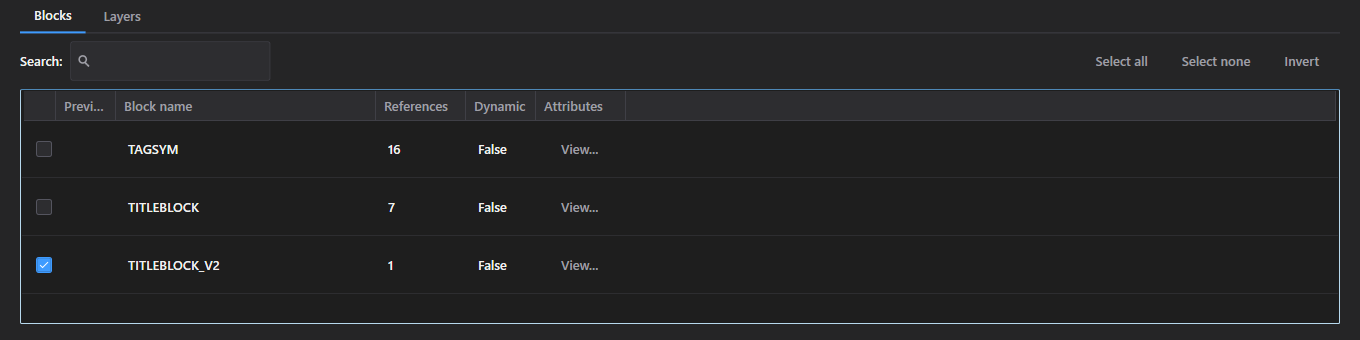
- Add target files — there's no source drawing to browse here; block definitions and layers are both scanned out of the target files themselves and merged into one list, with reference counts added together across files.
- Check which block definition(s) to delete in the Blocks tab; switch to the Layers tab to restrict the deletion to specific layers (no layer checked deletes matching references on every layer).
Confirming a delete
One last check naming exactly what's about to be erased, before anything is.
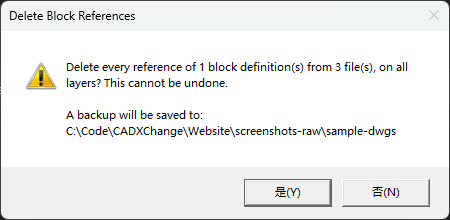
- Delete Now shows a confirmation naming exactly how many block definitions, files, and (if any are checked) layers are about to be affected — and whether it's happening on every layer or just the selected ones.
- The same dialog also states whether a backup will be saved, and to where, or warns outright that deleted references can't be recovered if backup is off — so the backup status is visible one last time before you confirm.
Restore Backup
Restore Backup
A standalone window for restoring files from a previous run's backup — works even after restarting the app.
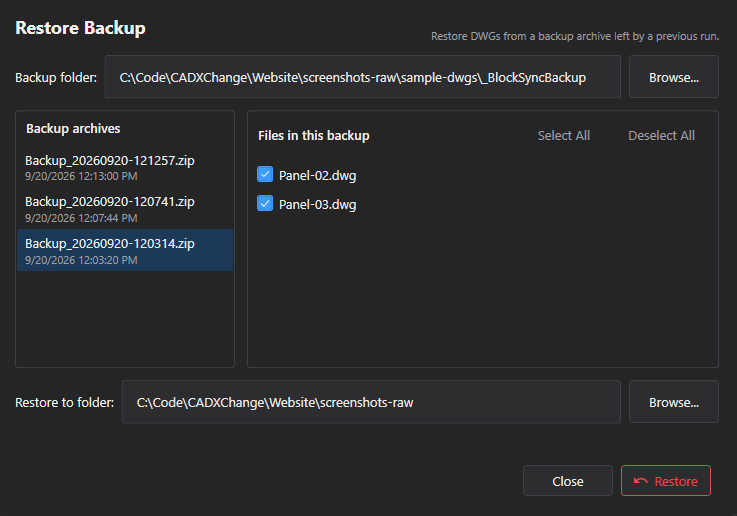
- Opened from Restore Backup… next to any mode's action button. It reads Backup_*.zip archives straight off the backup folder on disk, independent of any in-app run state, so it keeps working after the app has been restarted.
- Pick an archive on the left to see the files it contains; check the ones to bring back and choose a Restore to folder — this can be the original DWG folder or somewhere else, so restoring never has to overwrite in place unless you want it to.
Settings
Opened from the gear icon in the title bar. Every field saves immediately — there's no separate Save button.
English / 日本語 / 简体中文. Restart the app for a language change to take effect.
Default: English
System / Light / Dark. Restart the app for a theme change to take effect.
Default: Match system
Which installed AutoCAD version to use first. If it fails to load, the app falls back to another installed version automatically.
Default: Auto (newest installed)
How many drawings AutoCAD can process in the background at once (choices: 1, 2, 4, 6, 8, 12, 16). Higher is faster but uses more CPU and memory — turn this down on a lower-spec machine.
Default: 8
The default for the "Enable Auto Backup" checkbox every mode shows on its own screen — each mode can turn its own backup on or off (and pick its own backup folder) independently of this default.
Default: On
| Setting | Location | Default | What it does |
|---|---|---|---|
| Language | Settings → General | English | English / 日本語 / 简体中文. Restart the app for a language change to take effect. |
| Theme | Settings → General | Match system | System / Light / Dark. Restart the app for a theme change to take effect. |
| AutoCAD version | Settings → AutoCAD | Auto (newest installed) | Which installed AutoCAD version to use first. If it fails to load, the app falls back to another installed version automatically. |
| Max parallel AutoCAD instances | Settings → AutoCAD | 8 | How many drawings AutoCAD can process in the background at once (choices: 1, 2, 4, 6, 8, 12, 16). Higher is faster but uses more CPU and memory — turn this down on a lower-spec machine. |
| Back up target files before writing | Settings → AutoCAD | On | The default for the "Enable Auto Backup" checkbox every mode shows on its own screen — each mode can turn its own backup on or off (and pick its own backup folder) independently of this default. |
Licensing
Your license status shows in the title bar as Free, Pro, Pro (offline), or Expired, and in full on Settings → License.
To activate: paste your license key into Settings → License → "License key" and click Activate. To move a license to a new machine, click "Deactivate this machine" on the old one first, then activate on the new one.
If the app can't reach the license server (no internet), a previously-activated Pro license keeps working for 14 days as "Pro (offline)". Reconnect within that window to revalidate — past 14 days without a successful check, the license shows as Expired until it can revalidate.
Troubleshooting
"AutoCAD not found" or a plugin trust error when the app starts a job
The app drives AutoCAD in the background to open and process each drawing, so it needs a full, licensed AutoCAD 2021–2027 install — AutoCAD LT is not supported. If AutoCAD is installed but this error still appears, that AutoCAD version has likely never been launched on this machine: open it once (even just to the drawing screen), close it, and try again — AutoCAD only trusts a plugin location after it has run interactively at least once.
A target file is reported as locked or the run stalls on one file
Every operation (scan, clone, insert, sync, upgrade, delete) is capped at 5 minutes per file — a locked file (open in AutoCAD elsewhere) or an unresponsive AutoCAD process is reported by name instead of hanging the whole batch.
Need to undo a run
If that mode's Enable Auto Backup was on, open the Details popup for the file in question and use Rollback to this backup, or open Restore Backup… (gear icon → Settings, or the button next to each mode's action) to restore selected files from any Backup_*.zip in the backup folder. There's no single "undo the whole run" button — restoring is always per file.
Files on disk
Settings → Diagnostics → Open Log Folder gets you straight to the logs if something needs troubleshooting.
| Settings | %LocalAppData%\CADXChange\BlockCopy\settings.json |
| Logs | %LocalAppData%\CADXChange\BlockCopy\Logs\ |
| Backups | %LocalAppData%\CADXChange\BlockCopy\Backups\Backup_{timestamp}.zip |