

BlockSync Documentation
BlockSync has two modes, switched from the pill in the title bar: AutoCAD → Excel (extract) and Excel → AutoCAD (write back). Extract is one screen with a Blocks/Layers/Viewports tab set; write back is a short sequence — pick a workbook and folder, review a diff, write, then a separate results screen.
Getting started
Screenshots reflect a recent release — minor visual details may differ from the version you have installed.
AutoCAD → Excel (extract)
Adding files and scanning
Add drawings, and BlockSync scans blocks, layers and viewports automatically.
- Add Files… (Ctrl+O) picks individual .dwg files; Add Folder… scans a whole folder for .dwg files — whether it also scans subfolders depends on "Include subfolders when opening a DWG folder" (Settings → AutoCAD, off by default).
- Adding, removing or clearing files re-scans the whole batch automatically. F5 re-scans on demand without changing the file list. The scan itself can't be canceled once started, since stopping partway would leave the Blocks/Layers/Viewports lists inconsistent with each other.
- Remove Selected drops the highlighted file and re-scans; Clear All empties the list and re-scans. Pressing Delete removes the selected file too, but only while a file row has focus — pressing it while typing in a search box deletes text instead.
- The file list shows name, path, and a color-coded Status/Details column; a file that fails to scan is marked with its error and skipped, without blocking the rest of the batch from scanning normally.
- The status line below the list reports the combined result across every scanned file: "{blocks} block definitions, {layers} layers, {viewports} viewports across {files} file(s)."
Blocks tab
Choose which block definitions to extract, with per-block detail available on demand.
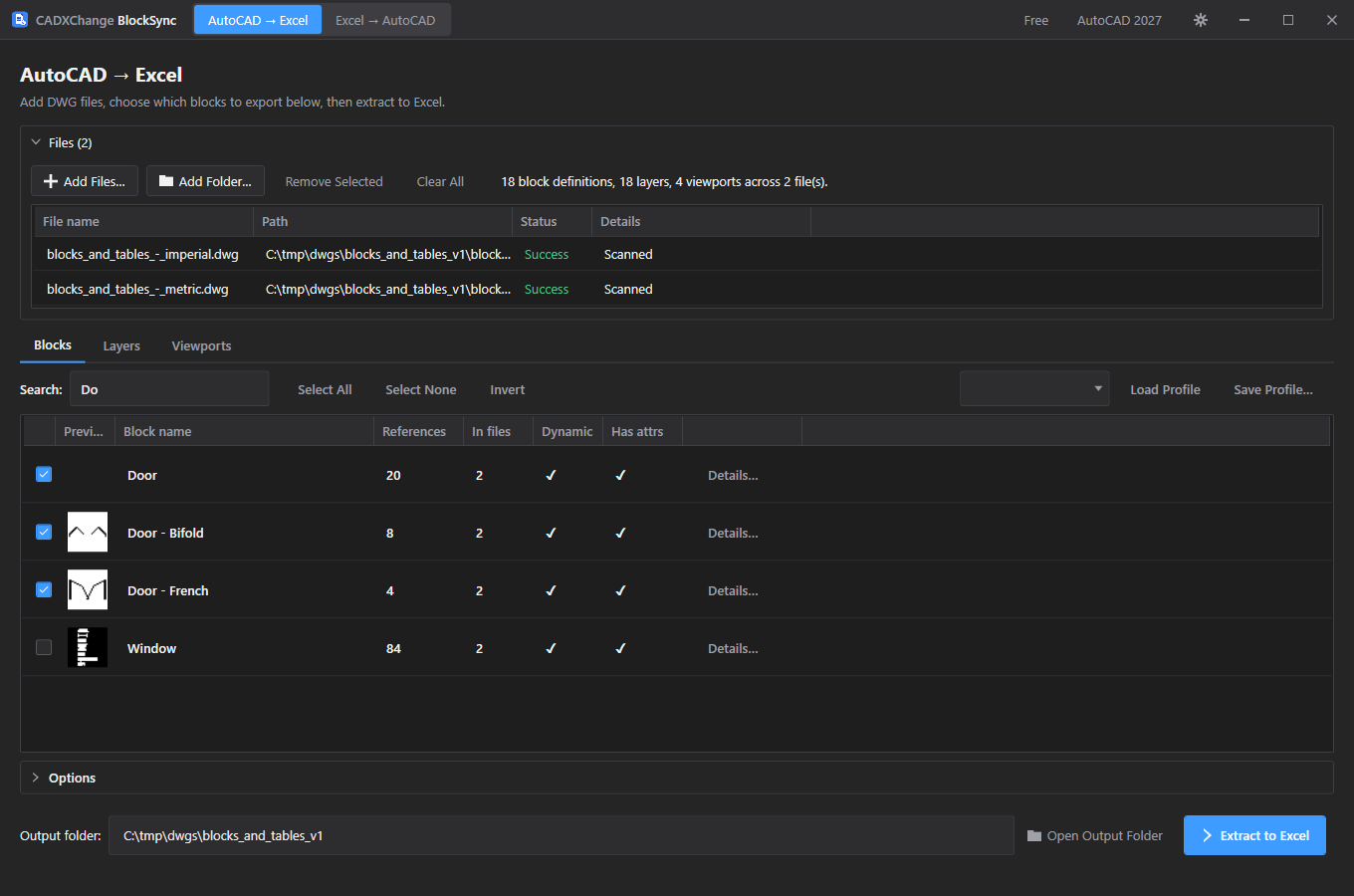
- Columns: a checkbox, a thumbnail preview, block name, References (total instance count across the whole batch), In files (how many files contain it), Dynamic and Has attrs flags, and a Details… button (double-clicking a row does the same).
- Details opens a small popup with the block's reference/file counts, its text/MText count, its attribute tag list, and — for a dynamic block — each dynamic property's name and allowed values. It stays open while you click through other rows instead of closing itself.
- Search filters the list by block name as you type. Select All / Select None / Invert only apply to whatever the current search is showing, not the full unfiltered list.
- Save Profile… names and stores the current set of checked blocks; Load Profile applies a saved set back (any block name in the profile that no longer exists is simply left unchecked). Free tier keeps one saved profile at a time — saving a second one shows an upgrade prompt instead of silently overwriting or failing.
- Extract to Excel only becomes available once at least one block is checked; with files loaded but nothing checked yet, the hint under the button reads "Select at least one block above to enable extraction."
Layers tab
Optionally restrict extraction to specific layers — its own filter and its own saved profile, separate from Blocks.
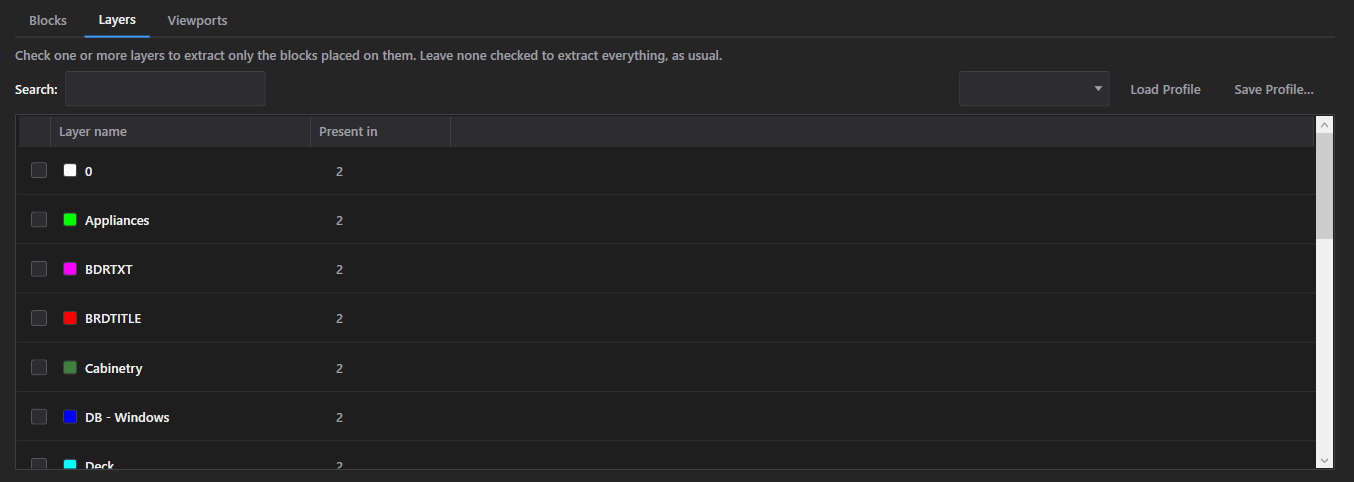
- Lists every layer name found across the whole batch, each with a color swatch and a "Present in N file(s)…" button (or double-click the row) listing which files actually contain it.
- Leave nothing checked to extract everything, same as usual; check one or more layers to extract only block references placed on those layers.
- Has its own Search box, and its own Save Profile…/Load Profile pair — a layer selection is stored separately from whatever's checked on the Blocks tab, even when both are saved under the same profile name, so saving a layer profile called "Foo" doesn't overwrite a block profile also called "Foo".
Viewports tab
Optionally restrict extraction to blocks visible through specific paper-space viewports.
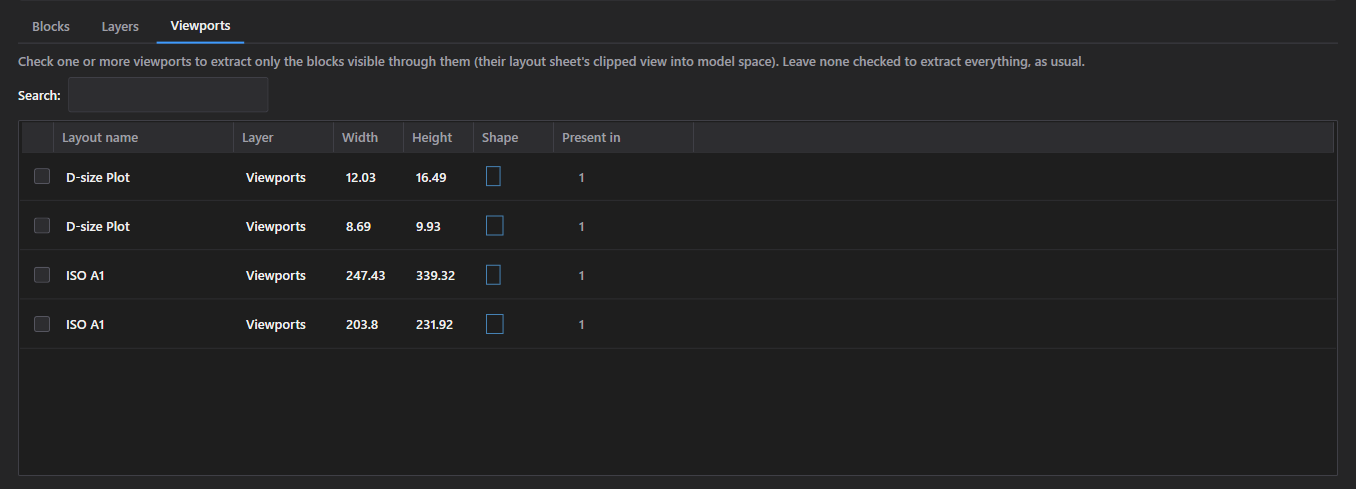
- Lists every viewport found (by layout name, layer, width, height and shape), with the same "Present in N file(s)…" lookup as Layers, and its own Search box — there's no profile save/load on this tab.
- Checking one or more viewports extracts only block references visible through that viewport's clipped view into model space; leaving none checked extracts everything, the same convention as Layers.
- Checking any viewport here silently forces Include geometry on for the run (see Options below), even if that checkbox is unchecked — filtering by viewport needs each block's position to test it against the viewport's boundary.
Options
What gets extracted alongside the attribute values themselves — all on by default.
- Include nested blocks — also extracts block references nested inside other blocks, not just top-level insertions.
- Include dynamic block attributes — extracts dynamic block properties (visibility states, custom parameters) alongside ordinary attributes. Reading these values is available on Free; writing changed dynamic-attribute values back later is Pro-only (see Write Selected Files below).
- Include geometry — extracts each block reference's position and rotation. Gets forced on automatically whenever a Viewports filter is active, regardless of what this checkbox is set to.
- Include layer info — extracts the layer each block reference sits on.
- Parallel processing — scans/extracts multiple files at once instead of one at a time. Free tier is hard-capped to one file at a time no matter what this checkbox or the Settings "Max parallel AutoCAD instances" value are set to — the speed-up only takes effect on Pro.
Extract to Excel
Where the workbook is written, and the Free-tier limits that apply to a single run.
- Extract to Excel always writes one merged workbook — BlockSync_Export_{yyyyMMdd_HHmmss}.xlsx — with every block definition on its own worksheet; there's no option for a separate workbook per file.
- The output folder defaults to the shared parent folder of every added file; if the files span more than one folder, it falls back to a fixed Documents\BlockSync\Exports instead. Open Output Folder jumps straight there, creating it first if it doesn't exist yet.
- Free tier caps a single run at 3 DWG files and 300 exported rows in total. Going over either cap blocks the export entirely before anything is written, rather than silently exporting a truncated result — a Free export is never quietly missing data, it's refused outright with a message naming the limit. Pro removes both caps.
- After writing, a prompt offers to open the workbook immediately. Cancel (while extracting) stops after the file currently in progress, and also terminates AutoCAD's background work on that file rather than leaving it running.
Excel → AutoCAD (write back)
Picking the workbook and DWG folder
Point BlockSync at an edited export and the drawings it applies to, plus where backups get written.
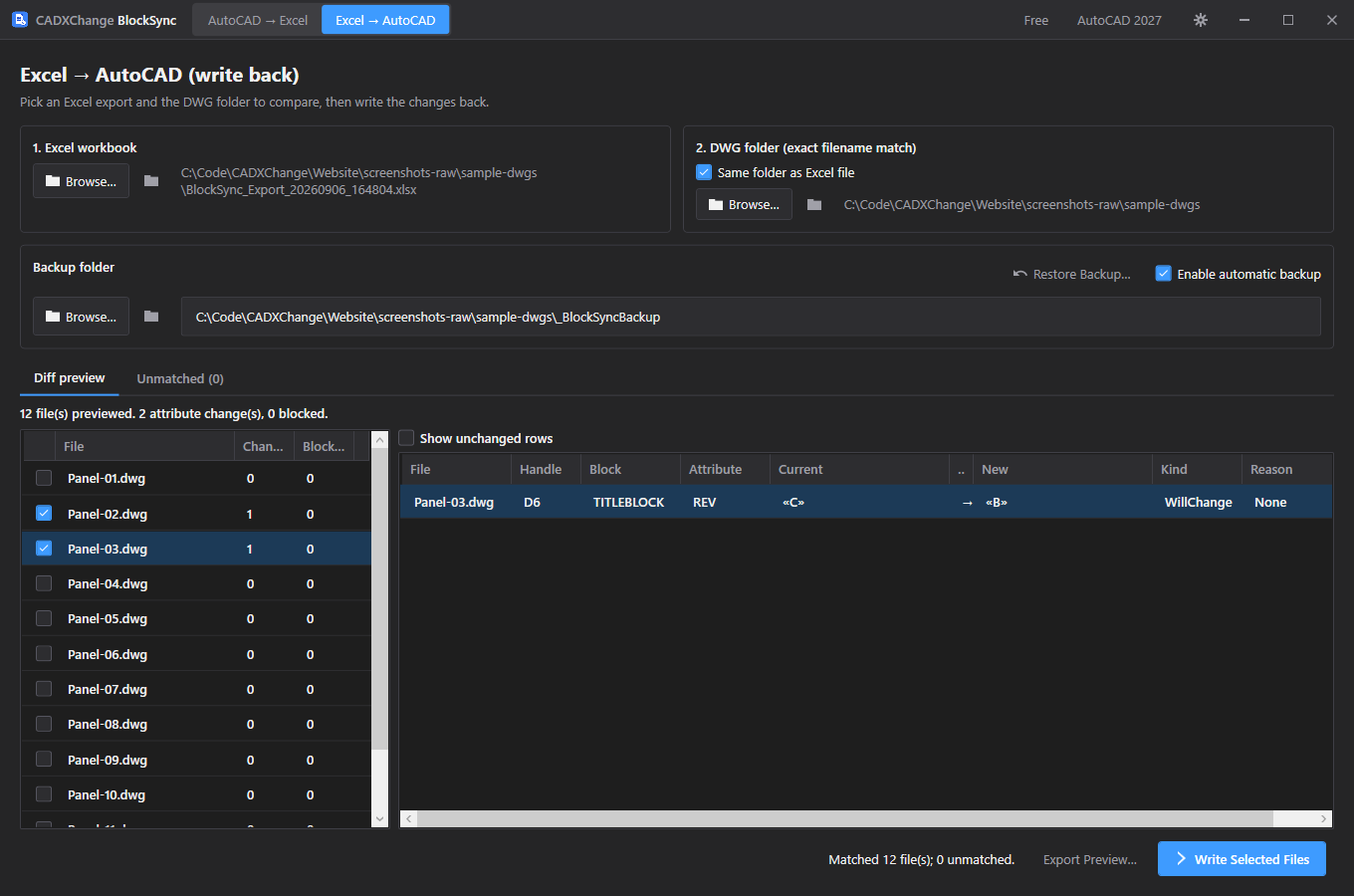
- Step 1 browses to the exported (and since-edited) .xlsx workbook; the button next to it shell-opens that same file directly, for a quick check before matching.
- Step 2 picks the DWG folder. "Same folder as Excel file" (checked by default) derives it automatically from the workbook's own location; browsing to a folder by hand unchecks that box, so it won't silently snap back to the auto-derived folder later.
- Matching a workbook row to a drawing is by exact file name only, inside that one folder — there's no subfolder recursion here, unlike Add Folder on the AutoCAD → Excel side.
- Enable automatic backup (on by default) copies every file about to be written into the backup folder first, unmodified, before any change is made. Turning it off removes any way to roll back that particular run afterward.
- The backup folder defaults to a _BlockSyncBackup folder created next to the DWG folder the first time one is picked; Browse changes it.
- Restore Backup… opens a separate, standalone window (see below), seeded with the current backup folder — it reads backup archives straight off disk, so it keeps working even after the app has been restarted, unlike the in-session Rollback All on the results screen.
Diff preview
Every attribute change BlockSync is about to make, computed as a read-only dry run first.
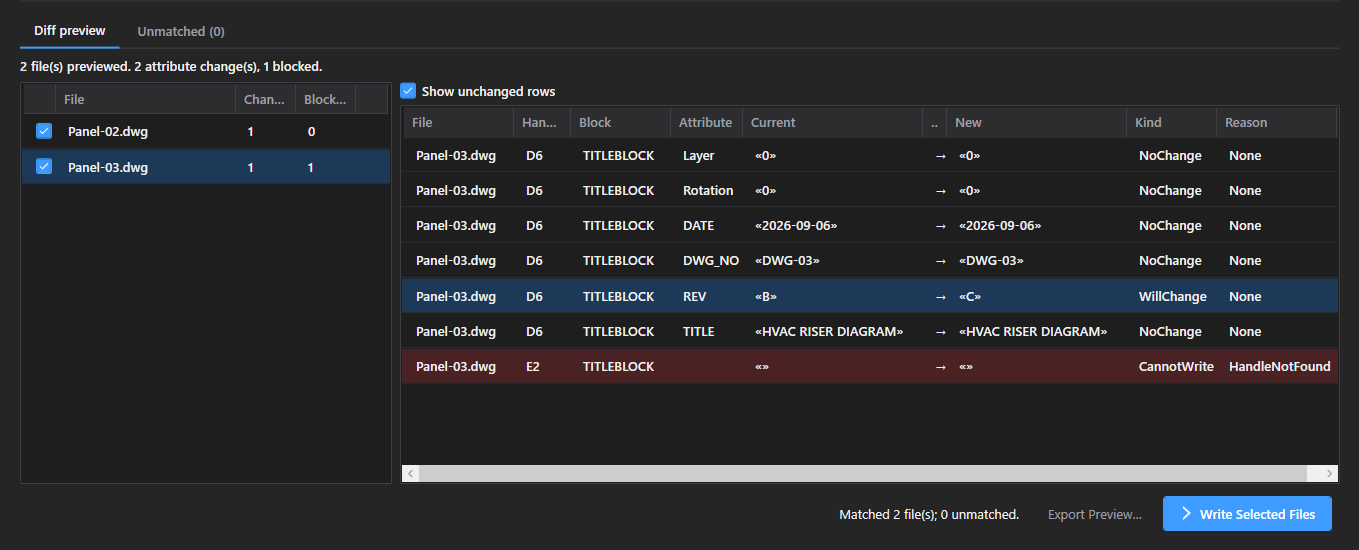
- Picking a workbook and folder with at least one match runs a preview automatically, comparing each Excel row against the live drawing attribute by attribute, matched by AutoCAD's own object handle rather than row position or order.
- The file list on the left shows a Change count and a Blocked count per matched file; selecting a file shows its full File / Handle / Block / Attribute / Current / New table on the right.
- Show unchanged rows is off by default — with hundreds of untouched attributes and a handful of real edits, unchanged rows would otherwise bury the ones that matter. Turn it on to audit a file completely.
- A row can be Blocked instead of a plain change for three reasons: the handle from Excel no longer exists in the drawing, the attribute tag itself doesn't exist on that instance, or (for a dynamic attribute) the new value isn't in that instance's allowed-values list. None of these stop the rest of the run — only that one row is skipped.
- A workbook row whose file name has no exact match in the DWG folder shows up under the Unmatched tab instead of failing the whole comparison.
- Export Preview… writes every row from every file — changed, unchanged and blocked alike — to its own workbook, useful if the diff needs to be reviewed or signed off outside BlockSync before anything is written.
Write Selected Files
Confirms the exact scope of a write before anything happens, then verifies each change actually took.
- Only files still checked in the Diff preview's left-hand list are included in a write; within an included file, only the rows flagged as an actual change are sent — unchanged and blocked rows are never written, even for a file that has some of each.
- The confirmation dialog states exactly how many files and how many attribute changes are about to happen, and names the backup folder — or, if backup is off, warns explicitly that these files will be modified with no way to roll back afterward.
- Editing a dynamic block attribute's value is a Pro feature: if any included change is a dynamic-attribute edit, Free tier blocks the whole write with "Editing dynamic block attributes is a Pro feature." (reading dynamic-attribute values during extraction is unaffected by this).
- The same 3-drawings-per-run cap as Extract applies here too, counted against the checked/included files.
- Files are processed one at a time — backed up, written, then read back to confirm — rather than in parallel, since a real backup file is being created on disk per file. If a file's own backup fails, its write is skipped entirely; BlockSync never writes a file whose backup just failed, even though the change itself might have been safe.
- After writing, BlockSync re-reads every attribute it just changed and compares it against what was written. A mismatch doesn't fail the run, but is recorded and surfaced on the results screen rather than assumed to have worked.
- Cancel finishes the file currently being written, then stops before the next one — it never aborts a write mid-file.
Write results
What happened to every file in the run, including anything that didn't read back the way it was written.
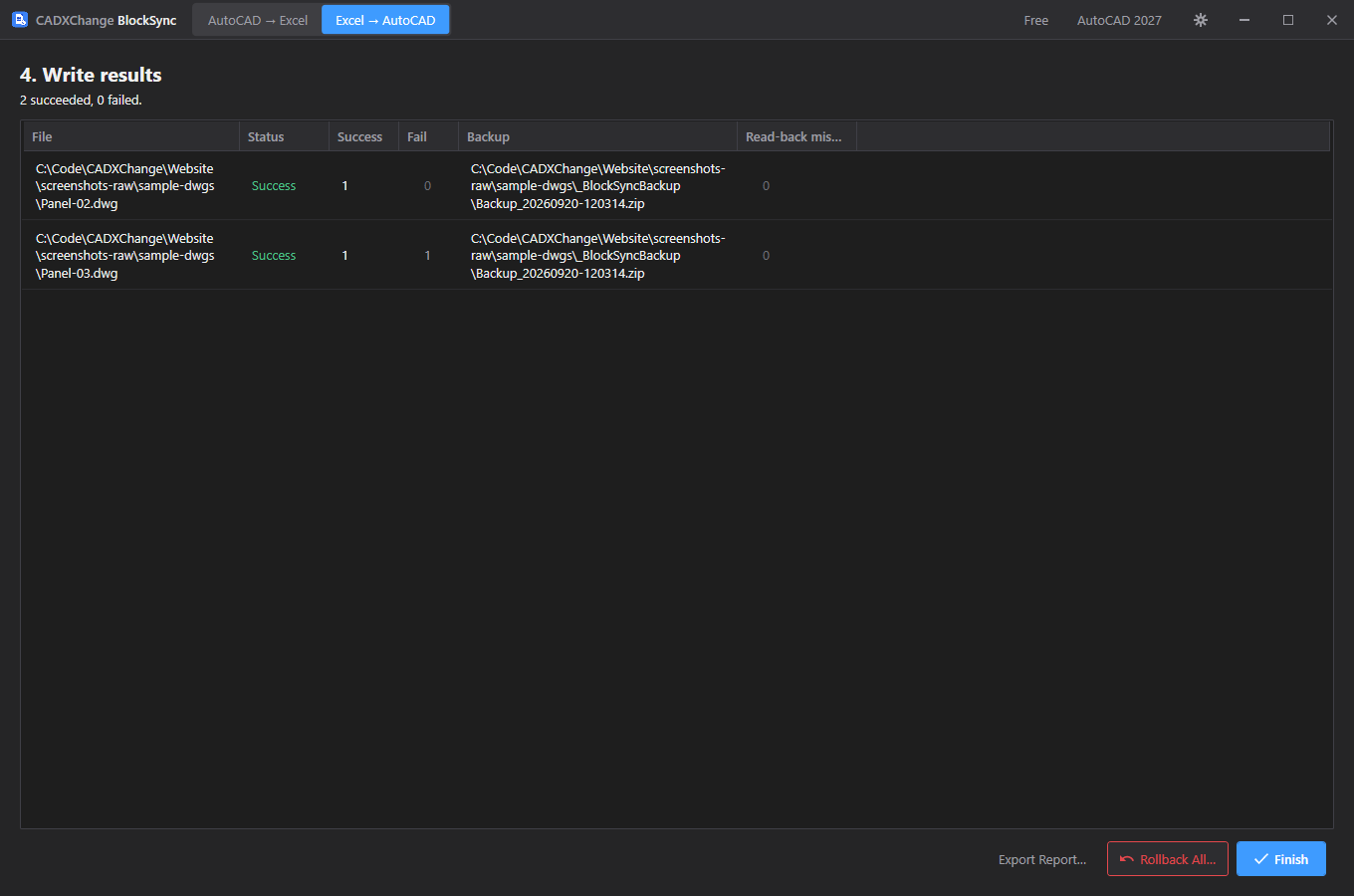
- One row per file: overall status, how many attribute changes succeeded and how many failed, where its backup landed (or why there isn't one), and how many read-back mismatches were found.
- A file's Fail count and Read-back mismatches count are both clickable when non-zero, opening a popup with the specific reasons or values rather than just a number.
- Export Report… saves the same per-file breakdown to a workbook, for a record outside the app.
- Rollback All restores every file in this run from its own pre-write backup in one click — but only while this results screen is still open. Once you leave it (Finish) or the app restarts, use the standalone Restore Backup window instead, which works from backup files on disk rather than this run's in-memory state.
- Finish returns to a blank Excel → AutoCAD screen and discards this run's results — export the report first if you need a record of it.
Restore Backup
Restore Backup (standalone window)
Restore any past backup archive, independent of whatever run is or isn't currently on screen.
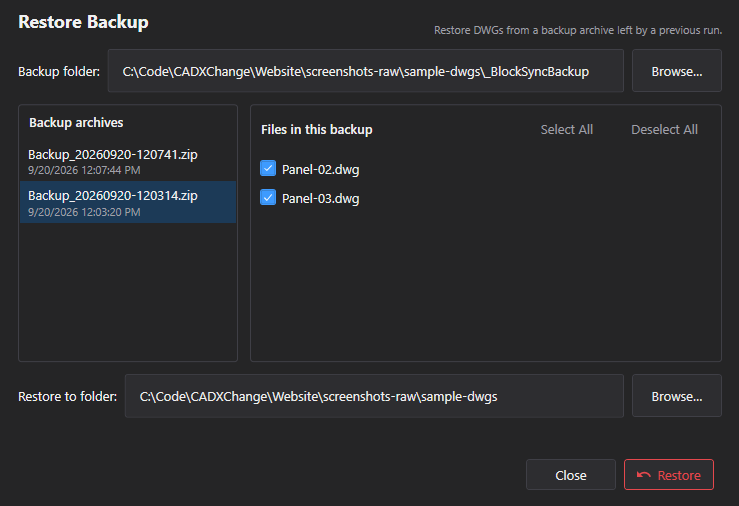
- Opens as its own window rather than a tab in the main app, so it keeps working even after BlockSync has been restarted and the original write-back session is long gone.
- Point it at a backup folder; it lists every Backup_*.zip found there (one archive per write-back run, not per file), newest first.
- Selecting an archive lists the individual DWGs inside it with a checkbox each; Select All / Deselect All toggle the whole list at once.
- Restore copies the checked files from the archive into the chosen destination folder, overwriting anything already there with the same name — there's no partial-merge option, so double-check the destination folder before confirming.
Settings
Opened from the gear icon in the title bar. Every field saves immediately — there's no separate Save button.
English / 日本語 / 简体中文. Restart the app for a language change to take effect.
Default: English
System / Light / Dark. Restart the app for a theme change to take effect.
Default: Match system
Which installed AutoCAD version to use first. If it fails to load, the app falls back to another installed version automatically.
Default: Auto (newest installed)
How many drawings AutoCAD can process in the background at once (choices: 1, 2, 4, 6, 8, 12, 16). Higher is faster but uses more CPU and memory — turn this down on a lower-spec machine.
Default: 8
Applies to Add Folder… on the AutoCAD → Excel screen.
Default: Off
| Setting | Location | Default | What it does |
|---|---|---|---|
| Language | Settings → General | English | English / 日本語 / 简体中文. Restart the app for a language change to take effect. |
| Theme | Settings → General | Match system | System / Light / Dark. Restart the app for a theme change to take effect. |
| AutoCAD version | Settings → AutoCAD | Auto (newest installed) | Which installed AutoCAD version to use first. If it fails to load, the app falls back to another installed version automatically. |
| Max parallel AutoCAD instances | Settings → AutoCAD | 8 | How many drawings AutoCAD can process in the background at once (choices: 1, 2, 4, 6, 8, 12, 16). Higher is faster but uses more CPU and memory — turn this down on a lower-spec machine. |
| Include subfolders when opening a DWG folder | Settings → AutoCAD | Off | Applies to Add Folder… on the AutoCAD → Excel screen. |
Licensing
Your license status shows in the title bar as Free, Pro, Pro (offline), or Expired, and in full on Settings → License.
To activate: paste your license key into Settings → License → "License key" and click Activate. To move a license to a new machine, click "Deactivate this machine" on the old one first, then activate on the new one.
If the app can't reach the license server (no internet), a previously-activated Pro license keeps working for 14 days as "Pro (offline)". Reconnect within that window to revalidate — past 14 days without a successful check, the license shows as Expired until it can revalidate.
Troubleshooting
"AutoCAD not found" or a plugin trust error when the app starts a job
The app drives AutoCAD in the background to open and process each drawing, so it needs a full, licensed AutoCAD 2021–2027 install — AutoCAD LT is not supported. If AutoCAD is installed but this error still appears, that AutoCAD version has likely never been launched on this machine: open it once (even just to the drawing screen), close it, and try again — AutoCAD only trusts a plugin location after it has run interactively at least once.
A scan, extract or write-back run seems stuck on one file
Each file has its own 10-minute cap on top of manually clicking Cancel — if AutoCAD stalls on a file for that long, BlockSync kills the background process handling it and reports it as timed out, and the rest of the batch keeps going. Check the log folder for what that file's process was doing when it stalled.
A file shows up under "Unmatched" during write-back
Matching is by exact file name inside the DWG folder you picked, with no subfolder recursion and no fuzzy matching — check the workbook's file name against what's actually in that folder (not a subfolder of it) and that it hasn't been renamed since export.
"Write Selected Files" is blocked with a dynamic-attribute message
Writing a changed dynamic block attribute value back to a drawing is a Pro feature. Reading dynamic-attribute values during extraction still works on Free — only writing an edited value back is gated. Upgrade to Pro, or uncheck the files/rows containing that dynamic-attribute change.
A file's write is skipped even though backup is enabled
If that specific file's backup copy fails (for example, the backup folder isn't writable), BlockSync skips writing that file entirely rather than proceeding without a safety copy. Check the write report's Backup column for that file's error, fix it (folder permissions, disk space), and re-run.
"Rollback All" is missing or does nothing
It only works while that run's results are still on the Write results screen — once you click Finish or the app restarts, use the standalone Restore Backup… window instead (opened from the Excel → AutoCAD screen), which reads any Backup_*.zip still on disk.
Files on disk
Settings → Diagnostics → Open Log Folder gets you straight to the logs if something needs troubleshooting.
| Settings | %LocalAppData%\CADXChange\BlockSync\settings.json |
| Logs | %LocalAppData%\CADXChange\BlockSync\Logs\ |
| Default backup folder | {DWG folder}\_BlockSyncBackup |
| Default export folder | Documents\BlockSync\Exports |