

LayerSync Documentation
LayerSync has three modes, switched from the pill in the title bar: AutoCAD → Excel (read and edit), Excel → AutoCAD (preview and write back) and Clean Up (batch PURGE). AutoCAD → Excel is one screen with a Layers / Layouts / Properties / Dim Styles tab set; edits made in the grids can go straight to the diff preview with Write Directly…, or out to a single Excel workbook with Export to Excel…. Nothing is written to a drawing until you confirm on the preview.
Getting started
Screenshots reflect a recent release — minor visual details may differ from the version you have installed.
AutoCAD → Excel (read and edit)
Adding files and scanning
Add drawings, and LayerSync reads their layers, layouts, drawing properties and dimension styles in one pass.
- Add Files… picks individual .dwg files; Add Folder… scans a whole folder — whether it also scans subfolders depends on "Include subfolders when adding a folder" (Settings → AutoCAD, off by default).
- Adding, removing or clearing files re-scans the whole batch automatically, with a live per-file progress bar. Each drawing is opened once for all four tabs.
- The file list shows name, path, and a color-coded Status/Details column; a file that fails to scan is marked with its error and skipped, without blocking the rest of the batch.
- The status line reports the combined result: "{n} layer(s), {n} layout(s) found across {n} file(s)." The Files list can be collapsed to give the grids more room.
Layers
One row per layer per drawing — rename, merge, recolor and switch layer states in bulk.
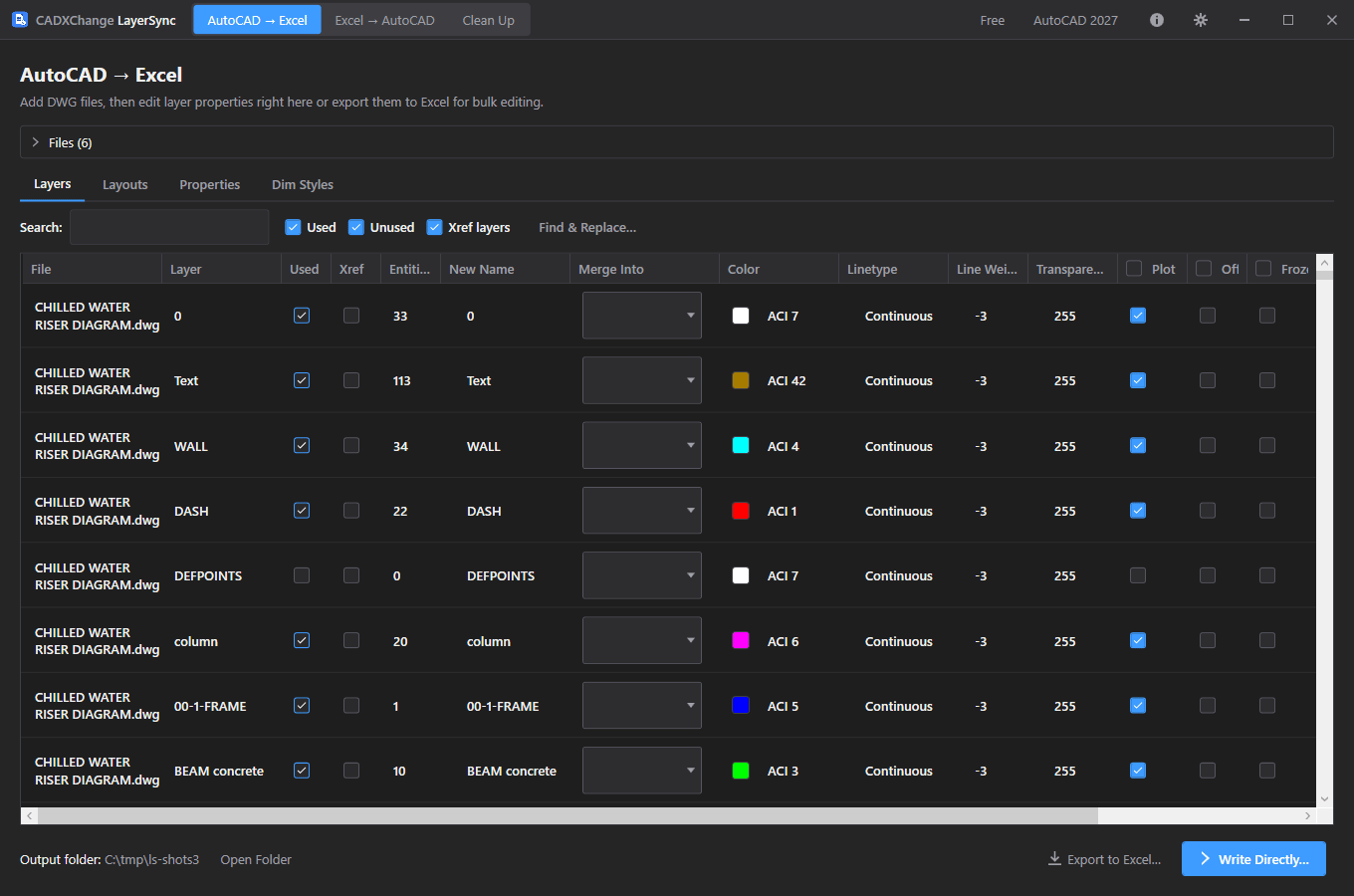
- Columns: File, Layer, Used, Xref, entity count, New Name, Merge Into, Color, Linetype, Line Weight, Transparency, Plot, Off, Frozen, Locked and Description. Used, Xref and the entity count are information only.
- Search by name accepts * and ? wildcards; the Used, Unused and Xref layers checkboxes narrow the list further. The Plot / Off / Frozen / Locked header checkboxes set the whole filtered list at once.
- Find & Replace… renames the layers currently shown, as plain text or a regular expression, optionally case-sensitive.
- Merge Into moves every entity of the source layer — including entities inside block definitions — to the target layer, then removes the emptied layer. The diff preview regroups merges by target layer.
- Color accepts "ACI n" or "#RRGGBB"; click the swatch for a picker.
- Layer 0 cannot be renamed or merged away, and layers that come from an XREF cannot be renamed or merged — both are marked blocked in the preview rather than silently skipped.
Layouts
Rename paper-space layouts and change their tab order across the batch.
- One row per paper-space layout per drawing (Model is never listed): File, Layout, New Name and Tab Order.
- A new name that already exists in the same drawing, or that contains a character AutoCAD doesn't allow in a name, is flagged in the preview as Cannot write with the reason.
Properties
Read and set each drawing's DWGPROPS — standard fields and custom properties.
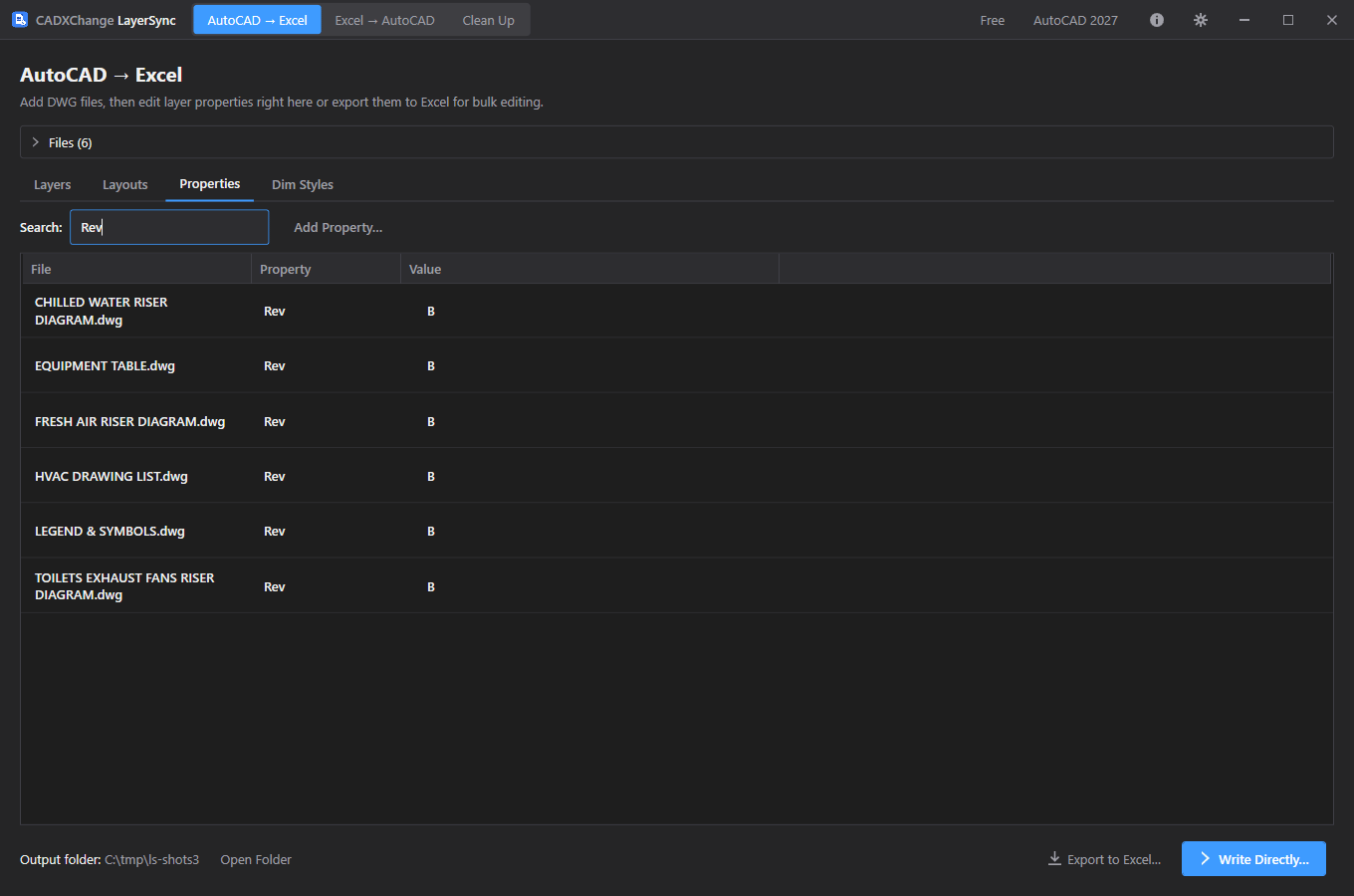
- One row per drawing per property. Title, Subject, Author, Keywords, Comments and HyperlinkBase always appear (empty if unset), followed by the drawing's custom properties alphabetically.
- Edit a value in place. Clearing the value of a custom property removes it from the drawing; clearing a standard field just empties it.
- Add Property… sets a custom property on every scanned drawing, overwriting an existing property of the same name. Property names keep the spelling you type.
- Search matches the property name or the file name — narrow to one property to see it across the whole batch.
- After the write, LayerSync refreshes the drawing's fields (the equivalent of UPDATEFIELD), so a title block that references a property shows the new value. A failed field refresh is reported as a warning; the properties themselves are still saved.
Dim Styles
Standardize dimension text height, text style, arrow size and overall scale.
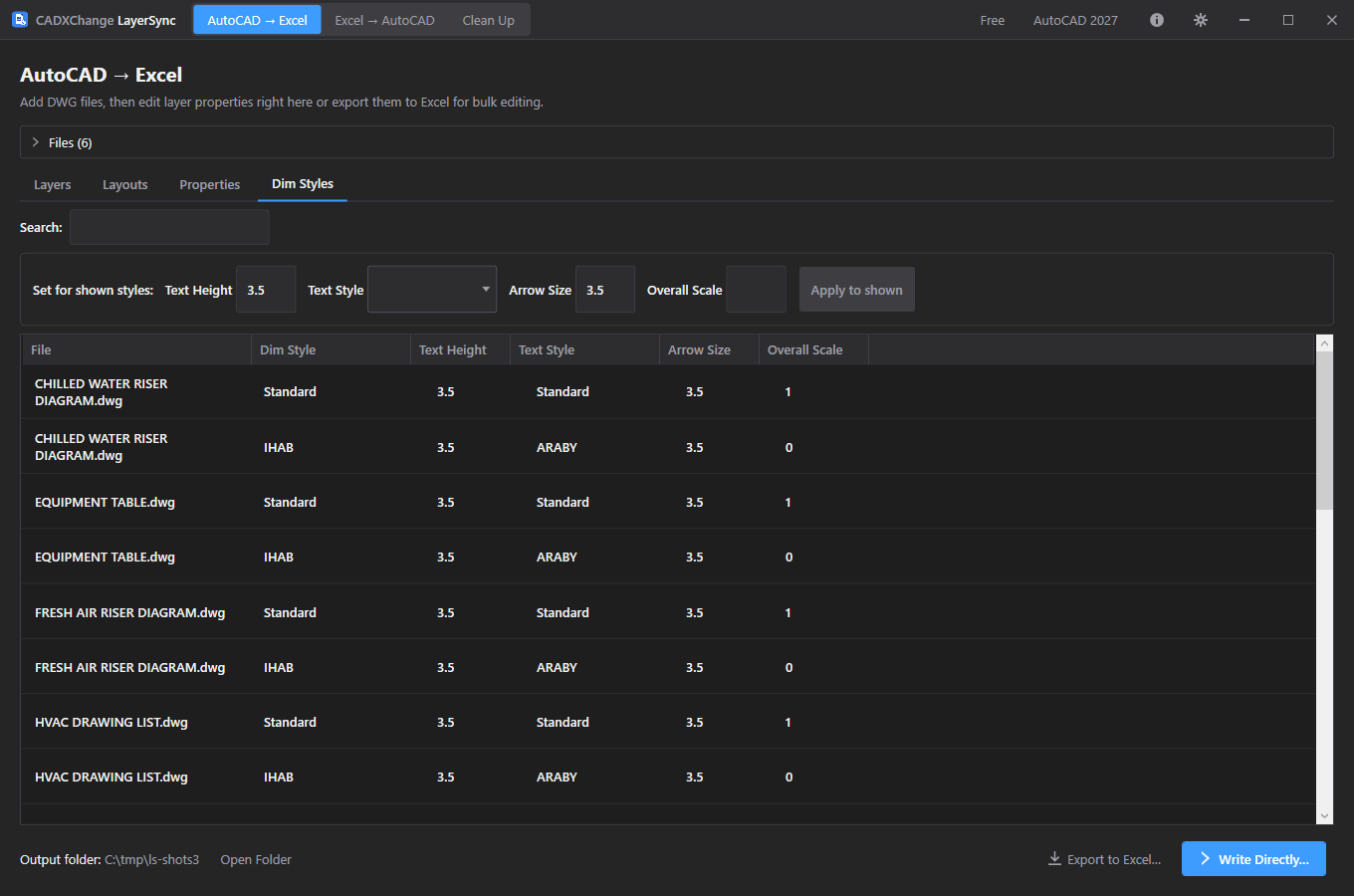
- One row per dimension style per drawing: Text Height (DIMTXT), Text Style (DIMTXSTY), Arrow Size (DIMASZ) and Overall Scale (DIMSCALE). Other dimension variables are left exactly as they are.
- Edit a cell in place, or use the "Set for shown styles" bar: fill any of the boxes and click Apply to shown — every style the search currently shows gets those values; a blank box keeps that setting.
- Styles that come from an XREF are greyed out and can't be edited; unchanged values on them still show as No change in the preview.
- After the write, the existing dimensions that use a changed style are regenerated, so the drawing shows the new sizes immediately. Overrides applied to an individual dimension are left as they are.
- A text style name that doesn't exist in a drawing fails just that style, with the reason shown in the results report.
Export to Excel and Write Directly
Take the edits to Excel for bulk work, or go straight to the preview.
- Export to Excel… writes a timestamped LayerSync_Export_{date}_{time}.xlsx with Layers, Layouts, Properties and DimStyles sheets, a Color Reference sheet and a _LayerSync metadata sheet. Whatever the grids currently show — including edits you've already made — is what gets exported.
- In the Properties sheet each row is one drawing; a header typed into a new column becomes a new custom property. An empty cell clears that property.
- Write Directly… skips Excel: only the rows you edited are carried to the diff preview.
Excel → AutoCAD (write back)
Matching the edited workbook back to drawings
Choose the edited workbook and the DWG folder to match it against.
- Workbooks are matched to drawings purely by exact file name in the chosen folder, and rows to objects by file plus object handle (layers, layouts, dimension styles) or property name — not by row order. Workbooks exported by an earlier LayerSync version without the newer sheets still open.
- Rows with no matching DWG in the folder show up under the Unmatched tab instead of silently failing.
- Skip this step entirely when you arrive from Write Directly… — there is no workbook to pick.
Reviewing the diff preview
See exactly what will change, file by file, before writing anything.
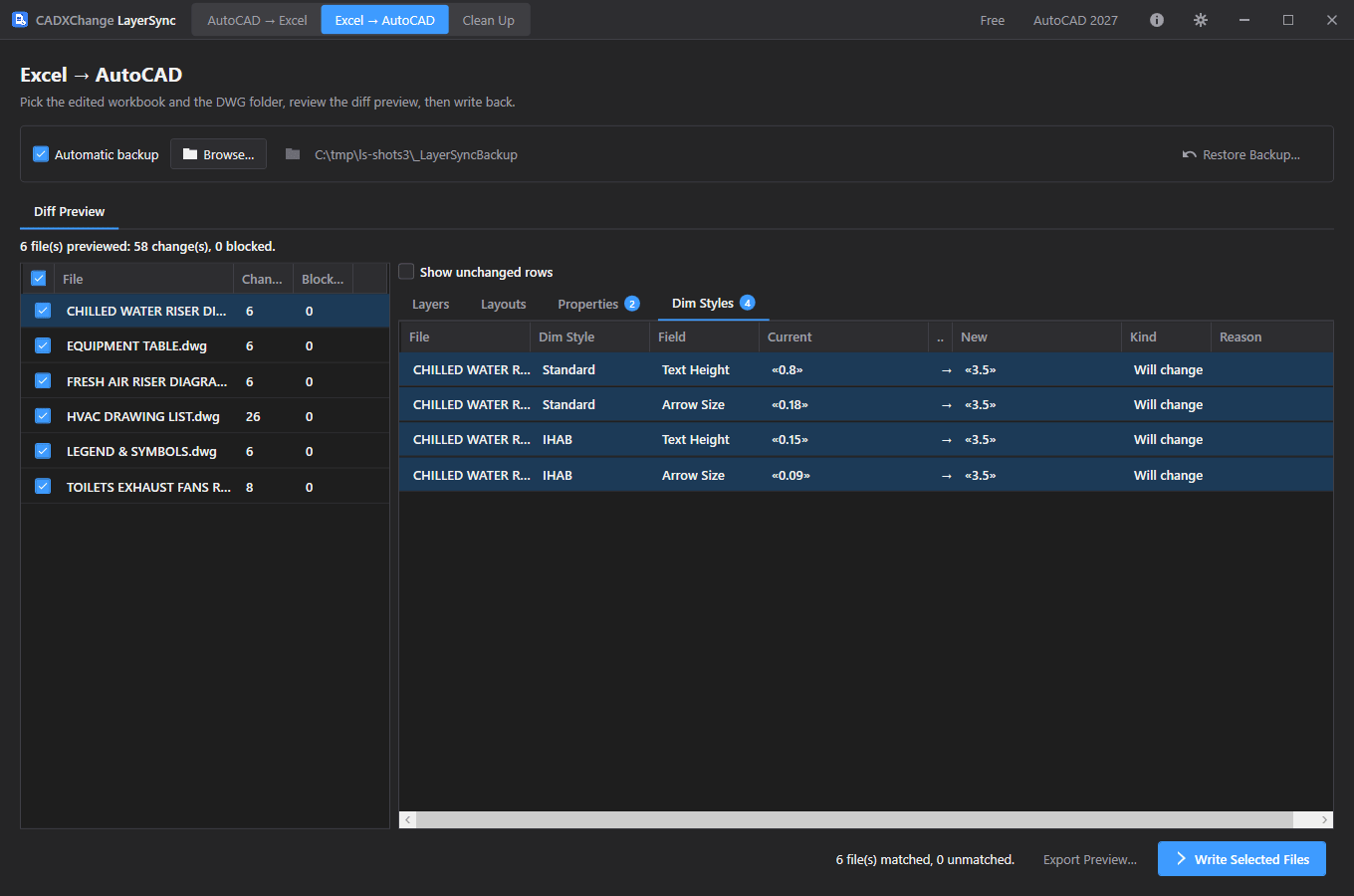
- The Diff Preview lists every matched file with a change count and a blocked count. Select a file to see its Layers, Layouts, Properties and Dim Styles tabs; each tab carries a count badge of the rows that will change or are blocked.
- Every row is flagged Will change / No change / Cannot write with a reason. Show unchanged rows is off by default so a large batch doesn't bury the edits that matter.
- Export Preview… saves the diff grid to its own workbook for sign-off before anything is written.
Writing back and verifying
Write the checked files, then confirm every change actually landed.
- Tick exactly the files to include and click Write Selected Files. A confirmation dialog states how many files and changes are about to be written.
- "Automatic backup" (on by default) copies each file, unmodified, into the backup folder before it's touched. If the backup fails, nothing is written for that file.
- After writing, LayerSync reopens each saved file and compares what's stored against what was intended; any mismatch is named in the results report.
- Rollback All (in the results report) restores every file touched in the run. Restore Backup… restores from any earlier run's backup.
Clean Up (batch PURGE)
What to remove, and the analysis
Choose the categories, add drawings, and see what would be removed per file.
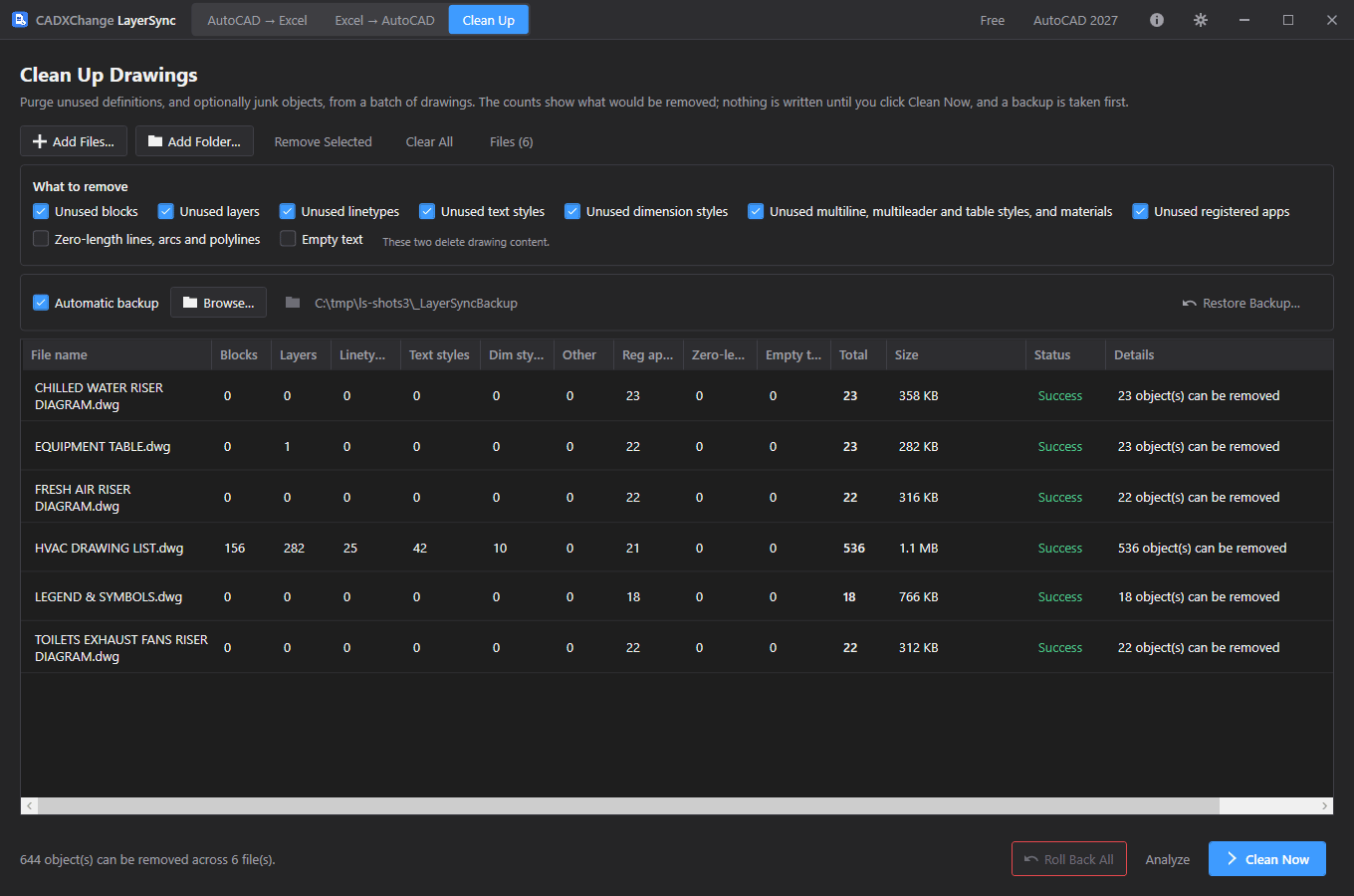
- Categories on by default: unused blocks, layers, linetypes, text styles, dimension styles, multiline / multileader / table styles and materials, and registered applications.
- Zero-length lines, arcs and polylines and Empty text are off by default: they delete drawing content, not just unused definitions. They only look at model and paper space, and skip text that contains a field, attribute definitions, and anything on a locked layer.
- Adding files analyses them straight away. The analysis performs the whole purge in memory, repeating until nothing more can be removed, so items that only become unused after others go are already counted. The file on disk isn't touched.
- The table shows per-category counts, the total and the file size. Double-click a file (or use Details) to list every item that would be removed, grouped by category. Analyze re-runs the analysis after you change the options.
Cleaning and rolling back
Clean the batch with a backup taken first, then verify.
- Clean Now backs each file up (if Automatic backup is on), purges it, saves it, then re-analyses the saved file to confirm nothing removable remains.
- Layer 0, Defpoints, the current layer, XREF-dependent items, the Standard text and dimension styles, anonymous and layout blocks, and blocks that are still referenced are always kept.
- Changing the options or the file list after an analysis marks the counts as out of date until you Analyze again. Roll Back All restores the originals from the backup.
- Clean Up does PURGE only. AUDIT isn't included: the AutoCAD .NET API has no equivalent that can run against a background drawing.
Settings
Opened from the gear icon in the title bar. Every field saves immediately — there's no separate Save button.
Language
Settings → GeneralEnglish / 简体中文 / 繁體中文 / 日本語 / 한국어 / Deutsch / Français / Italiano / Español. Restart the app for a language change to take effect.
Default: EnglishTheme
Settings → GeneralSystem / Light / Dark. Restart the app for a theme change to take effect.
Default: Match systemAutoCAD version
Settings → AutoCADWhich installed AutoCAD version to use first. If it fails to load, the app falls back to another installed version automatically.
Default: Auto (newest installed)Max parallel AutoCAD instances
Settings → AutoCADHow many drawings AutoCAD can process in the background at once (choices: 1, 2, 4, 6, 8, 12, 16). Higher is faster but uses more CPU and memory — turn this down on a lower-spec machine.
Default: 8Include subfolders when adding a folder
Settings → AutoCADWhether Add Folder… recurses into subfolders or only scans the top level.
Default: OffLicensing
Your license status shows in the title bar as Free, Pro, Pro (offline), or Expired, and in full on Settings → License.
To activate: paste your license key into Settings → License → "License key" and click Activate. To move a license to a new machine, click "Deactivate this machine" on the old one first, then activate on the new one.
If the app can't reach the license server (no internet, or the server is temporarily unavailable), a previously-activated Pro license keeps working for 14 days as "Pro (offline)". Reconnect within that window to revalidate — past 14 days without a successful check, past the subscription's end date, or if the system clock has been set back, the license shows as Expired until it can revalidate.
The free edition processes up to 10 drawings per run and one AutoCAD instance at a time; Pro removes both limits.
Troubleshooting
"AutoCAD not found" or a plugin trust error when the app starts a job
The app drives AutoCAD in the background to open and process each drawing, so it needs a full, licensed AutoCAD 2021–2027 install — AutoCAD LT is not supported. If AutoCAD is installed but this error still appears, that AutoCAD version has likely never been launched on this machine: open it once (even just to the drawing screen), close it, and try again — AutoCAD only trusts a plugin location after it has run interactively at least once.
A row shows Cannot write in the diff preview
The Reason column explains why — for example the layer or dimension style comes from an XREF, layer 0 can't be renamed or merged, a layout name already exists, or the drawing couldn't be read. Rows marked Cannot write are never written, even if the file is checked.
A title block doesn't show the new property value
LayerSync refreshes the drawing's fields after writing properties. If that refresh reported a warning, open the drawing and run UPDATEFIELD; also check that the title block field actually references the custom property you changed.
A dimension style edit is blocked or fails
Styles that come from an XREF can't be edited from the host drawing. For a text style change, the name must already exist in that drawing — the results report names the drawing and style that failed.
Rows I expected to see are on the Unmatched tab instead
Write back matches Excel rows to DWGs purely by exact file name in the selected folder — if the workbook was exported from a different folder or a file was renamed since export, re-point the DWG folder or re-export.
Files on disk
Settings → Diagnostics → Open Log Folder gets you straight to the logs if something needs troubleshooting.
| Settings | %LocalAppData%\CADXChange\LayerSync\settings.json |
| Logs | %LocalAppData%\CADXChange\LayerSync\Logs\ |
| Default backup folder | {DWG folder}\_LayerSyncBackup |
| Default export folder | Documents\LayerSync\Exports |