

P3DSync Documentation
P3DSync works with Plant3D assets (pipes, valves, equipment and their UDA properties) — not plain AutoCAD block references. If what you need to extract or write back is ordinary block references and their attributes, use BlockSync instead. P3DSync has two modes, switched from the pill in the title bar: Plant3D → Excel (extract) and Excel → Plant3D (write back). Extract is one screen with an Assets/Layers/Viewports tab set; write back is a short sequence — pick a workbook and folder, review a diff, write back, then a separate results screen. Both modes need the project's Plant3D Project Database (ProcessPower.dcf) to read or write anything beyond an asset's Tag, geometry and layer, since custom (UDA) properties live there, not on the drawing entity.
Getting started
Screenshots reflect a recent release — minor visual details may differ from the version you have installed.
Plant3D → Excel (extract)
Adding files and scanning
Add drawings, and P3DSync scans asset classes, layers and viewports automatically.
- Add Files… picks individual .dwg files; Add Folder… scans a whole folder for .dwg files — whether it also scans subfolders depends on "Include subfolders when opening a DWG folder" (Settings → AutoCAD, off by default).
- Adding, removing or clearing files re-scans the whole batch automatically, with a live per-file progress bar.
- The file list shows name, path, and a color-coded Status/Details column; a file that fails to scan is marked with its error and skipped, without blocking the rest of the batch from scanning normally.
- The status line below the list reports the combined result across every scanned file: "{n} asset classes, {n} layers, {n} viewports across {n} file(s)."
Pointing at the Plant3D Project Database
Set ProcessPower.dcf once so Include attributes can actually read UDA values.
- P3DSync auto-detects ProcessPower.dcf next to the DWG folder, or one folder up — Browse… overrides it if the project database lives somewhere else.
- Without a project database set, extraction still works for Tag, geometry and layer — just not the custom (UDA) attributes, since those are stored in the project database, not on the drawing entity itself.
Choosing asset classes, layers and viewports
Pick exactly which classes — and which parts of each drawing — to export.
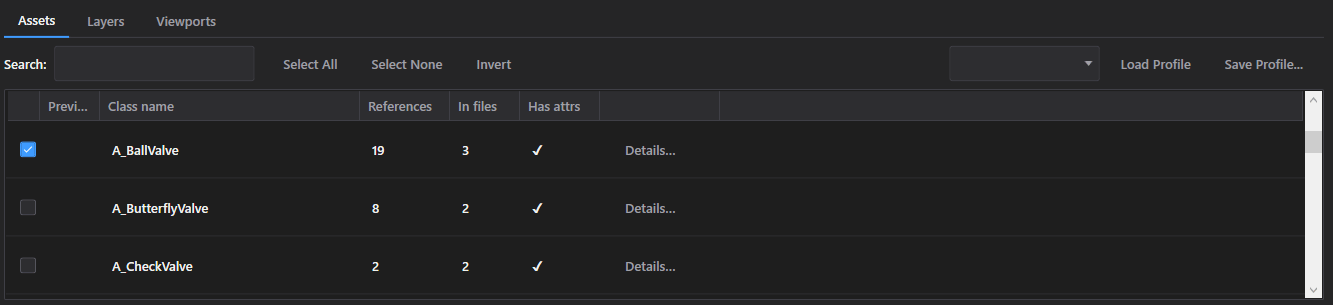
- The Assets tab lists every scanned class with its reference count, how many files contain it, whether it has attributes at all, and an inline preview thumbnail where one is available — Details… opens the full picture for a class before you commit to exporting it.
- Search by name, or use Select All / Select None / Invert to manage the checklist on a project with dozens of classes.
- Switch to the Layers or Viewports tab to narrow the export further — only assets placed on/visible through the checked layers or viewports are extracted; leave nothing checked to extract everything, as usual.
- Save Profile… stores the current class (or layer) selection under a name for reuse later; Load Profile reapplies it. Free tier caps this at 1 saved profile — existing ones can always be overwritten.
Extract options and running the export
Choose what to include, then produce the workbook.
- Include attributes pulls each asset's custom (UDA) properties from the Plant3D project database, alongside its Tag — requires the project database to be set (see above).
- Include geometry adds position/rotation columns; Include layer info adds the layer column; Space scope limits extraction to model space, paper space, or both.
- Parallel processing scans and extracts multiple files at once on a fast machine — faster, but uses more memory.
- Extract to Excel… writes a timestamped P3DSync_Export_{date}_{time}.xlsx into the output folder shown on screen (defaults to the shared folder of your DWGs), with one sheet per asset class plus a _P3DSync metadata sheet (P3DSync/AutoCAD version, source file names and SHA-1 hashes, selected class/layer names).
Excel → Plant3D (write back)
Matching the edited workbook back to drawings
Choose Excel Workbook and the DWG folder to match it against.
- Choose Excel Workbook… picks the edited export; "Same folder as Excel file" (on by default) sets the DWG folder to the workbook's own folder, matched purely by exact filename, so moving the workbook around doesn't confuse it.
- P3DSync auto-detects both the Plant3D Project Database and the backup folder next to the DWGs — Browse… overrides either.
- Rows with no matching DWG in the folder show up under the Unmatched tab (with a count badge) instead of silently failing or blocking the rest of the run.
Reviewing the diff preview
See exactly what will change, file by file and attribute by attribute, before writing anything.
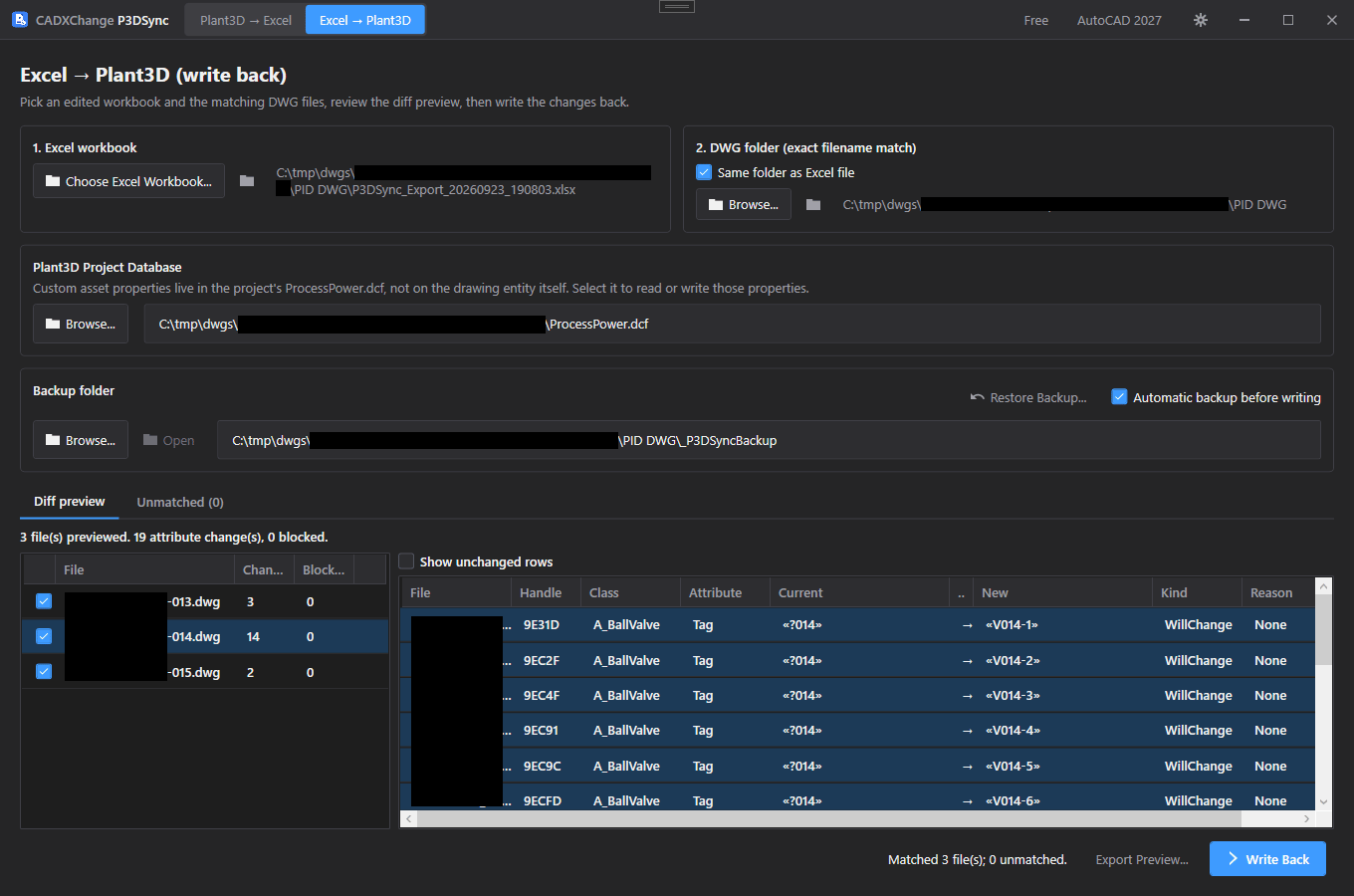
- The Diff preview tab lists every matched file with a change count and a blocked count. Select a file to see the full table: File, Handle, Class, Attribute, Current, New, each row flagged WillChange / NoChange / CannotWrite with a reason.
- Show unchanged rows is off by default, so a large batch doesn't bury the handful of edits that matter.
- Export Preview… saves the diff grid itself to its own workbook, useful for handing the exact planned changes to someone else for sign-off before writing.
Writing back and verifying
Write the checked files, then confirm every change actually landed.
- Check off exactly the files to include, then Write Back. A confirmation dialog states exactly how many files and how many attribute changes are about to happen.
- "Automatic backup before writing" (on by default) copies each file, unmodified, into the backup folder before it's touched.
- After writing, P3DSync reads every changed Tag and attribute straight back out of the drawing and project database to verify it matches what was intended — any mismatch is named in the results report rather than assumed to have worked.
- Rollback All (in the results report) restores every file touched in that run from its pre-write backup in one click. Restore Backup… (on the write-back screen) restores from any prior run's backup, not just the current one.
Settings
Opened from the gear icon in the title bar. Every field saves immediately — there's no separate Save button.
English / 日本語 / 简体中文. Restart the app for a language change to take effect.
Default: English
System / Light / Dark. Restart the app for a theme change to take effect.
Default: Match system
Which installed AutoCAD version to use first. If it fails to load, the app falls back to another installed version automatically.
Default: Auto (newest installed)
How many drawings AutoCAD can process in the background at once (choices: 1, 2, 4, 6, 8, 12, 16). Higher is faster but uses more CPU and memory — turn this down on a lower-spec machine.
Default: 8
Whether Add Folder… recurses into subfolders or only scans the top level.
Default: Off
| Setting | Location | Default | What it does |
|---|---|---|---|
| Language | Settings → General | English | English / 日本語 / 简体中文. Restart the app for a language change to take effect. |
| Theme | Settings → General | Match system | System / Light / Dark. Restart the app for a theme change to take effect. |
| AutoCAD version | Settings → AutoCAD | Auto (newest installed) | Which installed AutoCAD version to use first. If it fails to load, the app falls back to another installed version automatically. |
| Max parallel AutoCAD instances | Settings → AutoCAD | 8 | How many drawings AutoCAD can process in the background at once (choices: 1, 2, 4, 6, 8, 12, 16). Higher is faster but uses more CPU and memory — turn this down on a lower-spec machine. |
| Include subfolders when opening a DWG folder | Settings → AutoCAD | Off | Whether Add Folder… recurses into subfolders or only scans the top level. |
Licensing
Your license status shows in the title bar as Free, Pro, Pro (offline), or Expired, and in full on Settings → License.
To activate: paste your license key into Settings → License → "License key" and click Activate. To move a license to a new machine, click "Deactivate this machine" on the old one first, then activate on the new one.
If the app can't reach the license server (no internet), a previously-activated Pro license keeps working for 14 days as "Pro (offline)". Reconnect within that window to revalidate — past 14 days without a successful check, the license shows as Expired until it can revalidate.
Troubleshooting
"AutoCAD not found" or a plugin trust error when the app starts a job
The app drives AutoCAD in the background to open and process each drawing, so it needs a full, licensed AutoCAD 2021–2027 install — AutoCAD LT is not supported. If AutoCAD is installed but this error still appears, that AutoCAD version has likely never been launched on this machine: open it once (even just to the drawing screen), close it, and try again — AutoCAD only trusts a plugin location after it has run interactively at least once.
"Include attributes" extracts Tag and layer but no custom fields
Custom (UDA) asset properties live in the Plant3D project database, not on the drawing entity — set Plant3D Project Database to the project's ProcessPower.dcf (Browse… if auto-detection next to or one folder above the DWGs didn't find it).
A row shows CannotWrite in the diff preview
The row's Reason column explains why — most commonly the asset's handle no longer exists in that drawing, or the target attribute isn't valid for that asset's class. Rows marked CannotWrite are never written, even if the file is checked.
Rows I expected to see are on the Unmatched tab instead
Write back matches Excel rows to DWGs purely by exact filename in the selected folder — if the workbook was exported from a different folder or a file was renamed since export, re-point the DWG folder or re-export.
Files on disk
Settings → Diagnostics → Open Log Folder gets you straight to the logs if something needs troubleshooting.
| Settings | %LocalAppData%\CADXChange\P3DSync\settings.json |
| Logs | %LocalAppData%\CADXChange\P3DSync\Logs\ |
| Selection profiles | %LocalAppData%\CADXChange\P3DSync\Profiles\ |
| Default backup folder | {DWG folder}\_P3DSyncBackup |
| Default export folder | Documents\P3DSync\Exports |