

TextCompare Documentation
TextCompare opens in Compare DWG mode; a Compare DWG / Compare with Excel switch in the title bar flips to comparing against an exported Excel workbook instead of a second DWG folder. Either mode then moves through one screen at a time: Select Files → Review Matches → a brief Comparing… progress screen → Comparison Report. It only ever reads DWGs — there's no write-back or backup step anywhere in the app, since comparing and exporting is all it does.
Getting started
Screenshots reflect a recent release — minor visual details may differ from the version you have installed.
Comparing files
Compare DWG vs. Compare with Excel
A title-bar switch between the normal two-folder workflow and comparing an exported Excel workbook against one DWG folder.

- Compare DWG (the default) is the two-folder workflow described in the rest of this page. Compare with Excel replaces the Select Files screen's Folder A picker with a single .xlsx workbook — the text-data export produced by the companion TextSync tool — while Folder B stays a normal folder of DWGs.
- Switching modes keeps each mode's own Select Files state intact — flipping to Compare with Excel and back to Compare DWG doesn't lose Folder A/B's file lists or filter selections.
Compare with Excel — selecting the workbook
Browse to the text-data workbook exported by TextSync; Folder B is still a normal folder of DWGs.
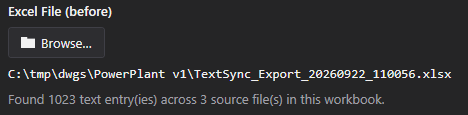
- Browse… picks the .xlsx workbook. Once picked, the screen reports how many text entries it found and across how many source files were originally recorded in it — e.g. "Found 1023 text entry(ies) across 3 source file(s) in this workbook." — before anything is scanned.
- The layer names already present in the workbook become the comparison scope automatically; there's no separate Layers/Viewports checklist for this mode, since the workbook itself already reflects whatever was selected when it was exported from TextSync.
- From there it's the same Review Matches → Comparing → Comparison Report flow as Compare DWG, pairing the workbook's recorded file names against Folder B's actual files — Filename priority is the default match strategy here, rather than Hybrid, since the workbook side has no live handle data of its own to weight a Hybrid match with.
- An Excel workbook has no resolved layer color, so Layer name is still compared but LayerColor is left out of the diff for this mode — otherwise every single row would show a spurious color change. The workbook also never records text height, so TextHeight is left out of the diff too.
Adding files (Folder A / Folder B)
Add the 'before' and 'after' revisions of the drawing set to compare.
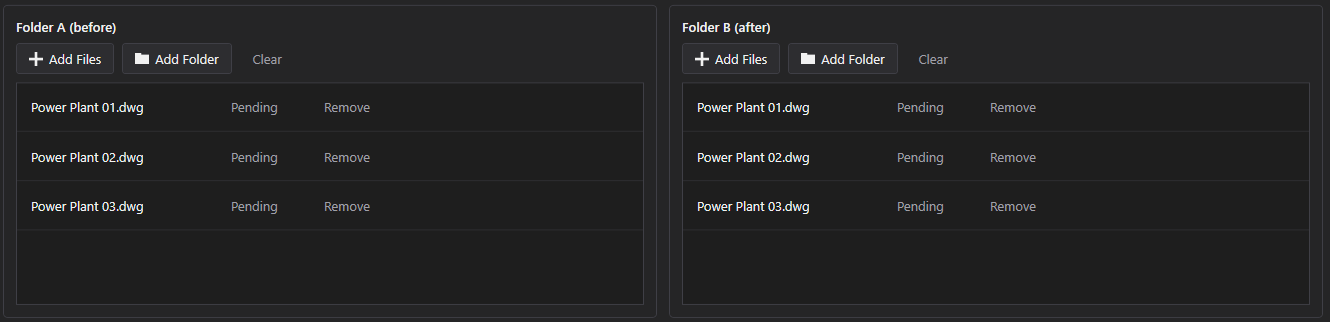
- Add Files or Add Folder builds Folder A (before) and Folder B (after) independently. Add Folder scans a whole folder for .dwg files — whether it also scans subfolders depends on "Include subfolders when adding a folder" (Settings → AutoCAD, off by default), which applies to both sides.
- Free tier caps this at 3 files per side (Folder A and Folder B counted separately) — going over blocks the whole run before anything scans, with a message naming the limit.
Filtering with Layers and Viewports
Narrow what gets compared to specific layers or paper-space viewports — there's no Blocks tab here.
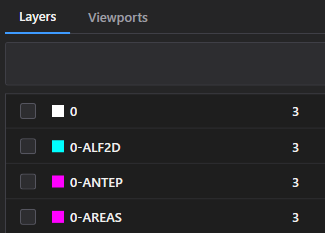
- Unlike BlockCompare, there's no Blocks tab — block names aren't a user-facing filter in TextCompare, since block references are never diffed here in the first place (see Comparison Report below).
- The Layers tab is the real filter: only DBText/MText entities on a checked layer are read at all. Checking nothing compares every layer, as usual.
- The Viewports tab filters by a position/bounding-box test applied after scanning, keeping only entities that actually fall inside a checked paper-space viewport.
- Block references are still read during scanning regardless of these filters, but purely to give the file-matching algorithm a handle fingerprint to pair files with — they never appear in the comparison itself.
Match strategy, confidence and saved profiles
How TextCompare decides which 'before' file goes with which 'after' file.
- Match strategy — Filename priority, Handle priority, or Hybrid (default) — sets how much weight a proposed pairing gives to filename similarity versus how many block handles two files share (Hybrid weights 40% filename / 60% handle). Hybrid is what keeps a match correct even when a revision also renames the file.
- The Confidence slider (0.00–1.00, default 0.15) is the cutoff a proposed pairing's combined score has to clear to be accepted automatically; a pairing that scores below it is left unmatched instead, for manual pairing on the next screen.
- Save… / Load stores the current Layers/Viewports selection under a name (not the match strategy or confidence value). Free tier keeps one saved profile at a time — saving a second one shows an upgrade prompt instead of silently overwriting it.
Scan & Match
Reads both folders and proposes file-to-file pairings.
- Scans Folder A, then Folder B, processing one file at a time in the background per slot; parallelism is capped at 1 for Free regardless of the Settings "Max Parallel AutoCAD Instances" value. Each file's MD5 hash is also computed here, used later to detect a byte-identical pair.
- There's no Cancel button anywhere in this step, and no automatic timeout — if AutoCAD hangs on a corrupt or unusually large DWG, the only way out today is closing the app and checking the log folder for the last file it was reading.
Review Matches
Confirm or correct the proposed before/after file pairings before anything is compared.
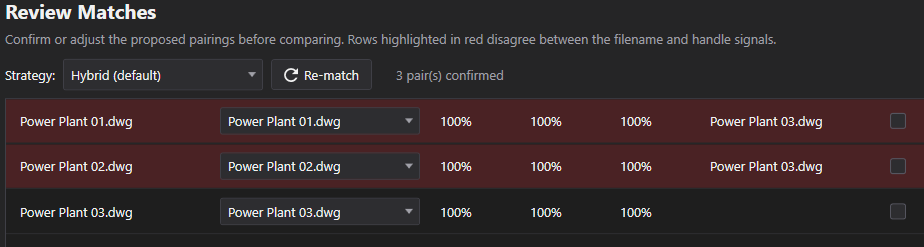
- Each row shows File A next to the proposed File B (an editable dropdown listing every Folder B file), with Filename %, Handle % and Combined % scores.
- Rows highlighted red are conflicts — the filename-only best match and the handle-only best match for that file disagree with each other (or with the chosen pairing) — and name a Conflict candidate so you can see the runner-up before deciding.
- A Folder A file with no confident match starts as its own row with no File B selected and Exclude already checked — it's left out of the compare unless you pick a File B and uncheck Exclude yourself.
- Re-match re-runs the matching algorithm purely against the snapshots already scanned — no DWGs are re-read — but it replaces every row, discarding any manual File B overrides or Exclude changes made since the last scan.
Comparing (progress screen)
A short progress screen between confirming matches and seeing the report — no Cancel button here either.
- This step is a pure in-memory diff of the snapshots already scanned — no DWGs are opened again, so it's quick even on a large batch.
- This screen has no Back and no Cancel — it navigates itself to the Comparison Report automatically the moment the last pair finishes.
Comparison Report
Every wording or content change, entry by entry — text only, never block references or attributes.
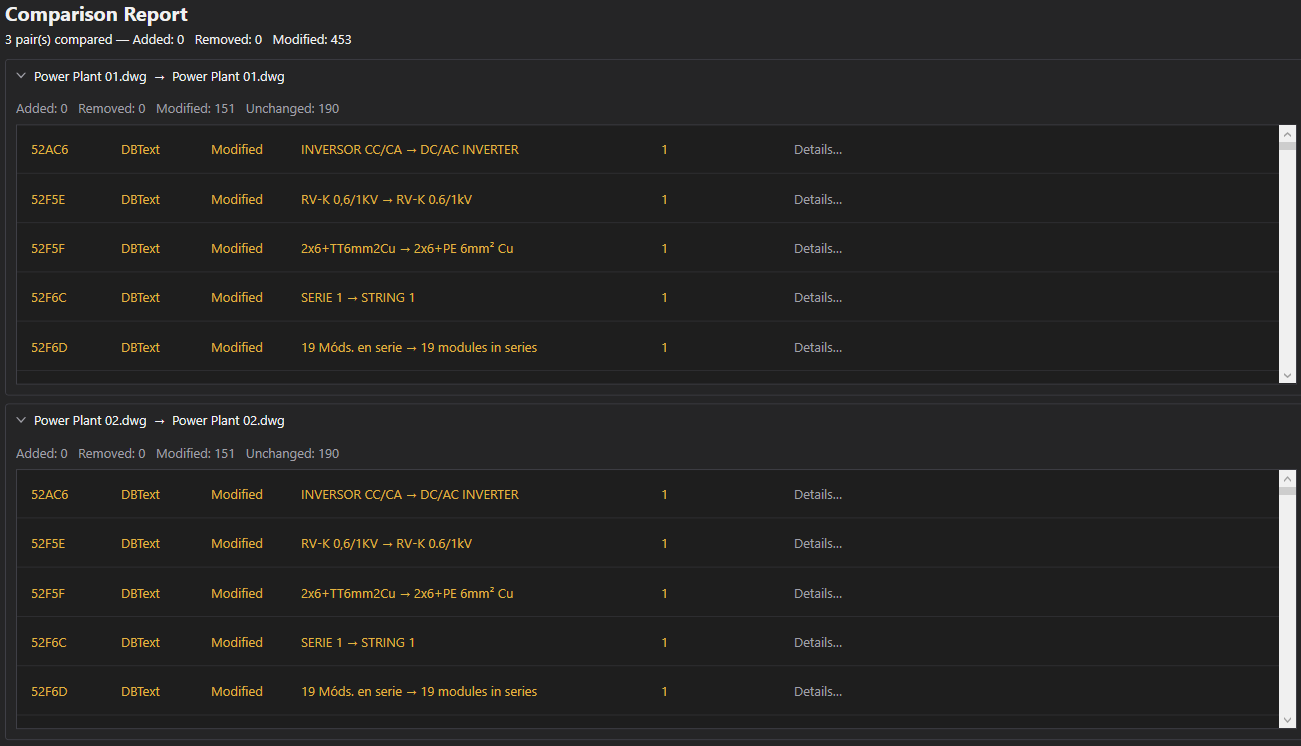
- Only DBText/MText entities are compared. Block references are scanned solely to help pair files together (see Filtering above) and never appear as entries in the report.
- Results are grouped per matched pair. A pair whose files hash byte-identical is reported as "Identical file — comparison skipped", with no per-entity diffing run for that pair.
- Each entry shows Handle, Block Name (literally "DBText" or "MText"), Kind (Added/Removed/Modified) and the text content, plus how many fields changed — Details… shows every changed field's old and new value side by side, including the text itself, position, height, layer and color.
- Unchanged entries aren't listed on screen at all, so a heavily-annotated sheet doesn't bury the handful of real wording changes.
Exporting to Excel
Export to Excel
The same comparison, written to a workbook anyone can open without TextCompare installed.
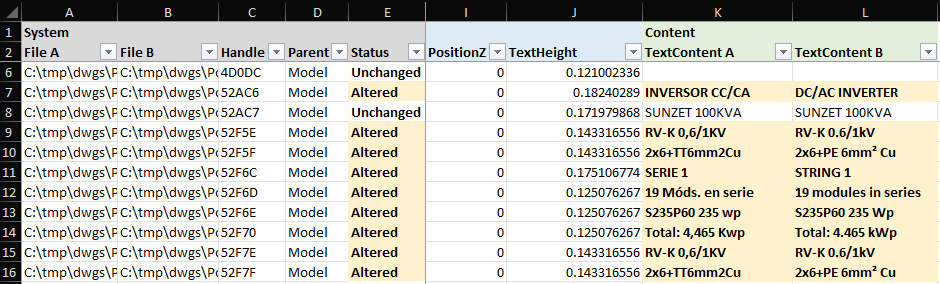
- One sheet per entity kind (in practice B_DBText / B_MText), plus a metadata sheet listing each pair's file names, MD5 hashes and whether it was skipped as identical.
- Unlike the on-screen report, the exported sheet includes Unchanged rows alongside Added/Modified/Removed — nothing is left out of the file, only off the screen.
- Added rows are filled green; Removed rows are filled red with strikethrough text; Modified rows carry a comment on each changed cell recording its old value, with separate "TextContent A"/"TextContent B" columns for the text itself — this is the default "one row per record" layout described here; see the next section for the alternative.
- The Status column in the exported sheet uses "Deleted"/"Altered" where the on-screen Kind column says "Removed"/"Modified" — same meaning, different wording between the two views.
- There's no row-count limit or Free/Pro gate on the export itself — the only Free-tier limit in TextCompare is the 3-files-per-side cap on Scan & Match.
Choosing a report layout
Export to Excel opens a small dialog first, asking which of two row layouts to write the report in.
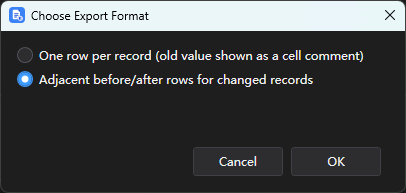
- One row per record (the default) is the layout described in the previous section: a changed field's old value rides along as a cell comment, and TextContent gets its own A/B column pair.
- Adjacent before/after rows instead expands every Modified entry into two rows sharing a single TextContent column — see the next section for what that looks like.
- The choice only affects how Modified entries are laid out; Added, Removed and Unchanged rows are written the same way either way.
Two-row before/after layout
The alternative layout: a Modified entry's old and new values sit on two adjacent rows instead of one, with the changed fields highlighted on both.
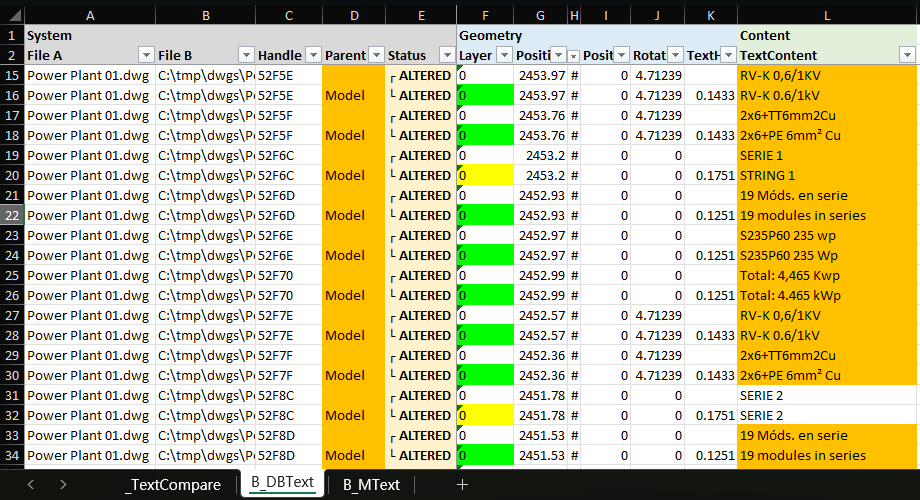
- A Modified entry gets two rows instead of one — the first with its old values, the second with its new values — sharing one "TextContent" column instead of the separate "TextContent A"/"TextContent B" pair the default layout uses.
- The Status column reads "┌ ALTERED" on the first row and "└ ALTERED" on the second, so the pair still reads as one linked unit even after the sheet gets filtered or sorted apart, instead of relying on the two rows staying next to each other.
- Every field that actually changed between the two rows is highlighted (not just noted in a comment), so a reviewer can scan two full rows side by side rather than hovering each flagged cell one at a time.
- Added, Removed and Unchanged entries are unaffected by this choice and stay single-row either way, since there's no "before" or "after" side missing to pair up for those.
Settings
Opened from the gear icon in the title bar. Every field saves immediately — there's no separate Save button.
English / 日本語 / 简体中文. Restart the app for a language change to take effect.
Default: English
System / Light / Dark. Restart the app for a theme change to take effect.
Default: Match system
Which installed AutoCAD version to use first. If it fails to load, the app falls back to another installed version automatically.
Default: Auto (newest installed)
How many drawings AutoCAD can process in the background at once (choices: 1, 2, 4, 6, 8, 12, 16). Higher is faster but uses more CPU and memory — turn this down on a lower-spec machine.
Default: 8
Applies to Add Folder on the Select Files screen, for both Folder A and Folder B.
Default: Off
| Setting | Location | Default | What it does |
|---|---|---|---|
| Language | Settings → General | English | English / 日本語 / 简体中文. Restart the app for a language change to take effect. |
| Theme | Settings → General | Match system | System / Light / Dark. Restart the app for a theme change to take effect. |
| AutoCAD version | Settings → AutoCAD | Auto (newest installed) | Which installed AutoCAD version to use first. If it fails to load, the app falls back to another installed version automatically. |
| Max parallel AutoCAD instances | Settings → AutoCAD | 8 | How many drawings AutoCAD can process in the background at once (choices: 1, 2, 4, 6, 8, 12, 16). Higher is faster but uses more CPU and memory — turn this down on a lower-spec machine. |
| Include subfolders when adding a folder | Settings → AutoCAD | Off | Applies to Add Folder on the Select Files screen, for both Folder A and Folder B. |
Licensing
Your license status shows in the title bar as Free, Pro, Pro (offline), or Expired, and in full on Settings → License.
To activate: paste your license key into Settings → License → "License key" and click Activate. To move a license to a new machine, click "Deactivate this machine" on the old one first, then activate on the new one.
If the app can't reach the license server (no internet), a previously-activated Pro license keeps working for 14 days as "Pro (offline)". Reconnect within that window to revalidate — past 14 days without a successful check, the license shows as Expired until it can revalidate.
Troubleshooting
"AutoCAD not found" or a plugin trust error when the app starts a job
The app drives AutoCAD in the background to open and process each drawing, so it needs a full, licensed AutoCAD 2021–2027 install — AutoCAD LT is not supported. If AutoCAD is installed but this error still appears, that AutoCAD version has likely never been launched on this machine: open it once (even just to the drawing screen), close it, and try again — AutoCAD only trusts a plugin location after it has run interactively at least once.
A row is highlighted red in Review Matches
The filename-only and handle-only matches disagree on which "after" file this belongs to. Check the Conflict candidate column, then confirm, override, or Exclude the row.
Scanning seems to hang
There's no built-in timeout on scan/compare, and no Cancel button during Scan & Match or the Comparing progress screen — check Task Manager for a stuck AutoCAD background process and the log folder for the last file being read. Today, closing the app is the only way to stop it.
A file I added doesn't show up in the Comparison Report
A Folder A file with no confident match starts pre-excluded on the Review Matches screen (no File B picked, Exclude checked) — it's silently left out of the compare unless you go back, pick a File B for it, and uncheck Exclude.
Re-match doesn't seem to pick up files I just added or removed
Re-match only re-runs the matching algorithm against the data already scanned — it never re-reads any DWG. To pick up added or removed files, go back to Select Files and run Scan & Match again.
Files on disk
Settings → Diagnostics → Open Log Folder gets you straight to the logs if something needs troubleshooting.
| Settings | %LocalAppData%\CADXChange\TextCompare\settings.json |
| Logs | %LocalAppData%\CADXChange\TextCompare\Logs\ |
| Filter profiles | %LocalAppData%\CADXChange\TextCompare\Profiles\ |