

TextSync Documentation
TextSync has three modes, switched from the pill in the title bar: Text → Excel (export), Excel → Text (write back), and Batch Edit Styles. Text → Excel is one screen; Excel → Text is a short sequence — pick a workbook and folder, write, then a separate report screen; Batch Edit Styles is its own single screen with a shared grid.
Getting started
Screenshots reflect a recent release — minor visual details may differ from the version you have installed.
Text → Excel (export)
Adding files (Text → Excel)
Build the batch of drawings to export text from.
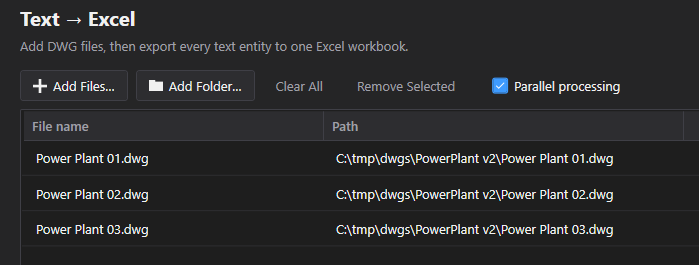
- Add Files… picks individual .dwg files (multi-select); Add Folder… scans a whole folder for .dwg files — whether it also scans subfolders depends on "Include subfolders when adding a folder" (Settings → AutoCAD, off by default). Both dedupe against files already in the list, case-insensitively.
- Clear All empties the list. Remove Selected drops the highlighted rows — this is a plain button, not a keyboard shortcut; there's no Delete-key handling on this screen, unlike the file lists in some of the other CADXChange tools.
- The file list shows name and path, sortable by clicking either column header. With no files added yet, the list shows an empty-state hint instead of a blank table.
- There's no entity-type filter for DBText vs. MText — every DBText and MText entity in the batch is always read.
Options and Export to Excel
What gets exported alongside plain text, and the Free-tier limits that apply to a run.

- Parallel processing (on by default) reads multiple files at once instead of one at a time. Free tier is hard-capped to one file at a time regardless of this checkbox or the Settings "Max parallel AutoCAD instances" value — the speed-up only takes effect on Pro.
- Free tier caps a run at 3 DWG files — going over blocks the export entirely before anything runs, with a message naming the limit, rather than exporting a partial batch. Pro removes the cap. There's no separate row cap on the exported workbook itself for TextSync.
- Export to Excel always writes one timestamped workbook — TextSync_Export_{yyyyMMdd_HHmmss}.xlsx — with file, handle, entity type, layer and content for every matched entity; the name isn't tied to the input files' own names.
- The output folder defaults to the shared parent folder of every added file; if the files span more than one folder, it falls back to a fixed Documents\TextSync\Exports instead.
- After writing, a prompt offers to open the workbook immediately. Cancel (while exporting) stops after the file currently in progress — there's no automatic timeout on a single file, so AutoCAD hanging on one is only recovered by clicking Cancel yourself, not by TextSync giving up on it after a while.
Excel → Text (write back)
Picking the workbook and DWG folder (Excel → Text)
Point TextSync at an edited export and the drawings it applies to, plus where backups get written.

- Step 1: Excel Workbook browses to the exported (and since-edited) .xlsx file.
- Step 2: DWG Folder. "Use the Excel file's folder" (checked by default) derives the folder automatically from the workbook's own location; browsing to a folder by hand unchecks that box, so it won't silently snap back to the auto-derived folder later.
- Matching a workbook row to a drawing is by exact file name only, inside that one folder — unlike Add Folder on the Text → Excel side, this folder is never scanned recursively, regardless of the "Include subfolders" setting.
- Automatic backup (on by default) copies every file about to be written into the backup folder first, unmodified, before any change is made. The backup folder defaults to a _TextSyncBackup folder created next to the DWG folder the first time one is picked.
- Restore Backup… opens a separate, standalone window (see below), seeded with the current backup folder — it reads backup archives straight off disk, so it keeps working even after the app has been restarted, unlike the in-session Rollback All on the report screen.
Matched Files and Unmatched
What TextSync found before anything is written — a match count, not a field-by-field diff.
- Picking a workbook and folder with at least one match runs the comparison automatically. Unlike some of the other CADXChange write-back tools, there's no dry-run diff/preview step here — the Matched Files tab only shows each matched file and how many entities in it are about to change, not a before/after value table.
- A workbook row whose file name has no exact match in the DWG folder shows up under the Unmatched tab instead of failing the whole run — its tab header shows the current unmatched count.
- If the workbook itself fails to read (wrong file, corrupted, wrong format), the status message names the error instead of showing an empty or stale match list.
Write Back
Confirms the scope of a write before anything happens — there's no post-write verification step.
- The confirmation dialog states exactly how many files and how many entities are about to change, and names the backup folder — or, if backup is off, warns explicitly that the change cannot be undone.
- Free tier's 3-files-per-run cap applies here too, counted against the matched files about to be written.
- Files are written one at a time, not in parallel, since a real backup file is created on disk per file before its write. If a file's own backup fails, its write is skipped entirely — TextSync never writes a file whose backup just failed.
- Unlike BlockSync's equivalent write-back, TextSync does not re-read each file after writing to verify the change actually took — the per-file result reflects only what AutoCAD's own write command reported succeeding or failing at write time.
- Cancel lets the file currently being written finish before stopping, rather than aborting mid-write — walking away mid-file would risk leaving that DWG half-written.
Write-Back Report
What happened to every file in the run, once the write finishes.
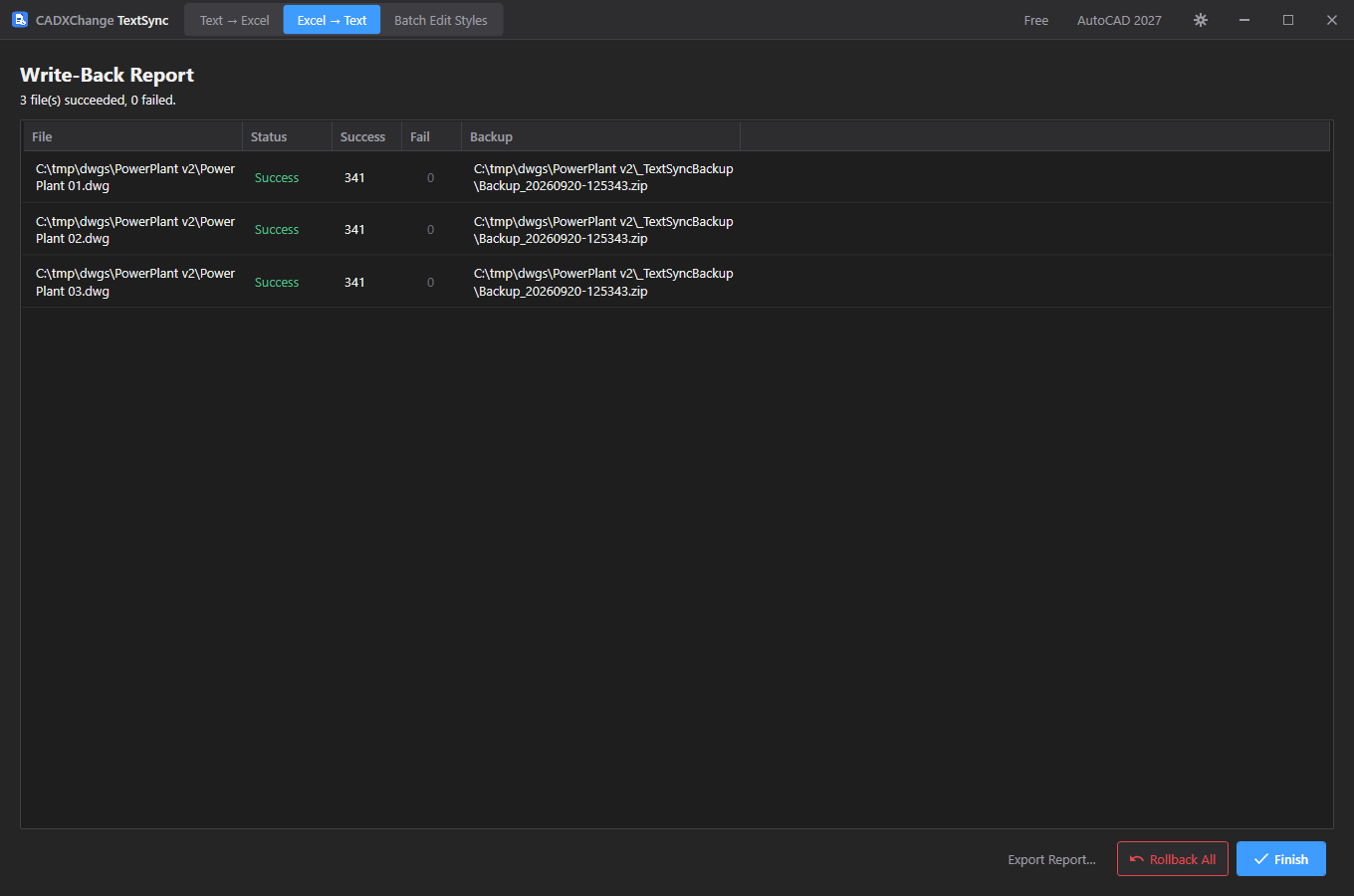
- One row per file: overall status, how many entities succeeded and how many failed, and where its backup landed (or why there isn't one).
- A file's Fail count is clickable when non-zero, opening a Write Errors popup with the specific per-entity reasons rather than just a number.
- Export Report saves the same per-file breakdown to a workbook.
- Rollback All restores every file in this run from its own pre-write backup in one click — but only while this report screen is still open, since it works from this run's in-memory results. Once you click Finish or the app restarts, use the standalone Restore Backup… window instead, which reads backup archives straight off disk.
- Finish returns to a blank Excel → Text screen and discards this run's results — export the report first if you need a record of it.
Batch Edit Styles
Reading and filtering styles (Batch Edit Styles)
Add files and every TextStyle in them is read automatically into one shared grid.
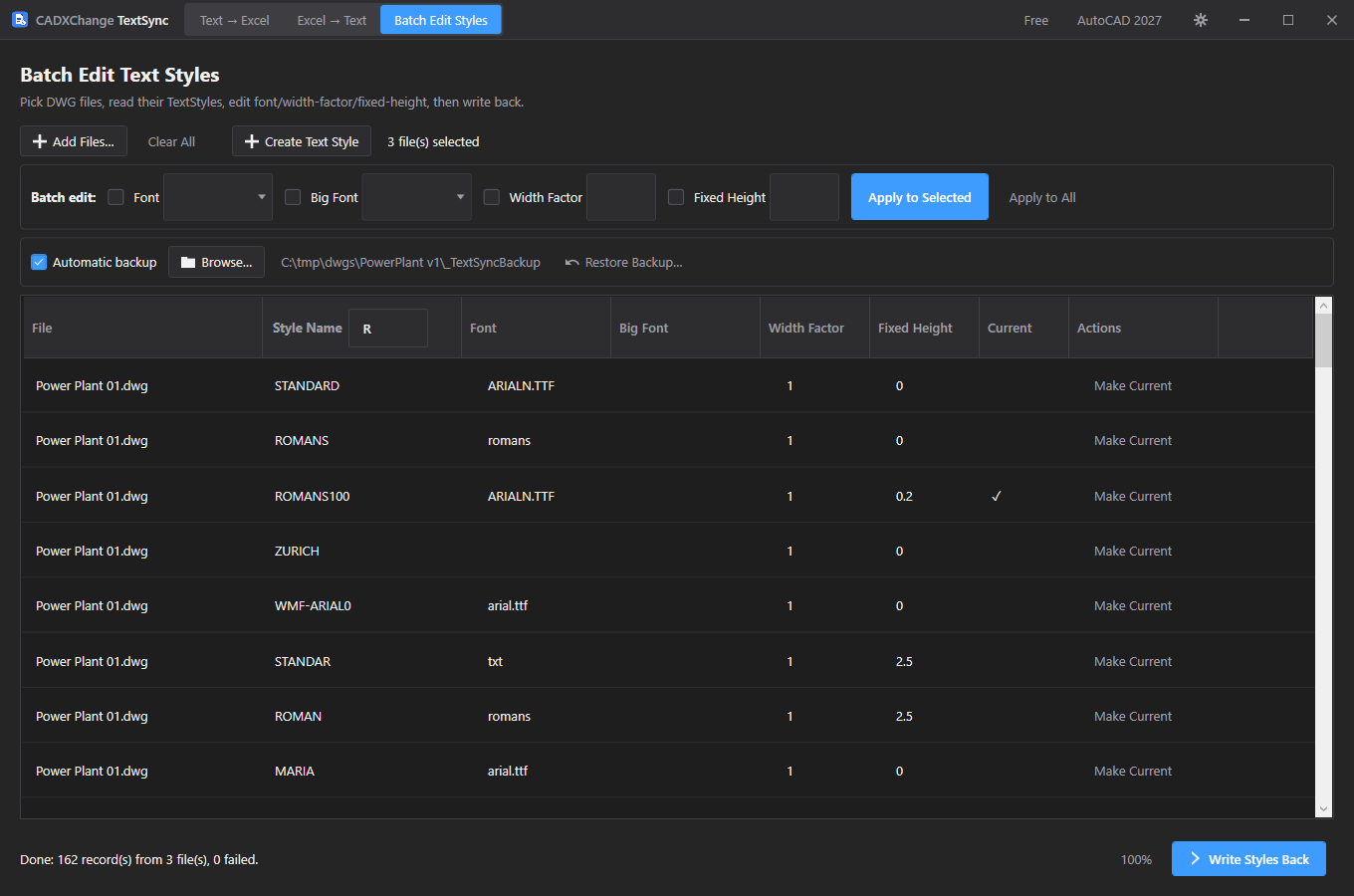
- Add Files picks .dwg files (multi-select); as soon as files are added, TextSync reads every TextStyle from each one automatically — there's no separate "load" step. Clear All empties the grid.
- The grid lists File, Style Name, Font, Big Font, Width Factor, Fixed Height and Current (a checkmark for the file's active style), plus a Make Current button per row — clicking it marks that row current and unmarks any other style row belonging to the same file, so each file only ever has one current style.
- "Name contains:" filters the grid live by style name; it narrows what Apply to All and the batch-edit fields below act on (see next section).
- Automatic backup here defaults its folder next to the first file added (a _TextSyncBackup subfolder); if a backup folder is never set at all, TextSync falls back to one next to the application itself at write time — a different fallback than Excel → Text's, worth knowing if backups end up somewhere unexpected.
Batch edit and Create Text Style
Change a field across many rows at once, or add a brand-new style to every loaded file.

- Four independent checkbox+field pairs — Font, Big Font, Width Factor, Fixed Height — each only applies if its own checkbox is checked; unchecked fields are left alone even if a value is typed into them.
- Apply to Selected applies the checked fields to only the highlighted grid rows; Apply to All applies them to every row currently shown by the "Name contains" filter, selected or not — narrowing the filter first is how to scope a batch edit to specific styles.
- For Width Factor/Fixed Height, a typed value that doesn't parse as a number is silently ignored for that field rather than showing an error — if a batch edit doesn't seem to take, check that the typed value is actually numeric.
- Create Text Style prompts for a name and its Font/Big Font/Width Factor/Fixed Height, then adds it to every currently-loaded DWG that doesn't already have a style of that exact name (case-insensitive) — files that already have it are skipped and reported separately, not overwritten. The new rows are added to the grid and scrolled into view.
Write Styles Back
Writes the style definitions back, then updates existing text to match — not just the style, the geometry too.
- The confirmation dialog states how many files are about to be written and, if backup is on, where; if backup is off, it warns the change can't be undone. Batch Edit Styles has no Free-tier file-count cap — unlike the other two modes, a run here isn't limited to 3 files.
- For a style that already exists in a file, Write Styles Back updates its Font, Big Font, Width Factor and Fixed Height on the existing definition (and sets it as the file's current style, if marked Current) rather than creating a duplicate.
- It then finds every DBText using that style, across Model space and every paper-space layout, and sets its Width Factor to match unconditionally — but only updates its height to match Fixed Height when Fixed Height is greater than zero; a Fixed Height of 0 (or blank) leaves existing text's height untouched rather than collapsing it to zero.
- Same backup-is-a-hard-gate rule as Write Back: if a file's own backup fails, its style write is skipped entirely rather than proceeding without a safety copy.
Restore Backup
Restore Backup (standalone window)
Restore any past backup archive, independent of whatever run is or isn't currently on screen.
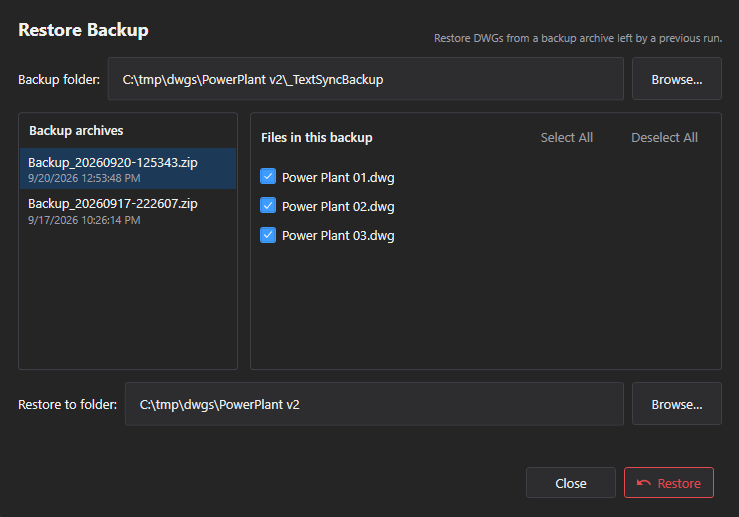
- Opens as its own window rather than a tab in the main app — available from both Excel → Text and Batch Edit Styles — so it keeps working even after TextSync has been restarted and the original session is long gone.
- Point it at a backup folder; it lists every Backup_*.zip found there (one archive per write run, not per file), newest first.
- Selecting an archive lists the individual DWGs inside it with a checkbox each; Select All / Deselect All toggle the whole list at once.
- Restore copies the checked files from the archive into the chosen destination folder (defaulted to the backup folder's parent), overwriting anything already there with the same name.
Settings
Opened from the gear icon in the title bar. Every field saves immediately — there's no separate Save button.
English / 日本語 / 简体中文. Restart the app for a language change to take effect.
Default: English
System / Light / Dark. Restart the app for a theme change to take effect.
Default: Match system
Which installed AutoCAD version to use first. If it fails to load, the app falls back to another installed version automatically.
Default: Auto (newest installed)
How many drawings AutoCAD can process in the background at once (choices: 1, 2, 4, 6, 8, 12, 16). Higher is faster but uses more CPU and memory — turn this down on a lower-spec machine.
Default: 8
Applies only to Add Folder… on the Text → Excel screen — it has no effect on Excel → Text's DWG-folder matching (always top-level only) or on Batch Edit Styles (which has no folder picker).
Default: Off
| Setting | Location | Default | What it does |
|---|---|---|---|
| Language | Settings → General | English | English / 日本語 / 简体中文. Restart the app for a language change to take effect. |
| Theme | Settings → General | Match system | System / Light / Dark. Restart the app for a theme change to take effect. |
| AutoCAD version | Settings → AutoCAD | Auto (newest installed) | Which installed AutoCAD version to use first. If it fails to load, the app falls back to another installed version automatically. |
| Max parallel AutoCAD instances | Settings → AutoCAD | 8 | How many drawings AutoCAD can process in the background at once (choices: 1, 2, 4, 6, 8, 12, 16). Higher is faster but uses more CPU and memory — turn this down on a lower-spec machine. |
| Include subfolders when adding a folder | Settings → AutoCAD | Off | Applies only to Add Folder… on the Text → Excel screen — it has no effect on Excel → Text's DWG-folder matching (always top-level only) or on Batch Edit Styles (which has no folder picker). |
Licensing
Your license status shows in the title bar as Free, Pro, Pro (offline), or Expired, and in full on Settings → License.
To activate: paste your license key into Settings → License → "License key" and click Activate. To move a license to a new machine, click "Deactivate this machine" on the old one first, then activate on the new one.
If the app can't reach the license server (no internet), a previously-activated Pro license keeps working for 14 days as "Pro (offline)". Reconnect within that window to revalidate — past 14 days without a successful check, the license shows as Expired until it can revalidate.
Troubleshooting
"AutoCAD not found" or a plugin trust error when the app starts a job
The app drives AutoCAD in the background to open and process each drawing, so it needs a full, licensed AutoCAD 2021–2027 install — AutoCAD LT is not supported. If AutoCAD is installed but this error still appears, that AutoCAD version has likely never been launched on this machine: open it once (even just to the drawing screen), close it, and try again — AutoCAD only trusts a plugin location after it has run interactively at least once.
A run seems stuck on one file
There's no automatic timeout on a running export, write-back or style write in TextSync — if AutoCAD stalls on a file, click Cancel (which force-kills the background process handling it) rather than waiting indefinitely, then check the log folder for what it was doing when it stalled.
A file shows up under "Unmatched" during Excel → Text
Matching is by exact file name inside the DWG folder you picked, with no subfolder recursion — check the workbook's file name against what's actually in that top-level folder (not a subfolder of it), and that it hasn't been renamed since export.
Style changes don't seem to show up on the text itself
Make sure you used Write Styles Back, not just edited the grid — that's the step that re-applies Width Factor / Fixed Height to every DBText already using that style. Also check the Fixed Height value: a Fixed Height of 0 or blank deliberately leaves existing text's height untouched rather than zeroing it, so text won't visibly change size even though the style record was updated.
A batch edit in Batch Edit Styles doesn't seem to apply
A field's checkbox has to be checked for it to apply at all — an unchecked field is ignored even if a value is typed into it. For Width Factor/Fixed Height specifically, a value that doesn't parse as a number is silently skipped for that field rather than shown as an error, so double-check it's a plain number.
A file's write or style write is skipped even though backup is enabled
If that specific file's backup copy fails (for example, the backup folder isn't writable), TextSync skips writing that file entirely rather than proceeding without a safety copy. Check the report's Backup column for that file's error, fix it (folder permissions, disk space), and re-run.
"Rollback All" is missing or does nothing
It only works while that run's results are still on the Write-Back Report screen — once you click Finish or the app restarts, use the standalone Restore Backup… window instead (opened from Excel → Text or Batch Edit Styles), which reads any Backup_*.zip still on disk.
Files on disk
Settings → Diagnostics → Open Log Folder gets you straight to the logs if something needs troubleshooting.
| Settings | %LocalAppData%\CADXChange\TextSync\settings.json |
| Logs | %LocalAppData%\CADXChange\TextSync\Logs\ |
| Default backup folder | {DWG folder}\_TextSyncBackup |
| Default export folder | Documents\TextSync\Exports |