
Guides/Block attributes
ATTSYNC Cleared My Attribute Values — How to Update Block Definitions Safely
 Made with BlockCopy
Updated September 26, 2026
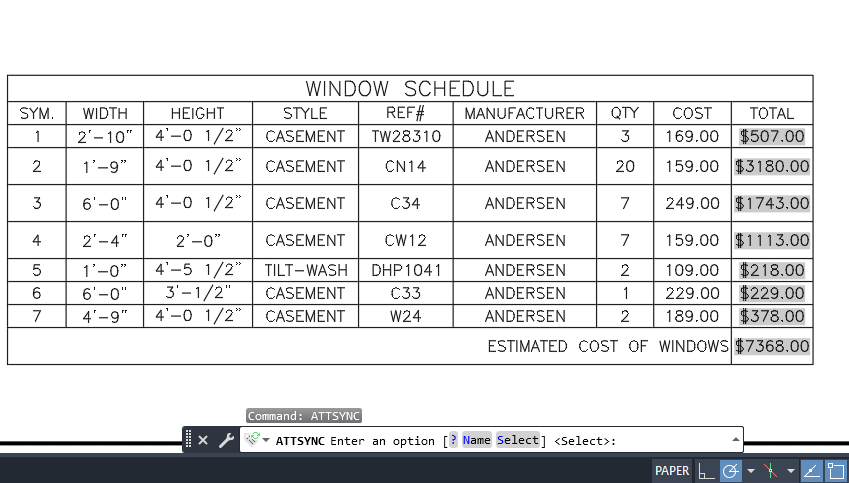
You revise the title block — add a line, tidy the layout, rename DWG_NO to SHEET_NO — redefine it, run ATTSYNC, and the drawing number on every sheet is back to its default. Or the values survive, but every attribute someone had nudged clear of a line snaps back into place.
That's ATTSYNC working as designed. It matches attributes by tag, so a value whose tag was renamed has nowhere to go and the new tag starts at its default; and it resets every attribute's position and formatting to the definition. Autodesk's own advice is not to change tags once a block has been placed. It also only works inside the drawing that's open, after the new definition has been brought into that drawing.
This guide uses BlockCopy's Sync Update to push a revised block definition into a whole set of drawings in one run: values carry over by tag, a renamed tag's values are mapped to the new tag instead of lost, hand-placed attributes stay where they were, and every value is read back afterwards.
1. Put the revised block in one source drawing
Make the change once, in BEDIT or with BLOCK, in any drawing, and save it — that drawing is the source. Keep the block's name: Sync Update replaces a definition with a newer version of itself. Moving drawings over to a block with a different name is a different job, covered at the end.
Renamed, added, removed and reordered attributes are all fine; the next steps deal with each of them.
2. Pick the source block and the target drawings
Open BlockCopy and switch to Sync Update from the pill in the title bar. Browse… to the source drawing: its blocks are listed with their reference count and whether they carry attributes, and View… shows a block's attribute list. Check the block to push.
Click Add files… and pick the drawings that use the block. They only need the old version; the new one comes from the source.
3. Decide what happens to attribute positions
Keep attribute positions is on by default: every reference keeps the position, rotation and width factor its attributes already have, so an attribute moved by hand to clear a line stays put. This is where Sync Update differs most visibly from ATTSYNC.
Clear it when the revision moved attributes on purpose — a new title block layout, for example — and every attribute takes its place from the new definition, the way ATTSYNC would.
4. Sync, and map any renamed tags
Leave Enable Auto Backup checked and click Sync Now. BlockCopy first reads every target drawing and compares its attributes with the new definition. If a tag that still holds values is missing from it — the DWG_NO that became SHEET_NO — a dialog lists each such tag before anything is written. Pick the new tag that should receive its values, or discard them if that information really is gone, and click Apply and sync. Cancel leaves every drawing untouched.
Then, in each drawing, BlockCopy replaces the definition and rebuilds every reference's attributes from it, carrying each value over by tag — and a mapped tag's values over to its new tag. Constant attributes take the new definition's value, and a tag that's new in the revision starts at its default.
Tags that are empty on every reference are simply dropped, so removing an unused attribute from the block doesn't bring up the dialog.
5. Check the results
After saving each drawing, BlockCopy opens it again and compares every attribute value with what it held before — under the new tag where one was mapped. A drawing where anything doesn't match is marked failed with the details listed, and the rest of the batch carries on.
Rollback in a file's details, or Restore Backup…, puts any drawing back exactly as it was, even after BlockCopy has been closed.
One limitation to know about: an attribute whose value comes from a field, such as a date or a sheet number from a sheet set, keeps its current text, but the field itself isn't carried over and becomes plain text. Re-insert those fields after the sync.
If the drawings should switch to a block with a different name — an old logo or symbol replaced by a new one — use BlockCopy's Upgrade Version mode instead of Sync Update.
For a full walkthrough of every screen and setting, see the BlockCopy docs. To try it on your own drawings, download BlockCopy — the Free tier covers up to 10 drawings per batch.