
Guides/Block attributes
Replace an Old Block with a New One in Multiple Drawings — Swap a Title Block, Logo or Symbol in Every DWG
 Made with BlockCopy
Updated September 29, 2026
The company gets a new title block, a new logo, or a new version of a standard symbol — and it has to replace the old one in every drawing of a project. Inside one drawing that's easy. Across fifty drawings it's a chore people keep asking forums to script: open a file, insert the new block at the old one's position, copy the attribute values over by hand, delete the old one, save, repeat.
AutoCAD's own tools don't cover it. Redefining a block (BLOCK with the same name, or INSERT with the Redefine option) only works when the new block has the same name as the old one, and only in the drawing that's open. Renaming can't merge two different blocks, and pasting the new block over the old one loses the values the old one carried.
This guide uses BlockCopy's Upgrade Version to swap a block for a different one across a batch of drawings: each old reference is replaced in place, keeping its position, rotation, scale and layer, and its attribute values move to the new block. The example replaces TITLEBLOCK with TITLEBLOCK_V2 in nine drawings; the Free tier handles up to 10 drawings per batch.
1. Put the new block in one source drawing
The new block has to exist as a definition in a drawing BlockCopy can read — the source. It can be a drawing that already uses the block (here Panel-01 has TITLEBLOCK_V2 on its sheet) or a template or symbol library where the block is defined. It does not need to be placed in the target drawings beforehand; BlockCopy brings the definition in.
Check that the new block carries the attribute tags you want to keep. A value survives only if the new block has an attribute with the same tag; a tag that exists only in the new block starts at its own default.
2. Choose the new block, the old block and the drawings
Open BlockCopy and switch to Upgrade Version in the title bar. Browse… to the source drawing and select the new block (v2) in the list — reference counts and a View… link to the attribute list help you pick the right one.
Click Add files… and add the drawings to update. Then, in Old blocks to replace (v1), BlockCopy lists the block definitions found in those drawings; select the one to retire. Here that is TITLEBLOCK.
Leave Automatic backup ticked. Each drawing is copied to the backup folder before it is changed.
3. Upgrade
Click Upgrade Now. There is no preview step, so the backup is your safety net. For each drawing BlockCopy swaps every reference of the old block for the new one and saves the file; the list shows the result per drawing, for example Replaced 1 instance(s) of TITLEBLOCK with TITLEBLOCK_V2.
Each new reference's attributes are laid out the way the new definition places them, filled with the old values, so an attribute that someone had nudged by hand goes back to its position in the definition. To keep hand-placed attributes on a block that keeps its name, use Sync Update instead.
If one drawing fails, the rest of the batch carries on. Open Details for a drawing to see where its backup went; Rollback to this backup puts that one drawing back exactly as it was, and Restore Backup… does the same for any drawings from any run, even after BlockCopy has been closed.
4. Check that nothing was lost
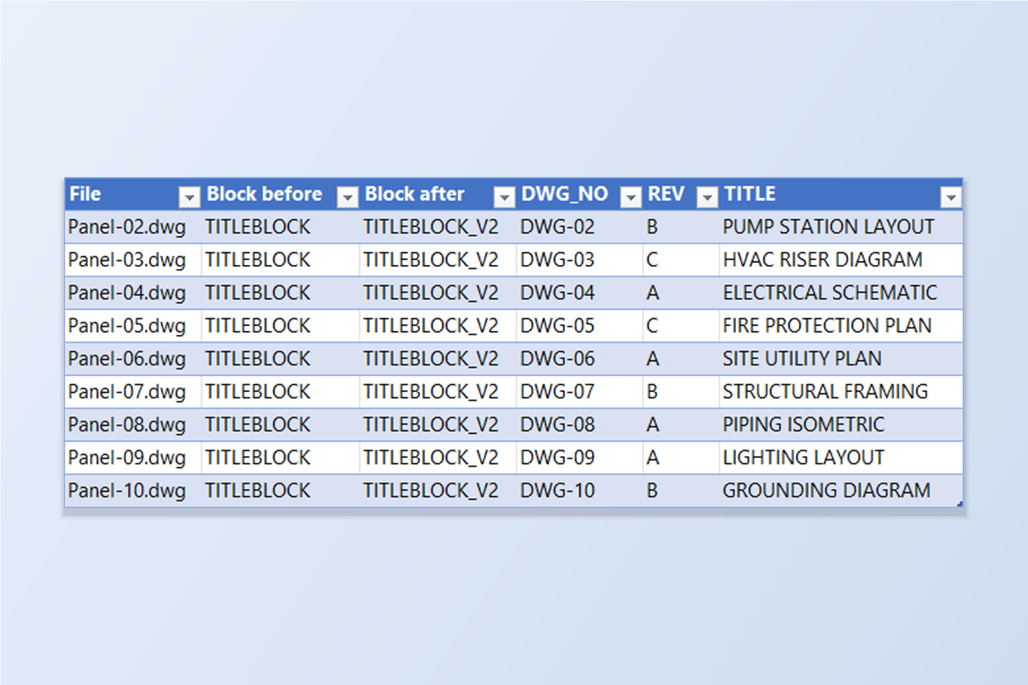
The quickest check is to read the drawings back. Add them to BlockSync's AutoCAD → Excel screen: the Blocks tab now shows the old TITLEBLOCK with 0 references and TITLEBLOCK_V2 with 10 references in 10 files — the nine upgraded drawings plus the source. Ticking TITLEBLOCK_V2 and choosing Extract to Excel gives one row per sheet with DWG_NO, REV and TITLE.
In this example we extracted the nine drawings before and after: the drawing numbers, revisions, titles, dates and insertion points came out identical, only the block name and each reference's handle differed.
The old definition is not deleted from the drawings — only its references were swapped — so it stays in the block table with no references. PURGE (or LayerSync's Clean Up for a whole folder) removes it when you are ready.
Two things to know afterwards. The replacement references are new objects with new handles, so a BlockSync export made before the upgrade can no longer be written back — extract again first. And an attribute value that only existed on the old block is not carried over: a tag missing from the new block is dropped, so compare the two attribute lists before you start.
If the block keeps its name and only its definition changed, use Sync Update instead of Upgrade Version (see the ATTSYNC guide). For a full walkthrough of every screen and setting, see the BlockCopy docs. To try it on your own drawings, download BlockCopy — the Free tier covers up to 10 drawings per batch.