
Guides/Text & labels
Find and Replace Text Across Multiple AutoCAD Drawings (Without LISP)
 Made with TextSync
Updated September 26, 2026
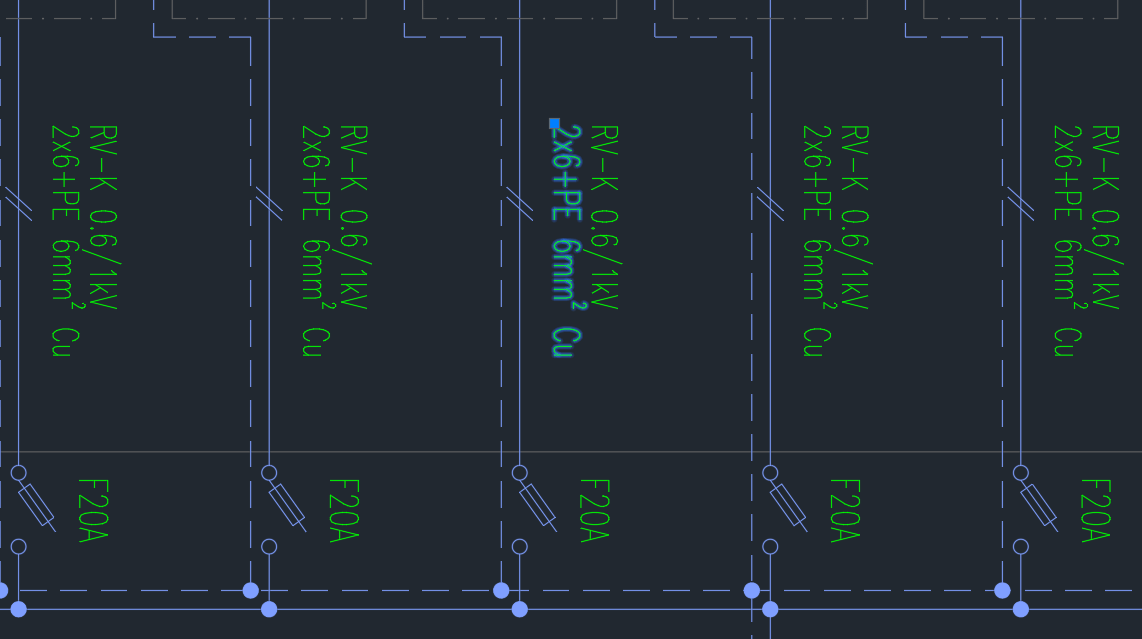
A part number is superseded, a client renames itself, a standard note gets reworded — and the old wording is spread across every sheet in the set. AutoCAD's FIND only works on the drawing that's open, so the change means opening, replacing, saving and closing each file in turn.
The usual way around that is a LISP routine such as Lee Mac's Batch Find & Replace. It does the job, but you set the search string and let it run: there's no list of every match to look over first, and the way back from a bad replacement is whatever backup you made yourself.
This guide uses TextSync to export every single-line and multiline text from a batch of drawings into one Excel sheet, do the replacement there with Excel's own Find & Replace — where every match is visible and can be filtered by drawing, layer or text type — and write back only the text that actually changed.
1. Export every text string to Excel
Open TextSync on the Text → Excel tab and add the drawings — Add Files… for a hand-picked set, or Add Folder… for a whole project folder — then click Export to Excel.
Every DBText and MText in model space and on every layout becomes one row of a single workbook, across all the drawings.
2. Narrow down to the rows you want to change
The workbook's Text sheet has one row per text, with its drawing (_File), its type (_Kind: DBText or MText), its space and its layer next to the Text column. The identifying columns are locked so they can't be edited by mistake, but filtering and sorting still work.
Use the filter arrows to limit the replacement: only the drawings of one building, only the notes on a notes layer, only MText. The next step replaces only in the rows left visible.
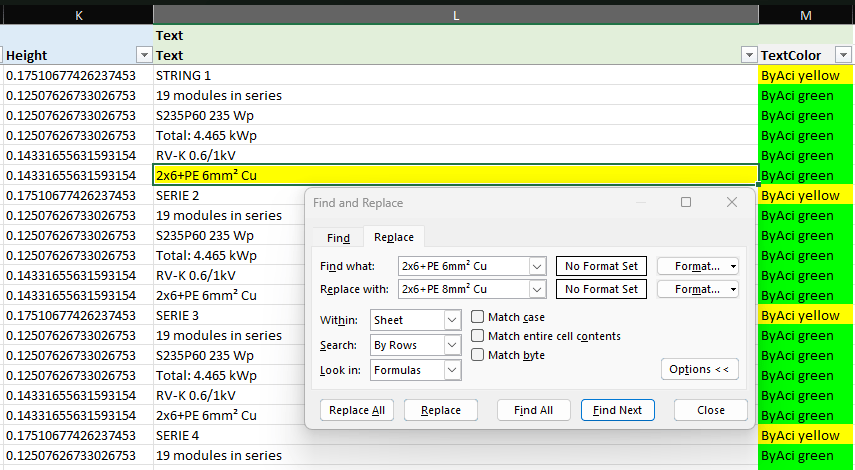
3. Replace with Excel's Find & Replace
Click the first Text cell and press Ctrl+Shift+Down to select down to the last row, then press Alt+; so only the visible cells stay selected — rows hidden by a filter are left out. Now press Ctrl+H.
Under Options, tick Match case when capitalization matters, so replacing PUMP doesn't also change Pump or pumping, and tick Match entire cell contents when the whole text has to equal the search term — useful for tags and short labels. Replace All reports how many replacements it made.
Excel treats * and ? in Find what as wildcards. To search for a literal asterisk or question mark, put a tilde in front of it: ~* or ~?.
The Text column is formatted as text, so a replacement is written exactly as it appears — Excel won't turn 1/2 into a date or 007 into 7. Save the workbook when you're done.
4. Write back only what changed
Switch to the Excel → Text tab, pick the workbook and confirm the DWG folder. TextSync matches each row to its drawing by file name and to its text by handle, so sorting or filtering the sheet never sends a value to the wrong place.
Only text whose value differs from the drawing is written; every other row is skipped, and a drawing with nothing changed isn't saved at all. In MText only the replaced characters are edited, so bold words, colors and font changes around them stay as they were. If a replacement cuts across a formatting change — half of the word is bold, say — that one MText is rewritten as plain text.
Text driven by a field, such as a date or a sheet number, is never overwritten: those rows are reported as failed, and the field stays intact.
Leave Automatic backup checked and click Write Back. The Write-Back Report lists successes and failures per drawing, and Rollback All puts every file back from its backup if the replacement turned out wrong.
5. Check the result with TextCompare
Excel shows what changed in the workbook; TextCompare shows what changed in the drawings. Put the backup TextSync just made — the newest Backup_ folder inside _TextSyncBackup — in Folder A and the project folder in Folder B. Every text the replacement touched is listed with its old and new wording side by side, and nothing else should show up.
It's also the quickest way to have someone else review the change: TextCompare's Excel export is a before-and-after list of every edit, readable without AutoCAD.
What this doesn't reach: block attribute values, such as title block fields and tags, go through BlockSync, which has the same Excel round trip — see the guide on batch-updating title blocks. Table cells, multileaders, dimension text and text inside block definitions aren't exported by TextSync yet; to see which drawings still contain the old wording in any of those, search the folder with DwgSearch, which indexes all of them.
For a full walkthrough of every screen and setting, see the TextSync docs. To try it on your own drawings, download TextSync — the Free tier covers up to 10 drawings per batch.