
Guides/AutoCAD troubleshooting
AutoCAD Background Changed to White? Reset the Drawing Colors — Plus Grid On/Off (F7)
Updated November 7, 2026
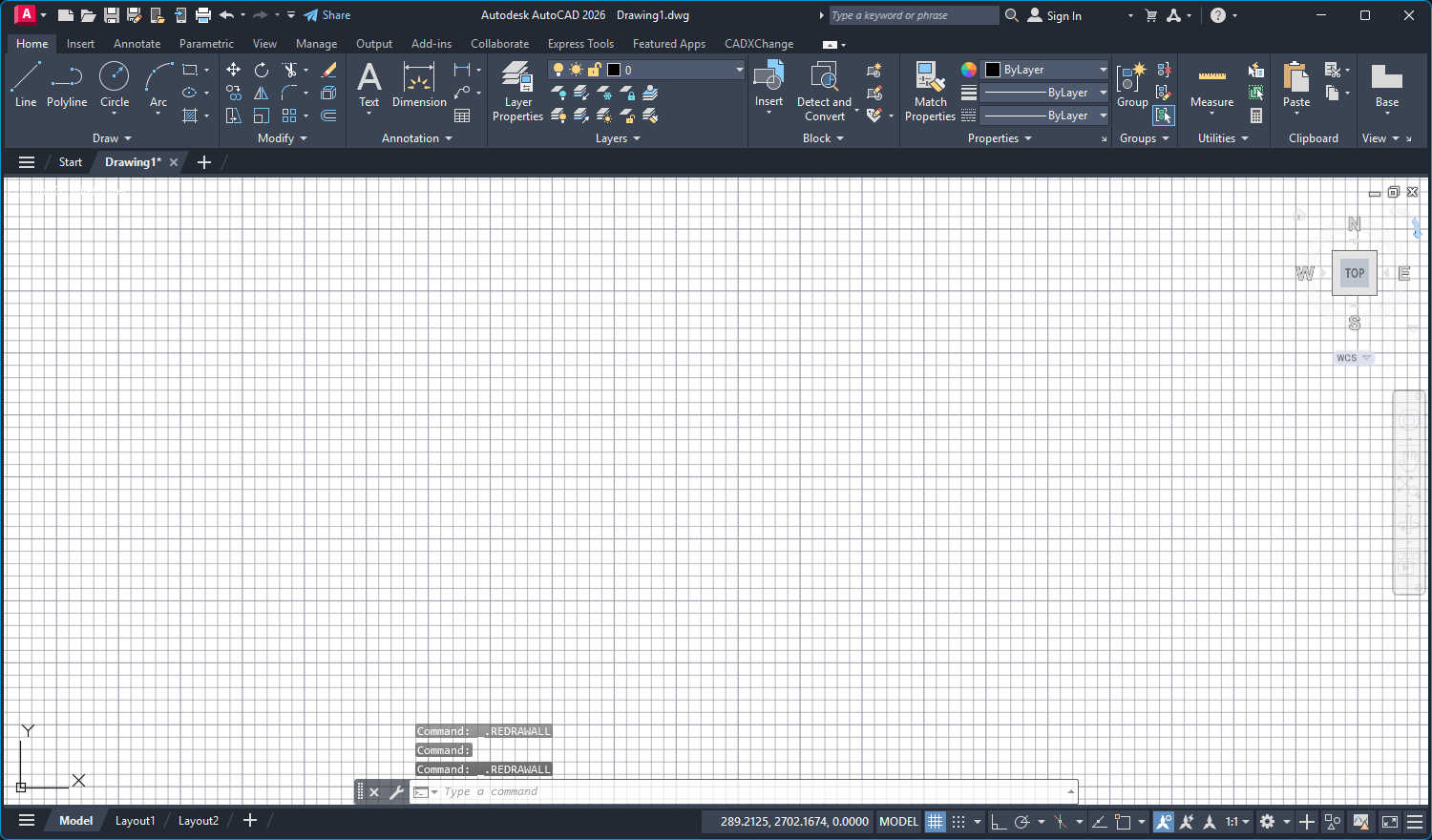
You open AutoCAD and the drawing area is white, or it has a grid you didn't ask for, or the grid you rely on has vanished. Nothing is broken and no drawing is changed: these are display settings of AutoCAD itself, and each one is a few clicks to put back.
This guide shows where the background color lives, how to restore the default or pick a color of your own, and how to switch the grid on and off. The screenshots are from AutoCAD 2026; the dialogs look the same in other recent releases. The background color is saved in your AutoCAD profile, not in the drawing, so a change you make applies to every drawing you open afterwards.
1. Open the Options dialog
Type OPTIONS on the command line and press Enter, or right-click an empty part of the drawing area and choose Options at the bottom of the menu.
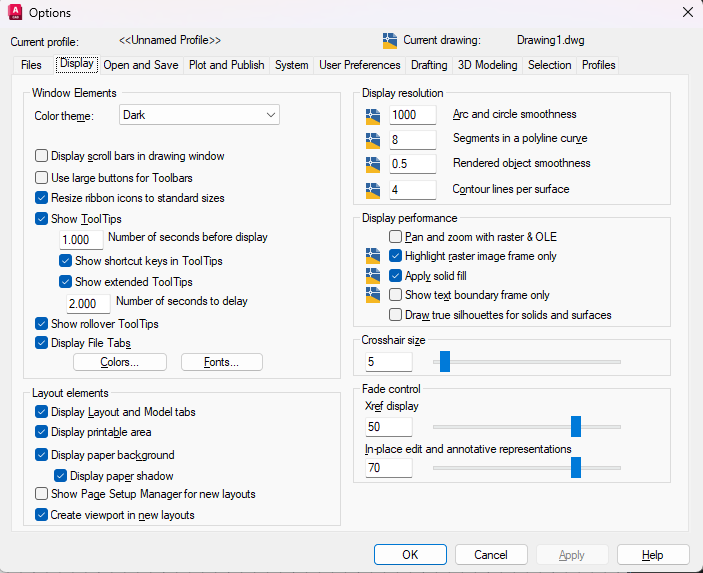
2. Go to the Display tab and click Colors
Click the Display tab. Under Window Elements, click the Colors button. Don't confuse it with the Color theme list just above it: that list sets the Dark or Light look of the ribbon, tabs and dialogs. The drawing area has its own color, and that is what the Colors button opens.
3. Select 2D model space and Uniform background
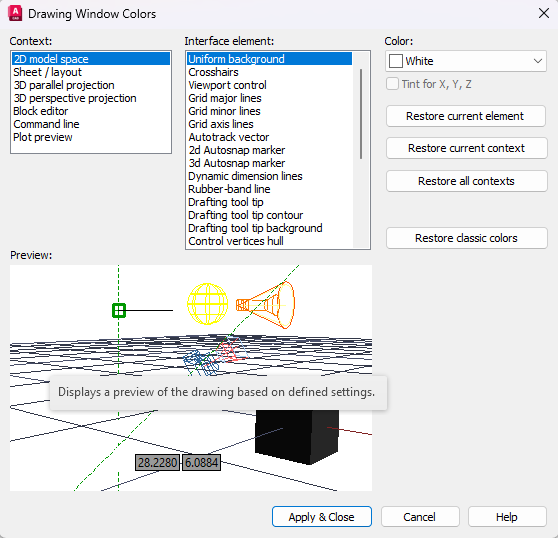
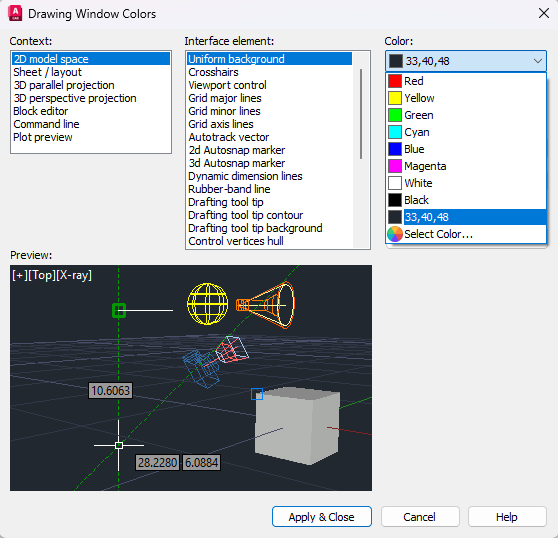
In the Drawing Window Colors dialog, pick 2D model space in the Context list, then Uniform background in the Interface element list. The Color box on the right shows what the drawing area uses now: White in our example.
The same dialog holds the colors of other parts of the drawing area, such as the crosshairs, the grid lines and the command line. Each element is changed the same way.
4. Restore the default color
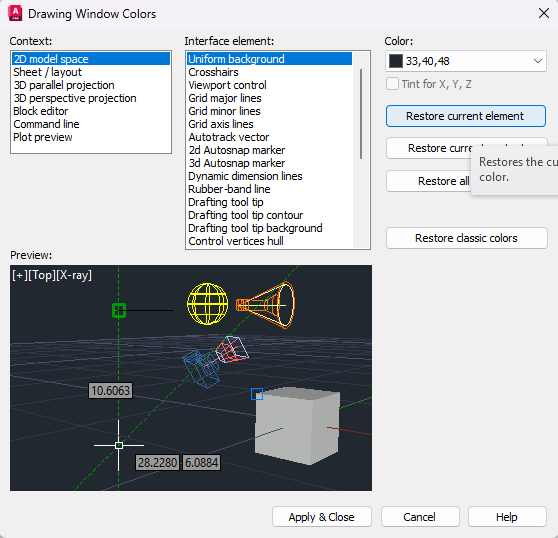
Click Restore current element. The tooltip says it restores the selected interface element to its default color. The Color box changes to 33,40,48, a dark blue-grey, and the preview turns dark.
That is the default of AutoCAD 2026 in our test: not pure black. Your version's default is whatever this button gives you. Click Apply & Close, then OK in the Options dialog.
5. Or choose a color yourself
If you want black, or any other color, open the Color list instead of using the Restore button. It holds the standard colors, including White and Black, the default 33,40,48, and Select Color for any color you like.
Objects drawn in color 7 (white or black) switch automatically so that they stay visible on a light or a dark background, so a change of background does not make them disappear.
6. Layouts, 3D and the other contexts have their own colors
The Context list has separate entries for 2D model space, Sheet / layout, 3D parallel projection, 3D perspective projection, Block editor, Command line and Plot preview. Changing the model space background doesn't touch the others, so if a layout tab or the block editor still looks wrong, select that context and repeat the step.
Under the Restore current element button are Restore current context, which resets every element of the selected context, and Restore all contexts, which resets all of them. Restore classic colors is meant for AutoCAD's older, classic look. Use Restore all contexts when you simply want everything back to the defaults.
7. Turn the grid on or off
The grid is not part of the color settings. Click the Grid Display button on the status bar, or press F7. The button is highlighted while the grid is on. You can also type GRID, or set the GRIDMODE system variable to 1 for on or 0 for off.
GRIDMODE is saved with the drawing, so the grid can be on in one drawing and off in another. A new drawing from a standard template may open with the grid on, which is the usual reason a grid appears "on its own". In a layout, each viewport has its own setting.

8. The grid is on but you can't see it
If the Grid Display button is on and the drawing area is still empty, Autodesk lists a few causes. The grid spacing may be too small for the current zoom level, in which case AutoCAD can't draw it and the command line says the grid is too dense to display: zoom in, or enlarge the spacing in Drafting Settings (type DSETTINGS). The spacing can also be so large that only a few lines fall inside the view. Or the grid color is too close to the background: check the Grid major lines and Grid minor lines entries in the Drawing Window Colors dialog.
If none of these fits, open a new drawing and press F7 there. A grid that works in a new drawing but not in one particular file points to that file's own settings.
9. Check the result
Back in the drawing, the area has the color you chose and the grid appears or disappears with F7. Here is the default look with the grid on.
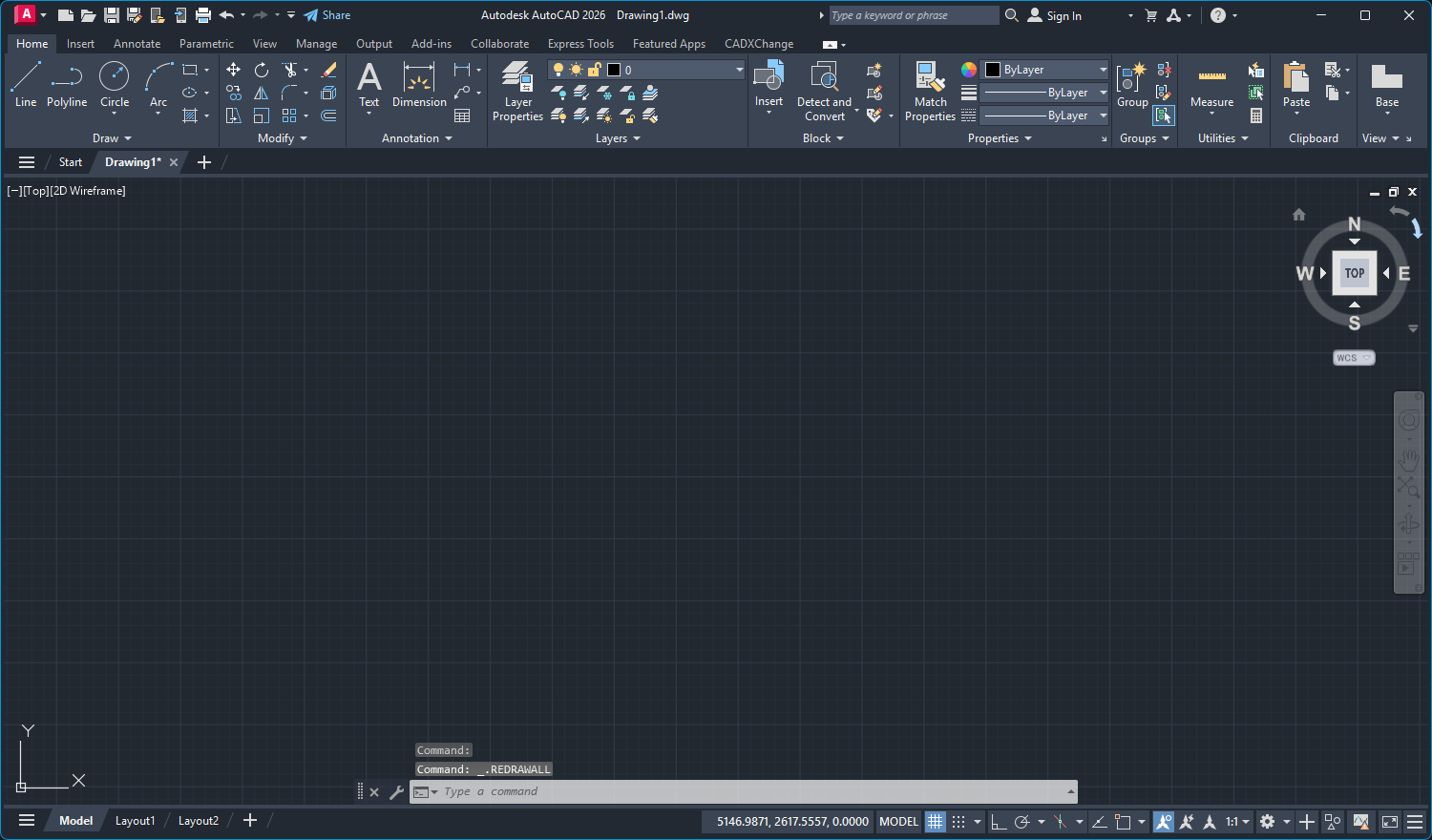
The color is one setting in Options, Display, Colors: select 2D model space and Uniform background, then Restore current element or pick a color. The grid is a separate switch, F7. If someone else or a script keeps changing the background, check the Profiles tab in Options and any startup routines, because the color belongs to the profile.
Before you start — common questions
- How do I change the AutoCAD background back to black?
- Type OPTIONS, open the Display tab and click Colors. Select 2D model space and Uniform background, then open the Color list and choose Black. To go back to AutoCAD's own default instead, click Restore current element. In AutoCAD 2026 that default is a dark blue-grey (33,40,48), not pure black.
- Why did my AutoCAD background turn white?
- AutoCAD doesn't change it on its own. Someone changed the Uniform background color in Options, or the profile you are using has a white background, or a script or add-in set it. The color is saved in the AutoCAD profile, not in the drawing, so it follows you to every drawing until it is changed back.
- How do I change the background color of a layout in AutoCAD?
- In the Drawing Window Colors dialog select the Sheet / layout context, then choose the element you want to change, such as the uniform background, and pick a color. In the Display tab of Options, the checkboxes Display paper background and Display paper shadow control the paper itself.
- How do I turn the grid on and off in AutoCAD?
- Press F7, or click the Grid Display button on the status bar. You can also type GRID, or set the GRIDMODE system variable to 1 (on) or 0 (off). GRIDMODE is saved in each drawing.
- Why can't I see the grid in AutoCAD?
- The grid may be switched off in that drawing (F7), its spacing may be too small for the zoom level so AutoCAD reports it as too dense to display, or its color may be too close to the background. Zoom in, check the spacing in Drafting Settings (DSETTINGS) and the grid line colors in Drawing Window Colors.
- Does changing the background color change my drawing?
- No. It is a display setting saved in your AutoCAD profile. Object colors are not changed, and objects in color 7 switch between white and black on their own so they stay visible against a light or dark background.