
Guides/AutoCAD troubleshooting
AutoCAD Open File Dialog Not Showing? Open Button Does Nothing — Fix FILEDIA = 0
Updated October 7, 2026
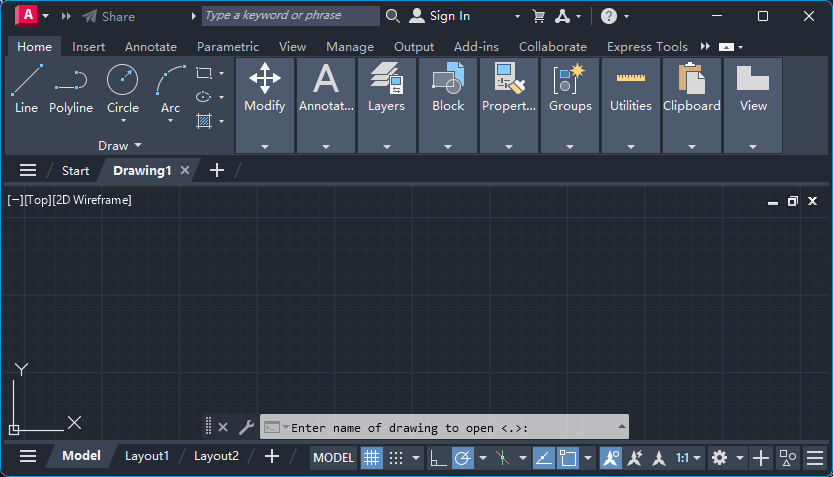
You click Open, or press Ctrl+O, to open a DWG file, and AutoCAD doesn't seem to respond: the file dialog is not showing. The ribbon doesn't change and there is no file browser. In fact AutoCAD has responded: there is a new line on the command line asking you to type the path of the drawing.
AutoCAD hasn't broken, and you don't need to reinstall it. A system variable called FILEDIA is set to 0, which tells AutoCAD to ask for the file path on the command line instead of showing a dialog. It is a one-line fix, and this guide also covers how to get a dialog just once without changing anything, and why the variable keeps flipping back to 0. The screenshots are from AutoCAD 2024, but FILEDIA has behaved this way for many releases.
1. Recognize the symptom
With FILEDIA at 0, the Open button, Ctrl+O and the OPEN command all start normally, but instead of the Select File dialog the command line shows a prompt like the one below. AutoCAD is waiting for you to type the path of the file, so nothing is wrong with the program itself.
It isn't only Open. FILEDIA suppresses the file navigation dialogs for every command that reads or writes files. Autodesk's own example is SAVEAS, which prompts on the command line instead of showing the Save Drawing As dialog. If more than one file dialog has gone missing at once, FILEDIA is almost certainly the cause.

2. Check the value of FILEDIA
Press Esc to cancel the pending prompt first. Otherwise whatever you type next is read as a file path, and AutoCAD ignores your other input, even an attempt to close it.
Then type FILEDIA on the command line and press Enter. AutoCAD shows the current value in angle brackets. A value of 0 means file dialogs are switched off. The normal value is 1.

3. Set FILEDIA back to 1
At the same prompt, type 1 and press Enter. If the prompt has already gone, type FILEDIA again.
FILEDIA is stored in the Windows registry rather than in the drawing, so the change applies to every drawing and survives closing and restarting AutoCAD. You can make it from a blank drawing; which drawing is open doesn't matter.

4. Confirm the dialog is back
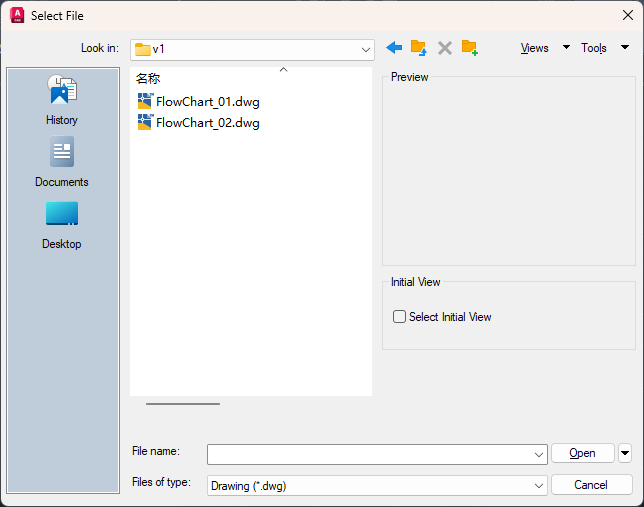
Click Open again. The Select File dialog appears, and Save As and the other file dialogs come back with it.
5. Need the dialog just once? Type ~ at the prompt
If something is deliberately keeping FILEDIA at 0, for example a script that is running or a company routine, you don't have to change it. Autodesk's documentation says that with FILEDIA at 0 you can still request a file dialog by entering a tilde (~) in response to the prompt.
At the Enter name of drawing to open prompt, type ~ and press Enter. The Select File dialog opens for that one command, and FILEDIA stays 0. You can also type the full path of the drawing at the same prompt.

6. Why it keeps going back to 0
Autodesk explains the usual cause. A LISP routine, a menu macro or a batch script that opens or saves files sets FILEDIA to 0 so that a dialog doesn't interrupt it, and is meant to put it back to 1 when it finishes. If the routine is cancelled, or fails, and has no error handling that restores the value, FILEDIA stays at 0 and you see the symptom on the next Open.
Add-ins and startup routines that run LISP when AutoCAD loads can leave it at 0 in the same way. If FILEDIA is 0 right after starting AutoCAD, look at what loads at startup: the Startup Suite in APPLOAD, and any acad.lsp or acaddoc.lsp files on the support path. To narrow it down, set FILEDIA to 1, run one tool or load one add-in at a time, and check FILEDIA after each.
If you write your own routines, save the old value with GETVAR before setting FILEDIA to 0, and restore it in the error handler as well as at the normal exit.
7. Get warned when it changes: SYSVARMONITOR
AutoCAD has a System Variable Monitor that compares the variables you choose against the value you prefer and warns you when something changes one of them, whether that is you, a script or an add-in. Type SYSVARMONITOR to open its dialog. If FILEDIA isn't in the list, add it and set the preferred value to 1.
The next time a routine switches file dialogs off, you get the notification straight away, instead of finding out when Open does nothing.
8. If nothing appears at all
If FILEDIA is already 1 and still nothing shows, AutoCAD may be waiting on a dialog that exists but isn't visible, for example one opened behind the main window or on a monitor that is no longer connected. Try Alt+Tab. That is a different problem from FILEDIA: a FILEDIA value of 0 always leaves a prompt on the command line, which is how you tell the two apart.
The whole fix is typing FILEDIA, then 1. Use SYSVARMONITOR if something keeps changing it and you can't find what, and remember ~ for the times you need a dialog once without touching the setting.
Before you start — common questions
- Why does the AutoCAD Open button do nothing?
- The FILEDIA system variable is most likely set to 0. With FILEDIA at 0, AutoCAD doesn't show file dialogs; the Open command asks for the drawing name on the command line instead. Type FILEDIA and set it to 1 to get the dialog back.
- Why is the Save As dialog not showing in AutoCAD?
- For the same reason: FILEDIA is set to 0. With FILEDIA at 0, SAVEAS asks for the file name on the command line instead of showing the Save Drawing As dialog. Set FILEDIA to 1, or type ~ at the file name prompt to get the dialog once.
- What does FILEDIA do in AutoCAD?
- FILEDIA controls whether file navigation dialogs are shown for commands that read and write files, such as OPEN and SAVEAS. At 1 the dialogs are shown (a running script still gets plain prompts). At 0 the commands ask on the command line. The default is 1, and the setting is saved in the registry rather than in the drawing.
- How do I get the file dialog once without changing FILEDIA?
- Type a tilde (~) at the file name prompt on the command line. AutoCAD's documentation says a file dialog can still be requested this way when FILEDIA is 0.
- Why does FILEDIA keep changing to 0?
- LISP routines, menu macros and scripts often set it to 0 so a dialog doesn't interrupt them. If one is cancelled or fails without restoring the value, FILEDIA stays at 0. Check what runs at startup, and use SYSVARMONITOR to be warned when FILEDIA changes.
- Is FILEDIA saved in the drawing?
- No. It is saved in the Windows registry, so one change applies to all drawings and persists between sessions.