
Guides/Printing & delivery
Add or Remove a Stamp Block in Every Drawing — Batch 'PRELIMINARY' and 'Issued for Construction' Stamps Across a Drawing Set
 Made with BlockCopy
Updated September 29, 2026
Before an issue, every sheet gets a status stamp — PRELIMINARY, FOR APPROVAL, ISSUED FOR CONSTRUCTION — and when the status changes, the old stamp comes off and the new one goes on, on every drawing of the set, in the same place, with the date. Inside one drawing it takes a minute. Across a set of fifty it's an afternoon of opening files, inserting blocks and hoping nobody's stamp ended up two units off, which is why it's a regular request for a script.
AutoCAD's own routes each fall short. Insert one drawing at a time. Or write a script that opens each file — but a script has to be written and debugged for your block and your folder, and it won't back anything up. Editing the block in the open drawing doesn't reach the other files at all.
This guide uses BlockCopy to do the whole cycle. Copy Reference puts a stamp — position, rotation and attribute values copied from a stamp you inserted once in a source drawing — into every drawing in a batch. Delete Blocks takes the old stamp out of them all. The example puts PRELIMINARY into ten drawings, removes it, and adds ISSUED FOR CONSTRUCTION; the Free tier handles up to 10 drawings per batch.
1. Keep the stamps in one source drawing
Make one drawing that holds your stamps — a standards or template drawing works. Define each stamp as a block (here STAMP_PRELIMINARY and STAMP_IFC, each a frame with the wording and an ISSUE_DATE attribute) and insert each one once, at the position where it should appear on the sheets, with its attribute values filled in.
That inserted instance is what gets copied: BlockCopy reproduces its position, rotation and attribute values, and brings the block definition into any drawing that doesn't have it. So set the date and the position in the source before you copy, not afterwards. Scale is not carried over — the copy is inserted at the block's own scale.
2. Copy the stamp into every drawing
Open BlockCopy and switch to Copy Reference. Browse… to the stamps drawing: its blocks are listed with how many references each has. Select the stamp you want (one at a time), and the inserted instances of it appear below with their handle and position. Tick the instance to copy.
Click Add files… and add the drawings, leave Automatic backup ticked, and click Insert Now. Each drawing gets one new reference of the stamp, and the list shows the result per drawing, for example 2DF: Inserted.
The stamp lands at the same position in every drawing. That suits a set with one sheet size and origin; if the sheets differ, run it per group of drawings with a source instance placed for that group.
3. Take the old stamp out
When the status changes, switch to Delete Blocks. There is no source drawing here: add the drawings, and BlockCopy scans their block definitions itself and lists them with reference counts summed across the files — STAMP_PRELIMINARY shows 10, one per drawing. Tick it.
The Layers tab restricts the deletion to references on specific layers; with no layer ticked, matching references are deleted on every layer. Click Delete Now, and a confirmation names exactly how many block definitions and files are affected and where the backup will be saved — it also warns that deleting cannot be undone, so this is the one to read.
Each drawing shows how many references were deleted. Only the references are erased; the block definition stays in the drawing, unused, until you purge it.
4. Add the new stamp and check
Back on Copy Reference, select STAMP_IFC in the source, tick its instance and run Insert Now on the same drawings. If a set only needs a stamp added, this is the only step.
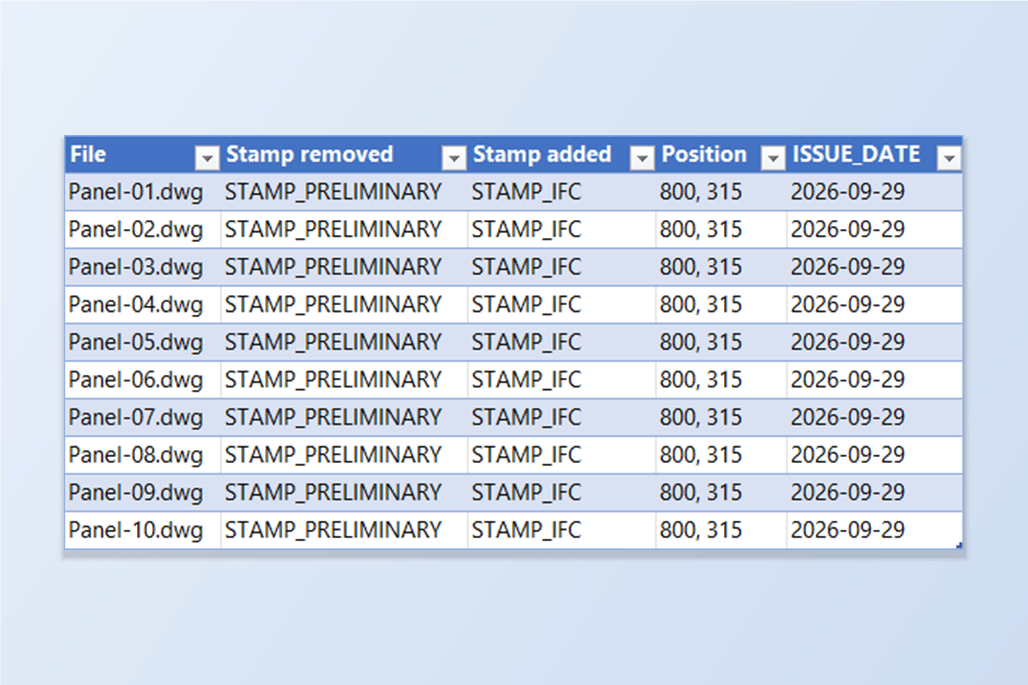
To check the result, add the drawings to BlockSync's AutoCAD → Excel screen. The Blocks tab shows STAMP_IFC with 10 references in 10 files and STAMP_PRELIMINARY with 0 references. Ticking STAMP_IFC and choosing Extract to Excel lists every stamp with its layer, position and ISSUE_DATE — in this run all ten were at 800, 315 with 2026-09-29.
If a mistake slips through, Restore Backup… in either mode puts drawings back from any run's backup, even after BlockCopy has been closed. Run the steps on a copy of the set first if you want to see the result before it counts.
To only place a block definition in drawings, without inserting a reference, use Distribute. To replace a block by a different one wherever it's used — say an old logo — see the replace-a-block guide. For a full walkthrough of every screen and setting, see the BlockCopy docs. To try it on your own drawings, download BlockCopy — the Free tier covers up to 10 drawings per batch.