
Guides/Revision & comparison
Batch Compare Block Attributes Between Two AutoCAD Drawing Revisions
 Made with BlockCompare
Updated September 18, 2026
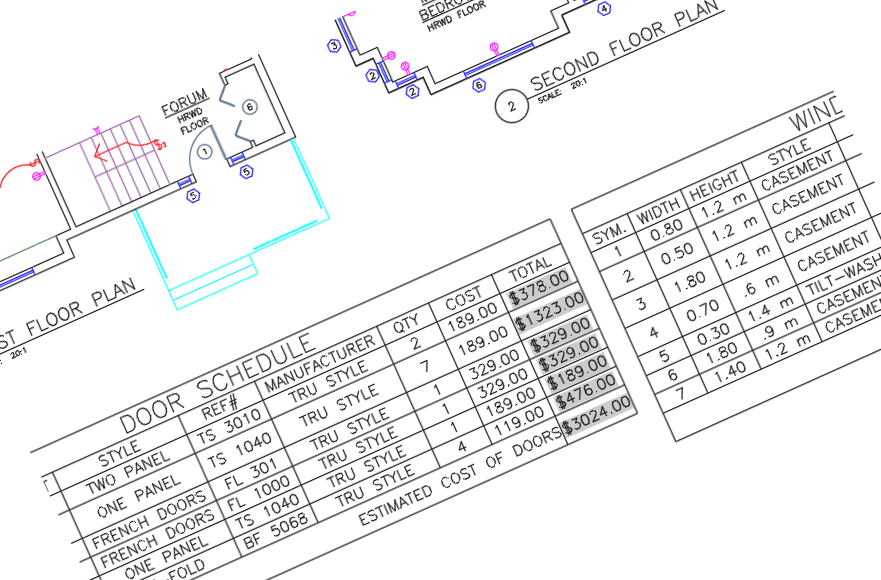
A drawing set goes out for revision, comes back, and now someone has to answer a simple-sounding question: what actually changed? Not what the revision notes claim changed — what changed in the blocks themselves, attribute by attribute, across every sheet.
AutoCAD has no built-in way to answer that. Opening the before and after versions side by side and eyeballing them works for one drawing, not for a folder of them, and it's easy to miss a single attribute that got quietly overwritten inside a block that otherwise looks identical. Generic DWG-diff viewers aren't much better — most just flag a block as "changed" without saying which field, or lose track of it entirely if it moved.
This guide uses BlockCompare to compare block instances between a 'before' folder and an 'after' folder of drawings, matched by AutoCAD's own persistent object handle, and get a field-by-field report of exactly what changed — plus an Excel export to hand to anyone who doesn't have BlockCompare installed.
1. Add the before and after revisions
Open BlockCompare and load the two revisions into Folder A (before) and Folder B (after). Add Folder… pulls in an entire project tree at once — there's no cap on how many drawings go into a comparison (the Free tier caps it at 3 drawings per side; Pro removes the limit). Add Files… is there for a smaller, hand-picked set instead. This example uses two files per side purely to keep the screenshots readable.
BlockCompare pre-scans both folders and reports a live status per file, however many were added.
On the Blocks tab, check the block definition(s) you actually want compared — here, ARCHBDR-D — and leave the rest unchecked. Each row shows its reference count and how many of the added files contain it, aggregated across the whole batch, so you're not guessing before you commit to a scan.
Leave Match strategy on Hybrid (default) and Confidence at its default — this decides how sure a 'before' file has to be paired with its 'after' counterpart before BlockCompare accepts the pairing automatically instead of flagging it for review. The same strategy applies no matter how many files are in the batch.
Click Scan & Match to read every file on both sides and propose file-to-file pairings.
2. Confirm the file pairings
The Review Matches screen lists every File A next to BlockCompare's proposed File B, with a Filename %, Handle % and Combined % score showing how confident the pairing is.
A row highlighted in red means the filename and handle signals disagree about which file to pair — that's a conflict worth a manual look before continuing, not something to wave through.
Override any proposed match with the File B dropdown, or tick the box on the right to exclude a file from the run entirely. Change Strategy and click Re-match if a different pairing approach would work better for this set.
Once every pairing looks right, click Compare.
3. Review exactly what changed, field by field
The Comparison Report groups results per matched file pair, with an Added / Removed / Modified count for each. Unchanged block instances aren't listed at all, so a drawing with hundreds of instances doesn't bury the handful that actually differ.
Every entry shows its object Handle, Block Name, Kind and how many fields changed. Because matching is done by handle rather than name or position, a block that moved or got reattributed is still tracked as the same instance — never mistaken for one that was deleted and a new one created in its place.
Click Details… on any modified entry to open a popup listing every changed field's old and new value side by side — here, the NAME attribute went from CORY B. to CADXChange, and DATE was filled in where it had been blank.
4. Export to Excel for anyone without BlockCompare
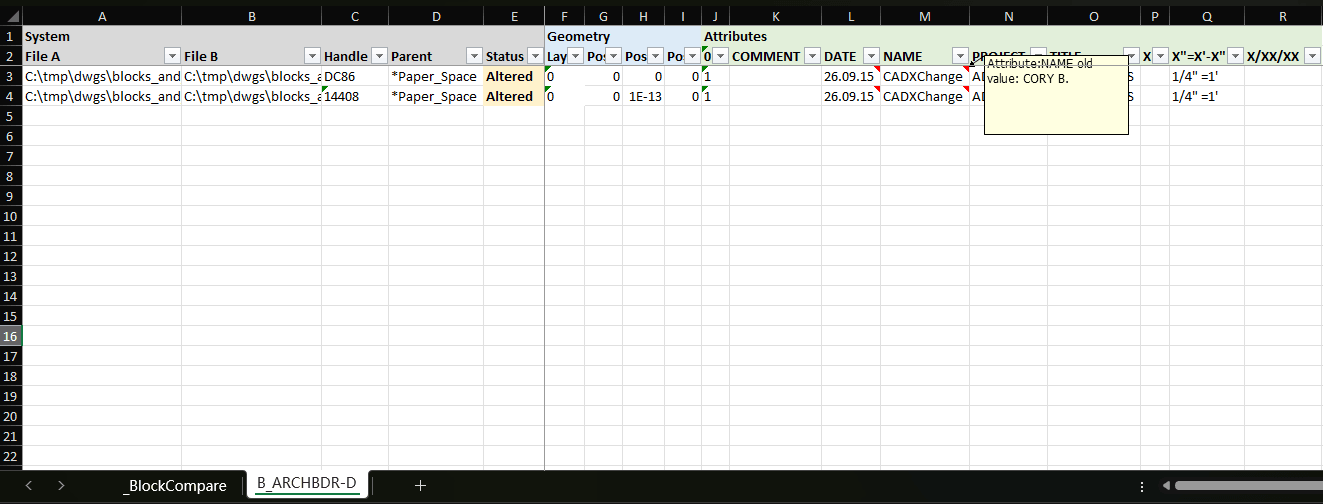
Click Export to Excel from the Comparison Report screen, then pick a report layout in the dialog that appears. BlockCompare writes one row per compared block instance to a workbook, with File A, File B, Handle, Parent space and Status columns on the left and one column pair per attribute on the right.
Changed values are flagged directly in the sheet — hovering a flagged cell shows the old value, so a reviewer can see exactly what was replaced without switching back to BlockCompare at all. Choosing the newer before/after layout instead gives each modified instance two adjacent rows, old values then new, with the changed cells highlighted on both — useful when a reviewer would rather scan two full rows than hover every flagged cell one at a time.
As a flat, filterable spreadsheet, this doubles as a QA sign-off record: attach it to the revision submission as evidence of exactly what changed, block by block.
The same scan → match → compare flow works for any revision check, not just a title block audit — catching an unintended edit that rippled out from a shared block definition, or verifying that a batch tool (or a script) changed only what it was supposed to across a drawing set.
For a full walkthrough of every screen and setting, see the BlockCompare docs. To try it on your own drawings, download BlockCompare — the Free tier covers up to 3 drawings per side.