
Guides/Revision & comparison
Batch Compare Text and Notes Between Two AutoCAD Drawing Revisions
 Made with TextCompare
Updated September 18, 2026
Geometry changes get caught by a revision cloud. Wording doesn't. A note gets reworded during review, a callout gets retyped with a typo fixed, a label gets translated into another language — and none of it shows up as a visual difference when the drawing is glanced at, only when it's actually read.
Re-reading every sheet in a set to confirm exactly which notes changed, and to what, doesn't scale past a handful of drawings, and it's exactly the kind of task where fatigue causes a missed line. AutoCAD has no built-in way to diff text content across two versions of a drawing at all.
This guide uses TextCompare to compare every DBText, MText and block entry between a 'before' folder and an 'after' folder of drawings, matched by AutoCAD's own persistent object handle, and get an entry-by-entry report of exactly what wording changed — plus an Excel export for anyone who doesn't have TextCompare installed.
1. Add the before and after revisions
Open TextCompare and load the two revisions into Folder A (before) and Folder B (after) — Add Files… for a hand-picked set, or Add Folder… to pull in an entire project tree at once. There's no cap on how many drawings go into a comparison (the Free tier caps it at 3 drawings per side; Pro removes the limit) — this example uses three files per side purely to keep the screenshots readable.
TextCompare pre-scans both folders and reports what it found — here, 86 layers and 0 viewports across the 3 files added on each side.
Since text isn't organized into named definitions the way blocks are, there's no Blocks tab here — instead, use the Layers tab to narrow the comparison to text and block references on specific layers, or the Viewports tab to restrict it to specific paper-space viewports. Leave nothing checked to compare everything.
Leave Match strategy on Hybrid (default) and Confidence at its default, then click Scan & Match to read every file on both sides and propose file-to-file pairings.
2. Confirm the file pairings — and resolve any conflicts
The Review Matches screen lists every File A next to TextCompare's proposed File B, with a Filename %, Handle % and Combined % score.
Here, two of the three pairings are highlighted red even though every score reads 100% — the filename and handle signals technically agree on which file is the best match, but each of those two files is also a near-equally strong candidate for the other, because Power Plant 01 and Power Plant 02 share a lot of near-identical content. Both rows list Power Plant 03.dwg as the Conflict candidate, flagging that ambiguity instead of silently guessing.
This is exactly the kind of project a filename-based match alone would get wrong on its own — near-duplicate template drawings are precisely where a conflict candidate is worth pausing on. Check each proposed File B against what it should actually be paired with before continuing; override any of them with the dropdown, or tick the box on the right to exclude a file from the run.
Once satisfied with all three pairings, click Compare.
3. Review exactly what changed, entry by entry
The Comparison Report groups results per matched file pair — here, 453 modified entries total across the three files, out of hundreds of text entries scanned. Unchanged entries aren't listed at all, so a heavily-annotated sheet doesn't bury the wording that actually moved.
Every entry shows its object Handle, entity Kind (here, DBText), the change itself, and how many fields were affected. In this drawing set, every changed line is a translation from Spanish to English — INVERSOR CC/CA → DC/AC INVERTER, SERIE 1 → STRING 1, 19 Móds. en serie → 19 modules in series — exactly the kind of pass that's otherwise impossible to verify sheet by sheet with any confidence.
Because matching is done by handle rather than position, a note that was also nudged, resized or moved to a new layer during the same edit is still tracked as the same entry — its wording change and its layer/geometry change both show up on one row, not two.
4. Export to Excel for anyone without TextCompare
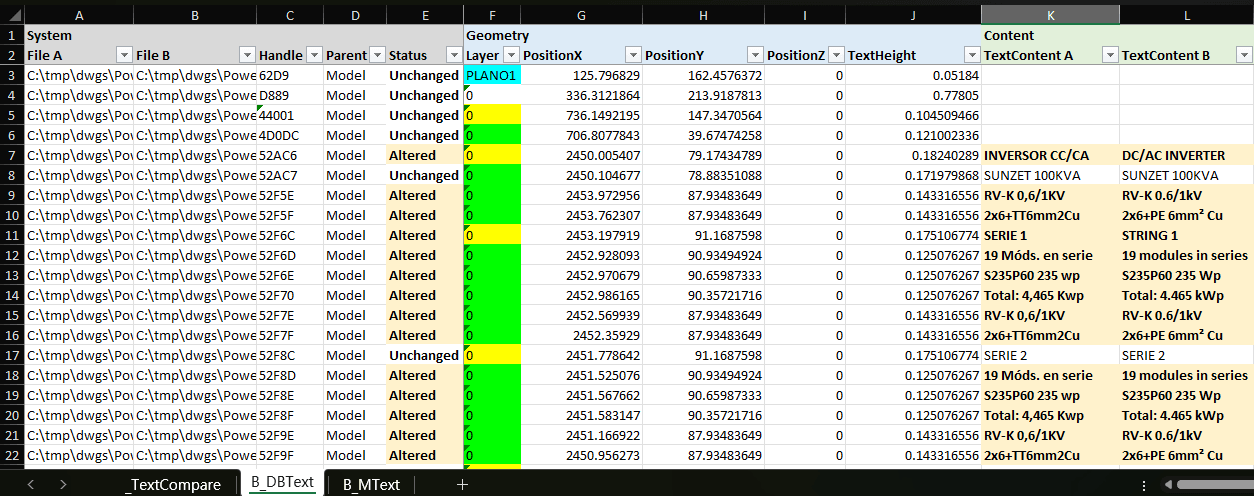
Click Export to Excel from the Comparison Report screen, then pick a report layout in the dialog that appears. TextCompare writes one row per compared text entry to a workbook, with File A, File B, Handle, Parent space and Status columns on the left, geometry (Layer, Position, TextHeight) in the middle, and TextContent A / TextContent B on the right — the before and after wording, side by side.
Because the old and new text sit in their own columns rather than behind a hover comment, a translator, reviewer or client can filter or sort straight on either column to confirm exactly what changed, without installing TextCompare or opening AutoCAD. Choosing the newer before/after layout instead gives each modified entry two adjacent rows sharing one TextContent column, with every changed field highlighted on both rows.
As a flat, filterable spreadsheet, this doubles as a translation QA record or a comment-resolution log: attach it as evidence that every requested wording change actually landed, and nothing else did.
The same scan → match → compare flow works for any wording check, not just a translation pass — confirming a round of review comments actually landed, or catching a shared note block edit that rippled into wording it shouldn't have touched.
For a full walkthrough of every screen and setting, see the TextCompare docs. To try it on your own drawings, download TextCompare — the Free tier covers up to 3 drawings per side.