
Guides/Text & labels
Batch Translate Text and Labels Across Multiple AutoCAD Drawings
 Made with TextSync
Updated September 17, 2026
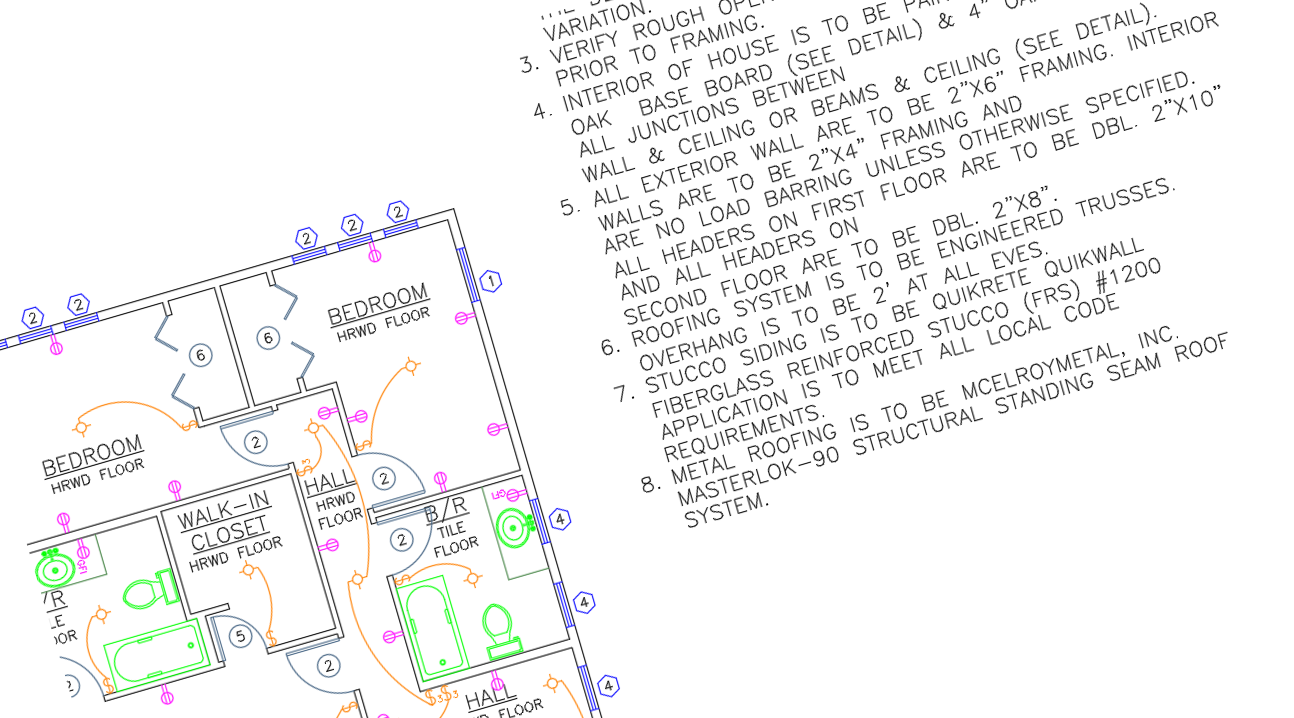
A drawing set that has to ship in more than one language usually means the geometry stays the same and only the notes, labels and callouts change — but there's no clean way to pull just the text out of a DWG, hand it to a translator, and get it back into the right place.
AutoCAD's own Find/Replace works one string, one file, at a time, and copy-pasting text out into a document loses every bit of context about which entity it came from — so it's easy to translate a note and then have no reliable way to put it back exactly where it belongs.
This guide uses TextSync to export every DBText and MText string from a batch of drawings to Excel, translate the values, and write them back to the exact entity they came from — matched by file and handle, not by position or guesswork.
1. Export every text string to Excel
Open TextSync and add the drawings that need translating — Add Files… for a specific set, or Add Folder… for a whole project tree.
Parallel processing speeds up a larger batch by reading multiple files at once.
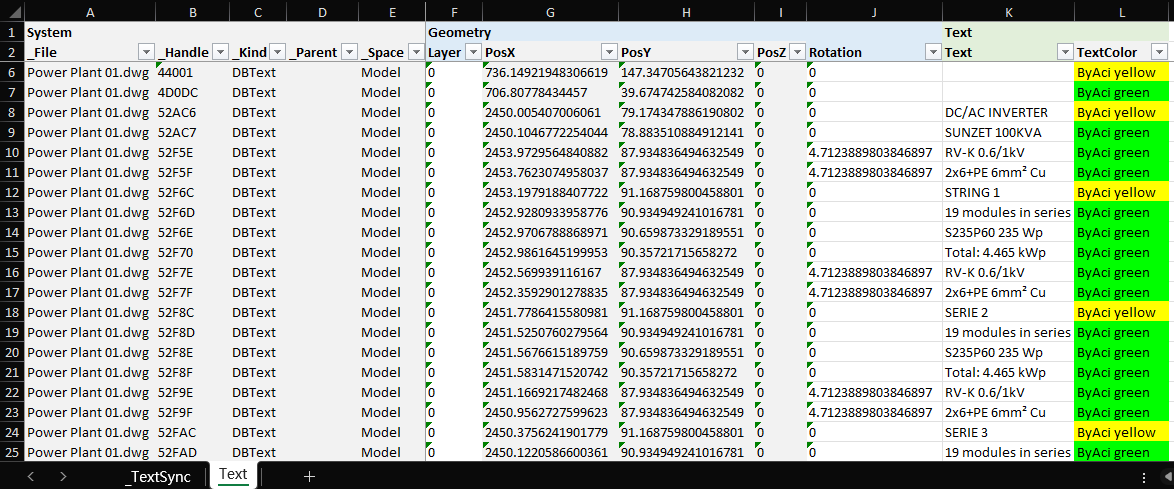
Click Export to Excel. TextSync writes one row per DBText or MText string, across every file, into a single workbook.
2. Translate the Text column
Each row carries system columns (_File, _Handle, _Kind, _Layer) plus geometry, and a Text column holding the actual string. A translator only needs that one column — the rest identifies where each string belongs and shouldn't be touched.
Edit the Text column in place with the translated value, the same way for a note or a label — TextSync doesn't care which kind of entity a row came from. Working from one flat sheet also means a translator (or a translation tool) never has to open AutoCAD at all.
Save the workbook once every row has been translated.
3. Match files and review before writing back
Switch to the Excel → Text tab, point it at the translated workbook, and confirm the DWG folder — TextSync defaults to the workbook's own folder and matches files back by exact name.
Matched Files lists how many text entities were found in each file. Anything in the workbook with no matching drawing shows up under Unmatched instead of silently failing.
Leave Automatic backup checked — every file about to be written is copied to a backup folder first, so a bad translation or a mismatched row is always recoverable.
4. Write back and verify
Click Write Back. TextSync writes every translated string to the exact entity it was exported from, matched by file and handle rather than by position — so reordering or adding rows in Excel never scrambles which text lands where.
The Write-Back Report confirms success/fail counts per file and where the backup was saved. If a translation needs to be redone, Rollback All restores every file in the run from its backup in one click.
The same export → translate → preview → write-back flow works for any bulk text change, not just translation — terminology updates, a company name change, or unifying wording across a project that grew out of several old templates.
For a full walkthrough of every screen and setting, see the TextSync docs. To try it on your own drawings, download TextSync — the Free tier covers up to 3 drawings per batch.