
Guides/Drawing standards
Compare Two AutoCAD Drawings and Find What Changed — Then Do It for a Whole Revision Set
Updated November 5, 2026
Made with TextCompare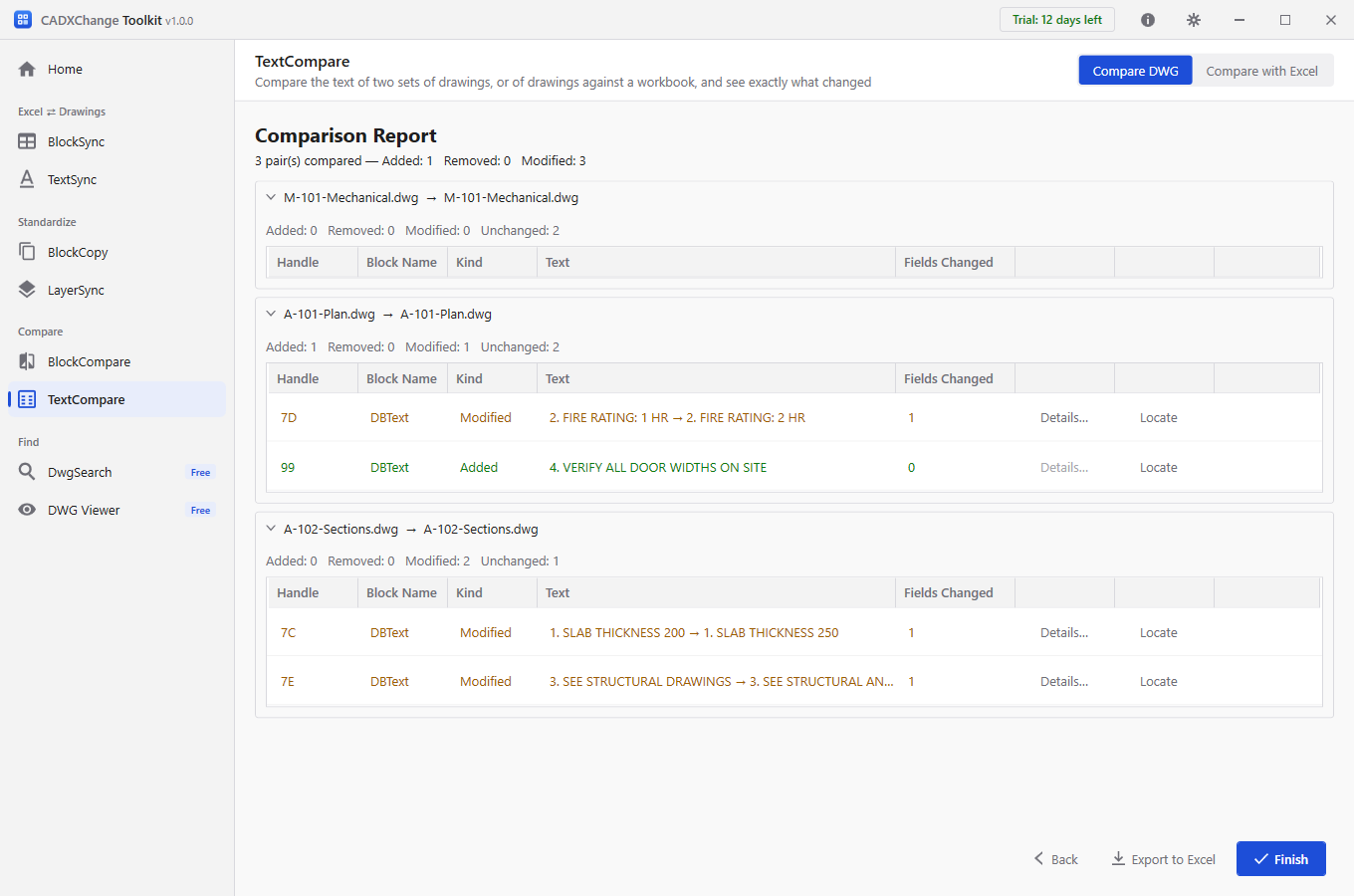
A drawing comes back after review and someone asks the simple question: what changed? For one sheet the honest answer is to lay the two versions on top of each other. For a set of forty sheets, it is to find out quickly which sheets changed at all, and exactly how.
The answer depends on what kind of change you are looking for. A line that moved is a graphical change. A note that was reworded, or a REV and DATE that were updated in the title block, is data, and it is easy to overlook on a screen full of geometry. No single tool shows all three well, so this guide takes them in turn: AutoCAD's own COMPARE for geometry, and TextCompare and BlockCompare, both part of CADXChange Toolkit, when you need a list of the exact old and new values across a whole folder of drawings.
The example is a set of three sheets in two revisions. In the second revision a wall was moved, notes were reworded or added, the title block was updated, and one mechanical sheet had only a duct enlarged.
1. Decide what kind of change you are looking for
Geometry (lines, arcs, hatches, anything that was moved, resized, added or deleted) is best seen graphically, and that is what COMPARE does. Text and block attributes are different: what you want is a list saying that note 2 went from 1 HR to 2 HR, or that REV went from A to B, and that is what a data comparison gives you.
It also matters how many drawings there are. COMPARE takes two drawings at a time. If you have a folder of drawings from the previous issue and a folder of the new ones, comparing them one by one is the part that does not scale.
2. See the geometry differences with COMPARE
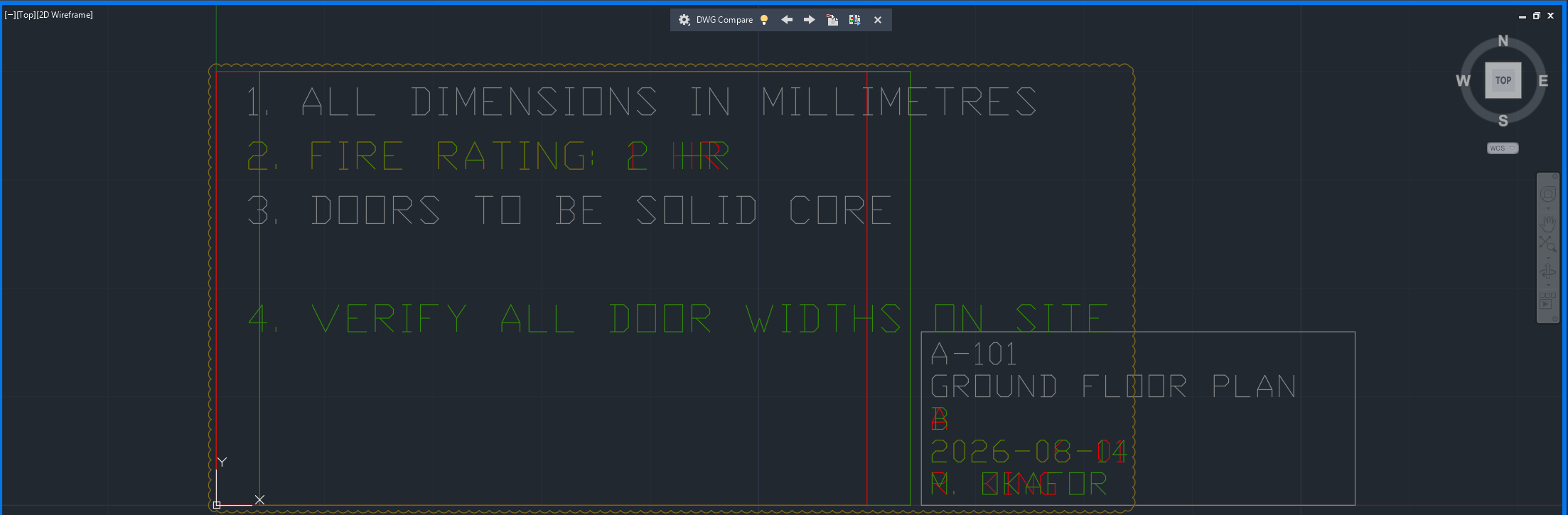
Open the newer drawing, type COMPARE and choose the older drawing to compare it with. AutoCAD overlays the two and shows what differs in colour: objects found only in the older drawing are red, objects found only in the drawing you have open are green, and what both share stays grey. Differences that lie close together are grouped into change sets and ringed with a revision cloud; the arrows in the DWG Compare toolbar step through them. COMPARECLOSE ends the comparison.
In the screenshot the unchanged notes 1 and 3 stay grey. The reworded note 2 and the title block fields that changed are drawn in both colours, because the old and new text sit on top of each other, and the added note 4 exists only in the newer drawing, so it is all green.
This is the right tool for a moved wall or a resized duct, and for a quick look at one pair of sheets. What it gives you is a picture. It does not produce a list of what changed, it does not say which attribute of a block is different, and it works on the two drawings you opened, not on a folder.
In the example set, COMPARE is how you would find that the wall on A-101 moved and that the duct on M-101 grew. Those two changes are not visible in the next two steps, which is exactly why they are separate.
3. List every changed note across the set with TextCompare
Open TextCompare, add the older drawings under Folder A (before) and the newer ones under Folder B (after) with Add Files or Add Folder, and click Scan & Match. TextCompare pairs each drawing with its counterpart and shows the pairings on Review Matches, with the filename and handle scores. A row highlighted red means the two signals disagree, so look at it before continuing. Here two rows are red because the sheets were built from one template and their handles overlap; the name match is the right one. Then click Compare.
The Comparison Report has a section per pair with the number of Added, Removed, Modified and Unchanged entries, and lists only the ones that changed. A-101 has one modified note, 2. FIRE RATING: 1 HR → 2. FIRE RATING: 2 HR, and one added note, 4. VERIFY ALL DOOR WIDTHS ON SITE. A-102 has two reworded notes: the slab thickness 200 → 250 and the structural drawings note. M-101 has no changes at all, with both of its notes unchanged.
4. List every changed title block attribute with BlockCompare
BlockCompare works the same way for blocks. Load the two folders, tick the block you care about on the Blocks tab (here TITLEBLOCK), click Scan & Match, confirm the pairings and click Compare. Matching is by AutoCAD's persistent object handle, so a title block that moved is still the same block.
Each modified block shows how many fields changed, and Details opens the old and new values side by side. On A-101 three attributes changed: REV A → B, DATE 2026-06-01 → 2026-08-14 and DRAWN R. KING → M. OKAFOR. On A-102 two changed. M-101 has one block instance and it is unchanged, which is the point: its only revision is geometry, so neither data comparison lists anything for it. The recording shows the whole run.
5. Put the three answers together
Read across the three tools and you have the whole revision. A-101 has a moved wall (COMPARE), a reworded and an added note (TextCompare), and an updated title block (BlockCompare). A-102 has two reworded notes and a title block update, and nothing in geometry. M-101 has a larger duct and nothing else. It appears only in COMPARE, and that is the sheet that would be missed if you relied on the two data comparisons alone.
That is a workable routine for a set: run the two folder comparisons first to get the list of sheets whose notes or title blocks changed, then open the pairs of sheets that the list does not explain, or that you know had drawing changes, in COMPARE.

A few things to know. The folder comparisons match objects by handle, so the newer drawing has to be the edited original and not a redrawn or exported copy, which gets new handles. An object that was only moved is still the same object. Both report screens have Export to Excel, which is handy for sending the list to someone who does not have the tools.
TextCompare compares single-line and multiline text, and BlockCompare compares block references and their attributes; neither looks at lines, arcs or hatches. Comparing only reads the drawings. CADXChange Toolkit comes with a 30-day full trial, and BlockCompare and TextCompare are two of its tools.
Try it on your own drawings
CADXChange Toolkit does this for a whole folder of drawings, with a preview and a backup first. The 30-day trial has every feature.
Start the free trial →Before you start — common questions
- How do I compare two AutoCAD drawings to see what changed?
- For geometry, open the newer drawing and run COMPARE, then choose the older drawing: AutoCAD overlays the two and shows the differences in colour. For a list of what changed in notes or in block attributes, compare the two versions with TextCompare or BlockCompare, which list every changed entry with its old and new value.
- Can COMPARE compare a whole folder of drawings?
- No. It compares two drawings at a time and shows the result graphically. To compare a folder of the previous issue with a folder of the new one, use TextCompare for notes and BlockCompare for block attributes; both take the two folders and pair the drawings automatically.
- Does COMPARE tell me which text or attribute changed?
- It shows that objects differ, in colour, but it does not list the old and new wording of a note or which attribute of a block is different. A comparison of the two versions in TextCompare or BlockCompare gives that list, for example REV A → B.
- Will TextCompare or BlockCompare show a wall that moved?
- No. TextCompare compares text and BlockCompare compares block references and their attributes. A drawing whose only change is geometry shows no changes in either, and COMPARE is the tool for that.
- How are the two versions of a drawing matched?
- By AutoCAD's own persistent object handle, so an object that moved is still the same object. This needs the newer drawing to be the edited original: a redrawn or exported copy gets new handles. TextCompare and BlockCompare also pair the drawings themselves by file name and handle, and show the pairings, with any conflict marked in red, for you to confirm before the comparison runs.
- Can I send the differences to someone who does not have the tools?
- Yes. The comparison report has an Export to Excel button, and the workbook it writes lists each change with its old and new values, so anyone with Excel can read it.
- What do I need to run the folder comparisons?
- A Windows 10 or 11 PC and the two sets of drawings. AutoCAD does not have to be running. CADXChange Toolkit includes a 30-day full trial.