
Guides/Block attributes
Copy Block Attribute Values from One AutoCAD Drawing to Many — Project Details, Client and Address
 Made with BlockSync
Updated September 30, 2026
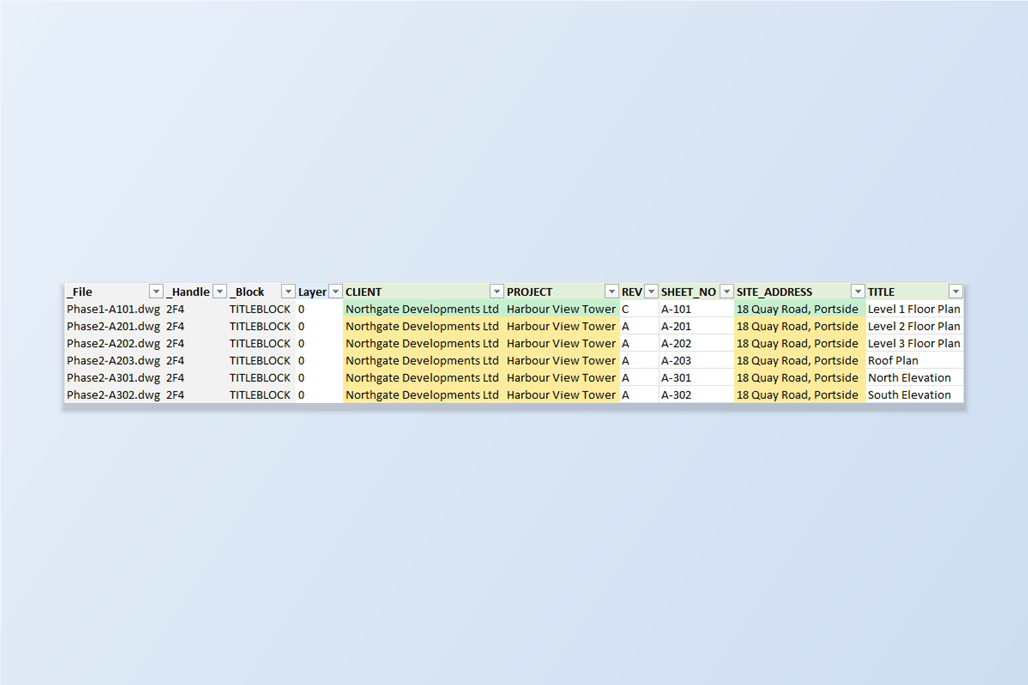
A common job on a drawing set: one sheet's title block already holds the project details — project name, client, site address — and a batch of new sheets still shows TBD in those fields. The block itself is already on every sheet, so copying the block is not the point. What you need is to copy the attribute values from one block into the others, and leave each sheet's own number, title and revision exactly as they are.
AutoCAD has no command for this across files. MATCHPROP matches properties such as layer and colour, not attribute values. ATTEDIT and the Properties panel change one block reference at a time, DATAEXTRACTION only exports, and ATTOUT/ATTIN round-trips a text file one drawing at a time. That leaves opening every drawing and retyping the same three values — slow, and easy to get wrong on the fourth drawing of forty.
This guide uses BlockSync: export the title blocks of all the drawings to one Excel workbook, copy the values in the spreadsheet where copying is trivial, then preview and write the result back. The example copies three attributes from Phase1-A101 into the five new Phase2 drawings.
1. Export the title blocks of all the drawings to one workbook
Open BlockSync and add the drawing that holds the values you want to copy (the source) together with the drawings that should receive them — Add Files… for a specific set, or Add Folder… for everything in a folder. BlockSync scans each file and lists the block definitions it found; here TITLEBLOCK is referenced six times, once in each of the six files.
Check the title block on the Blocks tab and click Extract to Excel. BlockSync writes one row per block reference, across every file, into a timestamped workbook in the output folder shown on screen.
2. Find the source row and the rows to fill
The workbook has one tab per block, with one row per reference: the file name and handle on the left, then one column per attribute tag. Phase1-A101 is the source here, so its CLIENT, PROJECT and SITE_ADDRESS cells (marked in green) hold the values to copy, while the same cells in the five Phase2 rows still say TBD.
Rows follow the order the files were added in BlockSync, so add the source drawing first and it becomes the first data row. That matters in the next step, because it lets a single fill-down do all the copying.

3. Copy the values in Excel
In the CLIENT column, select the source cell and continue down to the last row you want to fill, then press Ctrl+D (Fill Down). Repeat for PROJECT and SITE_ADDRESS. The columns don't have to be next to each other, and the columns in between — REV, SHEET_NO, TITLE — are simply left alone.
If the source row is not the first one, or you only want some of the drawings, copy the source cell and paste it into just the rows you need instead. To copy a value into a different attribute, paste it into that attribute's column. Don't change the _File or _Handle columns: BlockSync uses them to match each row back to the exact block reference it came from.
One caution: dates, or numbers with leading zeros, that Excel has turned into real dates or plain numbers are written back as Excel displays them. Copy those from cells that hold them as text. Save the workbook when you're done.

4. Preview exactly which attributes will change
Switch to the Excel → AutoCAD tab, pick the edited workbook, and leave the DWG folder on Same folder as Excel file. Files are matched to the workbook by exact file name. Leave Automatic backup checked: it is on by default, and BlockSync copies every file into a backup folder before it writes anything.
The Diff preview lists the changes file by file. Here it reports 6 files previewed, 15 attribute changes, 0 blocked: three in each of the five Phase2 drawings. Phase1-A101 shows 0 changes, because its values already match the workbook, and is unchecked. Select a drawing to see its rows — CLIENT, PROJECT and SITE_ADDRESS, each going from TBD to the copied value. REV, SHEET_NO and TITLE are not listed, because they didn't change. Nothing is written to a drawing until you confirm.
5. Write back and verify
Click Write Selected Files and confirm. BlockSync writes the changes, then reads every changed attribute back out of the drawing. The results screen reports 5 succeeded, 0 failed, and 0 read-back mismatches, and shows where each file's backup went.
If anything looks wrong, Rollback All on the same screen restores every file in the run from its backup. To double-check, export the drawings again: CLIENT, PROJECT and SITE_ADDRESS now match in every drawing, and each sheet keeps its own REV, SHEET_NO and TITLE.
The same flow copies values between any attributes on any block, not just title blocks: fill a column down, paste a column from another sheet, or use a formula to build one attribute from another. Only cells you actually change are written; unchanged rows are never touched.
If you need the whole block — position, geometry and the values it currently holds — copied into other drawings, use BlockCopy's Copy Reference instead. If the block's definition changed and you need to keep the values already filled in, see the ATTSYNC guide.
For a full walkthrough of every screen and setting, see the BlockSync docs. To try it on your own drawings, download BlockSync — the Free tier covers up to 10 drawings per batch.
Before you start — common questions
- Is there an AutoCAD command that copies attribute values from one drawing to another?
- Not across files. MATCHPROP matches properties such as layer and colour, not attribute values. ATTEDIT and the Properties panel edit one block reference at a time, DATAEXTRACTION only exports data, and ATTOUT/ATTIN works on one drawing at a time. BlockSync covers the multi-drawing case by exporting to Excel and writing the edited values back.
- Do I need LISP to copy attribute values into many drawings?
- No. The copying happens in Excel with Fill Down or copy and paste, and BlockSync writes the result back to the drawings. There is nothing to write, load or maintain in AutoLISP.
- Can I copy only some attributes and leave the sheet number and title alone?
- Yes. Only cells you change in the workbook are written. In the example, CLIENT, PROJECT and SITE_ADDRESS change while REV, SHEET_NO and TITLE keep each sheet's own value, and the diff preview shows exactly that before anything is saved.
- What if the blocks have different names, or a target block doesn't have that attribute?
- Each block name gets its own tab in the workbook, and you can copy a value into any attribute column. A row can only be written if that attribute tag exists on that block reference; otherwise it is marked Blocked in the diff preview and skipped, and the rest of the run carries on.
- How do I undo it if I copied the wrong values?
- With Automatic backup checked, which it is by default, every file is backed up before it is written. Rollback All on the results screen puts every file in the run back, and Restore Backup… on the Excel → AutoCAD tab restores files from a backup folder.
- What do I need to run this?
- A licensed, full version of AutoCAD 2021–2027 on Windows 10/11; AutoCAD LT is not supported. The Free tier handles up to 10 drawings per batch, including preview, write-back and backup.