
Guides/Block attributes
Generate a Drawing Register from Title Blocks — Export Sheet Numbers and Titles from Multiple DWGs to Excel
 Made with BlockSync
Updated September 29, 2026
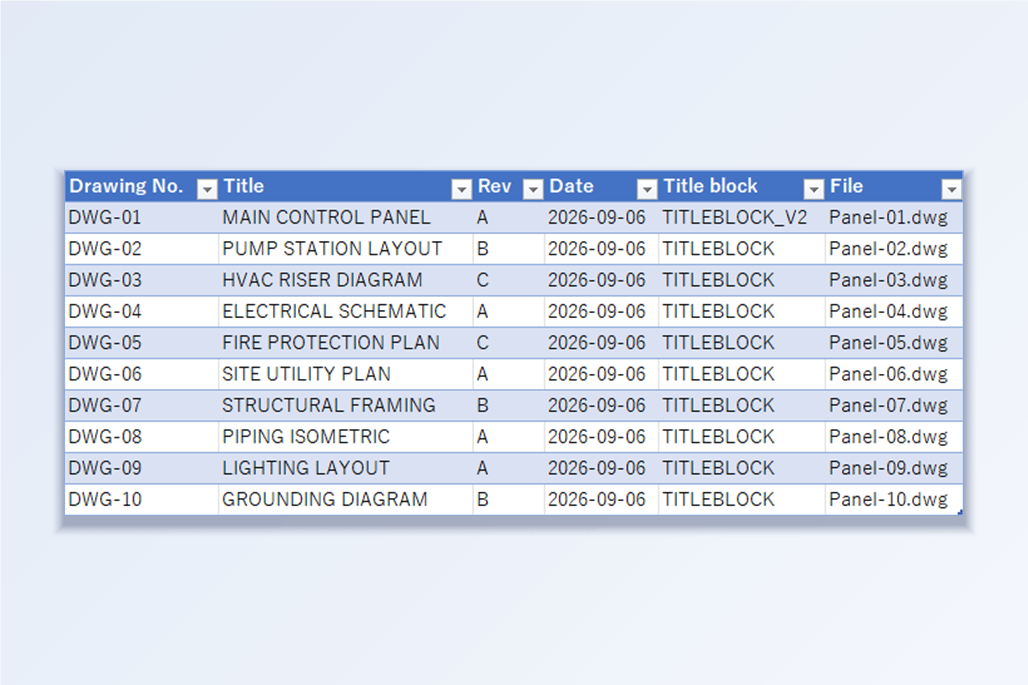
A drawing register — the drawing list or sheet index that goes on a transmittal — is a table of every sheet in a set: number, title, revision, date. In practice it's usually typed by hand or copied from the previous issue, and it's out of date the day after the next revision. The irony is that every one of those values already sits in each drawing's title block. The hard part is getting them out of dozens of DWGs at once.
AutoCAD's own routes don't fit a plain folder of drawings. Sheet Set Manager can build a sheet list table, but only for drawings that belong to a sheet set — sheets registered, fields mapped — which a folder of files received from a consultant, or an older project, usually isn't. DATAEXTRACTION can read attributes from several drawings, but every run means walking through its multi-page wizard again, and what comes out is a table you still have to clean up. That's why forum threads asking for a LISP routine that walks a folder and writes the title block values to a spreadsheet keep appearing.
This guide uses only the first half of BlockSync: extract the title block attributes from a batch of drawings to Excel, then shape the result into a register. Nothing is written back, so the drawings are never modified — the register is just a new workbook. The Free edition handles up to 10 drawings per batch; the example below uses exactly 10, including one sheet that uses a newer title block.
1. Add the drawings and tick the title block definitions
Open BlockSync and add the drawings — Add Files… for a specific set, or Add Folder… for everything under a folder. BlockSync scans each file and lists every block definition it found, with how many times it's referenced and in how many files.
On the Blocks tab, check the title block. In this set there are three definitions: TAGSYM (a tag symbol, not needed), TITLEBLOCK and TITLEBLOCK_V2. One sheet was issued on a newer title block, so the set has two title block definitions — check both. Each checked block becomes its own tab in the workbook.
The In files column is a quick completeness check: TITLEBLOCK is in 9 files and TITLEBLOCK_V2 in 1, which adds up to the 10 drawings added, so every sheet has a title block. If the numbers came to fewer than the number of drawings, some drawing has no title block (or uses one you haven't ticked) and would be missing from the register.
Click Extract to Excel. BlockSync writes a timestamped workbook to the output folder shown on screen.
2. See what the export contains
The workbook opens on a _BlockSync tab with the export time and the list of source files; after it come one tab per ticked block — here B_TITLEBLOCK and B_TITLEBLOCK_V2. Each row is one title block: the drawing it came from, then system columns (_File, _Handle, _Block, _Parent, _Space), geometry columns (layer, position, rotation) and, on the right, one column per attribute tag — DATE, DWG_NO, REV and TITLE.
If a drawing contains more than one instance of the title block (say, one on every layout), each instance gets its own row, so check for repeats before you count sheets.
A register doesn't need the system or geometry columns, and since nothing goes back into the drawings you're free to delete and rearrange them in the copy you make next.

3. Turn the export into the register
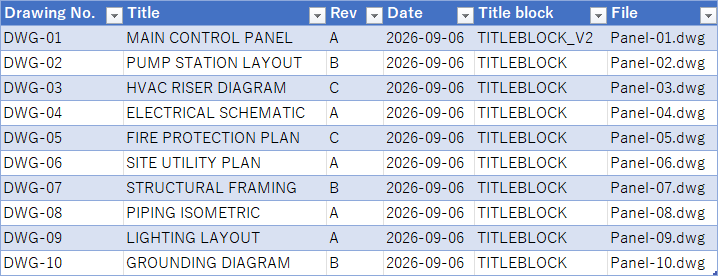
Start a new sheet and copy in the columns a register needs: DWG_NO, TITLE, REV, DATE, plus _File so every row still points back to its drawing. Give the columns the headings your transmittal uses.
Stack the tabs: paste the rows from B_TITLEBLOCK_V2 under the ones from B_TITLEBLOCK. Both definitions use the same attribute tags, so the columns line up. If a revised title block renamed a tag — SHEET_NO instead of DWG_NO, say — put its values under the same heading.
Sort by drawing number, then Insert → Table for filter buttons. Copying _Block into a Title block column is worth it: it shows at a glance which sheets are still on the old title block, which is exactly the kind of thing a hand-typed register never tells you.
Check the result before you send it: the row count should equal the number of drawings, and conditional formatting on the drawing-number column (Highlight Cells → Duplicate Values) catches a number used twice.
4. Keep it current
When the set is reissued, run the same export again: add the folder, tick the same title blocks, Extract to Excel, and paste the fresh values over the old ones. Save Profile… on the Blocks tab stores the checked blocks under a name, and Load Profile ticks them again next time.
Keep the register in its own sheet or workbook and leave the export as it was. If the register shows something to fix — a wrong revision, a duplicated number — edit it in the original export and write it back with BlockSync's Excel → AutoCAD step (see the title block update guide): write-back matches rows by the _File and _Handle columns, which the trimmed register no longer has.
The same extract-and-reshape approach builds other schedules from block attributes — a list of equipment tags, a door or room schedule, anything where the values live in attributes on a block that repeats across drawings.
For a full walkthrough of every screen and setting, see the BlockSync docs. To try it on your own drawings, download BlockSync — the Free tier covers up to 10 drawings per batch.