
Guides/Printing & delivery
Highlight Just the Layers or Blocks You're Checking — Plot Everything Else in Black
 Made with Dwg2Pdf
Updated September 19, 2026
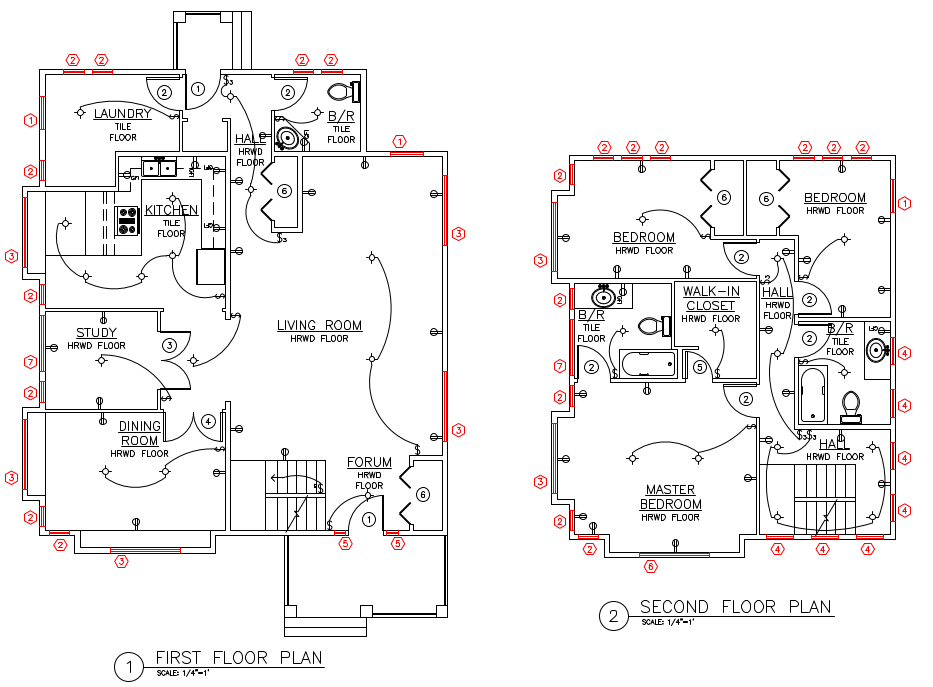
A reviewer doesn't need to see the whole drawing in color to find what changed — they need the one thing that matters to jump out, and everything else to stay out of the way. That's true for a revision going out for review, and just as true any time a single item type needs to be checked across a set: every fire-rated door, every piece of equipment on one layer, every instance of one block.
AutoCAD doesn't have a one-click way to plot a drawing with just a handful of layers in color and the rest in black — that means manually changing layer colors before plotting, then changing them back afterward, which is slow and easy to leave half-undone.
This guide uses Dwg2Pdf's Color override mode to pick specific layers (or blocks) to highlight in a color of your choice, and plot everything else flat black in the same run. The result is a plain PDF — no CAD viewer needed, opens in any browser — so anyone on the review can see exactly what to look at without installing AutoCAD.
1. Set up the batch as usual
Add the drawings, check the layouts to include, and set them up the same way as any other batch — here, Color Mode is left on Black and white for now, which is what every layer would plot as without a highlight.
2. Pick a highlight color on the Layers tab
Switch to the Layers tab and check the box on the layer that needs to stand out — here, DB - Windows — then click its color swatch to pick the highlight color. Check Hide instead (or as well) on any layer that shouldn't appear in the output at all.
Picking a color here doesn't change anything yet — a yellow warning banner appears because Color Mode is still Black and white, with a one-click Switch to color override button right there so the pick doesn't go silently ignored when you click Plot.
3. Switch Color Mode to Color override
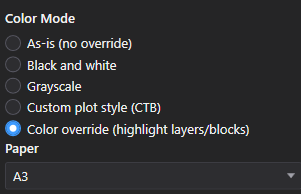
Click Switch to color override on the warning banner, or select Color override (highlight layers/blocks) directly in the Output panel. This is the only Color Mode that reads the picks made on the Layers and Blocks tabs — any other mode ignores them, which is exactly why the warning banner exists.
4. Plot — the highlighted layer stands out, everything else is black
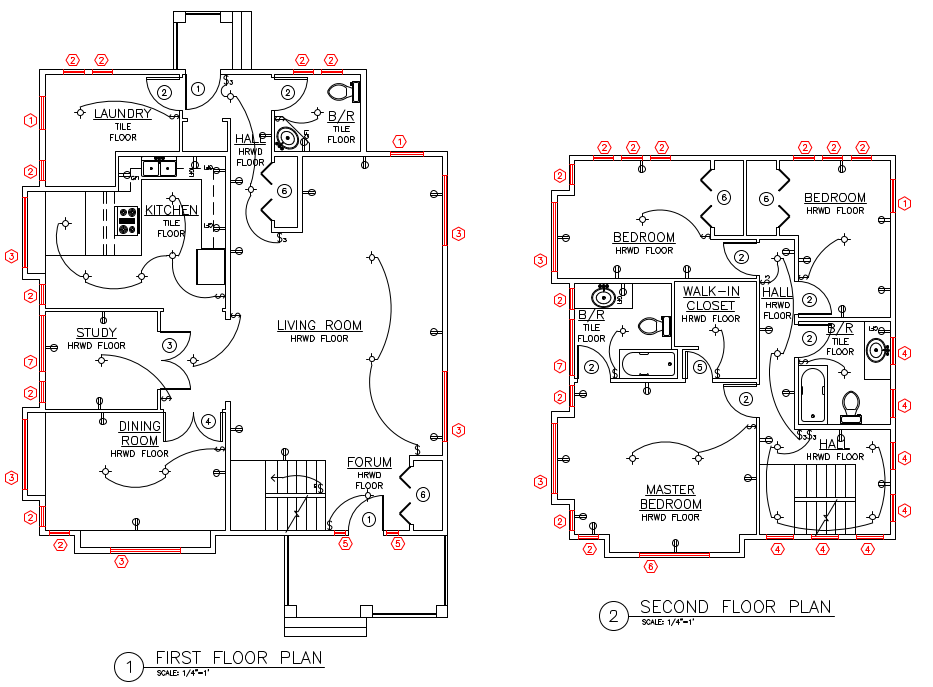
Click Plot. The window tag callouts on the highlighted layer come out in red; every other line, wall, dimension and label on the sheet plots flat black, exactly as Black and white would have done on its own.
The result is a standard PDF. Anyone on the review — a client, a contractor, a colleague without an AutoCAD seat — can open it in a browser or any PDF reader and immediately see what to look at, without installing anything.
5. Or highlight several block types in different colors at once
The same idea works on the Blocks tab, and it isn't limited to one color. Here, three door block definitions — Door, Door - Bifold and Door - French — are each checked and given their own color, with Color Mode already on Color override from the previous step.
A pick applies by block name across every added file, the same way a layer pick does, and layer highlights and block highlights aren't exclusive — both apply together in the same plot, so a highlighted layer and several highlighted block types can all be active in one run.
6. Each block type comes out in its own color
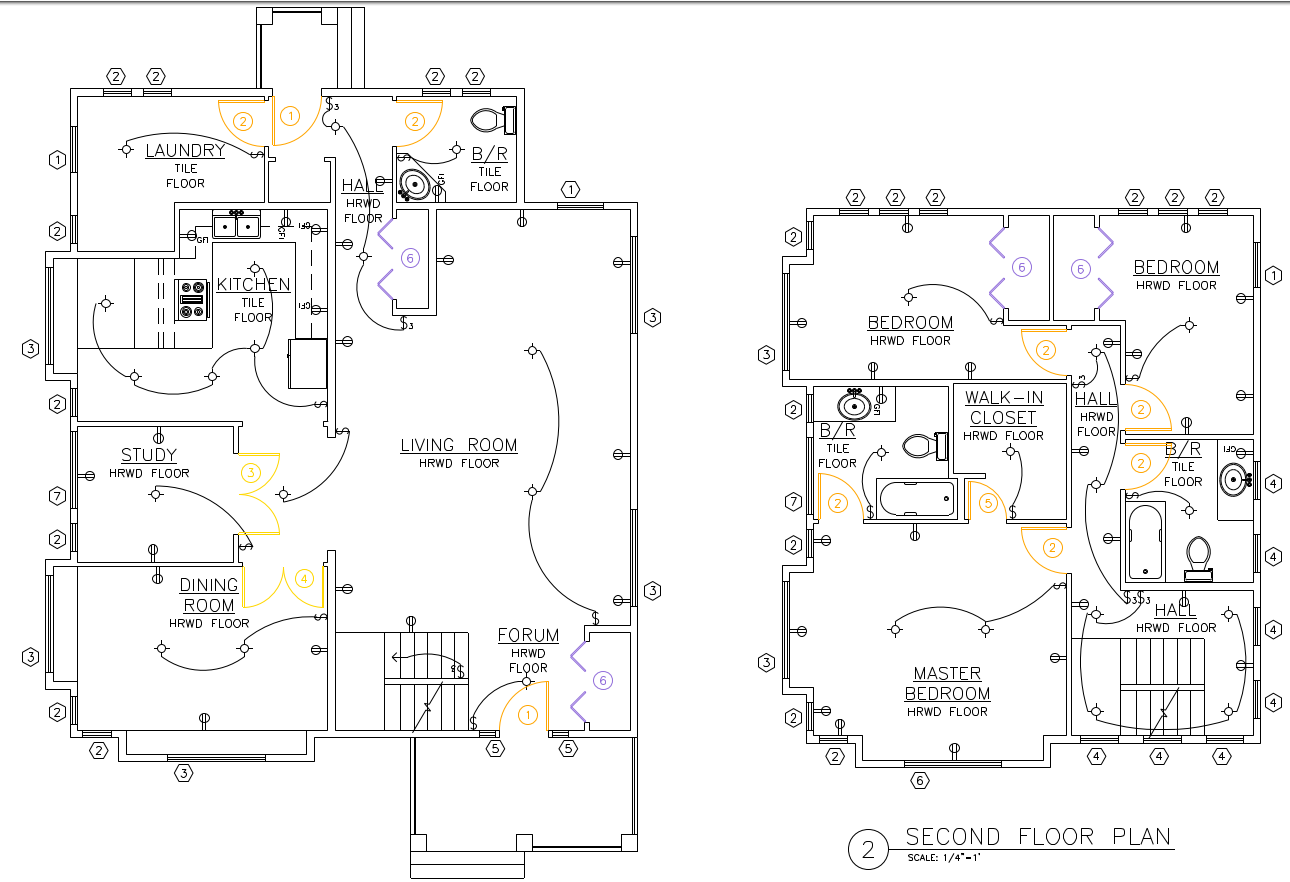
Every door swing plots in the color assigned to its block — orange for Door, purple for Door - Bifold, yellow for Door - French — while the rest of the floor plan stays flat black. Distinguishing several categories by color in one plot is something a plain Black and white or As-is run can't do at all.
That makes this useful beyond a single review flag: checking that every fire-rated door was updated to the right block, confirming which equipment tags belong to which vendor, or any other case where more than one category needs to be told apart at a glance on the same sheet.
The same pick-a-layer-or-block, switch-to-color-override flow works for any reason part of a drawing needs to stand out from the rest — a revision cloud's underlying layer before a review meeting, a QA pass checking that only one equipment type got updated, or a client walkthrough where only their scope of work needs to be in color.
For a full walkthrough of every screen and setting, see the Dwg2Pdf docs. To try it on your own drawings, download Dwg2Pdf — the Free tier covers up to 3 layouts per batch.