
Guides/Printing & delivery
Turn Block Attributes into Searchable PDF Annotations for As-Built Archives
 Made with Dwg2Pdf
Updated September 19, 2026
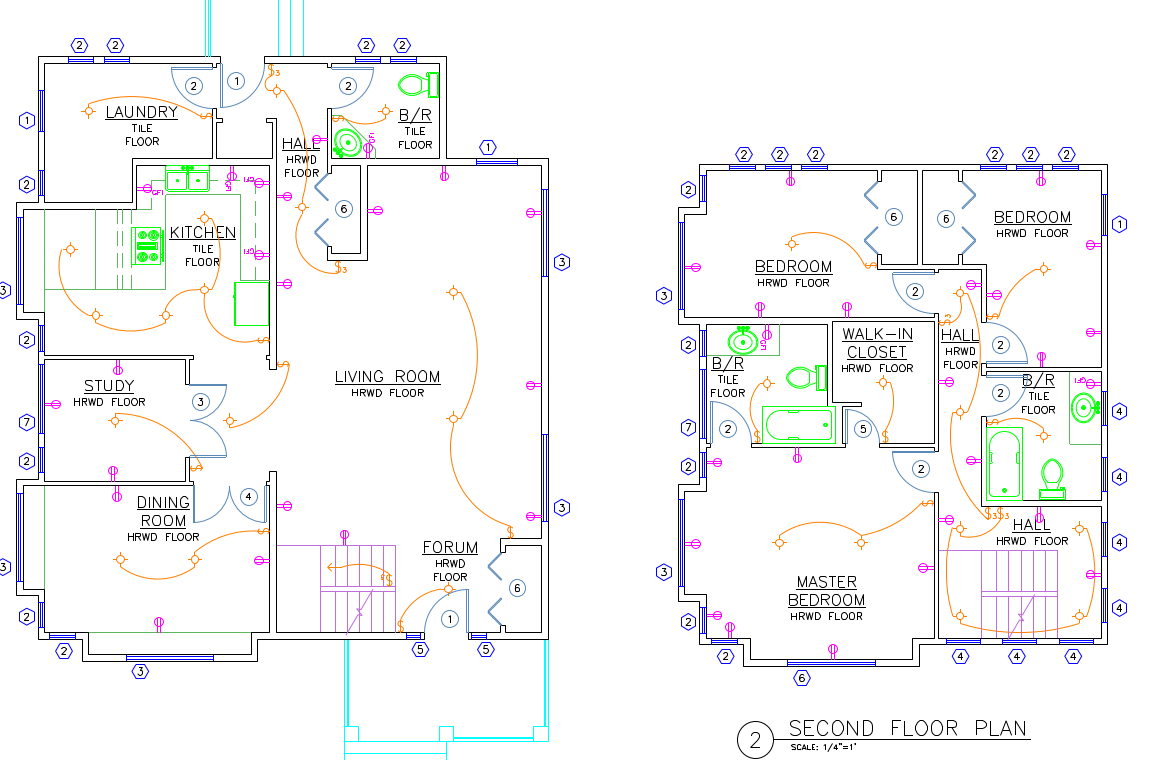
A project close-out archive is supposed to be the record everyone turns to later — but a plotted PDF is just flattened geometry. An equipment tag, a manufacturer name, a cost figure typed into a block's attributes at design time doesn't carry over into the plot as anything more than lines and letters; there's nothing in the PDF for Ctrl+F to actually find.
PUBLISH has no concept of this at all — it plots exactly what's on screen and nothing more, so the only way to later confirm which vendor's part is on a given sheet is to reopen the DWG in AutoCAD, if anyone still has it, or scroll through every page by eye.
This guide uses Dwg2Pdf's Add block attributes as PDF annotations option to stamp every block instance's attribute values as a real PDF annotation on top of the plotted geometry — searchable, selectable and readable in any PDF viewer, no AutoCAD required.
1. Set up the batch as usual
Add the drawings, check the layouts to include, and pick whatever Merge Mode and Color Mode the archive needs — the attribute-annotation option works alongside any of them, since it stamps annotations on top of the plot rather than changing how the geometry itself is plotted.
2. Turn on Add block attributes as PDF annotations
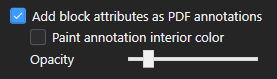
Check Add block attributes as PDF annotations in the Options section. Every block instance with attributes now gets its values stamped as a real PDF annotation positioned over the plotted geometry, instead of being left as invisible metadata that never made it into the plot.
Paint annotation interior color fills behind each stamp with a solid color, making it easy to spot which text came from an attribute stamp versus the original drawing. Opacity controls how much the stamp's fill shows through, so it can sit over the drawing without hiding the geometry underneath it.
3. Click a stamped block to read its attributes
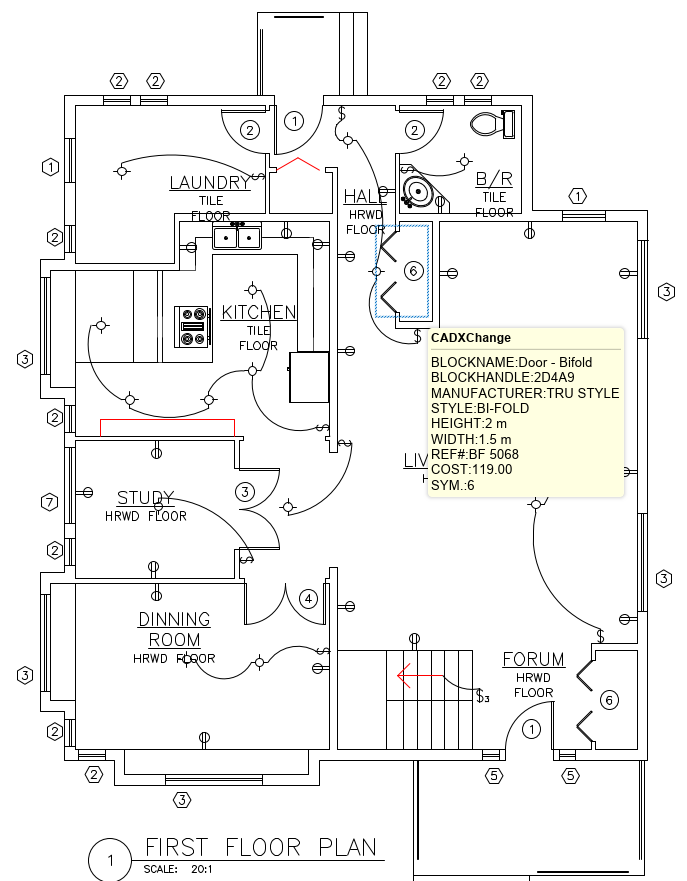
Open the resulting PDF in any reader and click the annotation icon next to a block — here, a Door - Bifold instance — to pop open its attribute values: BLOCKNAME, BLOCKHANDLE, MANUFACTURER, STYLE, HEIGHT, WIDTH, REF#, COST and SYM., exactly as they were set in the block's attributes back in AutoCAD.
Because this is a native PDF annotation, not a flattened image, the text inside it is real: selectable and copyable in any reader. Whether it also turns up in a Ctrl+F search depends on the reader — Acrobat and most desktop viewers index annotation content by default, so a reviewer, a client or a facilities team years later can search an archive for a part number or a manufacturer name and land on the exact sheet and block without ever opening AutoCAD; some lighter-weight or browser-built-in viewers only search page text and skip annotations, so it's worth checking that whatever's opening the archive actually searches them.
This turns an ordinary plotted PDF into an archive that answers its own questions — which vendor's fixture is on a sheet, what a part costs, which tag maps to which block — without anyone needing DWG access or AutoCAD installed to look it up, which is exactly what a close-out archive needs to hold up years after the project wraps.
For a full walkthrough of every screen and setting, see the Dwg2Pdf docs. To try it on your own drawings, download Dwg2Pdf — the Free tier covers up to 3 layouts per batch.