
Guides/Block attributes
Export Block Attributes to Excel and Import Them Back — Fill Attributes from a Spreadsheet Across Many Drawings
 Made with BlockSync
Updated September 30, 2026
Attribute data rarely stays inside the drawing. It goes out to a spreadsheet for a review, a purchasing list or a vendor's model numbers, and the corrected values have to come back into the blocks. AutoCAD can move the data out: DATAEXTRACTION builds a table and ATTOUT writes a text file. The trip back is the problem.
DATAEXTRACTION only exports, and ATTOUT and ATTIN round-trip a text file one drawing at a time. Filling model numbers into dozens of valve blocks across a drawing set therefore means opening each drawing and retyping, or writing a LISP routine and trusting it with your DWGs.
This guide uses BlockSync for the whole round trip: export the attributes of every block to one Excel workbook, change the values there with any Excel technique, and write them back with a preview and a backup. The example is six piping drawings with 28 VALVE blocks, each carrying TAG, SIZE, TYPE and MODEL. MODEL still says TBD and has to come from the vendor's list, which is keyed by valve type and size. The Free tier handles up to 10 drawings per run.
1. Export the blocks to Excel
Open BlockSync and add the drawings with Add Files… or Add Folder…. BlockSync scans each file and lists every block definition it found, with how many times it is referenced and in how many files. Here VALVE has 28 references in 6 files.
Tick the block on the Blocks tab and click Extract to Excel. Only ticked blocks are exported, and each one becomes its own tab in a timestamped workbook in the output folder shown on screen.
2. See what the export contains
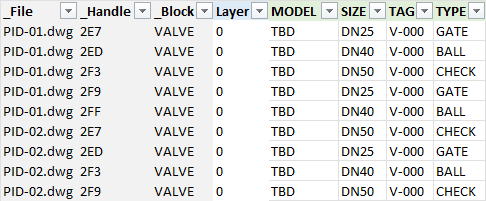
The B_VALVE tab has one row per block reference, across every drawing. On the left are the system columns: the file name and the object handle, which is how BlockSync finds each block again. On the right is one column for every attribute tag, here MODEL, SIZE, TAG and TYPE. Every valve still shows MODEL as TBD and TAG as V-000.
You can change the values in the attribute columns. You cannot add an attribute the block doesn't have, and you should leave _File and _Handle alone.
3. Fill the values in Excel
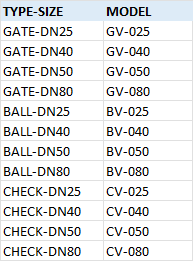
Bring the vendor's list into the same workbook as another sheet, here a Vendor list tab with one row per TYPE-SIZE combination, such as GATE-DN25 and its model number GV-025.
Then fill the MODEL column from it. In this sheet TYPE is column N and SIZE is column L, so the first row uses =VLOOKUP(N3&"-"&L3,'Vendor list'!$A$2:$B$13,2,FALSE), filled down to the last valve. Anything else works as well: paste a column, use Find & Replace, or build a value from other columns. BlockSync writes back what the cell displays. Type dates and numbers with leading zeros as text so that Excel doesn't reformat them.
Save the workbook, in the same folder as the drawings if you can.
4. Check the filled sheet
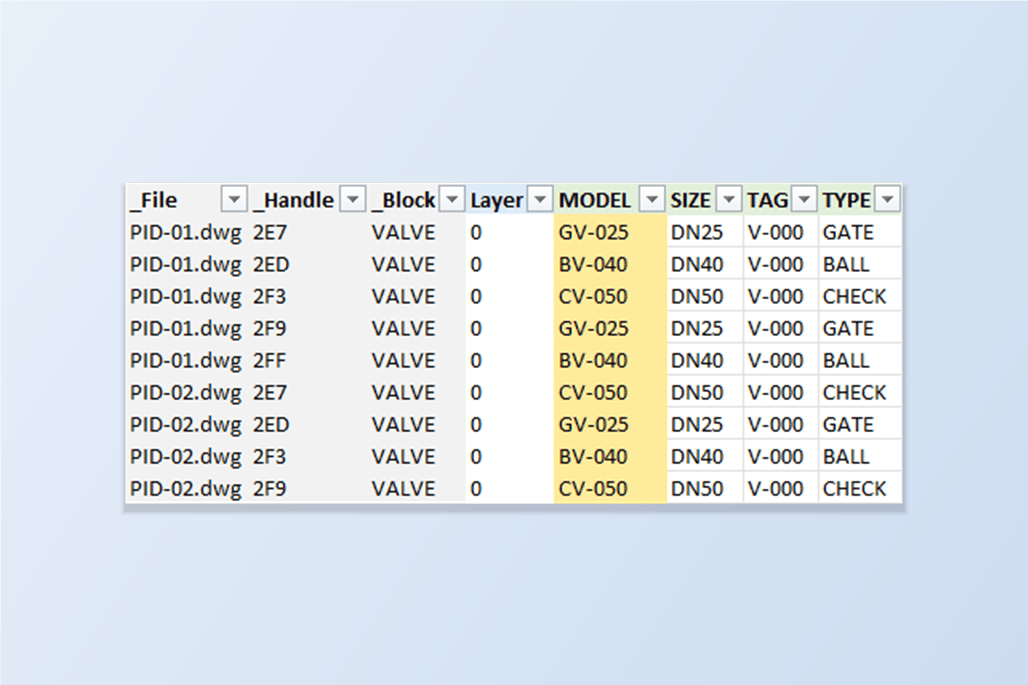
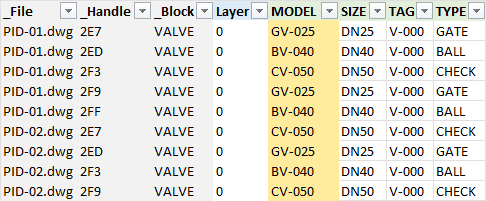
Every MODEL cell now holds a model number, and TAG, SIZE and TYPE are as they were. Scan the column for errors such as #N/A before you go on. A valve whose type and size are not in the vendor's list is exactly what this catches.
5. Preview before anything is written
Switch to the Excel → AutoCAD tab and pick the workbook. With Same folder as Excel file ticked it looks for the drawings next to it and matches them by file name, and each row is matched to its block by file and handle. Leave Automatic backup checked.
The Diff preview reports 6 files previewed, 28 attribute changes and 0 blocked. Select a drawing to see each change: on VALVE, the MODEL attribute goes from TBD to GV-025, BV-040 and so on. Nothing is written until you confirm.
6. Write back and verify
Click Write Selected Files and confirm. BlockSync backs up each drawing, writes it, then reads every changed attribute back out of the drawing. The results screen reports 6 succeeded, 0 failed and 0 read-back mismatches, and shows where each backup went. Rollback All puts every drawing back as it was.
To check it independently, export the drawings again. In this example all 28 MODEL values matched the vendor's list, and TAG was still V-000, because only the changed attribute is written.
The same round trip works for any attribute on any block, not just valve models: a review comment column, a corrected description, a purchasing status, or values checked against a master list. A row that can't be written is marked Blocked and the rest of the run carries on, for instance when the handle no longer exists, the tag isn't on that instance, a dynamic attribute's value isn't in its allowed list, or the value comes from a field.
If the blocks need an attribute they don't have yet, update the block definition first; the ATTSYNC guide covers doing that without losing values. For a full walkthrough of every screen and setting, see the BlockSync docs. To try it on your own drawings, download BlockSync — the Free tier covers up to 10 drawings per batch.
Before you start — common questions
- How do I export block attributes from many AutoCAD drawings to Excel?
- Add the drawings in BlockSync, tick the blocks you want and click Extract to Excel. It writes one row per block reference, across every drawing, with one column for each attribute tag, and each ticked block becomes its own tab in the workbook.
- How do I import the values from Excel back into the blocks?
- Edit the attribute columns in the workbook, then use the Excel → AutoCAD tab. BlockSync matches each row to its block by file and object handle, shows a diff preview of every change, and writes the changes after a backup, then reads each one back to confirm it took.
- Why not use DATAEXTRACTION or ATTOUT and ATTIN?
- DATAEXTRACTION only exports data and can't write edited values back in. ATTOUT and ATTIN round-trip a text file, but only one drawing at a time. BlockSync does the round trip across a whole set of drawings in one run.
- Can I use formulas or a lookup table in the spreadsheet?
- Yes. BlockSync writes back what the cell displays, so a VLOOKUP against a vendor list, a formula built from other columns, a pasted column or Find & Replace all work. Dates and numbers with leading zeros should be typed as text, otherwise Excel may reformat them before they are written.
- Can I add a new attribute or change the columns?
- No. You can change the values of attributes the blocks already have, but you can't add a tag a block doesn't define, and the _File and _Handle columns must stay as they are because they identify each block. A row whose tag doesn't exist on that block reference is marked Blocked in the preview and skipped.
- How do I know it worked, and can I undo it?
- The diff preview shows every change before anything is written. After writing, BlockSync reads every changed attribute back from the drawing and reports read-back mismatches. With Automatic backup checked, which it is by default, Rollback All restores every drawing in the run.
- What do I need, and how many drawings can I process?
- A licensed, full version of AutoCAD 2021–2027 on Windows 10/11; AutoCAD LT is not supported. The Free tier handles up to 10 drawings per batch, with export, preview, write-back and backup included. Pro removes that limit, adds parallel processing, and is needed to write dynamic block attributes.