
Guides/Revision & comparison
Verify a Procurement List Still Matches the Latest AutoCAD Drawing Revision
 Made with BlockCompare
Updated September 21, 2026
A procurement or instrumentation list usually gets locked in well before a drawing set is finished. Someone pulls a tag list — instruments, valves, equipment — off whatever P&ID revision is current, sends it to purchasing, and design keeps moving in parallel, because it has to, on any real schedule. By the time the drawings reach their next milestone, nobody can say for certain whether that list is still right without opening both revisions and checking by eye.
AutoCAD has no built-in way to answer "did the thing I already ordered change?" A tag on a P&ID doesn't flag itself when its model number or service description gets revised — the symbol looks identical on screen, so a spec change is exactly the kind of thing that slips through a visual comparison. Re-checking a whole drawing set against an earlier tag list, sheet by sheet, doesn't scale either.
This guide uses BlockCompare to compare the block instances a procurement list was built from — here, TempatureGauge and VALVE — between the revision the list was issued from and the current one, and get a precise Added / Removed / Modified count plus a field-level diff of anything that changed.
1. Add the issued-for-procurement revision and the current one
Open BlockCompare and load the revision the list was originally built from into Folder A, and the current revision into Folder B. Add Folder… pulls in a whole project tree at once; Add Files… works for a hand-picked set — here, two flow chart sheets on each side.
Comparison Options reports what it found across both sides before you commit to anything — here, 2 block definitions, 1 layer and 2 files. On the Blocks tab, check just the definitions the list is actually built from — TempatureGauge and VALVE — so the comparison stays focused on the item categories purchasing cares about, not every block in the drawing.
Leave Match strategy on Hybrid (default) and Confidence at its default, then click Scan & Match to read every file on both sides and propose file-to-file pairings.
2. Confirm the file pairings
The Review Matches screen lists every File A next to BlockCompare's proposed File B, with a Filename %, Handle % and Combined % score. On a project where sheets keep the same file name across revisions, this is usually a formality, as it is here — both pairings scored 100% on every signal — but it's worth a glance before trusting the numbers on the next screen.
A row highlighted red would mean the filename and handle signals disagree about which file to pair — worth a manual check, especially if any sheets were renamed or split between the two revisions.
Once every pairing looks right, click Compare.
3. Check what actually changed — count and spec
The Comparison Report groups results per matched file pair, with an Added / Removed / Modified count for each — the first thing worth reading, since an Added or Removed entry means the quantity on the procurement list itself is now wrong, not just a spec. Here, both pairs show Added: 0 and Removed: 0 — the instrument and valve count hasn't changed — but 8 instances between them are Modified.
Because matching is by object handle rather than position, an instrument that got moved on the sheet between revisions still shows up as the same instance, not as one removed and one added elsewhere — so the Added/Removed counts reflect real quantity changes, not just geometry that shifted.
Click Details… on a Modified entry to see exactly what changed field by field — here, on TempatureGauge 2BC, Attribute:NAME changed from Inlet Tempature to Gas Inlet Tempature and Attribute:MODEL changed from TA3201 to TA3201A. The count on the procurement list is still right; the part number on it isn't — exactly the kind of change a visual comparison would miss entirely.
4. Export to Excel and hand it to purchasing
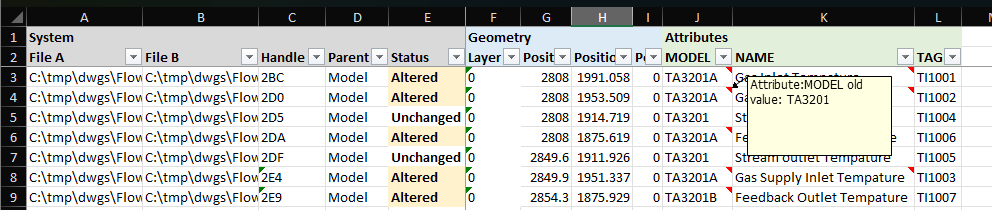
Click Export to Excel from the Comparison Report screen. BlockCompare writes one row per compared instance, with File A, File B, Handle, Parent and Status columns on the left, geometry in the middle, and one column pair per attribute — MODEL, NAME, TAG, and so on — on the right.
Purchasing doesn't need BlockCompare or AutoCAD installed to read this — it's a flat, filterable sheet. Altered rows are flagged directly, and hovering a flagged cell shows the old value — here, MODEL shows TA3201A with a tooltip confirming the old value was TA3201, so a reviewer can see exactly what changed without switching back to BlockCompare at all.
This also works as a standing record: attach it to the revised purchase order as evidence of exactly which model numbers and descriptions changed between the version that was ordered and the version that's now current.
The same before/after, filtered-to-specific-block-types flow works for any list that gets locked in early and needs periodic re-checking against a moving design — an instrumentation index, a valve count off a P&ID, an equipment or fixture schedule — and it catches the change a visual comparison is most likely to miss: the count staying the same while the spec underneath it quietly changes.
For a full walkthrough of every screen and setting, see the BlockCompare docs. To try it on your own drawings, download BlockCompare — the Free tier covers up to 3 drawings per side.