
 DwgSearch V2
Documentação do DwgSearch
DwgSearch is a single window: index a folder once, then search it instantly. Version 2 reads the drawings itself, so it needs no AutoCAD. It never writes back to a DWG: search, browse attributes, open a hit in DWG Viewer, or export to Excel, that's the whole feature set.
Primeiros passos
As capturas de tela são de uma versão recente; pequenos detalhes visuais podem ser diferentes na versão que você instalou.
Indexing
Indexing a folder
Choose Folder… builds (or updates) a searchable index of everything under it.
- Choose Folder… always recurses into every subfolder — there's no toggle to limit it to the top level.
- The first visit builds a full index; a later visit on the same folder only re-extracts files whose modified time or size actually changed, and drops entries for files that no longer exist — reported as "Index updated: {n} file(s) changed, {n} removed." (plus ", {n} failed" if any file errored). If nothing changed at all, it instead reports "Index already up to date — {n} file(s) indexed."
- An index summary line — "{n} file(s) · {n} entries · last verified {time}" — stays on screen so it's clear whether you're looking at a fresh or reused index.
- DwgSearch reopens the last folder you indexed automatically on launch and refreshes it incrementally, so you don't need to re-pick it every time.
Searching
Searching
Type a keyword, get results across every indexed file instantly.
- Search in: Text / MText / Block attributes / Block names / Tables, leaders & dimensions limits which kinds of content a search looks at — at least one has to stay checked, so unchecking the last one re-checks itself automatically.
- As you type, a dropdown under the search box suggests up to 12 values that actually exist in the index — so searching isn't a guess at what might be in there. Up/Down cycles the highlighted suggestion, Enter or a click accepts it and runs the search immediately, Escape dismisses the dropdown without touching what you typed.
- Results list File, Layout, Block, Kind and the matched Content, with the search term highlighted. Kind is Text, MText, Block attribute, Block reference, Table cell (the Tag column shows the cell, e.g. R2C3), Multileader or Dimension. Up to 500 results are shown; if there are more, the status line says so — refine the keyword, or use Export to Excel, which always includes every result.
- Block names are searchable too: every placed block reference is indexed under its block name, with the Kind Block reference — including blocks with no attributes at all. Dynamic blocks are indexed under their own name, not AutoCAD's anonymous *U names. A block that only appears nested inside another block's definition is indexed once per containing block, with that containing block shown in the Block column.
- Searching ignores letter case and full-width/half-width differences — "ABC12" finds "abc12", and half-width katakana matches full-width. Keywords of 3+ characters (with no wildcard) use the fast indexed phrase search; shorter keywords (1–2 characters) and anything using * as a wildcard fall back to a slower plain scan — expect that to take longer on a large folder.
- Refresh Index re-scans the current folder on demand, e.g. right after files changed outside DwgSearch — it's the same incremental update described above, not a full rebuild.
Working with results
Viewing a block instance's attributes
See every attribute already captured for a matched block instance, without reopening AutoCAD.
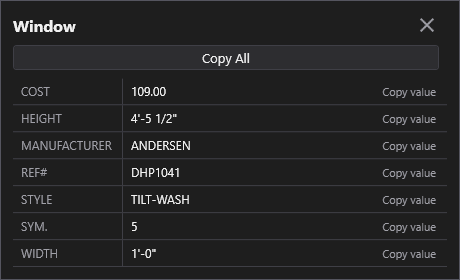
- Attributes is enabled on any result that belongs to a block instance. The popup lists every attribute (Tag and Value) captured for that same instance at index time — it's a lookup against the index, not a fresh read of the DWG.
- Copy value on a row copies that one Tag/Value pair; Copy All copies every row, tab-separated, one per line.
Locating a result in DWG Viewer
Jump straight to the matched item, from a result row.
- Locate opens the drawing in DWG Viewer, switches to the right layout and zooms to the item, which is highlighted. If DWG Viewer is already running, the drawing opens as a new tab in that window instead of a second window.
- The viewer tries the entity's handle first and selects that entity. If the text there no longer matches what was indexed, or the result has no handle (text inside a block definition, a block nested in another block), it falls back to the block name and selects every reference, then to a text search across all layouts.
- When the item has changed since it was indexed, or can't be found at all, the viewer says so. Click Refresh Index after editing drawings to bring the index up to date.
- The AutoCAD button next to Locate is the second way: it copies a ready-to-paste AutoCAD command that selects and zooms to the entity. Switch to AutoCAD, paste into the command line and press Enter. That route needs AutoCAD; Locate does not.
When DWG Viewer isn't installed
DwgSearch asks what to do, so Locate never leaves you stuck.
- A dialog offers three choices: download and install DWG Viewer (a small, free download that DwgSearch sets up for you, then opens the item), use the online viewer instead, or copy the AutoCAD command.
- The online viewer runs in your browser and can't read files on your disk. DwgSearch opens it with the item's details, you open the same drawing there, and it jumps to the item. The drawing is never uploaded.
- Tick "Don't ask again" to make the AutoCAD command the default while the viewer is missing. It only applies to that third choice.
- The DwgSearch installer can add DWG Viewer in the same step (ticked by default, untick to skip it), and the DWG Viewer installer offers DwgSearch the same way.
Export to Excel
Turn a search result set into a workbook BlockSync/TextSync can read directly.
- Export to Excel is enabled once there are results on screen.
- Block-instance and attribute results are written into the same sheet layout BlockSync itself would write (a B_<blockname> sheet per block name plus a _BlockSync metadata sheet); DBText/MText results are written into TextSync's own layout (Text sheet plus _TextSync metadata sheet) — both in the same workbook, so it can feed straight into either tool's write-back workflow without that tool needing to know DwgSearch produced it.
- Text found only inside a block's static definition, and blocks nested inside another block's definition (neither has a per-instance handle), are excluded from export, since they can't be represented in either format. If every result on screen is like that, exporting reports "Nothing to export" instead of writing an empty file.
Configurações
Abertas pelo ícone de engrenagem na barra de título. Cada campo é salvo na hora; não existe botão Salvar.
Language
Settings → GeneralEnglish / 简体中文 / 繁體中文 / 日本語 / 한국어 / Deutsch / Français / Italiano / Español. Restart the app for a language change to take effect.
Padrão: EnglishTheme
Settings → GeneralSystem / Light / Dark. Restart the app for a theme change to take effect.
Padrão: Match systemMax parallel readers
Settings → PerformanceHow many drawings are read at once while (re)building the index (choices: 1, 2, 4, 6, 8, 12, 16). Higher is faster but uses more CPU and memory. Turn this down on a lower-spec machine.
Padrão: 8Licenciamento
Your license status shows in the title bar as Free, Pro, Pro (offline), or Expired, and in full on Settings → License.
To activate: paste your license key into Settings → License → "License key" and click Activate. To move a license to a new machine, click "Deactivate this machine" on the old one first, then activate on the new one.
If the app can't reach the license server (no internet, or the server is temporarily unavailable), a previously-activated Pro license keeps working for 14 days as "Pro (offline)". Reconnect within that window to revalidate — past 14 days without a successful check, past the subscription's end date, or if the system clock has been set back, the license shows as Expired until it can revalidate.
Solução de problemas
Locate says it couldn't find the item
The drawing changed after it was indexed, and neither the entity, its block nor its text could be found any more. Click Refresh Index to bring the index up to date, then search again.
Searching a short keyword (1–2 characters) returns odd results
Keywords of 3+ characters use a fast indexed phrase search; shorter keywords (and anything using * as a wildcard) fall back to a slower plain scan — expect that to take longer on a large folder.
Want to rebuild the index from scratch
Delete the folder's index file (see Files below) and click Refresh Index, or simply Choose Folder… again — DwgSearch rebuilds automatically if its index is missing.
Locate opened the online viewer, but nothing is selected
The online viewer can't read your disk. Open the same drawing in it (the page shows which file), and it jumps to the item automatically.
Arquivos no disco
Em Configurações → Diagnóstico → Abrir pasta de logs você chega direto aos logs, se precisar investigar algum problema.
| Settings | %LocalAppData%\CADXChange\DwgSearch\settings.json |
| Logs | %LocalAppData%\CADXChange\DwgSearch\Logs\ |
| Search index (one file per indexed folder) | %LocalAppData%\CADXChange\DwgSearch\Index\ |