
Guias/Symbols & blocks
Free Door and Window Blocks for AutoCAD — Insert Plan and Elevation DWG Symbols, Flip the Swing, Fill In the Schedule Data
Atualizado em October 28, 2026
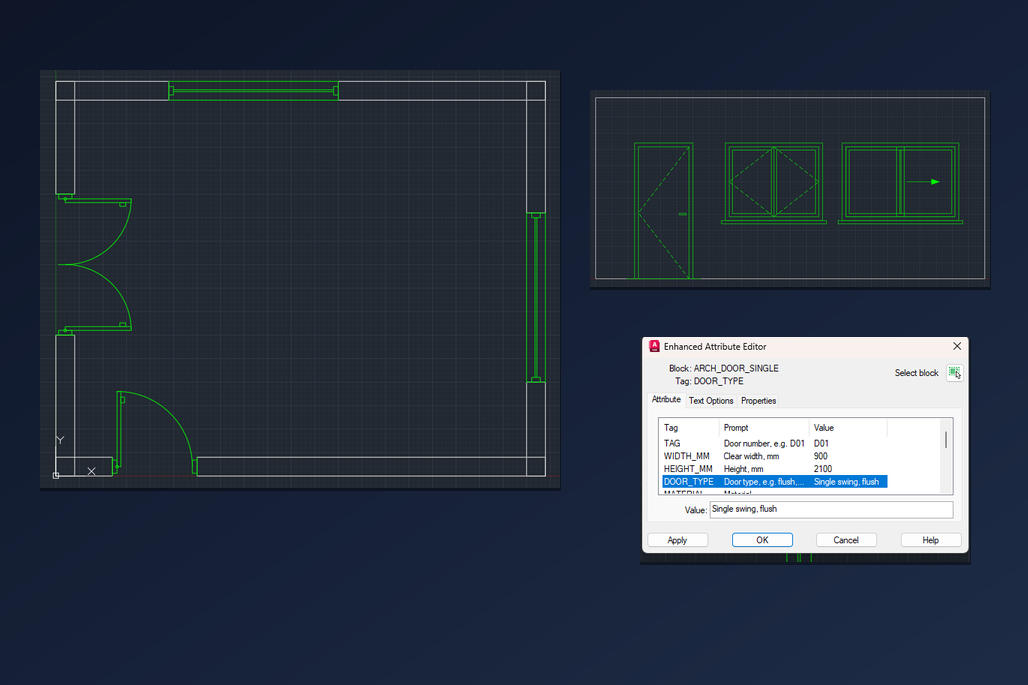
Drawing every door and window by hand is slow, and the result rarely matches from one drawing to the next. A block library fixes that: you pick the symbol, drop it into the wall opening, and the swing arc, the frame and the leaf are already right. This guide shows how to work with the free door and window blocks from CADXChange in AutoCAD: how to match the symbol to the opening, how to turn the swing, how to fill in the data for a door schedule, and how to place the elevation views.
The library has 88 symbols: 58 in plan (single, double, sliding, bi-fold, pocket, revolving and overhead doors, fixed, casement, sliding, tilt-and-turn, bay and corner windows) and 30 in elevation (flush, panel, French, garage and arched doors, casement, sliding and round windows, a curtain wall). Each symbol is a plain DWG block, drawn in millimetres at full size. They work in AutoCAD and AutoCAD LT.
1. Pick the symbol and know what you are getting
Open the door and window library page and download the symbols you need. Every symbol is its own small ZIP with one DWG and a README, so you only take what you will use. The names tell you what is inside: ARCH_DOOR_ is a door in plan, ARCH_WINDOW_ a window in plan, ARCH_ELEV_DOOR_ and ARCH_ELEV_WIN_ the same things seen from the front.
These are ordinary blocks, not dynamic blocks, so a block does not stretch to a new width. Instead the common sizes are separate blocks: single doors in 700, 800, 900 and 1000, double doors in 1200, 1500, 1800 and 2000, fixed windows from 600 to 2400. Pick the one that matches the clear opening in your wall; that also keeps the swing arc at its true radius, which a stretched block would distort. The symbols come in on their own layer, SYMBOL, so you can colour, freeze or plot that layer separately from the walls.
2. Insert it into the wall opening
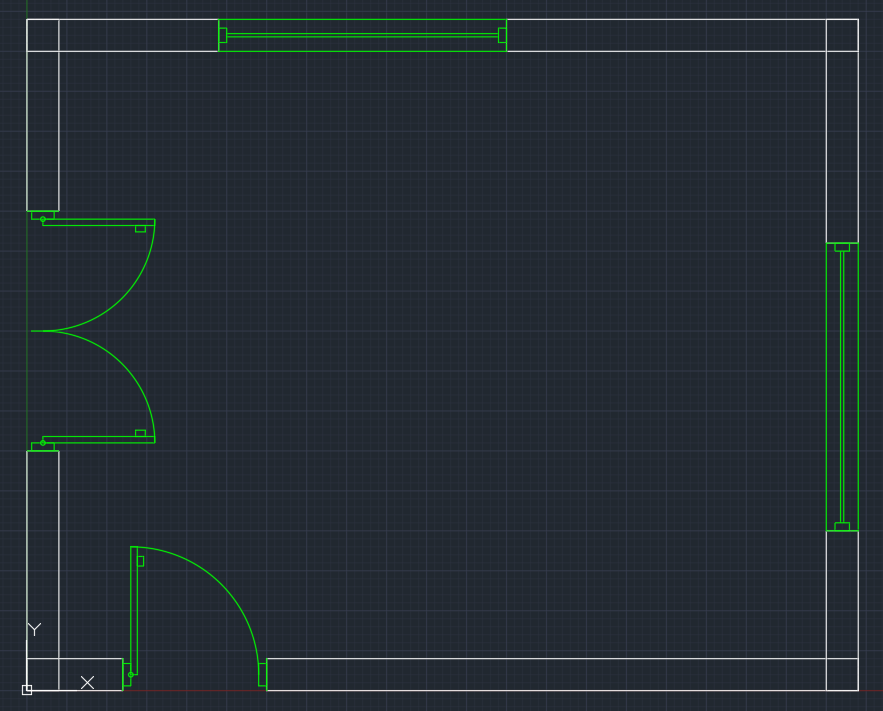
Start INSERT (or the Blocks palette), browse to the unzipped DWG and click the point where the opening starts. The insertion point of a plan symbol is the left end of the opening on the centre line of the wall, and for a door it is the hinge side. So for a 900 opening between two wall ends, insert ARCH_DOOR_SINGLE at the first wall end and it fills the opening exactly. For a window in a wall that runs up the sheet, set the rotation to 90 and insert at the lower end; the other three wall directions are 180 and 270.
Check the units. The files are in millimetres but carry no unit setting, so AutoCAD does not rescale them for you. In a millimetre drawing use scale 1. In a drawing in metres use 0.001, and in inches use 0.03937. If the symbol looks a thousand times too big or too small, that is the reason; undo, and insert again with the right scale.
3. Turn the swing the other way
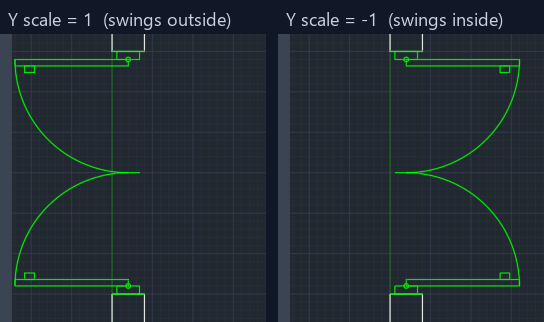
A door should open into the room it serves, and the first insertion does not always do that. Do not redraw it. Insert the block again with a Y scale of -1, which mirrors it across its own opening line: the hinge stays where it is and the leaves swing to the other side of the wall.
If you have already placed the block, use MIRROR on it and set the system variable MIRRTEXT to 0 first, so the attribute text is not mirrored along with the symbol.
4. Fill in the door data and make a schedule
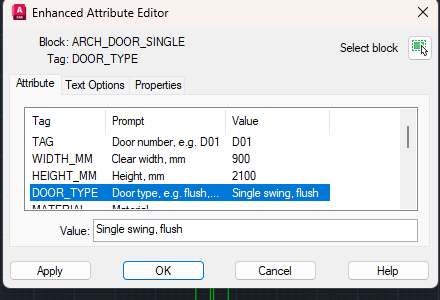
Each door block carries attributes: TAG for the door number (D01, D02 and so on), WIDTH_MM, HEIGHT_MM, DOOR_TYPE, MATERIAL and a few more. Double-click the door to open the Enhanced Attribute Editor, click a row, type the value in the box below the list and finish with OK. If the door numbers get in the way while you draw, switch their display off with ATTDISP and turn it on again for plotting.
Because the values live in the block, AutoCAD can collect them. Run DATAEXTRACTION, pick the drawing, select the door blocks and send the attributes to a table or an Excel file: that is your door schedule, and it updates when you extract again after a change.
5. Place the elevation views
The elevation symbols are drawn the same way, at full size in millimetres, and their insertion point is the bottom left corner of the frame. A door goes in at floor level, so insert it at the floor line and at the left edge of the opening. A window goes in at the sill height: for a sill 900 above the floor, the insertion point is 900 above the floor line.
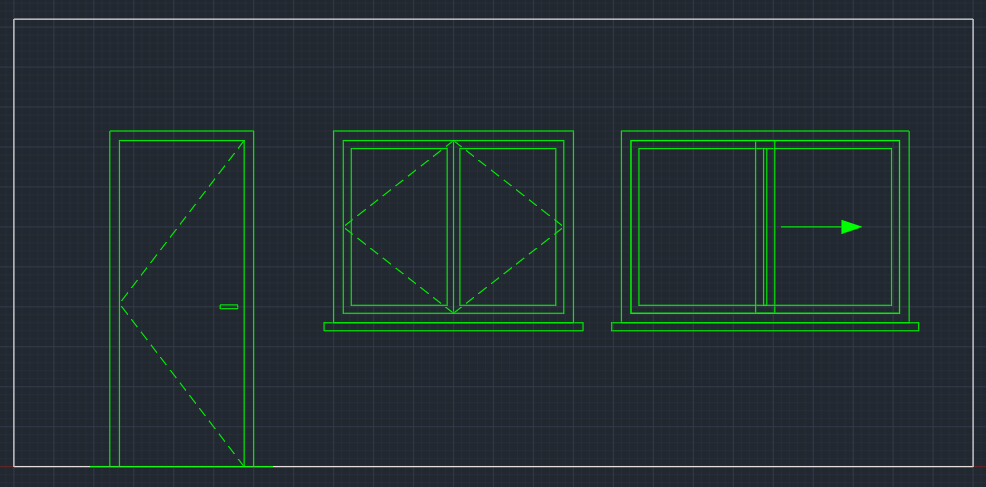
Elevation symbols have no swing arc: the dashed lines show the hinge side and the direction of opening, and an arrow shows the sliding direction. Pick the type that matches the plan symbol, for example ARCH_ELEV_WIN_CASEMENT2 for a double casement window, and the plan and the elevation of the same window tell the same story.
The method is short: match the symbol to the opening, insert it at the opening's start with the right rotation and scale, mirror it when the swing is wrong, and keep the data in the attributes so the schedule follows from the drawing. Because every size is its own block, nothing stretches and every arc stays true.
The symbols are our own drawings, not copies of a standard, and they are not certified; check them against the legend your office or client uses. You can use and modify them in your own projects, commercial ones included, and the finished drawings can be handed to clients. If you publish the symbols or screenshots of them, credit CADXChange and link to the library page. Do not redistribute the library itself.