
Guias/Drawing search
Find Every Drawing That Mentions a Tag, Then Change It in All of Them — Search, Edit in Excel, Write Back
 Feito com o DwgSearch
Atualizado em September 29, 2026
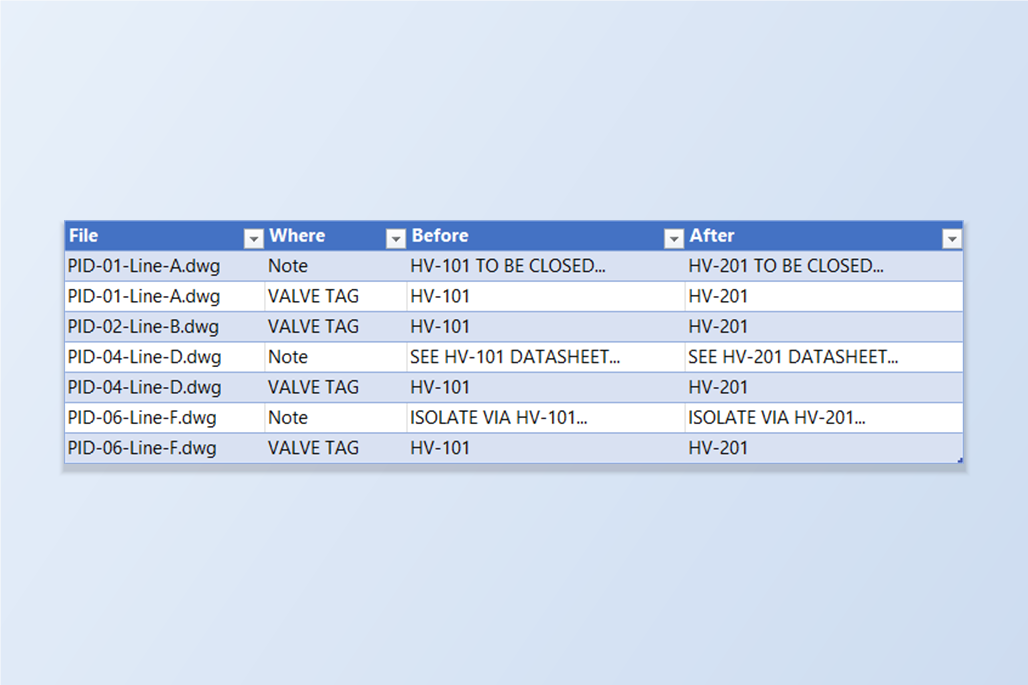
A valve is renumbered, a part number is discontinued, a client wants its name off the sheets. The old value is in the drawing set somewhere — in a block attribute on some sheets, in a note on others, maybe both on the same one — and the hard part is not the change, it's knowing where the value is and being sure you got all of it. Find is one drawing at a time; the LISP you'd write to walk a folder has to be written, tested and trusted with your DWGs.
This guide chains three tools into one pass. DwgSearch finds every place the value occurs, in attributes and in text, across the folder. Its export puts exactly those places into one Excel workbook, laid out the way BlockSync and TextSync read them. You make the change in Excel, and each of the two tools writes its half back into the drawings, after a preview and a backup. Then DwgSearch checks that nothing is left.
The example renumbers the valve tag HV-101 to HV-201 in a set of six drawings. The Free tier of BlockSync and TextSync handles up to 10 drawings per run; DwgSearch itself has no limit.
1. Find every place the tag occurs
Open DwgSearch, choose the project folder, and let it index the drawings. Type the tag and search. Each row shows the drawing, layout, block, what kind of object it is and the matched text — here seven hits in four of the six drawings: four on VALVE blocks as an attribute value, three in notes.
Read the list before you go on. The search finds the text wherever it appears, so a note that mentions the tag in a sentence is listed next to the attribute that holds it, and a longer tag that happens to contain the one you typed would be there too. Only the hits you see are carried forward; if something shouldn't change, this is the moment to notice it.
2. Export the hits to Excel
Click Export to Excel and choose where to save the workbook. Put it in the same folder as the drawings if you can — the write-back screens will then find the drawings without being told where they are.
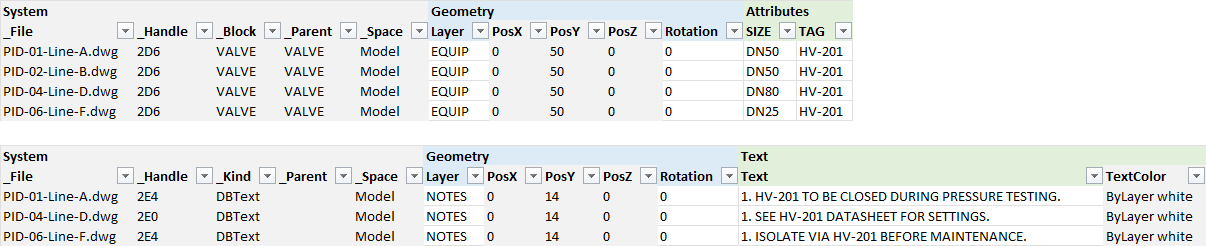
The workbook holds only what you found. Each block that had a hit gets its own sheet in BlockSync's layout, one row per block instance with every attribute on it, not just the one that matched; the notes go on a Text sheet in TextSync's layout. The _File and _Handle columns identify each object, which is how the tools find it again.

3. Make the change in Excel
Use Excel's own Find & Replace: replace HV-101 with HV-201 in the TAG column of the block sheet and in the Text column of the text sheet. Select just those columns first, so the file names and handles are never touched.
This is where a bulk change can be as clever as you like: a formula for a prefix, a lookup table of old and new numbers for a whole renumbering, a fill series. The drawings are not touched until you write the result back.
4. Write the attributes back with BlockSync
Open BlockSync's Excel → AutoCAD screen and pick the workbook. With Same folder as Excel file ticked, it looks for the drawings next to it, matches them by file name, and shows a preview before anything is written: four files, four attribute changes, none blocked. Click a file to see the change itself — the VALVE block with its TAG going from HV-101 to HV-201.
Click Write Selected Files. A confirmation names how many files and changes are about to be written and where the backup goes; after each drawing is saved BlockSync reads it back and compares. Rollback All puts every drawing back exactly as it was.
5. Write the notes back with TextSync
The same workbook also carries the notes, so open TextSync's Excel → Text screen and pick it. TextSync reads its own Text sheet and ignores the block sheets: three files matched, one text object in each. Write Back asks for confirmation, makes a backup, and writes; the report lists each file with its result.
The two tools work on different objects of the same drawings, one after the other, and each writes only what its own sheet holds.
6. Search again to be sure
Back in DwgSearch, Refresh Index re-reads the drawings that changed, and the search takes seconds. The new tag now has seven hits — the same four attributes and three notes — and the old tag has none.
That last search is the check the manual way never gives you: not "I replaced what I found" but "nothing with the old value is left anywhere in the folder".
Two things to watch. DwgSearch indexes every subfolder, and the backup folders BlockSync and TextSync create next to your drawings are subfolders — old copies of the drawings turn up in the results until you move the backups out or exclude them, so keep the backup folder outside the folder you index. And DwgSearch does not export table cells, multileaders, dimension text or text inside block definitions; those can be found and located but not written back this way.
The same chain works for any value that lives in attributes and text — a part number, a document reference, a company name. For a full walkthrough of every screen and setting, see the DwgSearch, BlockSync and TextSync docs. DwgSearch is free to download and use; the write-back tools' Free tier covers up to 10 drawings per run.