
Free AutoCAD EV charging station symbols (DWG): wall boxes, DC chargers, charging bays, cable reach, layouts
EV charging station layout: 85 ready-made AutoCAD blocks (DWG), free to download and use in your own projects, as a ZIP or one symbol at a time.
85 blocks at real size in plan view: AC wall boxes with cable holder, socket outlet or load manager, single, dual and back-to-back pedestals, lamp-post, bollard, flush floor and ceiling reel chargers; DC chargers of 25 to 350 kW, split dispensers and power cabinets, overhead bus charger masts and megawatt truck chargers; charging bays for cars (perpendicular, parallel, angled, accessible with aisle, shared pedestals, home garages), trucks, buses and motorcycles; cable reach circles, user zones, queue lanes and turning circles; transformer pads, kiosk substations, switchboards, load management units, battery containers, generator sets and solar carports; canopies, bollards, wheel stops, lighting poles, payment terminals and signs; e-bike racks and scooter docks; and layouts for offices, retail and basement car parks, curbside bays, fast charging hubs, truck stops and bus depots.
Using AutoCAD 2017 or an earlier version? Download the 2010 format
Copyright CADXChange. Use and modify the symbols freely in your own drawings and projects, including commercial ones; credit and a link are needed only when you publish them. Please do not redistribute or resell the library. Each ZIP holds one plain DWG file in AutoCAD 2018 format and a README; no add-in needed. Provided as is, without warranty. Library terms (CXL-1.0)
Related symbol libraries
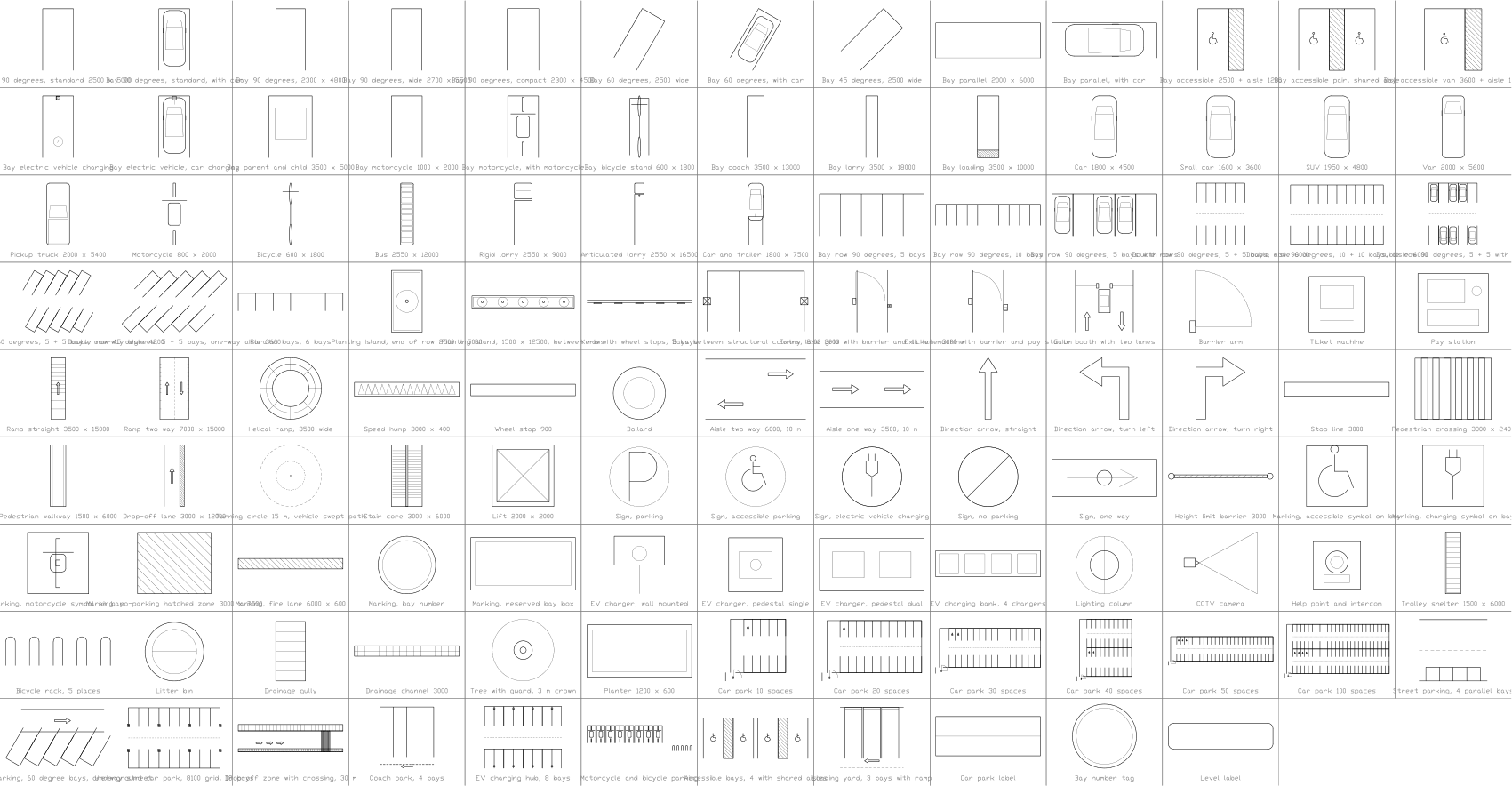
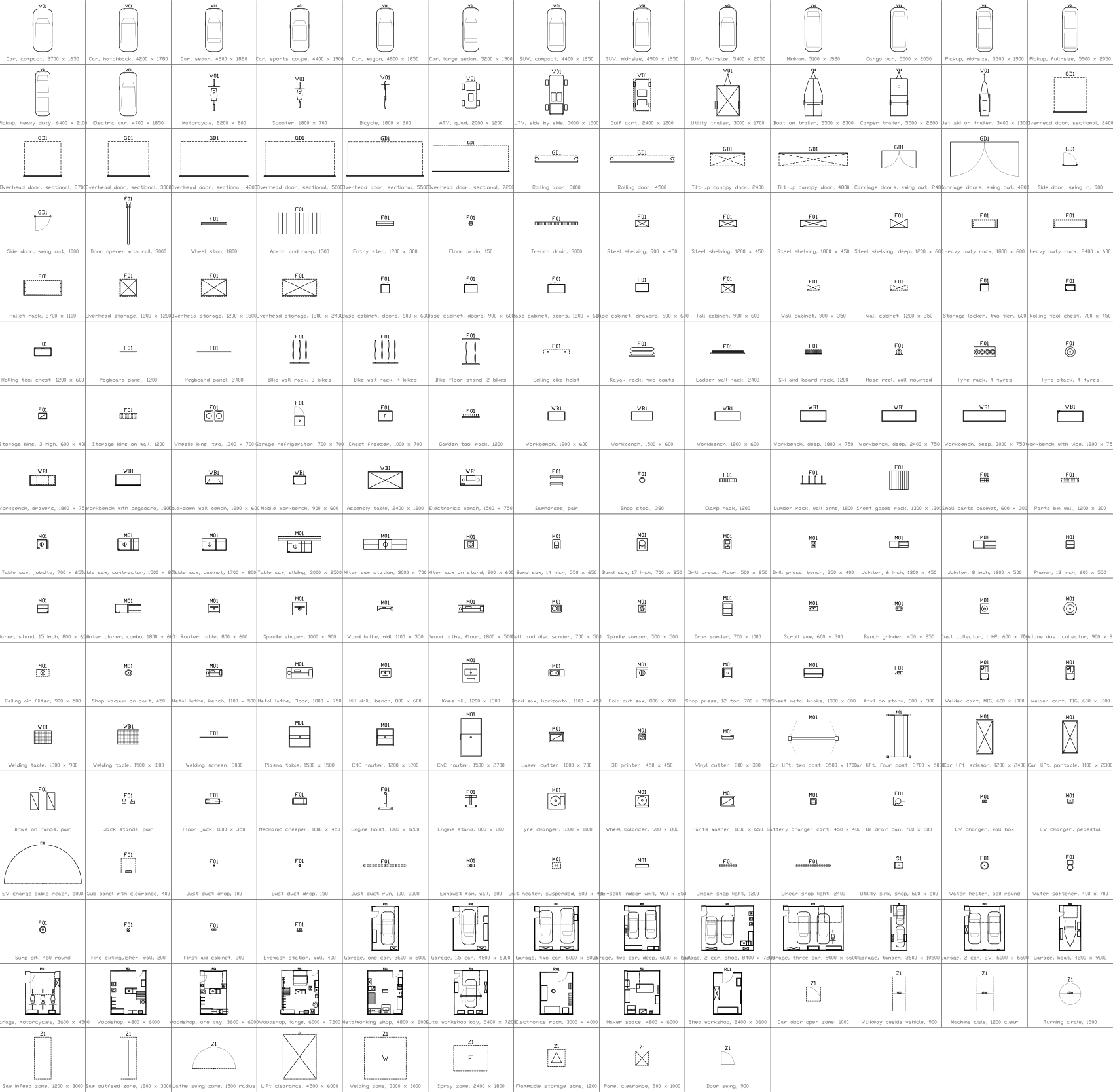
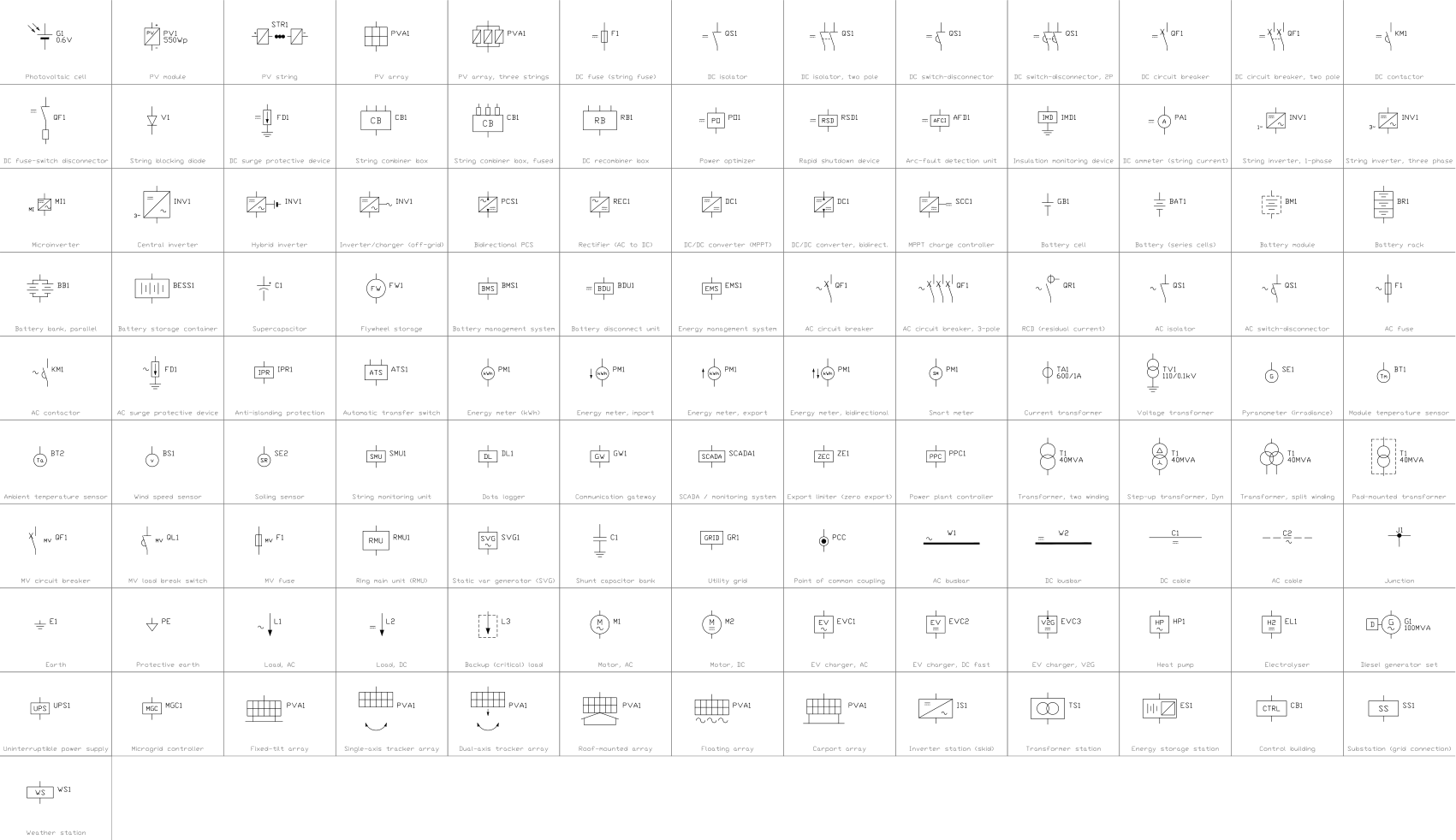
All 85 symbols
85 of 85 symbols
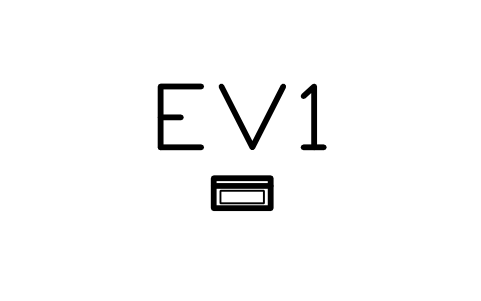
Wall box, AC, 230 x 120
EVC_WALLBOXAttributes
TAGITEM_TYPESIZEPOWER_KWCONNECTOROUTPUTSMANUFACTURERMODELQTYREMARKSDESC
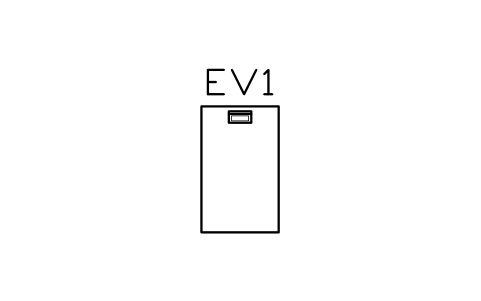
Wall box, AC, with cable holder
EVC_WALLBOX_TETHERAttributes
TAGITEM_TYPESIZEPOWER_KWCONNECTOROUTPUTSMANUFACTURERMODELQTYREMARKSDESC
Wall box, AC, socket outlet
EVC_WALLBOX_SOCKETAttributes
TAGITEM_TYPESIZEPOWER_KWCONNECTOROUTPUTSMANUFACTURERMODELQTYREMARKSDESC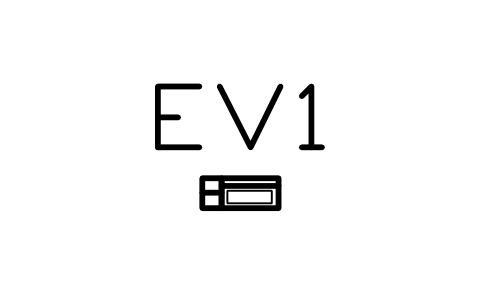
Wall box, AC, with load manager
EVC_WALLBOX_LMAttributes
TAGITEM_TYPESIZEPOWER_KWCONNECTOROUTPUTSMANUFACTURERMODELQTYREMARKSDESC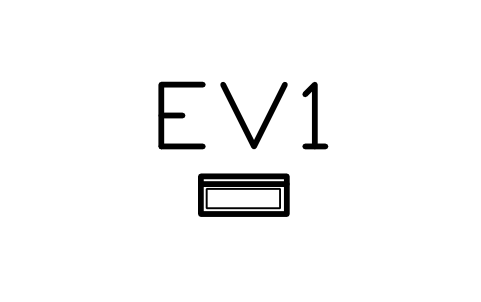
Wall box, AC, 350 x 150
EVC_WALLBOX_LARGEAttributes
TAGITEM_TYPESIZEPOWER_KWCONNECTOROUTPUTSMANUFACTURERMODELQTYREMARKSDESC
Pedestal, AC, single, 300 x 250
EVC_PED_1Attributes
TAGITEM_TYPESIZEPOWER_KWCONNECTOROUTPUTSMANUFACTURERMODELQTYREMARKSDESC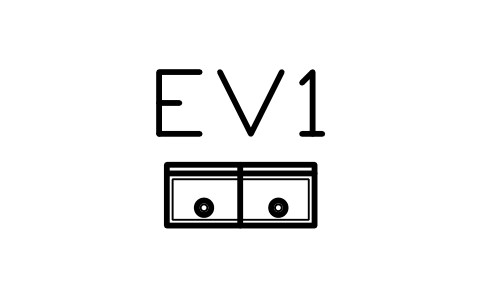
Pedestal, AC, dual, 600 x 250
EVC_PED_2Attributes
TAGITEM_TYPESIZEPOWER_KWCONNECTOROUTPUTSMANUFACTURERMODELQTYREMARKSDESC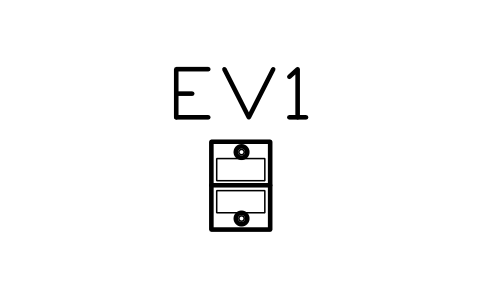
Pedestal, AC, back to back, 300 x 450
EVC_PED_2_BACKAttributes
TAGITEM_TYPESIZEPOWER_KWCONNECTOROUTPUTSMANUFACTURERMODELQTYREMARKSDESC
Lamp-post charger, AC, 200
EVC_POST_ACAttributes
TAGITEM_TYPESIZEPOWER_KWCONNECTOROUTPUTSMANUFACTURERMODELQTYREMARKSDESC
Bollard charger, AC, 160
EVC_BOLLARD_ACAttributes
TAGITEM_TYPESIZEPOWER_KWCONNECTOROUTPUTSMANUFACTURERMODELQTYREMARKSDESC
Flush floor charger, AC, 300
EVC_FLOOR_ACAttributes
TAGITEM_TYPESIZEPOWER_KWCONNECTOROUTPUTSMANUFACTURERMODELQTYREMARKSDESC
Ceiling cable reel, AC, 400
EVC_CABLE_REELAttributes
TAGITEM_TYPESIZEPOWER_KWCONNECTOROUTPUTSMANUFACTURERMODELQTYREMARKSDESC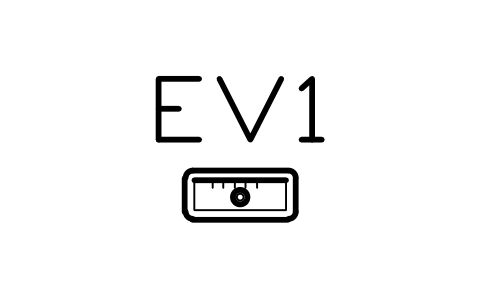
Wall charger, DC, 25 kW, 450 x 200
EVC_DC_25Attributes
TAGITEM_TYPESIZEPOWER_KWCONNECTOROUTPUTSMANUFACTURERMODELQTYREMARKSDESC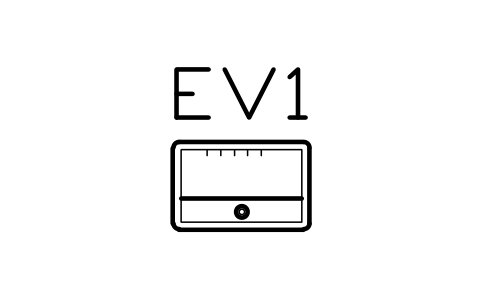
Charger, DC, 50 kW, 700 x 450
EVC_DC_50Attributes
TAGITEM_TYPESIZEPOWER_KWCONNECTOROUTPUTSMANUFACTURERMODELQTYREMARKSDESC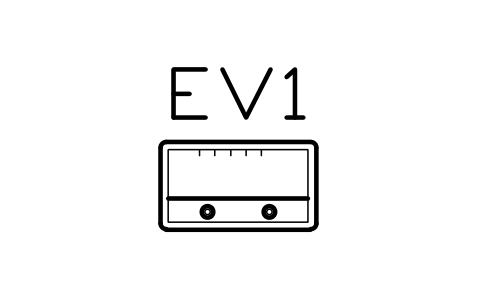
Charger, DC, 50 kW, two outputs
EVC_DC_50_2Attributes
TAGITEM_TYPESIZEPOWER_KWCONNECTOROUTPUTSMANUFACTURERMODELQTYREMARKSDESC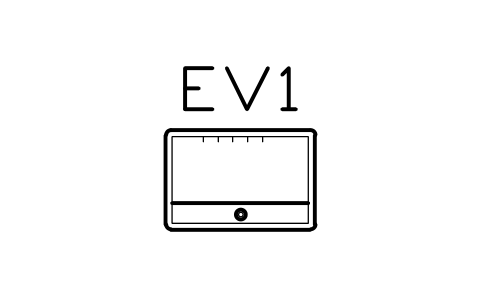
Charger, DC, 150 kW, 900 x 600
EVC_DC_150Attributes
TAGITEM_TYPESIZEPOWER_KWCONNECTOROUTPUTSMANUFACTURERMODELQTYREMARKSDESC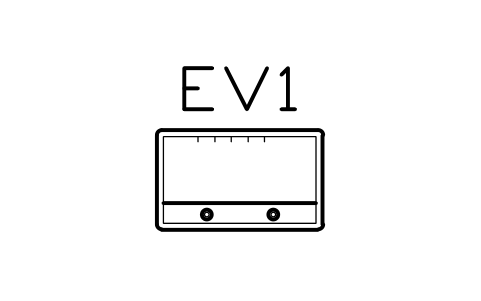
Charger, DC, 150 kW, two outputs
EVC_DC_150_2Attributes
TAGITEM_TYPESIZEPOWER_KWCONNECTOROUTPUTSMANUFACTURERMODELQTYREMARKSDESC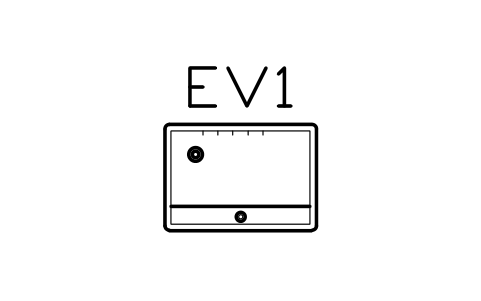
Charger, DC, 350 kW, 1000 x 700
EVC_DC_350Attributes
TAGITEM_TYPESIZEPOWER_KWCONNECTOROUTPUTSMANUFACTURERMODELQTYREMARKSDESC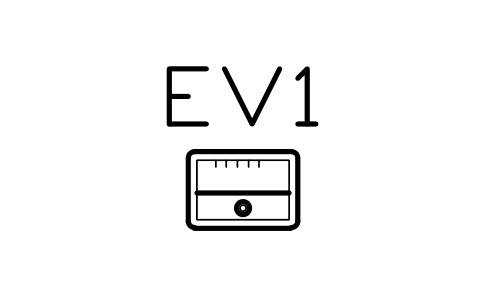
Dispenser, DC, split system, 500 x 350
EVC_DC_DISPAttributes
TAGITEM_TYPESIZEPOWER_KWCONNECTOROUTPUTSMANUFACTURERMODELQTYREMARKSDESC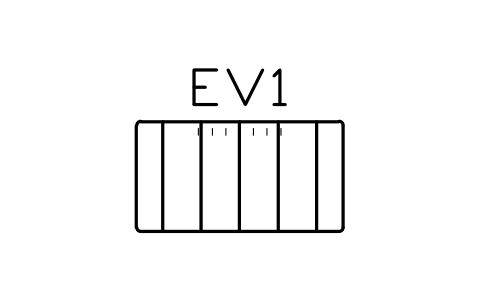
Power cabinet, DC, 1500 x 800
EVC_DC_CAB_1500Attributes
TAGITEM_TYPESIZEPOWER_KWCONNECTOROUTPUTSMANUFACTURERMODELQTYREMARKSDESC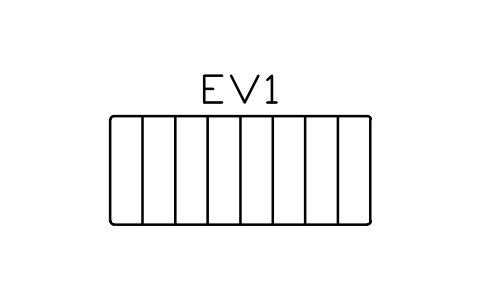
Power cabinet, DC, 2400 x 1000
EVC_DC_CAB_2400Attributes
TAGITEM_TYPESIZEPOWER_KWCONNECTOROUTPUTSMANUFACTURERMODELQTYREMARKSDESC
Overhead bus charger mast, 600
EVC_DC_PANTOAttributes
TAGITEM_TYPESIZEPOWER_KWCONNECTOROUTPUTSMANUFACTURERMODELQTYREMARKSDESC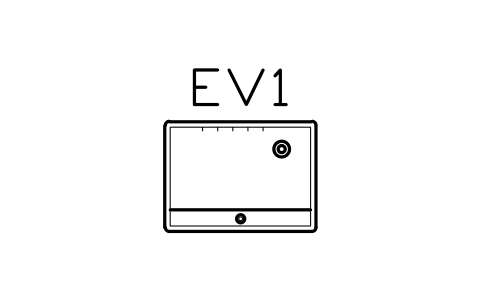
Truck charger, megawatt, 1100 x 800
EVC_DC_MCSAttributes
TAGITEM_TYPESIZEPOWER_KWCONNECTOROUTPUTSMANUFACTURERMODELQTYREMARKSDESC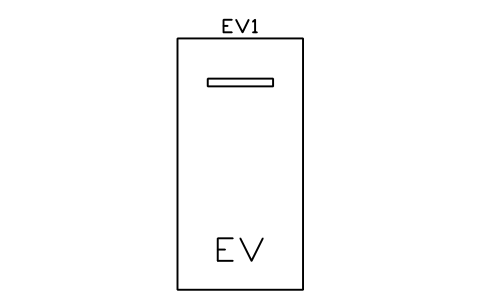
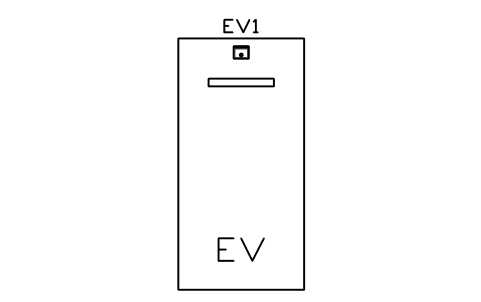
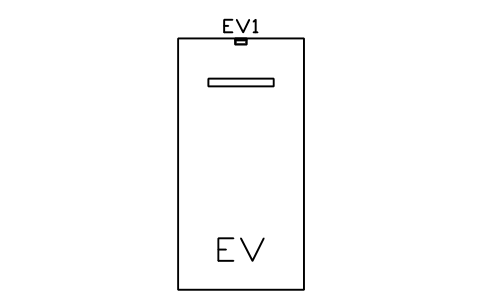
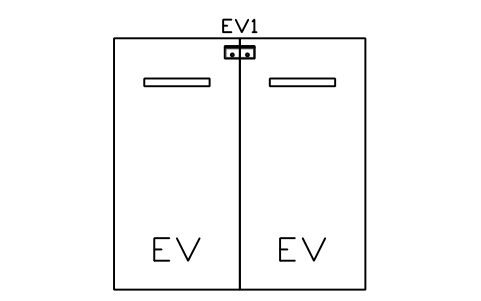
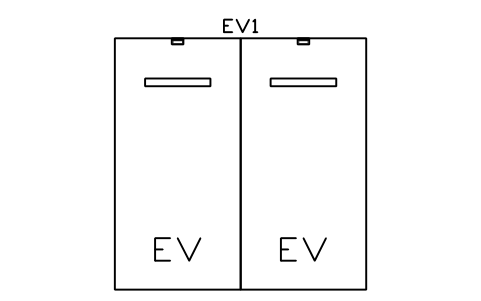
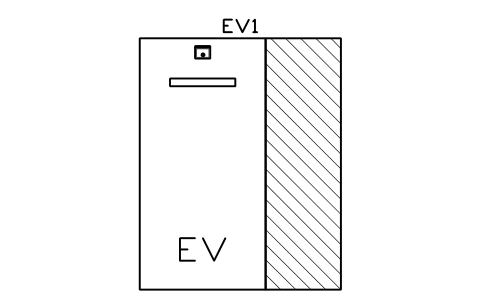
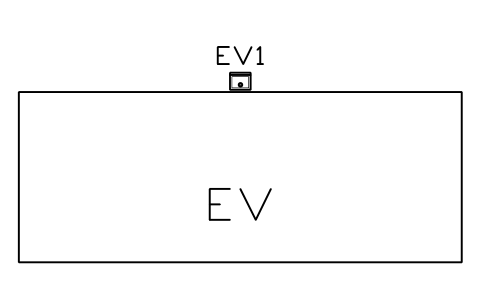
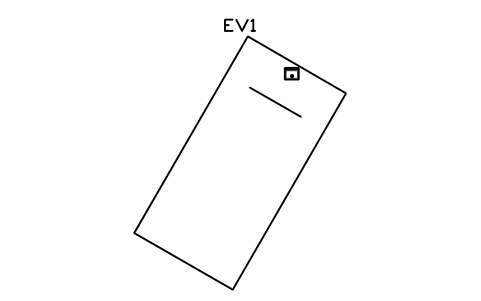
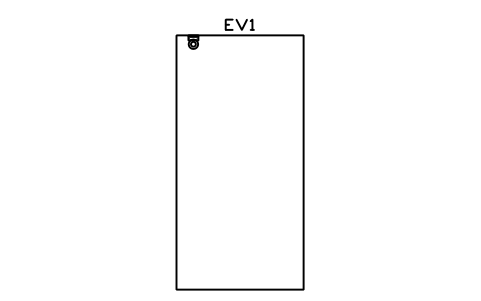
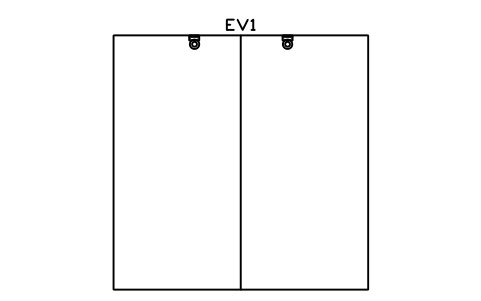
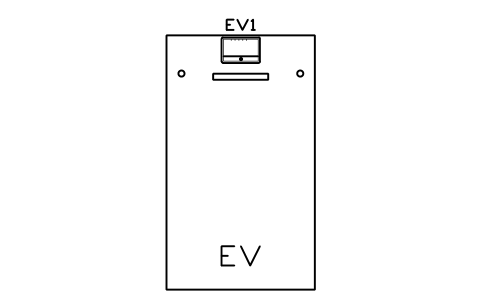
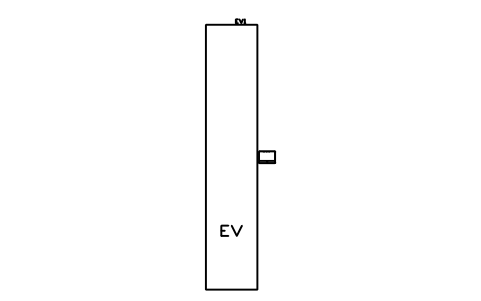
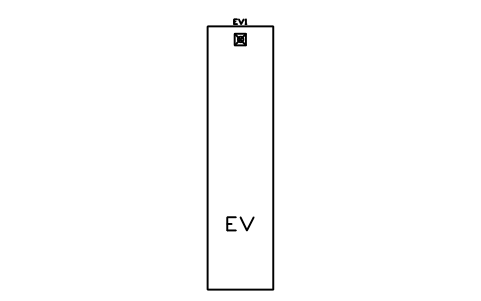
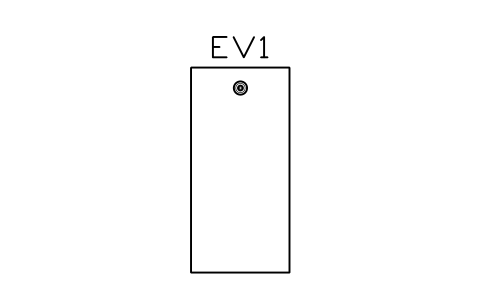
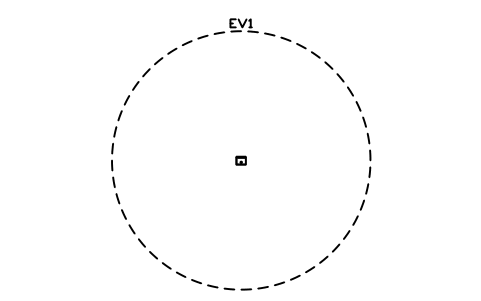
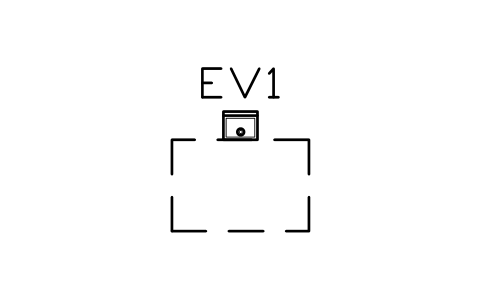
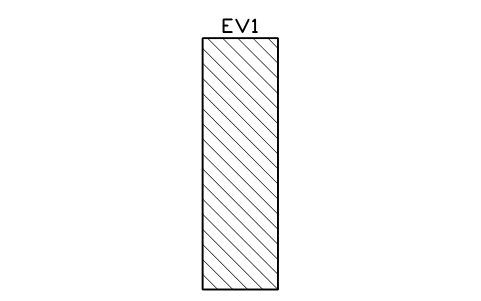
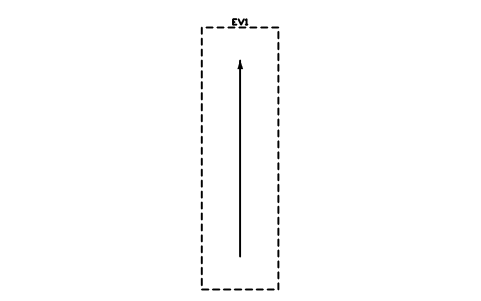
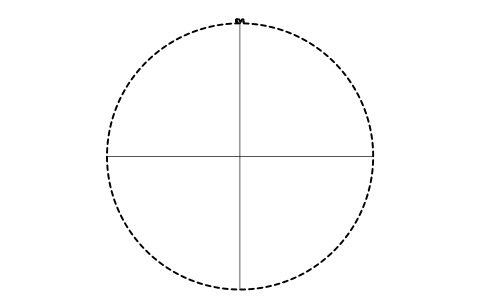
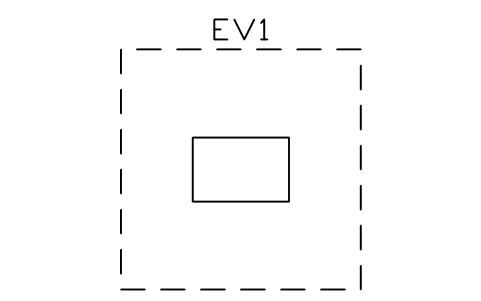
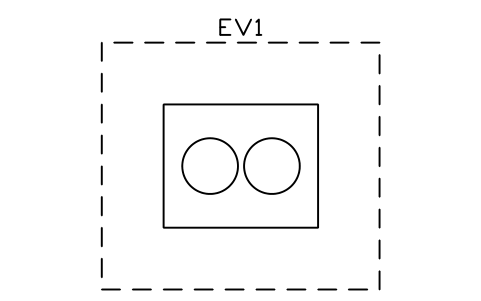
Transformer pad 2500 x 2000
EVC_TRANSF_PADAttributes
TAGITEM_TYPESIZEPOWER_KWCONNECTOROUTPUTSMANUFACTURERMODELQTYREMARKSDESC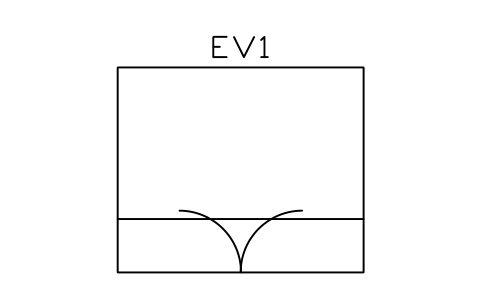
Kiosk substation 3000 x 2500
EVC_KIOSK_SUBAttributes
TAGITEM_TYPESIZEPOWER_KWCONNECTOROUTPUTSMANUFACTURERMODELQTYREMARKSDESC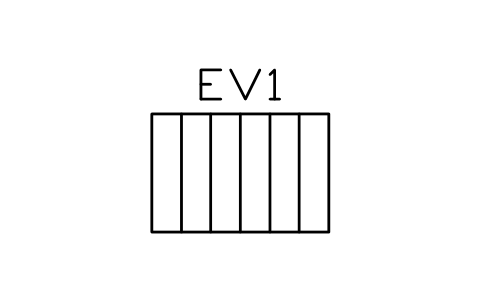
Ring main unit 1500 x 1000
EVC_RMUAttributes
TAGITEM_TYPESIZEPOWER_KWCONNECTOROUTPUTSMANUFACTURERMODELQTYREMARKSDESC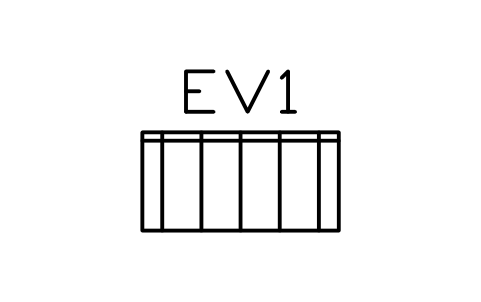
Switchboard 1200 x 600
EVC_SWBD_1200Attributes
TAGITEM_TYPESIZEPOWER_KWCONNECTOROUTPUTSMANUFACTURERMODELQTYREMARKSDESC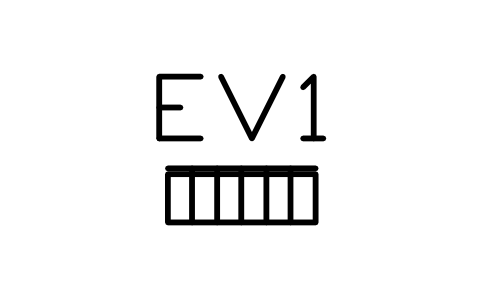
Distribution board, wall, 600 x 200
EVC_DISTBOARDAttributes
TAGITEM_TYPESIZEPOWER_KWCONNECTOROUTPUTSMANUFACTURERMODELQTYREMARKSDESC
Load management unit 300 x 200
EVC_LOAD_MGRAttributes
TAGITEM_TYPESIZEPOWER_KWCONNECTOROUTPUTSMANUFACTURERMODELQTYREMARKSDESC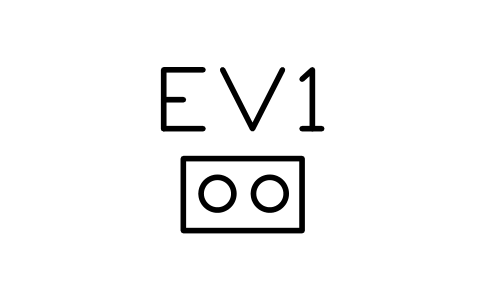
Meter pedestal 500 x 300
EVC_METER_PEDAttributes
TAGITEM_TYPESIZEPOWER_KWCONNECTOROUTPUTSMANUFACTURERMODELQTYREMARKSDESC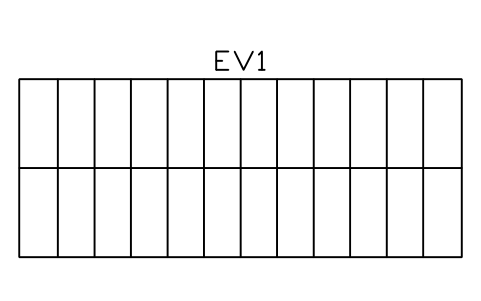
Battery container 20 ft, 6058 x 2438
EVC_BESS_20FTAttributes
TAGITEM_TYPESIZEPOWER_KWCONNECTOROUTPUTSMANUFACTURERMODELQTYREMARKSDESC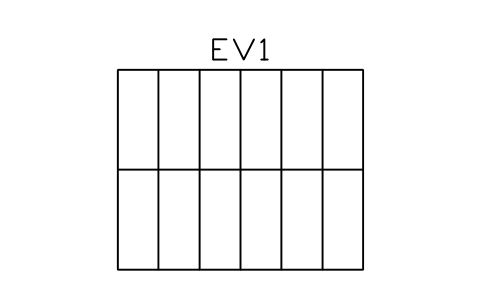
Battery container 10 ft, 2991 x 2438
EVC_BESS_10FTAttributes
TAGITEM_TYPESIZEPOWER_KWCONNECTOROUTPUTSMANUFACTURERMODELQTYREMARKSDESC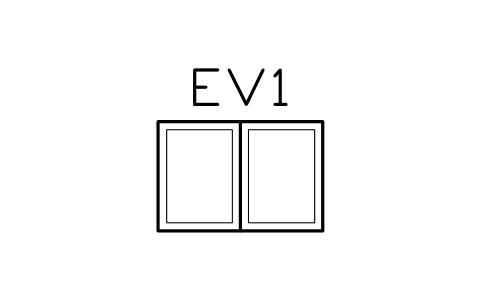
Battery cabinet 1200 x 800
EVC_BESS_CABAttributes
TAGITEM_TYPESIZEPOWER_KWCONNECTOROUTPUTSMANUFACTURERMODELQTYREMARKSDESC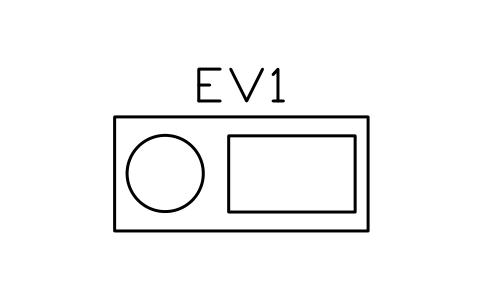
Generator set 2000 x 900
EVC_GENSETAttributes
TAGITEM_TYPESIZEPOWER_KWCONNECTOROUTPUTSMANUFACTURERMODELQTYREMARKSDESC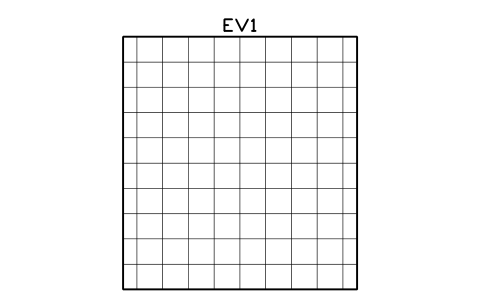
Solar carport, two bays, 5000 x 5400
EVC_SOLAR_CARPORTAttributes
TAGITEM_TYPESIZEPOWER_KWCONNECTOROUTPUTSMANUFACTURERMODELQTYREMARKSDESC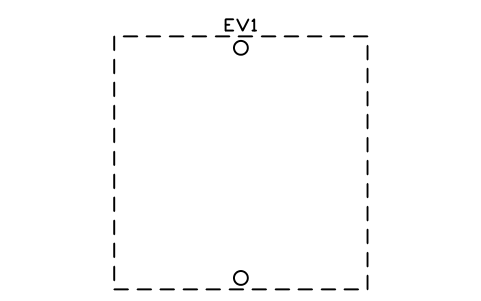
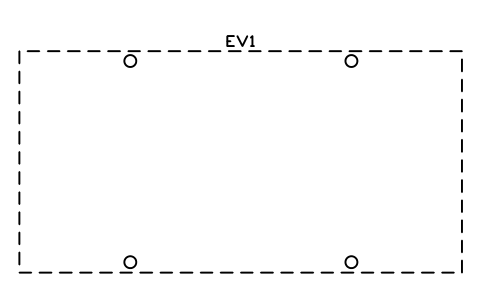






Payment terminal 400 x 300
EVC_PAY_TERMINALAttributes
TAGITEM_TYPESIZEPOWER_KWCONNECTOROUTPUTSMANUFACTURERMODELQTYREMARKSDESC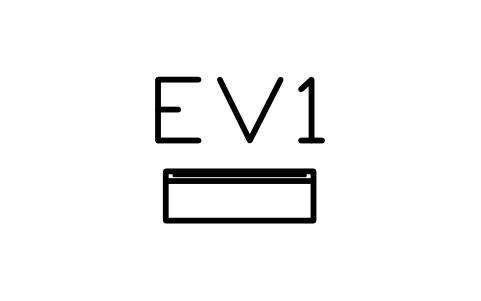
Information totem 600 x 200
EVC_INFO_TOTEMAttributes
TAGITEM_TYPESIZEPOWER_KWCONNECTOROUTPUTSMANUFACTURERMODELQTYREMARKSDESC


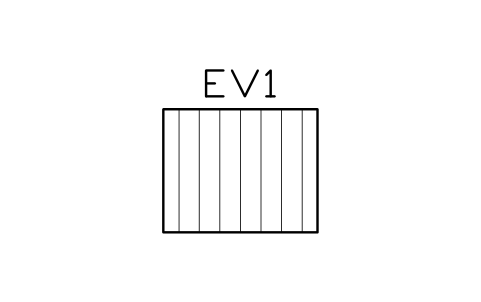
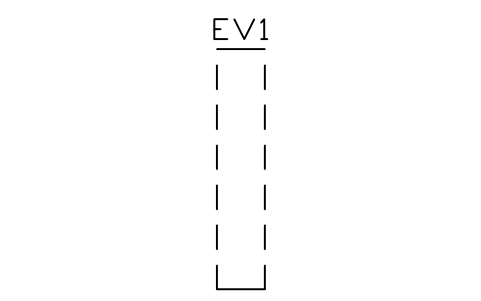

Cable management arm 800
EVC_CABLE_ARMAttributes
TAGITEM_TYPESIZEPOWER_KWCONNECTOROUTPUTSMANUFACTURERMODELQTYREMARKSDESC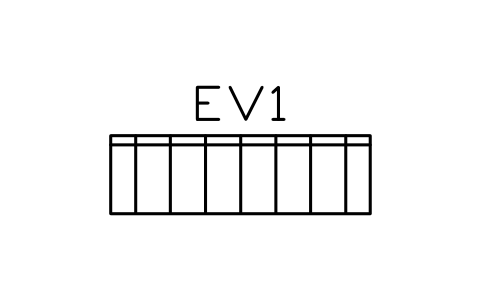
E-bike charging rack 2000 x 600
EVC_EBIKE_RACKAttributes
TAGITEM_TYPESIZEPOWER_KWCONNECTOROUTPUTSMANUFACTURERMODELQTYREMARKSDESC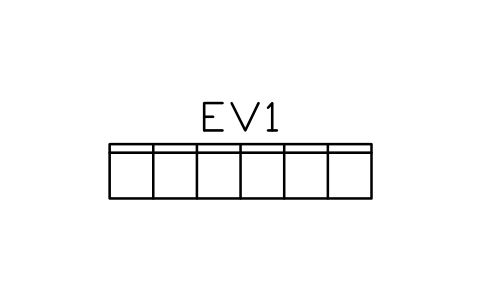
E-scooter dock, row of 6, 2400 x 500
EVC_ESCOOTER_DOCKAttributes
TAGITEM_TYPESIZEPOWER_KWCONNECTOROUTPUTSMANUFACTURERMODELQTYREMARKSDESC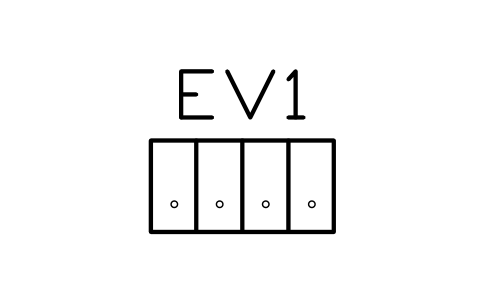
Charging lockers 1000 x 500
EVC_LOCKERSAttributes
TAGITEM_TYPESIZEPOWER_KWCONNECTOROUTPUTSMANUFACTURERMODELQTYREMARKSDESC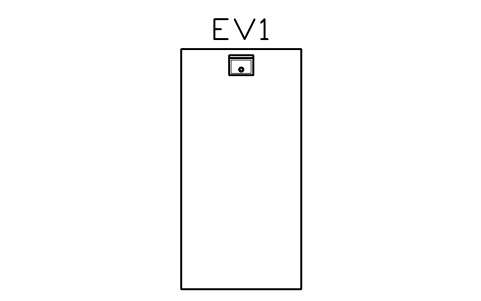
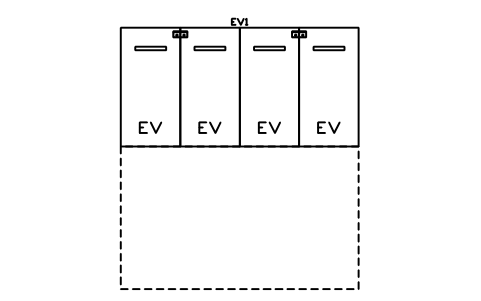
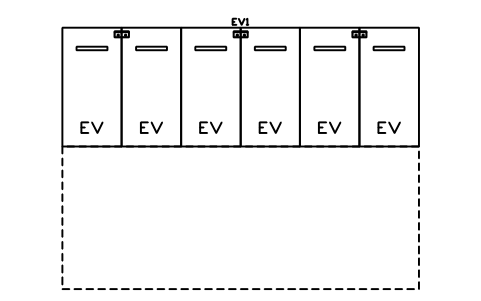
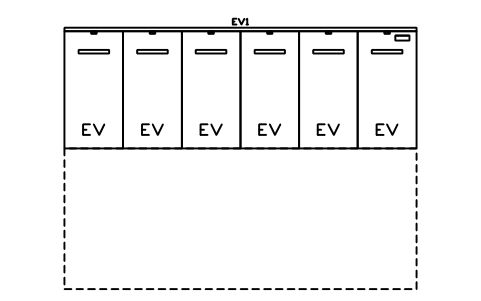
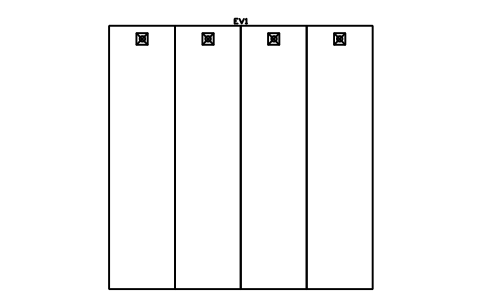
Basement car park, 6 bays, wall boxes
EVC_LAYOUT_WALLBOX_6Attributes
TAGZONE_TYPESIZEBAY_NOREMARKSDESC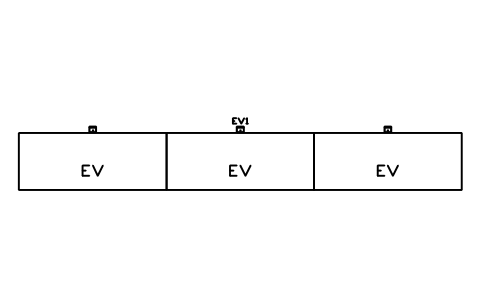
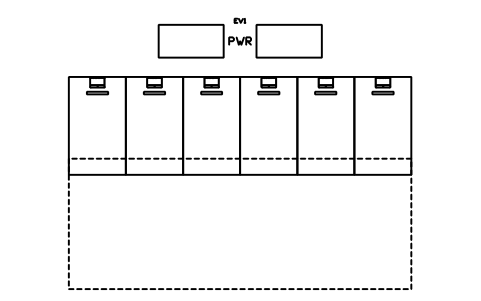
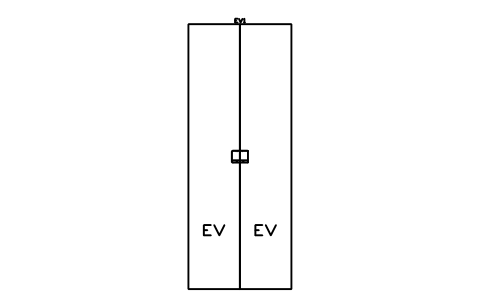
Missing a symbol? Tell us which one.
Attributes for parts lists
Every block carries a tag you can number and invisible attributes for the schedule. A charger holds ITEM_TYPE, SIZE, POWER_KW, CONNECTOR, OUTPUTS, MANUFACTURER, MODEL, QTY and REMARKS; a bay, zone or site item holds ZONE_TYPE, SIZE, BAY_NO and REMARKS.
Export the blocks of a charging plan to Excel with BlockSync to list chargers, power and connectors as a schedule, check quantities against the brief and write the changes back in one run, with preview and backup.
How to use the library
- Unzip the file and open the DWG. Copy the symbols you need into your plan, or drag the blocks in from DesignCenter (ADCENTER).
- The blocks are drawn at real size in millimetres, 1 drawing unit = 1 mm, so a bay of 2500 x 5000 is 2500 x 5000 units on the plan. The planning values are a car bay of 2500 x 5000 (3500 for a DC bay), an accessible aisle of 1500, a truck bay of 3500 x 18000 and cable reach circles of 4, 5 and 7 m.
- The plug of a charger (Type 1, Type 2, CCS, CHAdeMO, GB/T) is not drawn: it is the CONNECTOR attribute, so the same outline serves every market and you fill in the connector for your project. The front of a charger, with the cable holster, is towards -Y, a wall box has its back on the wall at +Y, and a bay has its head, the charger side, towards +Y.
- Zones are dashed outlines (cable reach, user zone, queue lane, canopy, turning circle) and the aisle is hatched; they carry no product attributes, so scale them to the values of your project. The layouts are starting points you can drop in or take single bays and chargers from.
About the drawings
There is no standard for the symbols of charging station plans. The blocks follow the common conventions of site and parking plans: chargers as outlines with a display and a cable holster, bays as outlines with a wheel stop and an EV marking, equipment as boxes with the usual divisions, zones as dashed lines.
The blocks are our own drawings, not copies, and the library is not certified. The sizes are common supplier and planning values; the number of bays, accessibility, clearances and electrical connection depend on your local authority and the grid operator, so check every part against the data sheet of the charger you specify and the rules for your site.
Frequently asked questions
- Do the chargers show the Type 2 or CCS plug?
- No, a plan symbol does not need the plug. The CONNECTOR attribute of every charger holds the plug type (Type 1, Type 2, CCS, CHAdeMO, GB/T), together with POWER_KW and OUTPUTS, so the schedule lists it and the drawing stays the same for every region.
- Which charger and bay sizes are included?
- AC wall boxes from 230 x 120, pedestals of 300 x 250 and 600 x 250, DC chargers of 25 to 350 kW with power cabinets and split dispensers, car bays of 2500 x 5000 with and without chargers, accessible bays with a 1500 aisle, DC bays of 3500 x 6000, truck bays of 3500 x 18000 and bus bays of 3500 x 14000.
- Can I use the symbols in commercial projects?
- Yes. They are free to use and modify in your own projects, including commercial ones. They are provided as is, without warranty. Please do not redistribute or resell the library; see the library terms.
- How do I plan a charging site?
- Start with the bays and the chargers at their head, then add the cable reach circles to check that every bay is covered. Place the transformer, switchboard and battery storage near the chargers, add canopies and bollards, and keep the queue lane clear. The office, retail, basement, hub, truck and bus layouts give a starting point for each.
- Can I change a symbol or add attributes?
- Yes. Open the DWG, edit a block with BEDIT to change it or add attributes, and save. To update drawings that already contain the block, run ATTSYNC or replace the block. Make a backup first: attribute values can be lost if ATTSYNC is used carelessly.
- Where do I find a ready-made set of these symbols for AutoCAD?
- AutoCAD itself ships only a small set of sample blocks, so a full symbol set has to come from a library. Download the ZIP on this page and open the DWG: every symbol is a block. Insert one with INSERT (Blocks palette, Libraries tab, then pick the DWG) or drag it from DesignCenter (ADCENTER). You can also download a single symbol on its own.