
Free AutoCAD Taiwan interior design symbols (DWG): system cabinets, wardrobes, bathrooms, sunken slab
Taiwan interior design: 197 ready-made AutoCAD blocks (DWG), free to download and use in your own projects, as a ZIP or one symbol at a time.
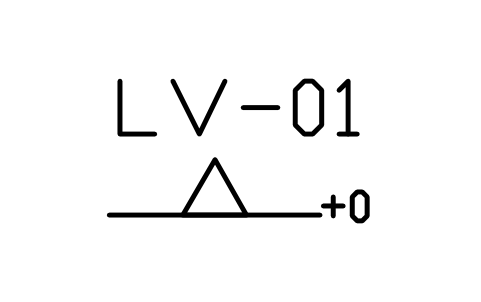
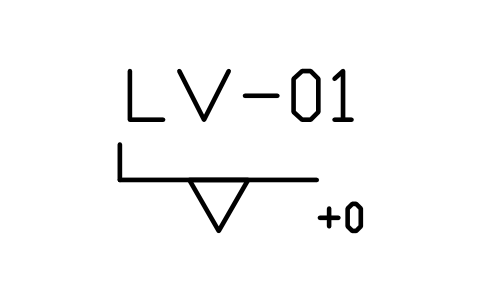
197 blocks at real size in plan view for Taiwanese homes and offices: system cabinets in the usual modules (base units from 300 to 1200 mm with doors or drawers, sink, hob and dishwasher bases, corner units, tall oven and pantry cabinets, refrigerator spaces, wall cabinets, hoods, islands, peninsulas and counters); wardrobes and closets (sliding and hinged doors, open rails, corner and bridge wardrobes, walk-in closets, shoe and entry cabinets); beds from 3 to 7 ft, bunk beds, cots, bedside tables, dressing tables and chests of drawers; showers with pivot, sliding, fixed and curtain fronts, with or without a sunken slab, rain and hand showers, bathtubs, washing machines, dryers, laundry sinks and water heaters; toilets, bidet seats, vanities, basins, drains, towel rails, exhaust fans and grab bars; sofas, tea tables with a sink, TV cabinets and TV walls, altar tables with offering tables, display cabinets and tatami rooms; mahjong, dining, round banquet, desk, bookcase, meeting and reception furniture; and slab and building marks: sunken slab areas for bathrooms, kitchens, balconies and laundries, raised floors, steps, level marks, beams above, columns, shear walls, pipe shafts, air conditioner ledges, lifts and orientation marks
Using AutoCAD 2017 or an earlier version? Download the 2010 format
Copyright CADXChange. Use and modify the symbols freely in your own drawings and projects, including commercial ones; credit and a link are needed only when you publish them. Please do not redistribute or resell the library. Each ZIP holds one plain DWG file in AutoCAD 2018 format and a README; no add-in needed. Provided as is, without warranty. Library terms (CXL-1.0)
Related symbol libraries
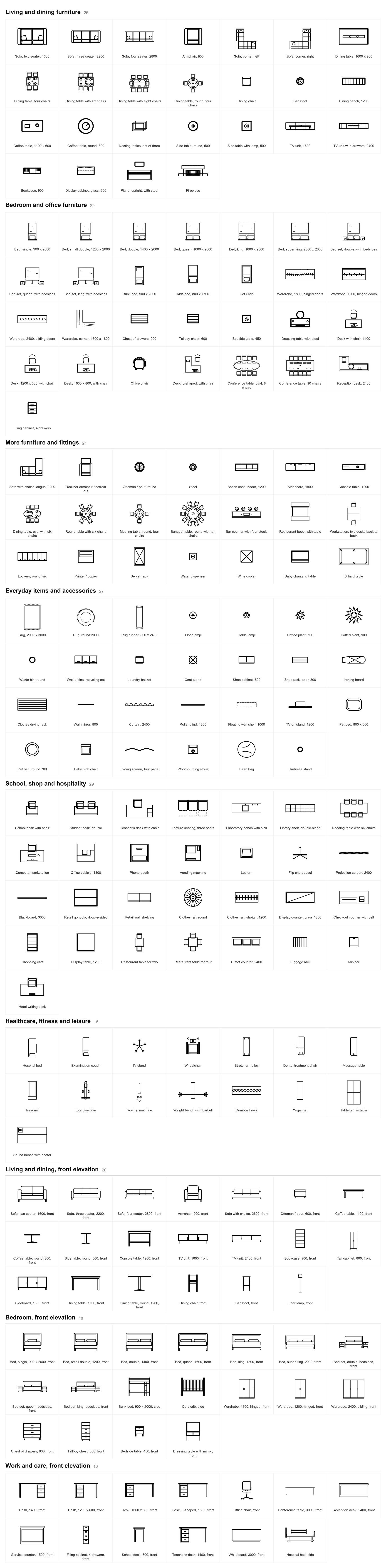
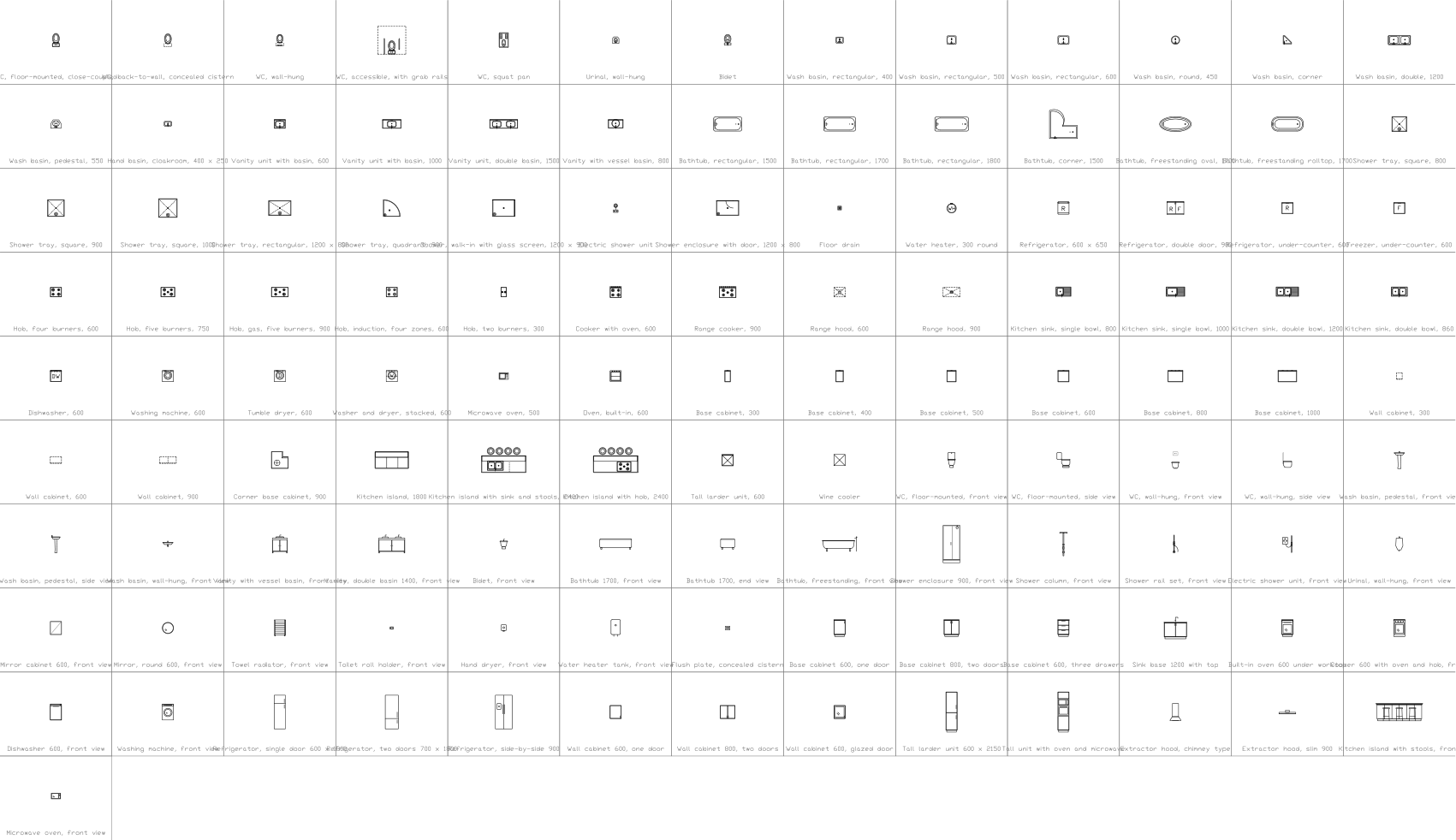
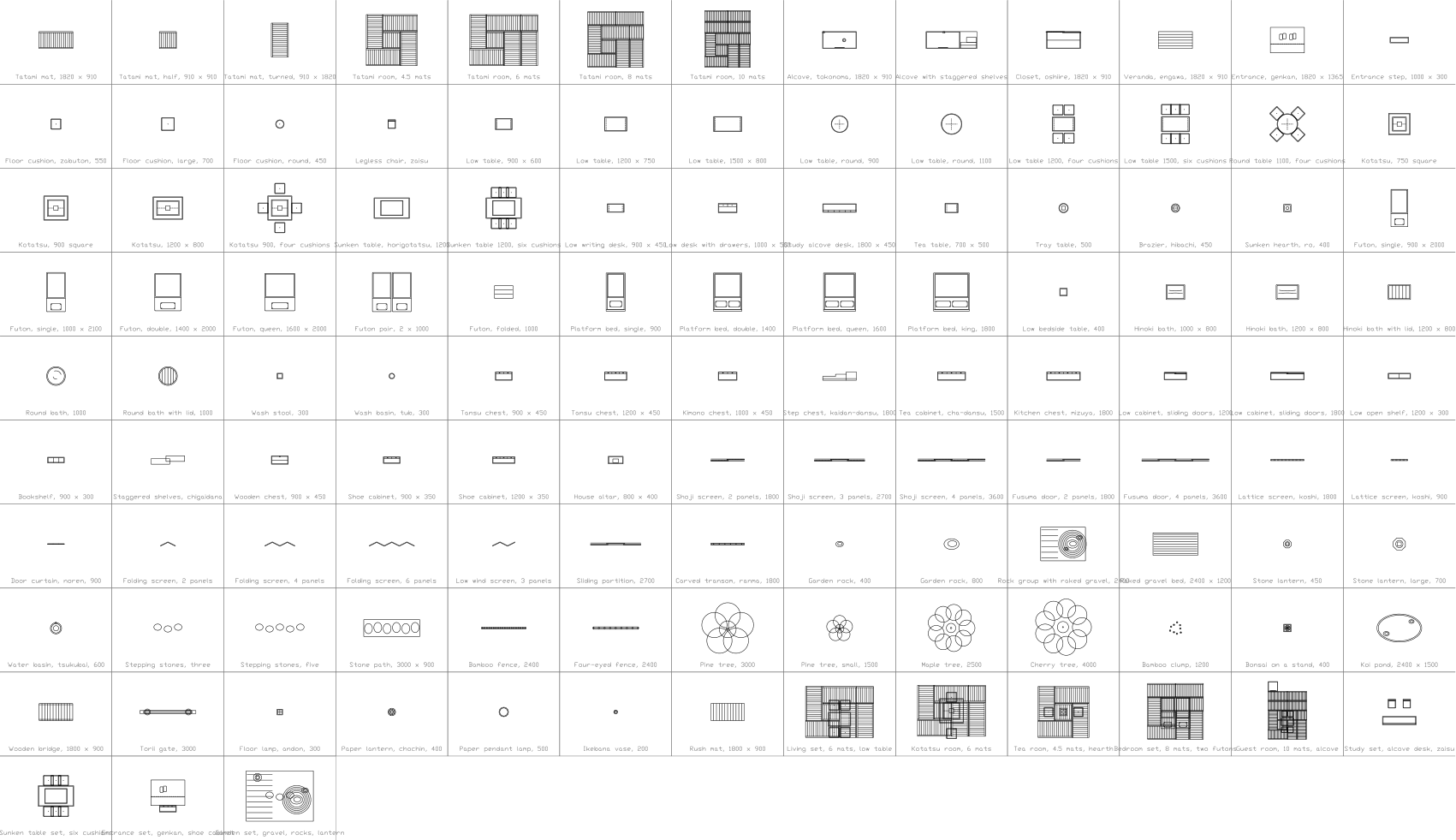
All 197 symbols
197 of 197 symbols
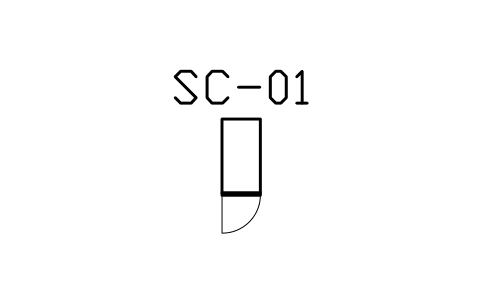
Base cabinet, doors, 300 x 600
TWI_BASE_300Attributes
TAGITEM_TYPESIZEMATERIALFINISHQTYMANUFACTURERMODELREMARKSDESC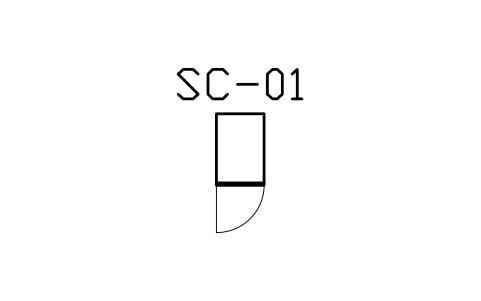
Base cabinet, doors, 400 x 600
TWI_BASE_400Attributes
TAGITEM_TYPESIZEMATERIALFINISHQTYMANUFACTURERMODELREMARKSDESC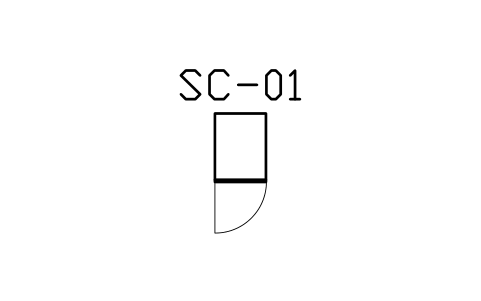
Base cabinet, doors, 450 x 600
TWI_BASE_450Attributes
TAGITEM_TYPESIZEMATERIALFINISHQTYMANUFACTURERMODELREMARKSDESC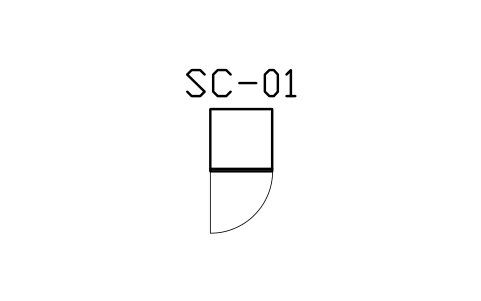
Base cabinet, doors, 600 x 600
TWI_BASE_600Attributes
TAGITEM_TYPESIZEMATERIALFINISHQTYMANUFACTURERMODELREMARKSDESC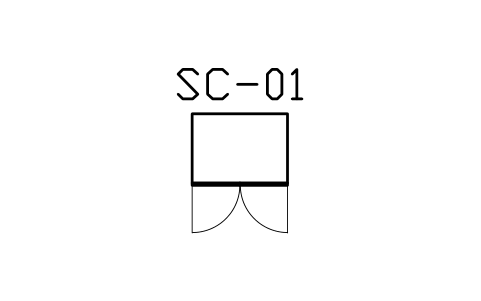
Base cabinet, doors, 800 x 600
TWI_BASE_800Attributes
TAGITEM_TYPESIZEMATERIALFINISHQTYMANUFACTURERMODELREMARKSDESC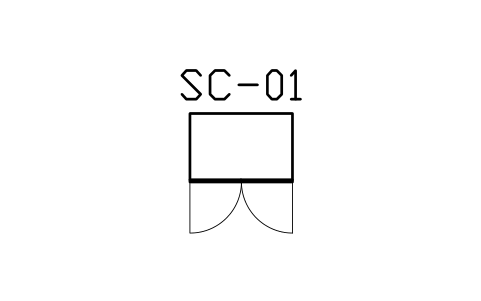
Base cabinet, doors, 900 x 600
TWI_BASE_900Attributes
TAGITEM_TYPESIZEMATERIALFINISHQTYMANUFACTURERMODELREMARKSDESC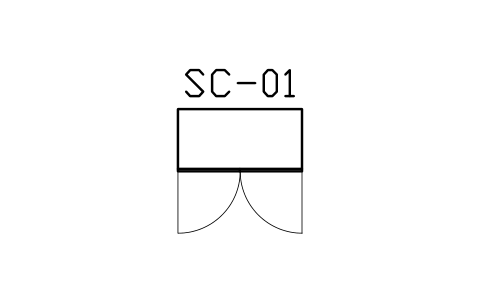
Base cabinet, doors, 1200 x 600
TWI_BASE_1200Attributes
TAGITEM_TYPESIZEMATERIALFINISHQTYMANUFACTURERMODELREMARKSDESC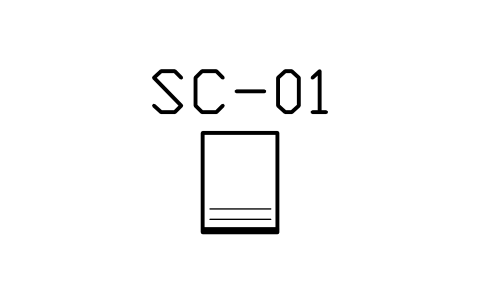
Base cabinet, drawers, 450 x 600
TWI_DRAWER_450Attributes
TAGITEM_TYPESIZEMATERIALFINISHQTYMANUFACTURERMODELREMARKSDESC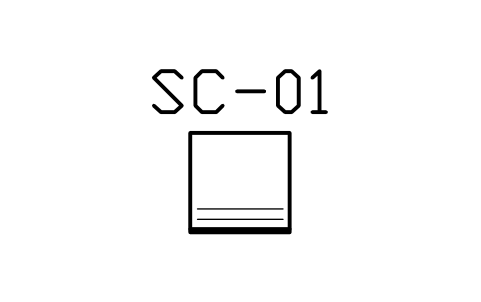
Base cabinet, drawers, 600 x 600
TWI_DRAWER_600Attributes
TAGITEM_TYPESIZEMATERIALFINISHQTYMANUFACTURERMODELREMARKSDESC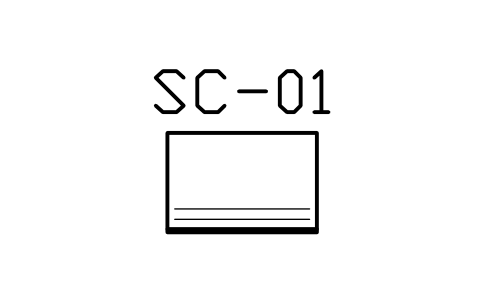
Base cabinet, drawers, 900 x 600
TWI_DRAWER_900Attributes
TAGITEM_TYPESIZEMATERIALFINISHQTYMANUFACTURERMODELREMARKSDESC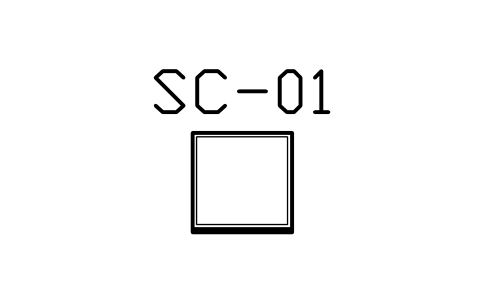
Base unit, open shelf, 600 x 600
TWI_BASE_OPEN_600Attributes
TAGITEM_TYPESIZEMATERIALFINISHQTYMANUFACTURERMODELREMARKSDESC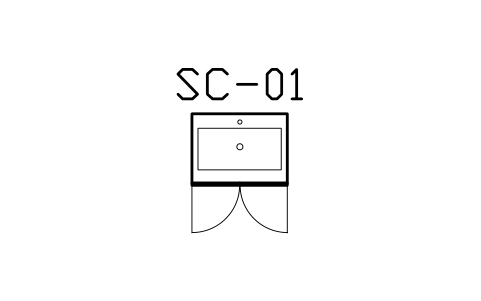
Sink base, single bowl, 800 x 600
TWI_SINK_800Attributes
TAGITEM_TYPESIZEMATERIALFINISHQTYMANUFACTURERMODELREMARKSDESC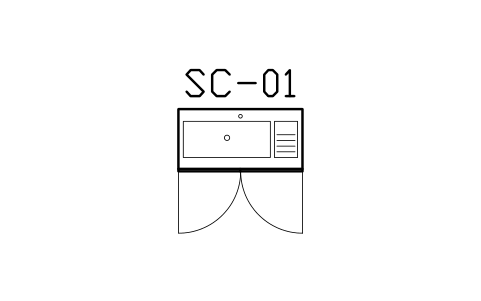
Sink base, bowl and drainer, 1200
TWI_SINK_1200Attributes
TAGITEM_TYPESIZEMATERIALFINISHQTYMANUFACTURERMODELREMARKSDESC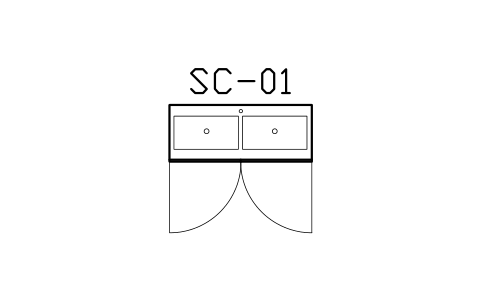
Sink base, double bowl, 1500 x 600
TWI_SINK_DOUBLE_1500Attributes
TAGITEM_TYPESIZEMATERIALFINISHQTYMANUFACTURERMODELREMARKSDESC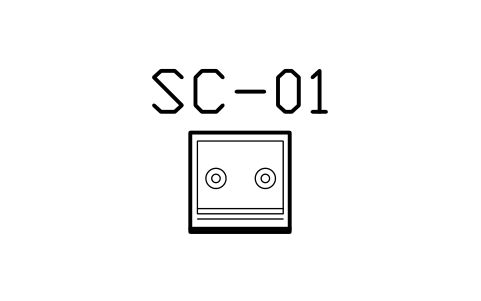
Hob base, 2 burners, 600 x 600
TWI_HOB_600Attributes
TAGITEM_TYPESIZEMATERIALFINISHQTYMANUFACTURERMODELREMARKSDESC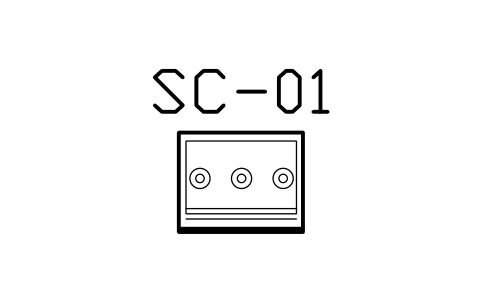
Hob base, 3 burners, 750 x 600
TWI_HOB_750Attributes
TAGITEM_TYPESIZEMATERIALFINISHQTYMANUFACTURERMODELREMARKSDESC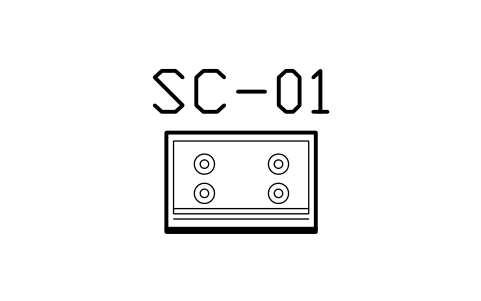
Hob base, 4 burners, 900 x 600
TWI_HOB_900Attributes
TAGITEM_TYPESIZEMATERIALFINISHQTYMANUFACTURERMODELREMARKSDESC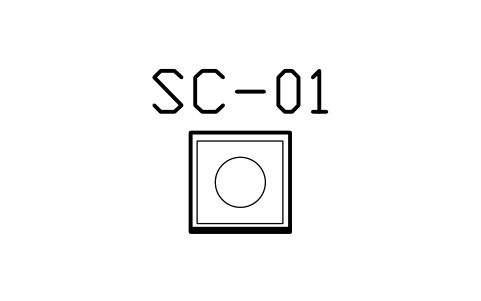
Built-in dishwasher, 600 x 600
TWI_DISHWASHERAttributes
TAGITEM_TYPESIZEMATERIALFINISHQTYMANUFACTURERMODELREMARKSDESC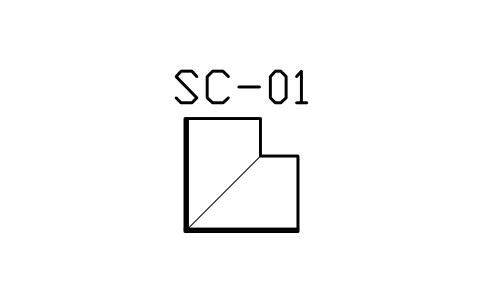
Corner base, blind, 900 x 900
TWI_CORNER_900Attributes
TAGITEM_TYPESIZEMATERIALFINISHQTYMANUFACTURERMODELREMARKSDESC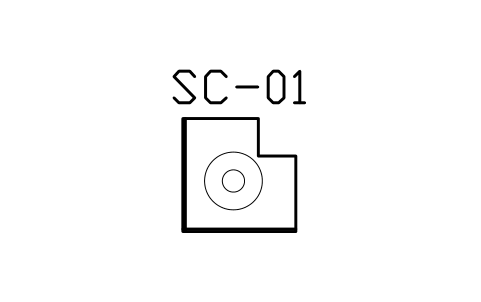
Corner base, carousel, 900 x 900
TWI_CORNER_CAROUSELAttributes
TAGITEM_TYPESIZEMATERIALFINISHQTYMANUFACTURERMODELREMARKSDESC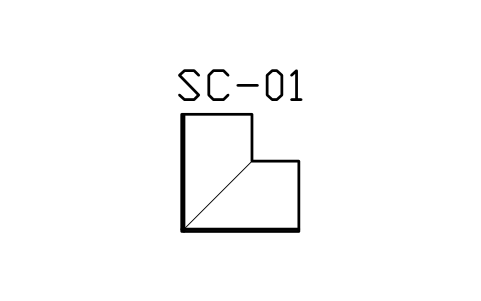
Corner base, 1000 x 1000
TWI_CORNER_1000Attributes
TAGITEM_TYPESIZEMATERIALFINISHQTYMANUFACTURERMODELREMARKSDESC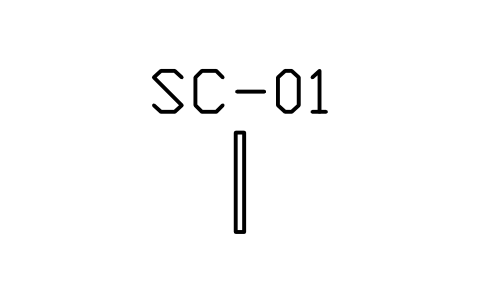
Filler panel, 50 x 600
TWI_FILLER_50Attributes
TAGITEM_TYPESIZEMATERIALFINISHQTYMANUFACTURERMODELREMARKSDESC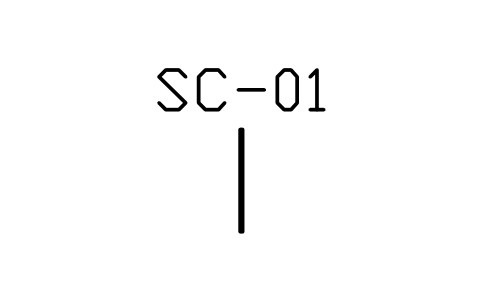
End panel, 18 x 650
TWI_PLINTH_ENDAttributes
TAGITEM_TYPESIZEMATERIALFINISHQTYMANUFACTURERMODELREMARKSDESC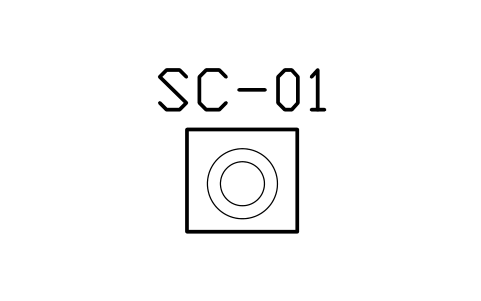
Washer and dryer niche, 700 x 650
TWI_WASHER_BASEAttributes
TAGITEM_TYPESIZEMATERIALFINISHQTYMANUFACTURERMODELREMARKSDESC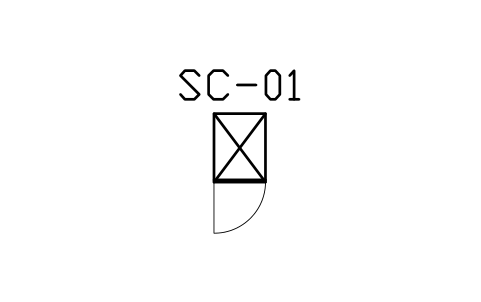
Tall cabinet, 450 x 600
TWI_TALL_450Attributes
TAGITEM_TYPESIZEMATERIALFINISHQTYMANUFACTURERMODELREMARKSDESC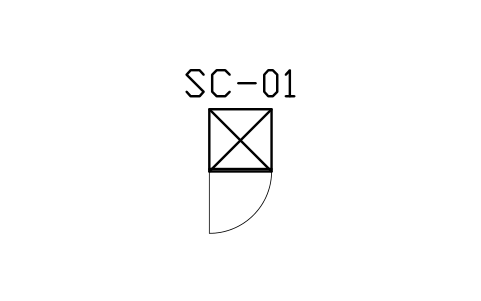
Tall cabinet, 600 x 600
TWI_TALL_600Attributes
TAGITEM_TYPESIZEMATERIALFINISHQTYMANUFACTURERMODELREMARKSDESC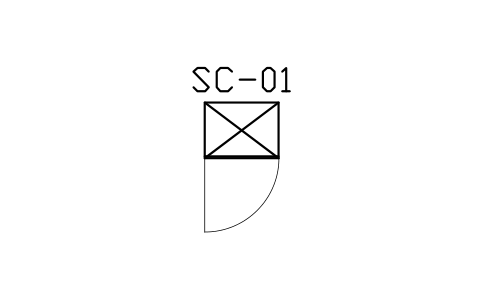
Tall cabinet, 800 x 600
TWI_TALL_800Attributes
TAGITEM_TYPESIZEMATERIALFINISHQTYMANUFACTURERMODELREMARKSDESC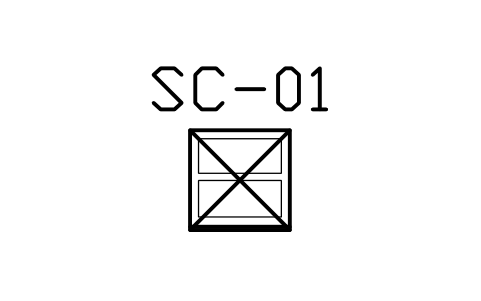
Tall oven cabinet, 600 x 600
TWI_TALL_OVENAttributes
TAGITEM_TYPESIZEMATERIALFINISHQTYMANUFACTURERMODELREMARKSDESC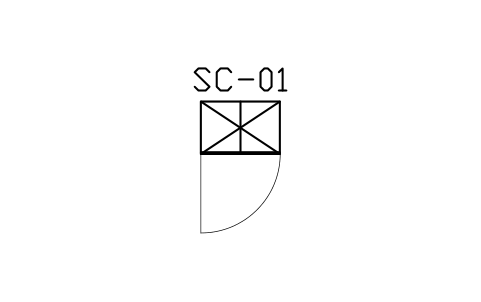
Tall pantry cabinet, 900 x 600
TWI_TALL_PANTRYAttributes
TAGITEM_TYPESIZEMATERIALFINISHQTYMANUFACTURERMODELREMARKSDESC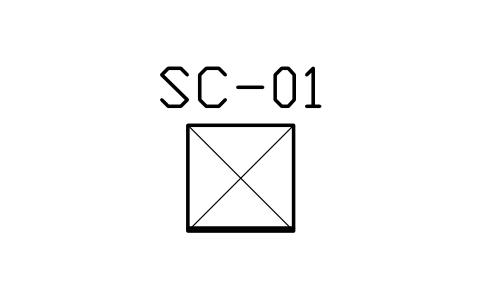
Refrigerator space, 700 x 700
TWI_FRIDGE_700Attributes
TAGITEM_TYPESIZEMATERIALFINISHQTYMANUFACTURERMODELREMARKSDESC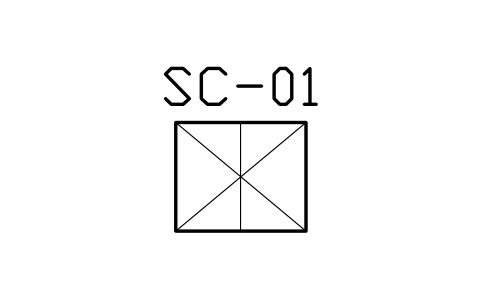
Refrigerator space, 900 x 750
TWI_FRIDGE_900Attributes
TAGITEM_TYPESIZEMATERIALFINISHQTYMANUFACTURERMODELREMARKSDESC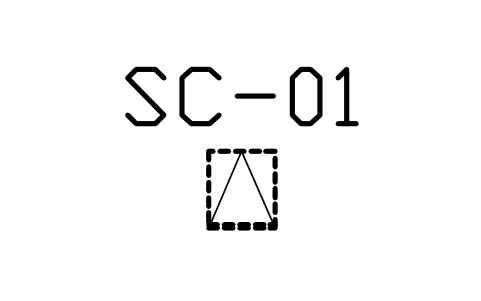
Wall cabinet, 300 x 350
TWI_WALL_300Attributes
TAGITEM_TYPESIZEMATERIALFINISHQTYMANUFACTURERMODELREMARKSDESC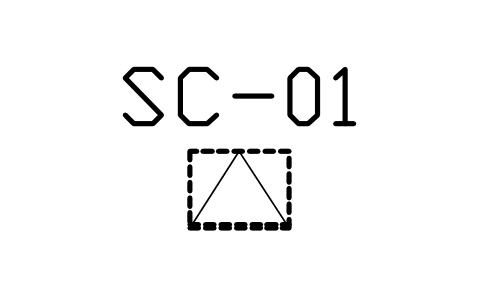
Wall cabinet, 450 x 350
TWI_WALL_450Attributes
TAGITEM_TYPESIZEMATERIALFINISHQTYMANUFACTURERMODELREMARKSDESC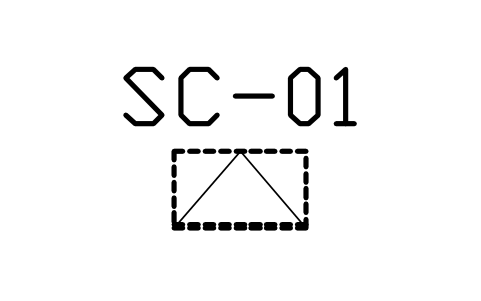
Wall cabinet, 600 x 350
TWI_WALL_600Attributes
TAGITEM_TYPESIZEMATERIALFINISHQTYMANUFACTURERMODELREMARKSDESC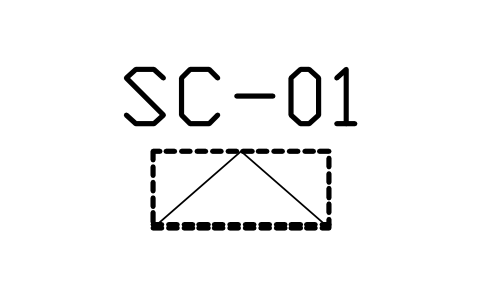
Wall cabinet, 800 x 350
TWI_WALL_800Attributes
TAGITEM_TYPESIZEMATERIALFINISHQTYMANUFACTURERMODELREMARKSDESC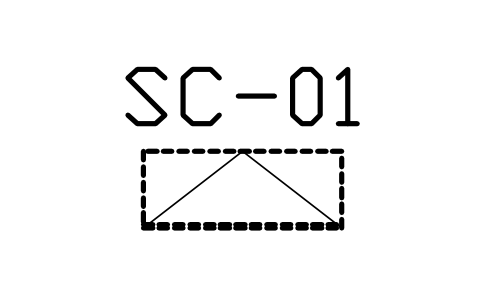
Wall cabinet, 900 x 350
TWI_WALL_900Attributes
TAGITEM_TYPESIZEMATERIALFINISHQTYMANUFACTURERMODELREMARKSDESC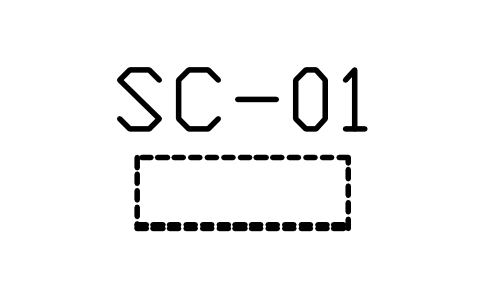
Wall shelf, open, 900 x 300
TWI_WALL_OPENAttributes
TAGITEM_TYPESIZEMATERIALFINISHQTYMANUFACTURERMODELREMARKSDESC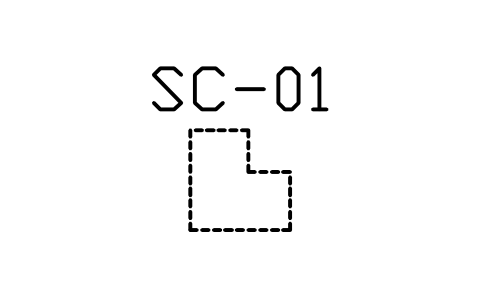
Wall cabinet, corner, 600 x 600
TWI_WALL_CORNERAttributes
TAGITEM_TYPESIZEMATERIALFINISHQTYMANUFACTURERMODELREMARKSDESC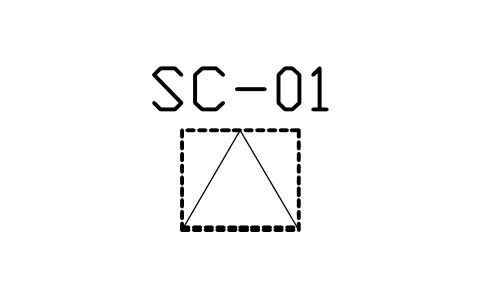
Cabinet over refrigerator, 700 x 600
TWI_OVER_FRIDGEAttributes
TAGITEM_TYPESIZEMATERIALFINISHQTYMANUFACTURERMODELREMARKSDESC
Hood, wall mounted, 900 x 500
TWI_HOOD_900Attributes
TAGITEM_TYPESIZEMATERIALFINISHQTYMANUFACTURERMODELREMARKSDESC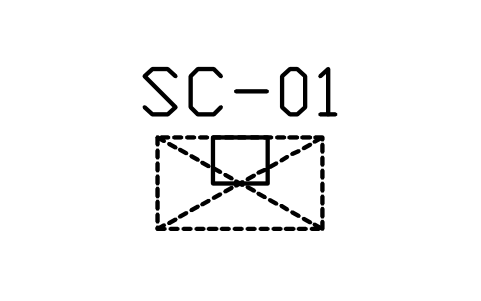
Hood, chimney, 900 x 500
TWI_HOOD_CHIMNEYAttributes
TAGITEM_TYPESIZEMATERIALFINISHQTYMANUFACTURERMODELREMARKSDESC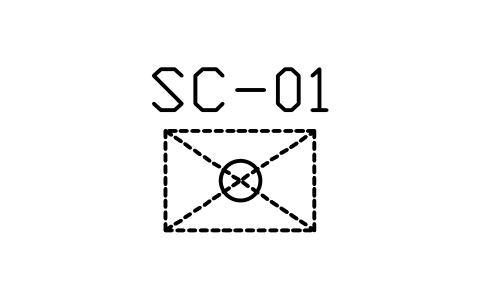
Hood, island, 900 x 600
TWI_HOOD_ISLANDAttributes
TAGITEM_TYPESIZEMATERIALFINISHQTYMANUFACTURERMODELREMARKSDESC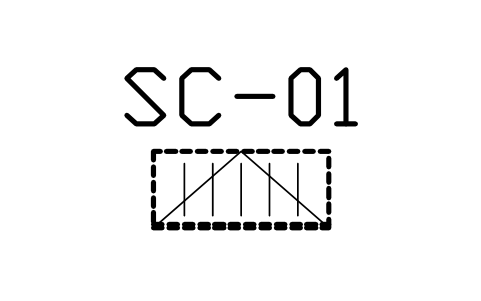
Dish drying cabinet, 800 x 350
TWI_DISH_RACKAttributes
TAGITEM_TYPESIZEMATERIALFINISHQTYMANUFACTURERMODELREMARKSDESC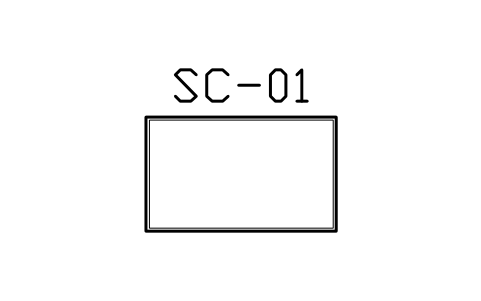
Island, 1500 x 900
TWI_ISLAND_1500Attributes
TAGITEM_TYPESIZEMATERIALFINISHQTYMANUFACTURERMODELREMARKSDESC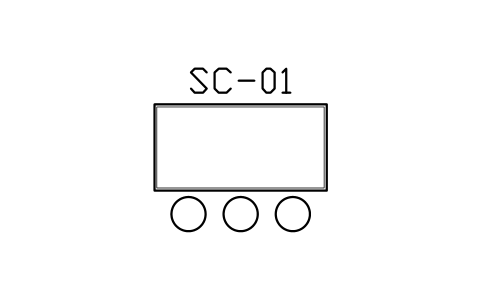
Island with 3 stools, 1800 x 900
TWI_ISLAND_1800Attributes
TAGITEM_TYPESIZEMATERIALFINISHQTYMANUFACTURERMODELREMARKSDESC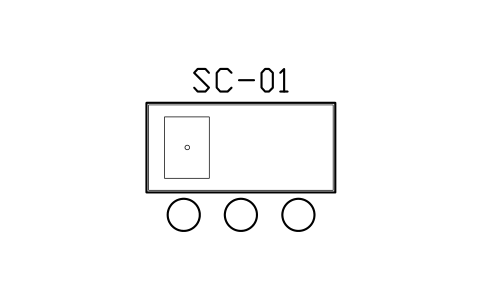
Island with sink, 2100 x 1000
TWI_ISLAND_SINKAttributes
TAGITEM_TYPESIZEMATERIALFINISHQTYMANUFACTURERMODELREMARKSDESC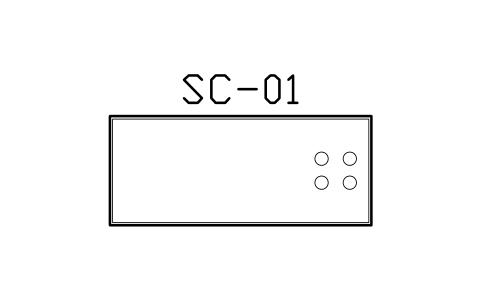
Island with hob, 2400 x 1000
TWI_ISLAND_HOBAttributes
TAGITEM_TYPESIZEMATERIALFINISHQTYMANUFACTURERMODELREMARKSDESC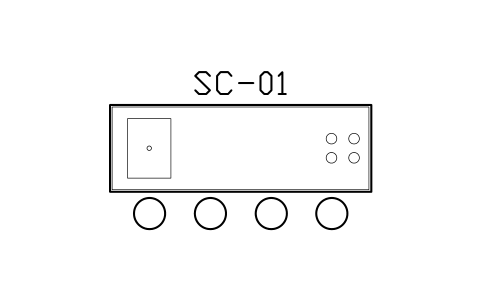
Island, sink and hob, 3000 x 1000
TWI_ISLAND_SINK_HOBAttributes
TAGITEM_TYPESIZEMATERIALFINISHQTYMANUFACTURERMODELREMARKSDESC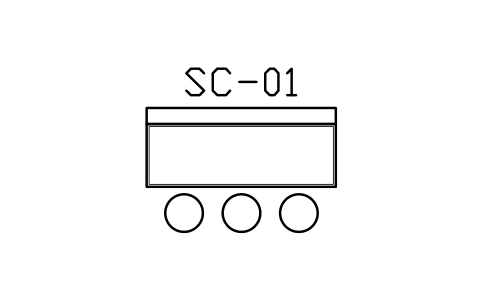
Peninsula bar, 1800 x 900
TWI_PENINSULA_1800Attributes
TAGITEM_TYPESIZEMATERIALFINISHQTYMANUFACTURERMODELREMARKSDESC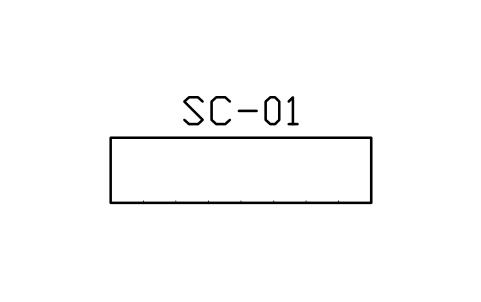
Counter run, 2400 x 600
TWI_COUNTER_2400Attributes
TAGITEM_TYPESIZEMATERIALFINISHQTYMANUFACTURERMODELREMARKSDESC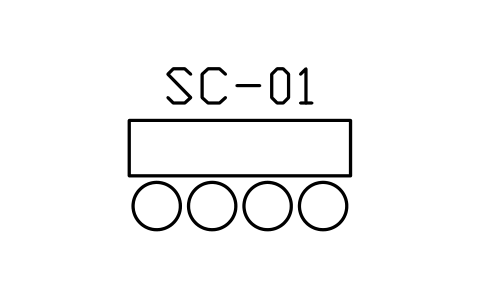
Breakfast bar, 1600 x 400
TWI_BAR_1600Attributes
TAGITEM_TYPESIZEMATERIALFINISHQTYMANUFACTURERMODELREMARKSDESC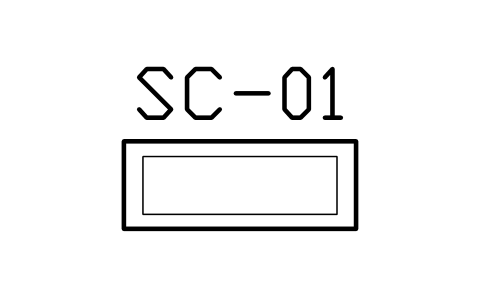
Pass-through counter, 1200 x 450
TWI_SERVICE_HATCHAttributes
TAGITEM_TYPESIZEMATERIALFINISHQTYMANUFACTURERMODELREMARKSDESC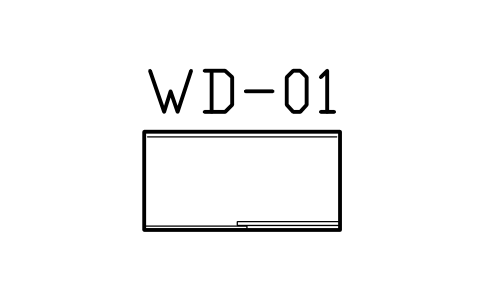
Sliding wardrobe, 1200 x 600
TWI_SLIDE_1200Attributes
TAGITEM_TYPESIZEMATERIALFINISHQTYMANUFACTURERMODELREMARKSDESC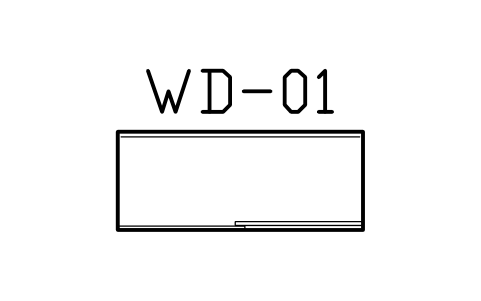
Sliding wardrobe, 1500 x 600
TWI_SLIDE_1500Attributes
TAGITEM_TYPESIZEMATERIALFINISHQTYMANUFACTURERMODELREMARKSDESC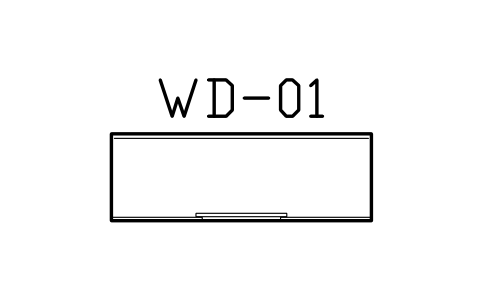
Sliding wardrobe, 1800 x 600
TWI_SLIDE_1800Attributes
TAGITEM_TYPESIZEMATERIALFINISHQTYMANUFACTURERMODELREMARKSDESC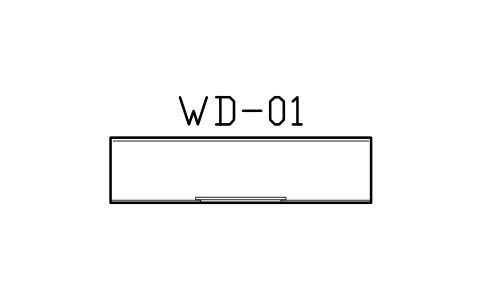
Sliding wardrobe, 2400 x 600
TWI_SLIDE_2400Attributes
TAGITEM_TYPESIZEMATERIALFINISHQTYMANUFACTURERMODELREMARKSDESC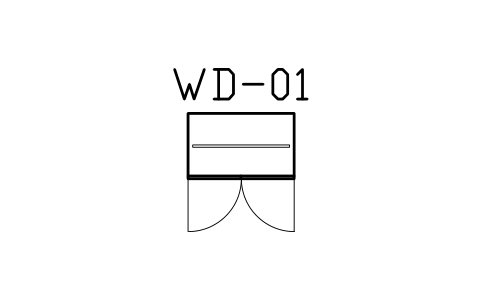
Hinged wardrobe, 900 x 550
TWI_HINGED_900Attributes
TAGITEM_TYPESIZEMATERIALFINISHQTYMANUFACTURERMODELREMARKSDESC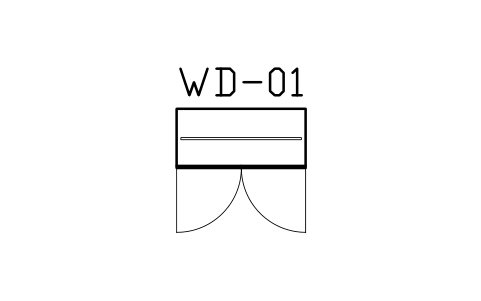
Hinged wardrobe, 1200 x 550
TWI_HINGED_1200Attributes
TAGITEM_TYPESIZEMATERIALFINISHQTYMANUFACTURERMODELREMARKSDESC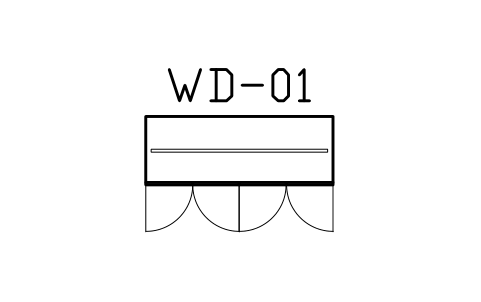
Hinged wardrobe, 1500 x 550
TWI_HINGED_1500Attributes
TAGITEM_TYPESIZEMATERIALFINISHQTYMANUFACTURERMODELREMARKSDESC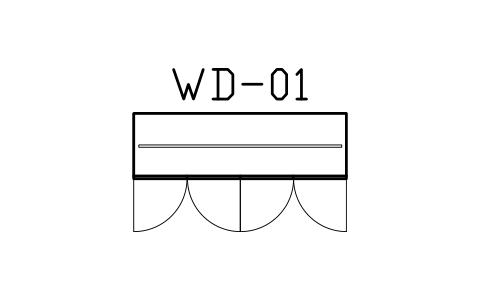
Hinged wardrobe, 1800 x 550
TWI_HINGED_1800Attributes
TAGITEM_TYPESIZEMATERIALFINISHQTYMANUFACTURERMODELREMARKSDESC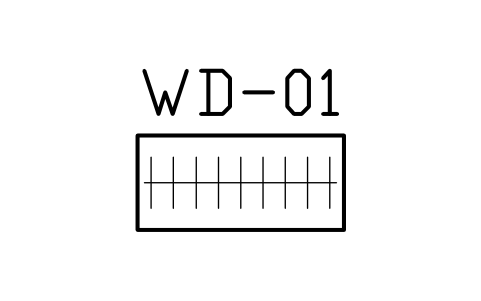
Open wardrobe, rail, 1200 x 550
TWI_WARD_OPEN_1200Attributes
TAGITEM_TYPESIZEMATERIALFINISHQTYMANUFACTURERMODELREMARKSDESC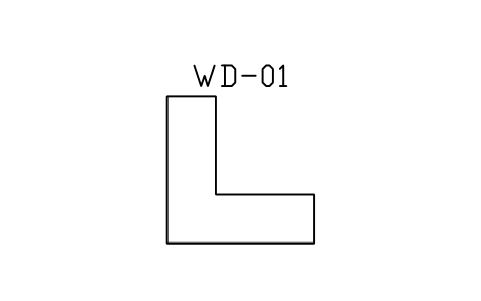
Corner wardrobe, L, 1800 x 1800
TWI_WARD_CORNER_LAttributes
TAGITEM_TYPESIZEMATERIALFINISHQTYMANUFACTURERMODELREMARKSDESC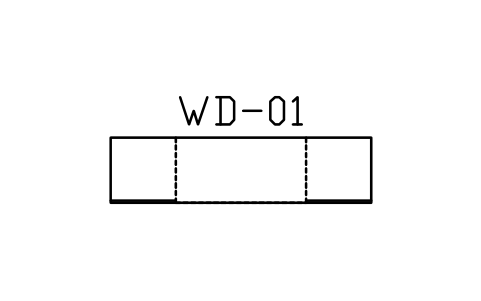
Wardrobe over bed, 2400 x 600
TWI_WARD_BRIDGEAttributes
TAGITEM_TYPESIZEMATERIALFINISHQTYMANUFACTURERMODELREMARKSDESC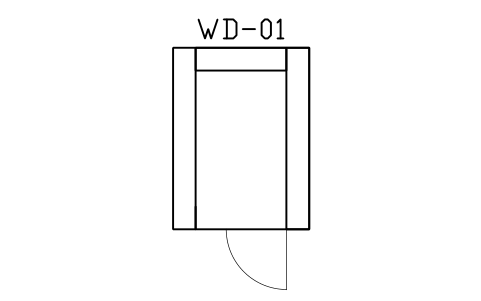
Walk-in wardrobe, 1800 x 2400
TWI_WALKIN_1800Attributes
TAGITEM_TYPESIZEMATERIALFINISHQTYMANUFACTURERMODELREMARKSDESC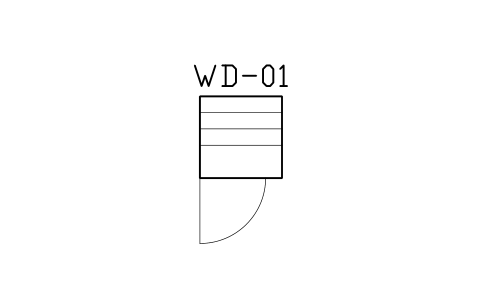
Storage closet, 1000 x 1000
TWI_STORAGE_1000Attributes
TAGITEM_TYPESIZEMATERIALFINISHQTYMANUFACTURERMODELREMARKSDESC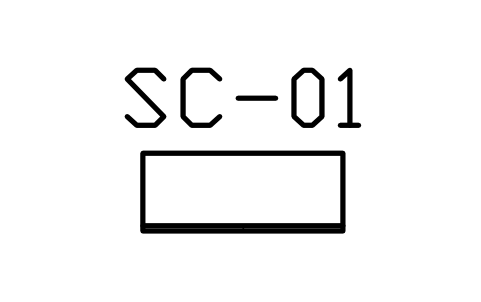
Shoe cabinet, 900 x 350
TWI_SHOE_900Attributes
TAGITEM_TYPESIZEMATERIALFINISHQTYMANUFACTURERMODELREMARKSDESC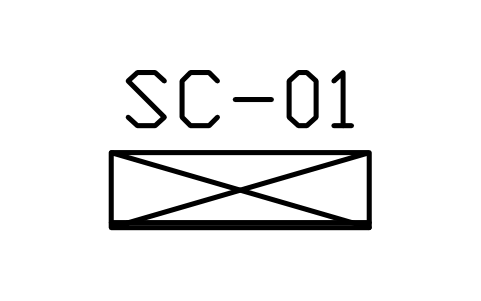
Shoe cabinet, full height, 1200
TWI_SHOE_FULLAttributes
TAGITEM_TYPESIZEMATERIALFINISHQTYMANUFACTURERMODELREMARKSDESC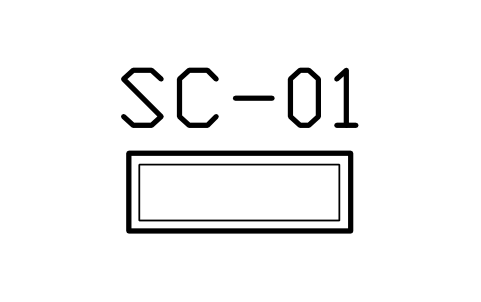
Shoe bench, 1000 x 350
TWI_SHOE_BENCHAttributes
TAGITEM_TYPESIZEMATERIALFINISHQTYMANUFACTURERMODELREMARKSDESC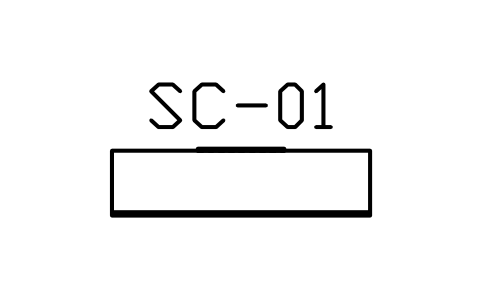
Entry cabinet and mirror, 1500
TWI_FOYER_COMBOAttributes
TAGITEM_TYPESIZEMATERIALFINISHQTYMANUFACTURERMODELREMARKSDESC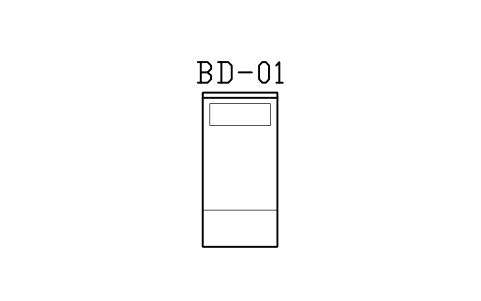
Bed, single, 3 ft, 910 x 1880
TWI_BED_SINGLE_3Attributes
TAGITEM_TYPESIZEMATERIALFINISHQTYMANUFACTURERMODELREMARKSDESC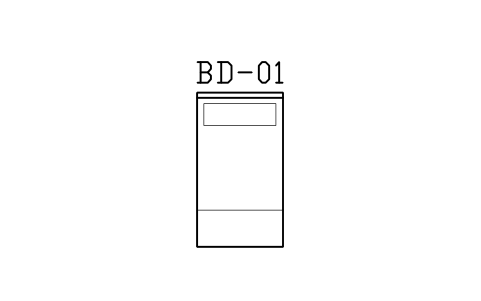
Bed, single large, 3.5 ft, 1050
TWI_BED_SINGLE_35Attributes
TAGITEM_TYPESIZEMATERIALFINISHQTYMANUFACTURERMODELREMARKSDESC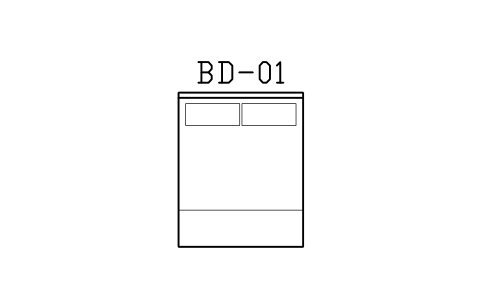
Bed, double, 5 ft, 1520 x 1880
TWI_BED_DOUBLE_5Attributes
TAGITEM_TYPESIZEMATERIALFINISHQTYMANUFACTURERMODELREMARKSDESC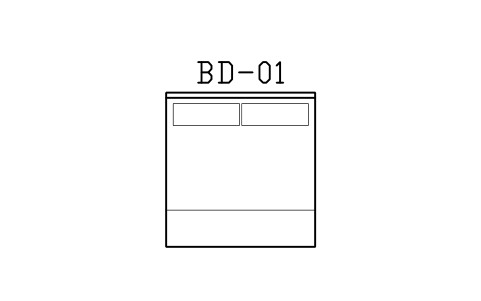
Bed, double large, 6 ft, 1820
TWI_BED_DOUBLE_6Attributes
TAGITEM_TYPESIZEMATERIALFINISHQTYMANUFACTURERMODELREMARKSDESC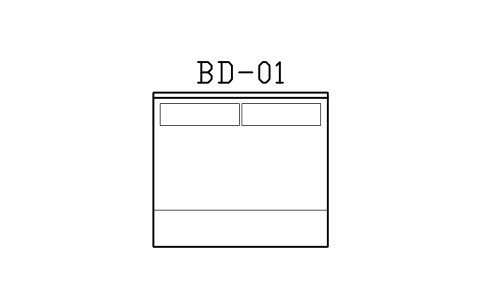
Bed, king, 7 ft, 2130 x 1880
TWI_BED_KING_7Attributes
TAGITEM_TYPESIZEMATERIALFINISHQTYMANUFACTURERMODELREMARKSDESC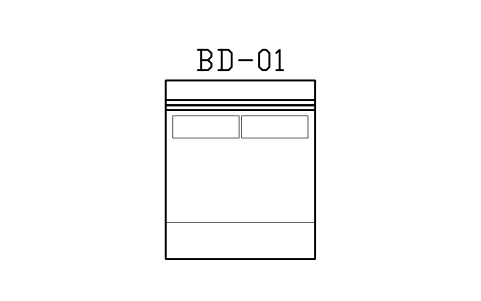
Bed, 6 ft, with headboard cabinet
TWI_BED_6_HEADAttributes
TAGITEM_TYPESIZEMATERIALFINISHQTYMANUFACTURERMODELREMARKSDESC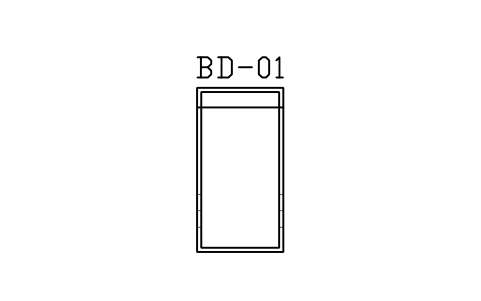
Bunk bed, 1050 x 2000
TWI_BED_BUNKAttributes
TAGITEM_TYPESIZEMATERIALFINISHQTYMANUFACTURERMODELREMARKSDESC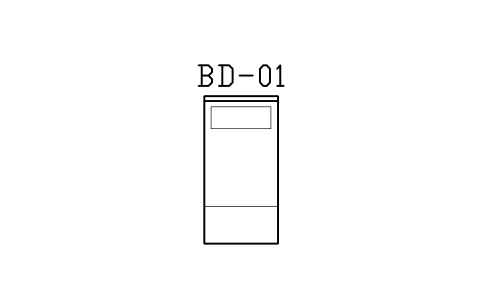
Child bed, 900 x 1800
TWI_BED_KIDSAttributes
TAGITEM_TYPESIZEMATERIALFINISHQTYMANUFACTURERMODELREMARKSDESC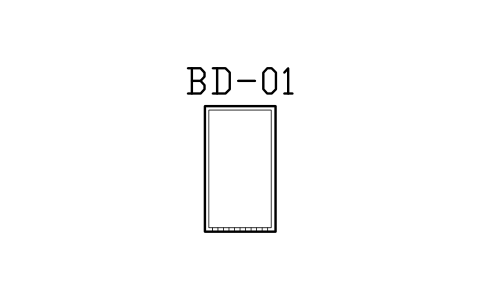
Baby cot, 700 x 1250
TWI_COT_BABYAttributes
TAGITEM_TYPESIZEMATERIALFINISHQTYMANUFACTURERMODELREMARKSDESC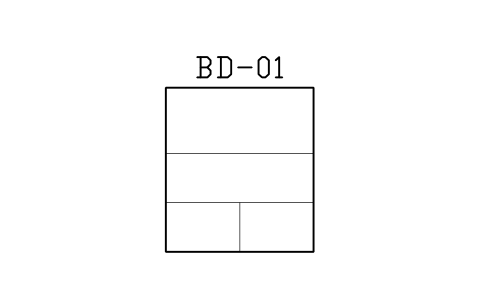
Raised sleeping platform, 1800
TWI_DAYBED_TATAMIAttributes
TAGITEM_TYPESIZEMATERIALFINISHQTYMANUFACTURERMODELREMARKSDESC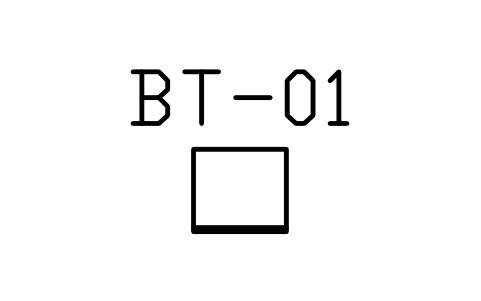
Bedside table, 450 x 400
TWI_BEDSIDE_450Attributes
TAGITEM_TYPESIZEMATERIALFINISHQTYMANUFACTURERMODELREMARKSDESC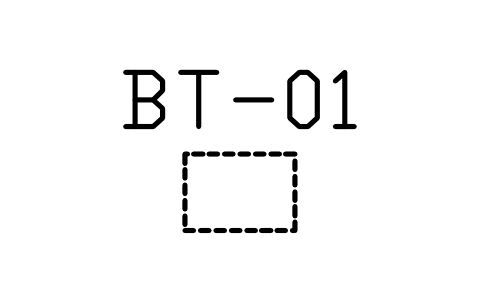
Floating bedside shelf, 500 x 350
TWI_BEDSIDE_FLOATAttributes
TAGITEM_TYPESIZEMATERIALFINISHQTYMANUFACTURERMODELREMARKSDESC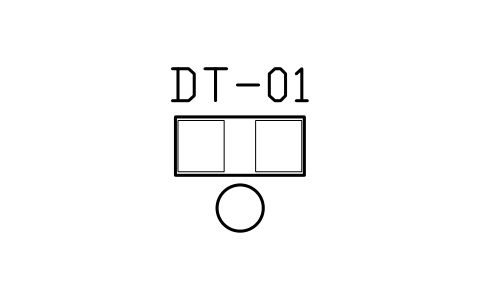
Dressing table, 1000 x 450
TWI_DRESSER_1000Attributes
TAGITEM_TYPESIZEMATERIALFINISHQTYMANUFACTURERMODELREMARKSDESC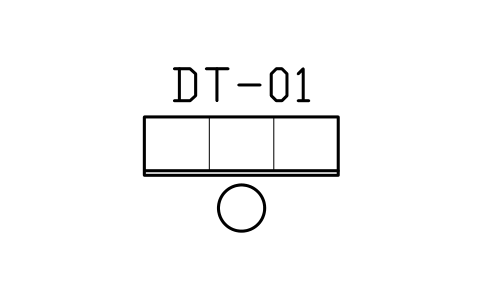
Dressing table, drawers, 1500 x 450
TWI_DRESSER_1500Attributes
TAGITEM_TYPESIZEMATERIALFINISHQTYMANUFACTURERMODELREMARKSDESC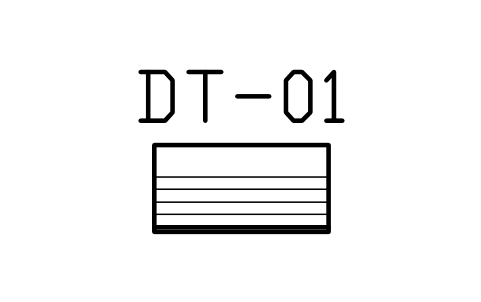
Chest of drawers, 900 x 450
TWI_CHEST_900Attributes
TAGITEM_TYPESIZEMATERIALFINISHQTYMANUFACTURERMODELREMARKSDESC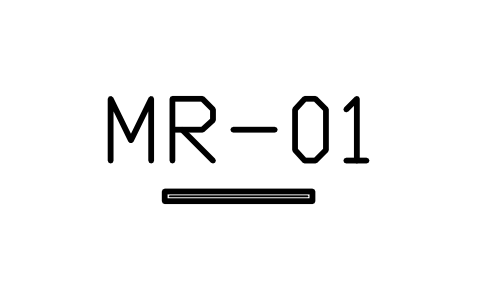
Wall mirror, 600 x 40
TWI_VANITY_MIRRORAttributes
TAGITEM_TYPESIZEMATERIALFINISHQTYMANUFACTURERMODELREMARKSDESC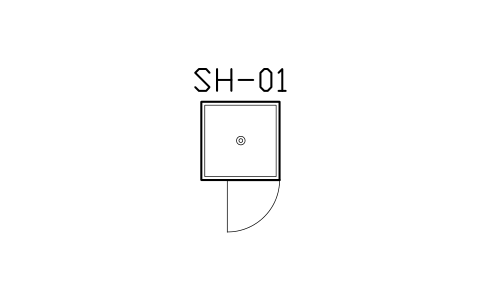
Shower, 900 x 900, pivot door
TWI_SHOWER_900Attributes
TAGITEM_TYPESIZEMATERIALROUGH_IN_MMQTYMANUFACTURERMODELREMARKSDESC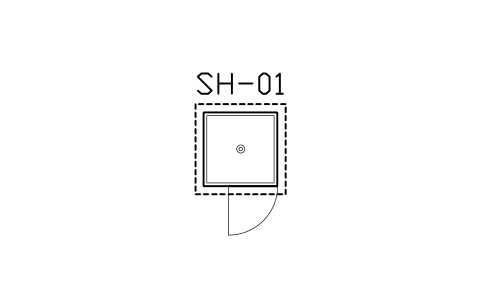
Shower, 900 x 900, sunken slab
TWI_SHOWER_900_SUNKAttributes
TAGITEM_TYPESIZEMATERIALROUGH_IN_MMQTYMANUFACTURERMODELREMARKSDESC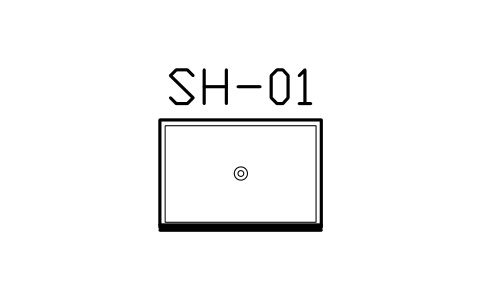
Shower, 800 x 1200, sliding door
TWI_SHOWER_800_1200Attributes
TAGITEM_TYPESIZEMATERIALROUGH_IN_MMQTYMANUFACTURERMODELREMARKSDESC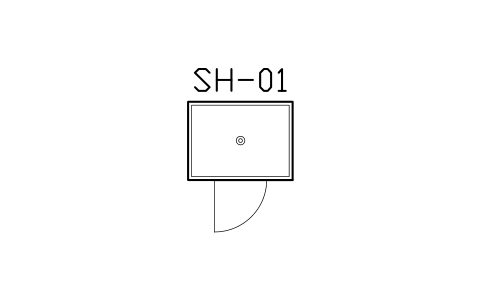
Shower, 900 x 1200, pivot door
TWI_SHOWER_900_1200Attributes
TAGITEM_TYPESIZEMATERIALROUGH_IN_MMQTYMANUFACTURERMODELREMARKSDESC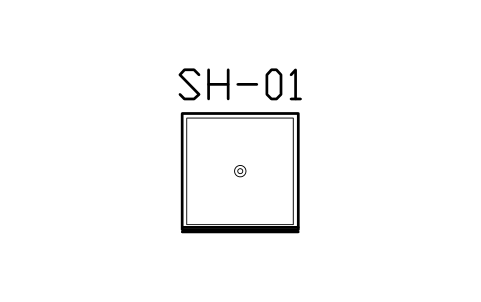
Shower, 1000 x 1000, sliding door
TWI_SHOWER_1000Attributes
TAGITEM_TYPESIZEMATERIALROUGH_IN_MMQTYMANUFACTURERMODELREMARKSDESC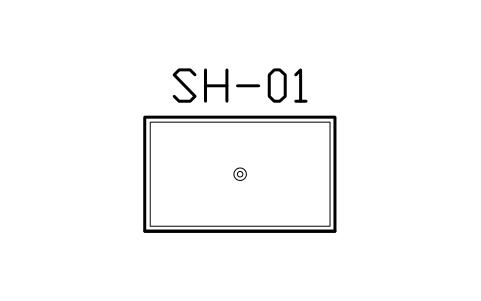
Shower, 900 x 1500, fixed panel
TWI_SHOWER_FIXEDAttributes
TAGITEM_TYPESIZEMATERIALROUGH_IN_MMQTYMANUFACTURERMODELREMARKSDESC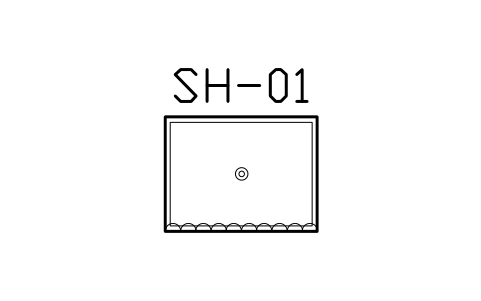
Shower, 900 x 1200, curtain
TWI_SHOWER_CURTAINAttributes
TAGITEM_TYPESIZEMATERIALROUGH_IN_MMQTYMANUFACTURERMODELREMARKSDESC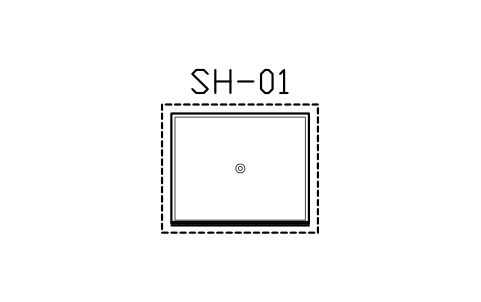
Shower, 1200 x 1500, sunken slab
TWI_SHOWER_SUNK_1200Attributes
TAGITEM_TYPESIZEMATERIALROUGH_IN_MMQTYMANUFACTURERMODELREMARKSDESC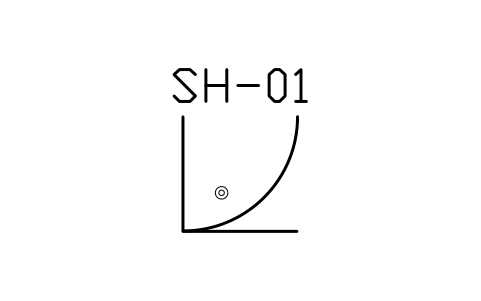
Shower, quadrant, 900 x 900
TWI_SHOWER_QUADAttributes
TAGITEM_TYPESIZEMATERIALROUGH_IN_MMQTYMANUFACTURERMODELREMARKSDESC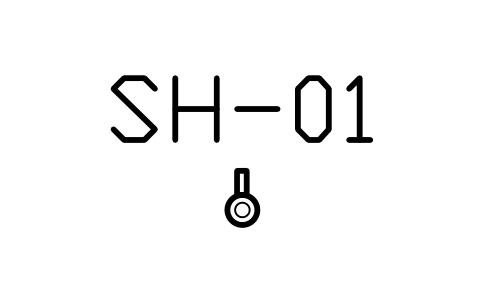
Shower head, wall, 120
TWI_SHOWER_HEADAttributes
TAGITEM_TYPESIZEMATERIALROUGH_IN_MMQTYMANUFACTURERMODELREMARKSDESC
Shower head, rain, 300
TWI_SHOWER_RAINAttributes
TAGITEM_TYPESIZEMATERIALROUGH_IN_MMQTYMANUFACTURERMODELREMARKSDESC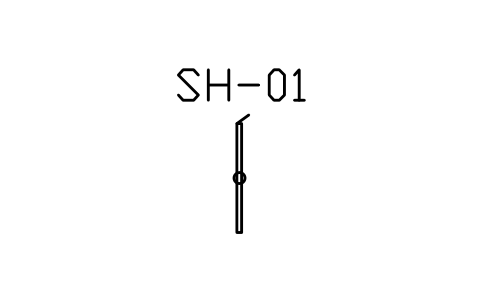
Slide rail shower set
TWI_SHOWER_SLIDEAttributes
TAGITEM_TYPESIZEMATERIALROUGH_IN_MMQTYMANUFACTURERMODELREMARKSDESC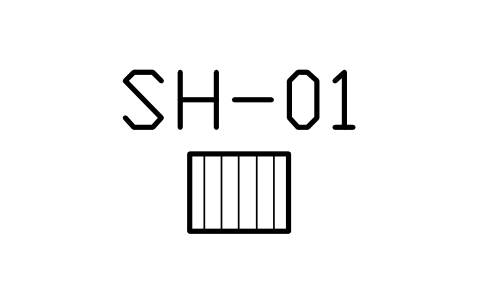
Shower bench, folding, 450 x 350
TWI_SHOWER_BENCHAttributes
TAGITEM_TYPESIZEMATERIALROUGH_IN_MMQTYMANUFACTURERMODELREMARKSDESC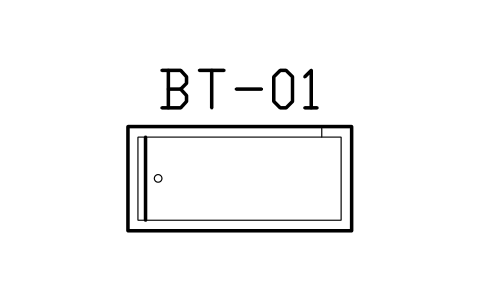
Bathtub, 1500 x 700
TWI_TUB_1500Attributes
TAGITEM_TYPESIZEMATERIALROUGH_IN_MMQTYMANUFACTURERMODELREMARKSDESC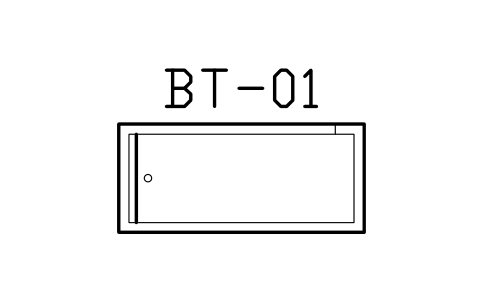
Bathtub, 1700 x 750
TWI_TUB_1700Attributes
TAGITEM_TYPESIZEMATERIALROUGH_IN_MMQTYMANUFACTURERMODELREMARKSDESC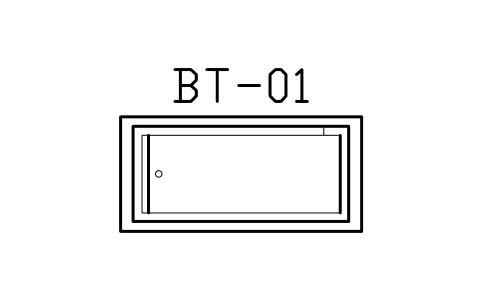
Bathtub, 1700 x 800, with deck
TWI_TUB_1700_SUNKAttributes
TAGITEM_TYPESIZEMATERIALROUGH_IN_MMQTYMANUFACTURERMODELREMARKSDESC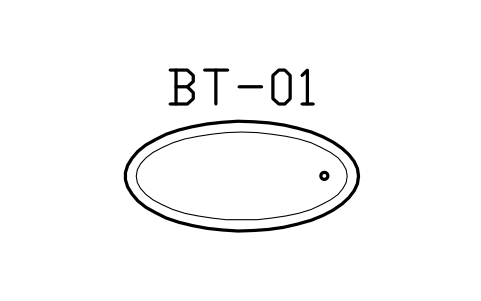
Freestanding tub, oval, 1700 x 800
TWI_TUB_OVALAttributes
TAGITEM_TYPESIZEMATERIALROUGH_IN_MMQTYMANUFACTURERMODELREMARKSDESC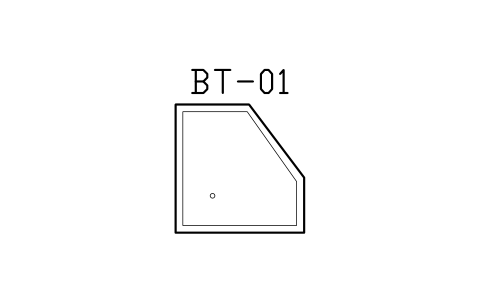
Corner tub, 1400 x 1400
TWI_TUB_CORNERAttributes
TAGITEM_TYPESIZEMATERIALROUGH_IN_MMQTYMANUFACTURERMODELREMARKSDESC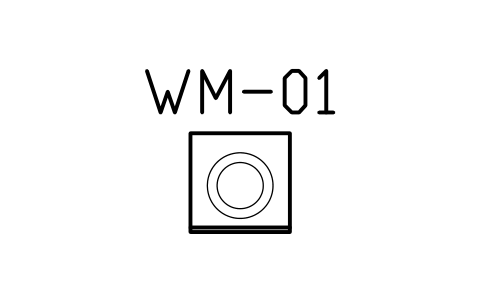
Washing machine, front load, 600
TWI_WASHER_600Attributes
TAGITEM_TYPESIZEMATERIALROUGH_IN_MMQTYMANUFACTURERMODELREMARKSDESC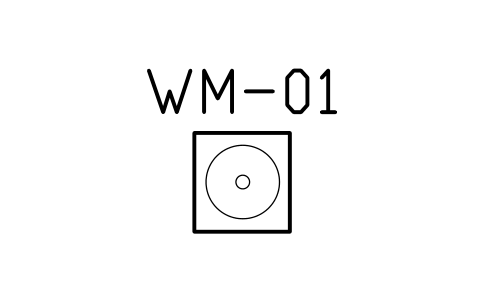
Washing machine, top load, 580
TWI_WASHER_TOPAttributes
TAGITEM_TYPESIZEMATERIALROUGH_IN_MMQTYMANUFACTURERMODELREMARKSDESC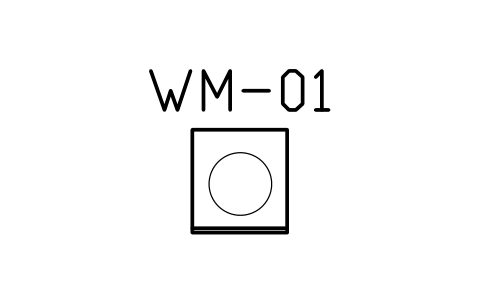
Clothes dryer, 600 x 650
TWI_DRYER_600Attributes
TAGITEM_TYPESIZEMATERIALROUGH_IN_MMQTYMANUFACTURERMODELREMARKSDESC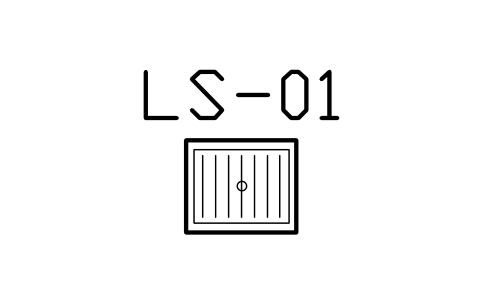
Laundry sink with board, 600 x 500
TWI_LAUNDRY_SINKAttributes
TAGITEM_TYPESIZEMATERIALROUGH_IN_MMQTYMANUFACTURERMODELREMARKSDESC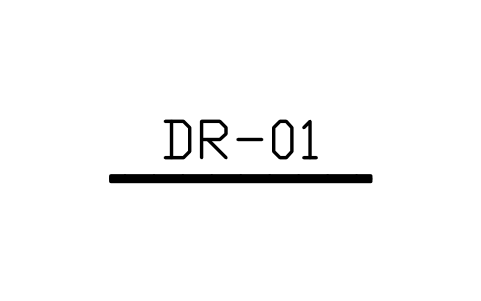
Drying rack, pole, 1800
TWI_DRYING_RACKAttributes
TAGITEM_TYPESIZEMATERIALROUGH_IN_MMQTYMANUFACTURERMODELREMARKSDESC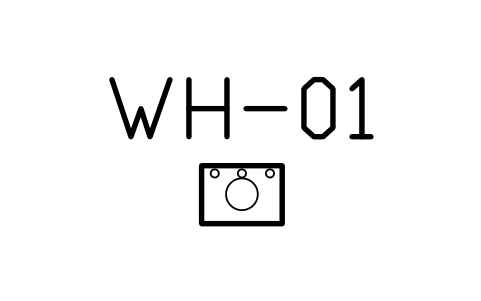
Water heater, 350 x 250
TWI_WATER_HEATERAttributes
TAGITEM_TYPESIZEMATERIALROUGH_IN_MMQTYMANUFACTURERMODELREMARKSDESC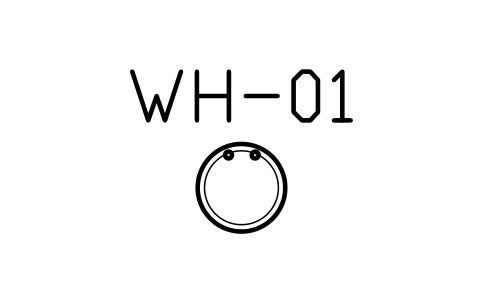
Storage water heater, 450 dia
TWI_WATER_TANK_200Attributes
TAGITEM_TYPESIZEMATERIALROUGH_IN_MMQTYMANUFACTURERMODELREMARKSDESC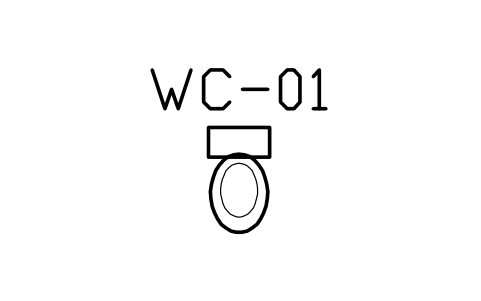
Toilet, close coupled, 400 x 700
TWI_WC_CLOSEAttributes
TAGITEM_TYPESIZEMATERIALROUGH_IN_MMQTYMANUFACTURERMODELREMARKSDESC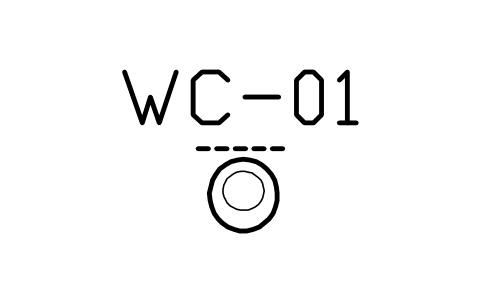
Toilet, wall hung, 360 x 540
TWI_WC_WALLHUNGAttributes
TAGITEM_TYPESIZEMATERIALROUGH_IN_MMQTYMANUFACTURERMODELREMARKSDESC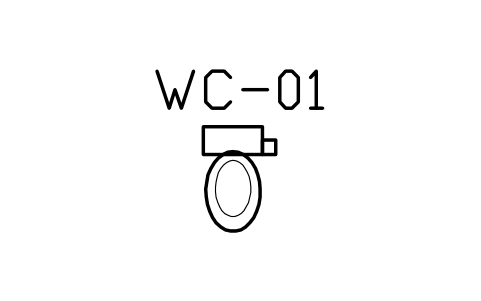
Toilet, bidet seat, 400 x 730
TWI_WC_SMARTAttributes
TAGITEM_TYPESIZEMATERIALROUGH_IN_MMQTYMANUFACTURERMODELREMARKSDESC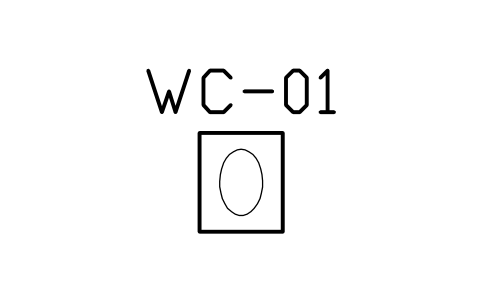
Squat pan, 500 x 600
TWI_WC_SQUATAttributes
TAGITEM_TYPESIZEMATERIALROUGH_IN_MMQTYMANUFACTURERMODELREMARKSDESC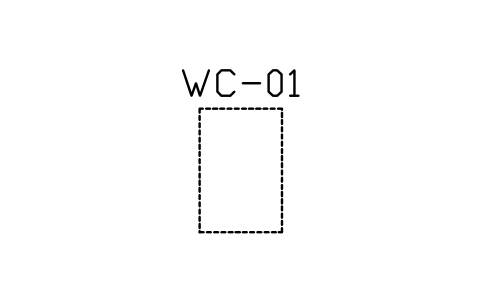
Toilet clearance, 800 x 1200
TWI_WC_ZONEAttributes
TAGITEM_TYPESIZEMATERIALROUGH_IN_MMQTYMANUFACTURERMODELREMARKSDESC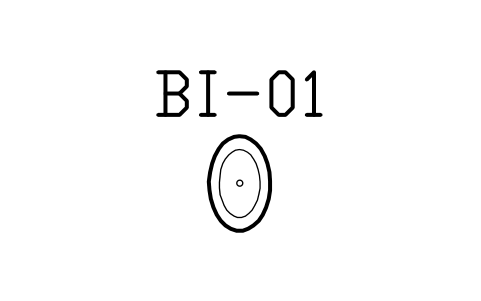
Bidet, 360 x 560
TWI_BIDETAttributes
TAGITEM_TYPESIZEMATERIALROUGH_IN_MMQTYMANUFACTURERMODELREMARKSDESC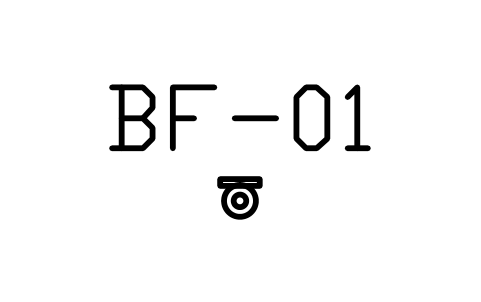
Toilet roll holder
TWI_TOILET_PAPERAttributes
TAGITEM_TYPESIZEMATERIALROUGH_IN_MMQTYMANUFACTURERMODELREMARKSDESC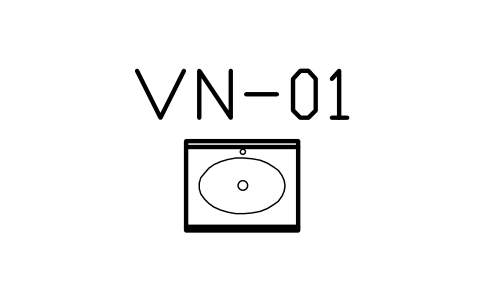
Vanity cabinet, 600 x 480
TWI_VANITY_600Attributes
TAGITEM_TYPESIZEMATERIALROUGH_IN_MMQTYMANUFACTURERMODELREMARKSDESC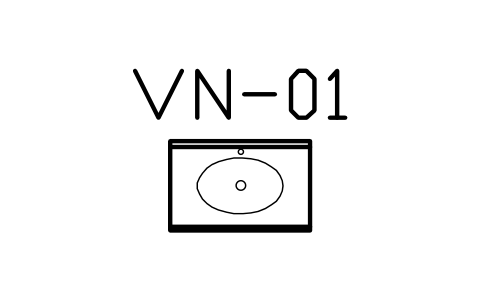
Vanity cabinet, 750 x 480
TWI_VANITY_750Attributes
TAGITEM_TYPESIZEMATERIALROUGH_IN_MMQTYMANUFACTURERMODELREMARKSDESC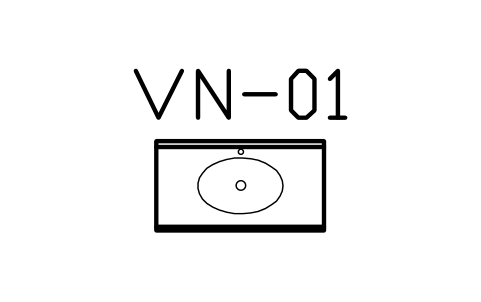
Vanity cabinet, 900 x 480
TWI_VANITY_900Attributes
TAGITEM_TYPESIZEMATERIALROUGH_IN_MMQTYMANUFACTURERMODELREMARKSDESC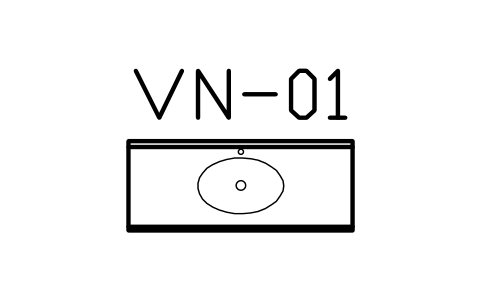
Vanity cabinet, 1200 x 480
TWI_VANITY_1200Attributes
TAGITEM_TYPESIZEMATERIALROUGH_IN_MMQTYMANUFACTURERMODELREMARKSDESC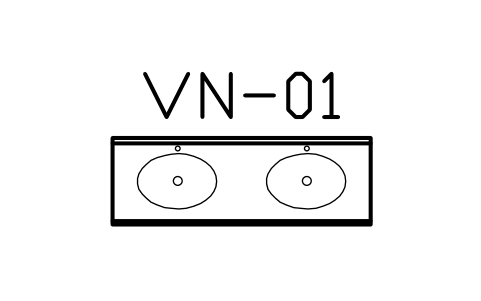
Vanity cabinet, double, 1500 x 500
TWI_VANITY_1500Attributes
TAGITEM_TYPESIZEMATERIALROUGH_IN_MMQTYMANUFACTURERMODELREMARKSDESC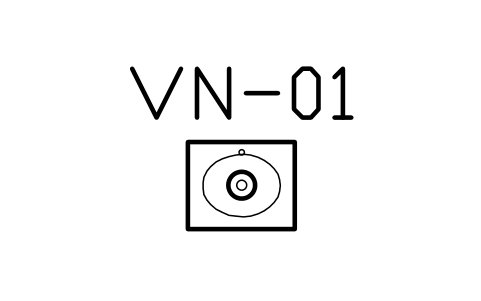
Basin, pedestal, 550 x 450
TWI_BASIN_PEDESTALAttributes
TAGITEM_TYPESIZEMATERIALROUGH_IN_MMQTYMANUFACTURERMODELREMARKSDESC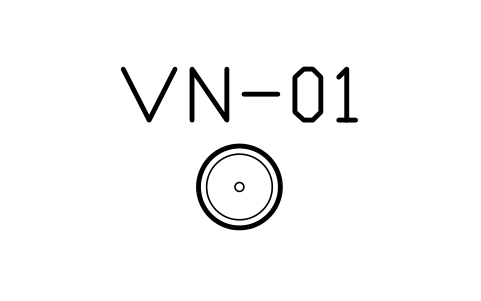
Basin, countertop bowl, 400
TWI_BASIN_VESSELAttributes
TAGITEM_TYPESIZEMATERIALROUGH_IN_MMQTYMANUFACTURERMODELREMARKSDESC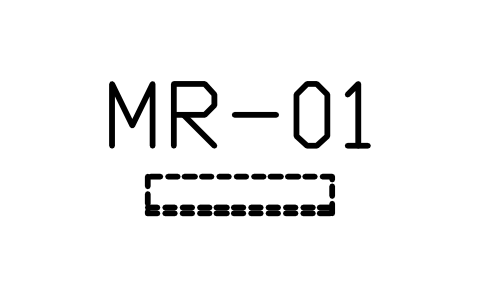
Mirror cabinet, 750 x 150
TWI_MIRROR_CABINETAttributes
TAGITEM_TYPESIZEMATERIALROUGH_IN_MMQTYMANUFACTURERMODELREMARKSDESC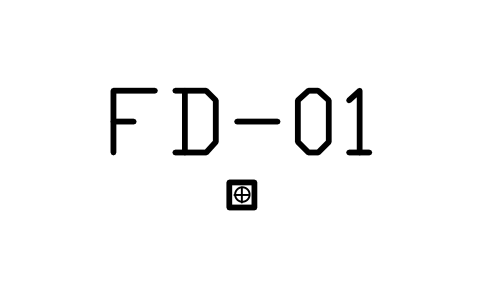
Floor drain, 100 x 100
TWI_FLOOR_DRAINAttributes
TAGITEM_TYPESIZEMATERIALROUGH_IN_MMQTYMANUFACTURERMODELREMARKSDESC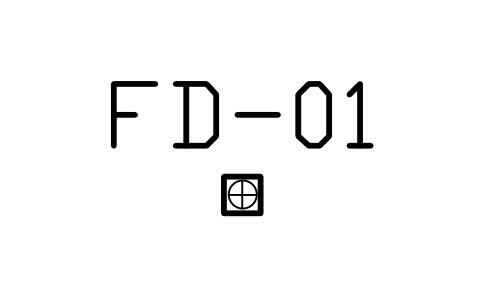
Floor drain, 150 x 150
TWI_FLOOR_DRAIN_150Attributes
TAGITEM_TYPESIZEMATERIALROUGH_IN_MMQTYMANUFACTURERMODELREMARKSDESC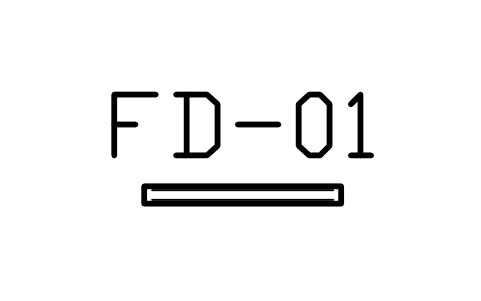
Linear drain, 800 x 70
TWI_DRAIN_LINEAR_800Attributes
TAGITEM_TYPESIZEMATERIALROUGH_IN_MMQTYMANUFACTURERMODELREMARKSDESC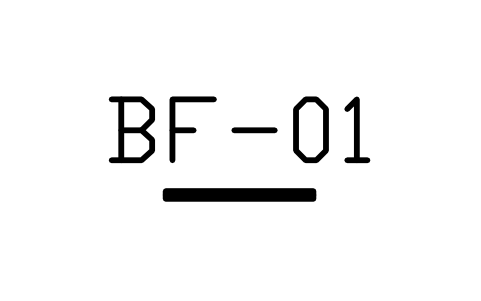
Towel rail, 600
TWI_TOWEL_RAILAttributes
TAGITEM_TYPESIZEMATERIALROUGH_IN_MMQTYMANUFACTURERMODELREMARKSDESC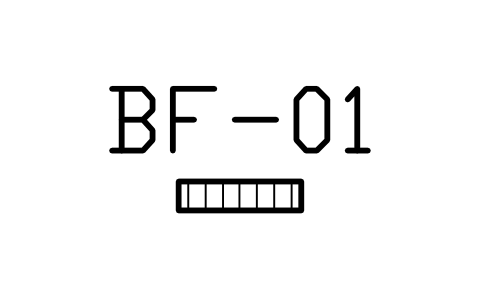
Towel warmer, 500 x 120
TWI_TOWEL_HEATERAttributes
TAGITEM_TYPESIZEMATERIALROUGH_IN_MMQTYMANUFACTURERMODELREMARKSDESC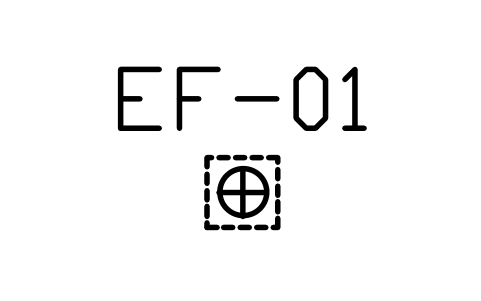
Bathroom exhaust fan, 300
TWI_VENT_FANAttributes
TAGITEM_TYPESIZEMATERIALROUGH_IN_MMQTYMANUFACTURERMODELREMARKSDESC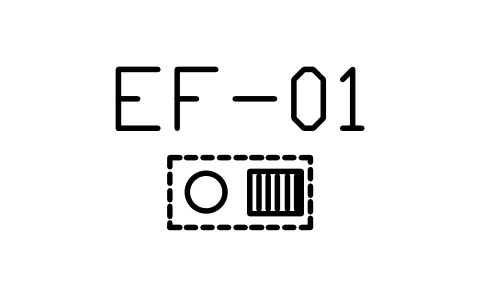
Heater and vent unit, 600 x 300
TWI_HEAT_VENTAttributes
TAGITEM_TYPESIZEMATERIALROUGH_IN_MMQTYMANUFACTURERMODELREMARKSDESC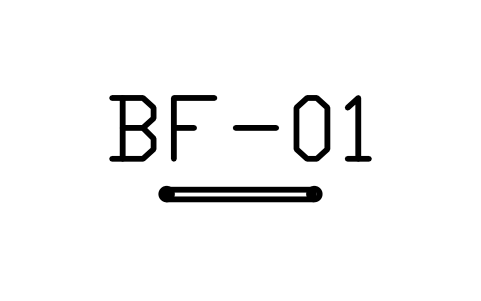
Grab bar, 600
TWI_GRAB_BARAttributes
TAGITEM_TYPESIZEMATERIALROUGH_IN_MMQTYMANUFACTURERMODELREMARKSDESC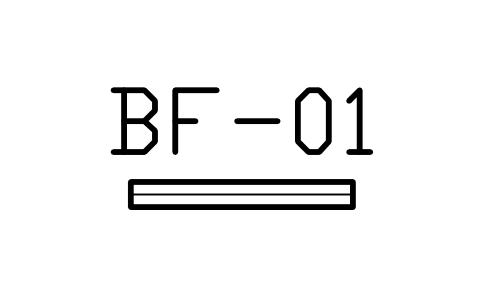
Shower threshold, 900 x 100
TWI_SHOWER_THRESHOLDAttributes
TAGITEM_TYPESIZEMATERIALROUGH_IN_MMQTYMANUFACTURERMODELREMARKSDESC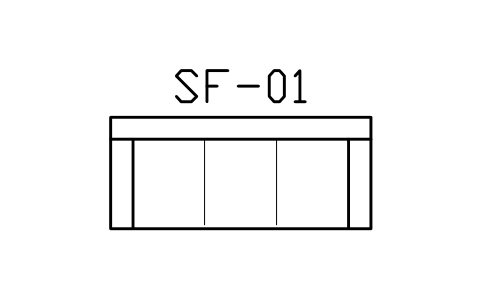
Sofa, 3 seats, 2100 x 900
TWI_SOFA_3Attributes
TAGITEM_TYPESIZEMATERIALFINISHQTYMANUFACTURERMODELREMARKSDESC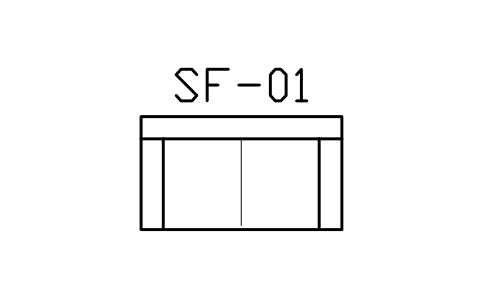
Sofa, 2 seats, 1600 x 900
TWI_SOFA_2Attributes
TAGITEM_TYPESIZEMATERIALFINISHQTYMANUFACTURERMODELREMARKSDESC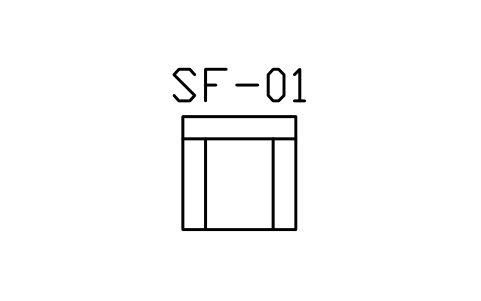
Armchair, 900 x 900
TWI_SOFA_1Attributes
TAGITEM_TYPESIZEMATERIALFINISHQTYMANUFACTURERMODELREMARKSDESC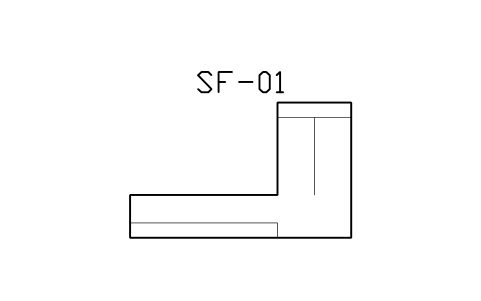
Sofa, L shape, 2700 x 1650
TWI_SOFA_LAttributes
TAGITEM_TYPESIZEMATERIALFINISHQTYMANUFACTURERMODELREMARKSDESC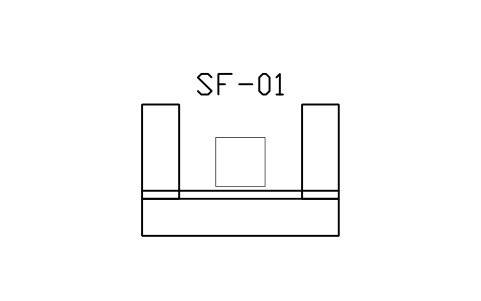
Rosewood sofa set, 3 + 1 + 1
TWI_SOFA_WOODAttributes
TAGITEM_TYPESIZEMATERIALFINISHQTYMANUFACTURERMODELREMARKSDESC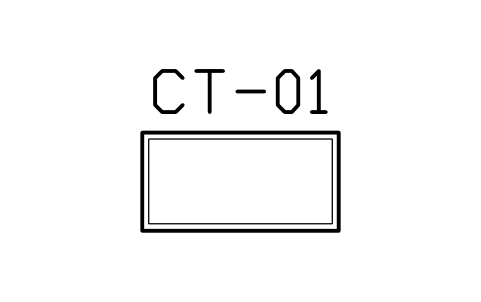
Coffee table, 1200 x 600
TWI_COFFEE_1200Attributes
TAGITEM_TYPESIZEMATERIALFINISHQTYMANUFACTURERMODELREMARKSDESC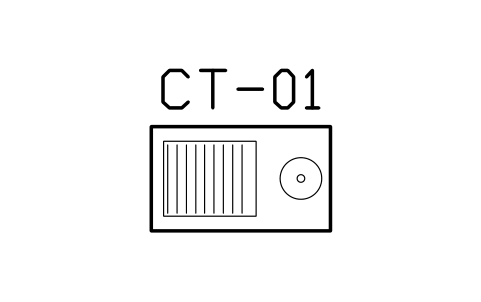
Tea table with sink, 1200 x 700
TWI_TEA_TABLEAttributes
TAGITEM_TYPESIZEMATERIALFINISHQTYMANUFACTURERMODELREMARKSDESC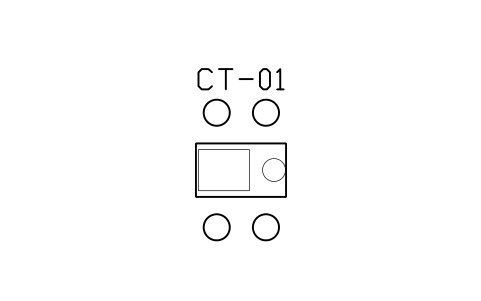
Tea table with 4 stools, 1500
TWI_TEA_STOOLSAttributes
TAGITEM_TYPESIZEMATERIALFINISHQTYMANUFACTURERMODELREMARKSDESC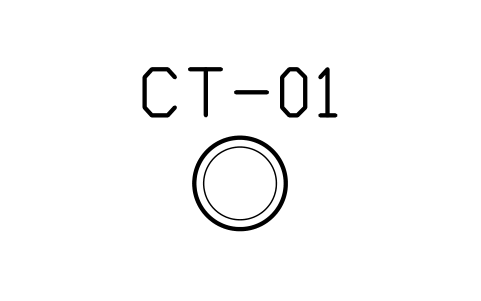
Side table, 500
TWI_SIDE_TABLEAttributes
TAGITEM_TYPESIZEMATERIALFINISHQTYMANUFACTURERMODELREMARKSDESC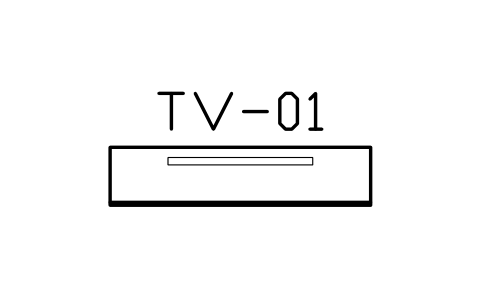
TV cabinet, 1800 x 400
TWI_TV_1800Attributes
TAGITEM_TYPESIZEMATERIALFINISHQTYMANUFACTURERMODELREMARKSDESC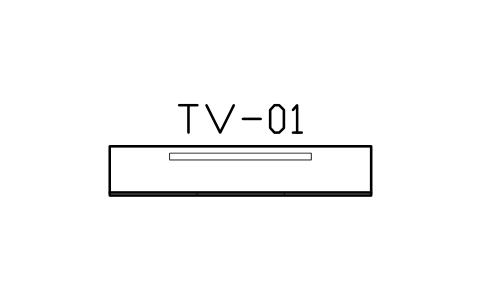
TV cabinet, 2400 x 450
TWI_TV_2400Attributes
TAGITEM_TYPESIZEMATERIALFINISHQTYMANUFACTURERMODELREMARKSDESC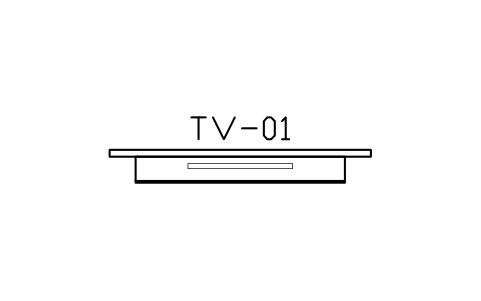
TV wall with cabinet, 3000 x 450
TWI_TV_WALLAttributes
TAGITEM_TYPESIZEMATERIALFINISHQTYMANUFACTURERMODELREMARKSDESC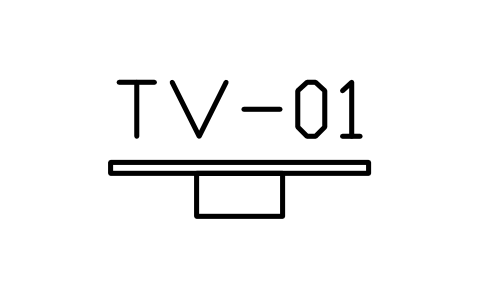
TV on stand, 1200 x 350
TWI_TV_STANDAttributes
TAGITEM_TYPESIZEMATERIALFINISHQTYMANUFACTURERMODELREMARKSDESC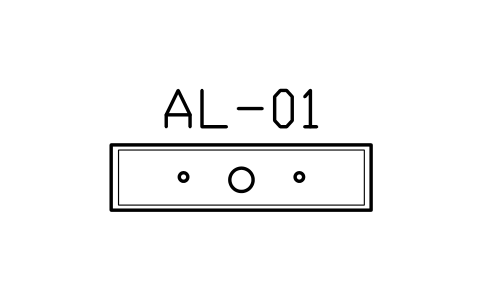
Altar table, 1800 x 450
TWI_ALTAR_1800Attributes
TAGITEM_TYPESIZEMATERIALFINISHQTYMANUFACTURERMODELREMARKSDESC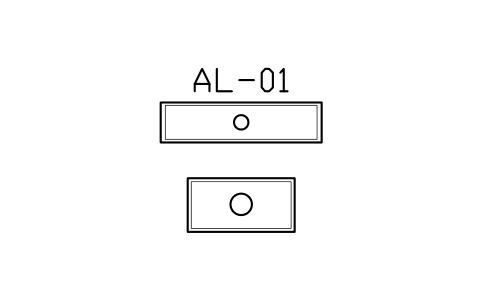
Altar table with offering table
TWI_ALTAR_SETAttributes
TAGITEM_TYPESIZEMATERIALFINISHQTYMANUFACTURERMODELREMARKSDESC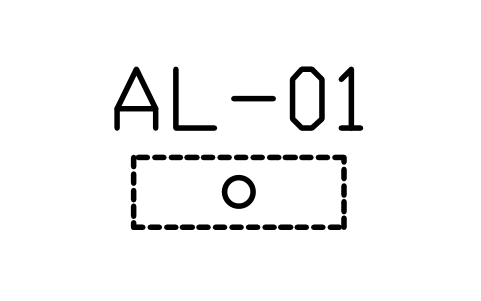
Wall altar shelf, 900 x 300
TWI_ALTAR_WALLAttributes
TAGITEM_TYPESIZEMATERIALFINISHQTYMANUFACTURERMODELREMARKSDESC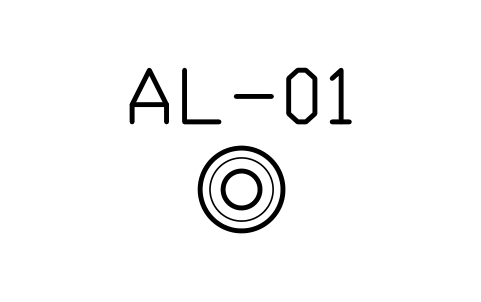
Incense burner stand, 400
TWI_INCENSE_BURNERAttributes
TAGITEM_TYPESIZEMATERIALFINISHQTYMANUFACTURERMODELREMARKSDESC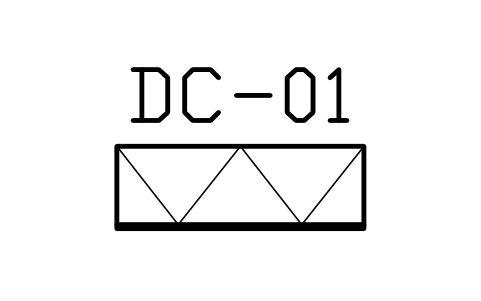
Display cabinet, 1200 x 400
TWI_SHOWCASE_1200Attributes
TAGITEM_TYPESIZEMATERIALFINISHQTYMANUFACTURERMODELREMARKSDESC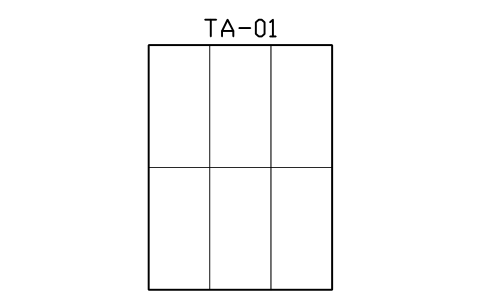
Tatami room, 6 mats, 2700 x 3600
TWI_TATAMI_6Attributes
TAGITEM_TYPESIZEMATERIALFINISHQTYMANUFACTURERMODELREMARKSDESC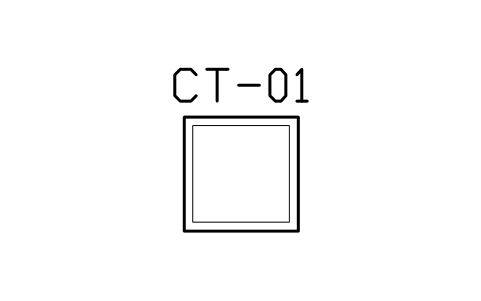
Low table, 900 x 900
TWI_LOW_TABLEAttributes
TAGITEM_TYPESIZEMATERIALFINISHQTYMANUFACTURERMODELREMARKSDESC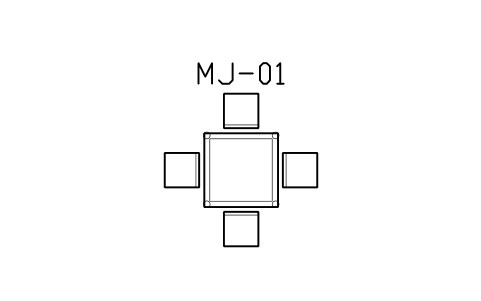
Mahjong table with 4 chairs
TWI_MAHJONGAttributes
TAGITEM_TYPESIZEMATERIALFINISHQTYMANUFACTURERMODELREMARKSDESC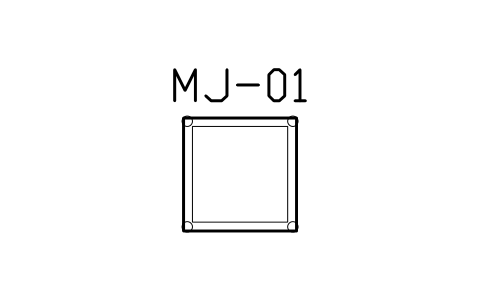
Mahjong table, 900 x 900
TWI_MAHJONG_TABLEAttributes
TAGITEM_TYPESIZEMATERIALFINISHQTYMANUFACTURERMODELREMARKSDESC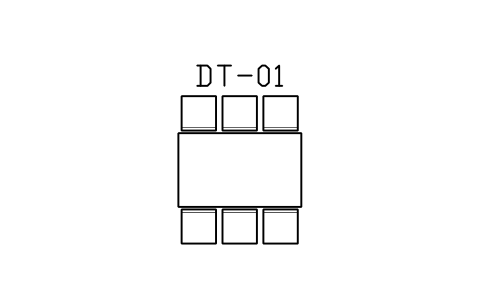
Dining table, 6 seats, 1500 x 900
TWI_DINING_1500Attributes
TAGITEM_TYPESIZEMATERIALFINISHQTYMANUFACTURERMODELREMARKSDESC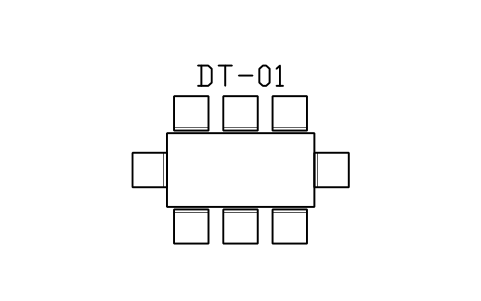
Dining table, 8 seats, 1800 x 900
TWI_DINING_1800Attributes
TAGITEM_TYPESIZEMATERIALFINISHQTYMANUFACTURERMODELREMARKSDESC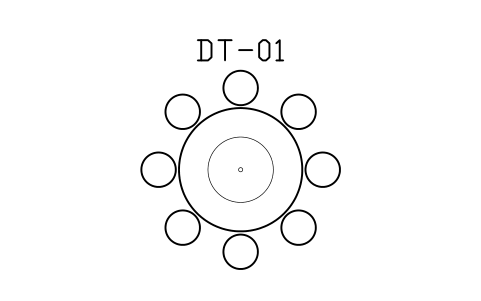
Round table, lazy Susan, 1500
TWI_ROUND_1500Attributes
TAGITEM_TYPESIZEMATERIALFINISHQTYMANUFACTURERMODELREMARKSDESC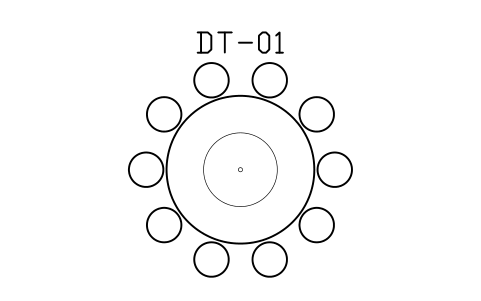
Round banquet table, 10 seats, 1800
TWI_ROUND_1800Attributes
TAGITEM_TYPESIZEMATERIALFINISHQTYMANUFACTURERMODELREMARKSDESC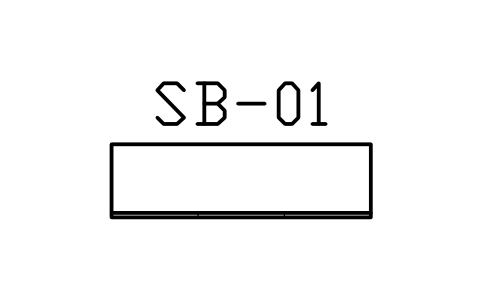
Sideboard, 1600 x 450
TWI_SIDEBOARD_1600Attributes
TAGITEM_TYPESIZEMATERIALFINISHQTYMANUFACTURERMODELREMARKSDESC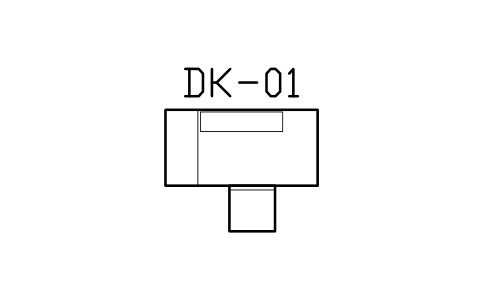
Desk with chair, 1400 x 700
TWI_DESK_1400Attributes
TAGITEM_TYPESIZEMATERIALFINISHQTYMANUFACTURERMODELREMARKSDESC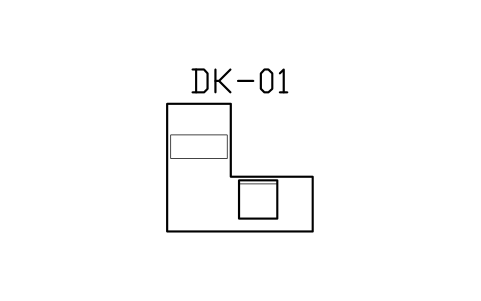
Desk, L shape, 1600 x 1400
TWI_DESK_LAttributes
TAGITEM_TYPESIZEMATERIALFINISHQTYMANUFACTURERMODELREMARKSDESC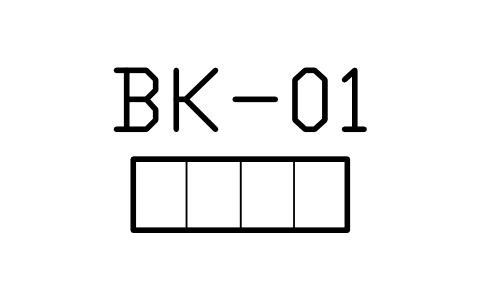
Bookcase, 900 x 300
TWI_BOOKCASE_900Attributes
TAGITEM_TYPESIZEMATERIALFINISHQTYMANUFACTURERMODELREMARKSDESC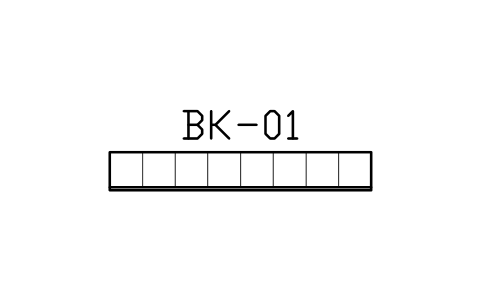
Bookcase wall, 2400 x 350
TWI_BOOKWALL_2400Attributes
TAGITEM_TYPESIZEMATERIALFINISHQTYMANUFACTURERMODELREMARKSDESC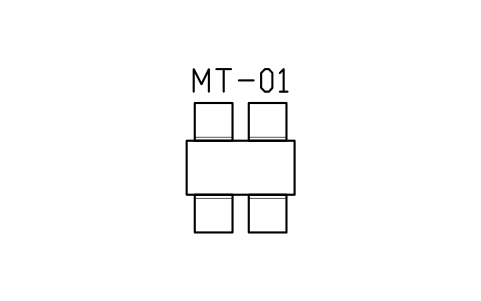
Meeting table, 4 seats, 1200 x 600
TWI_MEET_1200Attributes
TAGITEM_TYPESIZEMATERIALFINISHQTYMANUFACTURERMODELREMARKSDESC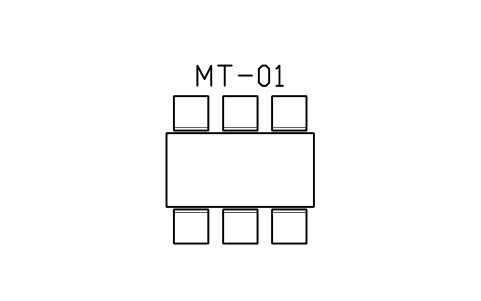
Meeting table, 6 seats, 1800 x 900
TWI_MEET_1800Attributes
TAGITEM_TYPESIZEMATERIALFINISHQTYMANUFACTURERMODELREMARKSDESC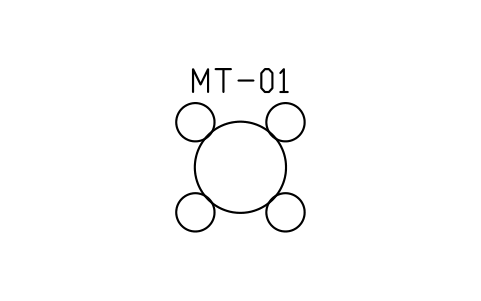
Meeting table, round, 1000
TWI_MEET_ROUNDAttributes
TAGITEM_TYPESIZEMATERIALFINISHQTYMANUFACTURERMODELREMARKSDESC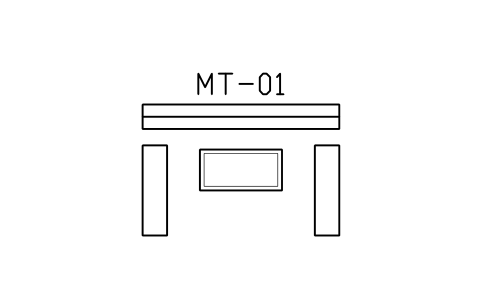
Reception sofa set, 2400 x 1600
TWI_MEET_SOFAAttributes
TAGITEM_TYPESIZEMATERIALFINISHQTYMANUFACTURERMODELREMARKSDESC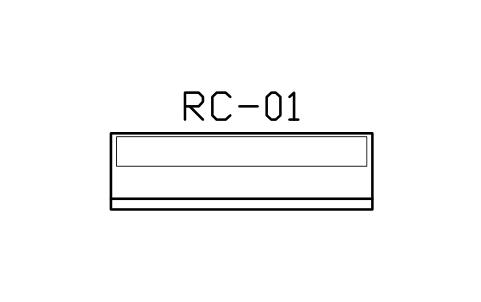
Reception counter, 2400 x 700
TWI_RECEPTIONAttributes
TAGITEM_TYPESIZEMATERIALFINISHQTYMANUFACTURERMODELREMARKSDESC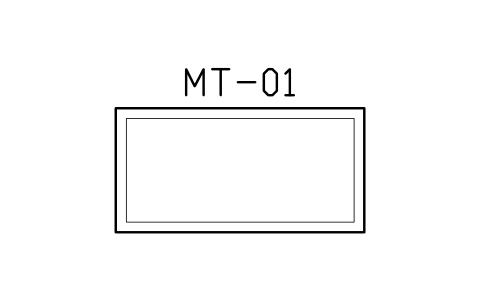
Sales centre model table, 2400 x 1200
TWI_SALES_TABLEAttributes
TAGITEM_TYPESIZEMATERIALFINISHQTYMANUFACTURERMODELREMARKSDESC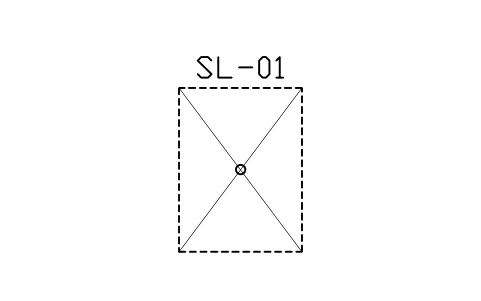
Sunken slab, bathroom, 1500 x 2000
TWI_SUNK_BATHAttributes
TAGITEM_TYPESIZELEVEL_MMLOCATIONREMARKSDESC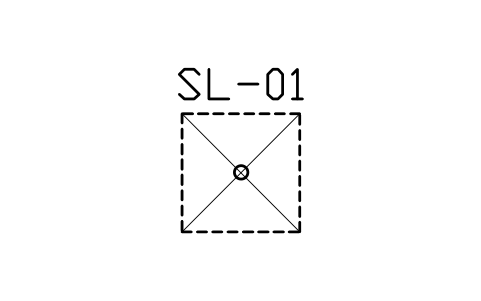
Sunken slab, shower, 1000 x 1000
TWI_SUNK_SHOWERAttributes
TAGITEM_TYPESIZELEVEL_MMLOCATIONREMARKSDESC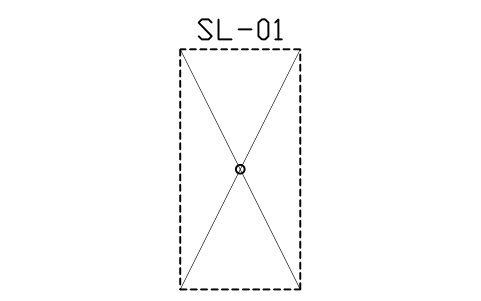
Sunken slab, balcony, 1500 x 3000
TWI_SUNK_BALCONYAttributes
TAGITEM_TYPESIZELEVEL_MMLOCATIONREMARKSDESC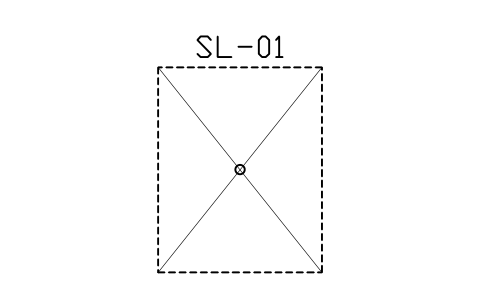
Sunken slab, kitchen, 2000 x 2500
TWI_SUNK_KITCHENAttributes
TAGITEM_TYPESIZELEVEL_MMLOCATIONREMARKSDESC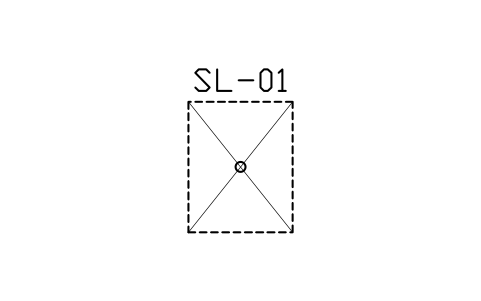
Sunken slab, laundry, 1200 x 1500
TWI_SUNK_LAUNDRYAttributes
TAGITEM_TYPESIZELEVEL_MMLOCATIONREMARKSDESC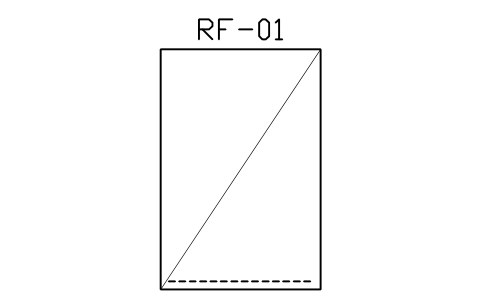
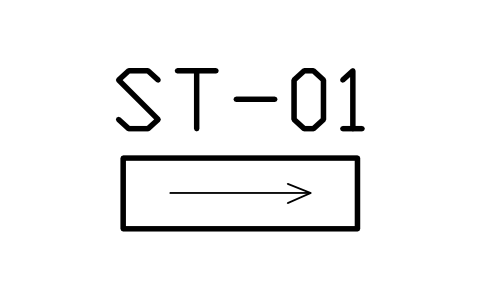
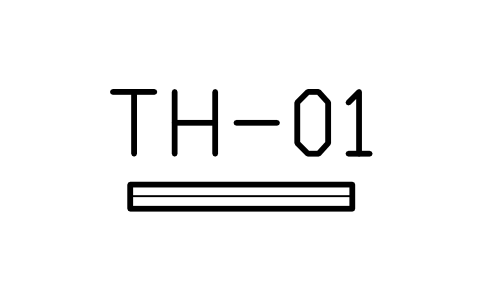
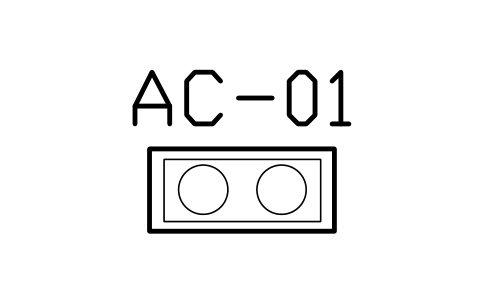
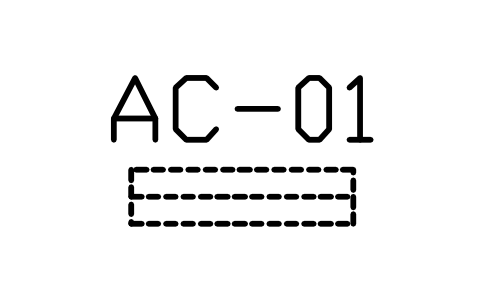
Split air conditioner, indoor, 900
TWI_AC_INDOORAttributes
TAGITEM_TYPESIZELEVEL_MMLOCATIONREMARKSDESC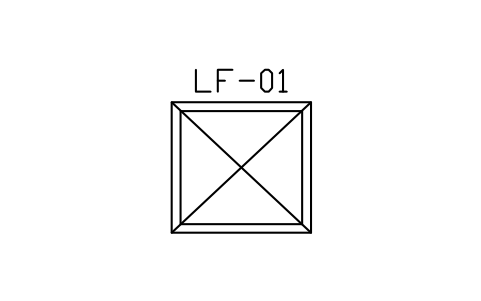
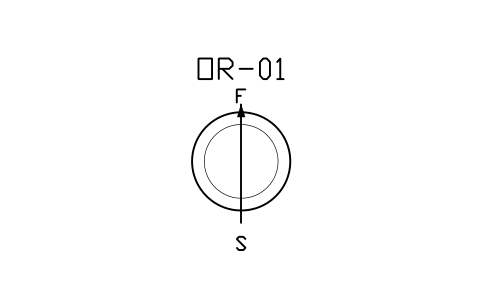
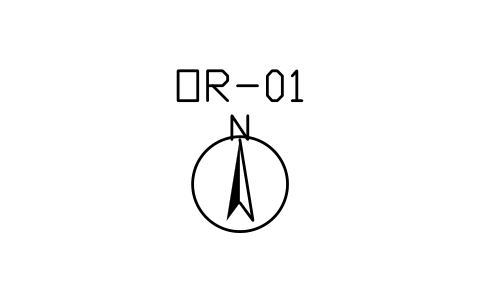
Missing a symbol? Tell us which one.
Attributes for parts lists
Every block carries a tag you can number and invisible attributes for the schedule. A cabinet or piece of furniture holds ITEM_TYPE, SIZE, MATERIAL, FINISH, QTY, MANUFACTURER, MODEL and REMARKS; a sanitary item adds ROUGH_IN_MM for the drain or supply position; a slab or building mark holds ITEM_TYPE, SIZE, LEVEL_MM, LOCATION and REMARKS.
Export the blocks of a fit-out plan to Excel with BlockSync to list cabinets, sanitary ware and furniture as a schedule for the quotation, check the quantities against the contract and write the changes back in one run, with preview and backup.
How to use the library
- Unzip the file and open the DWG. Copy the symbols you need into your plan, or drag the blocks in from DesignCenter (ADCENTER).
- The blocks are drawn at real size in millimetres, 1 drawing unit = 1 mm, so a 600 x 600 base cabinet is 600 x 600 units on the plan. The usual modules are used: base cabinets 600 deep, wall cabinets 350 deep, sliding wardrobes 600 deep, hinged wardrobes 550 deep, and beds in the Taiwanese foot sizes 3, 3.5, 5, 6 and 7 ft (910, 1050, 1520, 1820 and 2130 mm wide, 1880 mm long).
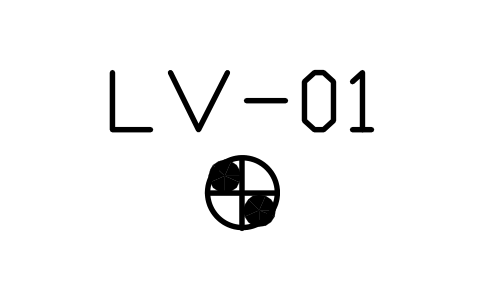
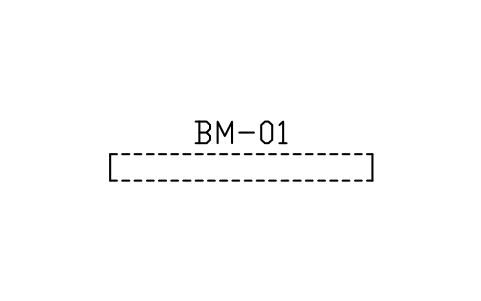
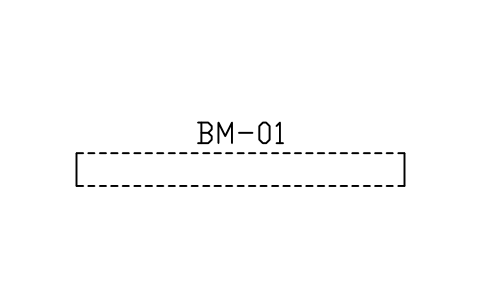
- The front of a cabinet, with its doors and drawers, is towards -Y and the back stands on the wall at +Y, so you insert it with the back to the wall and rotate by 90 degrees for the other walls. Door swings are thin arcs. Items above the cut plane, such as wall cabinets, hoods, beams and mirror cabinets, are dashed, so base and wall units can sit on the same spot.
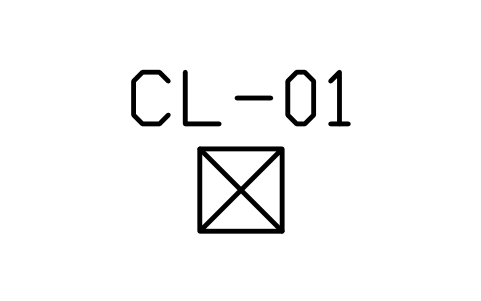
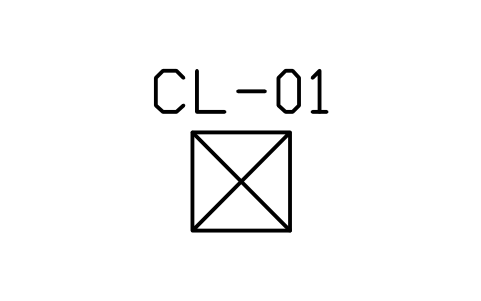
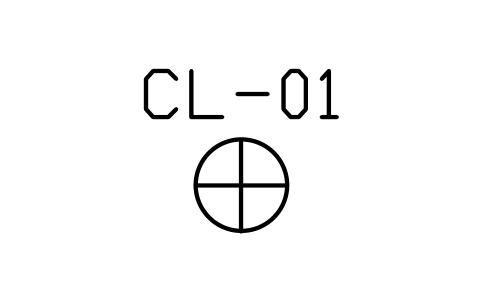
- A sunken slab (降板) is shown as a dashed outline with two diagonals and a drain circle; put the depth, for example -150, in the LEVEL_MM attribute. Showers, tubs and drains are separate blocks so that you can place the sunken slab first and arrange the fittings inside. Scale the slab blocks to your room.
About the drawings
There is no standard for interior fit-out symbols in Taiwan. The blocks follow the common drawing practice of Taiwanese interior design offices and system cabinet makers: cabinets as outlines with a door line and swing, wall units dashed, sanitary ware as outlines with its bowl or tray, sunken slabs as dashed areas.
The blocks are our own drawings, not copies, and the library is not certified. The sizes are typical modules and furniture sizes; the real size depends on the maker and on your site, so check every part against the catalogue of the product you specify and your local building and fire rules.
Frequently asked questions
- Does the library include the sunken slab (降板)?
- Yes. There are sunken slab areas for a bathroom, a shower, a balcony, a kitchen and a laundry, a raised floor, a step and a threshold, and two shower blocks that show the sunken area around the tray. The depth goes into the LEVEL_MM attribute.
- Which bed sizes are included?
- The Taiwanese foot sizes: single 3 ft (910 x 1880), single large 3.5 ft (1050), double 5 ft (1520), double large 6 ft (1820) and king 7 ft (2130), plus a 6 ft bed with a headboard cabinet, a bunk bed, a child bed and a cot, with bedside tables and dressing tables.
- Can I use the symbols in commercial projects?
- Yes. They are free to use and modify in your own projects, including commercial ones. They are provided as is, without warranty. Please do not redistribute or resell the library; see the library terms.
- How are wall cabinets and beams shown?
- Everything above the cut plane is drawn with a dashed outline: wall cabinets, hoods, floating shelves, mirror cabinets, beams and indoor air conditioner units. This way a base cabinet and the wall cabinet above it can be placed on the same spot and still be read separately.
- Can I change a symbol or add attributes?
- Yes. Open the DWG, edit a block with BEDIT to change it or add attributes, and save. To update drawings that already contain the block, run ATTSYNC or replace the block. Make a backup first: attribute values can be lost if ATTSYNC is used carelessly.
- Where do I find a ready-made set of these symbols for AutoCAD?
- AutoCAD itself ships only a small set of sample blocks, so a full symbol set has to come from a library. Download the ZIP on this page and open the DWG: every symbol is a block. Insert one with INSERT (Blocks palette, Libraries tab, then pick the DWG) or drag it from DesignCenter (ADCENTER). You can also download a single symbol on its own.