
Guides/Symbols & blocks
Electrical Plan Symbols for AutoCAD — Free DWG Blocks for Lights, Sockets and Switches on a Floor Plan
Updated October 28, 2026
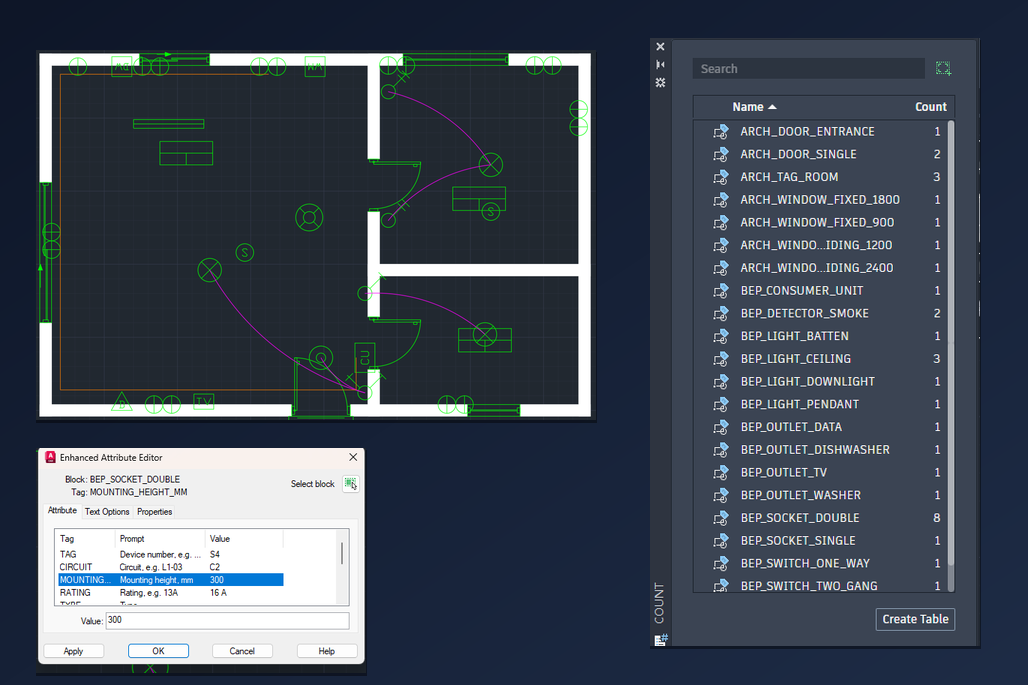
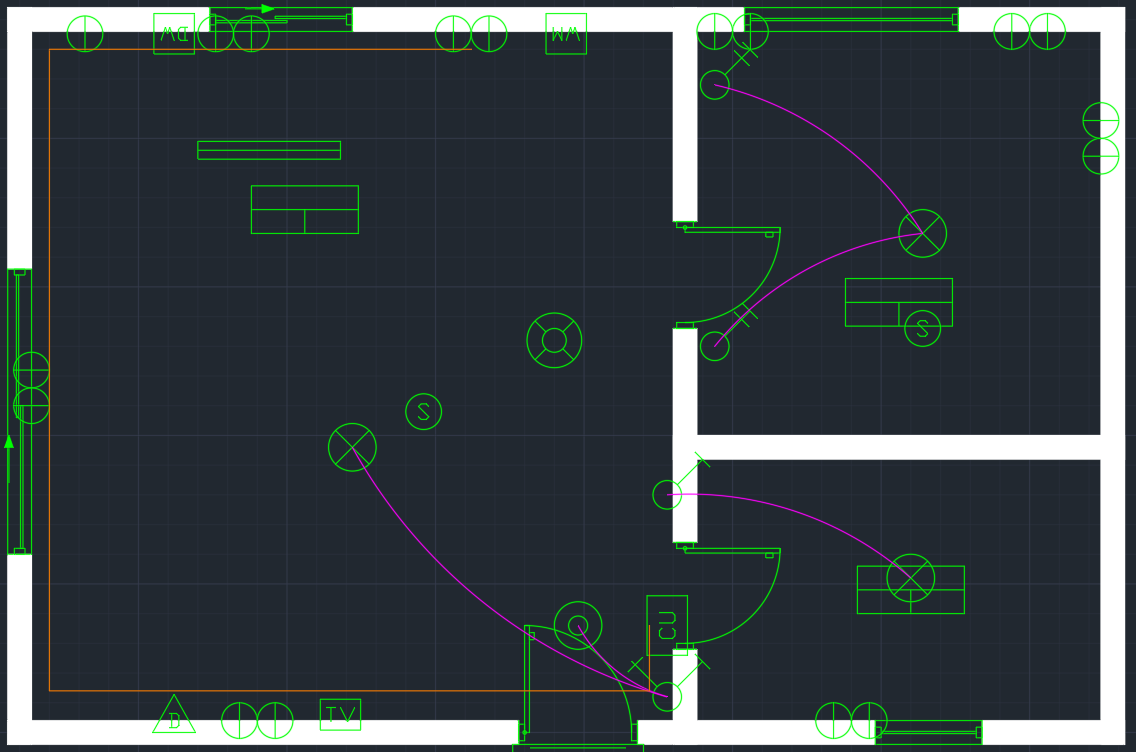
An electrical layout is the same job on every project: lights in the ceiling, switches by the doors, sockets along the walls, and a line from each switch to the lights it controls. The drawing is only useful if the symbols are consistent and the counts are right, because the installer prices the job from them. This guide shows how to do that in AutoCAD with the free electrical plan symbols from CADXChange: how to place them, how to size them for your sheet, how to draw the switch legs, and how to keep the circuit data in the blocks so you can count them.
The library has 175 symbols for building electrical plans: sockets and outlets, one-way, two-way, intermediate, dimmer and multi-gang switches, ceiling, wall, downlight and emergency luminaires, data, TV and telephone outlets, smoke and heat detectors, alarm and access control devices, distribution boards and earthing. Each one is a plain DWG block, drawn in millimetres. They work in AutoCAD and AutoCAD LT.
1. Pick the symbols you need
Open the building electrical plan symbols page and download the symbols for your job. Each symbol is its own small ZIP with one DWG and a README, so you only take what you use. The names start with BEP_ and say what the symbol is: BEP_SOCKET_DOUBLE, BEP_SWITCH_TWO_WAY, BEP_LIGHT_CEILING, BEP_DETECTOR_SMOKE and so on. For a flat or a small house you need about ten of them: ceiling light, downlight, one-way and two-way switch, single and double socket, TV and data outlet, smoke detector and the consumer unit.
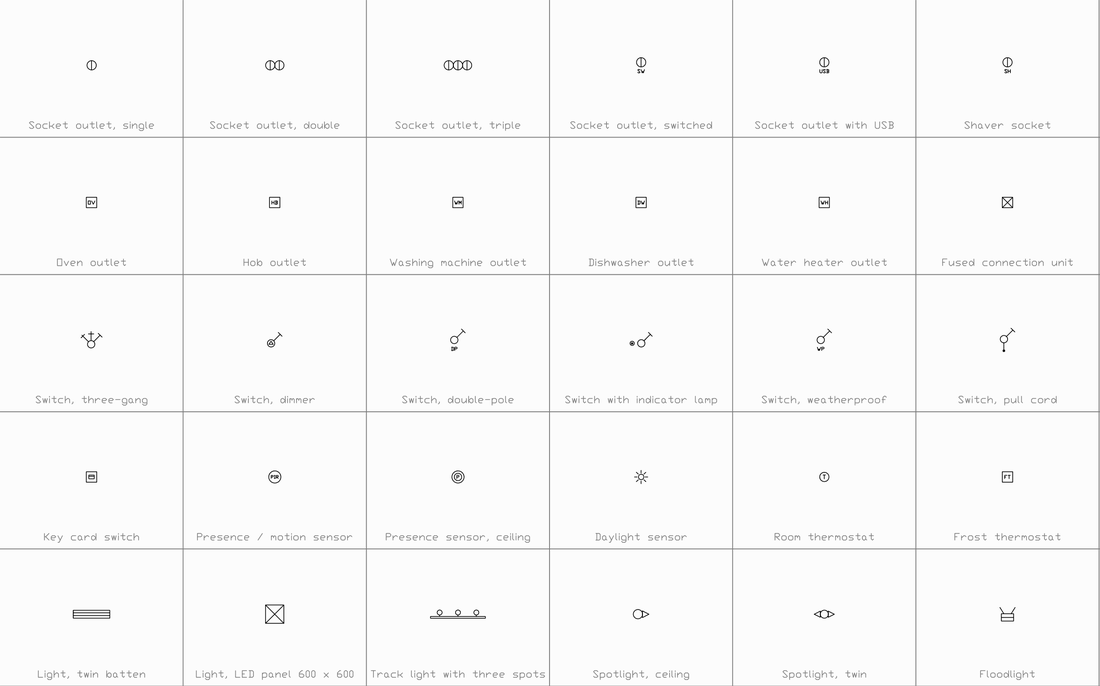
The sheet on the page shows the drawing of every symbol with its name, so you can find the right one without opening files. Put the ones you use in one folder; that is what you will browse to when you insert.
2. Place the devices and turn them to the wall
Start INSERT (or the Blocks palette), browse to the DWG and click the position of the device. The insertion point is the centre of the symbol, so a socket on a wall goes on the wall face or the wall line, whichever your office draws it on, and you click exactly there. Sockets, ceiling lights and detectors are circles and need no turning. Switches have a lever that points up and to the right: rotate them in 90 degree steps so the lever points into the room, as the wall requires.
Place a device once, then copy it. COPY with the Multiple option is the quickest way to put a row of identical lights or sockets in, and each copy keeps the attributes of the block. Two-way switches are separate blocks from one-way ones, so a bedroom lit from the door and from the bed gets two BEP_SWITCH_TWO_WAY, one at each place.
3. Make the symbols the right size for your sheet
The symbols are drawn so that they are easy to read on a 1:50 sheet: a socket circle is 300 mm across, which is 6 mm on paper at 1:50. The files are in millimetres but carry no unit setting, so AutoCAD inserts them at the size they were drawn. In a millimetre drawing that is scale 1. For a 1:100 sheet insert them at scale 2 so they keep the same size on paper, and for a 1:20 detail at 0.4. Always scale all three axes by the same factor.
In a drawing in metres, multiply by 0.001 as well: a socket at 1:50 is scale 0.001 in a drawing in metres, and 0.002 at 1:100. If the numbers on the blocks are in the way while you work, switch the attribute display off with ATTDISP (Off) and turn it on again when you plot.
4. Draw the switch legs and the feeds
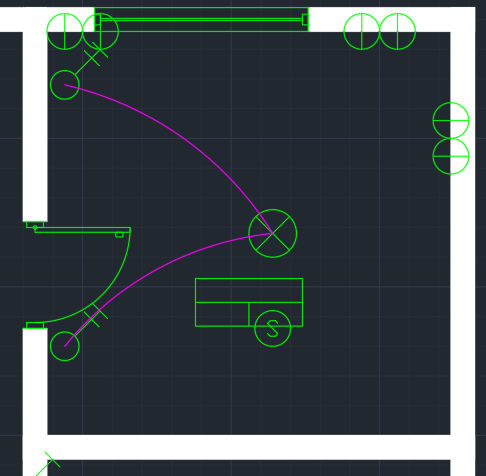
A switch leg is the line from a switch to the light it controls, and on a plan it is drawn as a curve so it does not look like a wall. Use ARC with the Start, Second point, End option, or a polyline with a bulge, from the switch to the light. Put these on their own layer, for example E-CIRCUIT, so you can colour, freeze or plot them separately. The feeds from the consumer unit to the sockets are straight polylines along the walls on a second layer; give each its own colour so a circuit is easy to follow.
The library also has line-style symbols for the legend: concealed, exposed, in floor, overhead and underground circuits, a home run to the panel and a conductor count mark. Use them in the key to the drawing so the reader knows what each line means.
5. Fill in the circuit data
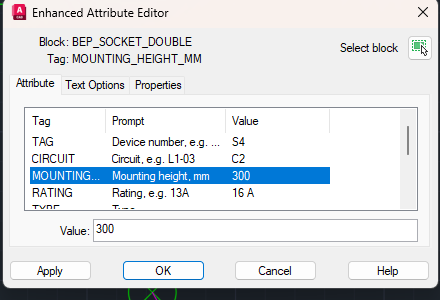
The blocks carry attributes, so the data stays with the device. A socket has TAG, CIRCUIT, MOUNTING_HEIGHT_MM, RATING, TYPE, MANUFACTURER, MODEL and REMARKS. A luminaire has LUMINAIRE_TYPE, LUMENS, POWER_W, CIRCUIT, CONTROL and so on, and a distribution board has BOARD_NAME, RATING_A, PHASES and WAYS. Double-click a device to open the Enhanced Attribute Editor, click a row, type the value in the box below the list and finish with OK.
Do it once for the first socket of a circuit, for example circuit C2 at 300 mm above the floor, and copy it: the copies come with the same values, and you only change the tag. A tag on every device is what lets the installer match the drawing to the board schedule.
6. Count the devices and make the schedule
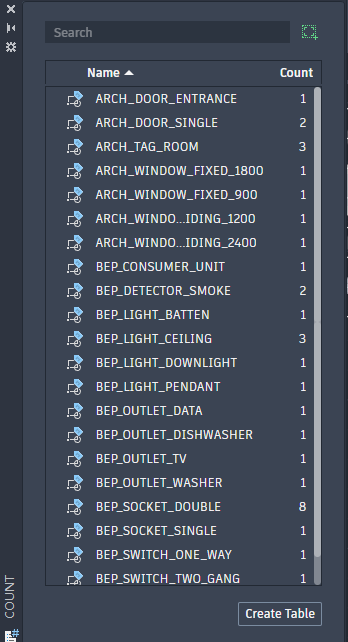
Run the COUNT command, accept the area (the current view is the default) and press Enter at the object prompt to list all blocks. The palette shows every block in the drawing with its number: in this plan 8 double sockets, 3 ceiling lights, 2 smoke detectors and one consumer unit. Click Create Table to put the list into the drawing as a table.
For a schedule with the circuit, the height and the rating of each device, run DATAEXTRACTION, select the blocks and send the attributes to a table or an Excel file. After a change in the layout you run it again and the schedule is up to date.
That is the whole method: place each symbol at its centre and turn it to the wall, scale it for the sheet, draw the legs and feeds on their own layers, keep the circuit data in the attributes and let AutoCAD count. Because the symbols are blocks, a change to one of them can be applied to every copy, and the counts never depend on someone counting by eye.
The symbols are our own drawings, not copies of a standard, and they are not certified; check them against the legend your office, your country or your client uses. You can use and modify them in your own projects, commercial ones included, and hand over the finished drawings. If you publish the symbols or screenshots of them, credit CADXChange and link to the library page. Do not redistribute the library itself.
Before you start — common questions
- Where can I download free electrical plan symbols for AutoCAD?
- CADXChange offers a free library of 175 building electrical plan symbols as DWG blocks: sockets, switches, luminaires, data and TV outlets, detectors, alarm and access devices, distribution boards and earthing. Each symbol is a small ZIP with one DWG and a README, and you can use them in your own drawings, commercial projects included.
- How big are the symbols, and how do I scale them for a 1:100 plan?
- They are drawn in millimetres for a 1:50 sheet: a socket circle is 300 mm, 6 mm on paper at 1:50. For a 1:100 sheet insert them at scale 2, for 1:20 at 0.4, always the same on all axes. In a drawing in metres multiply by 0.001 as well.
- What is the insertion point of a symbol, and how do I turn a switch to the wall?
- The insertion point is the centre of the symbol, so you click where the device sits. Switches have a lever that points up and to the right; rotate them in 90 degree steps so it points into the room.
- Which symbol is a two-way switch for a light controlled from two places?
- BEP_SWITCH_TWO_WAY. Place one at each control position, for example at the bedroom door and at the bed. There is also an intermediate switch, BEP_SWITCH_INTERMEDIATE, for a light controlled from three or more places.
- How do I draw the line from a switch to a light on the plan?
- Draw a switch leg as a curve: use ARC with the Start, Second point, End option from the switch to the light, on its own layer such as E-CIRCUIT. Draw the feeds from the consumer unit as straight polylines along the walls on a different layer.
- What data do the electrical symbol blocks hold?
- Sockets and switches have TAG, CIRCUIT, MOUNTING_HEIGHT_MM, RATING, TYPE, MANUFACTURER, MODEL and REMARKS. Luminaires have LUMINAIRE_TYPE, LUMENS, POWER_W, CIRCUIT and CONTROL, and distribution boards have BOARD_NAME, RATING_A, PHASES and WAYS. Double-click a device to edit them.
- How do I count the sockets, lights and switches on a drawing?
- Run the COUNT command, accept the area and press Enter at the object prompt to list all blocks, and read the number next to each block name. Create Table puts the list into the drawing. For a schedule with circuit and height, use DATAEXTRACTION.
- Can I use the symbols in commercial projects and drawings for clients?
- Yes. You can use and modify the symbols in your own projects, commercial ones included, and hand over the finished drawings. If you publish the symbols or screenshots of them, credit CADXChange and link to the library page. You may not redistribute the library or sell it as a block pack.