
Free building envelope section details for AutoCAD (DWG): walls, roofs, floors, windows, curtain wall
Building envelope section details: 119 ready-made AutoCAD blocks (DWG), free to download and use in your own projects, as a ZIP or one symbol at a time.
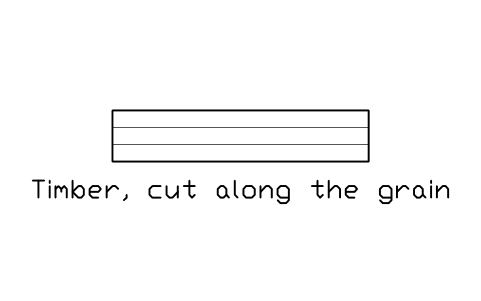
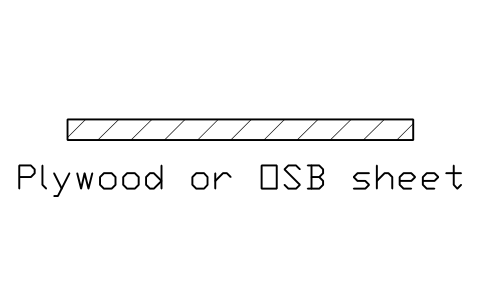
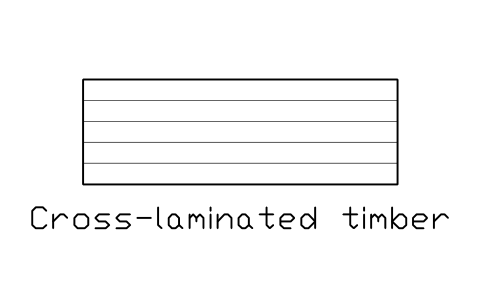
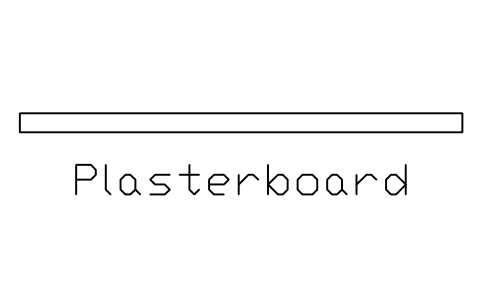
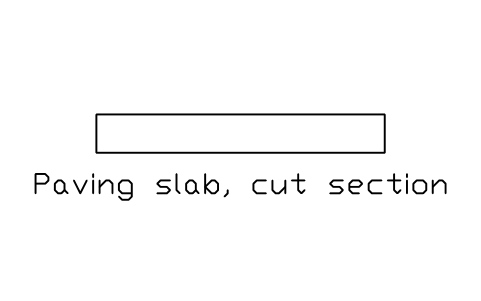
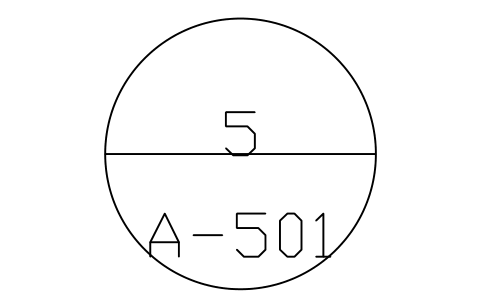
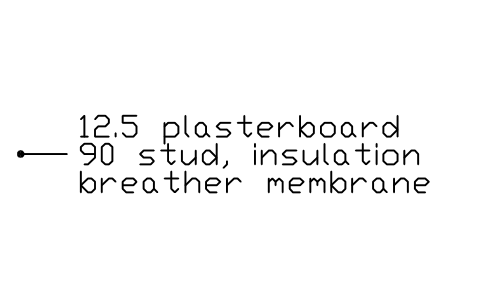
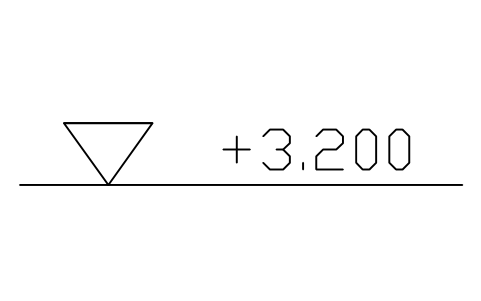
119 section detail blocks for the building envelope at real size in millimetres, with every material in its usual hatch: exterior wall build-ups (brick and block cavity walls, rendered and externally insulated masonry, concrete with brick, render or ventilated cladding, timber frame, structural insulated panels, cross-laminated timber, steel stud walls, insulated metal panels); partitions (plasterboard, timber stud, block, brick, concrete, glass); roof build-ups (warm, inverted, green, metal deck, timber, pitched, panel and cross-laminated timber roofs); floor and ceiling build-ups (ground slabs, suspended floors, timber floors, raised access floors, composite decks, suspended ceilings); wall base, floor and eaves details; pitched roof details (eaves, ridge, verge, abutment); flat roof details (parapet, edge, outlet, door upstand, expansion joint, rooflight kerb); windows and doors in the wall (head, sill and jamb, thresholds); curtain wall and glazing (mullion, transom, corner post, slab edge, shopfront, silicone joint); material swatches; and detail markers.
Using AutoCAD 2017 or an earlier version? Download the 2010 format
Copyright CADXChange. Use and modify the symbols freely in your own drawings and projects, including commercial ones; credit and a link are needed only when you publish them. Please do not redistribute or resell the library. Each ZIP holds one plain DWG file in AutoCAD 2018 format and a README; no add-in needed. Provided as is, without warranty. Library terms (CXL-1.0)
Related symbol libraries
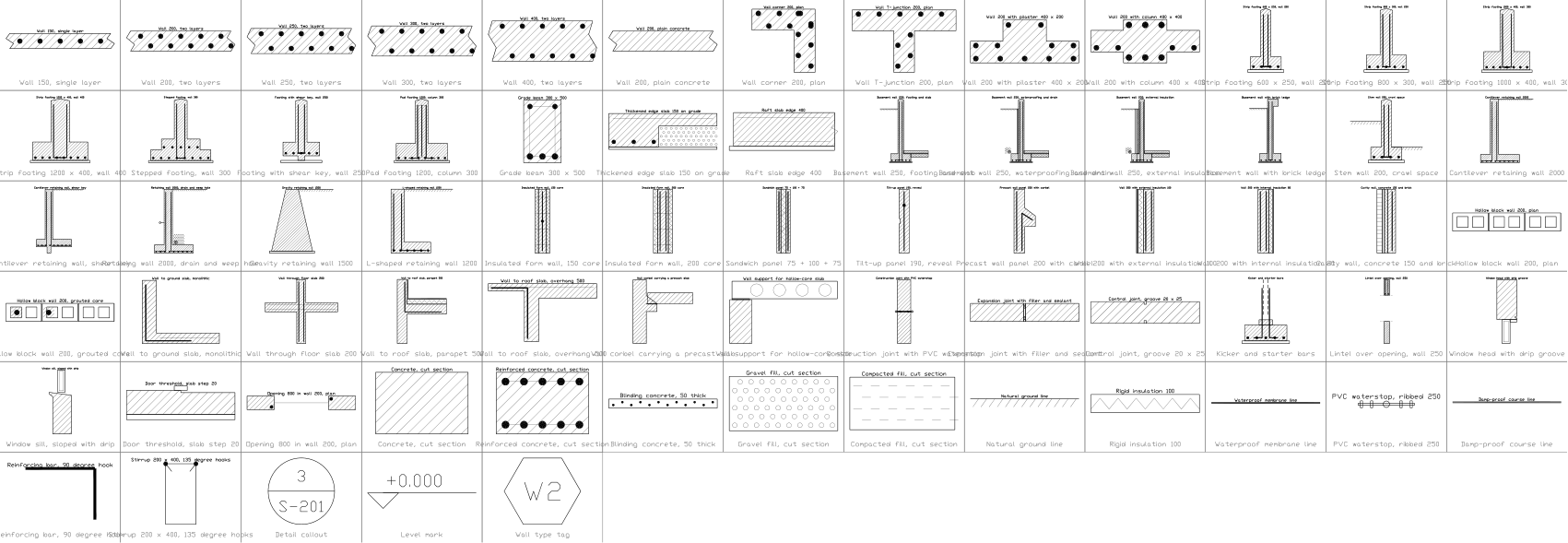
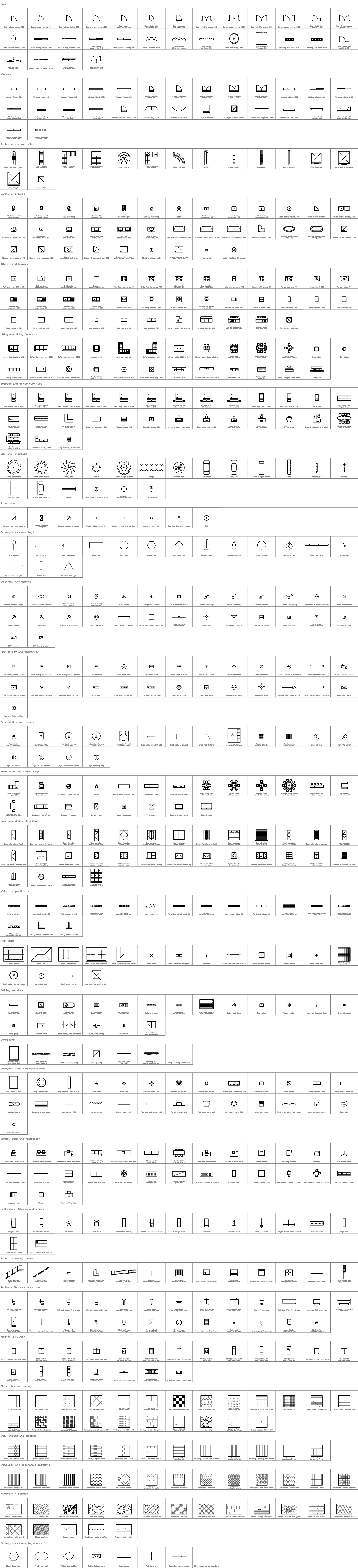
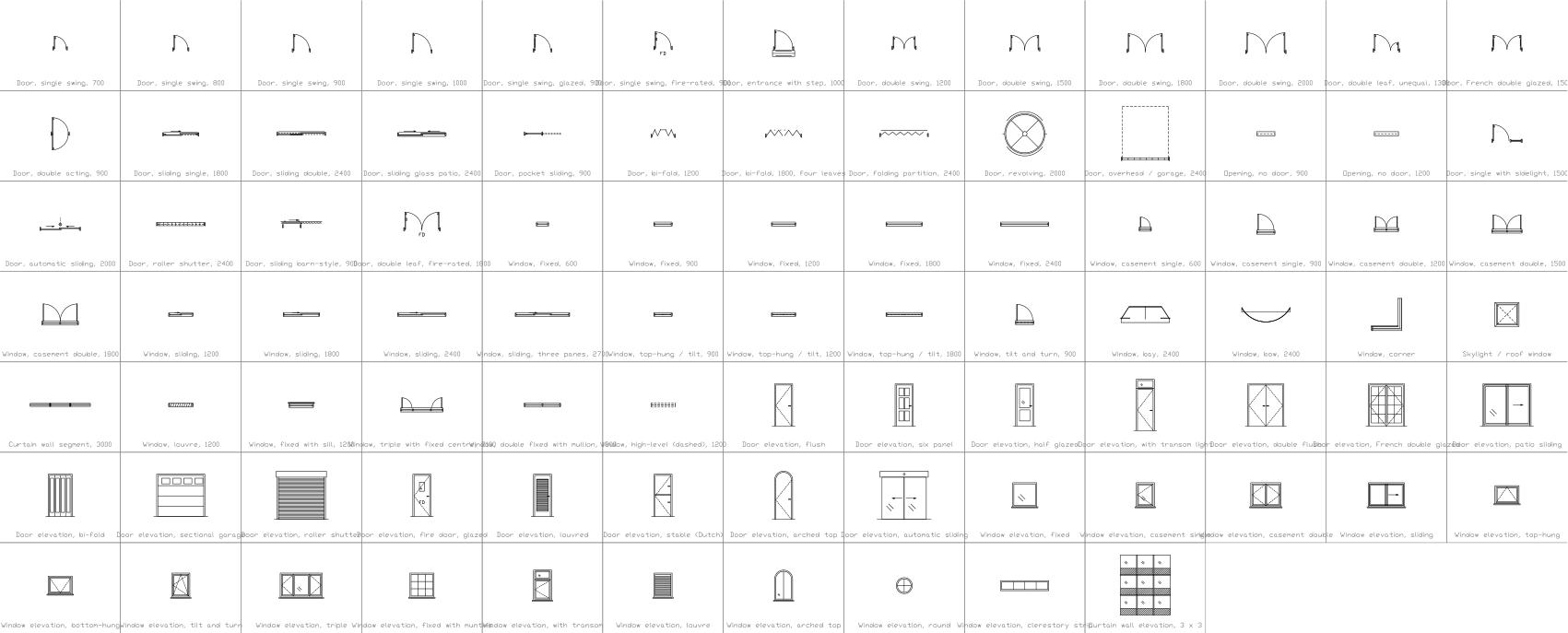
All 119 symbols
119 of 119 symbols
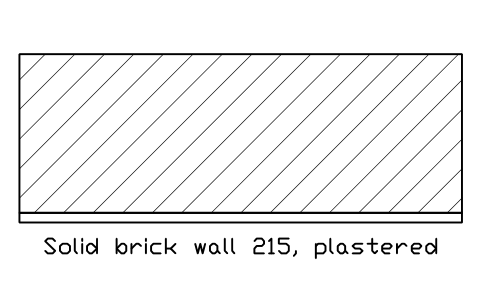
Solid brick wall 215, plastered
BED_W_BRICK_SOLID_215Attributes
DESIGNATIONSIZEMATERIALFIRE_RATINGU_VALUE_W_M2KFINISHDETAIL_NOMANUFACTURERREMARKSDESC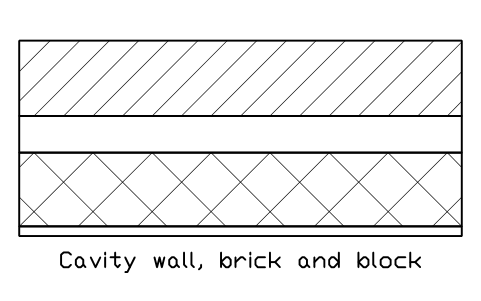
Cavity wall, brick and block
BED_W_CAVITY_EMPTYAttributes
DESIGNATIONSIZEMATERIALFIRE_RATINGU_VALUE_W_M2KFINISHDETAIL_NOMANUFACTURERREMARKSDESC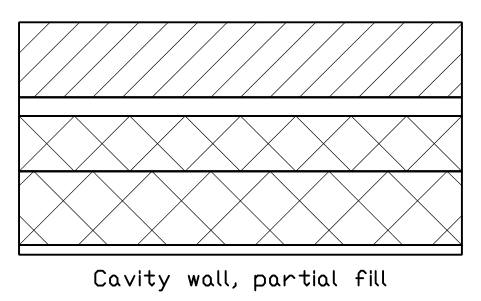
Cavity wall, partial fill
BED_W_CAVITY_PARTIALAttributes
DESIGNATIONSIZEMATERIALFIRE_RATINGU_VALUE_W_M2KFINISHDETAIL_NOMANUFACTURERREMARKSDESC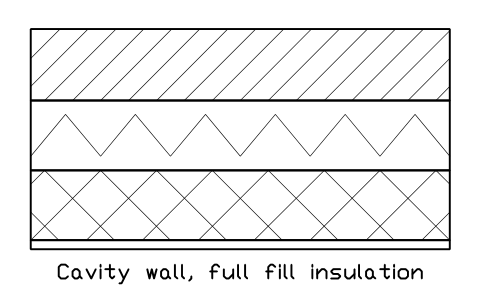
Cavity wall, full fill insulation
BED_W_CAVITY_FULLAttributes
DESIGNATIONSIZEMATERIALFIRE_RATINGU_VALUE_W_M2KFINISHDETAIL_NOMANUFACTURERREMARKSDESC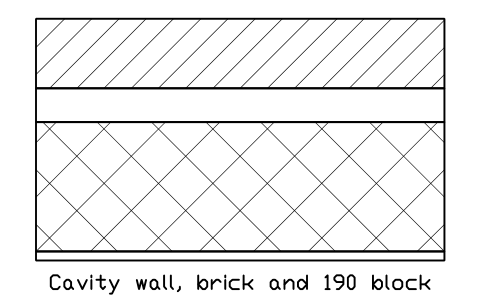
Cavity wall, brick and 190 block
BED_W_CAVITY_190Attributes
DESIGNATIONSIZEMATERIALFIRE_RATINGU_VALUE_W_M2KFINISHDETAIL_NOMANUFACTURERREMARKSDESC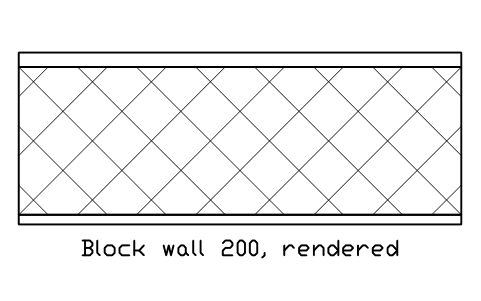
Block wall 200, rendered
BED_W_BLOCK_RENDERAttributes
DESIGNATIONSIZEMATERIALFIRE_RATINGU_VALUE_W_M2KFINISHDETAIL_NOMANUFACTURERREMARKSDESC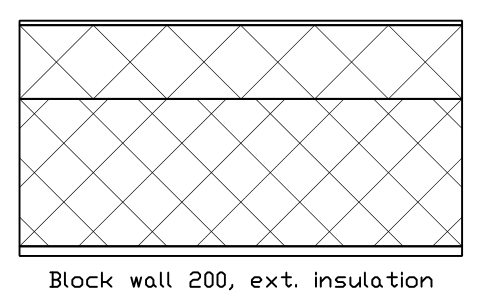
Block wall 200, ext. insulation
BED_W_BLOCK_ETICSAttributes
DESIGNATIONSIZEMATERIALFIRE_RATINGU_VALUE_W_M2KFINISHDETAIL_NOMANUFACTURERREMARKSDESC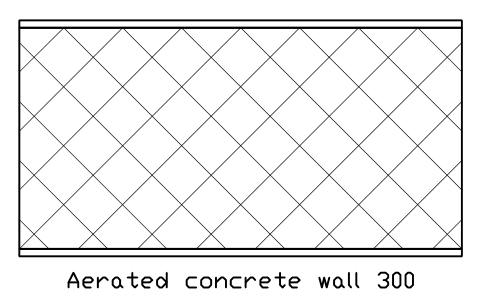
Aerated concrete wall 300
BED_W_AAC_300Attributes
DESIGNATIONSIZEMATERIALFIRE_RATINGU_VALUE_W_M2KFINISHDETAIL_NOMANUFACTURERREMARKSDESC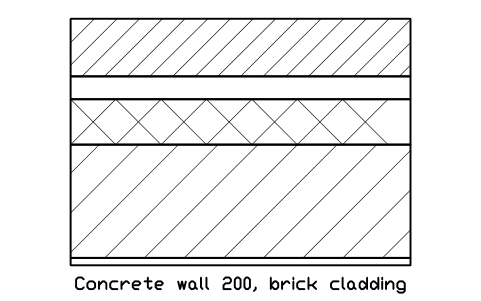
Concrete wall 200, brick cladding
BED_W_CONC_BRICKAttributes
DESIGNATIONSIZEMATERIALFIRE_RATINGU_VALUE_W_M2KFINISHDETAIL_NOMANUFACTURERREMARKSDESC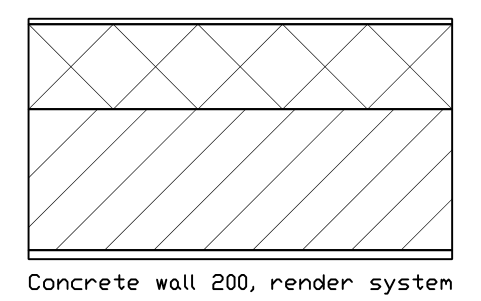
Concrete wall 200, render system
BED_W_CONC_ETICSAttributes
DESIGNATIONSIZEMATERIALFIRE_RATINGU_VALUE_W_M2KFINISHDETAIL_NOMANUFACTURERREMARKSDESC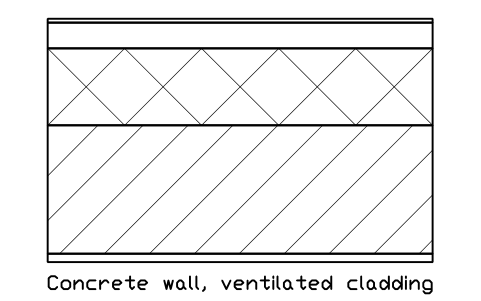
Concrete wall, ventilated cladding
BED_W_CONC_CLADDINGAttributes
DESIGNATIONSIZEMATERIALFIRE_RATINGU_VALUE_W_M2KFINISHDETAIL_NOMANUFACTURERREMARKSDESC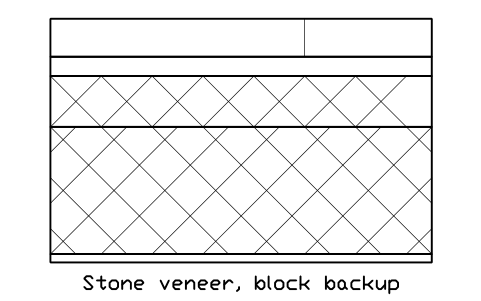
Stone veneer, block backup
BED_W_STONE_CAVITYAttributes
DESIGNATIONSIZEMATERIALFIRE_RATINGU_VALUE_W_M2KFINISHDETAIL_NOMANUFACTURERREMARKSDESC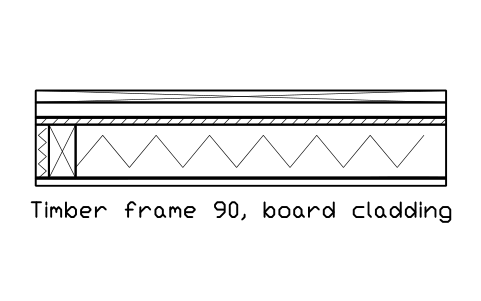
Timber frame 90, board cladding
BED_W_TF_90_BOARDSAttributes
DESIGNATIONSIZEMATERIALFIRE_RATINGU_VALUE_W_M2KFINISHDETAIL_NOMANUFACTURERREMARKSDESC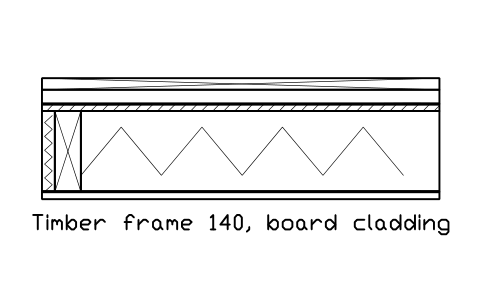
Timber frame 140, board cladding
BED_W_TF_140_BOARDSAttributes
DESIGNATIONSIZEMATERIALFIRE_RATINGU_VALUE_W_M2KFINISHDETAIL_NOMANUFACTURERREMARKSDESC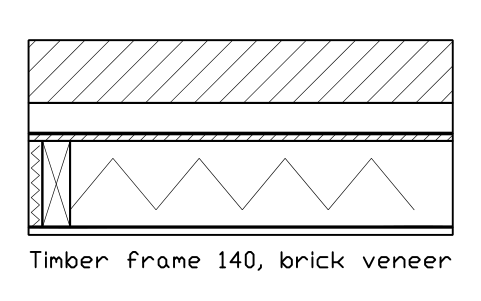
Timber frame 140, brick veneer
BED_W_TF_140_BRICKAttributes
DESIGNATIONSIZEMATERIALFIRE_RATINGU_VALUE_W_M2KFINISHDETAIL_NOMANUFACTURERREMARKSDESC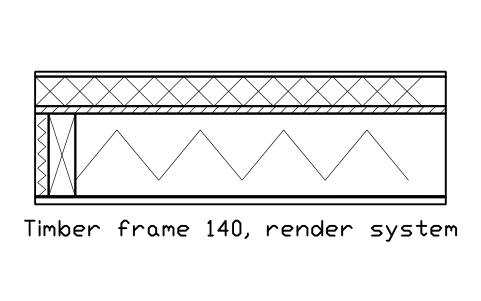
Timber frame 140, render system
BED_W_TF_140_RENDERAttributes
DESIGNATIONSIZEMATERIALFIRE_RATINGU_VALUE_W_M2KFINISHDETAIL_NOMANUFACTURERREMARKSDESC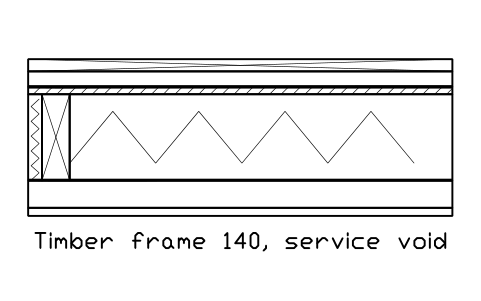
Timber frame 140, service void
BED_W_TF_SERVICE_VOIDAttributes
DESIGNATIONSIZEMATERIALFIRE_RATINGU_VALUE_W_M2KFINISHDETAIL_NOMANUFACTURERREMARKSDESC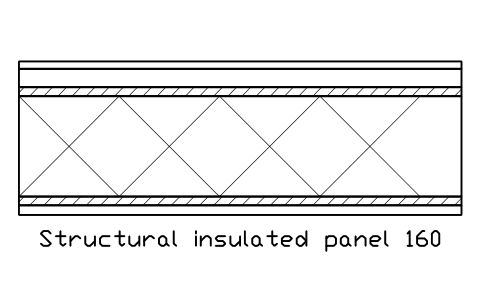
Structural insulated panel 160
BED_W_SIP_160Attributes
DESIGNATIONSIZEMATERIALFIRE_RATINGU_VALUE_W_M2KFINISHDETAIL_NOMANUFACTURERREMARKSDESC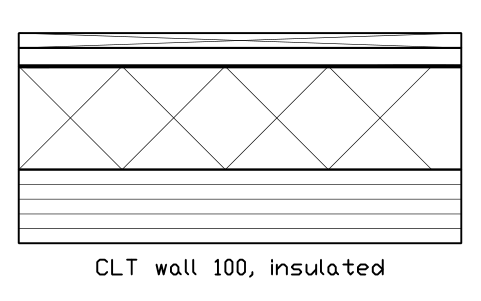
CLT wall 100, insulated
BED_W_CLT_100_INSAttributes
DESIGNATIONSIZEMATERIALFIRE_RATINGU_VALUE_W_M2KFINISHDETAIL_NOMANUFACTURERREMARKSDESC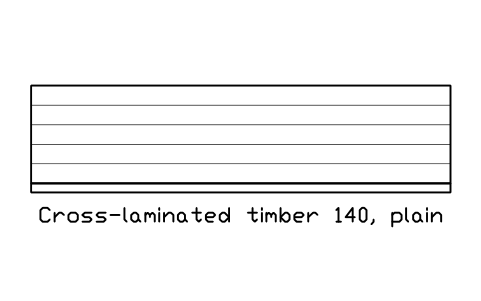
Cross-laminated timber 140, plain
BED_W_CLT_140_BAREAttributes
DESIGNATIONSIZEMATERIALFIRE_RATINGU_VALUE_W_M2KFINISHDETAIL_NOMANUFACTURERREMARKSDESC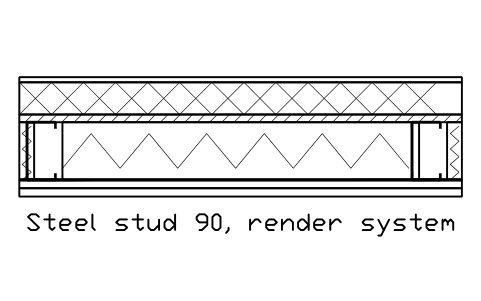
Steel stud 90, render system
BED_W_LGS_90_RENDERAttributes
DESIGNATIONSIZEMATERIALFIRE_RATINGU_VALUE_W_M2KFINISHDETAIL_NOMANUFACTURERREMARKSDESC
Steel stud 90, brick veneer
BED_W_LGS_90_BRICKAttributes
DESIGNATIONSIZEMATERIALFIRE_RATINGU_VALUE_W_M2KFINISHDETAIL_NOMANUFACTURERREMARKSDESC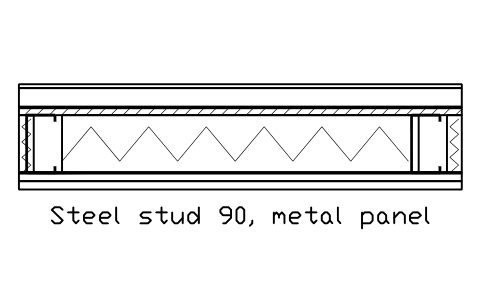
Steel stud 90, metal panel
BED_W_LGS_METAL_PANELAttributes
DESIGNATIONSIZEMATERIALFIRE_RATINGU_VALUE_W_M2KFINISHDETAIL_NOMANUFACTURERREMARKSDESC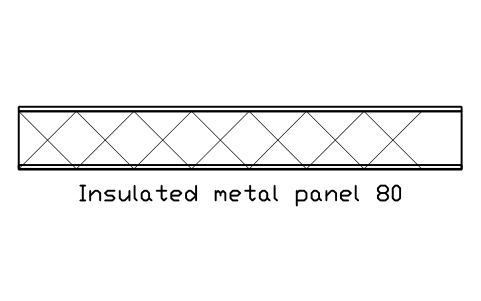
Insulated metal panel 80
BED_W_SANDWICH_80Attributes
DESIGNATIONSIZEMATERIALFIRE_RATINGU_VALUE_W_M2KFINISHDETAIL_NOMANUFACTURERREMARKSDESC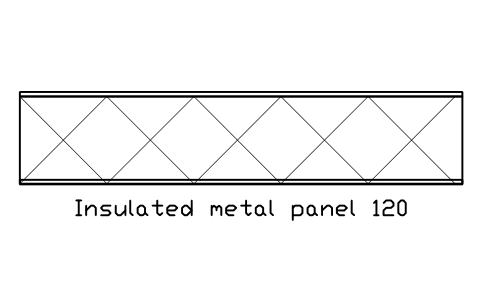
Insulated metal panel 120
BED_W_SANDWICH_120Attributes
DESIGNATIONSIZEMATERIALFIRE_RATINGU_VALUE_W_M2KFINISHDETAIL_NOMANUFACTURERREMARKSDESC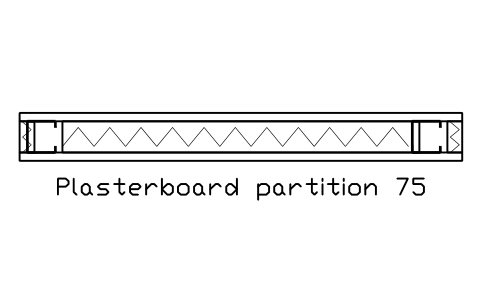
Plasterboard partition 75
BED_P_GYPSUM_75Attributes
DESIGNATIONSIZEMATERIALFIRE_RATINGU_VALUE_W_M2KFINISHDETAIL_NOMANUFACTURERREMARKSDESC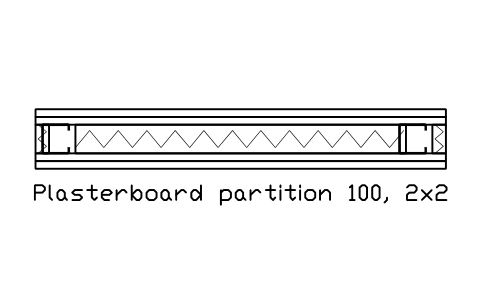
Plasterboard partition 100, 2x2
BED_P_GYPSUM_100Attributes
DESIGNATIONSIZEMATERIALFIRE_RATINGU_VALUE_W_M2KFINISHDETAIL_NOMANUFACTURERREMARKSDESC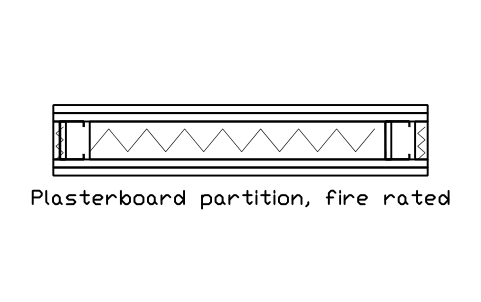
Plasterboard partition, fire rated
BED_P_GYPSUM_FIREAttributes
DESIGNATIONSIZEMATERIALFIRE_RATINGU_VALUE_W_M2KFINISHDETAIL_NOMANUFACTURERREMARKSDESC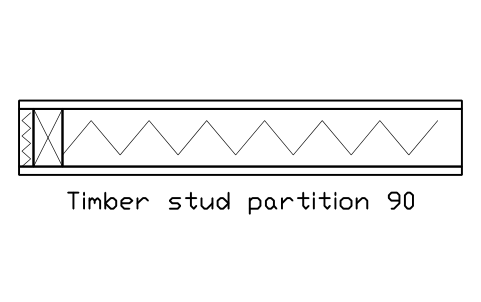
Timber stud partition 90
BED_P_TIMBER_90Attributes
DESIGNATIONSIZEMATERIALFIRE_RATINGU_VALUE_W_M2KFINISHDETAIL_NOMANUFACTURERREMARKSDESC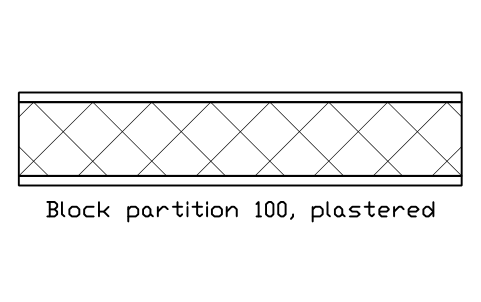
Block partition 100, plastered
BED_P_BLOCK_100Attributes
DESIGNATIONSIZEMATERIALFIRE_RATINGU_VALUE_W_M2KFINISHDETAIL_NOMANUFACTURERREMARKSDESC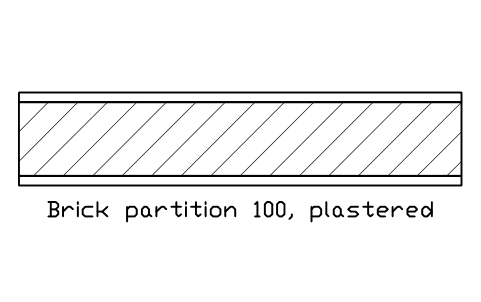
Brick partition 100, plastered
BED_P_BRICK_100Attributes
DESIGNATIONSIZEMATERIALFIRE_RATINGU_VALUE_W_M2KFINISHDETAIL_NOMANUFACTURERREMARKSDESC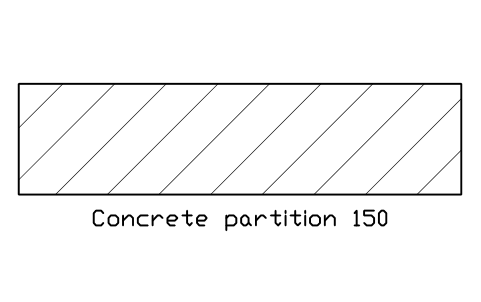
Concrete partition 150
BED_P_CONC_150Attributes
DESIGNATIONSIZEMATERIALFIRE_RATINGU_VALUE_W_M2KFINISHDETAIL_NOMANUFACTURERREMARKSDESC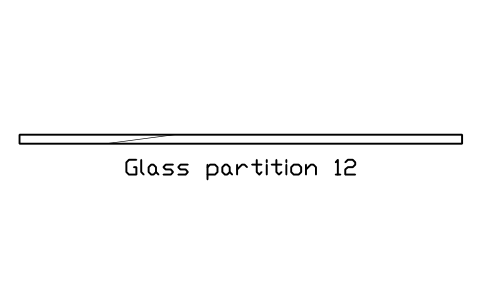
Glass partition 12
BED_P_GLASS_12Attributes
DESIGNATIONSIZEMATERIALFIRE_RATINGU_VALUE_W_M2KFINISHDETAIL_NOMANUFACTURERREMARKSDESC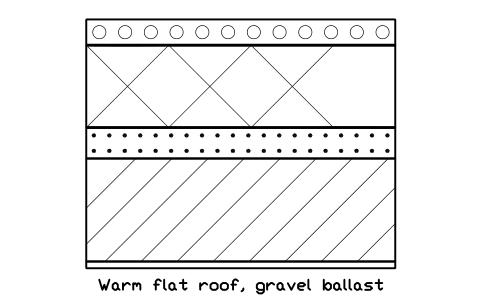
Warm flat roof, gravel ballast
BED_R_WARM_BALLASTAttributes
DESIGNATIONSIZEMATERIALFIRE_RATINGU_VALUE_W_M2KFINISHDETAIL_NOMANUFACTURERREMARKSDESC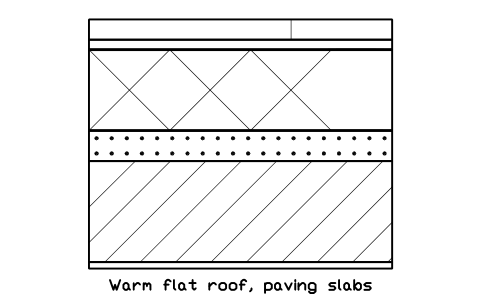
Warm flat roof, paving slabs
BED_R_WARM_PAVEDAttributes
DESIGNATIONSIZEMATERIALFIRE_RATINGU_VALUE_W_M2KFINISHDETAIL_NOMANUFACTURERREMARKSDESC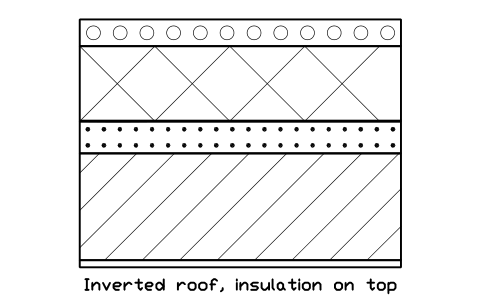
Inverted roof, insulation on top
BED_R_INVERTEDAttributes
DESIGNATIONSIZEMATERIALFIRE_RATINGU_VALUE_W_M2KFINISHDETAIL_NOMANUFACTURERREMARKSDESC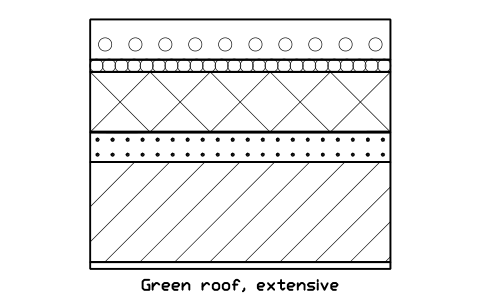
Green roof, extensive
BED_R_GREEN_EXTAttributes
DESIGNATIONSIZEMATERIALFIRE_RATINGU_VALUE_W_M2KFINISHDETAIL_NOMANUFACTURERREMARKSDESC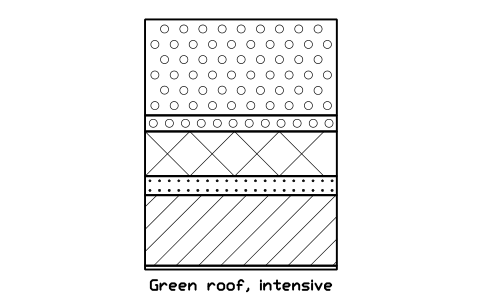
Green roof, intensive
BED_R_GREEN_INTAttributes
DESIGNATIONSIZEMATERIALFIRE_RATINGU_VALUE_W_M2KFINISHDETAIL_NOMANUFACTURERREMARKSDESC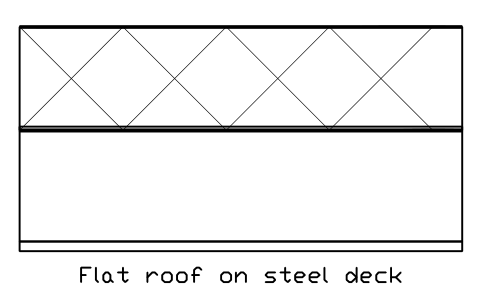
Flat roof on steel deck
BED_R_METAL_DECKAttributes
DESIGNATIONSIZEMATERIALFIRE_RATINGU_VALUE_W_M2KFINISHDETAIL_NOMANUFACTURERREMARKSDESC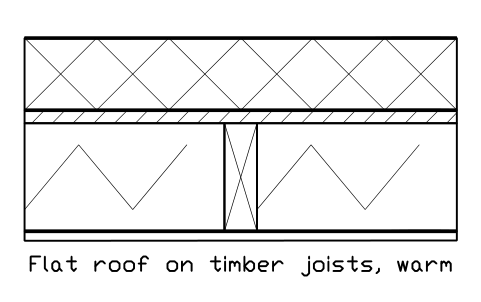
Flat roof on timber joists, warm
BED_R_TIMBER_WARMAttributes
DESIGNATIONSIZEMATERIALFIRE_RATINGU_VALUE_W_M2KFINISHDETAIL_NOMANUFACTURERREMARKSDESC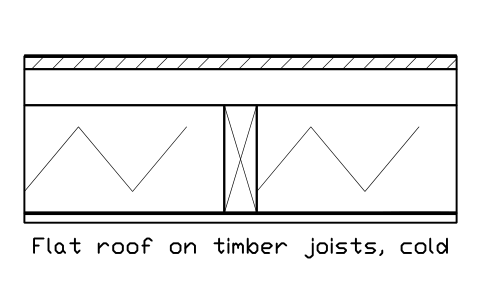
Flat roof on timber joists, cold
BED_R_TIMBER_COLDAttributes
DESIGNATIONSIZEMATERIALFIRE_RATINGU_VALUE_W_M2KFINISHDETAIL_NOMANUFACTURERREMARKSDESC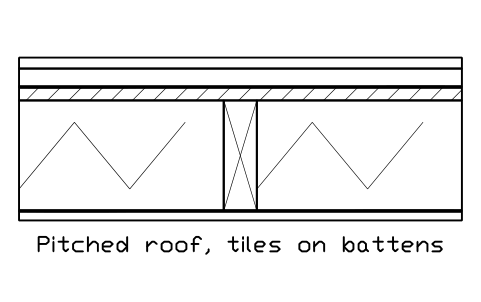
Pitched roof, tiles on battens
BED_R_PITCHED_TILEAttributes
DESIGNATIONSIZEMATERIALFIRE_RATINGU_VALUE_W_M2KFINISHDETAIL_NOMANUFACTURERREMARKSDESC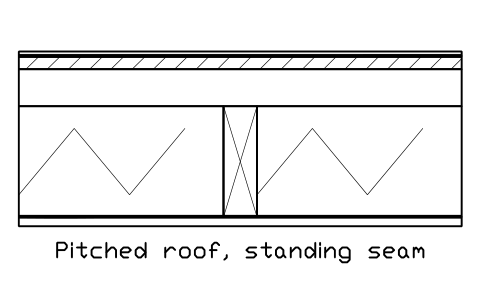
Pitched roof, standing seam
BED_R_PITCHED_METALAttributes
DESIGNATIONSIZEMATERIALFIRE_RATINGU_VALUE_W_M2KFINISHDETAIL_NOMANUFACTURERREMARKSDESC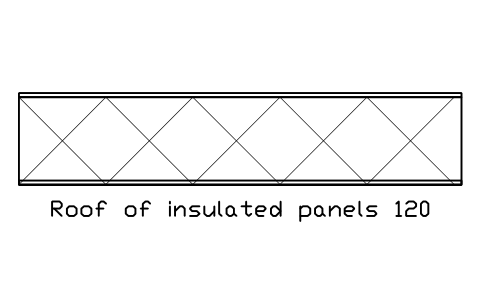
Roof of insulated panels 120
BED_R_SANDWICHAttributes
DESIGNATIONSIZEMATERIALFIRE_RATINGU_VALUE_W_M2KFINISHDETAIL_NOMANUFACTURERREMARKSDESC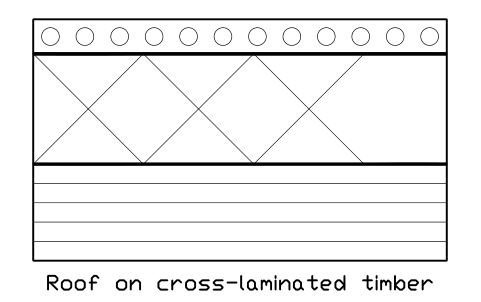
Roof on cross-laminated timber
BED_R_CLT_WARMAttributes
DESIGNATIONSIZEMATERIALFIRE_RATINGU_VALUE_W_M2KFINISHDETAIL_NOMANUFACTURERREMARKSDESC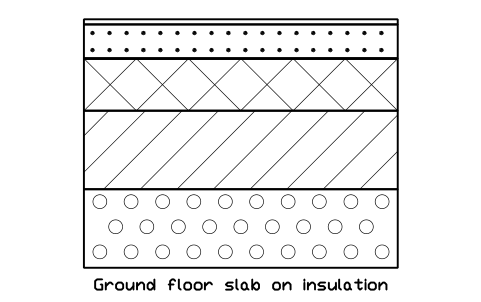
Ground floor slab on insulation
BED_F_GROUND_SLABAttributes
DESIGNATIONSIZEMATERIALFIRE_RATINGU_VALUE_W_M2KFINISHDETAIL_NOMANUFACTURERREMARKSDESC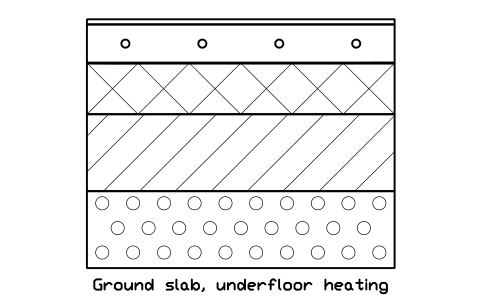
Ground slab, underfloor heating
BED_F_GROUND_SLAB_UFHAttributes
DESIGNATIONSIZEMATERIALFIRE_RATINGU_VALUE_W_M2KFINISHDETAIL_NOMANUFACTURERREMARKSDESC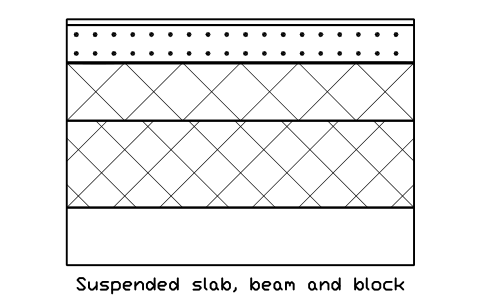
Suspended slab, beam and block
BED_F_SUSPENDED_BEAMAttributes
DESIGNATIONSIZEMATERIALFIRE_RATINGU_VALUE_W_M2KFINISHDETAIL_NOMANUFACTURERREMARKSDESC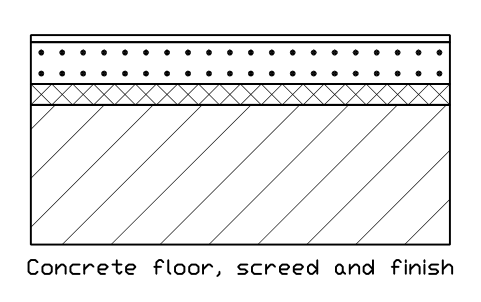
Concrete floor, screed and finish
BED_F_CONC_SCREEDAttributes
DESIGNATIONSIZEMATERIALFIRE_RATINGU_VALUE_W_M2KFINISHDETAIL_NOMANUFACTURERREMARKSDESC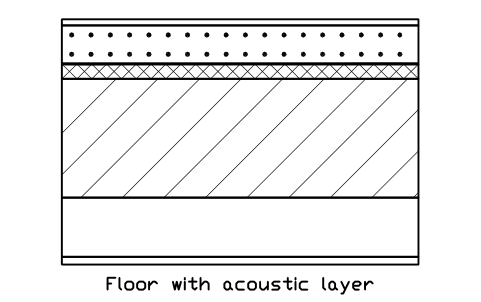
Floor with acoustic layer
BED_F_ACOUSTICAttributes
DESIGNATIONSIZEMATERIALFIRE_RATINGU_VALUE_W_M2KFINISHDETAIL_NOMANUFACTURERREMARKSDESC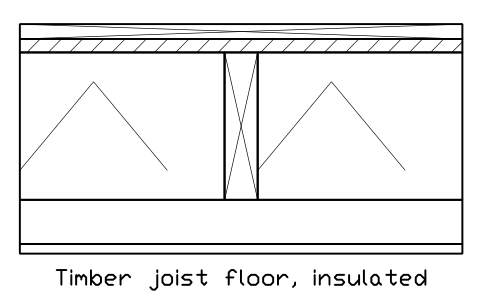
Timber joist floor, insulated
BED_F_TIMBER_JOISTAttributes
DESIGNATIONSIZEMATERIALFIRE_RATINGU_VALUE_W_M2KFINISHDETAIL_NOMANUFACTURERREMARKSDESC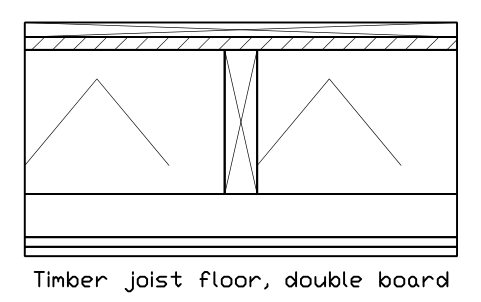
Timber joist floor, double board
BED_F_TIMBER_INSAttributes
DESIGNATIONSIZEMATERIALFIRE_RATINGU_VALUE_W_M2KFINISHDETAIL_NOMANUFACTURERREMARKSDESC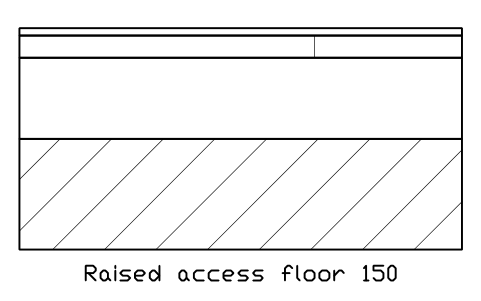
Raised access floor 150
BED_F_RAISED_ACCESSAttributes
DESIGNATIONSIZEMATERIALFIRE_RATINGU_VALUE_W_M2KFINISHDETAIL_NOMANUFACTURERREMARKSDESC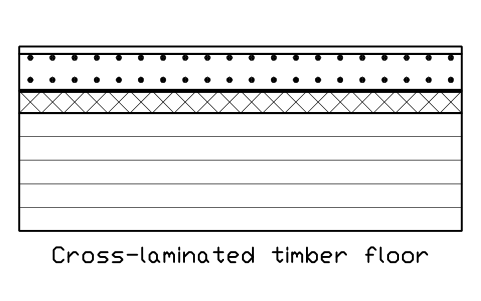
Cross-laminated timber floor
BED_F_CLTAttributes
DESIGNATIONSIZEMATERIALFIRE_RATINGU_VALUE_W_M2KFINISHDETAIL_NOMANUFACTURERREMARKSDESC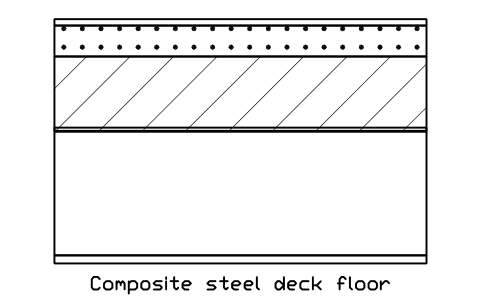
Composite steel deck floor
BED_F_COMPOSITE_DECKAttributes
DESIGNATIONSIZEMATERIALFIRE_RATINGU_VALUE_W_M2KFINISHDETAIL_NOMANUFACTURERREMARKSDESC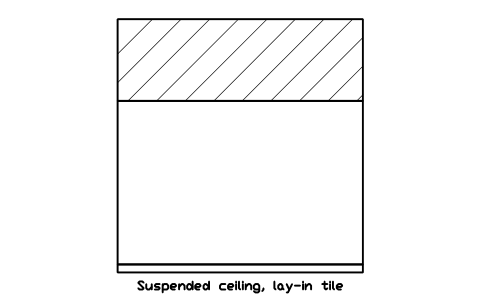
Suspended ceiling, lay-in tile
BED_C_SUSPENDED_TILEAttributes
DESIGNATIONSIZEMATERIALFIRE_RATINGU_VALUE_W_M2KFINISHDETAIL_NOMANUFACTURERREMARKSDESC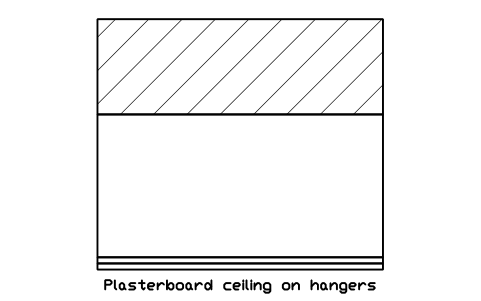
Plasterboard ceiling on hangers
BED_C_PLASTERBOARDAttributes
DESIGNATIONSIZEMATERIALFIRE_RATINGU_VALUE_W_M2KFINISHDETAIL_NOMANUFACTURERREMARKSDESC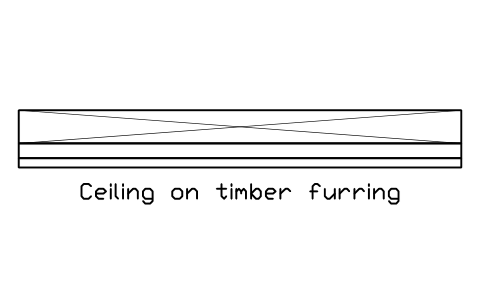
Ceiling on timber furring
BED_C_TIMBER_FURRINGAttributes
DESIGNATIONSIZEMATERIALFIRE_RATINGU_VALUE_W_M2KFINISHDETAIL_NOMANUFACTURERREMARKSDESC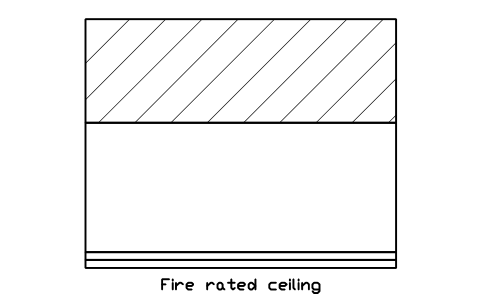
Fire rated ceiling
BED_C_FIRE_RATEDAttributes
DESIGNATIONSIZEMATERIALFIRE_RATINGU_VALUE_W_M2KFINISHDETAIL_NOMANUFACTURERREMARKSDESC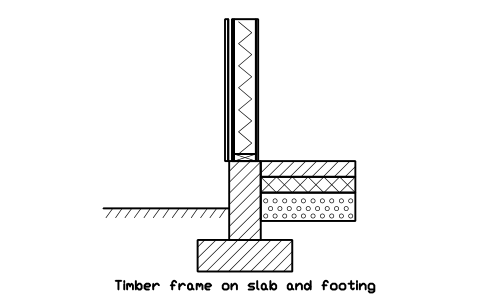
Timber frame on slab and footing
BED_TF_BASE_SLABAttributes
DESIGNATIONSIZEMATERIALFIRE_RATINGU_VALUE_W_M2KFINISHDETAIL_NOMANUFACTURERREMARKSDESC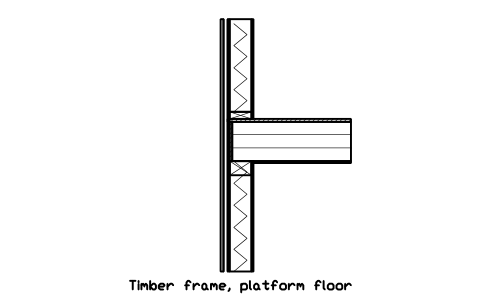
Timber frame, platform floor
BED_TF_FLOOR_PLATFORMAttributes
DESIGNATIONSIZEMATERIALFIRE_RATINGU_VALUE_W_M2KFINISHDETAIL_NOMANUFACTURERREMARKSDESC
Timber frame, truss heel eaves
BED_TF_EAVE_TRUSSAttributes
DESIGNATIONSIZEMATERIALFIRE_RATINGU_VALUE_W_M2KFINISHDETAIL_NOMANUFACTURERREMARKSDESC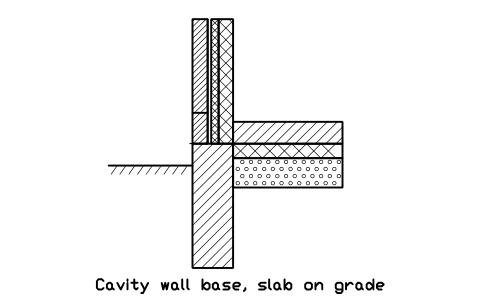
Cavity wall base, slab on grade
BED_M_CAVITY_BASEAttributes
DESIGNATIONSIZEMATERIALFIRE_RATINGU_VALUE_W_M2KFINISHDETAIL_NOMANUFACTURERREMARKSDESC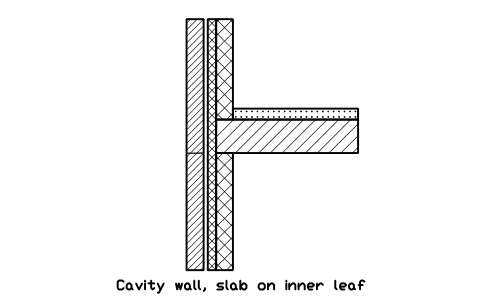
Cavity wall, slab on inner leaf
BED_M_FLOOR_BEARINGAttributes
DESIGNATIONSIZEMATERIALFIRE_RATINGU_VALUE_W_M2KFINISHDETAIL_NOMANUFACTURERREMARKSDESC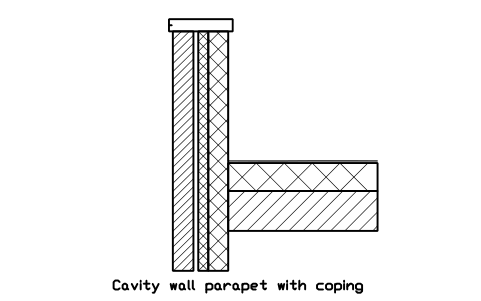
Cavity wall parapet with coping
BED_M_PARAPET_CAVITYAttributes
DESIGNATIONSIZEMATERIALFIRE_RATINGU_VALUE_W_M2KFINISHDETAIL_NOMANUFACTURERREMARKSDESC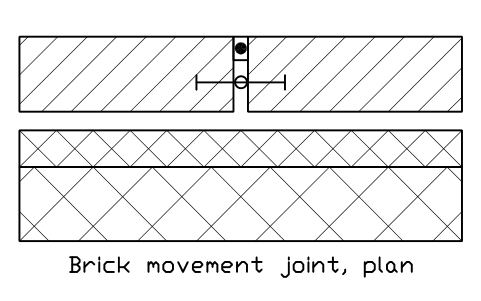
Brick movement joint, plan
BED_M_MOVEMENT_JOINTAttributes
DESIGNATIONSIZEMATERIALFIRE_RATINGU_VALUE_W_M2KFINISHDETAIL_NOMANUFACTURERREMARKSDESC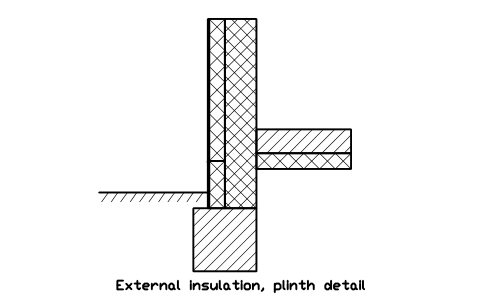
External insulation, plinth detail
BED_M_ETICS_BASEAttributes
DESIGNATIONSIZEMATERIALFIRE_RATINGU_VALUE_W_M2KFINISHDETAIL_NOMANUFACTURERREMARKSDESC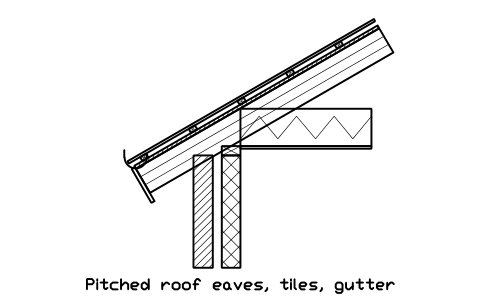
Pitched roof eaves, tiles, gutter
BED_PR_EAVES_TILEAttributes
DESIGNATIONSIZEMATERIALFIRE_RATINGU_VALUE_W_M2KFINISHDETAIL_NOMANUFACTURERREMARKSDESC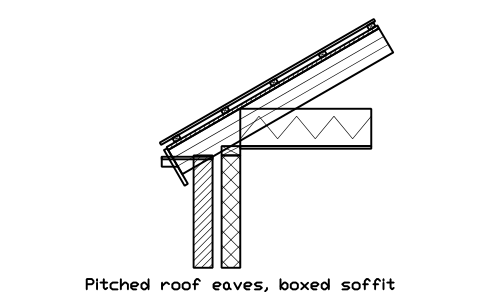
Pitched roof eaves, boxed soffit
BED_PR_EAVES_BOXEDAttributes
DESIGNATIONSIZEMATERIALFIRE_RATINGU_VALUE_W_M2KFINISHDETAIL_NOMANUFACTURERREMARKSDESC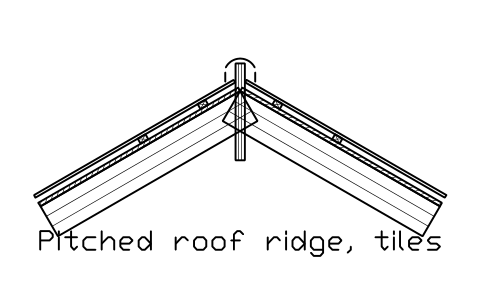
Pitched roof ridge, tiles
BED_PR_RIDGE_TILEAttributes
DESIGNATIONSIZEMATERIALFIRE_RATINGU_VALUE_W_M2KFINISHDETAIL_NOMANUFACTURERREMARKSDESC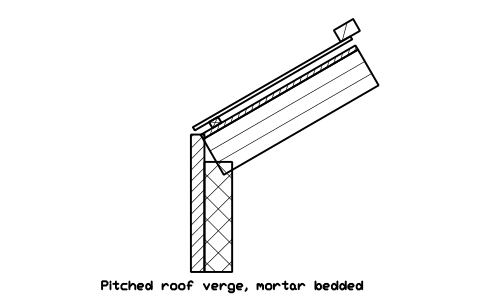
Pitched roof verge, mortar bedded
BED_PR_VERGEAttributes
DESIGNATIONSIZEMATERIALFIRE_RATINGU_VALUE_W_M2KFINISHDETAIL_NOMANUFACTURERREMARKSDESC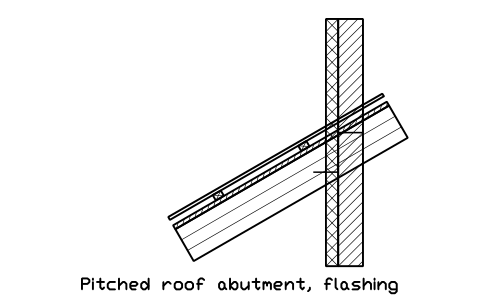
Pitched roof abutment, flashing
BED_PR_ABUTMENTAttributes
DESIGNATIONSIZEMATERIALFIRE_RATINGU_VALUE_W_M2KFINISHDETAIL_NOMANUFACTURERREMARKSDESC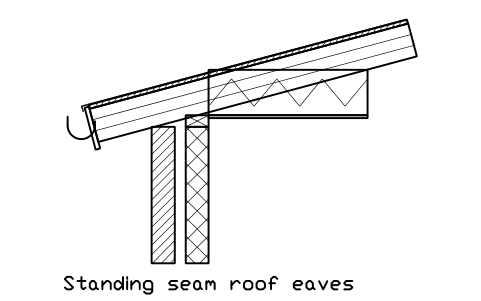
Standing seam roof eaves
BED_PR_SEAM_EAVESAttributes
DESIGNATIONSIZEMATERIALFIRE_RATINGU_VALUE_W_M2KFINISHDETAIL_NOMANUFACTURERREMARKSDESC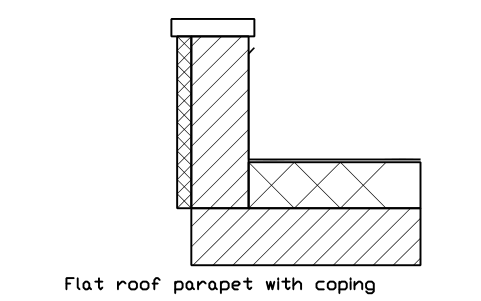
Flat roof parapet with coping
BED_FR_PARAPET_COPINGAttributes
DESIGNATIONSIZEMATERIALFIRE_RATINGU_VALUE_W_M2KFINISHDETAIL_NOMANUFACTURERREMARKSDESC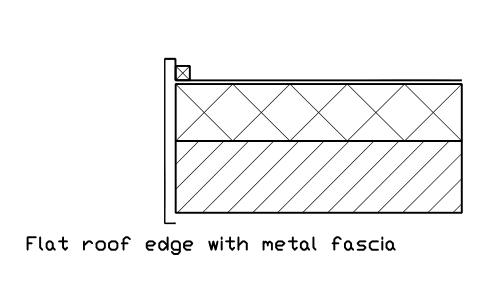
Flat roof edge with metal fascia
BED_FR_EDGE_FASCIAAttributes
DESIGNATIONSIZEMATERIALFIRE_RATINGU_VALUE_W_M2KFINISHDETAIL_NOMANUFACTURERREMARKSDESC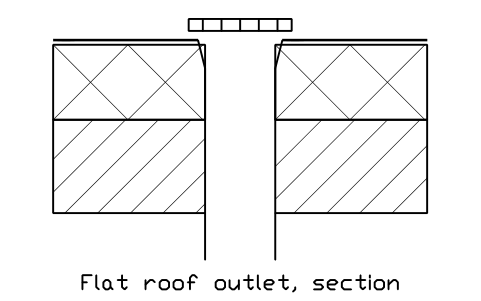
Flat roof outlet, section
BED_FR_DRAINAttributes
DESIGNATIONSIZEMATERIALFIRE_RATINGU_VALUE_W_M2KFINISHDETAIL_NOMANUFACTURERREMARKSDESC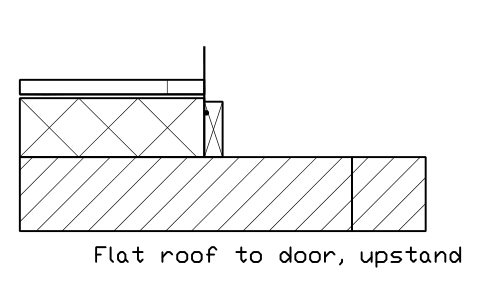
Flat roof to door, upstand
BED_FR_DOOR_UPSTANDAttributes
DESIGNATIONSIZEMATERIALFIRE_RATINGU_VALUE_W_M2KFINISHDETAIL_NOMANUFACTURERREMARKSDESC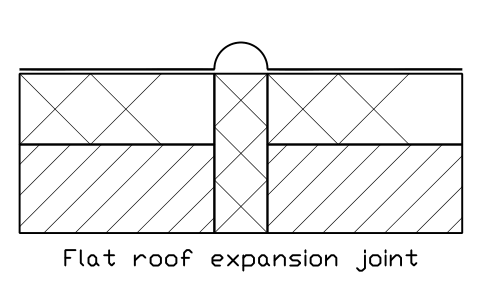
Flat roof expansion joint
BED_FR_EXP_JOINTAttributes
DESIGNATIONSIZEMATERIALFIRE_RATINGU_VALUE_W_M2KFINISHDETAIL_NOMANUFACTURERREMARKSDESC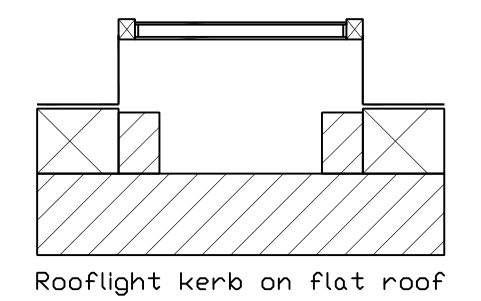
Rooflight kerb on flat roof
BED_FR_ROOFLIGHT_KERBAttributes
DESIGNATIONSIZEMATERIALFIRE_RATINGU_VALUE_W_M2KFINISHDETAIL_NOMANUFACTURERREMARKSDESC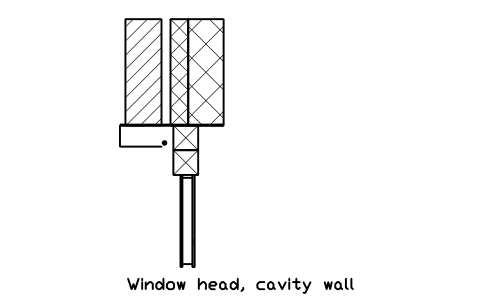
Window head, cavity wall
BED_WIN_HEAD_CAVITYAttributes
DESIGNATIONSIZEMATERIALFIRE_RATINGU_VALUE_W_M2KFINISHDETAIL_NOMANUFACTURERREMARKSDESC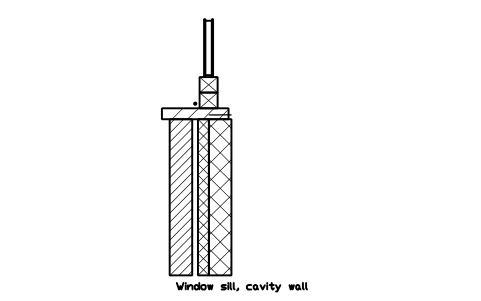
Window sill, cavity wall
BED_WIN_SILL_CAVITYAttributes
DESIGNATIONSIZEMATERIALFIRE_RATINGU_VALUE_W_M2KFINISHDETAIL_NOMANUFACTURERREMARKSDESC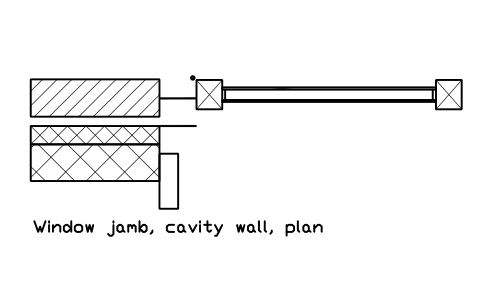
Window jamb, cavity wall, plan
BED_WIN_JAMB_CAVITYAttributes
DESIGNATIONSIZEMATERIALFIRE_RATINGU_VALUE_W_M2KFINISHDETAIL_NOMANUFACTURERREMARKSDESC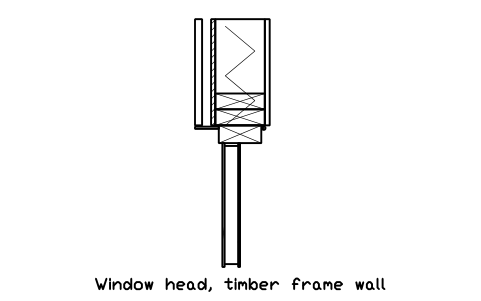
Window head, timber frame wall
BED_WIN_HEAD_TFAttributes
DESIGNATIONSIZEMATERIALFIRE_RATINGU_VALUE_W_M2KFINISHDETAIL_NOMANUFACTURERREMARKSDESC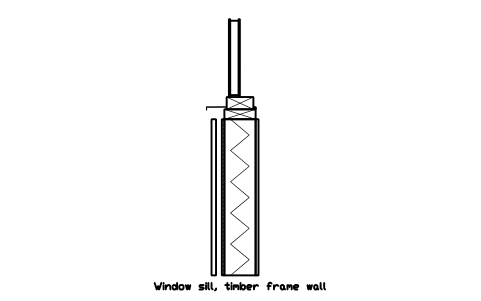
Window sill, timber frame wall
BED_WIN_SILL_TFAttributes
DESIGNATIONSIZEMATERIALFIRE_RATINGU_VALUE_W_M2KFINISHDETAIL_NOMANUFACTURERREMARKSDESC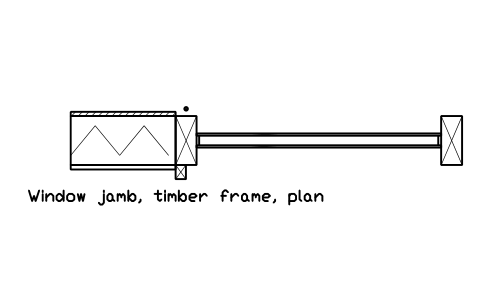
Window jamb, timber frame, plan
BED_WIN_JAMB_TFAttributes
DESIGNATIONSIZEMATERIALFIRE_RATINGU_VALUE_W_M2KFINISHDETAIL_NOMANUFACTURERREMARKSDESC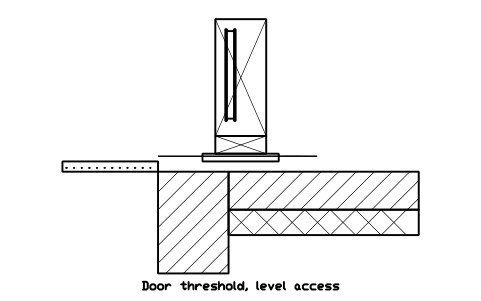
Door threshold, level access
BED_DOOR_SILL_LEVELAttributes
DESIGNATIONSIZEMATERIALFIRE_RATINGU_VALUE_W_M2KFINISHDETAIL_NOMANUFACTURERREMARKSDESC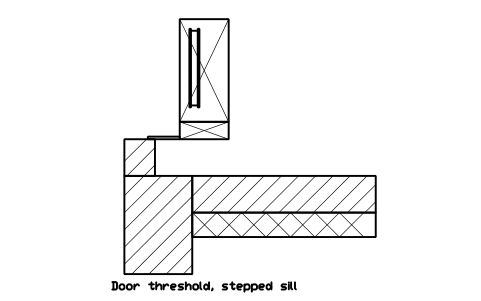
Door threshold, stepped sill
BED_DOOR_SILL_STEPAttributes
DESIGNATIONSIZEMATERIALFIRE_RATINGU_VALUE_W_M2KFINISHDETAIL_NOMANUFACTURERREMARKSDESC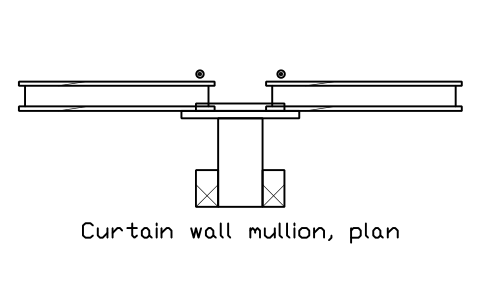
Curtain wall mullion, plan
BED_CW_MULLION_PLANAttributes
DESIGNATIONSIZEMATERIALFIRE_RATINGU_VALUE_W_M2KFINISHDETAIL_NOMANUFACTURERREMARKSDESC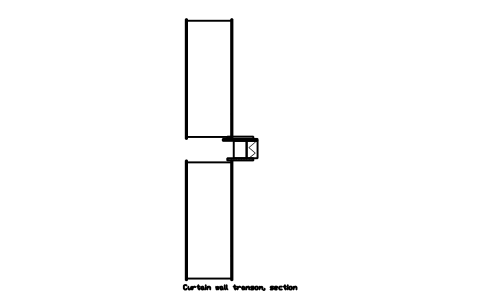
Curtain wall transom, section
BED_CW_TRANSOM_SECTIONAttributes
DESIGNATIONSIZEMATERIALFIRE_RATINGU_VALUE_W_M2KFINISHDETAIL_NOMANUFACTURERREMARKSDESC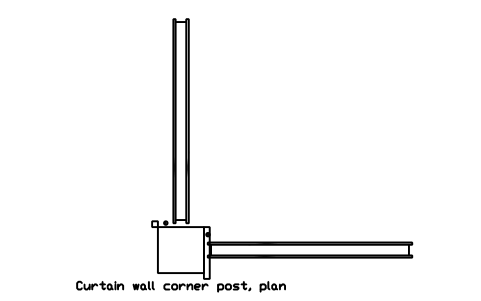
Curtain wall corner post, plan
BED_CW_CORNER_PLANAttributes
DESIGNATIONSIZEMATERIALFIRE_RATINGU_VALUE_W_M2KFINISHDETAIL_NOMANUFACTURERREMARKSDESC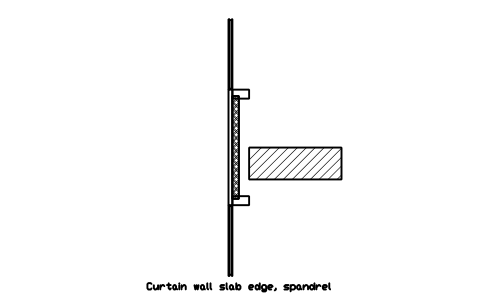
Curtain wall slab edge, spandrel
BED_CW_SLAB_EDGEAttributes
DESIGNATIONSIZEMATERIALFIRE_RATINGU_VALUE_W_M2KFINISHDETAIL_NOMANUFACTURERREMARKSDESC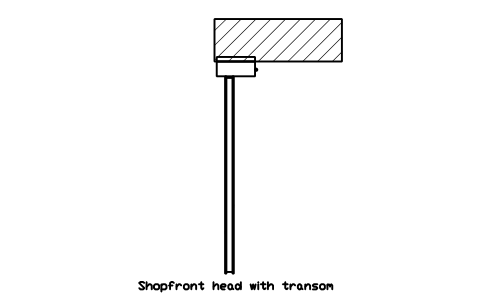
Shopfront head with transom
BED_CW_SHOPFRONT_HEADAttributes
DESIGNATIONSIZEMATERIALFIRE_RATINGU_VALUE_W_M2KFINISHDETAIL_NOMANUFACTURERREMARKSDESC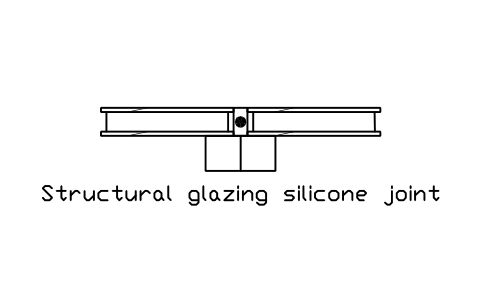
Structural glazing silicone joint
BED_CW_STRUCT_JOINTAttributes
DESIGNATIONSIZEMATERIALFIRE_RATINGU_VALUE_W_M2KFINISHDETAIL_NOMANUFACTURERREMARKSDESC
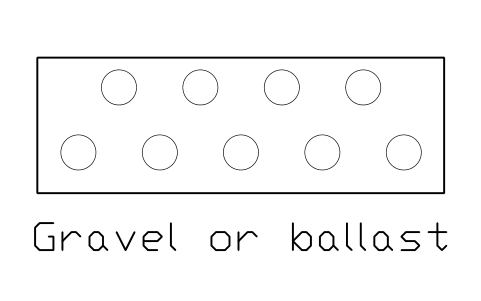
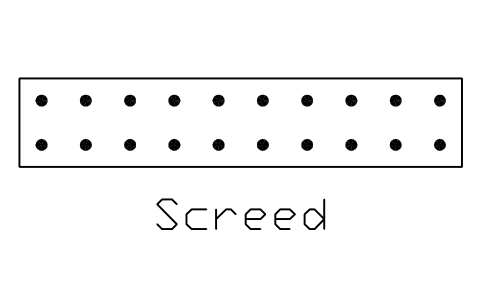
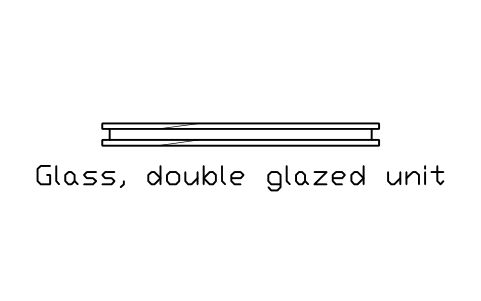

Missing a symbol? Tell us which one.
Attributes for parts lists
Every block has a visible designation next to it (for example Cavity wall, brick and block). The invisible attributes are SIZE, MATERIAL, FIRE_RATING, U_VALUE_W_M2K, FINISH, DETAIL_NO, MANUFACTURER and REMARKS; the swatches carry SIZE, MATERIAL, DETAIL_NO and REMARKS.
Export the details of a drawing sheet to Excel with BlockSync to get a detail list with materials, U-values, fire ratings and detail numbers. Check it against the drawing and write corrections back in one run, with preview and backup.
How to use the library
- Unzip the file and open the DWG. Copy the details you need into your sheet, or drag the blocks in from DesignCenter (ADCENTER).
- The blocks are drawn at real size, 1 drawing unit = 1 mm. Insert them at scale 1 into a drawing in millimetres, or draw the detail at 1:1 and scale the viewport; on a metre drawing scale them by 0.001. The catalog sheet shrinks every block to fit its cell, the blocks themselves stay at real size.
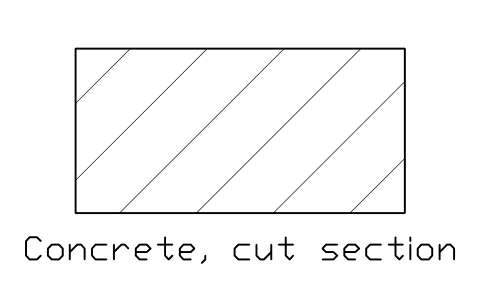
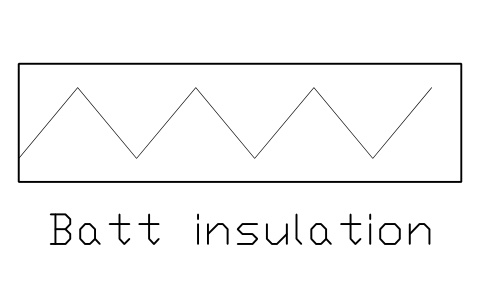
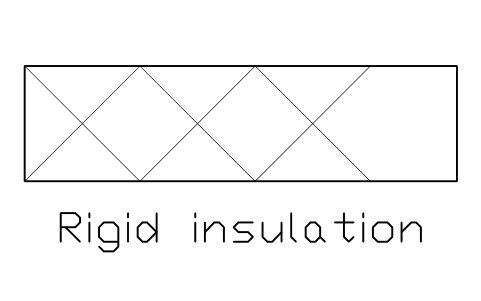
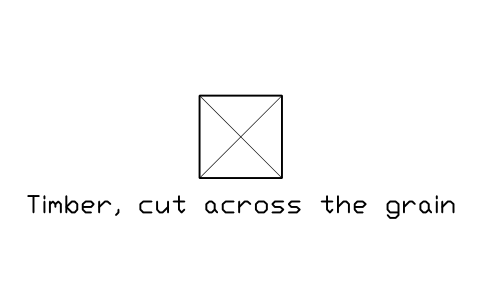
- Layered build-ups have the outside (or the top of a roof or floor) at the top and the origin at the centre of the cut. In the junction details the outside is on the left and the inside on the right, with Y = 0 at the top of the finished floor or structure; use MIRROR for the other hand. Cut materials carry the usual hatches, drawn as plain lines so they print the same everywhere.
- The details are typical sections, not a particular design or product: take the exact layers, thicknesses, U-values, fire ratings and manufacturers' data from your project and the data sheets. The junctions show one sensible arrangement to start from; explode a block to change a layer.
About the sizes
There is no single standard drawing for these details, so the blocks use thicknesses that are common in practice: 100 to 215 mm masonry, 100 to 200 mm insulation, 12.5 mm plasterboard, 150 mm raised floor, 50 mm screed. Change them to suit your project; the blocks are meant to save drawing time, not to fix a size.
The blocks are our own drawings and the library is not certified. They show the principle and the layers of a detail, not a design: insulation thickness, U-value, fire resistance, vapour control, flashing and fixings come from the design and the building regulations that apply to your site, and have to be checked by the responsible designer.
Frequently asked questions
- Which details are in the library?
- Exterior wall, partition, roof, floor and ceiling build-ups, wall base, floor and eaves junctions, pitched and flat roof details, windows and doors in the wall, curtain wall and glazing, material swatches and detail markers. The architectural libraries have doors, stairs and furniture in plan; this library adds the sections through the envelope.
- Can I get a detail list from the drawing?
- Yes. Every detail carries SIZE, MATERIAL, FIRE_RATING, U_VALUE_W_M2K, FINISH and DETAIL_NO as invisible attributes. Fill them in the attribute editor, export the blocks with BlockSync and sort by detail number or sheet. The sample values are placeholders, not design values.
- Can I use the symbols in commercial projects?
- Yes. They are free to use and modify in your own projects, including commercial ones. They are provided as is, without warranty. Please do not redistribute or resell the library; see the library terms.
- How is this different from the concrete wall section library?
- The concrete wall section library goes deep into concrete walls, footings and basements with their bars. This library covers the whole envelope in layers: masonry, timber, steel stud and panel walls, roofs, floors, windows and curtain wall. The blocks use the same style, so you can mix them in one sheet.
- Can I change a symbol or add attributes?
- Yes. Open the DWG, edit a block with BEDIT to change it or add attributes, and save. To update drawings that already contain the block, run ATTSYNC or replace the block. Make a backup first: attribute values can be lost if ATTSYNC is used carelessly.
- Where do I find a ready-made set of these symbols for AutoCAD?
- AutoCAD itself ships only a small set of sample blocks, so a full symbol set has to come from a library. Download the ZIP on this page and open the DWG: every symbol is a block. Insert one with INSERT (Blocks palette, Libraries tab, then pick the DWG) or drag it from DesignCenter (ADCENTER). You can also download a single symbol on its own.