
Free concrete wall and foundation section details for AutoCAD (DWG): footings, basement and retaining walls, joints
Concrete wall and foundation section details: 70 ready-made AutoCAD blocks (DWG), free to download and use in your own projects, as a ZIP or one symbol at a time.
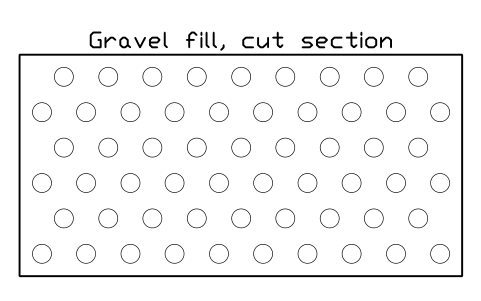
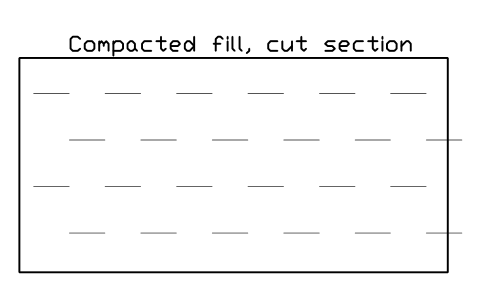
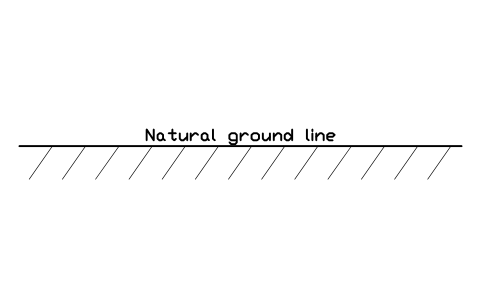
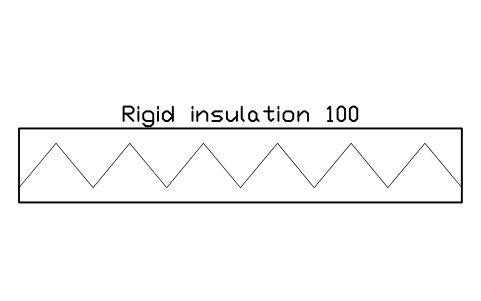
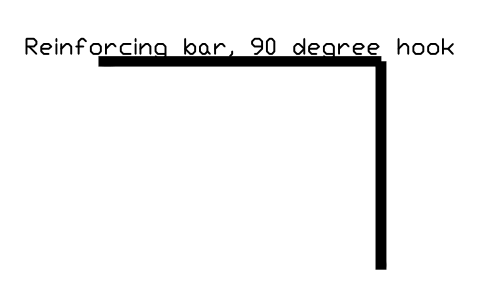
70 section detail blocks for concrete walls and foundations at real size in millimetres, with cut concrete hatched and the bars drawn as dots and lines: walls in plan section (150 to 400 thick with one or two layers of bars, plain concrete, corner, T-junction, pilaster and column); footings and foundations (strip footings 600 to 1200 wide, stepped footing, footing with shear key, pad footing with column, grade beam, thickened edge slab, raft edge); basement and retaining walls (basement wall with footing and slab, with waterproofing, drainage board, gravel and perimeter drain, with external insulation or a brick ledge, stem wall, cantilever retaining walls with and without key and drain, gravity wall, L-shaped wall); insulated, precast and block walls (insulated form walls, sandwich panel, tilt-up panel, precast panel with corbel, external and internal insulation, cavity wall, hollow block wall plain and grouted); wall junctions and joints (wall to ground slab, through a floor slab, to a roof slab with parapet or overhang, corbel and hollow-core slab support, construction joint with waterstop, expansion joint, control joint, kicker with starter bars); openings (lintel, window head and sill with drip, door threshold, opening in plan); section swatches and parts (concrete, reinforced concrete, blinding, gravel, compacted fill, ground line, rigid insulation, membrane, waterstop, damp-proof course, bar with hook, stirrup); and markers for details, levels and wall types.
Version 1.0 · updated October 31, 2026 · Check out what's changed
Using AutoCAD 2017 or an earlier version? Download the 2010 format
Copyright CADXChange. Use and modify the symbols freely in your own drawings and projects, including commercial ones; credit and a link are needed only when you publish them. Please do not redistribute or resell the library. Each ZIP holds one plain DWG file in AutoCAD 2018 format and a README; no add-in needed. Provided as is, without warranty. Library terms (CXL-1.0)
Related symbol libraries
All 70 symbols
70 of 70 symbols
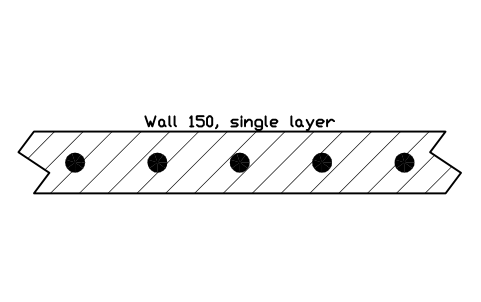
Wall 150, single layer
CWS_WALL_150_1LAttributes
DESIGNATIONSIZECONCRETE_GRADEREINFORCEMENTCOVER_MMFINISHDETAIL_NOREMARKSDESC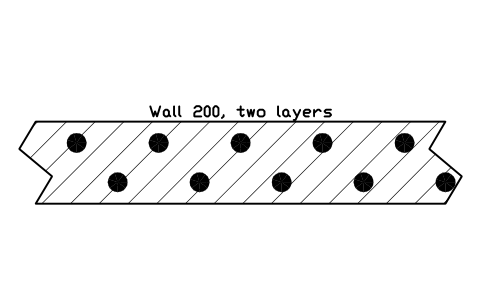
Wall 200, two layers
CWS_WALL_200_2LAttributes
DESIGNATIONSIZECONCRETE_GRADEREINFORCEMENTCOVER_MMFINISHDETAIL_NOREMARKSDESC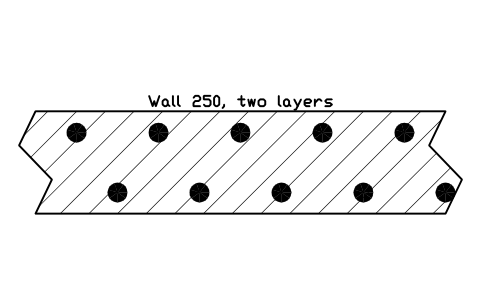
Wall 250, two layers
CWS_WALL_250_2LAttributes
DESIGNATIONSIZECONCRETE_GRADEREINFORCEMENTCOVER_MMFINISHDETAIL_NOREMARKSDESC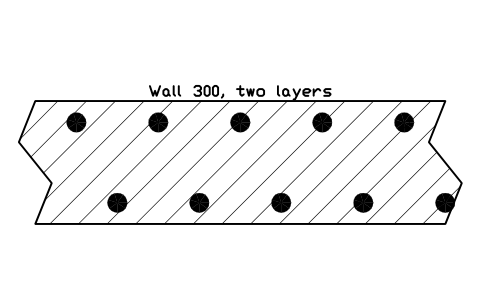
Wall 300, two layers
CWS_WALL_300_2LAttributes
DESIGNATIONSIZECONCRETE_GRADEREINFORCEMENTCOVER_MMFINISHDETAIL_NOREMARKSDESC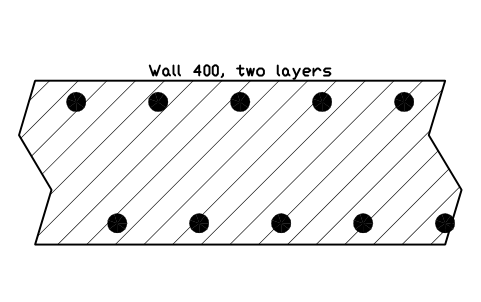
Wall 400, two layers
CWS_WALL_400_2LAttributes
DESIGNATIONSIZECONCRETE_GRADEREINFORCEMENTCOVER_MMFINISHDETAIL_NOREMARKSDESC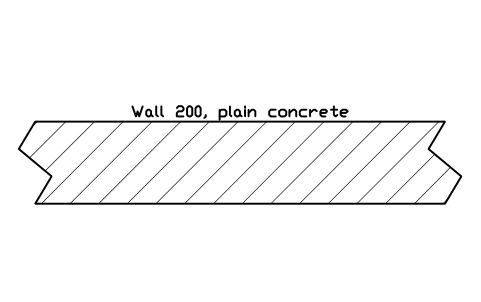
Wall 200, plain concrete
CWS_WALL_200_PLAINAttributes
DESIGNATIONSIZECONCRETE_GRADEREINFORCEMENTCOVER_MMFINISHDETAIL_NOREMARKSDESC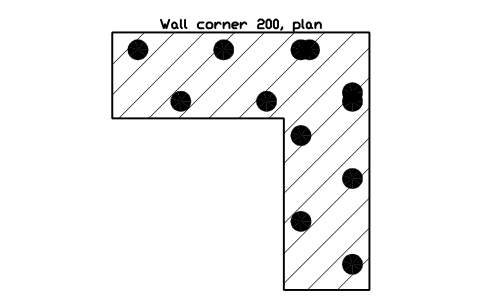
Wall corner 200, plan
CWS_WALL_CORNER_200Attributes
DESIGNATIONSIZECONCRETE_GRADEREINFORCEMENTCOVER_MMFINISHDETAIL_NOREMARKSDESC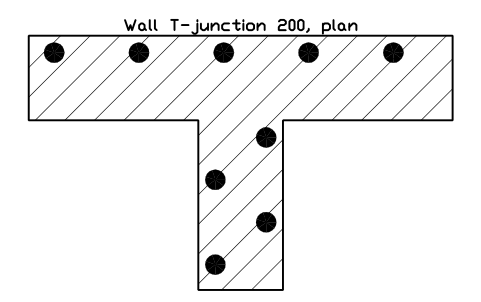
Wall T-junction 200, plan
CWS_WALL_TEE_200Attributes
DESIGNATIONSIZECONCRETE_GRADEREINFORCEMENTCOVER_MMFINISHDETAIL_NOREMARKSDESC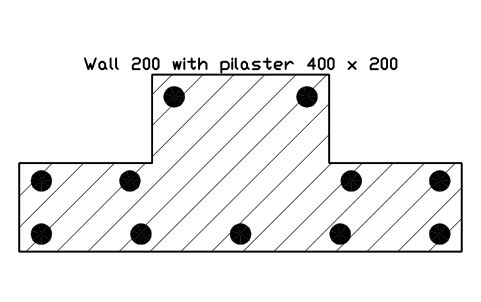
Wall 200 with pilaster 400 x 200
CWS_WALL_PILASTERAttributes
DESIGNATIONSIZECONCRETE_GRADEREINFORCEMENTCOVER_MMFINISHDETAIL_NOREMARKSDESC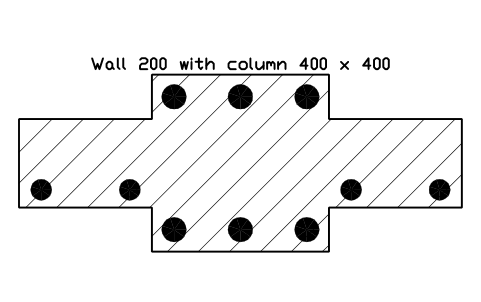
Wall 200 with column 400 x 400
CWS_WALL_COLUMNAttributes
DESIGNATIONSIZECONCRETE_GRADEREINFORCEMENTCOVER_MMFINISHDETAIL_NOREMARKSDESC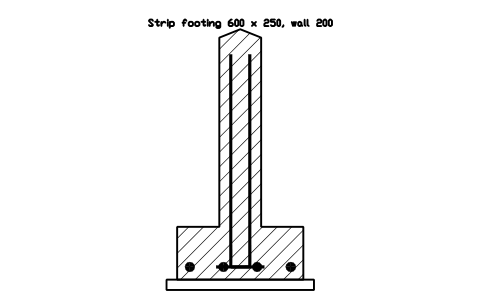
Strip footing 600 x 250, wall 200
CWS_FOOT_600_W200Attributes
DESIGNATIONSIZECONCRETE_GRADEREINFORCEMENTCOVER_MMFINISHDETAIL_NOREMARKSDESC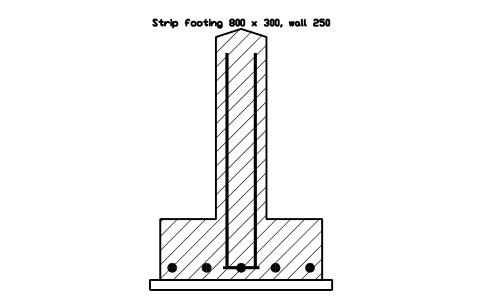
Strip footing 800 x 300, wall 250
CWS_FOOT_800_W250Attributes
DESIGNATIONSIZECONCRETE_GRADEREINFORCEMENTCOVER_MMFINISHDETAIL_NOREMARKSDESC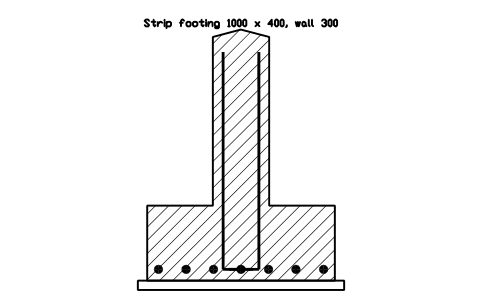
Strip footing 1000 x 400, wall 300
CWS_FOOT_1000_W300Attributes
DESIGNATIONSIZECONCRETE_GRADEREINFORCEMENTCOVER_MMFINISHDETAIL_NOREMARKSDESC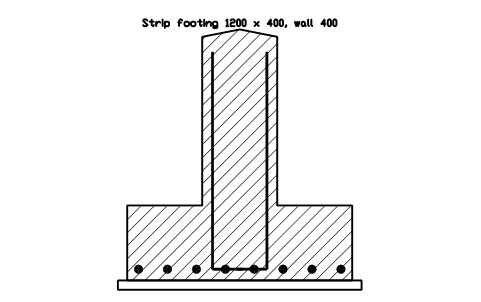
Strip footing 1200 x 400, wall 400
CWS_FOOT_1200_W400Attributes
DESIGNATIONSIZECONCRETE_GRADEREINFORCEMENTCOVER_MMFINISHDETAIL_NOREMARKSDESC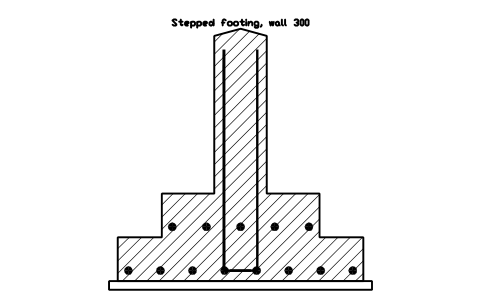
Stepped footing, wall 300
CWS_FOOT_STEPPEDAttributes
DESIGNATIONSIZECONCRETE_GRADEREINFORCEMENTCOVER_MMFINISHDETAIL_NOREMARKSDESC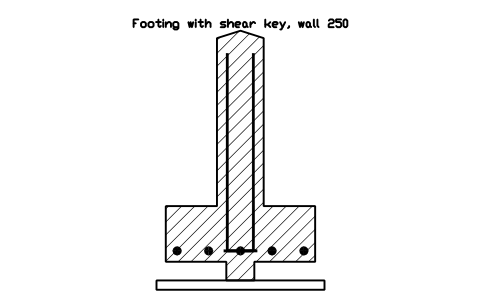
Footing with shear key, wall 250
CWS_FOOT_KEYEDAttributes
DESIGNATIONSIZECONCRETE_GRADEREINFORCEMENTCOVER_MMFINISHDETAIL_NOREMARKSDESC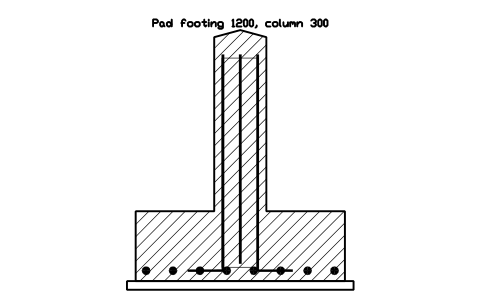
Pad footing 1200, column 300
CWS_FOOT_PAD_COLUMNAttributes
DESIGNATIONSIZECONCRETE_GRADEREINFORCEMENTCOVER_MMFINISHDETAIL_NOREMARKSDESC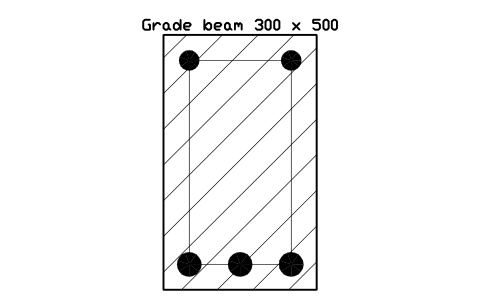
Grade beam 300 x 500
CWS_GRADE_BEAM_300X500Attributes
DESIGNATIONSIZECONCRETE_GRADEREINFORCEMENTCOVER_MMFINISHDETAIL_NOREMARKSDESC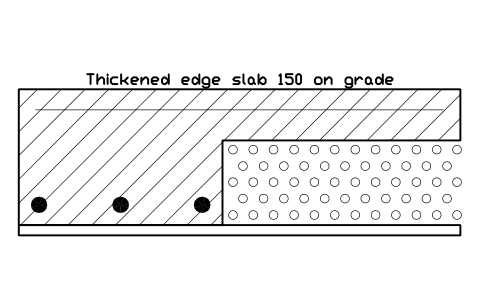
Thickened edge slab 150 on grade
CWS_SLAB_EDGE_THICKAttributes
DESIGNATIONSIZECONCRETE_GRADEREINFORCEMENTCOVER_MMFINISHDETAIL_NOREMARKSDESC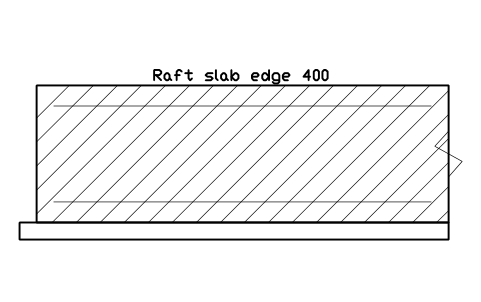
Raft slab edge 400
CWS_RAFT_EDGE_400Attributes
DESIGNATIONSIZECONCRETE_GRADEREINFORCEMENTCOVER_MMFINISHDETAIL_NOREMARKSDESC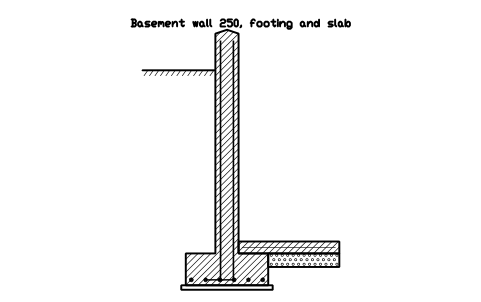
Basement wall 250, footing and slab
CWS_BASEMENT_250Attributes
DESIGNATIONSIZECONCRETE_GRADEREINFORCEMENTCOVER_MMFINISHDETAIL_NOREMARKSDESC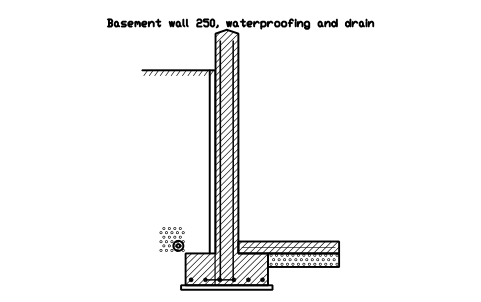
Basement wall 250, waterproofing and drain
CWS_BASEMENT_250_WPAttributes
DESIGNATIONSIZECONCRETE_GRADEREINFORCEMENTCOVER_MMFINISHDETAIL_NOREMARKSDESC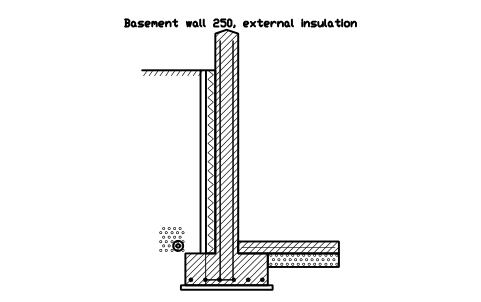
Basement wall 250, external insulation
CWS_BASEMENT_250_INSAttributes
DESIGNATIONSIZECONCRETE_GRADEREINFORCEMENTCOVER_MMFINISHDETAIL_NOREMARKSDESC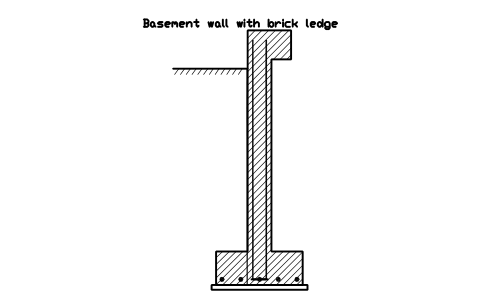
Basement wall with brick ledge
CWS_BASEMENT_LEDGEAttributes
DESIGNATIONSIZECONCRETE_GRADEREINFORCEMENTCOVER_MMFINISHDETAIL_NOREMARKSDESC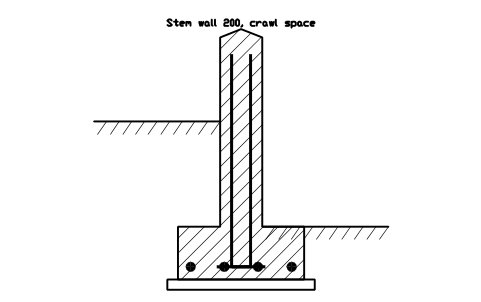
Stem wall 200, crawl space
CWS_STEMWALL_200Attributes
DESIGNATIONSIZECONCRETE_GRADEREINFORCEMENTCOVER_MMFINISHDETAIL_NOREMARKSDESC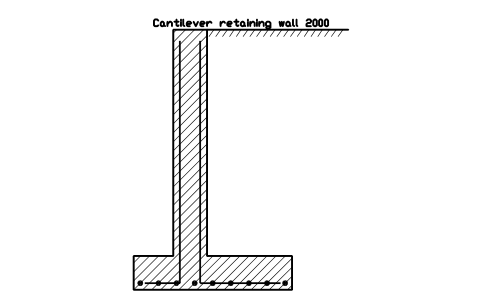
Cantilever retaining wall 2000
CWS_RETAIN_CANT_2000Attributes
DESIGNATIONSIZECONCRETE_GRADEREINFORCEMENTCOVER_MMFINISHDETAIL_NOREMARKSDESC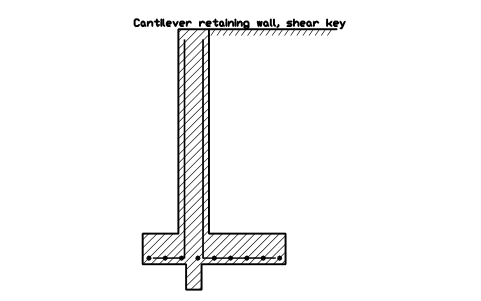
Cantilever retaining wall, shear key
CWS_RETAIN_CANT_KEYAttributes
DESIGNATIONSIZECONCRETE_GRADEREINFORCEMENTCOVER_MMFINISHDETAIL_NOREMARKSDESC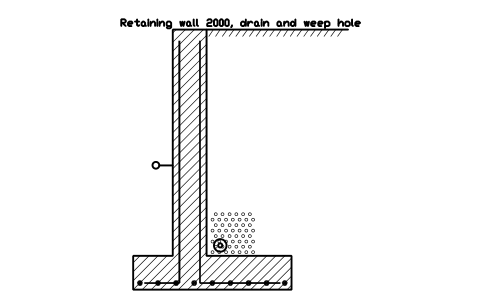
Retaining wall 2000, drain and weep hole
CWS_RETAIN_CANT_DRAINAttributes
DESIGNATIONSIZECONCRETE_GRADEREINFORCEMENTCOVER_MMFINISHDETAIL_NOREMARKSDESC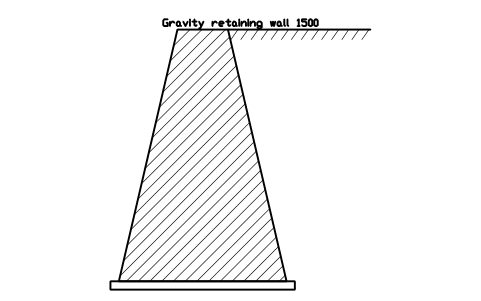
Gravity retaining wall 1500
CWS_RETAIN_GRAVITY_1500Attributes
DESIGNATIONSIZECONCRETE_GRADEREINFORCEMENTCOVER_MMFINISHDETAIL_NOREMARKSDESC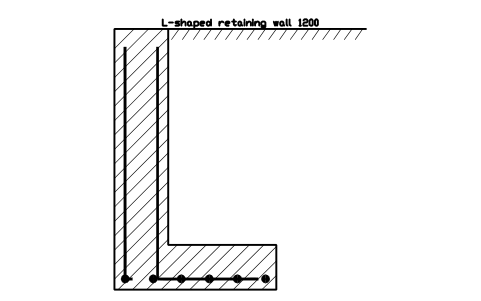
L-shaped retaining wall 1200
CWS_RETAIN_L_1200Attributes
DESIGNATIONSIZECONCRETE_GRADEREINFORCEMENTCOVER_MMFINISHDETAIL_NOREMARKSDESC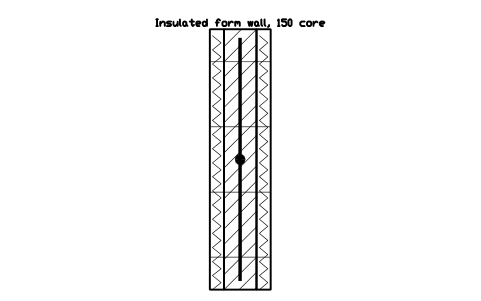
Insulated form wall, 150 core
CWS_ICF_150Attributes
DESIGNATIONSIZECONCRETE_GRADEREINFORCEMENTCOVER_MMFINISHDETAIL_NOREMARKSDESC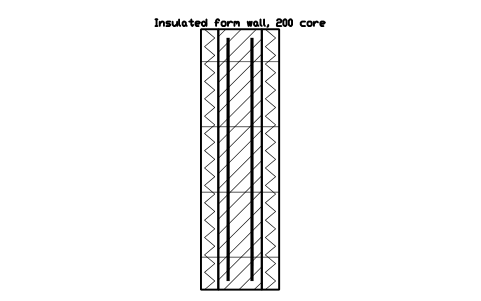
Insulated form wall, 200 core
CWS_ICF_200Attributes
DESIGNATIONSIZECONCRETE_GRADEREINFORCEMENTCOVER_MMFINISHDETAIL_NOREMARKSDESC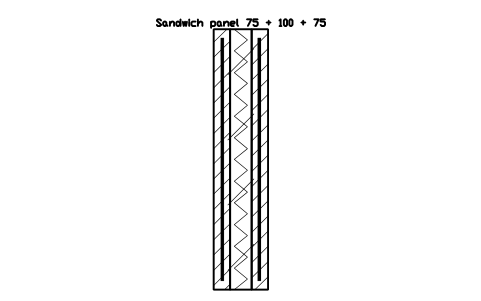
Sandwich panel 75 + 100 + 75
CWS_SANDWICH_75Attributes
DESIGNATIONSIZECONCRETE_GRADEREINFORCEMENTCOVER_MMFINISHDETAIL_NOREMARKSDESC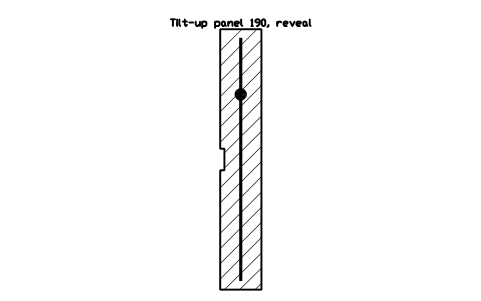
Tilt-up panel 190, reveal
CWS_TILTUP_190Attributes
DESIGNATIONSIZECONCRETE_GRADEREINFORCEMENTCOVER_MMFINISHDETAIL_NOREMARKSDESC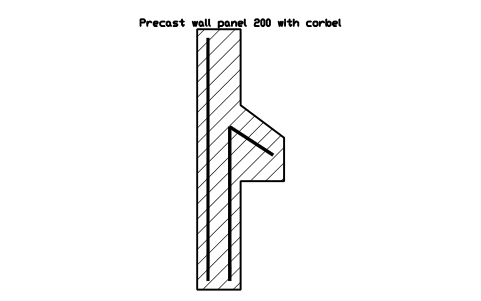
Precast wall panel 200 with corbel
CWS_PRECAST_CORBELAttributes
DESIGNATIONSIZECONCRETE_GRADEREINFORCEMENTCOVER_MMFINISHDETAIL_NOREMARKSDESC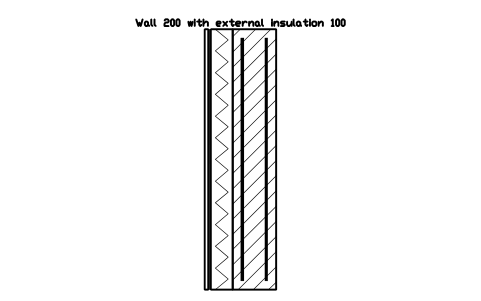
Wall 200 with external insulation 100
CWS_ETICS_200_100Attributes
DESIGNATIONSIZECONCRETE_GRADEREINFORCEMENTCOVER_MMFINISHDETAIL_NOREMARKSDESC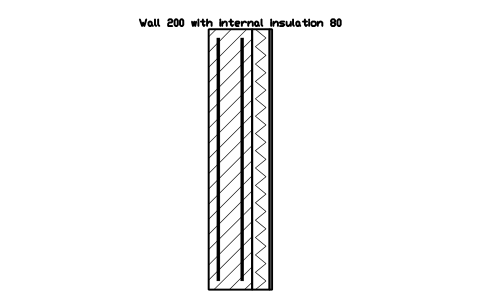
Wall 200 with internal insulation 80
CWS_INTERNAL_INS_200Attributes
DESIGNATIONSIZECONCRETE_GRADEREINFORCEMENTCOVER_MMFINISHDETAIL_NOREMARKSDESC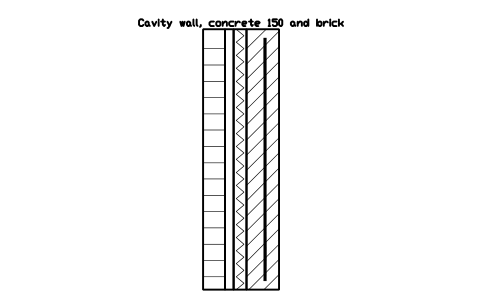
Cavity wall, concrete 150 and brick
CWS_CAVITY_150_BRICKAttributes
DESIGNATIONSIZECONCRETE_GRADEREINFORCEMENTCOVER_MMFINISHDETAIL_NOREMARKSDESC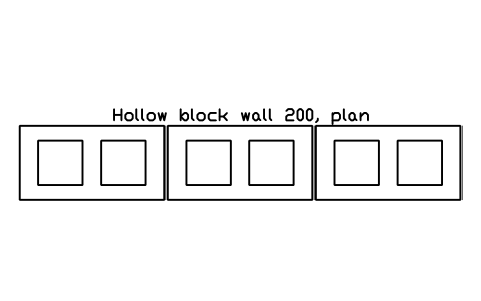
Hollow block wall 200, plan
CWS_BLOCK_200_PLANAttributes
DESIGNATIONSIZECONCRETE_GRADEREINFORCEMENTCOVER_MMFINISHDETAIL_NOREMARKSDESC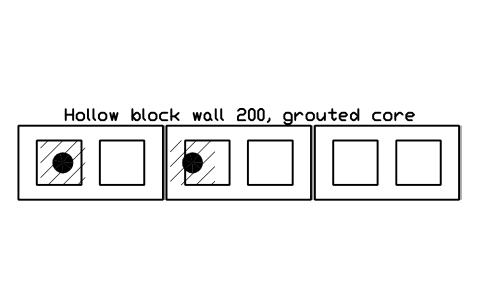
Hollow block wall 200, grouted core
CWS_BLOCK_200_GROUTAttributes
DESIGNATIONSIZECONCRETE_GRADEREINFORCEMENTCOVER_MMFINISHDETAIL_NOREMARKSDESC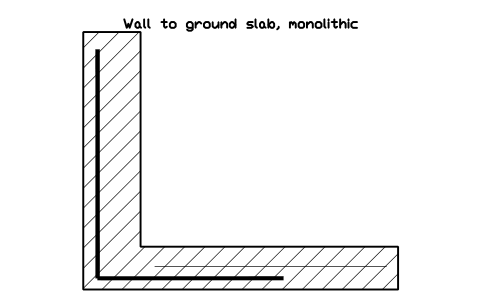
Wall to ground slab, monolithic
CWS_JOINT_WALL_SLABAttributes
DESIGNATIONSIZECONCRETE_GRADEREINFORCEMENTCOVER_MMFINISHDETAIL_NOREMARKSDESC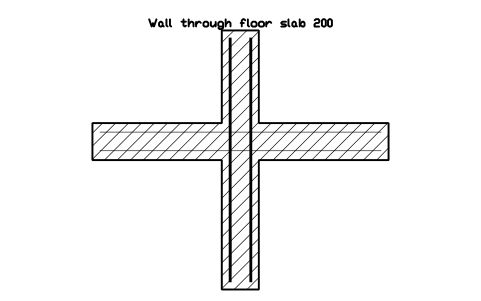
Wall through floor slab 200
CWS_JOINT_WALL_FLOORAttributes
DESIGNATIONSIZECONCRETE_GRADEREINFORCEMENTCOVER_MMFINISHDETAIL_NOREMARKSDESC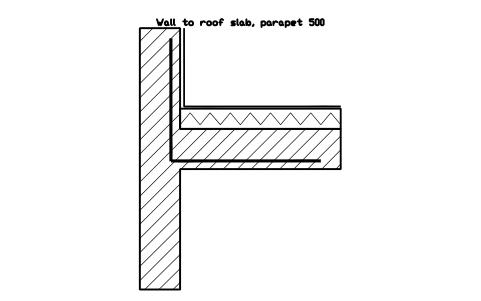
Wall to roof slab, parapet 500
CWS_JOINT_PARAPET_500Attributes
DESIGNATIONSIZECONCRETE_GRADEREINFORCEMENTCOVER_MMFINISHDETAIL_NOREMARKSDESC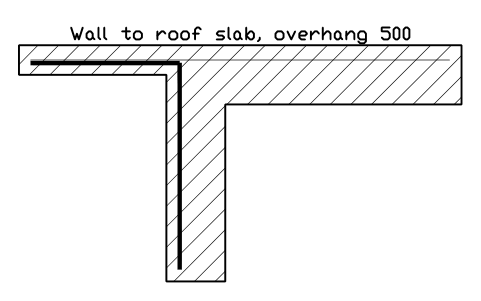
Wall to roof slab, overhang 500
CWS_JOINT_ROOF_OVERHANGAttributes
DESIGNATIONSIZECONCRETE_GRADEREINFORCEMENTCOVER_MMFINISHDETAIL_NOREMARKSDESC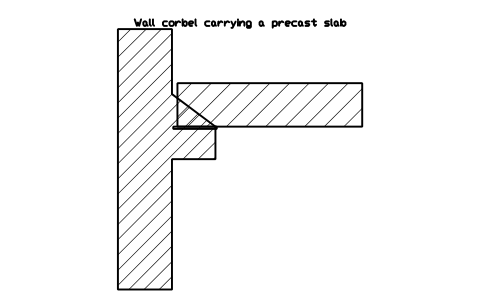
Wall corbel carrying a precast slab
CWS_JOINT_CORBEL_SLABAttributes
DESIGNATIONSIZECONCRETE_GRADEREINFORCEMENTCOVER_MMFINISHDETAIL_NOREMARKSDESC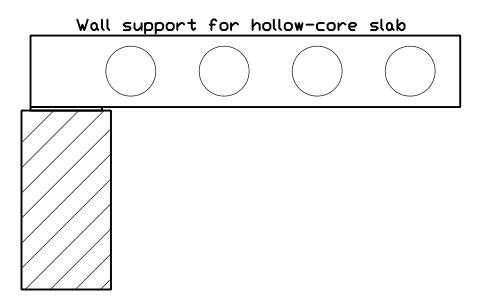
Wall support for hollow-core slab
CWS_JOINT_HOLLOWCOREAttributes
DESIGNATIONSIZECONCRETE_GRADEREINFORCEMENTCOVER_MMFINISHDETAIL_NOREMARKSDESC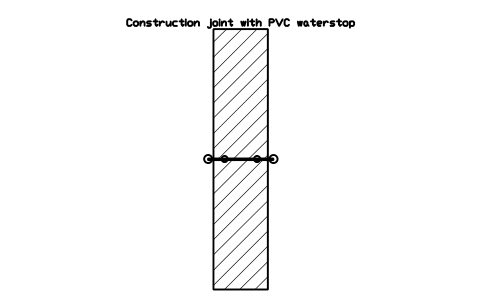
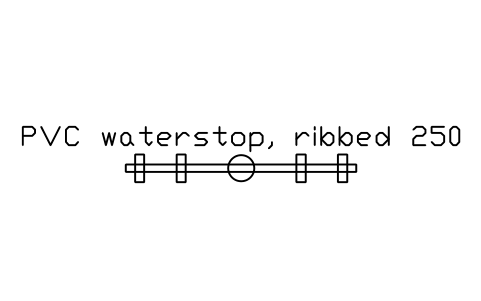
Construction joint with PVC waterstop
CWS_JOINT_WATERSTOPAttributes
DESIGNATIONSIZECONCRETE_GRADEREINFORCEMENTCOVER_MMFINISHDETAIL_NOREMARKSDESC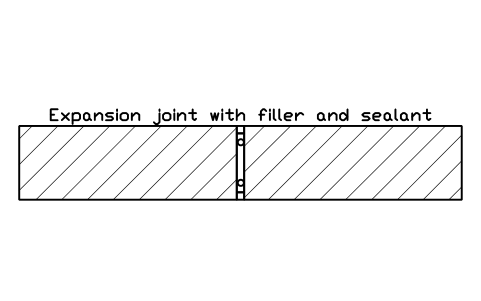
Expansion joint with filler and sealant
CWS_JOINT_EXPANSIONAttributes
DESIGNATIONSIZECONCRETE_GRADEREINFORCEMENTCOVER_MMFINISHDETAIL_NOREMARKSDESC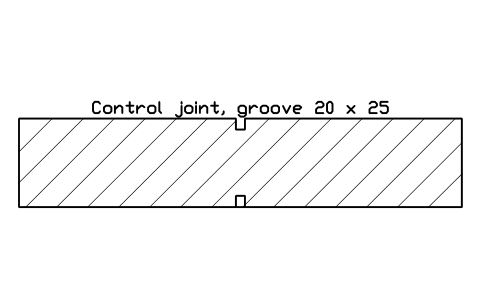
Control joint, groove 20 x 25
CWS_JOINT_CONTROLAttributes
DESIGNATIONSIZECONCRETE_GRADEREINFORCEMENTCOVER_MMFINISHDETAIL_NOREMARKSDESC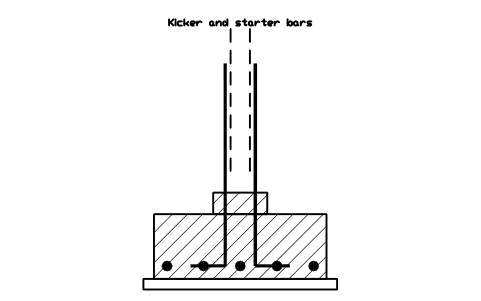
Kicker and starter bars
CWS_JOINT_KICKERAttributes
DESIGNATIONSIZECONCRETE_GRADEREINFORCEMENTCOVER_MMFINISHDETAIL_NOREMARKSDESC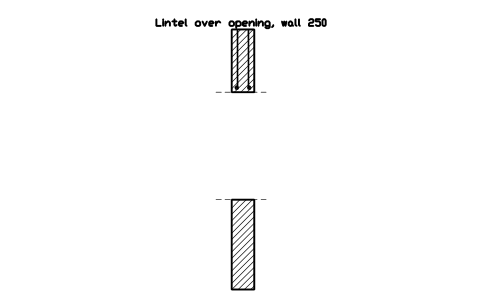
Lintel over opening, wall 250
CWS_OPEN_LINTELAttributes
DESIGNATIONSIZECONCRETE_GRADEREINFORCEMENTCOVER_MMFINISHDETAIL_NOREMARKSDESC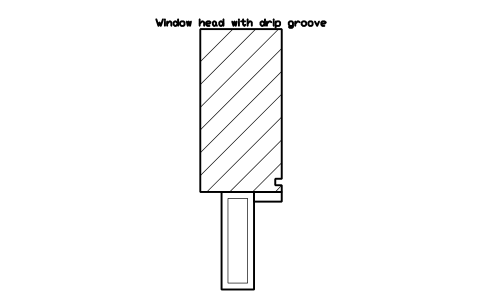
Window head with drip groove
CWS_OPEN_HEAD_DRIPAttributes
DESIGNATIONSIZECONCRETE_GRADEREINFORCEMENTCOVER_MMFINISHDETAIL_NOREMARKSDESC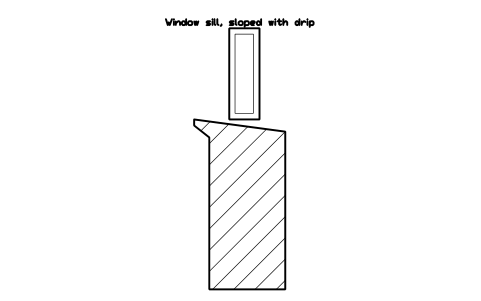
Window sill, sloped with drip
CWS_OPEN_SILL_DRIPAttributes
DESIGNATIONSIZECONCRETE_GRADEREINFORCEMENTCOVER_MMFINISHDETAIL_NOREMARKSDESC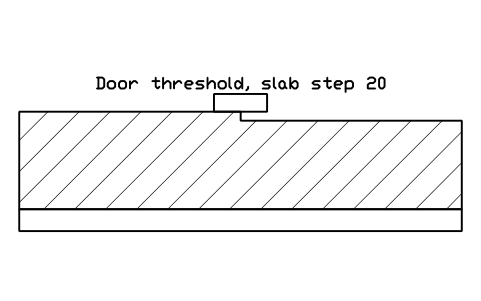
Door threshold, slab step 20
CWS_OPEN_THRESHOLDAttributes
DESIGNATIONSIZECONCRETE_GRADEREINFORCEMENTCOVER_MMFINISHDETAIL_NOREMARKSDESC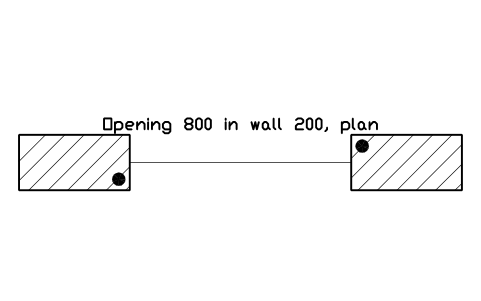
Opening 800 in wall 200, plan
CWS_OPEN_PLAN_800Attributes
DESIGNATIONSIZECONCRETE_GRADEREINFORCEMENTCOVER_MMFINISHDETAIL_NOREMARKSDESC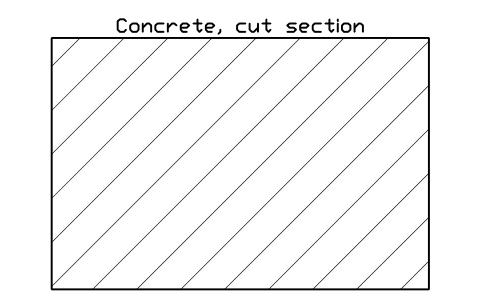
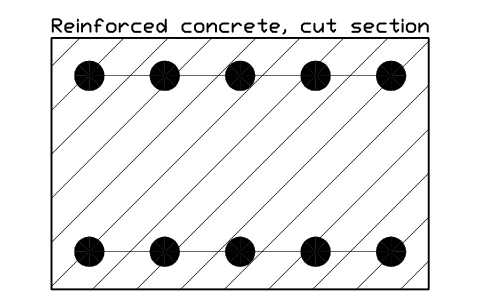
Reinforced concrete, cut section
CWS_SW_REINFORCEDAttributes
DESIGNATIONSIZEMATERIALDETAIL_NOREMARKSDESC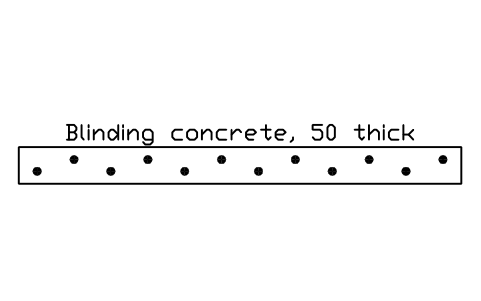

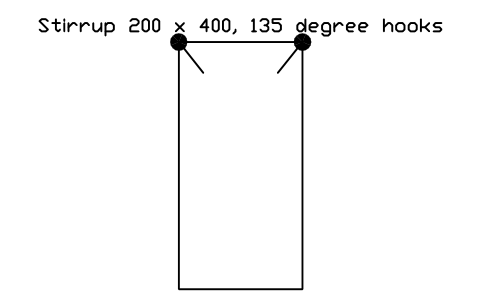
Stirrup 200 x 400, 135 degree hooks
CWS_SW_STIRRUPAttributes
DESIGNATIONSIZEMATERIALDETAIL_NOREMARKSDESC

Missing a symbol? Tell us which one.
Attributes for parts lists
Every block has a visible description next to it (for example Strip footing 800 x 300, wall 250). The invisible attributes are SIZE, CONCRETE_GRADE, REINFORCEMENT, COVER_MM, FINISH, DETAIL_NO and REMARKS; the swatches and parts carry SIZE, MATERIAL, DETAIL_NO and REMARKS.
Export the details of a drawing sheet to Excel with BlockSync to get a detail list with concrete grades, reinforcement and detail numbers. Check it against the drawing and write corrections back in one run, with preview and backup.
How to use the library
- Unzip the file and open the DWG. Copy the symbols you need into your plan, or drag the blocks in from DesignCenter (ADCENTER).
- The blocks are drawn at real size, 1 drawing unit = 1 mm. Insert them at scale 1 into a drawing in millimetres, or draw the detail at 1:1 and scale the viewport; on a metre drawing scale them by 0.001. The catalog sheet shrinks every block to fit its cell, the blocks themselves stay at real size.
- Vertical sections have x to the right and y up; the origin is the centre line of the wall at the top of its footing, and for plan sections the centre of the cut. Basement walls have the soil on the left and retaining walls on the right: use MIRROR for the other hand. Cut concrete is outlined with a thin 45 degree hatch made of lines, so it prints the same everywhere; bars cut across are dots, bars along the section are heavy lines.
- The details are drawn as typical sections, not as a particular design or product: take the exact layers, dimensions, bar sizes and manufacturers' data from your project and the data sheets. The ready-made junctions show one sensible arrangement to start from, not the only one; explode a block with its parts to change a layer.
About the sizes
There is no standard drawing for these details, so the blocks use sizes that are common in practice: walls of 150 to 400 mm, strip footings 600 to 1200 mm wide, a 50 mm blinding layer, 20 to 25 mm grooves and joints, cover of 40 to 50 mm. Change them to suit your project; the blocks are meant to save drawing time, not to fix a size.
The blocks are our own drawings and the library is not certified. They show the principle and the layers of a detail, not a design: concrete grade, bar sizes and spacing, cover, waterproofing, insulation thickness and drainage come from the structural design and the codes that apply to your project and site, and have to be checked by the engineer responsible.
What changed in each version
Version 1.0 · October 31, 2026
New symbols (70)
Wall 150, single layer · Wall 200, two layers · Wall 250, two layers · Wall 300, two layers · Wall 400, two layers · Wall 200, plain concrete · Wall corner 200, plan · Wall T-junction 200, plan · Wall 200 with pilaster 400 x 200 · Wall 200 with column 400 x 400 · Strip footing 600 x 250, wall 200 · Strip footing 800 x 300, wall 250 · Strip footing 1000 x 400, wall 300 · Strip footing 1200 x 400, wall 400 · Stepped footing, wall 300 · Footing with shear key, wall 250 · Pad footing 1200, column 300 · Grade beam 300 x 500 · Thickened edge slab 150 on grade · Raft slab edge 400 · Basement wall 250, footing and slab · Basement wall 250, waterproofing and drain · Basement wall 250, external insulation · Basement wall with brick ledge · Stem wall 200, crawl space · Cantilever retaining wall 2000 · Cantilever retaining wall, shear key · Retaining wall 2000, drain and weep hole · Gravity retaining wall 1500 · L-shaped retaining wall 1200 · Insulated form wall, 150 core · Insulated form wall, 200 core · Sandwich panel 75 + 100 + 75 · Tilt-up panel 190, reveal · Precast wall panel 200 with corbel · Wall 200 with external insulation 100 · Wall 200 with internal insulation 80 · Cavity wall, concrete 150 and brick · Hollow block wall 200, plan · Hollow block wall 200, grouted core · 30 more
Frequently asked questions
- Which details are in the library?
- Walls in plan section, footings and foundations, basement and retaining walls, insulated, precast and block walls, wall junctions and joints, openings, section swatches and parts, and markers for details, levels and wall types. The architectural libraries have wall and stair symbols in plan; the reinforcement library has the bar marks of ISO 3766. This library adds the sections through the wall itself.
- Can I get a detail list from the drawing?
- Yes. Every detail carries SIZE, CONCRETE_GRADE, REINFORCEMENT, COVER_MM, FINISH and DETAIL_NO as invisible attributes. Fill them in the attribute editor, export the blocks with BlockSync and sort by detail number or sheet. The sample values are placeholders, not design values.
- Can I use the symbols in commercial projects?
- Yes. They are free to use and modify in your own projects, including commercial ones. They are provided as is, without warranty. Please do not redistribute or resell the library; see the library terms.
- How is this different from the architectural and reinforcement libraries?
- The architectural libraries draw walls, stairs and roofs as plan and elevation symbols, and the reinforcement library holds the marks and bar shapes of ISO 3766. This library holds the cut details themselves: what the wall, footing, joint or junction looks like in section, with its layers. The blocks use the same style, so you can mix them in one sheet.
- Can I change a symbol or add attributes?
- Yes. Open the DWG, edit a block with BEDIT to change it or add attributes, and save. To update drawings that already contain the block, run ATTSYNC or replace the block. Make a backup first: attribute values can be lost if ATTSYNC is used carelessly.
- Where do I find a ready-made set of these symbols for AutoCAD?
- AutoCAD itself ships only a small set of sample blocks, so a full symbol set has to come from a library. Download the ZIP on this page and open the DWG: every symbol is a block. Insert one with INSERT (Blocks palette, Libraries tab, then pick the DWG) or drag it from DesignCenter (ADCENTER). You can also download a single symbol on its own.