
Free AutoCAD civil site utility symbols (DWG): manholes, storm drains, water, gas, power, survey marks
Civil site utility plan: 222 ready-made AutoCAD blocks (DWG), free to download and use in your own projects, as a ZIP or one symbol at a time.
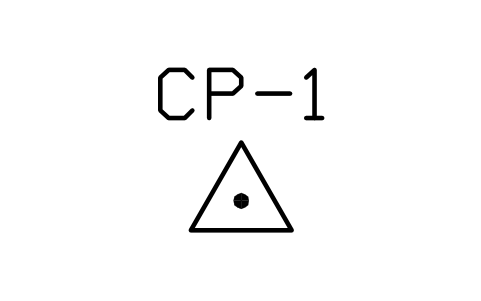
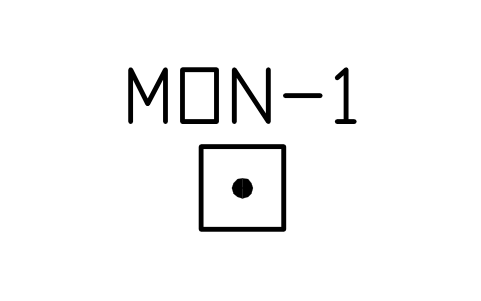
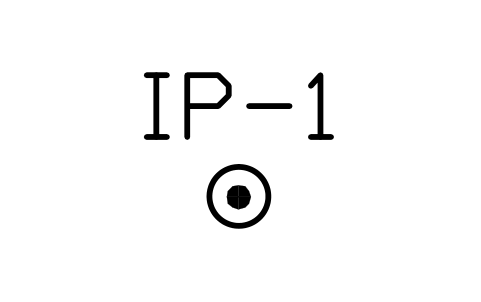
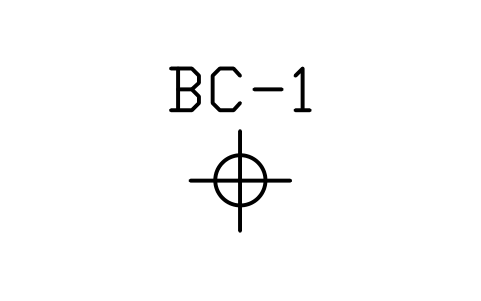
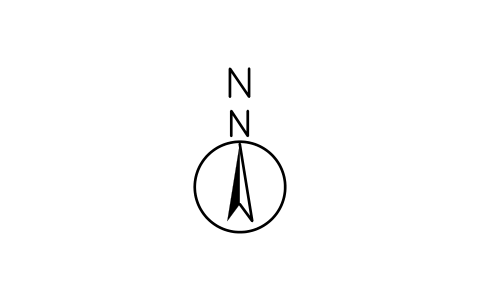
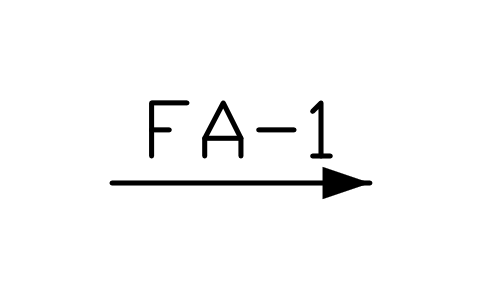
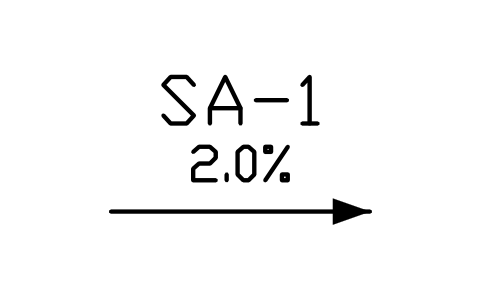
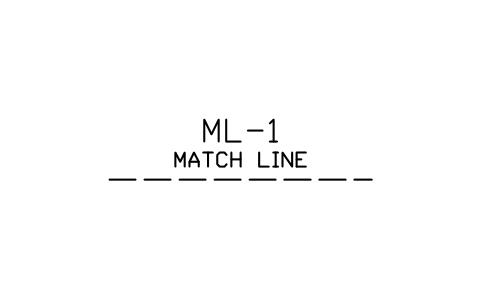
222 blocks at real size for site utility and drainage plans: manholes and chambers (storm, sanitary, combined, water, telecom, electric and gas, 900 to 2400 mm, rectangular chambers, drop, backdrop, shallow, terminal, existing and abandoned manholes, inspection chambers, rodding eyes, cleanouts, oil interceptors, grease and silt traps, wet wells and valve vaults); inlets, culverts and drainage structures (gullies, kerb and grate inlets, slotted and channel drains, headwalls, box and pipe culverts, flared ends, outfalls with flap valves, riprap, ditches, swales, soakaways, infiltration trenches, rain gardens, detention ponds and tanks, flow control and weir chambers); water supply and fire protection (hydrants, fire department connections, valves, meters, backflow preventers, tapping sleeves, thrust blocks, bends, tees, reducers, tanks, towers, pump stations, boreholes and wells); gas, power and telecom items (valves, meters, wood, concrete and steel poles, guy wires, transformers, switchgear, pull boxes, handholes, vaults, street lights, pedestals, cabinets, signal poles and masts); new, existing, abandoned and overhead pipe and cable lines with their codes, duct banks, casings and joint trenches; pipe trench, duct bank and manhole sections; kerbs, ramps, walls, fences, guard rails and steps; and civil tags and survey marks (structure and pipe tags, invert, spot elevation, benchmarks, control points, monuments, boundary marks, north arrow, flow and slope arrows, match line and section mark)
Using AutoCAD 2017 or an earlier version? Download the 2010 format
Copyright CADXChange. Use and modify the symbols freely in your own drawings and projects, including commercial ones; credit and a link are needed only when you publish them. Please do not redistribute or resell the library. Each ZIP holds one plain DWG file in AutoCAD 2018 format and a README; no add-in needed. Provided as is, without warranty. Library terms (CXL-1.0)
Related symbol libraries
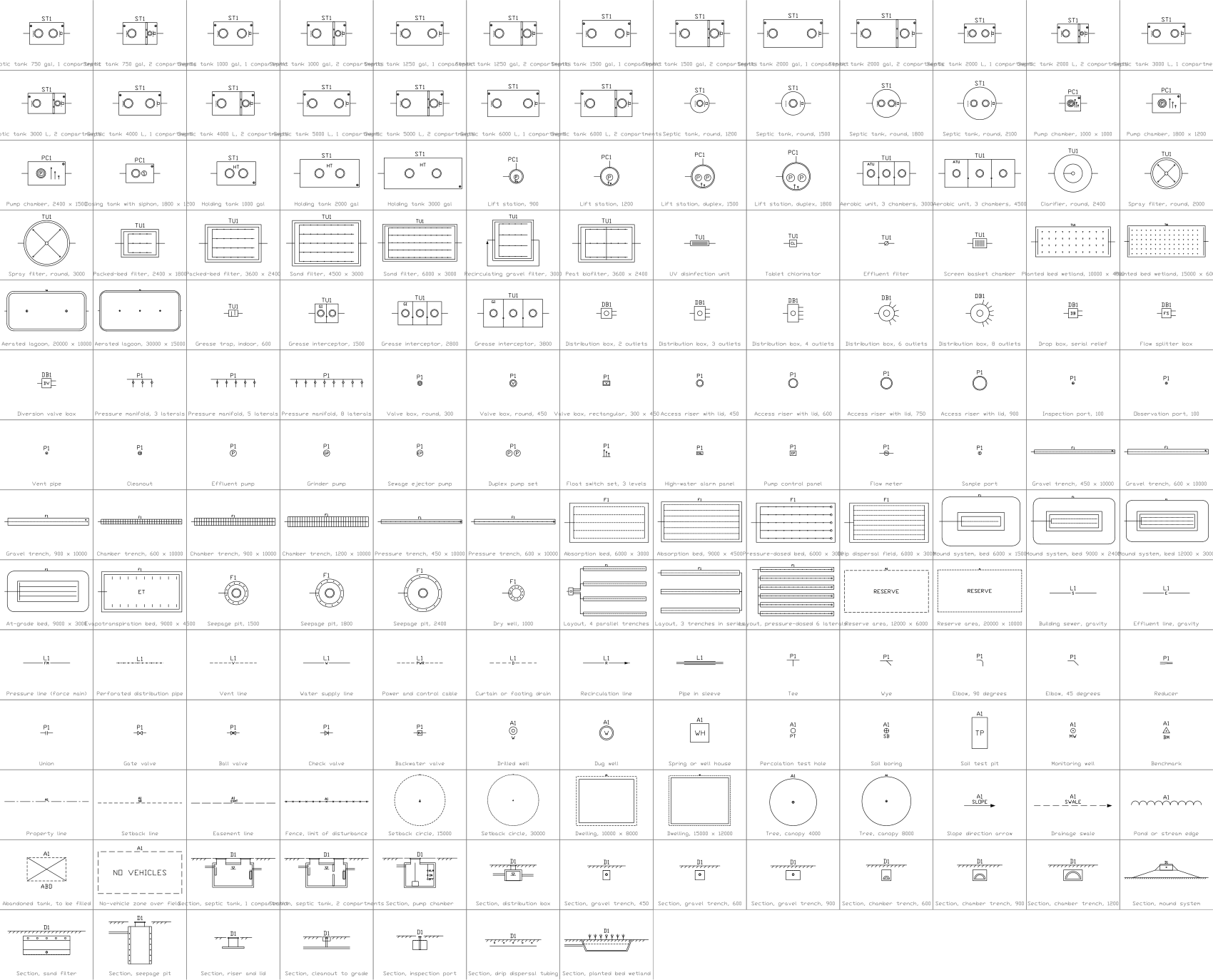
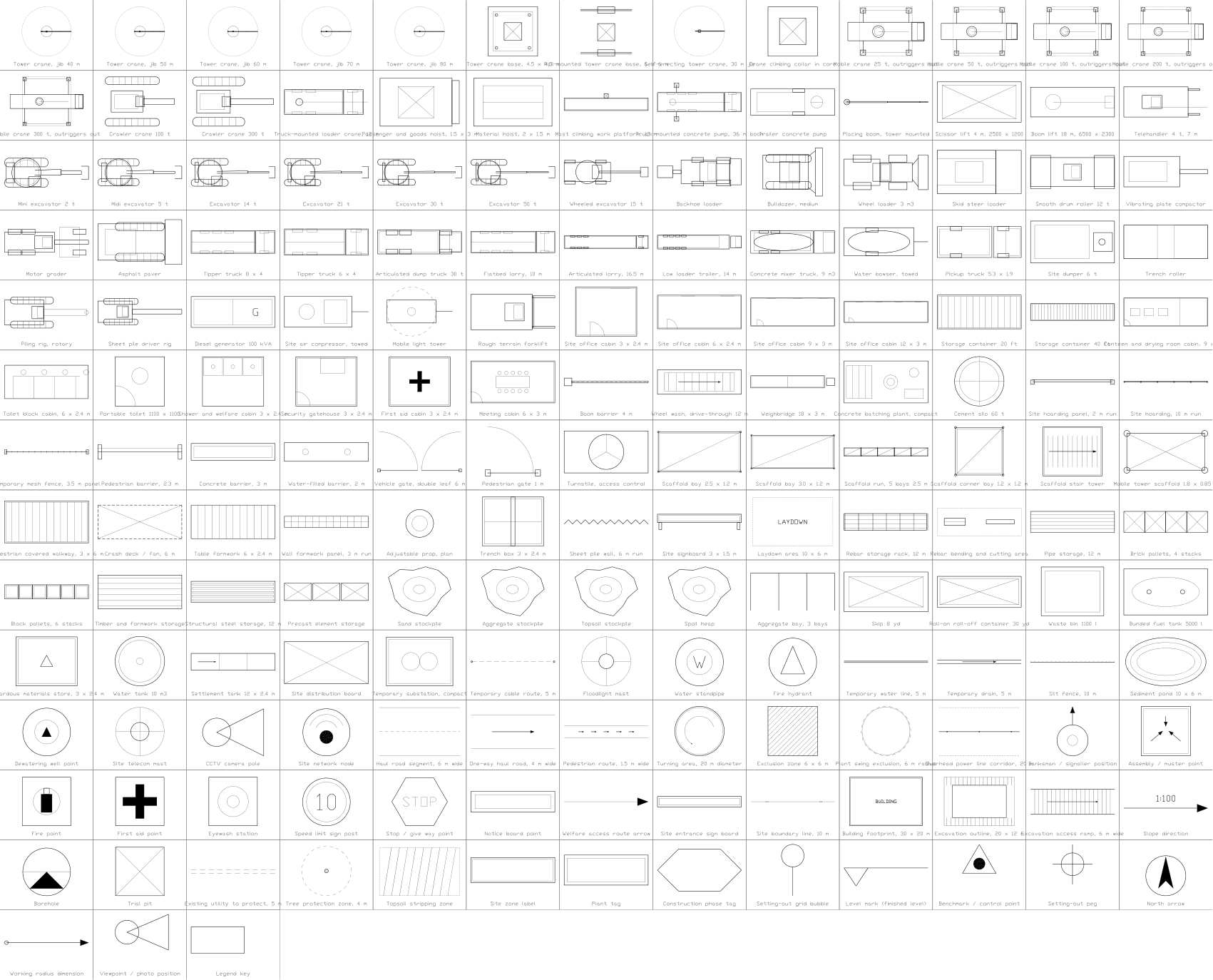

All 222 symbols
222 of 222 symbols
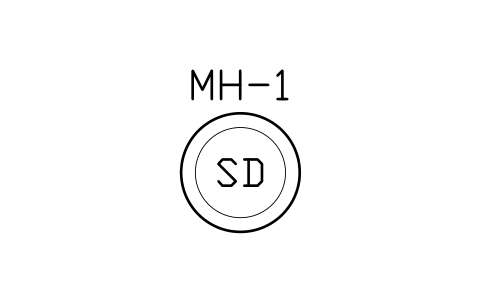
Storm manhole, 1050 dia
CIV_STM_MH_1050Attributes
TAGITEM_TYPESIZEMATERIALRIM_ELEV_MINVERT_ELEV_MDEPTH_MPIPE_SIZE_MMQTYMANUFACTURERMODELREMARKSDESC
Storm manhole, 1200 dia
CIV_STM_MH_1200Attributes
TAGITEM_TYPESIZEMATERIALRIM_ELEV_MINVERT_ELEV_MDEPTH_MPIPE_SIZE_MMQTYMANUFACTURERMODELREMARKSDESC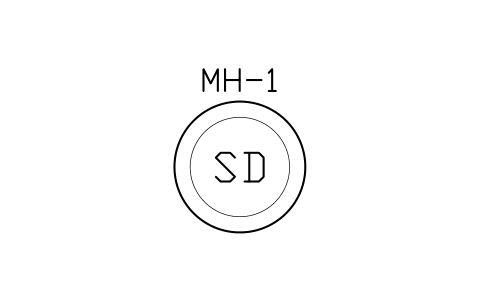
Storm manhole, 1500 dia
CIV_STM_MH_1500Attributes
TAGITEM_TYPESIZEMATERIALRIM_ELEV_MINVERT_ELEV_MDEPTH_MPIPE_SIZE_MMQTYMANUFACTURERMODELREMARKSDESC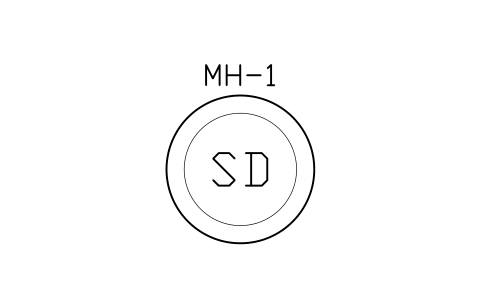
Storm manhole, 1800 dia
CIV_STM_MH_1800Attributes
TAGITEM_TYPESIZEMATERIALRIM_ELEV_MINVERT_ELEV_MDEPTH_MPIPE_SIZE_MMQTYMANUFACTURERMODELREMARKSDESC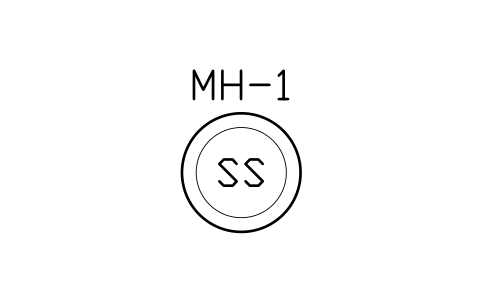
Sanitary manhole, 1050 dia
CIV_SAN_MH_1050Attributes
TAGITEM_TYPESIZEMATERIALRIM_ELEV_MINVERT_ELEV_MDEPTH_MPIPE_SIZE_MMQTYMANUFACTURERMODELREMARKSDESC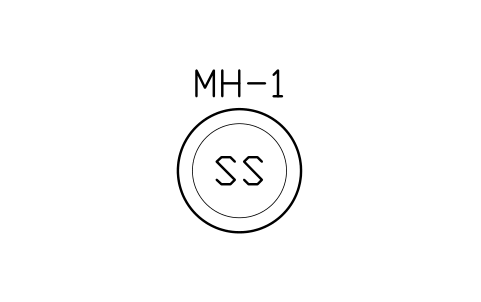
Sanitary manhole, 1200 dia
CIV_SAN_MH_1200Attributes
TAGITEM_TYPESIZEMATERIALRIM_ELEV_MINVERT_ELEV_MDEPTH_MPIPE_SIZE_MMQTYMANUFACTURERMODELREMARKSDESC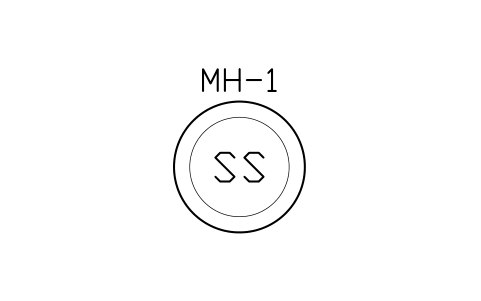
Sanitary manhole, 1500 dia
CIV_SAN_MH_1500Attributes
TAGITEM_TYPESIZEMATERIALRIM_ELEV_MINVERT_ELEV_MDEPTH_MPIPE_SIZE_MMQTYMANUFACTURERMODELREMARKSDESC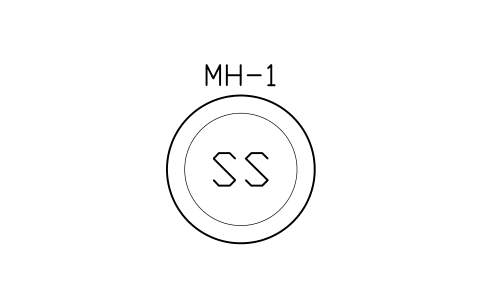
Sanitary manhole, 1800 dia
CIV_SAN_MH_1800Attributes
TAGITEM_TYPESIZEMATERIALRIM_ELEV_MINVERT_ELEV_MDEPTH_MPIPE_SIZE_MMQTYMANUFACTURERMODELREMARKSDESC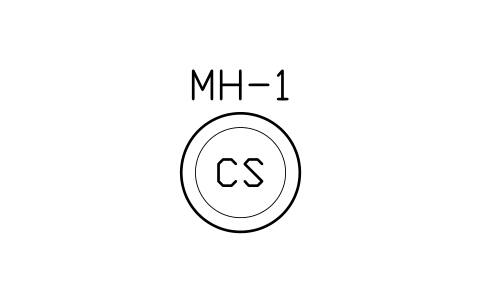
Combined manhole, 1050 dia
CIV_CMB_MH_1050Attributes
TAGITEM_TYPESIZEMATERIALRIM_ELEV_MINVERT_ELEV_MDEPTH_MPIPE_SIZE_MMQTYMANUFACTURERMODELREMARKSDESC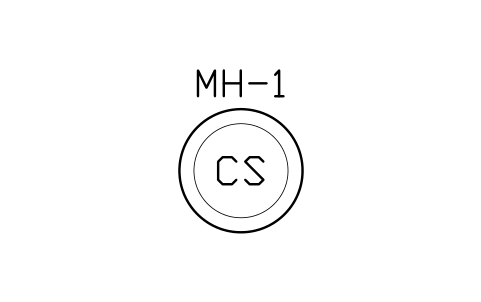
Combined manhole, 1200 dia
CIV_CMB_MH_1200Attributes
TAGITEM_TYPESIZEMATERIALRIM_ELEV_MINVERT_ELEV_MDEPTH_MPIPE_SIZE_MMQTYMANUFACTURERMODELREMARKSDESC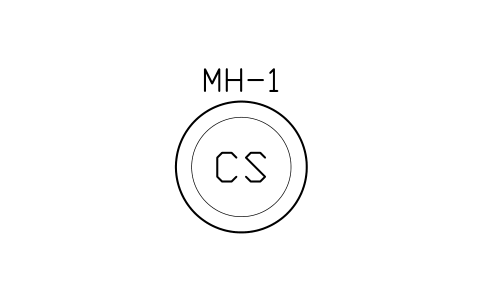
Combined manhole, 1500 dia
CIV_CMB_MH_1500Attributes
TAGITEM_TYPESIZEMATERIALRIM_ELEV_MINVERT_ELEV_MDEPTH_MPIPE_SIZE_MMQTYMANUFACTURERMODELREMARKSDESC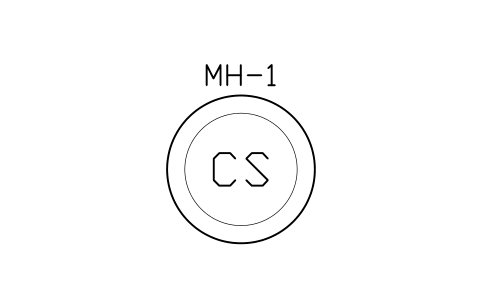
Combined manhole, 1800 dia
CIV_CMB_MH_1800Attributes
TAGITEM_TYPESIZEMATERIALRIM_ELEV_MINVERT_ELEV_MDEPTH_MPIPE_SIZE_MMQTYMANUFACTURERMODELREMARKSDESC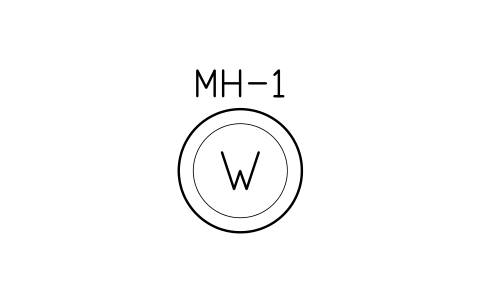
Water valve chamber, 1200 dia
CIV_WTR_CH_1200Attributes
TAGITEM_TYPESIZEMATERIALRIM_ELEV_MINVERT_ELEV_MDEPTH_MPIPE_SIZE_MMQTYMANUFACTURERMODELREMARKSDESC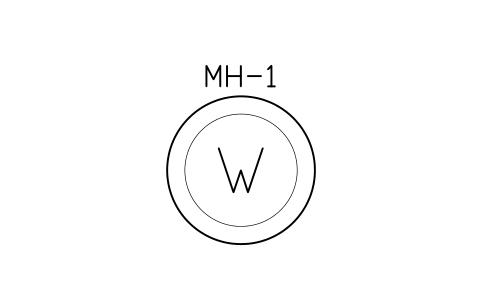
Water valve chamber, 1800 dia
CIV_WTR_CH_1800Attributes
TAGITEM_TYPESIZEMATERIALRIM_ELEV_MINVERT_ELEV_MDEPTH_MPIPE_SIZE_MMQTYMANUFACTURERMODELREMARKSDESC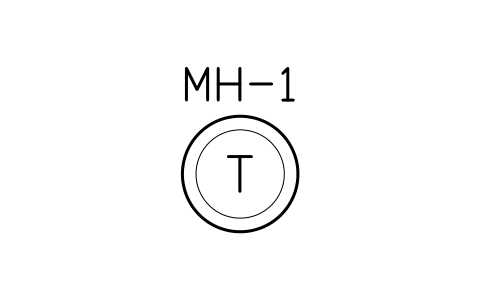
Telecom manhole, 900 dia
CIV_TEL_CH_900Attributes
TAGITEM_TYPESIZEMATERIALRIM_ELEV_MINVERT_ELEV_MDEPTH_MPIPE_SIZE_MMQTYMANUFACTURERMODELREMARKSDESC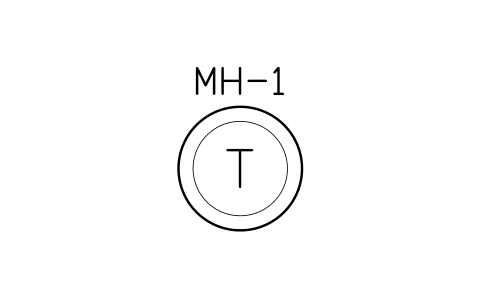
Telecom manhole, 1200 dia
CIV_TEL_CH_1200Attributes
TAGITEM_TYPESIZEMATERIALRIM_ELEV_MINVERT_ELEV_MDEPTH_MPIPE_SIZE_MMQTYMANUFACTURERMODELREMARKSDESC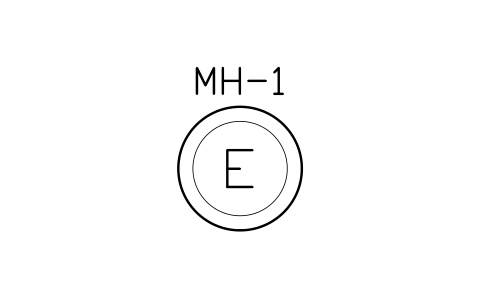
Electric manhole, 1200 dia
CIV_ELC_CH_1200Attributes
TAGITEM_TYPESIZEMATERIALRIM_ELEV_MINVERT_ELEV_MDEPTH_MPIPE_SIZE_MMQTYMANUFACTURERMODELREMARKSDESC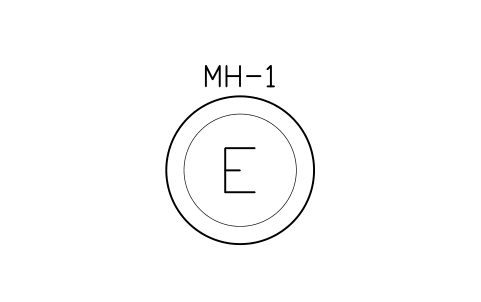
Electric manhole, 1800 dia
CIV_ELC_CH_1800Attributes
TAGITEM_TYPESIZEMATERIALRIM_ELEV_MINVERT_ELEV_MDEPTH_MPIPE_SIZE_MMQTYMANUFACTURERMODELREMARKSDESC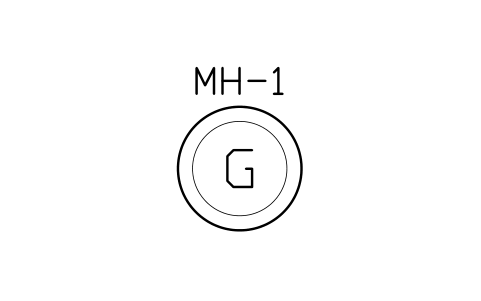
Gas valve chamber, 1200 dia
CIV_GAS_CH_1200Attributes
TAGITEM_TYPESIZEMATERIALRIM_ELEV_MINVERT_ELEV_MDEPTH_MPIPE_SIZE_MMQTYMANUFACTURERMODELREMARKSDESC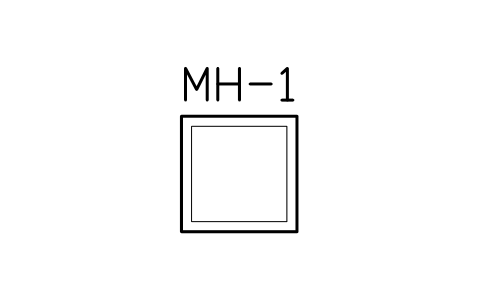
Chamber, rectangular, 900 x 900
CIV_RECT_CH_900X900Attributes
TAGITEM_TYPESIZEMATERIALRIM_ELEV_MINVERT_ELEV_MDEPTH_MPIPE_SIZE_MMQTYMANUFACTURERMODELREMARKSDESC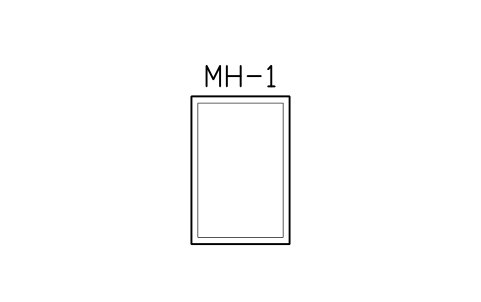
Chamber, rectangular, 1200 x 1800
CIV_RECT_CH_1200X1800Attributes
TAGITEM_TYPESIZEMATERIALRIM_ELEV_MINVERT_ELEV_MDEPTH_MPIPE_SIZE_MMQTYMANUFACTURERMODELREMARKSDESC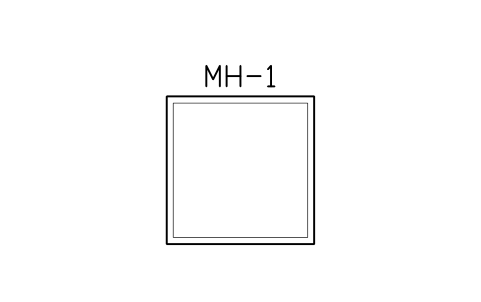
Chamber, rectangular, 1800 x 1800
CIV_RECT_CH_1800X1800Attributes
TAGITEM_TYPESIZEMATERIALRIM_ELEV_MINVERT_ELEV_MDEPTH_MPIPE_SIZE_MMQTYMANUFACTURERMODELREMARKSDESC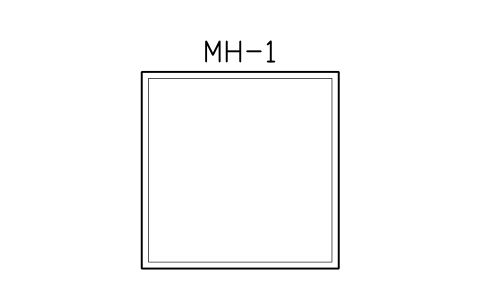
Chamber, rectangular, 2400 x 2400
CIV_RECT_CH_2400X2400Attributes
TAGITEM_TYPESIZEMATERIALRIM_ELEV_MINVERT_ELEV_MDEPTH_MPIPE_SIZE_MMQTYMANUFACTURERMODELREMARKSDESC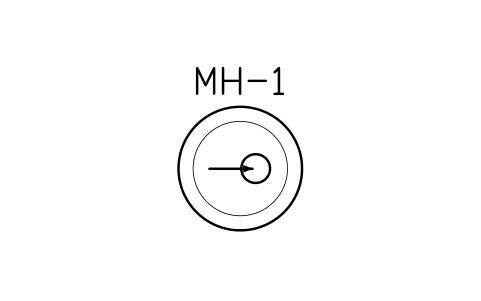
Drop manhole, 1200 dia
CIV_MH_DROPAttributes
TAGITEM_TYPESIZEMATERIALRIM_ELEV_MINVERT_ELEV_MDEPTH_MPIPE_SIZE_MMQTYMANUFACTURERMODELREMARKSDESC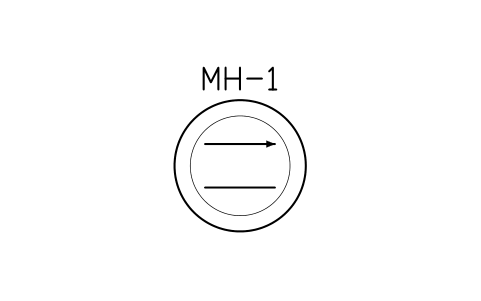
Backdrop manhole, 1500 dia
CIV_MH_BACKDROPAttributes
TAGITEM_TYPESIZEMATERIALRIM_ELEV_MINVERT_ELEV_MDEPTH_MPIPE_SIZE_MMQTYMANUFACTURERMODELREMARKSDESC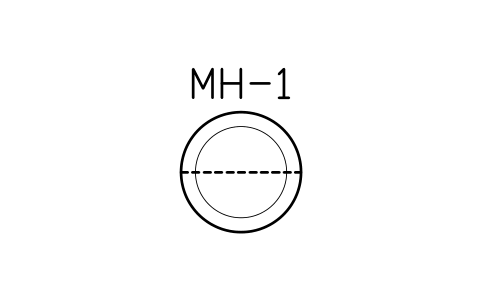
Shallow manhole, 1050 dia
CIV_MH_SHALLOWAttributes
TAGITEM_TYPESIZEMATERIALRIM_ELEV_MINVERT_ELEV_MDEPTH_MPIPE_SIZE_MMQTYMANUFACTURERMODELREMARKSDESC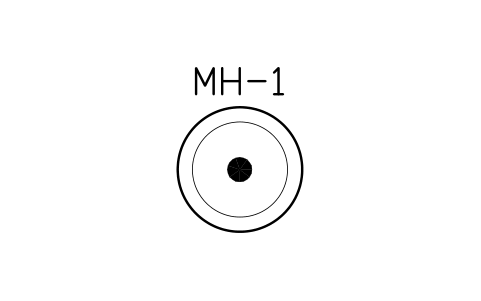
Terminal manhole, 1200 dia
CIV_MH_TERMINALAttributes
TAGITEM_TYPESIZEMATERIALRIM_ELEV_MINVERT_ELEV_MDEPTH_MPIPE_SIZE_MMQTYMANUFACTURERMODELREMARKSDESC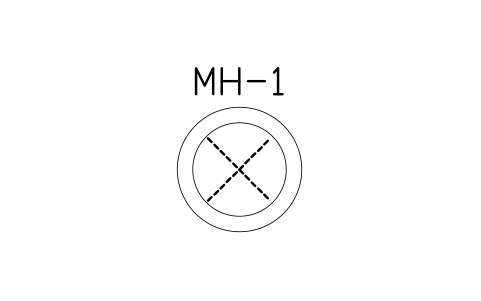
Existing manhole, 1200 dia
CIV_MH_EXISTINGAttributes
TAGITEM_TYPESIZEMATERIALRIM_ELEV_MINVERT_ELEV_MDEPTH_MPIPE_SIZE_MMQTYMANUFACTURERMODELREMARKSDESC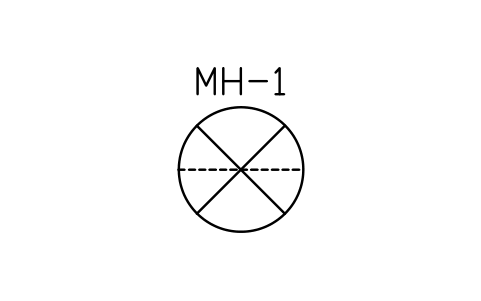
Abandoned manhole, 1200 dia
CIV_MH_ABANDONAttributes
TAGITEM_TYPESIZEMATERIALRIM_ELEV_MINVERT_ELEV_MDEPTH_MPIPE_SIZE_MMQTYMANUFACTURERMODELREMARKSDESC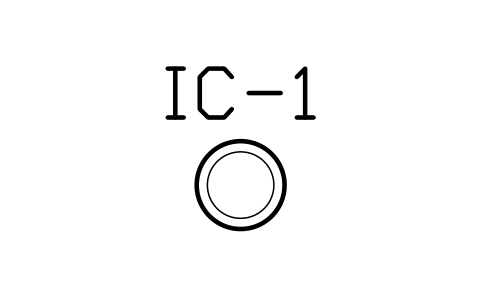
Inspection chamber, 450 dia
CIV_INSPECTIONAttributes
TAGITEM_TYPESIZEMATERIALRIM_ELEV_MINVERT_ELEV_MDEPTH_MPIPE_SIZE_MMQTYMANUFACTURERMODELREMARKSDESC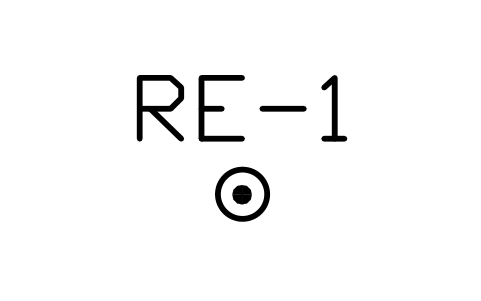
Rodding eye
CIV_RODDING_EYEAttributes
TAGITEM_TYPESIZEMATERIALRIM_ELEV_MINVERT_ELEV_MDEPTH_MPIPE_SIZE_MMQTYMANUFACTURERMODELREMARKSDESC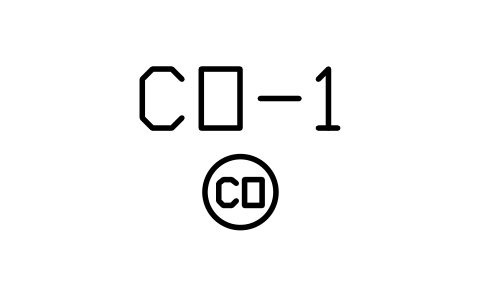
Cleanout, 150 dia
CIV_CLEANOUTAttributes
TAGITEM_TYPESIZEMATERIALRIM_ELEV_MINVERT_ELEV_MDEPTH_MPIPE_SIZE_MMQTYMANUFACTURERMODELREMARKSDESC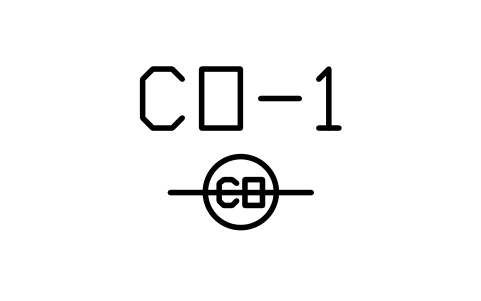
Cleanout, two way
CIV_CLEANOUT_TWINAttributes
TAGITEM_TYPESIZEMATERIALRIM_ELEV_MINVERT_ELEV_MDEPTH_MPIPE_SIZE_MMQTYMANUFACTURERMODELREMARKSDESC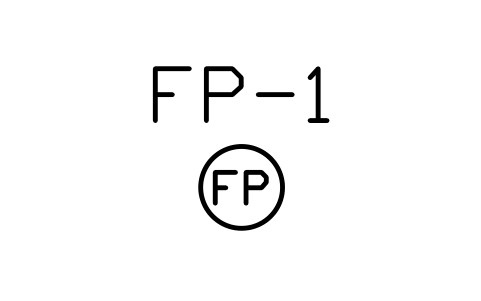
Flushing point
CIV_FLUSH_POINTAttributes
TAGITEM_TYPESIZEMATERIALRIM_ELEV_MINVERT_ELEV_MDEPTH_MPIPE_SIZE_MMQTYMANUFACTURERMODELREMARKSDESC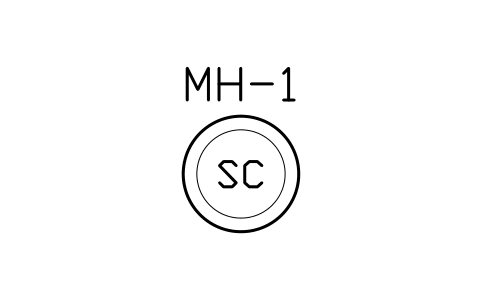
Sampling chamber, 900 dia
CIV_SAMPLINGAttributes
TAGITEM_TYPESIZEMATERIALRIM_ELEV_MINVERT_ELEV_MDEPTH_MPIPE_SIZE_MMQTYMANUFACTURERMODELREMARKSDESC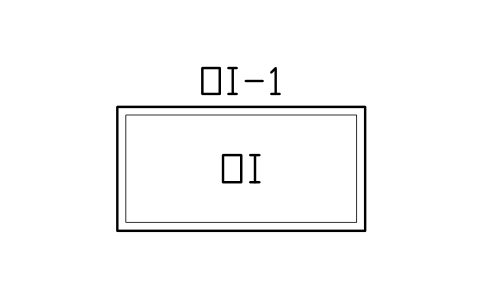
Oil interceptor, 1200 x 2400
CIV_OIL_INTERCEPTAttributes
TAGITEM_TYPESIZEMATERIALRIM_ELEV_MINVERT_ELEV_MDEPTH_MPIPE_SIZE_MMQTYMANUFACTURERMODELREMARKSDESC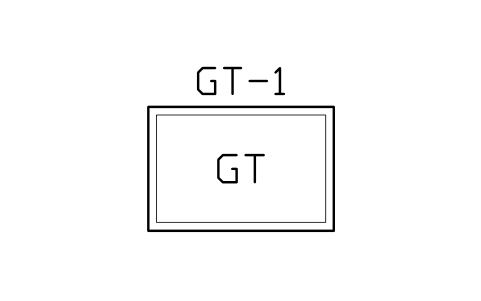
Grease trap, 1200 x 1800
CIV_GREASE_TRAPAttributes
TAGITEM_TYPESIZEMATERIALRIM_ELEV_MINVERT_ELEV_MDEPTH_MPIPE_SIZE_MMQTYMANUFACTURERMODELREMARKSDESC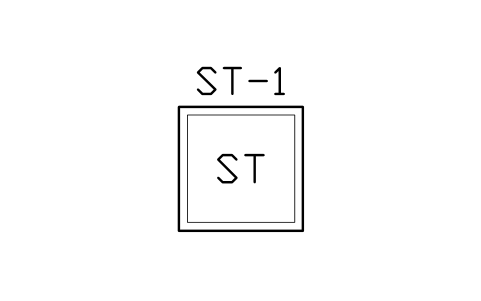
Silt trap, 1200 x 1200
CIV_SILT_TRAPAttributes
TAGITEM_TYPESIZEMATERIALRIM_ELEV_MINVERT_ELEV_MDEPTH_MPIPE_SIZE_MMQTYMANUFACTURERMODELREMARKSDESC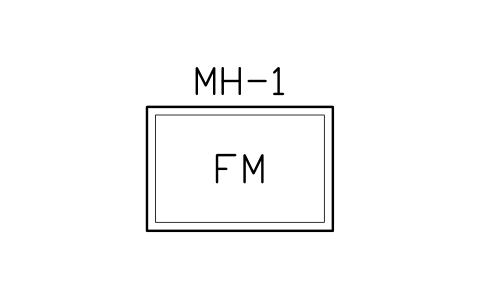
Flow meter chamber
CIV_FLOW_METER_CHAttributes
TAGITEM_TYPESIZEMATERIALRIM_ELEV_MINVERT_ELEV_MDEPTH_MPIPE_SIZE_MMQTYMANUFACTURERMODELREMARKSDESC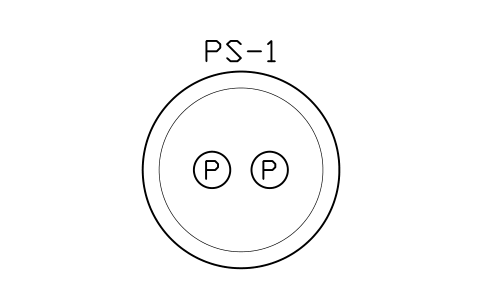
Wet well, 2400 dia
CIV_WETWELL_2400Attributes
TAGITEM_TYPESIZEMATERIALRIM_ELEV_MINVERT_ELEV_MDEPTH_MPIPE_SIZE_MMQTYMANUFACTURERMODELREMARKSDESC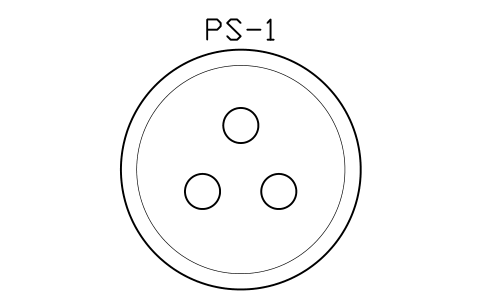
Wet well, 3000 dia
CIV_WETWELL_3000Attributes
TAGITEM_TYPESIZEMATERIALRIM_ELEV_MINVERT_ELEV_MDEPTH_MPIPE_SIZE_MMQTYMANUFACTURERMODELREMARKSDESC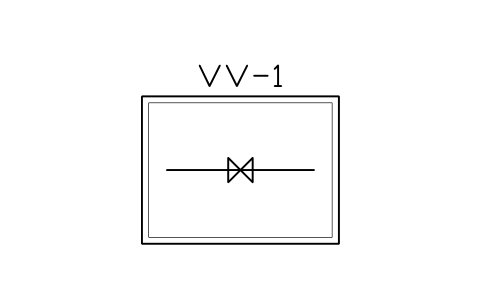
Valve vault, 1800 x 2400
CIV_VALVE_VAULTAttributes
TAGITEM_TYPESIZEMATERIALRIM_ELEV_MINVERT_ELEV_MDEPTH_MPIPE_SIZE_MMQTYMANUFACTURERMODELREMARKSDESC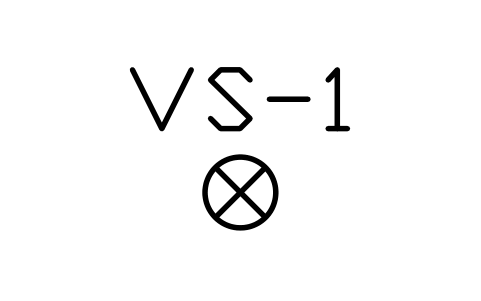
Vent stack, 150 dia
CIV_VENT_STACKAttributes
TAGITEM_TYPESIZEMATERIALRIM_ELEV_MINVERT_ELEV_MDEPTH_MPIPE_SIZE_MMQTYMANUFACTURERMODELREMARKSDESC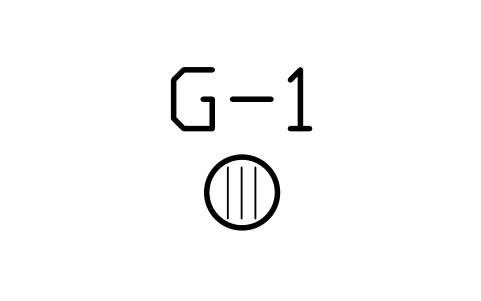
Gully, round, 300 dia
CIV_GULLY_300Attributes
TAGITEM_TYPESIZEMATERIALRIM_ELEV_MINVERT_ELEV_MDEPTH_MPIPE_SIZE_MMQTYMANUFACTURERMODELREMARKSDESC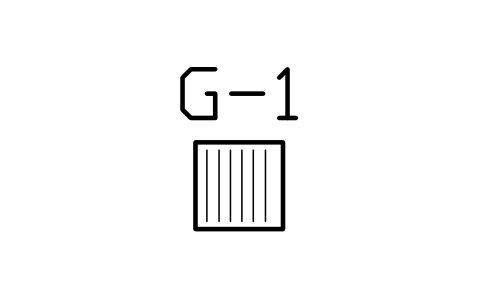
Gully, square, 450
CIV_GULLY_450Attributes
TAGITEM_TYPESIZEMATERIALRIM_ELEV_MINVERT_ELEV_MDEPTH_MPIPE_SIZE_MMQTYMANUFACTURERMODELREMARKSDESC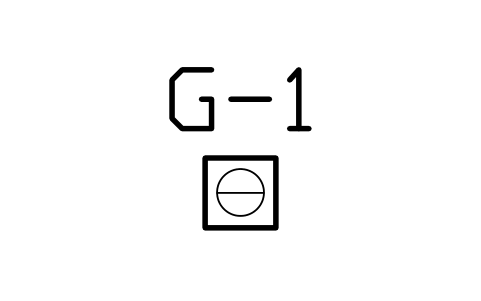
Yard gully, 300 x 300
CIV_YARD_GULLYAttributes
TAGITEM_TYPESIZEMATERIALRIM_ELEV_MINVERT_ELEV_MDEPTH_MPIPE_SIZE_MMQTYMANUFACTURERMODELREMARKSDESC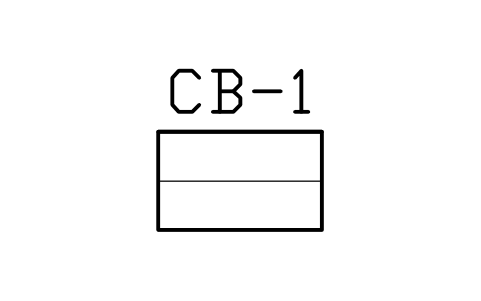
Kerb inlet, 1000
CIV_KERB_INLET_1000Attributes
TAGITEM_TYPESIZEMATERIALRIM_ELEV_MINVERT_ELEV_MDEPTH_MPIPE_SIZE_MMQTYMANUFACTURERMODELREMARKSDESC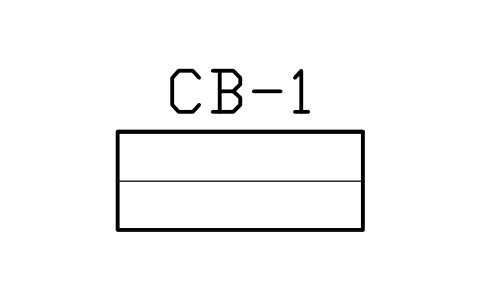
Kerb inlet, 1500
CIV_KERB_INLET_1500Attributes
TAGITEM_TYPESIZEMATERIALRIM_ELEV_MINVERT_ELEV_MDEPTH_MPIPE_SIZE_MMQTYMANUFACTURERMODELREMARKSDESC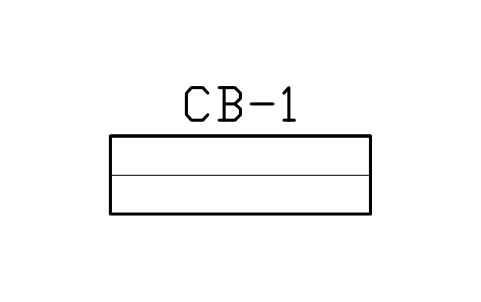
Kerb inlet, 2000
CIV_KERB_INLET_2000Attributes
TAGITEM_TYPESIZEMATERIALRIM_ELEV_MINVERT_ELEV_MDEPTH_MPIPE_SIZE_MMQTYMANUFACTURERMODELREMARKSDESC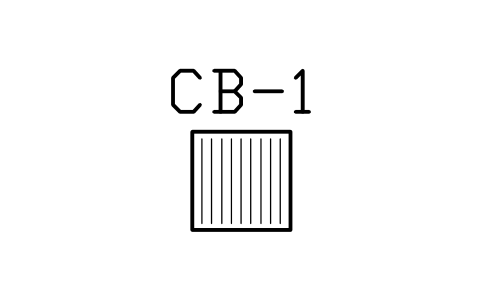
Grate inlet, 600 x 600
CIV_GRATE_600Attributes
TAGITEM_TYPESIZEMATERIALRIM_ELEV_MINVERT_ELEV_MDEPTH_MPIPE_SIZE_MMQTYMANUFACTURERMODELREMARKSDESC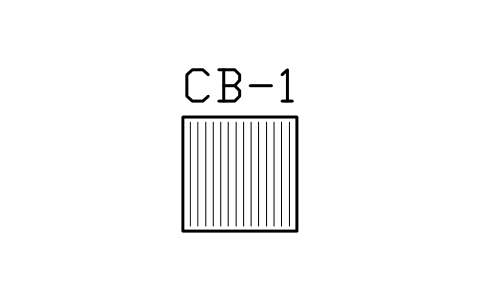
Grate inlet, 900 x 900
CIV_GRATE_900Attributes
TAGITEM_TYPESIZEMATERIALRIM_ELEV_MINVERT_ELEV_MDEPTH_MPIPE_SIZE_MMQTYMANUFACTURERMODELREMARKSDESC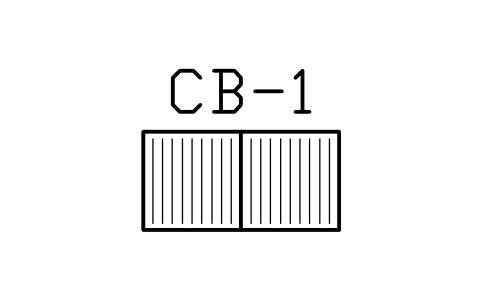
Grate inlet, double, 600 x 1200
CIV_GRATE_DOUBLEAttributes
TAGITEM_TYPESIZEMATERIALRIM_ELEV_MINVERT_ELEV_MDEPTH_MPIPE_SIZE_MMQTYMANUFACTURERMODELREMARKSDESC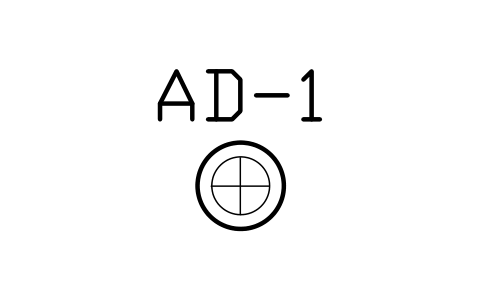
Area drain, round, 450
CIV_AREA_DRAINAttributes
TAGITEM_TYPESIZEMATERIALRIM_ELEV_MINVERT_ELEV_MDEPTH_MPIPE_SIZE_MMQTYMANUFACTURERMODELREMARKSDESC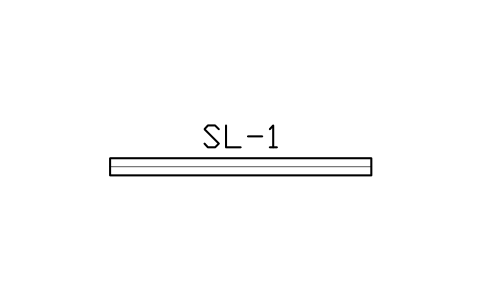
Slotted drain, 3000
CIV_SLOT_DRAINAttributes
TAGITEM_TYPESIZEMATERIALRIM_ELEV_MINVERT_ELEV_MDEPTH_MPIPE_SIZE_MMQTYMANUFACTURERMODELREMARKSDESC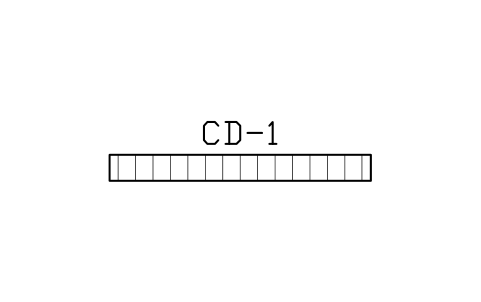
Channel drain, 3000
CIV_CHANNEL_3000Attributes
TAGITEM_TYPESIZEMATERIALRIM_ELEV_MINVERT_ELEV_MDEPTH_MPIPE_SIZE_MMQTYMANUFACTURERMODELREMARKSDESC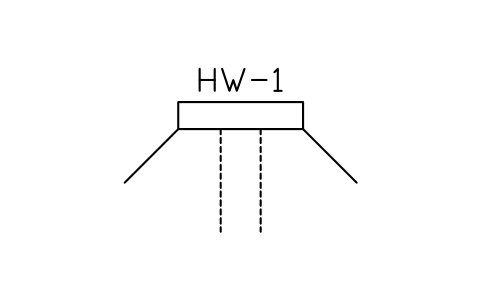
Headwall, 450 pipe
CIV_HEADWALL_450Attributes
TAGITEM_TYPESIZEMATERIALRIM_ELEV_MINVERT_ELEV_MDEPTH_MPIPE_SIZE_MMQTYMANUFACTURERMODELREMARKSDESC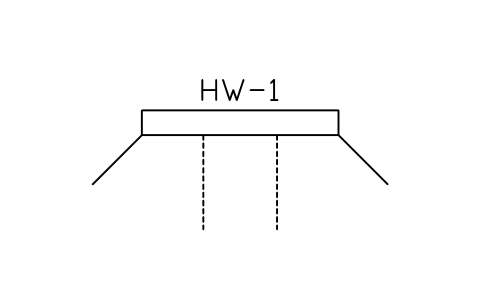
Headwall, 900 pipe
CIV_HEADWALL_900Attributes
TAGITEM_TYPESIZEMATERIALRIM_ELEV_MINVERT_ELEV_MDEPTH_MPIPE_SIZE_MMQTYMANUFACTURERMODELREMARKSDESC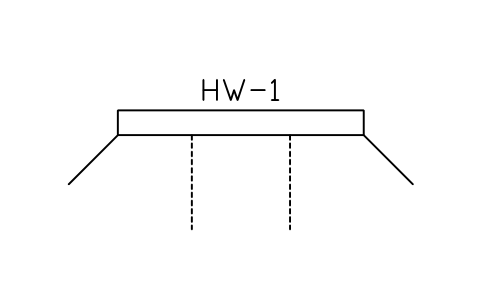
Headwall, 1200 pipe
CIV_HEADWALL_1200Attributes
TAGITEM_TYPESIZEMATERIALRIM_ELEV_MINVERT_ELEV_MDEPTH_MPIPE_SIZE_MMQTYMANUFACTURERMODELREMARKSDESC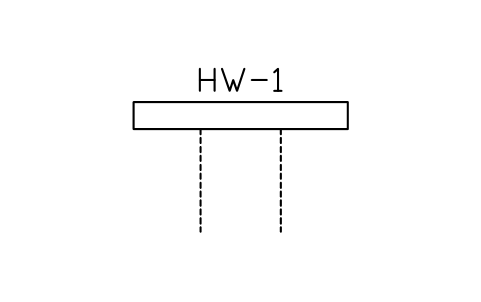
Headwall, straight, 900 pipe
CIV_HEADWALL_STRAIGHTAttributes
TAGITEM_TYPESIZEMATERIALRIM_ELEV_MINVERT_ELEV_MDEPTH_MPIPE_SIZE_MMQTYMANUFACTURERMODELREMARKSDESC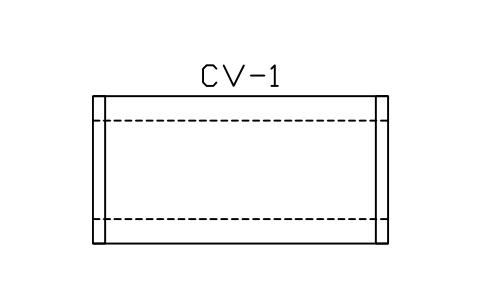
Box culvert, 1800 x 1200
CIV_CULVERT_BOXAttributes
TAGITEM_TYPESIZEMATERIALRIM_ELEV_MINVERT_ELEV_MDEPTH_MPIPE_SIZE_MMQTYMANUFACTURERMODELREMARKSDESC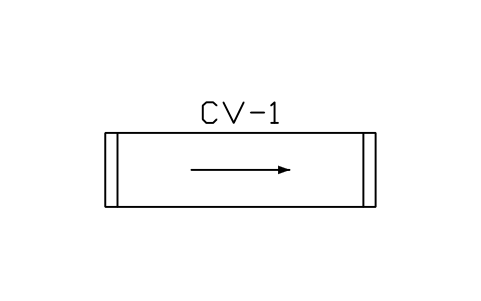
Pipe culvert, 3000 run
CIV_CULVERT_PIPEAttributes
TAGITEM_TYPESIZEMATERIALRIM_ELEV_MINVERT_ELEV_MDEPTH_MPIPE_SIZE_MMQTYMANUFACTURERMODELREMARKSDESC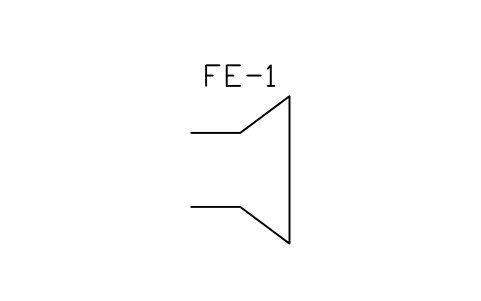
Flared end section
CIV_FLARED_ENDAttributes
TAGITEM_TYPESIZEMATERIALRIM_ELEV_MINVERT_ELEV_MDEPTH_MPIPE_SIZE_MMQTYMANUFACTURERMODELREMARKSDESC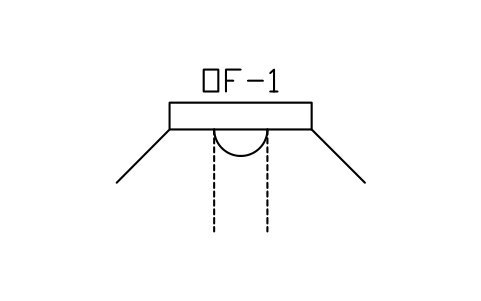
Outfall with flap valve
CIV_OUTFALL_FLAPAttributes
TAGITEM_TYPESIZEMATERIALRIM_ELEV_MINVERT_ELEV_MDEPTH_MPIPE_SIZE_MMQTYMANUFACTURERMODELREMARKSDESC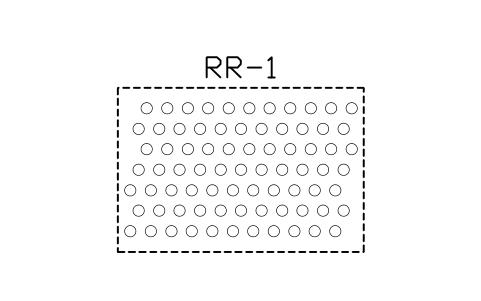
Riprap apron, 3000 x 2000
CIV_RIPRAPAttributes
TAGITEM_TYPESIZEMATERIALRIM_ELEV_MINVERT_ELEV_MDEPTH_MPIPE_SIZE_MMQTYMANUFACTURERMODELREMARKSDESC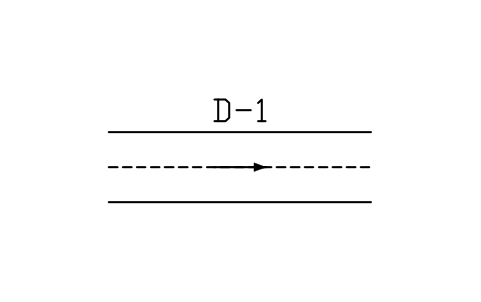
Open ditch, 3000
CIV_DITCH_3000Attributes
TAGITEM_TYPESIZEMATERIALRIM_ELEV_MINVERT_ELEV_MDEPTH_MPIPE_SIZE_MMQTYMANUFACTURERMODELREMARKSDESC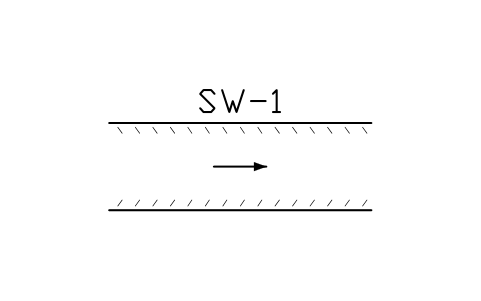
Grass swale, 3000
CIV_SWALE_3000Attributes
TAGITEM_TYPESIZEMATERIALRIM_ELEV_MINVERT_ELEV_MDEPTH_MPIPE_SIZE_MMQTYMANUFACTURERMODELREMARKSDESC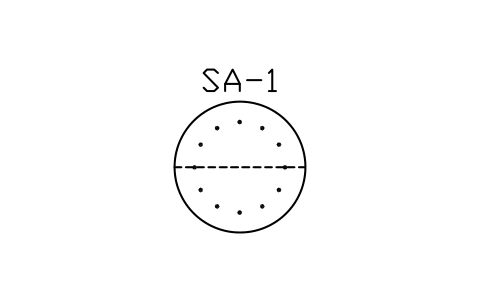
Soakaway, 1500 dia
CIV_SOAKAWAY_1500Attributes
TAGITEM_TYPESIZEMATERIALRIM_ELEV_MINVERT_ELEV_MDEPTH_MPIPE_SIZE_MMQTYMANUFACTURERMODELREMARKSDESC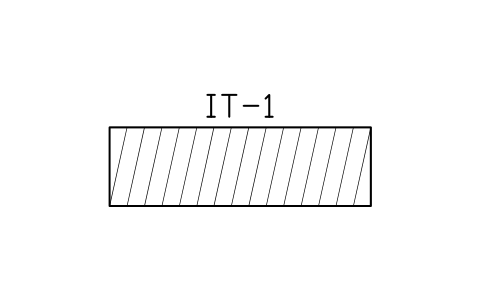
Infiltration trench, 3000
CIV_INFILTRATIONAttributes
TAGITEM_TYPESIZEMATERIALRIM_ELEV_MINVERT_ELEV_MDEPTH_MPIPE_SIZE_MMQTYMANUFACTURERMODELREMARKSDESC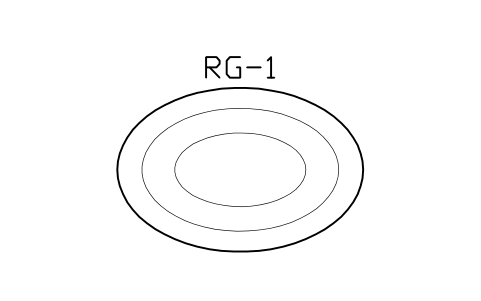
Rain garden, 3000 x 2000
CIV_RAIN_GARDENAttributes
TAGITEM_TYPESIZEMATERIALRIM_ELEV_MINVERT_ELEV_MDEPTH_MPIPE_SIZE_MMQTYMANUFACTURERMODELREMARKSDESC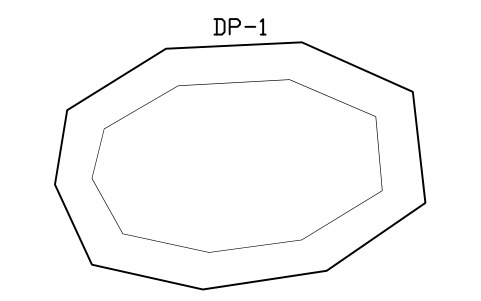
Detention pond outline
CIV_POND_OUTLINEAttributes
TAGITEM_TYPESIZEMATERIALRIM_ELEV_MINVERT_ELEV_MDEPTH_MPIPE_SIZE_MMQTYMANUFACTURERMODELREMARKSDESC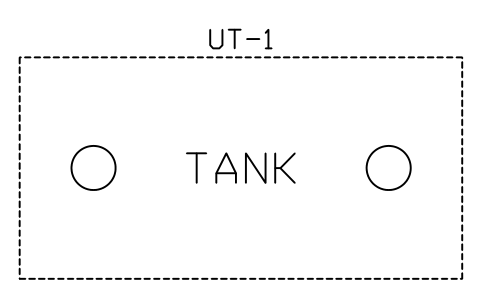
Underground tank, 3000 x 6000
CIV_TANK_UNDERAttributes
TAGITEM_TYPESIZEMATERIALRIM_ELEV_MINVERT_ELEV_MDEPTH_MPIPE_SIZE_MMQTYMANUFACTURERMODELREMARKSDESC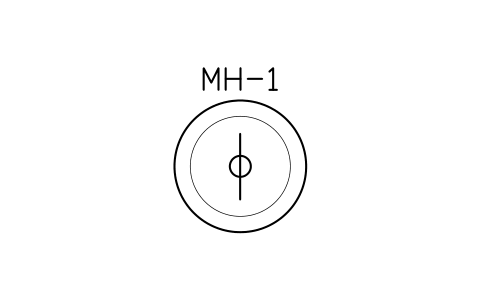
Flow control chamber
CIV_FLOW_CONTROLAttributes
TAGITEM_TYPESIZEMATERIALRIM_ELEV_MINVERT_ELEV_MDEPTH_MPIPE_SIZE_MMQTYMANUFACTURERMODELREMARKSDESC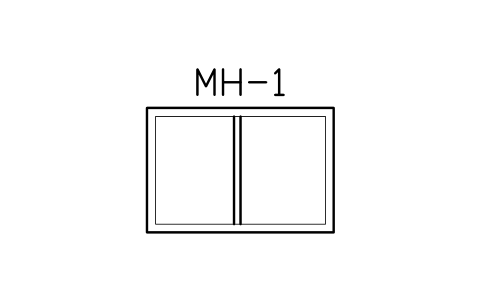
Weir chamber, 1800 x 1200
CIV_WEIRAttributes
TAGITEM_TYPESIZEMATERIALRIM_ELEV_MINVERT_ELEV_MDEPTH_MPIPE_SIZE_MMQTYMANUFACTURERMODELREMARKSDESC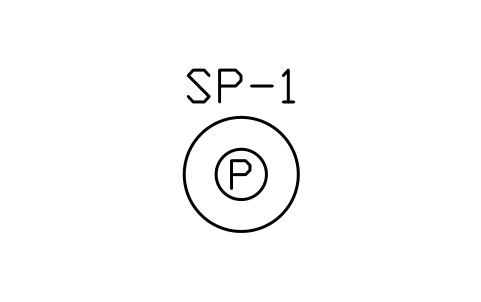
Sump with pump
CIV_SUMP_PUMPAttributes
TAGITEM_TYPESIZEMATERIALRIM_ELEV_MINVERT_ELEV_MDEPTH_MPIPE_SIZE_MMQTYMANUFACTURERMODELREMARKSDESC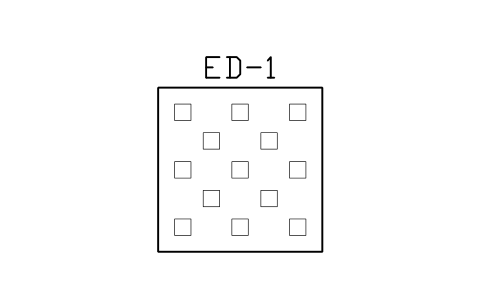
Energy dissipator
CIV_ENERGY_DISSAttributes
TAGITEM_TYPESIZEMATERIALRIM_ELEV_MINVERT_ELEV_MDEPTH_MPIPE_SIZE_MMQTYMANUFACTURERMODELREMARKSDESC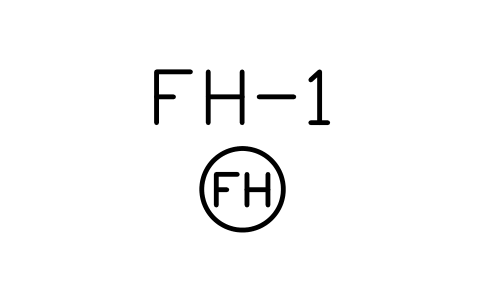
Fire hydrant, pillar
CIV_HYDRANTAttributes
TAGITEM_TYPESIZE_MMPRESSURE_RATINGMATERIALELEVATION_MQTYMANUFACTURERMODELREMARKSDESC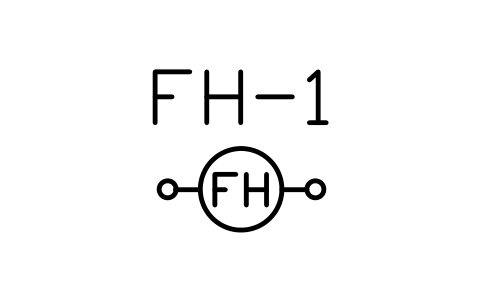
Fire hydrant, two outlets
CIV_HYDRANT_PORTSAttributes
TAGITEM_TYPESIZE_MMPRESSURE_RATINGMATERIALELEVATION_MQTYMANUFACTURERMODELREMARKSDESC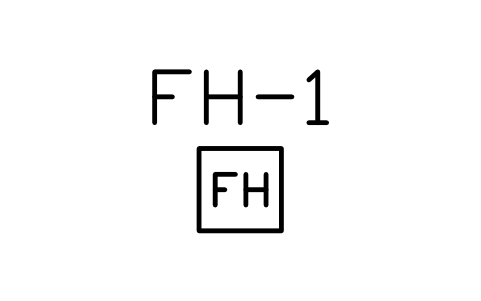
Fire hydrant, flush
CIV_HYDRANT_FLUSHAttributes
TAGITEM_TYPESIZE_MMPRESSURE_RATINGMATERIALELEVATION_MQTYMANUFACTURERMODELREMARKSDESC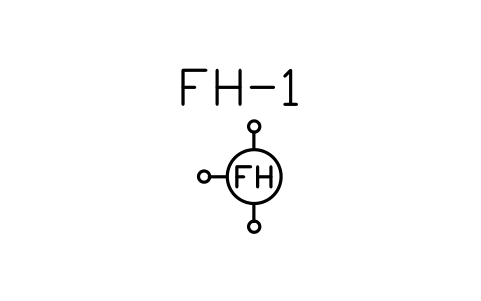
Fire hydrant, three outlets
CIV_HYDRANT_WYEAttributes
TAGITEM_TYPESIZE_MMPRESSURE_RATINGMATERIALELEVATION_MQTYMANUFACTURERMODELREMARKSDESC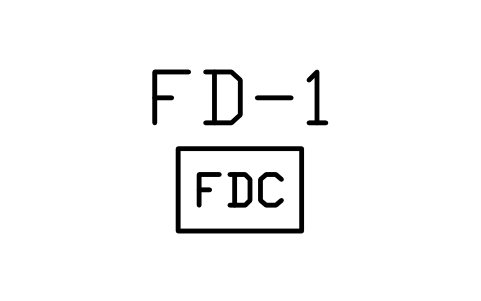
Fire department connection
CIV_FDCAttributes
TAGITEM_TYPESIZE_MMPRESSURE_RATINGMATERIALELEVATION_MQTYMANUFACTURERMODELREMARKSDESC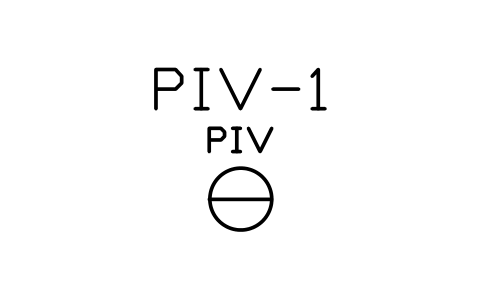
Post indicator valve
CIV_PIVAttributes
TAGITEM_TYPESIZE_MMPRESSURE_RATINGMATERIALELEVATION_MQTYMANUFACTURERMODELREMARKSDESC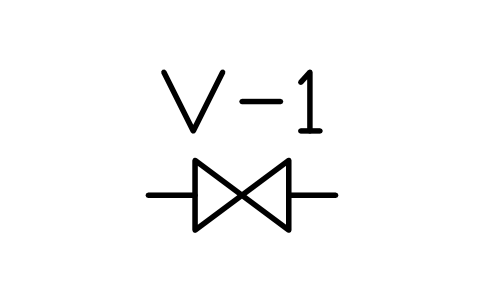
Gate valve
CIV_GATE_VALVEAttributes
TAGITEM_TYPESIZE_MMPRESSURE_RATINGMATERIALELEVATION_MQTYMANUFACTURERMODELREMARKSDESC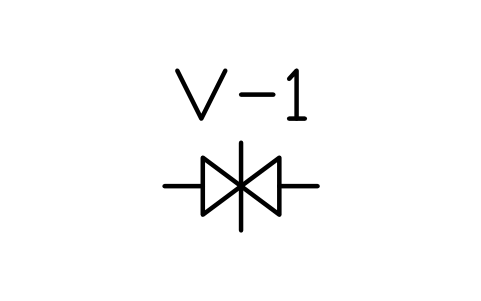
Butterfly valve
CIV_BUTTERFLYAttributes
TAGITEM_TYPESIZE_MMPRESSURE_RATINGMATERIALELEVATION_MQTYMANUFACTURERMODELREMARKSDESC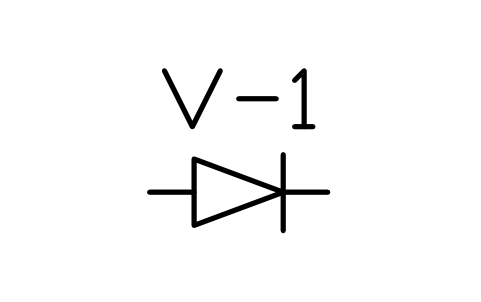
Check valve
CIV_CHECK_VALVEAttributes
TAGITEM_TYPESIZE_MMPRESSURE_RATINGMATERIALELEVATION_MQTYMANUFACTURERMODELREMARKSDESC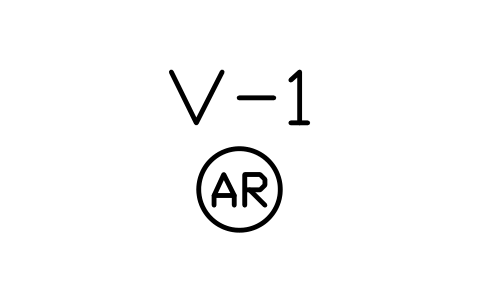
Air release valve
CIV_AIR_VALVEAttributes
TAGITEM_TYPESIZE_MMPRESSURE_RATINGMATERIALELEVATION_MQTYMANUFACTURERMODELREMARKSDESC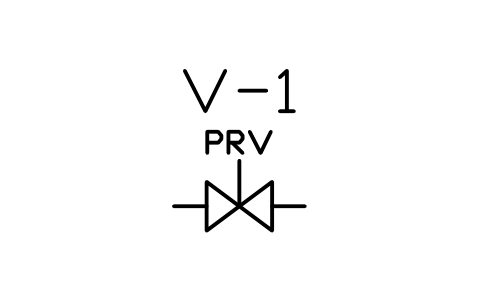
Pressure reducing valve
CIV_PRVAttributes
TAGITEM_TYPESIZE_MMPRESSURE_RATINGMATERIALELEVATION_MQTYMANUFACTURERMODELREMARKSDESC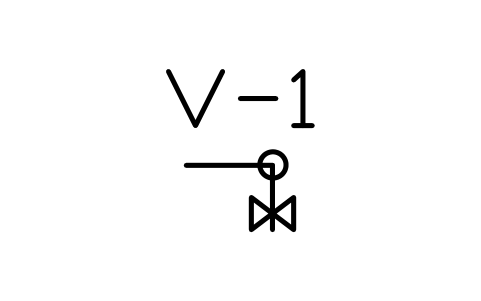
Blow-off valve
CIV_BLOWOFFAttributes
TAGITEM_TYPESIZE_MMPRESSURE_RATINGMATERIALELEVATION_MQTYMANUFACTURERMODELREMARKSDESC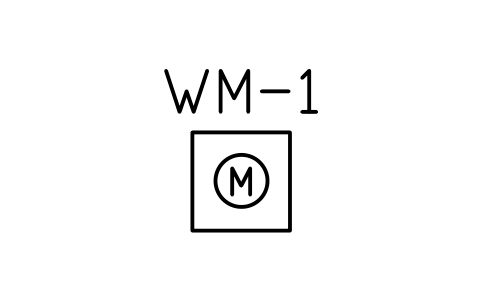
Water meter in chamber
CIV_METERAttributes
TAGITEM_TYPESIZE_MMPRESSURE_RATINGMATERIALELEVATION_MQTYMANUFACTURERMODELREMARKSDESC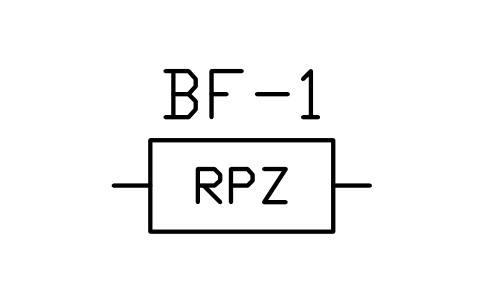
Backflow preventer
CIV_BACKFLOWAttributes
TAGITEM_TYPESIZE_MMPRESSURE_RATINGMATERIALELEVATION_MQTYMANUFACTURERMODELREMARKSDESC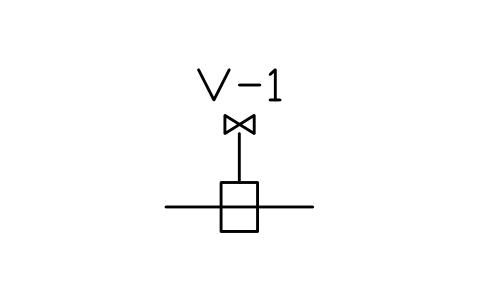
Tapping sleeve and valve
CIV_TAPPINGAttributes
TAGITEM_TYPESIZE_MMPRESSURE_RATINGMATERIALELEVATION_MQTYMANUFACTURERMODELREMARKSDESC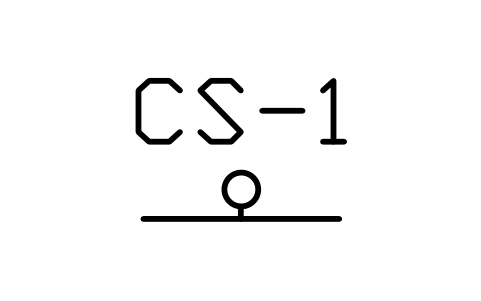
Corporation stop
CIV_CORP_STOPAttributes
TAGITEM_TYPESIZE_MMPRESSURE_RATINGMATERIALELEVATION_MQTYMANUFACTURERMODELREMARKSDESC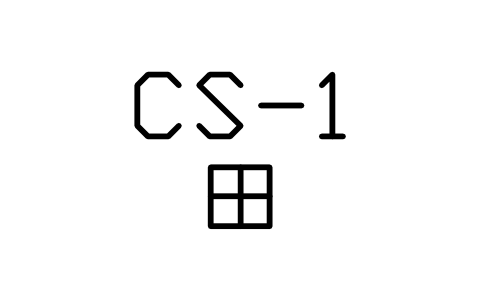
Curb stop and box
CIV_CURB_STOPAttributes
TAGITEM_TYPESIZE_MMPRESSURE_RATINGMATERIALELEVATION_MQTYMANUFACTURERMODELREMARKSDESC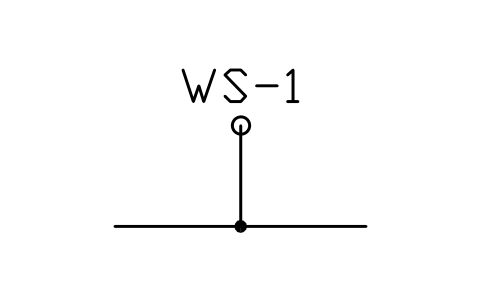
Water service connection
CIV_SERVICE_STUBAttributes
TAGITEM_TYPESIZE_MMPRESSURE_RATINGMATERIALELEVATION_MQTYMANUFACTURERMODELREMARKSDESC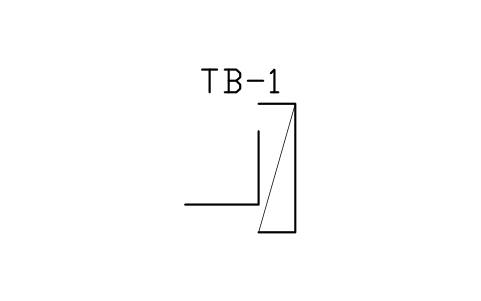
Thrust block, 90 bend
CIV_THRUST_BLOCKAttributes
TAGITEM_TYPESIZE_MMPRESSURE_RATINGMATERIALELEVATION_MQTYMANUFACTURERMODELREMARKSDESC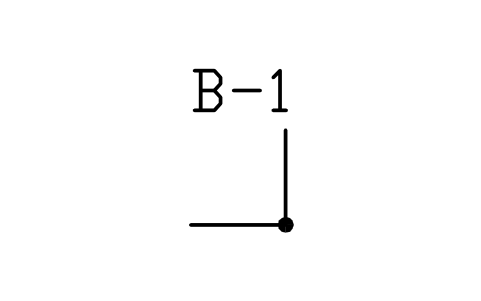
Bend, 90 degrees
CIV_BEND_90Attributes
TAGITEM_TYPESIZE_MMPRESSURE_RATINGMATERIALELEVATION_MQTYMANUFACTURERMODELREMARKSDESC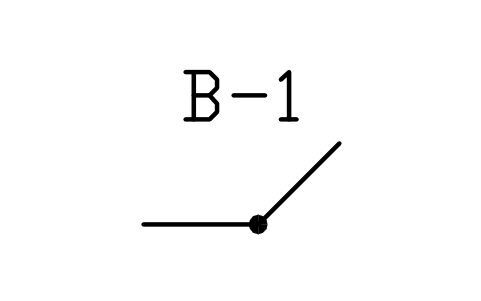
Bend, 45 degrees
CIV_BEND_45Attributes
TAGITEM_TYPESIZE_MMPRESSURE_RATINGMATERIALELEVATION_MQTYMANUFACTURERMODELREMARKSDESC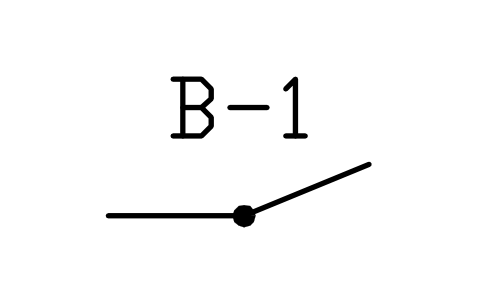
Bend, 22.5 degrees
CIV_BEND_22Attributes
TAGITEM_TYPESIZE_MMPRESSURE_RATINGMATERIALELEVATION_MQTYMANUFACTURERMODELREMARKSDESC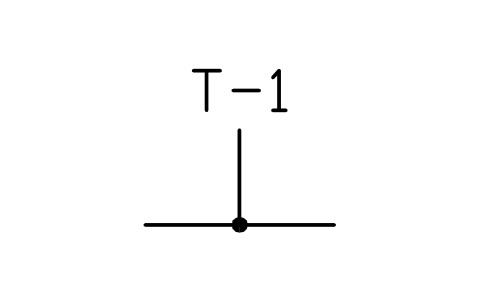
Tee
CIV_TEEAttributes
TAGITEM_TYPESIZE_MMPRESSURE_RATINGMATERIALELEVATION_MQTYMANUFACTURERMODELREMARKSDESC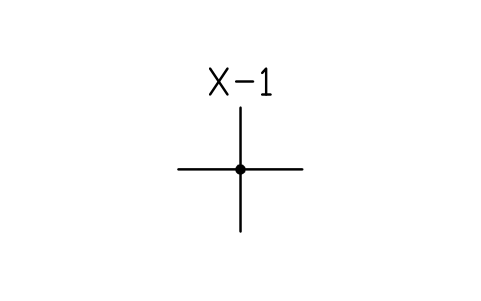
Cross
CIV_CROSSAttributes
TAGITEM_TYPESIZE_MMPRESSURE_RATINGMATERIALELEVATION_MQTYMANUFACTURERMODELREMARKSDESC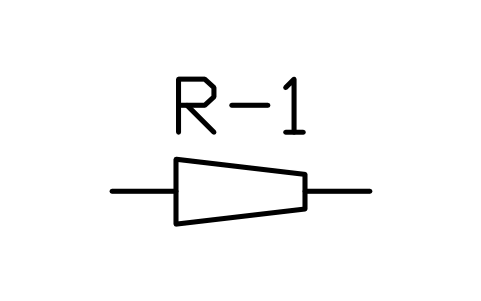
Reducer
CIV_REDUCERAttributes
TAGITEM_TYPESIZE_MMPRESSURE_RATINGMATERIALELEVATION_MQTYMANUFACTURERMODELREMARKSDESC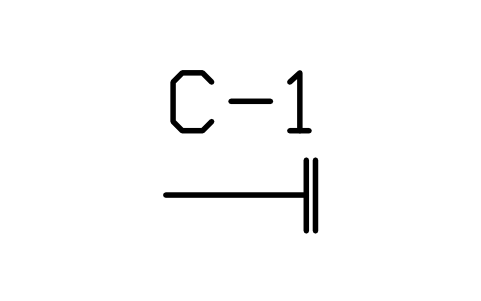
End cap
CIV_CAPAttributes
TAGITEM_TYPESIZE_MMPRESSURE_RATINGMATERIALELEVATION_MQTYMANUFACTURERMODELREMARKSDESC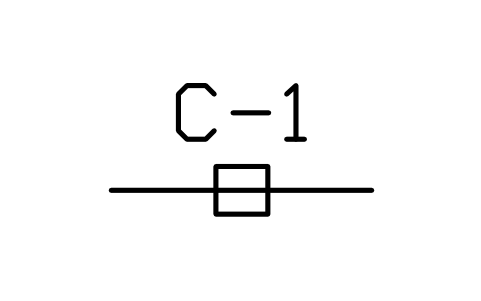
Coupling or sleeve
CIV_SLEEVEAttributes
TAGITEM_TYPESIZE_MMPRESSURE_RATINGMATERIALELEVATION_MQTYMANUFACTURERMODELREMARKSDESC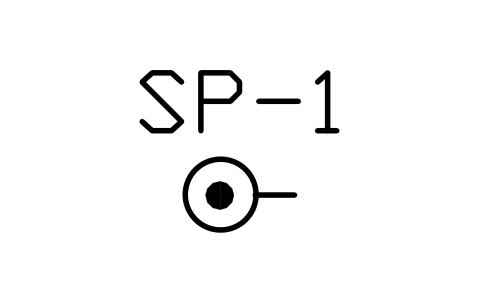
Standpipe, 150 dia
CIV_STANDPIPEAttributes
TAGITEM_TYPESIZE_MMPRESSURE_RATINGMATERIALELEVATION_MQTYMANUFACTURERMODELREMARKSDESC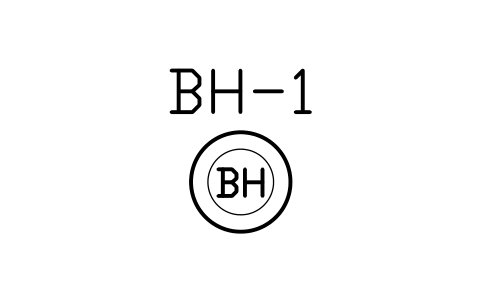
Borehole, 300 dia
CIV_BOREHOLEAttributes
TAGITEM_TYPESIZE_MMPRESSURE_RATINGMATERIALELEVATION_MQTYMANUFACTURERMODELREMARKSDESC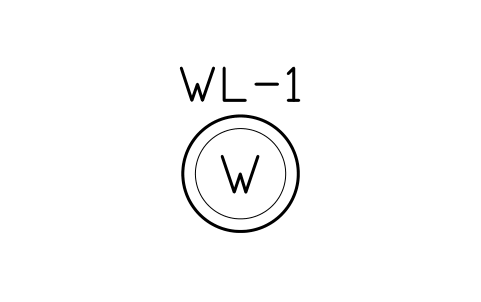
Water well, 900 dia
CIV_WELLAttributes
TAGITEM_TYPESIZE_MMPRESSURE_RATINGMATERIALELEVATION_MQTYMANUFACTURERMODELREMARKSDESC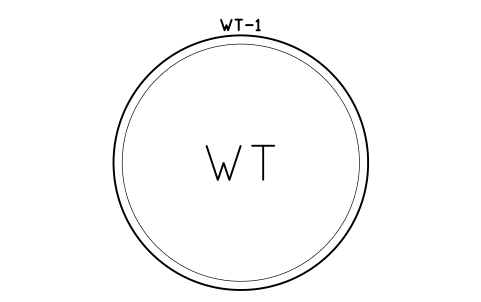
Water tank, 6000 dia
CIV_TANK_ELEVAttributes
TAGITEM_TYPESIZE_MMPRESSURE_RATINGMATERIALELEVATION_MQTYMANUFACTURERMODELREMARKSDESC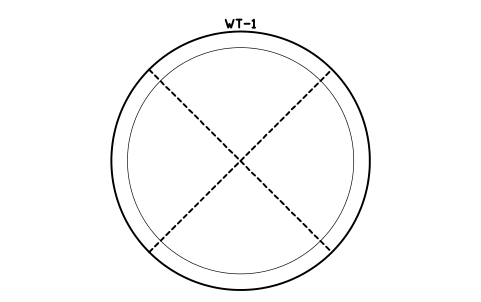
Elevated water tower
CIV_TOWERAttributes
TAGITEM_TYPESIZE_MMPRESSURE_RATINGMATERIALELEVATION_MQTYMANUFACTURERMODELREMARKSDESC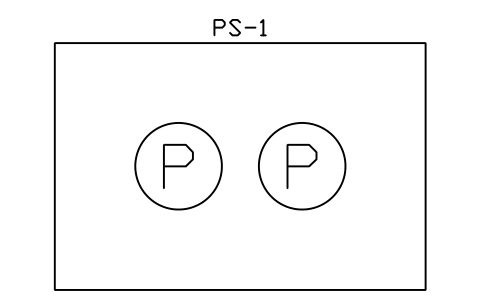
Water pump station
CIV_PUMP_STATIONAttributes
TAGITEM_TYPESIZE_MMPRESSURE_RATINGMATERIALELEVATION_MQTYMANUFACTURERMODELREMARKSDESC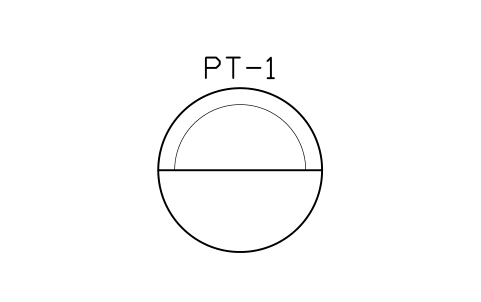
Pressure tank
CIV_PRESSURE_TANKAttributes
TAGITEM_TYPESIZE_MMPRESSURE_RATINGMATERIALELEVATION_MQTYMANUFACTURERMODELREMARKSDESC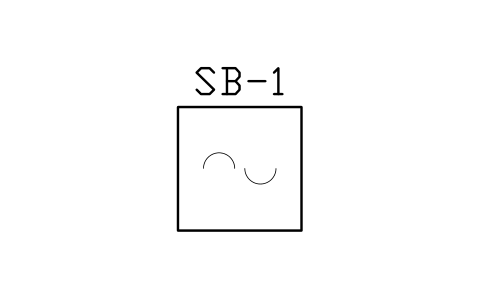
Spring box
CIV_SPRINGAttributes
TAGITEM_TYPESIZE_MMPRESSURE_RATINGMATERIALELEVATION_MQTYMANUFACTURERMODELREMARKSDESC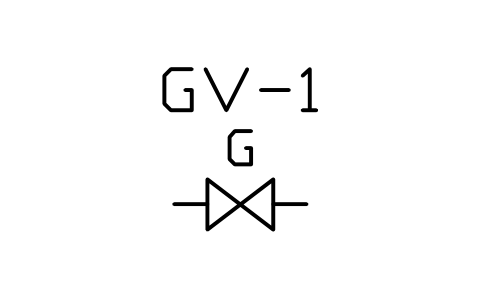
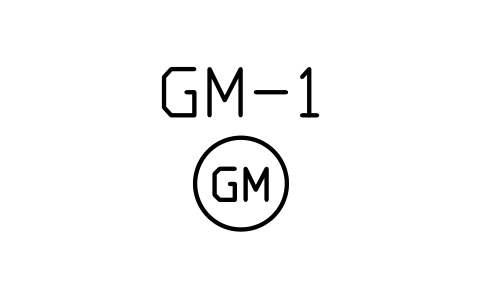
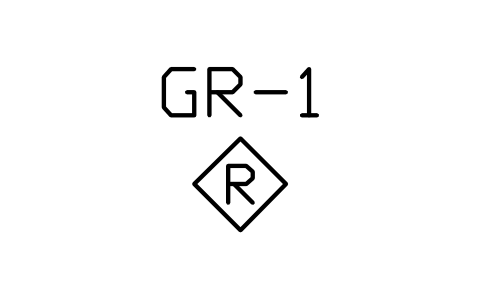
Gas pressure regulator
CIV_GAS_REGULATORAttributes
TAGITEM_TYPESIZEVOLTAGEOWNERHEIGHT_MQTYMANUFACTURERMODELREMARKSDESC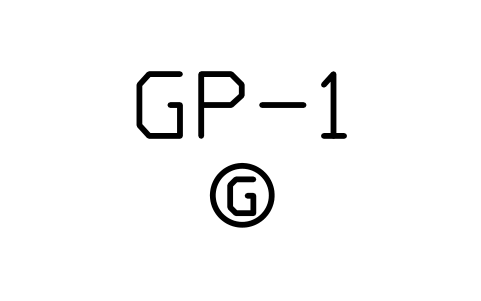
Gas marker post
CIV_GAS_MARKERAttributes
TAGITEM_TYPESIZEVOLTAGEOWNERHEIGHT_MQTYMANUFACTURERMODELREMARKSDESC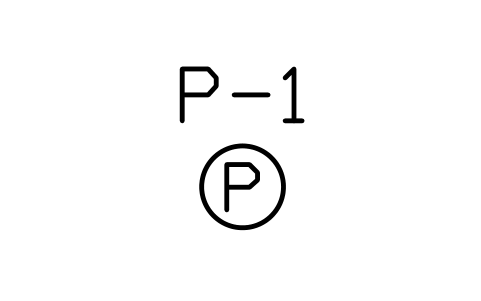
Utility pole, wood
CIV_POLE_WOODAttributes
TAGITEM_TYPESIZEVOLTAGEOWNERHEIGHT_MQTYMANUFACTURERMODELREMARKSDESC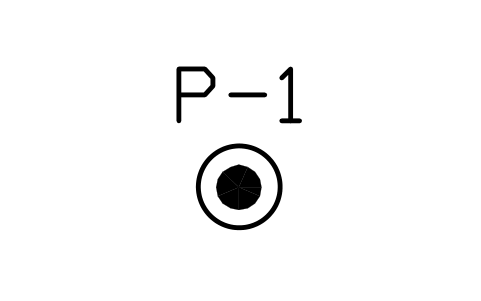
Utility pole, concrete
CIV_POLE_CONCRETEAttributes
TAGITEM_TYPESIZEVOLTAGEOWNERHEIGHT_MQTYMANUFACTURERMODELREMARKSDESC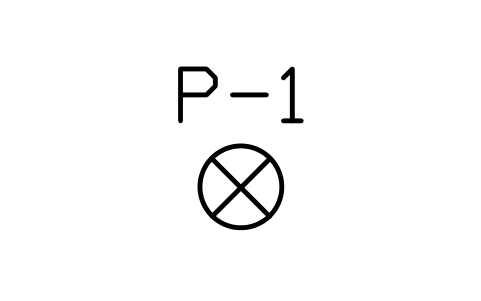
Utility pole, steel
CIV_POLE_STEELAttributes
TAGITEM_TYPESIZEVOLTAGEOWNERHEIGHT_MQTYMANUFACTURERMODELREMARKSDESC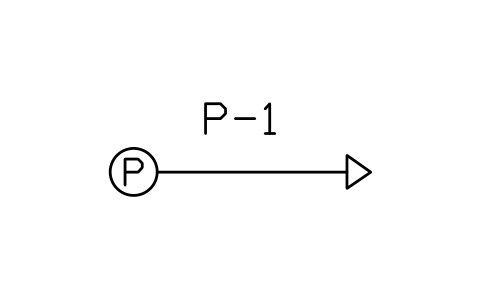
Utility pole with guy
CIV_POLE_GUYAttributes
TAGITEM_TYPESIZEVOLTAGEOWNERHEIGHT_MQTYMANUFACTURERMODELREMARKSDESC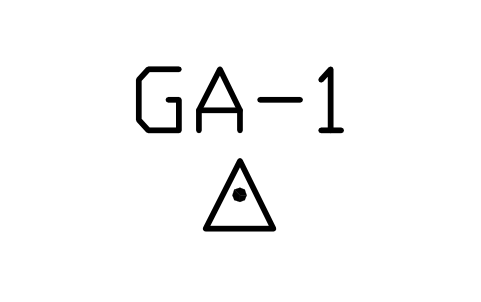
Guy anchor
CIV_GUY_ANCHORAttributes
TAGITEM_TYPESIZEVOLTAGEOWNERHEIGHT_MQTYMANUFACTURERMODELREMARKSDESC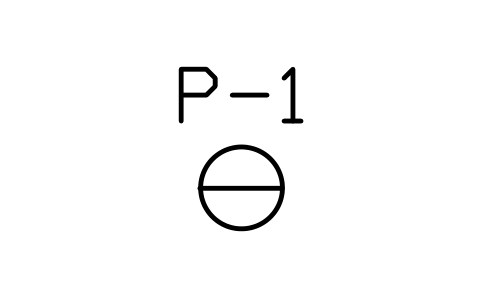
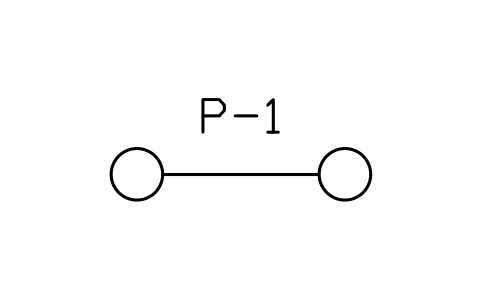
H-frame structure
CIV_POLE_HAttributes
TAGITEM_TYPESIZEVOLTAGEOWNERHEIGHT_MQTYMANUFACTURERMODELREMARKSDESC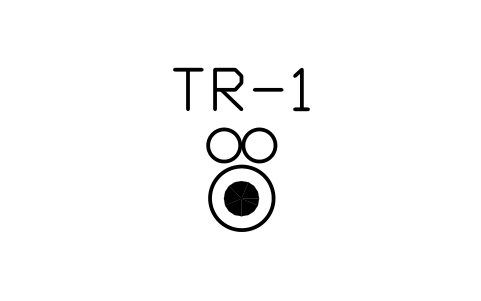
Pole mounted transformer
CIV_POLE_TRANSFORMERAttributes
TAGITEM_TYPESIZEVOLTAGEOWNERHEIGHT_MQTYMANUFACTURERMODELREMARKSDESC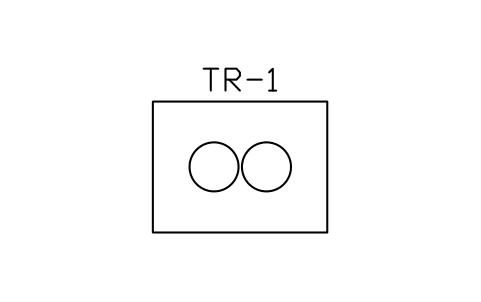
Pad mounted transformer
CIV_PAD_TRANSFORMERAttributes
TAGITEM_TYPESIZEVOLTAGEOWNERHEIGHT_MQTYMANUFACTURERMODELREMARKSDESC
Ground mounted switchgear
CIV_SWITCHGEARAttributes
TAGITEM_TYPESIZEVOLTAGEOWNERHEIGHT_MQTYMANUFACTURERMODELREMARKSDESC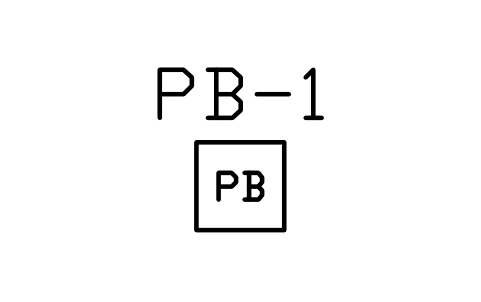
Pull box, 450
CIV_PULLBOXAttributes
TAGITEM_TYPESIZEVOLTAGEOWNERHEIGHT_MQTYMANUFACTURERMODELREMARKSDESC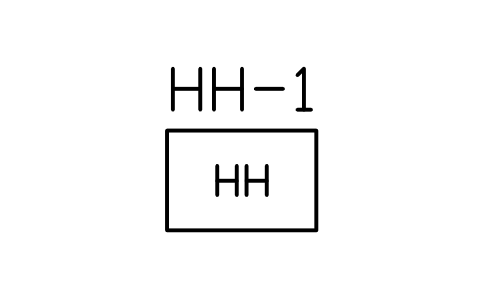
Handhole, 600 x 900
CIV_HANDHOLEAttributes
TAGITEM_TYPESIZEVOLTAGEOWNERHEIGHT_MQTYMANUFACTURERMODELREMARKSDESC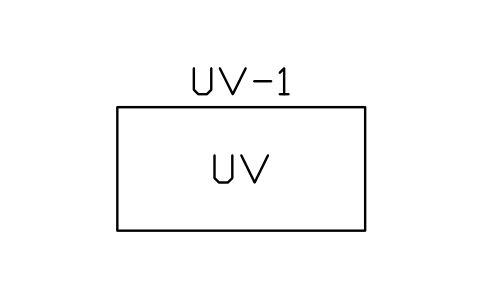
Utility vault, 1200 x 2400
CIV_VAULTAttributes
TAGITEM_TYPESIZEVOLTAGEOWNERHEIGHT_MQTYMANUFACTURERMODELREMARKSDESC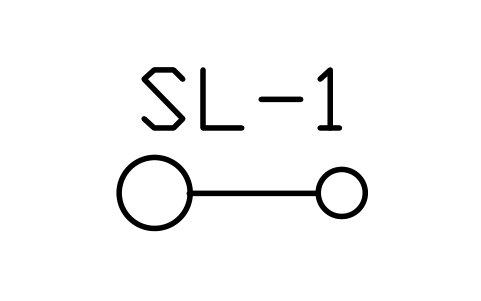
Street light, single arm
CIV_LAMP_1Attributes
TAGITEM_TYPESIZEVOLTAGEOWNERHEIGHT_MQTYMANUFACTURERMODELREMARKSDESC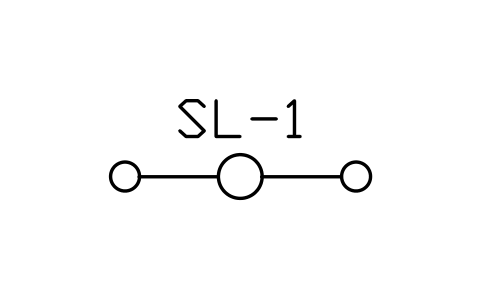
Street light, double arm
CIV_LAMP_2Attributes
TAGITEM_TYPESIZEVOLTAGEOWNERHEIGHT_MQTYMANUFACTURERMODELREMARKSDESC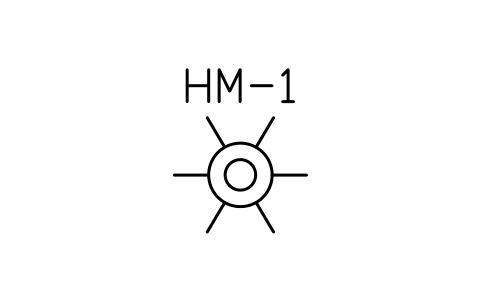
High mast light
CIV_LAMP_HIGHMASTAttributes
TAGITEM_TYPESIZEVOLTAGEOWNERHEIGHT_MQTYMANUFACTURERMODELREMARKSDESC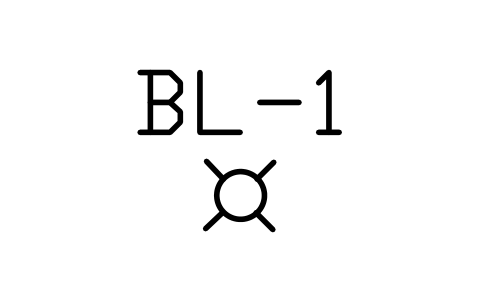
Bollard light
CIV_BOLLARD_LIGHTAttributes
TAGITEM_TYPESIZEVOLTAGEOWNERHEIGHT_MQTYMANUFACTURERMODELREMARKSDESC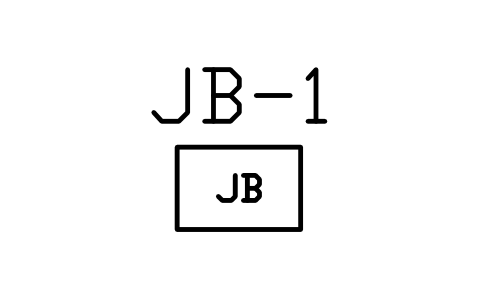
Junction cabinet
CIV_JUNCTION_CABAttributes
TAGITEM_TYPESIZEVOLTAGEOWNERHEIGHT_MQTYMANUFACTURERMODELREMARKSDESC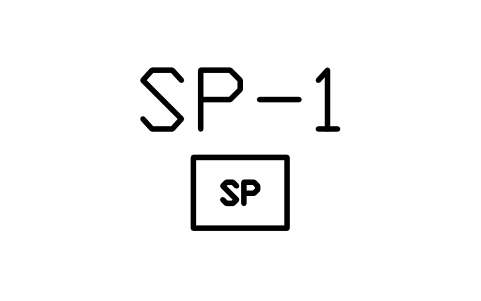
Service pedestal
CIV_SERVICE_PEDAttributes
TAGITEM_TYPESIZEVOLTAGEOWNERHEIGHT_MQTYMANUFACTURERMODELREMARKSDESC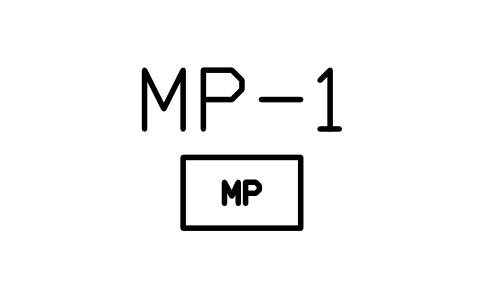
Meter pedestal
CIV_METER_PEDAttributes
TAGITEM_TYPESIZEVOLTAGEOWNERHEIGHT_MQTYMANUFACTURERMODELREMARKSDESC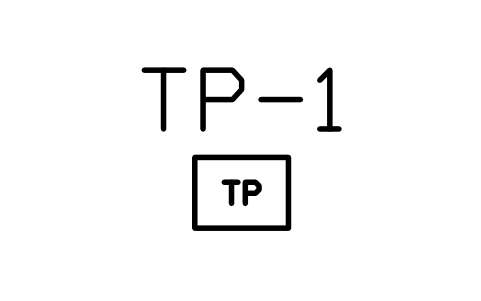
Telecom pedestal
CIV_TELECOM_PEDAttributes
TAGITEM_TYPESIZEVOLTAGEOWNERHEIGHT_MQTYMANUFACTURERMODELREMARKSDESC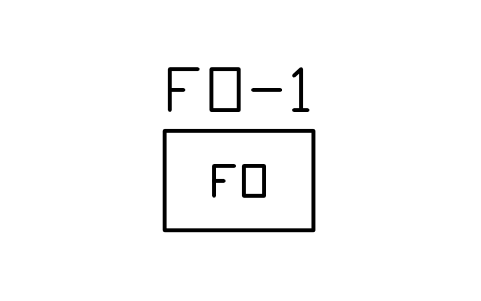
Fibre handhole, 600 x 900
CIV_FIBRE_HHAttributes
TAGITEM_TYPESIZEVOLTAGEOWNERHEIGHT_MQTYMANUFACTURERMODELREMARKSDESC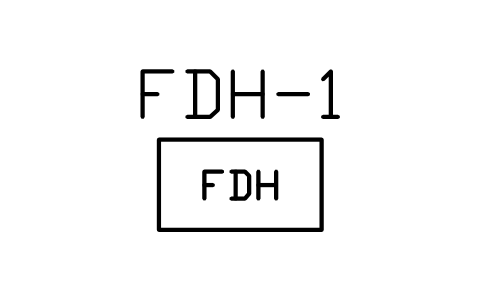
Fibre distribution cabinet
CIV_FDHAttributes
TAGITEM_TYPESIZEVOLTAGEOWNERHEIGHT_MQTYMANUFACTURERMODELREMARKSDESC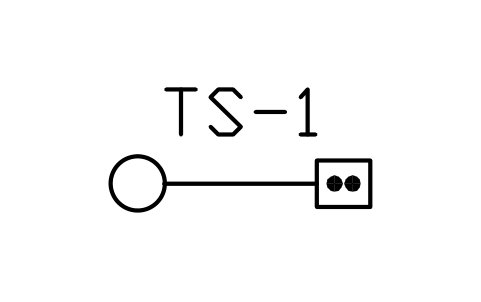
Traffic signal pole
CIV_SIGNAL_POLEAttributes
TAGITEM_TYPESIZEVOLTAGEOWNERHEIGHT_MQTYMANUFACTURERMODELREMARKSDESC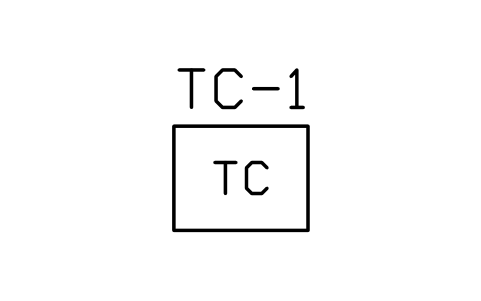
Traffic signal controller
CIV_SIGNAL_CABAttributes
TAGITEM_TYPESIZEVOLTAGEOWNERHEIGHT_MQTYMANUFACTURERMODELREMARKSDESC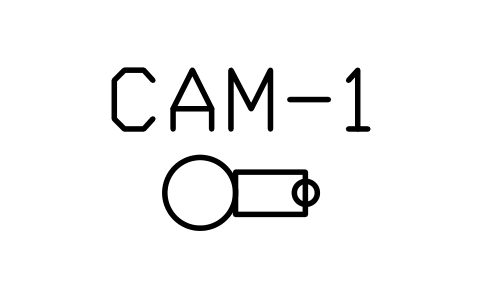
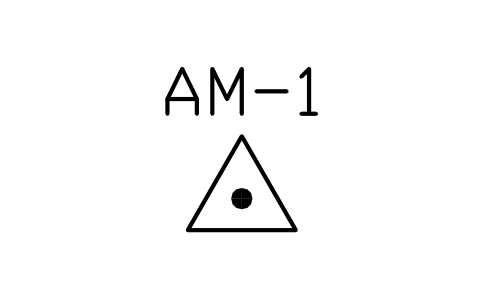
Antenna mast
CIV_ANTENNA_MASTAttributes
TAGITEM_TYPESIZEVOLTAGEOWNERHEIGHT_MQTYMANUFACTURERMODELREMARKSDESC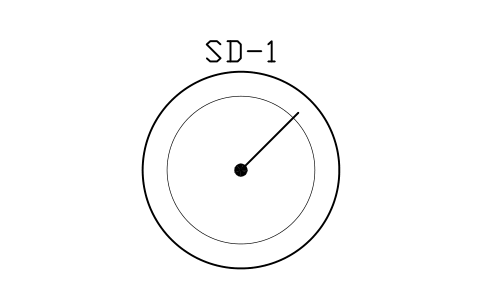
Satellite dish, 2400 dia
CIV_DISHAttributes
TAGITEM_TYPESIZEVOLTAGEOWNERHEIGHT_MQTYMANUFACTURERMODELREMARKSDESC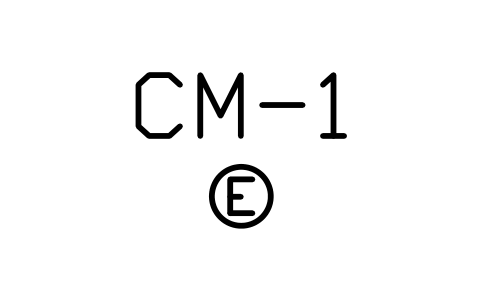
Cable marker post
CIV_MARKER_ELECAttributes
TAGITEM_TYPESIZEVOLTAGEOWNERHEIGHT_MQTYMANUFACTURERMODELREMARKSDESC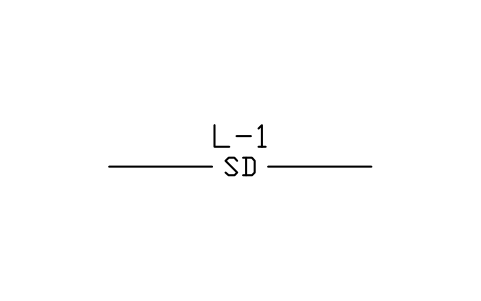
Storm pipe, new
CIV_LINE_SD_NEWAttributes
TAGITEM_TYPESIZE_MMMATERIALSLOPE_PCTLENGTH_MSTATUSREMARKSDESC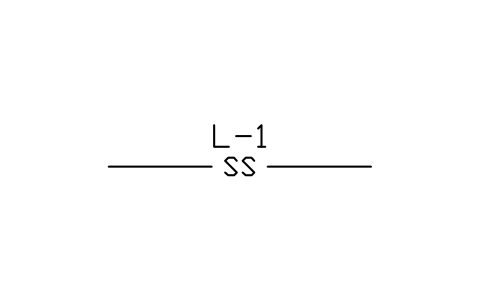
Sanitary sewer, new
CIV_LINE_SS_NEWAttributes
TAGITEM_TYPESIZE_MMMATERIALSLOPE_PCTLENGTH_MSTATUSREMARKSDESC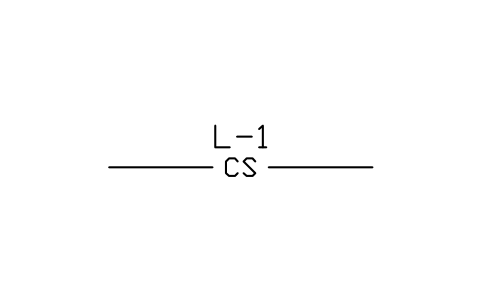
Combined sewer, new
CIV_LINE_CS_NEWAttributes
TAGITEM_TYPESIZE_MMMATERIALSLOPE_PCTLENGTH_MSTATUSREMARKSDESC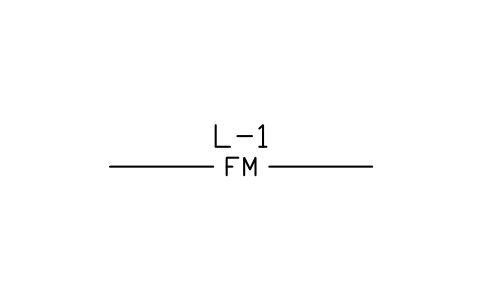
Force main, new
CIV_LINE_FM_NEWAttributes
TAGITEM_TYPESIZE_MMMATERIALSLOPE_PCTLENGTH_MSTATUSREMARKSDESC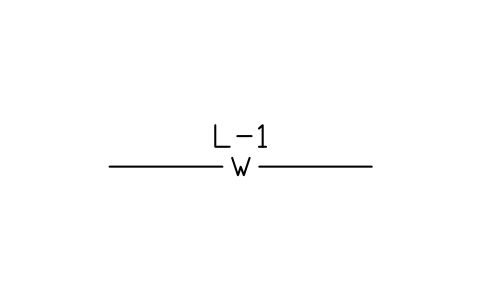
Water main, new
CIV_LINE_W_NEWAttributes
TAGITEM_TYPESIZE_MMMATERIALSLOPE_PCTLENGTH_MSTATUSREMARKSDESC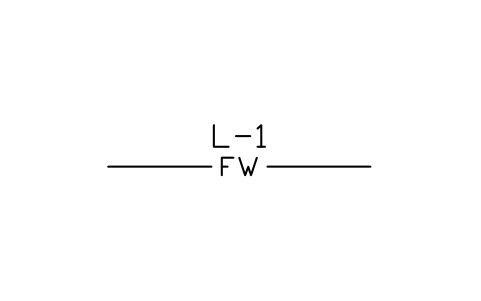
Fire main, new
CIV_LINE_FW_NEWAttributes
TAGITEM_TYPESIZE_MMMATERIALSLOPE_PCTLENGTH_MSTATUSREMARKSDESC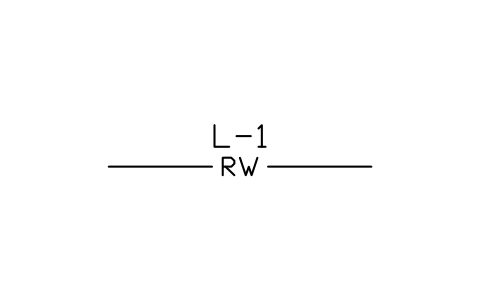
Reclaimed water main, new
CIV_LINE_RW_NEWAttributes
TAGITEM_TYPESIZE_MMMATERIALSLOPE_PCTLENGTH_MSTATUSREMARKSDESC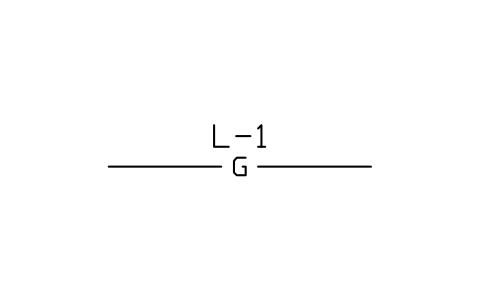
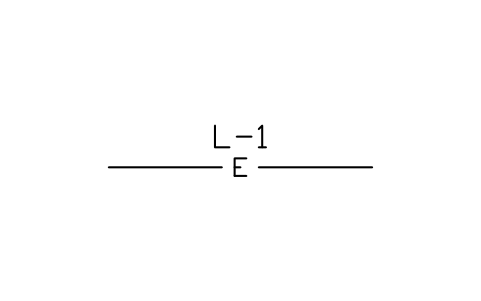
Underground power, new
CIV_LINE_E_NEWAttributes
TAGITEM_TYPESIZE_MMMATERIALSLOPE_PCTLENGTH_MSTATUSREMARKSDESC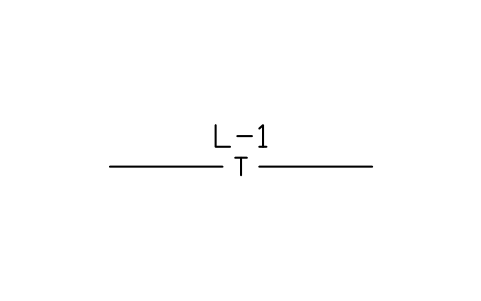
Underground telecom, new
CIV_LINE_T_NEWAttributes
TAGITEM_TYPESIZE_MMMATERIALSLOPE_PCTLENGTH_MSTATUSREMARKSDESC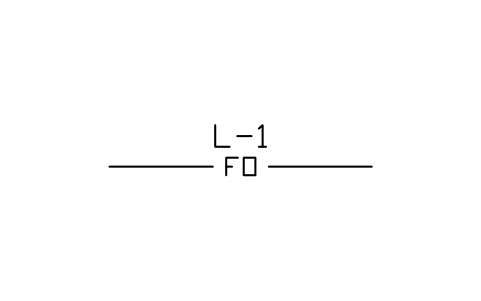
Fibre optic cable, new
CIV_LINE_FO_NEWAttributes
TAGITEM_TYPESIZE_MMMATERIALSLOPE_PCTLENGTH_MSTATUSREMARKSDESC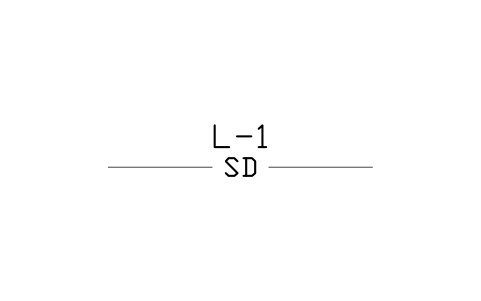
Storm pipe, existing
CIV_LINE_SD_EXISTAttributes
TAGITEM_TYPESIZE_MMMATERIALSLOPE_PCTLENGTH_MSTATUSREMARKSDESC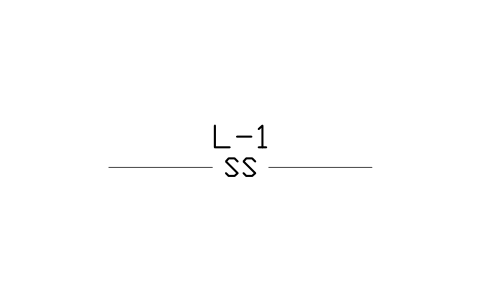
Sanitary sewer, existing
CIV_LINE_SS_EXISTAttributes
TAGITEM_TYPESIZE_MMMATERIALSLOPE_PCTLENGTH_MSTATUSREMARKSDESC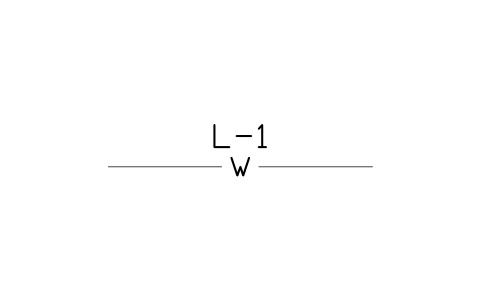
Water main, existing
CIV_LINE_W_EXISTAttributes
TAGITEM_TYPESIZE_MMMATERIALSLOPE_PCTLENGTH_MSTATUSREMARKSDESC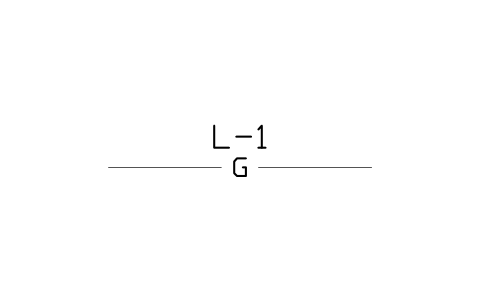
Gas main, existing
CIV_LINE_G_EXISTAttributes
TAGITEM_TYPESIZE_MMMATERIALSLOPE_PCTLENGTH_MSTATUSREMARKSDESC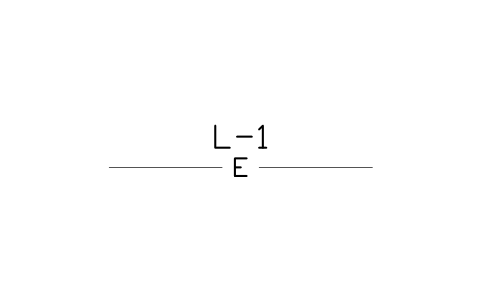
Underground power, existing
CIV_LINE_E_EXISTAttributes
TAGITEM_TYPESIZE_MMMATERIALSLOPE_PCTLENGTH_MSTATUSREMARKSDESC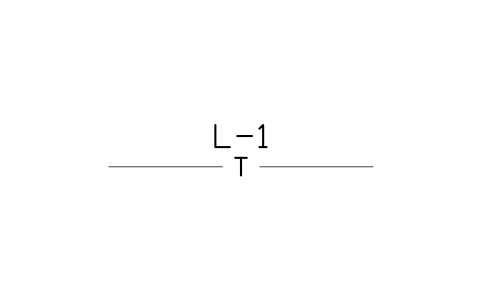
Underground telecom, existing
CIV_LINE_T_EXISTAttributes
TAGITEM_TYPESIZE_MMMATERIALSLOPE_PCTLENGTH_MSTATUSREMARKSDESC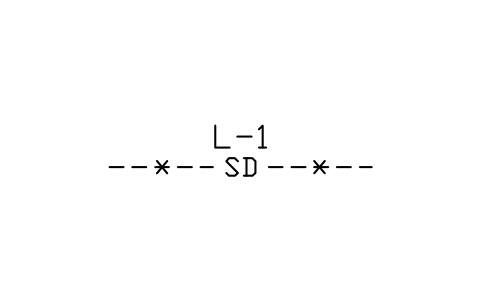
Storm pipe, abandoned
CIV_LINE_SD_ABANDAttributes
TAGITEM_TYPESIZE_MMMATERIALSLOPE_PCTLENGTH_MSTATUSREMARKSDESC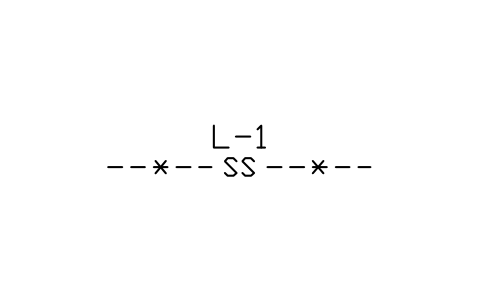
Sanitary sewer, abandoned
CIV_LINE_SS_ABANDAttributes
TAGITEM_TYPESIZE_MMMATERIALSLOPE_PCTLENGTH_MSTATUSREMARKSDESC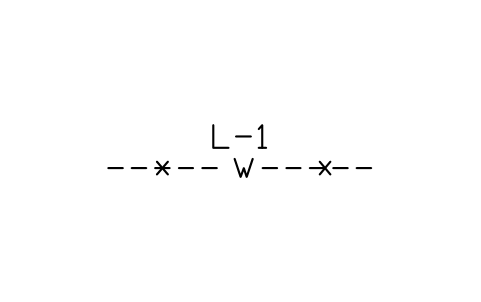
Water main, abandoned
CIV_LINE_W_ABANDAttributes
TAGITEM_TYPESIZE_MMMATERIALSLOPE_PCTLENGTH_MSTATUSREMARKSDESC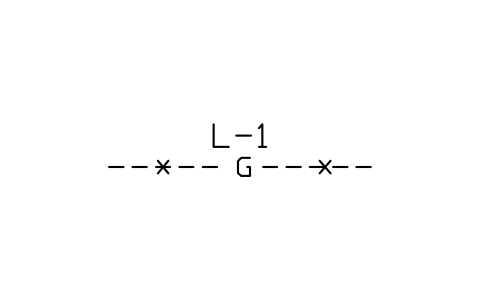
Gas main, abandoned
CIV_LINE_G_ABANDAttributes
TAGITEM_TYPESIZE_MMMATERIALSLOPE_PCTLENGTH_MSTATUSREMARKSDESC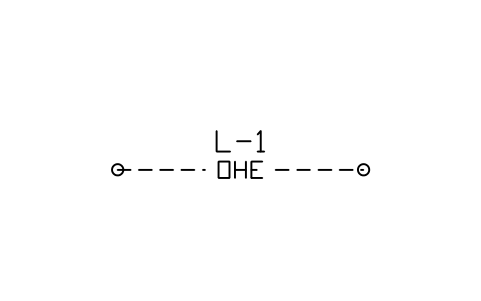
Overhead power line
CIV_LINE_OHEAttributes
TAGITEM_TYPESIZE_MMMATERIALSLOPE_PCTLENGTH_MSTATUSREMARKSDESC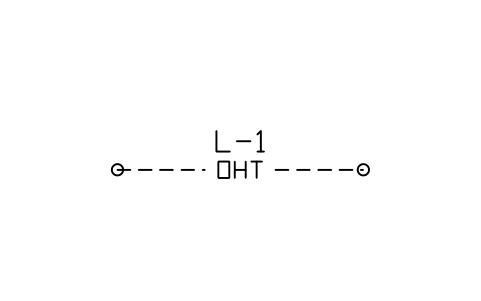
Overhead telecom line
CIV_LINE_OHTAttributes
TAGITEM_TYPESIZE_MMMATERIALSLOPE_PCTLENGTH_MSTATUSREMARKSDESC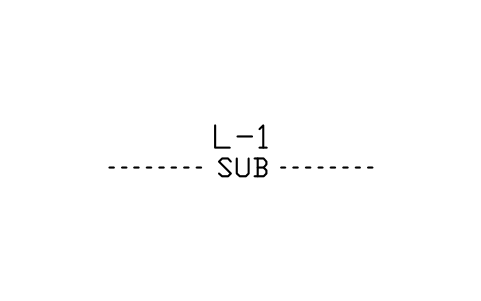
Subsurface drain
CIV_LINE_SUBDRAINAttributes
TAGITEM_TYPESIZE_MMMATERIALSLOPE_PCTLENGTH_MSTATUSREMARKSDESC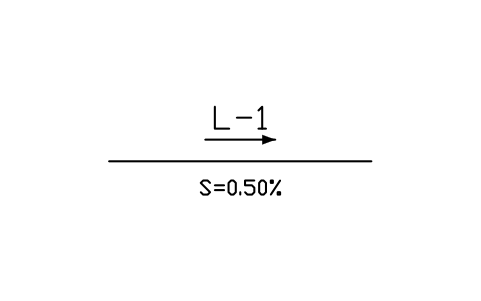
Pipe run with flow and slope
CIV_LINE_FLOWAttributes
TAGITEM_TYPESIZE_MMMATERIALSLOPE_PCTLENGTH_MSTATUSREMARKSDESC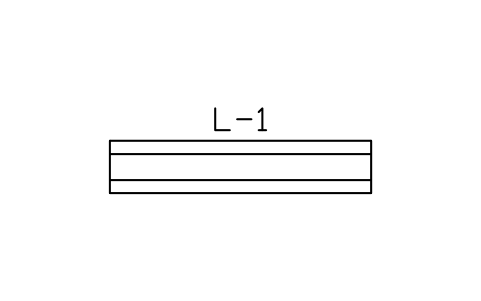
Pipe in casing, 3000
CIV_LINE_CASINGAttributes
TAGITEM_TYPESIZE_MMMATERIALSLOPE_PCTLENGTH_MSTATUSREMARKSDESC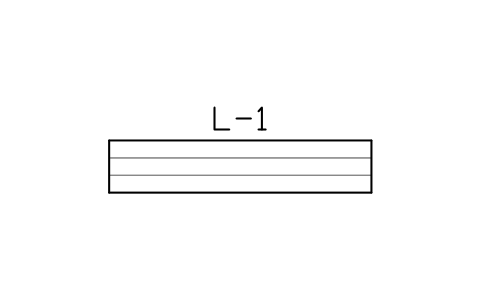
Duct bank run, 3000
CIV_LINE_DUCTBANKAttributes
TAGITEM_TYPESIZE_MMMATERIALSLOPE_PCTLENGTH_MSTATUSREMARKSDESC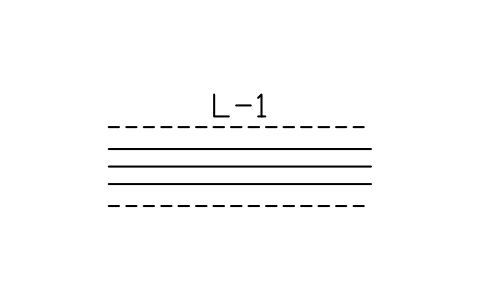
Joint utility trench, 3000
CIV_LINE_TRENCHAttributes
TAGITEM_TYPESIZE_MMMATERIALSLOPE_PCTLENGTH_MSTATUSREMARKSDESC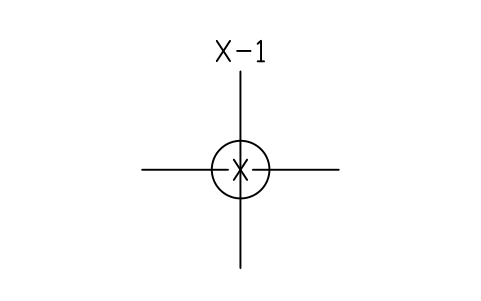
Utility crossing
CIV_LINE_CROSSINGAttributes
TAGITEM_TYPESIZE_MMMATERIALSLOPE_PCTLENGTH_MSTATUSREMARKSDESC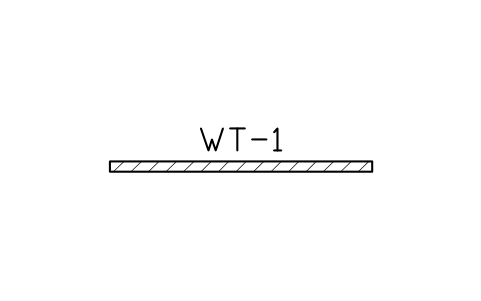
Warning tape, 3000
CIV_LINE_WARNINGAttributes
TAGITEM_TYPESIZE_MMMATERIALSLOPE_PCTLENGTH_MSTATUSREMARKSDESC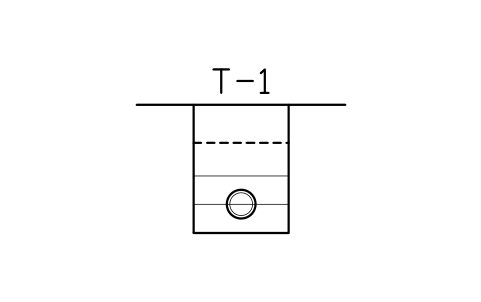
Pipe trench, 300 dia, granular
CIV_TRENCH_300Attributes
TAGITEM_TYPESIZEMATERIALBEDDINGCOVER_MMREMARKSDESC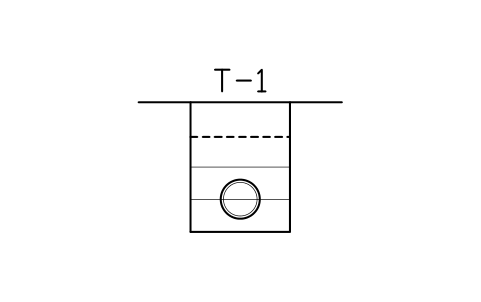
Pipe trench, 450 dia, granular
CIV_TRENCH_450Attributes
TAGITEM_TYPESIZEMATERIALBEDDINGCOVER_MMREMARKSDESC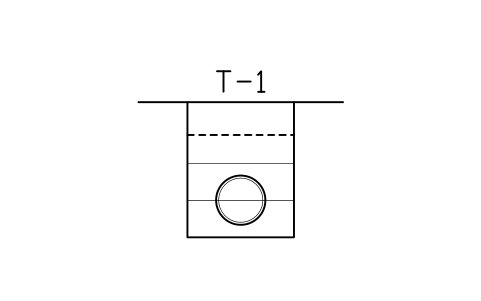
Pipe trench, 600 dia, granular
CIV_TRENCH_600Attributes
TAGITEM_TYPESIZEMATERIALBEDDINGCOVER_MMREMARKSDESC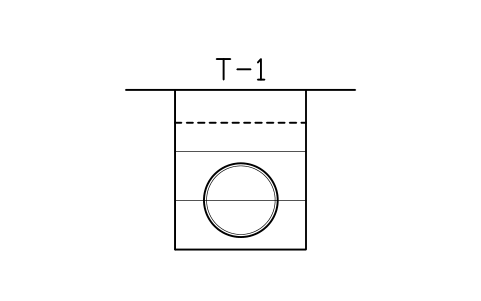
Pipe trench, 900 dia, granular
CIV_TRENCH_900Attributes
TAGITEM_TYPESIZEMATERIALBEDDINGCOVER_MMREMARKSDESC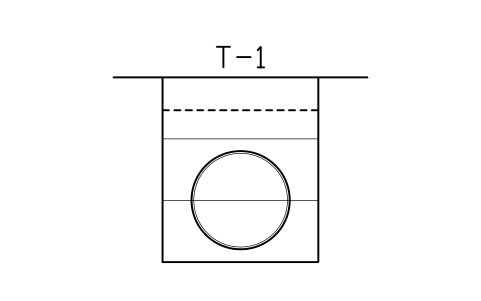
Pipe trench, 1200 dia, granular
CIV_TRENCH_1200Attributes
TAGITEM_TYPESIZEMATERIALBEDDINGCOVER_MMREMARKSDESC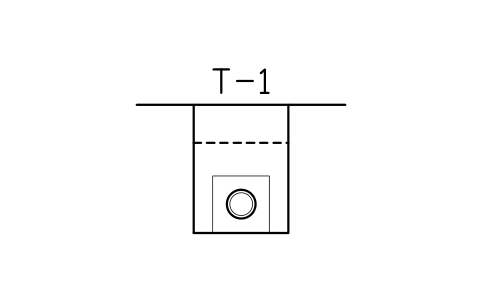
Pipe trench, 300 dia, concrete
CIV_TRENCH_CONC_300Attributes
TAGITEM_TYPESIZEMATERIALBEDDINGCOVER_MMREMARKSDESC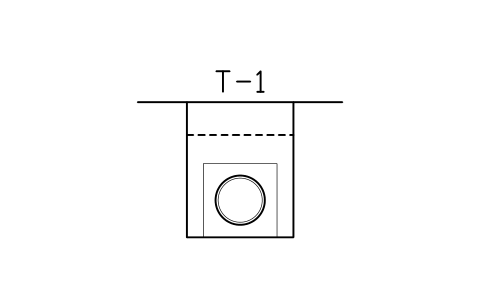
Pipe trench, 600 dia, concrete
CIV_TRENCH_CONC_600Attributes
TAGITEM_TYPESIZEMATERIALBEDDINGCOVER_MMREMARKSDESC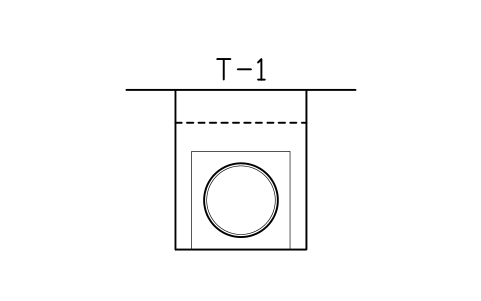
Pipe trench, 900 dia, concrete
CIV_TRENCH_CONC_900Attributes
TAGITEM_TYPESIZEMATERIALBEDDINGCOVER_MMREMARKSDESC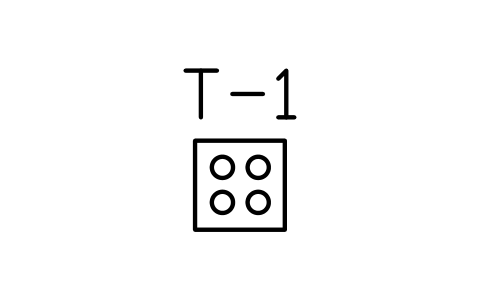
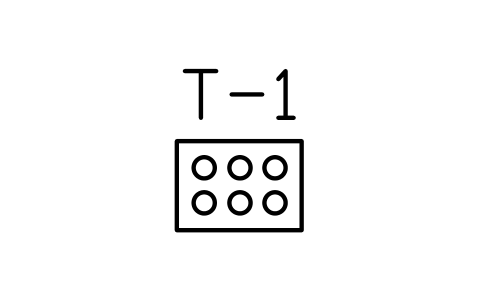
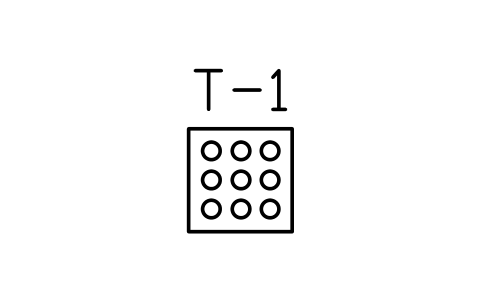
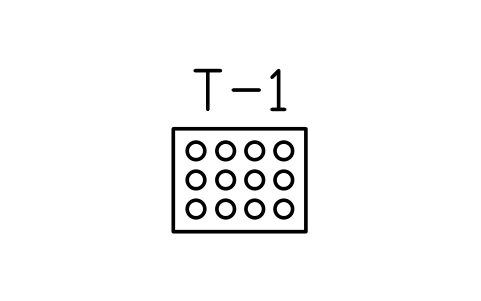
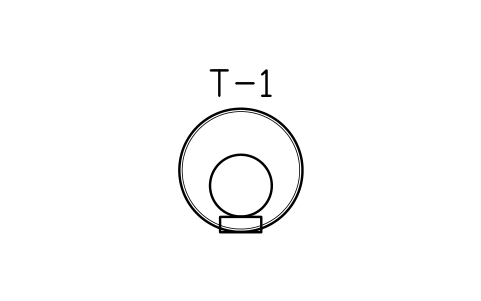
Pipe in casing, section
CIV_CASING_SECTIONAttributes
TAGITEM_TYPESIZEMATERIALBEDDINGCOVER_MMREMARKSDESC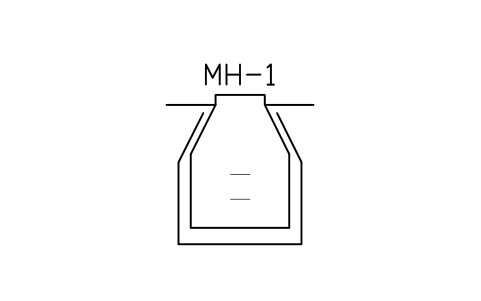
Manhole section, 1500 deep
CIV_MH_SECTION_1500Attributes
TAGITEM_TYPESIZEMATERIALBEDDINGCOVER_MMREMARKSDESC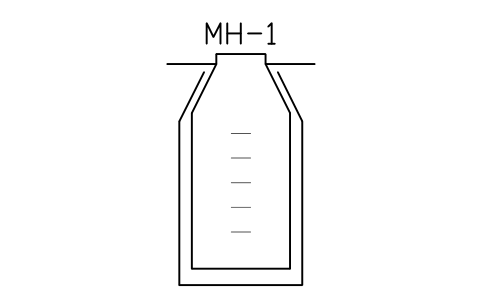
Manhole section, 2500 deep
CIV_MH_SECTION_2500Attributes
TAGITEM_TYPESIZEMATERIALBEDDINGCOVER_MMREMARKSDESC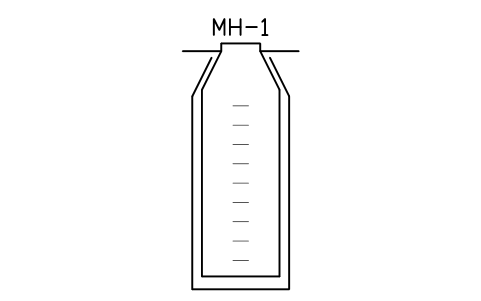
Manhole section, 3500 deep
CIV_MH_SECTION_3500Attributes
TAGITEM_TYPESIZEMATERIALBEDDINGCOVER_MMREMARKSDESC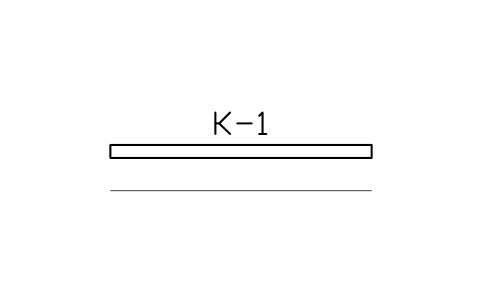
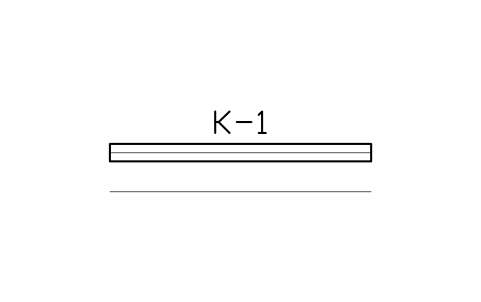
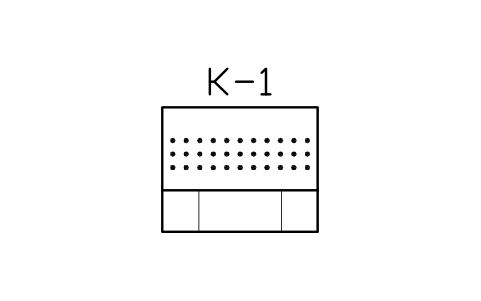
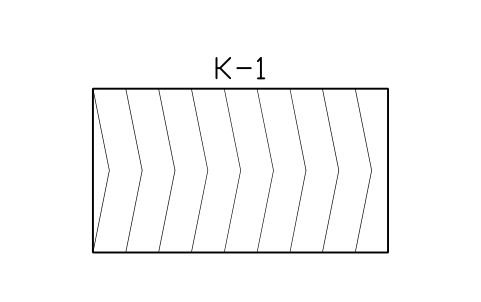
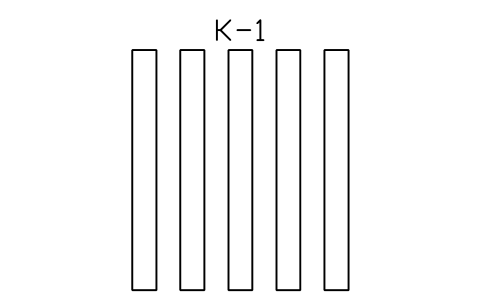
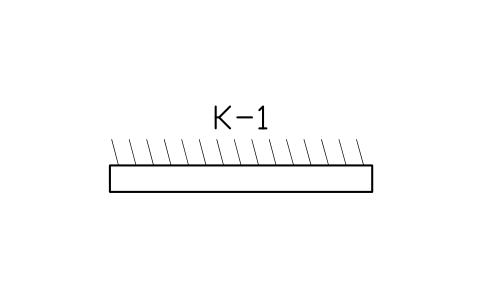
Kerb ramp with tactile paving
CIV_KERB_RAMPAttributes
TAGITEM_TYPESIZEMATERIALBEDDINGCOVER_MMREMARKSDESC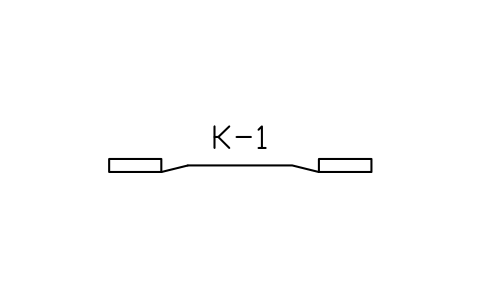
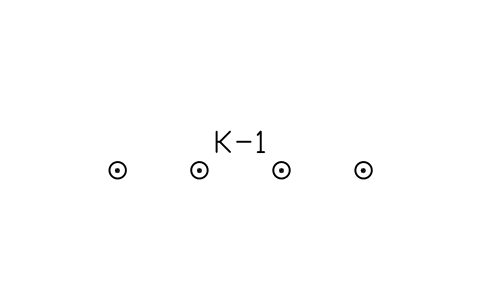
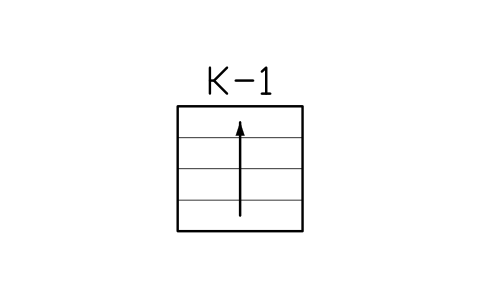
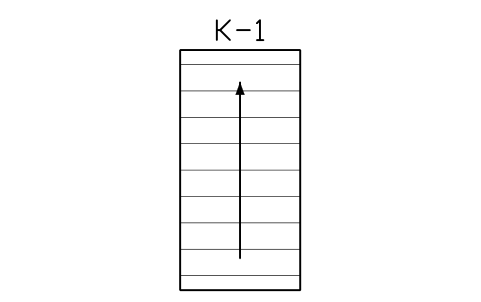
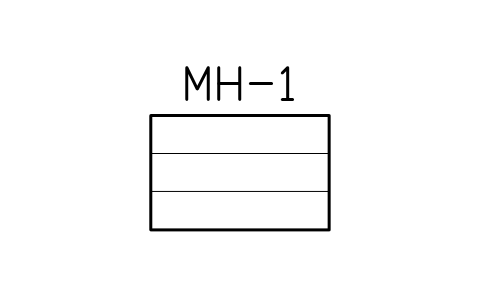
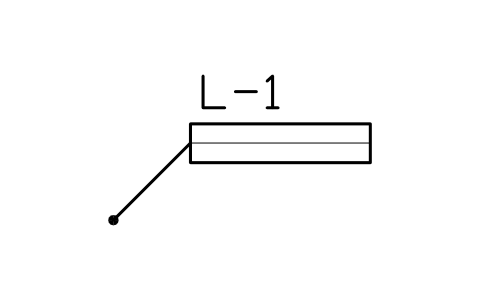
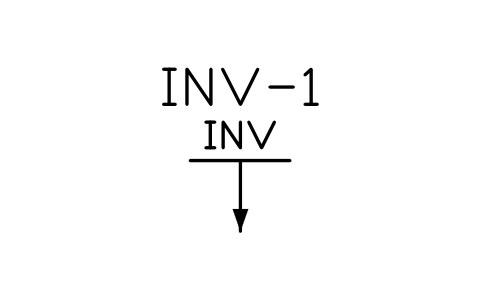
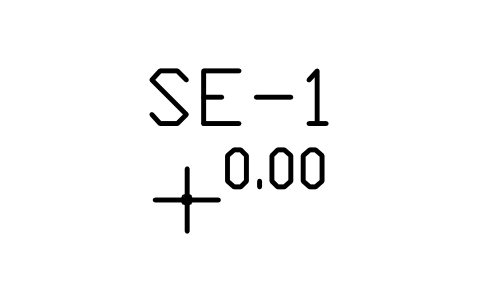
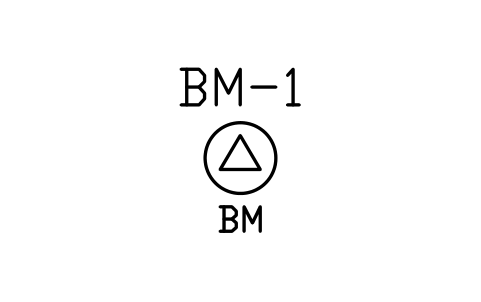
Missing a symbol? Tell us which one.
Attributes for parts lists
Every block carries a tag you can number and invisible attributes for the schedule. A structure holds ITEM_TYPE, SIZE, MATERIAL, RIM_ELEV_M, INVERT_ELEV_M, DEPTH_M and PIPE_SIZE_MM; a water item holds SIZE_MM, PRESSURE_RATING, MATERIAL and ELEVATION_M; a power or telecom item holds SIZE, VOLTAGE, OWNER and HEIGHT_M; a line holds SIZE_MM, MATERIAL, SLOPE_PCT, LENGTH_M and STATUS (new, existing or abandoned); a section holds BEDDING and COVER_MM.
Export the blocks of a utility plan to Excel with BlockSync to list manholes with their rim and invert elevations, valves, hydrants and poles as a structure schedule, check the numbering and write the corrections back in one run, with preview and backup.
How to use the library
- Unzip the file and open the DWG. Copy the symbols you need into your plan, or drag the blocks in from DesignCenter (ADCENTER).
- The blocks are drawn at real size in millimetres, 1 drawing unit = 1 mm. If your site drawing is in metres, insert the blocks with a scale of 0.001 (or in millimetres at 1:1 on a sheet at the plot scale). A 1200 mm manhole is then 1.2 m on the plan, and a tag letter stays readable at 1:500.
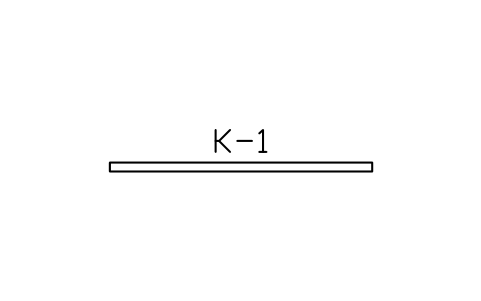
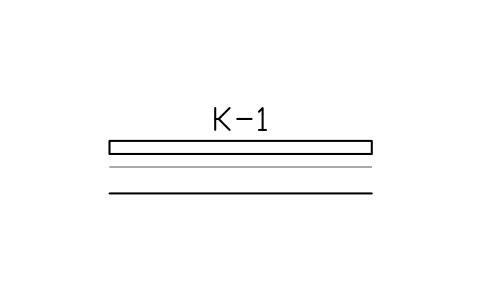
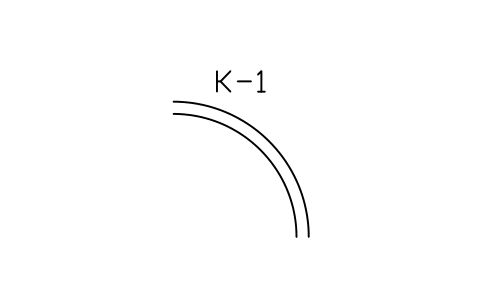
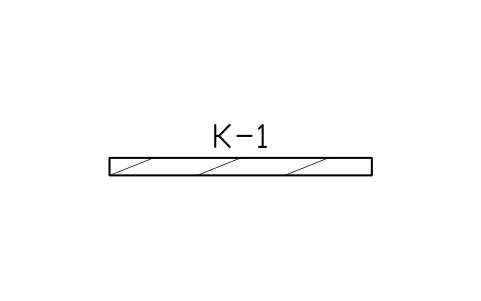
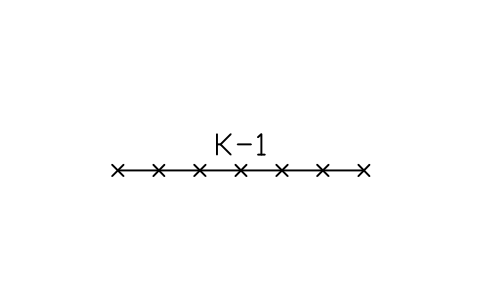
- Round structures, poles and fittings are centred on their middle, so you snap them onto the pipe node. Line blocks lie along the x axis, centred, with a gap for the code (SD, SS, W, G, E, T) and are scaled to the length of the run; new lines are drawn in full weight, existing lines in a thin weight, abandoned lines dashed and crossed, overhead lines dashed with a dot at each end.
- Sections show a pipe trench with cover, bedding and optional concrete surround, duct banks, a pipe in casing and a precast manhole with cone, steps and base. They are details to put on a sheet next to the plan, not parts of the plan; the plan blocks and the section blocks use the same sizes.
About the drawings
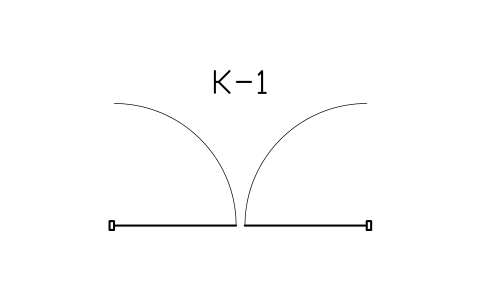
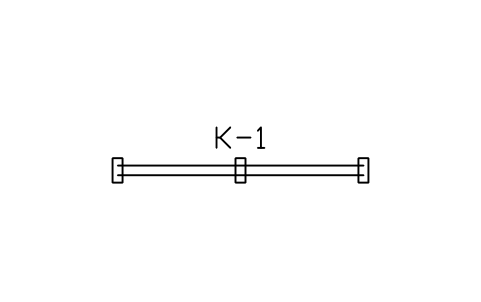
There is no single standard for the drawings of site utility plans. The blocks follow the common practice of civil and utility drawings: a manhole as a circle with its code, a hydrant as a circle with FH, a valve as a bow tie, a pole as a circle with its material mark, lines with their service code in a break.
The blocks are our own drawings, not copies, and the library is not certified. The sizes are common precast and manufacturer sizes; pipe sizes, cover depths, separation distances, colour codes and structure details depend on your local authority and the utility owner, so use their standard drawings and check every part against the site survey.
Frequently asked questions
- Can I use the blocks in a metre drawing?
- Yes. The blocks are in millimetres, so insert them with a scale of 0.001 (INSERT with scale factor 0.001) or set the block unit conversion; a 1200 mm manhole then measures 1.2 units on a drawing in metres. In a drawing in millimetres they come in at 1:1.
- Which structure sizes are included?
- Storm, sanitary and combined manholes at 1050, 1200, 1500 and 1800 mm, water, telecom, electric and gas chambers, rectangular chambers from 900 x 900 to 2400 x 2400, drop, backdrop, shallow and terminal manholes, inspection chambers, wet wells of 2400 and 3000 mm, and valve vaults, plus inlets, headwalls for 450, 900 and 1200 pipes and box and pipe culverts.
- Can I use the symbols in commercial projects?
- Yes. They are free to use and modify in your own projects, including commercial ones. They are provided as is, without warranty. Please do not redistribute or resell the library; see the library terms.
- How do I show existing and abandoned lines?
- Each utility has a new, an existing and (for storm, sanitary, water and gas) an abandoned line block. The existing line is drawn thin, the abandoned line is dashed and crossed, and the overhead lines are dashed with a dot at each end. The code in the break tells the service apart, so you can read the plan in black and white.
- Can I change a symbol or add attributes?
- Yes. Open the DWG, edit a block with BEDIT to change it or add attributes, and save. To update drawings that already contain the block, run ATTSYNC or replace the block. Make a backup first: attribute values can be lost if ATTSYNC is used carelessly.
- Where do I find a ready-made set of these symbols for AutoCAD?
- AutoCAD itself ships only a small set of sample blocks, so a full symbol set has to come from a library. Download the ZIP on this page and open the DWG: every symbol is a block. Insert one with INSERT (Blocks palette, Libraries tab, then pick the DWG) or drag it from DesignCenter (ADCENTER). You can also download a single symbol on its own.