
Free AutoCAD edge condition symbols (DWG) after ISO 13715: burr, undercut, size
Edge condition symbols: 85 ready-made AutoCAD blocks (DWG), free to download and use in your own projects, as a ZIP or one symbol at a time.
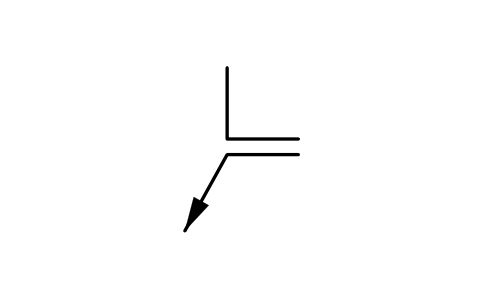
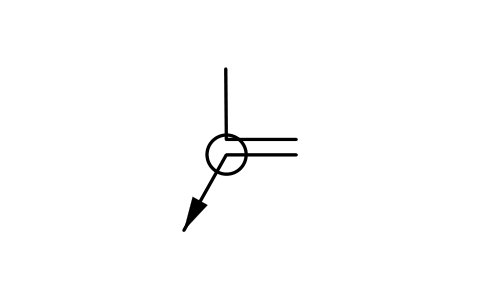
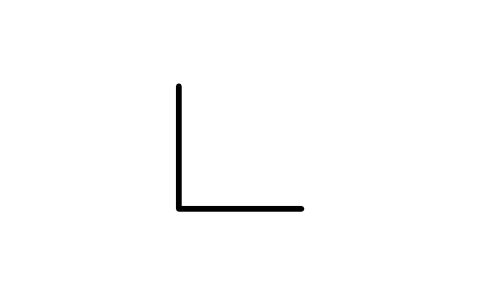
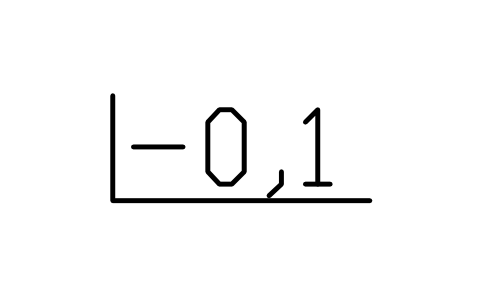
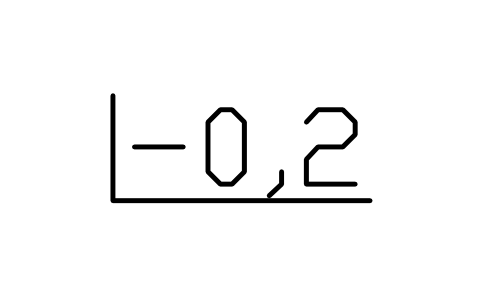
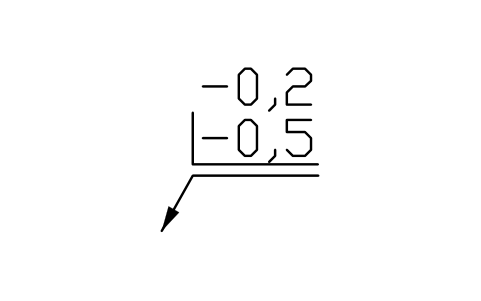
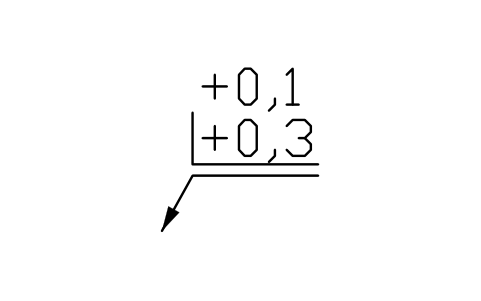
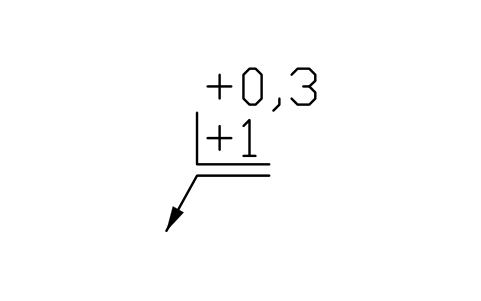
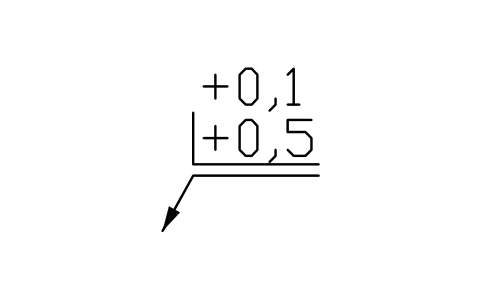
85 indications for edges of undefined shape as ready-to-use AutoCAD blocks for mechanical drawings: the basic indication and the symbol alone for general notes near the title block; passing permitted (+), undercut required (-) and passing or undercut (+-) with the common sizes from 0,05 to 2 mm; two limits stacked in one indication; the size in one direction; asymmetrical directions with values on both sides; and the all-around circle for all edges of the profile.
Version 1.0 · updated October 30, 2026 · Check out what's changed
Using AutoCAD 2017 or an earlier version? Download the 2010 format
Copyright CADXChange. Use and modify the symbols freely in your own drawings and projects, including commercial ones; credit and a link are needed only when you publish them. Please do not redistribute or resell the library. Each ZIP holds one plain DWG file in AutoCAD 2018 format and a README; no add-in needed. Provided as is, without warranty. Library terms (CXL-1.0)
Related symbol libraries
All 85 symbols
85 of 85 symbols
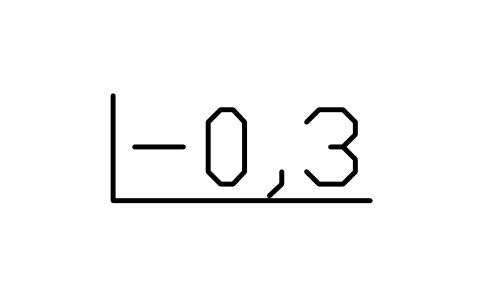
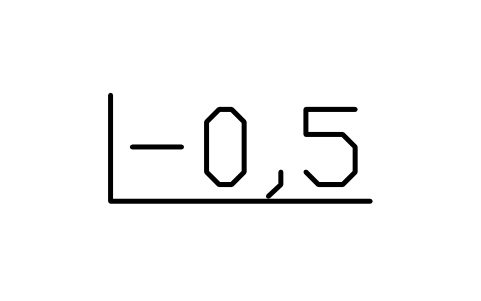
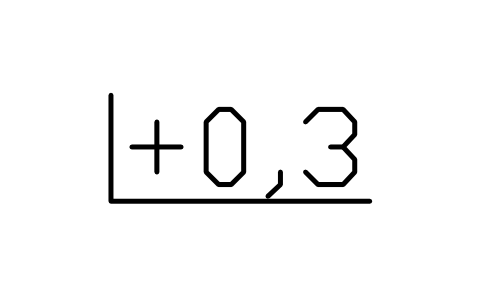
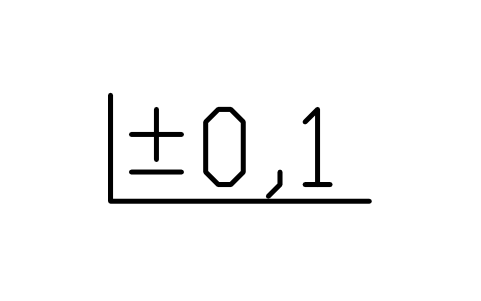
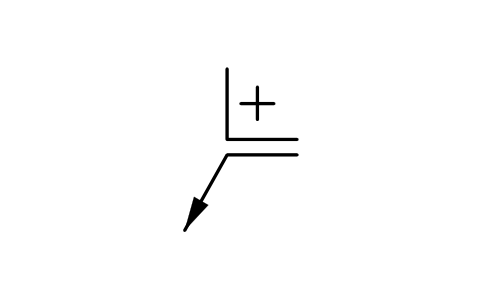
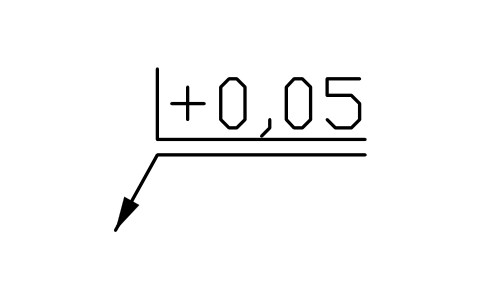
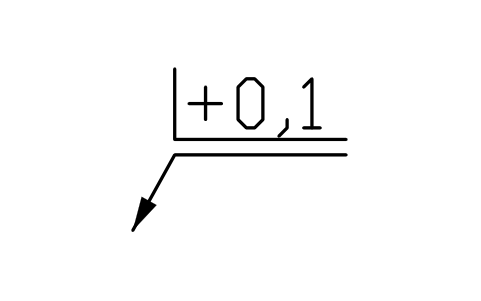
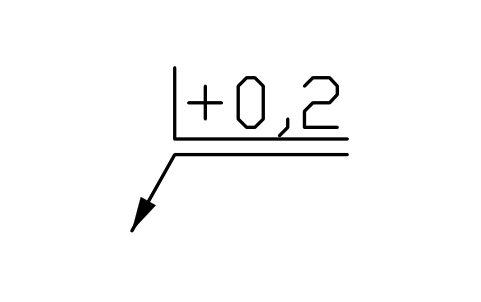
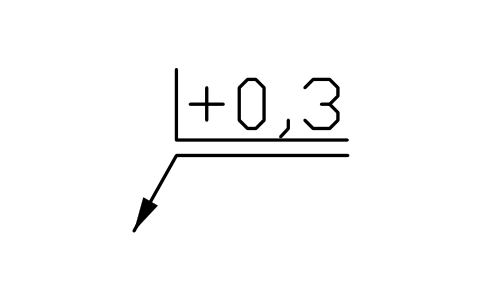
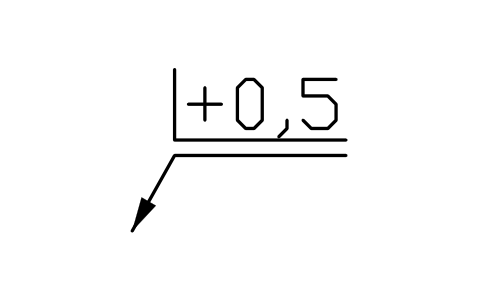
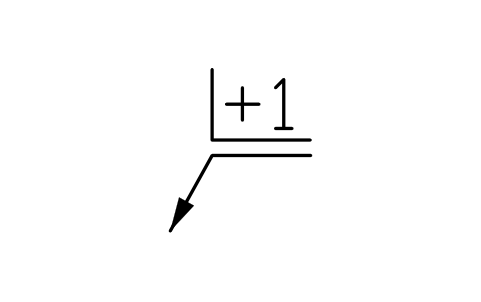
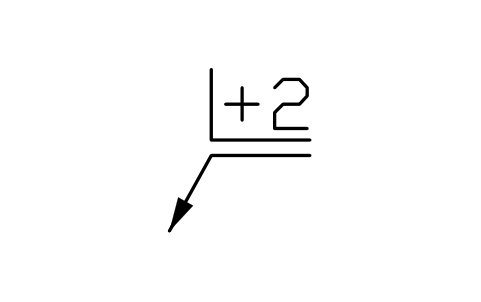
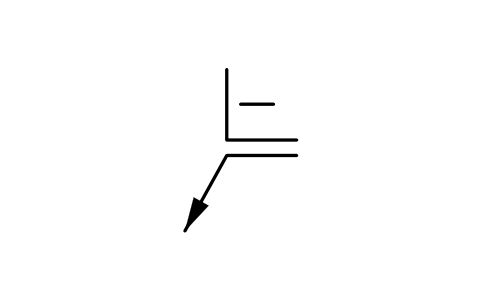
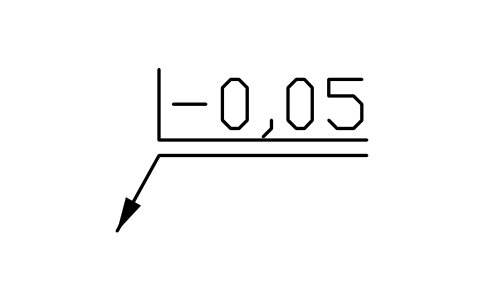
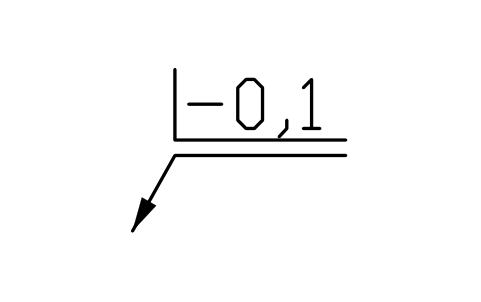
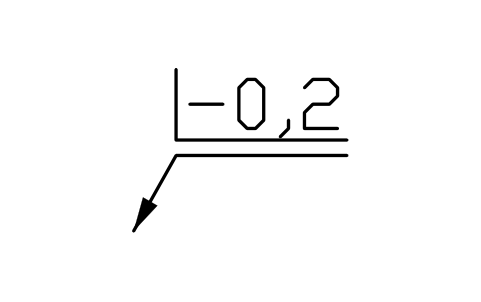
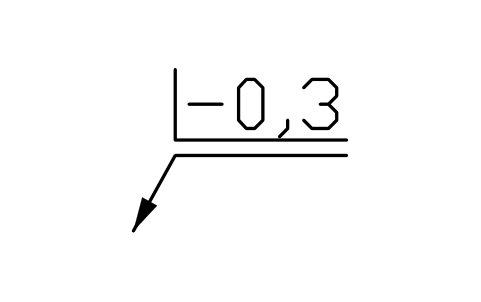
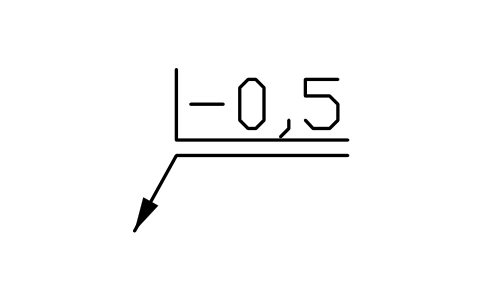
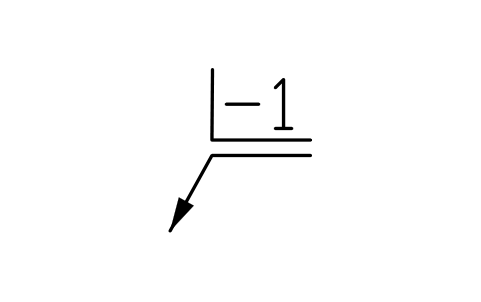
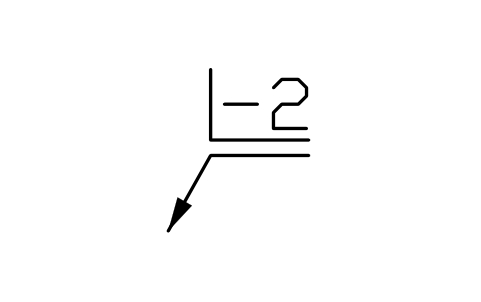
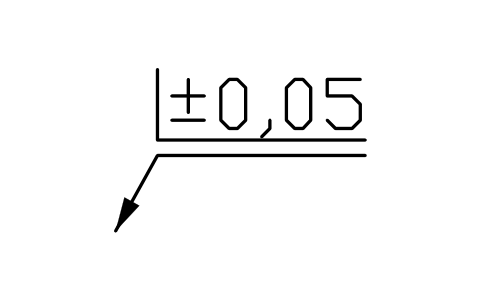
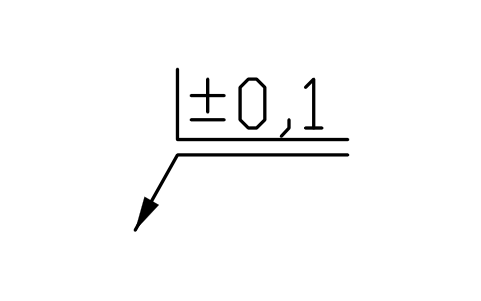
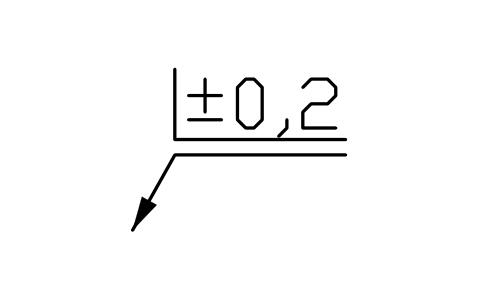
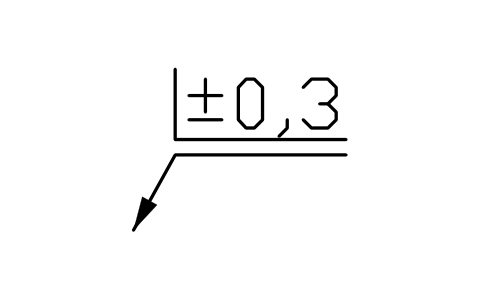
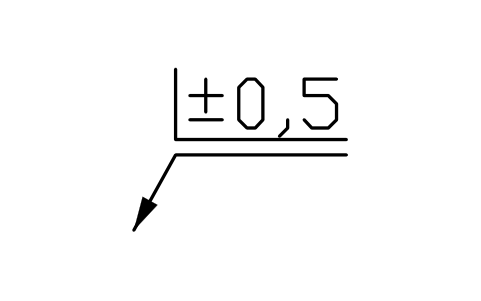
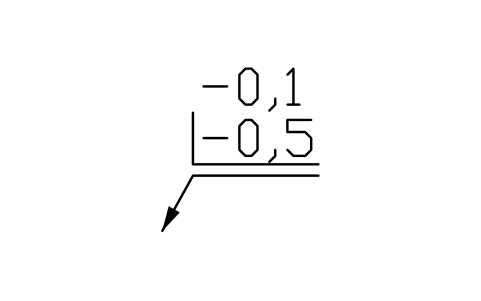
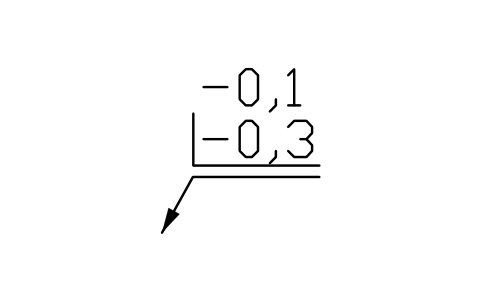
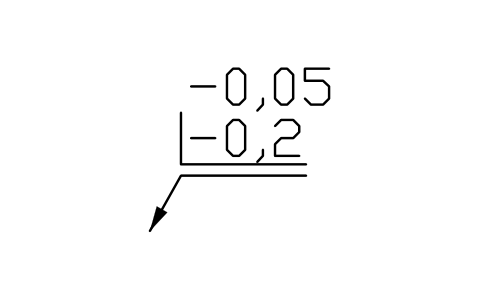
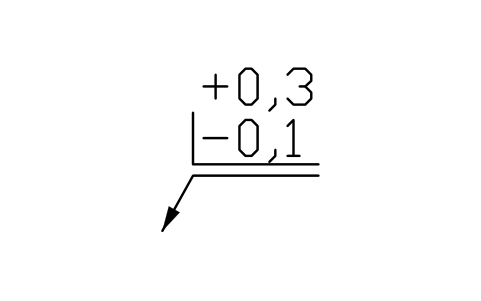
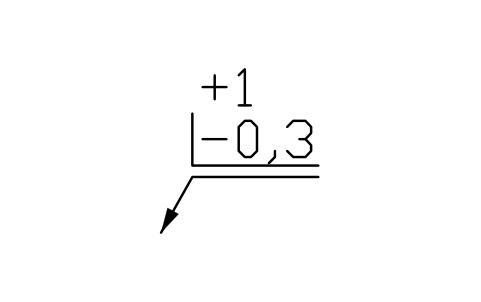
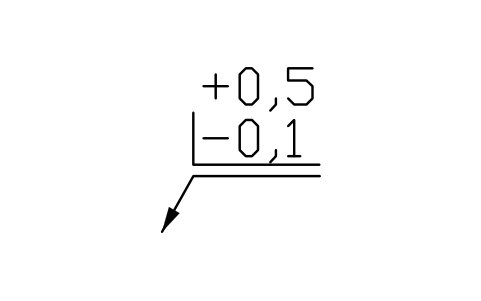
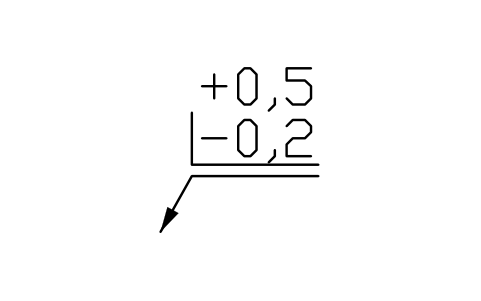
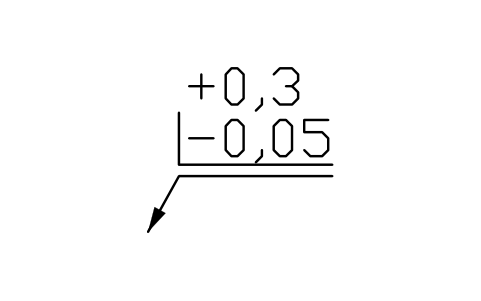
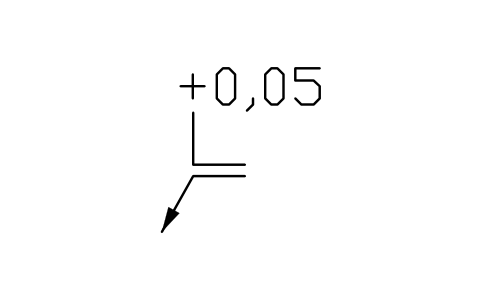
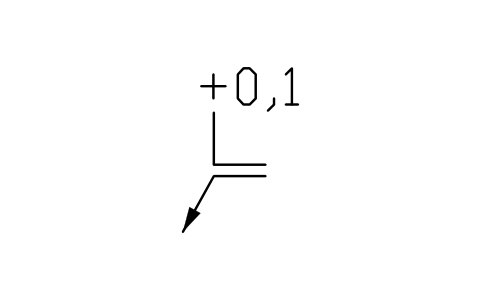
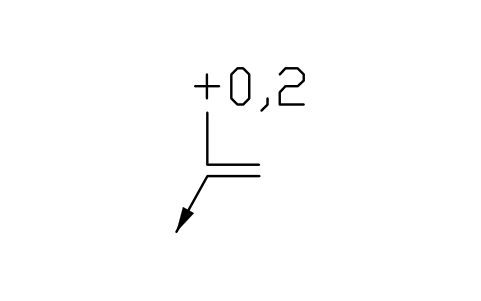
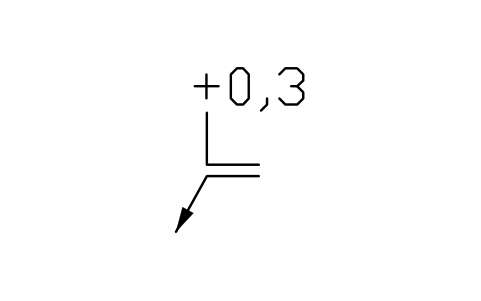
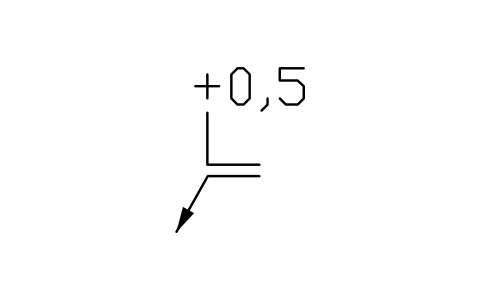
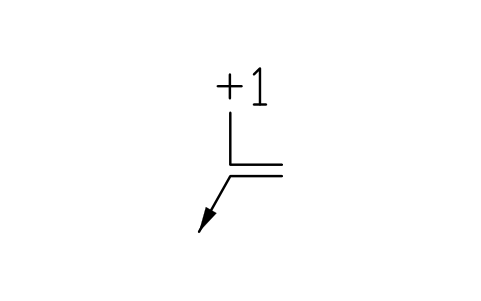
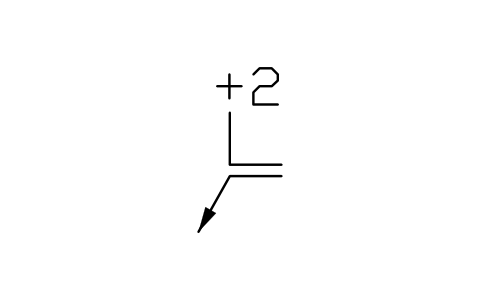
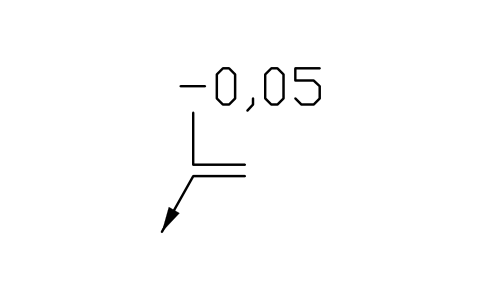
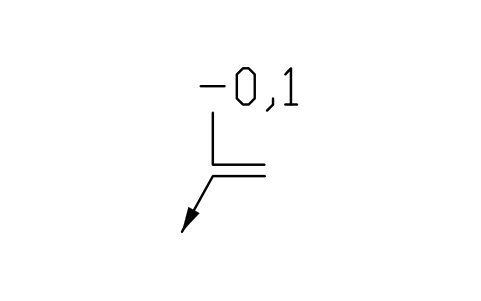
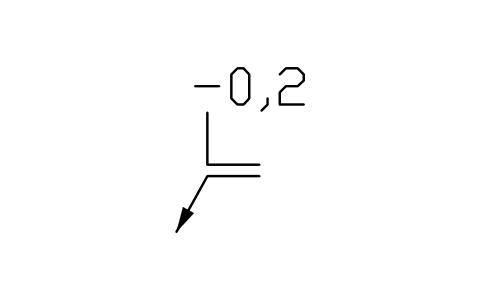
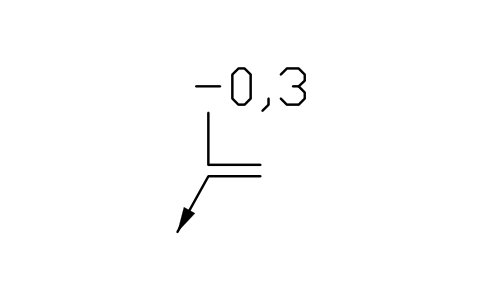
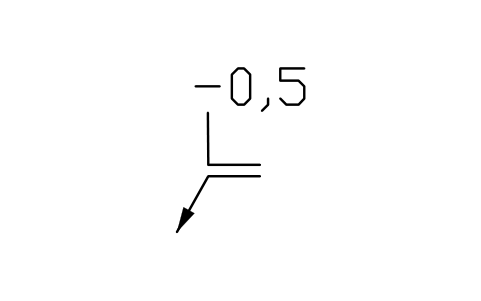
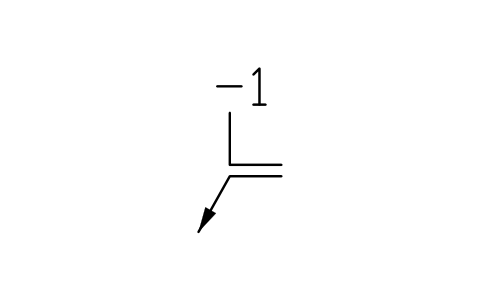
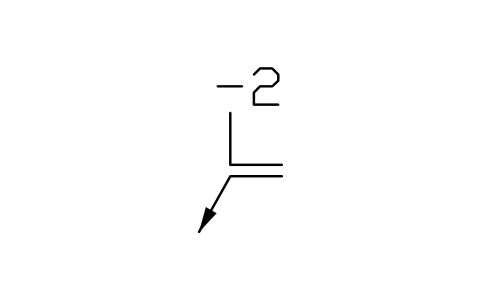
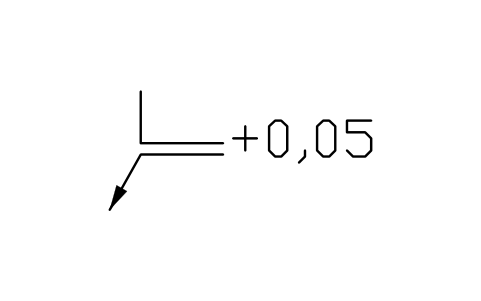
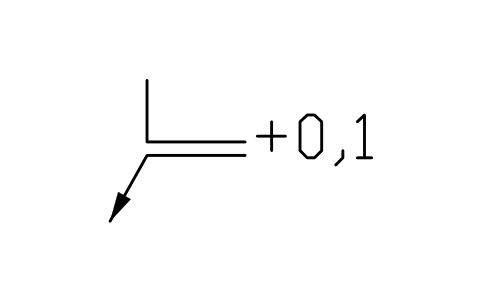
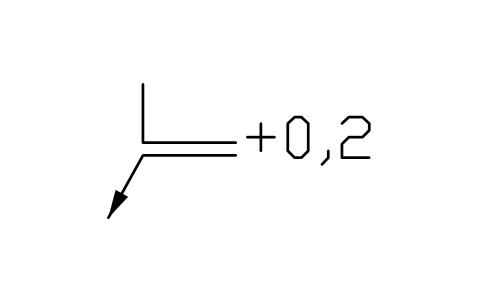
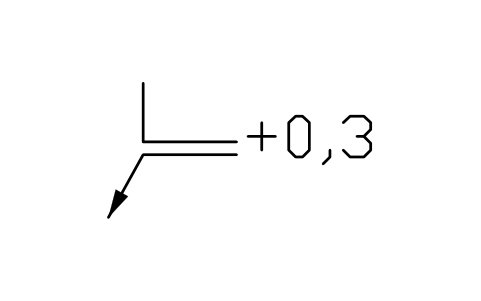
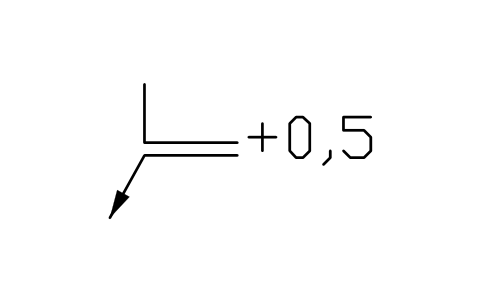
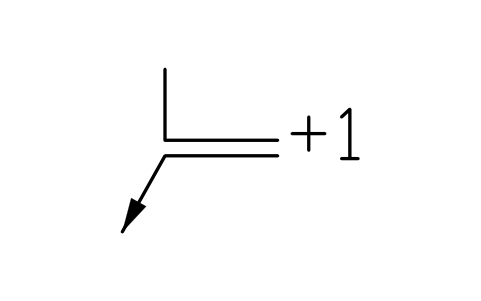
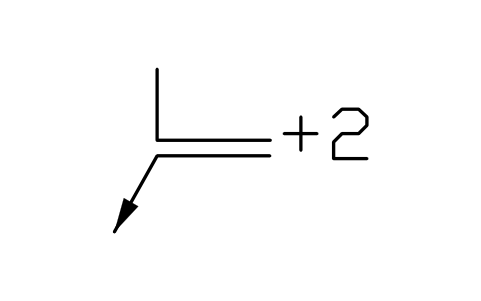
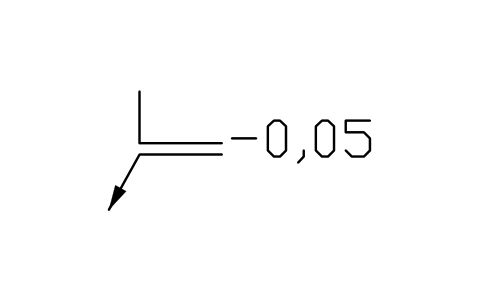
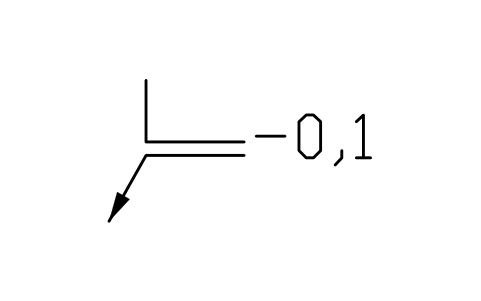
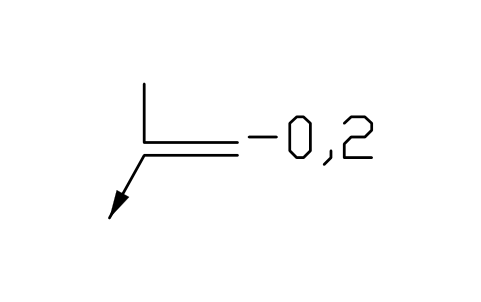
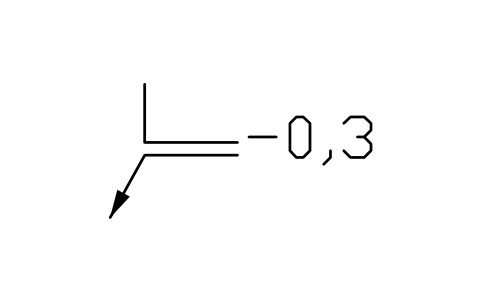
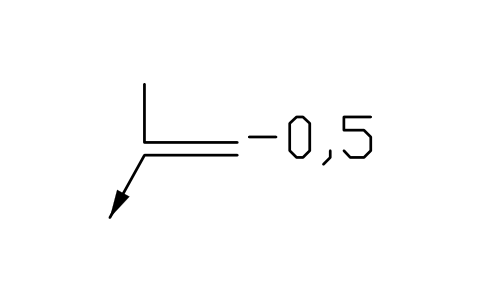
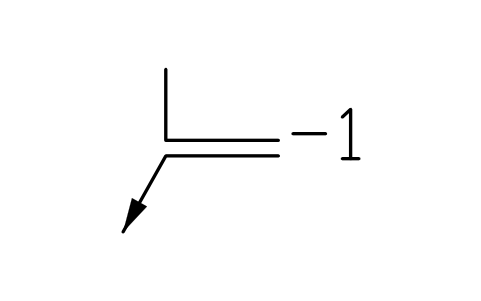
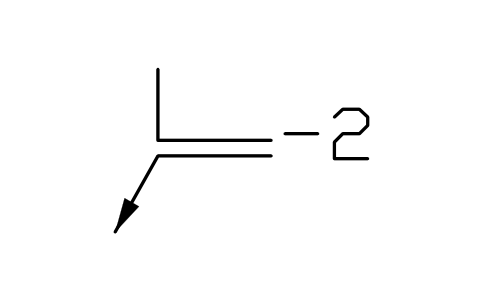
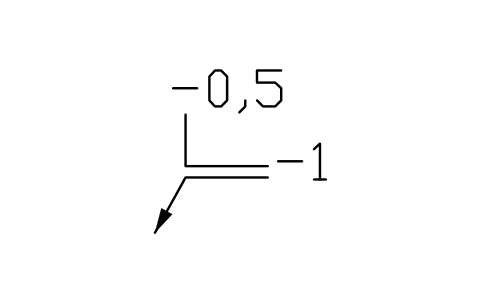
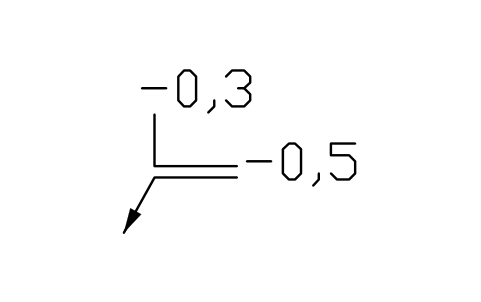
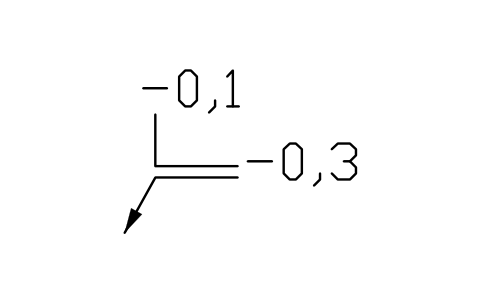
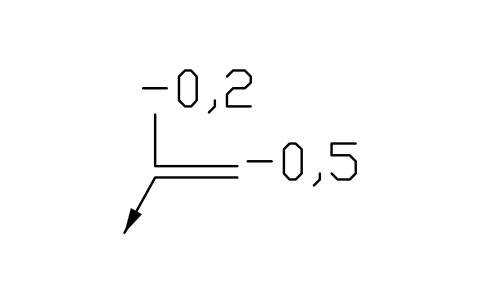
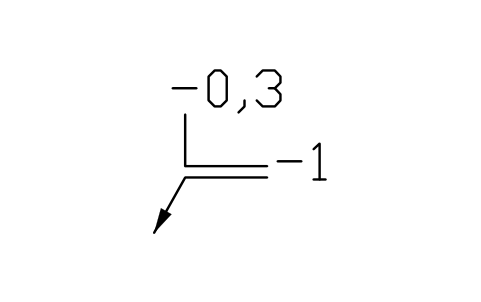
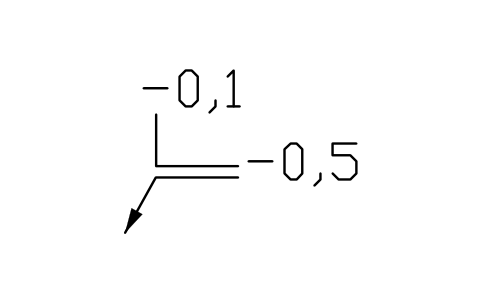
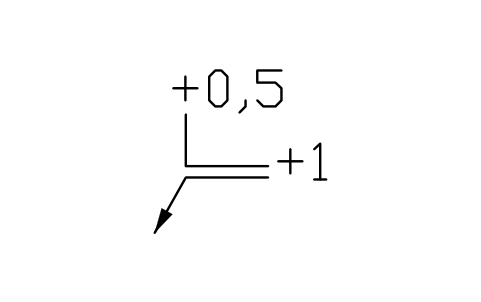
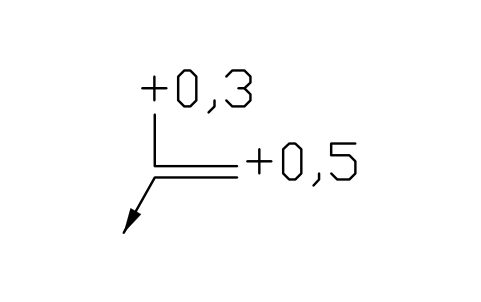
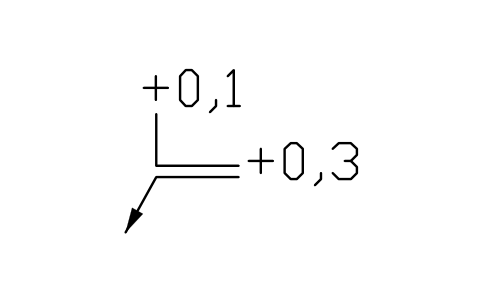
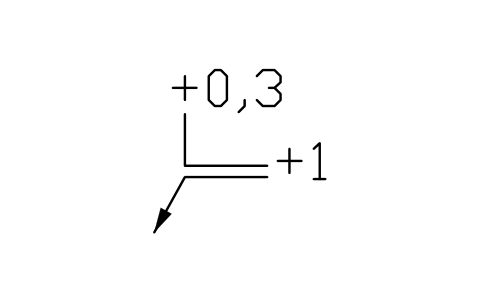
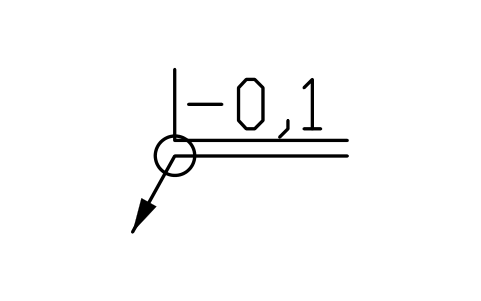
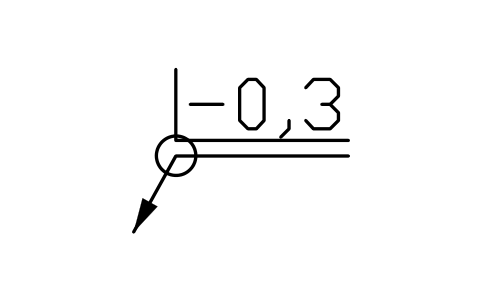
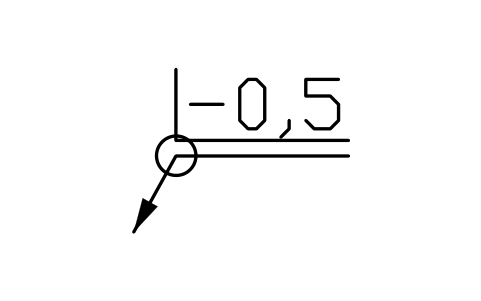
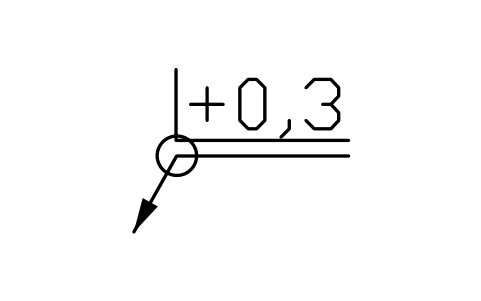
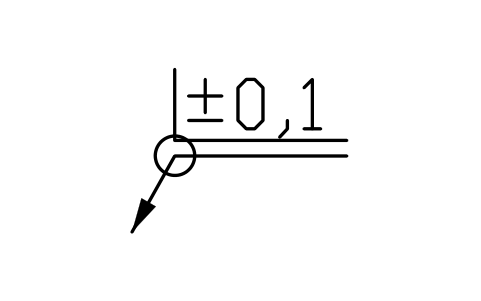
Missing a symbol? Tell us which one.
Attributes for parts lists
The visible attributes are the text of the indication in the three areas of the standard: EDGE_A1 (type and size inside the symbol, for example -0,3), EDGE_A2 (a value to the right of the symbol, for one direction) and EDGE_A3 (above the symbol: a second limit or a direction value). Type %%p for the plus-minus sign. Invisible attributes: EDGE and REMARKS.
How to use the library
- Unzip the file and open the DWG. Copy the symbols you need into your plan, or drag the blocks in from DesignCenter (ADCENTER).
- The symbols are drawn at the plotted size in millimetres with text 3.5 mm high and a symbol height of 5 mm, the first row of the size table in the standard. Insert them at the scale of your drawing, the same way as dimensions and tolerance frames. For other text heights scale the block by the ratio of the heights.
- The insertion point is the tip of the leader arrow, the point that touches the edge: snap it to the outline or to the extension line. The symbols without a leader, meant for the general note near the title block, are inserted at the corner of the symbol. Rotate or mirror the block so that the text reads from the bottom of the sheet. The reference line is drawn for the sample text; pull it longer with its grip when your text is longer.
- Pick the group that matches the requirement: one limit in the symbol (a1), two limits stacked, a value in one direction (a2 or a3), or values on both sides for asymmetrical directions. The sample values follow the usual series from 0,05 to 2 mm; double-click the block to type your own. The decimal comma is the way the standard writes it.
About the conventions
ISO 13715 gives the rules for indicating and dimensioning edges whose shape is not defined on the model: burrs and flash on the outside of a part and rounding or material taken away at the edge. The plus sign permits passing (excess material), the minus sign requires an undercut, and the plus-minus sign permits both and is used only with a size. The size follows the sign, a second limit stands above, and a value in area a2 or a3 fixes the direction.
The blocks are our own drawings after the proportions of the standard, not copies, and the library is not certified. The values are samples: the requirement on your drawing is the text you enter. Check the indications against the edition of ISO 13715 your drawing refers to.
What changed in each version
Version 1.0 · October 30, 2026
New symbols (85)
Basic indication · Basic, all around · Symbol only, no leader · General, -0,1 · General, -0,2 · General, -0,3 · General, -0,5 · General, +0,3 · General, +-0,1 · Passing permitted, size open · Passing, +0,05 · Passing, +0,1 · Passing, +0,2 · Passing, +0,3 · Passing, +0,5 · Passing, +1 · Passing, +2 · Undercut required, size open · Undercut, -0,05 · Undercut, -0,1 · Undercut, -0,2 · Undercut, -0,3 · Undercut, -0,5 · Undercut, -1 · Undercut, -2 · Passing or undercut, +-0,05 · Passing or undercut, +-0,1 · Passing or undercut, +-0,2 · Passing or undercut, +-0,3 · Passing or undercut, +-0,5 · Range -0,1 / -0,5 · Range -0,1 / -0,3 · Range -0,05 / -0,2 · Range -0,2 / -0,5 · Range +0,1 / +0,3 · Range +0,3 / +1 · Range +0,1 / +0,5 · Range +0,3 / -0,1 · Range +1 / -0,3 · Range +0,5 / -0,1 · 45 more
Frequently asked questions
- Which standard do the symbols follow?
- They follow ISO 13715 (third edition, 2017): the basic indication with the areas a1, a2 and a3, the signs + - and +-, the size and the second limit, the direction of passing or undercut, the all-around circle and the general indications near the title block.
- How do I type the plus-minus sign or change a value?
- Double-click the block and edit EDGE_A1, EDGE_A2 or EDGE_A3. Type %%p where the plus-minus sign should appear. For a value that stands in a different area, use the block of the matching group, or move the text with its grip.
- Can I use the symbols in commercial projects?
- Yes. They are free to use and modify in your own projects, including commercial ones. They are provided as is, without warranty. Please do not redistribute or resell the library; see the library terms.
- Is there a different symbol for internal and external edges?
- No. The same symbol is used for both; the edge it points to decides what passing and undercut mean there. The standard allows a value in one direction (area a2 or a3) for passing on an external edge and for undercut on an internal edge, and asymmetrical values on both sides for undercut on an external edge and passing on an internal edge.
- Can I change a symbol or add attributes?
- Yes. Open the DWG, edit a block with BEDIT to change it or add attributes, and save. To update drawings that already contain the block, run ATTSYNC or replace the block. Make a backup first: attribute values can be lost if ATTSYNC is used carelessly.
- Where do I find a ready-made set of these symbols for AutoCAD?
- AutoCAD itself ships only a small set of sample blocks, so a full symbol set has to come from a library. Download the ZIP on this page and open the DWG: every symbol is a block. Insert one with INSERT (Blocks palette, Libraries tab, then pick the DWG) or drag it from DesignCenter (ADCENTER). You can also download a single symbol on its own.