
Free AutoCAD parallel pins (DWG) after ISO 2338: 0.6 to 50 mm, 2 to 200 mm long
Parallel pins: 260 ready-made AutoCAD blocks (DWG), free to download and use in your own projects, as a ZIP or one symbol at a time.
260 parallel pins as ready-to-use AutoCAD blocks at real size: the 20 nominal diameters of ISO 2338 from 0.6 to 50 mm, each in every nominal length of the commercial range, from 2 mm up to 200 mm, with the 15 degree end chamfers and the end view. Pins of unhardened steel and austenitic stainless steel, tolerance class m6 or h8.
Version 1.0 · updated October 30, 2026 · Check out what's changed
Using AutoCAD 2017 or an earlier version? Download the 2010 format
Copyright CADXChange. Use and modify the symbols freely in your own drawings and projects, including commercial ones; credit and a link are needed only when you publish them. Please do not redistribute or resell the library. Each ZIP holds one plain DWG file in AutoCAD 2018 format and a README; no add-in needed. Provided as is, without warranty. Library terms (CXL-1.0)
Related symbol libraries
All 260 symbols
260 of 260 symbols

Parallel pin ISO 2338 0.6 m6 x 2
PIN_0_6X2Attributes
DESIGNATIONSTANDARDTOLERANCEMATERIALFINISHPART_NOMANUFACTURERQTYREMARKSDESC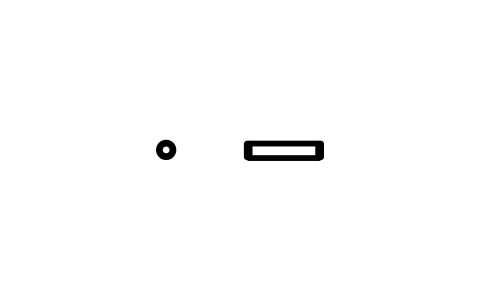
Parallel pin ISO 2338 0.6 m6 x 3
PIN_0_6X3Attributes
DESIGNATIONSTANDARDTOLERANCEMATERIALFINISHPART_NOMANUFACTURERQTYREMARKSDESC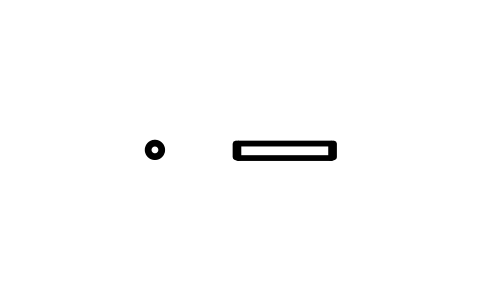
Parallel pin ISO 2338 0.6 m6 x 4
PIN_0_6X4Attributes
DESIGNATIONSTANDARDTOLERANCEMATERIALFINISHPART_NOMANUFACTURERQTYREMARKSDESC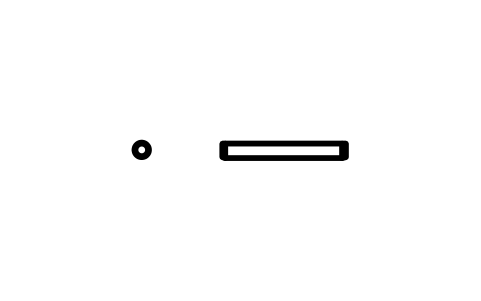
Parallel pin ISO 2338 0.6 m6 x 5
PIN_0_6X5Attributes
DESIGNATIONSTANDARDTOLERANCEMATERIALFINISHPART_NOMANUFACTURERQTYREMARKSDESC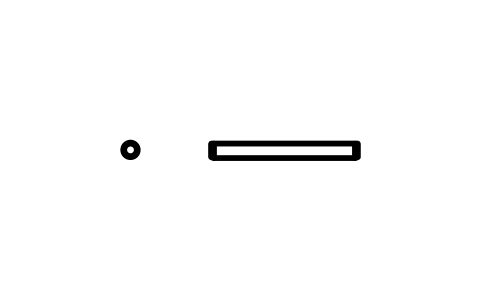
Parallel pin ISO 2338 0.6 m6 x 6
PIN_0_6X6Attributes
DESIGNATIONSTANDARDTOLERANCEMATERIALFINISHPART_NOMANUFACTURERQTYREMARKSDESC
Parallel pin ISO 2338 0.8 m6 x 2
PIN_0_8X2Attributes
DESIGNATIONSTANDARDTOLERANCEMATERIALFINISHPART_NOMANUFACTURERQTYREMARKSDESC
Parallel pin ISO 2338 0.8 m6 x 3
PIN_0_8X3Attributes
DESIGNATIONSTANDARDTOLERANCEMATERIALFINISHPART_NOMANUFACTURERQTYREMARKSDESC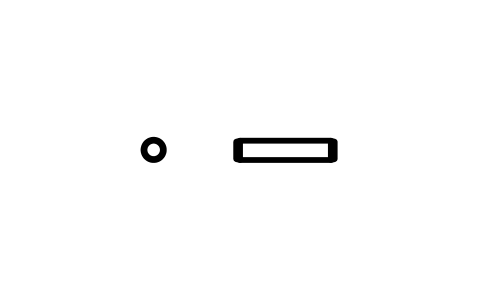
Parallel pin ISO 2338 0.8 m6 x 4
PIN_0_8X4Attributes
DESIGNATIONSTANDARDTOLERANCEMATERIALFINISHPART_NOMANUFACTURERQTYREMARKSDESC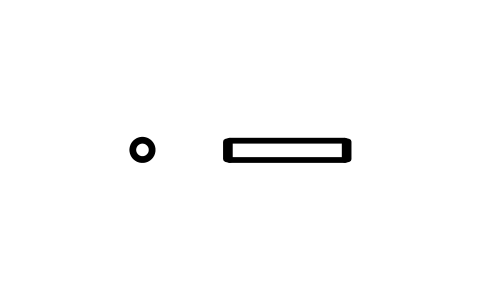
Parallel pin ISO 2338 0.8 m6 x 5
PIN_0_8X5Attributes
DESIGNATIONSTANDARDTOLERANCEMATERIALFINISHPART_NOMANUFACTURERQTYREMARKSDESC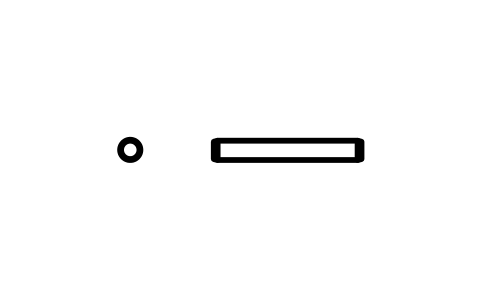
Parallel pin ISO 2338 0.8 m6 x 6
PIN_0_8X6Attributes
DESIGNATIONSTANDARDTOLERANCEMATERIALFINISHPART_NOMANUFACTURERQTYREMARKSDESC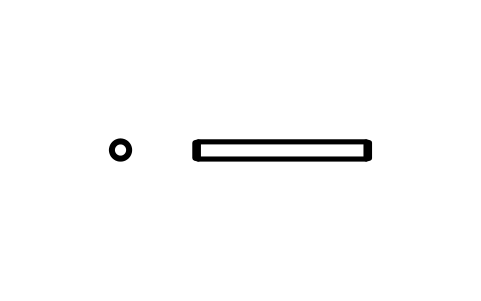
Parallel pin ISO 2338 0.8 m6 x 8
PIN_0_8X8Attributes
DESIGNATIONSTANDARDTOLERANCEMATERIALFINISHPART_NOMANUFACTURERQTYREMARKSDESC
Parallel pin ISO 2338 1 m6 x 3
PIN_1X3Attributes
DESIGNATIONSTANDARDTOLERANCEMATERIALFINISHPART_NOMANUFACTURERQTYREMARKSDESC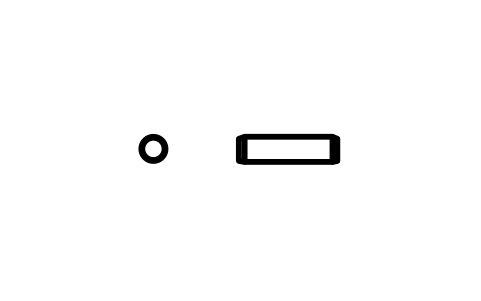
Parallel pin ISO 2338 1 m6 x 4
PIN_1X4Attributes
DESIGNATIONSTANDARDTOLERANCEMATERIALFINISHPART_NOMANUFACTURERQTYREMARKSDESC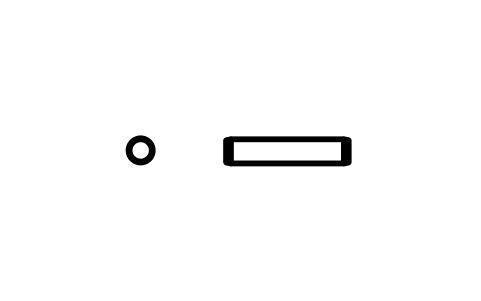
Parallel pin ISO 2338 1 m6 x 5
PIN_1X5Attributes
DESIGNATIONSTANDARDTOLERANCEMATERIALFINISHPART_NOMANUFACTURERQTYREMARKSDESC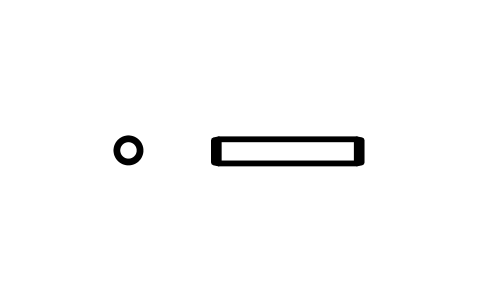
Parallel pin ISO 2338 1 m6 x 6
PIN_1X6Attributes
DESIGNATIONSTANDARDTOLERANCEMATERIALFINISHPART_NOMANUFACTURERQTYREMARKSDESC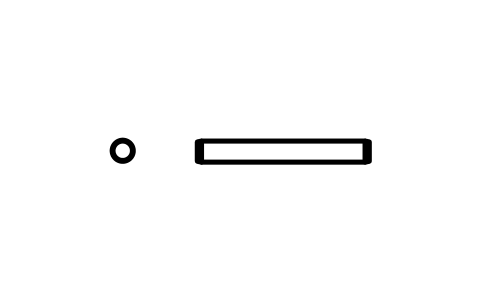
Parallel pin ISO 2338 1 m6 x 8
PIN_1X8Attributes
DESIGNATIONSTANDARDTOLERANCEMATERIALFINISHPART_NOMANUFACTURERQTYREMARKSDESC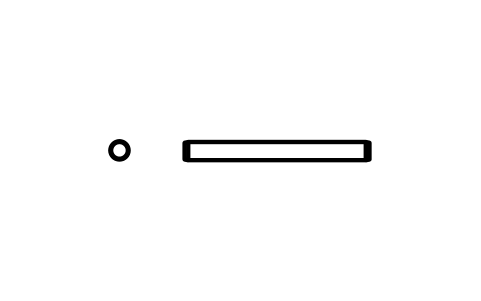
Parallel pin ISO 2338 1 m6 x 10
PIN_1X10Attributes
DESIGNATIONSTANDARDTOLERANCEMATERIALFINISHPART_NOMANUFACTURERQTYREMARKSDESC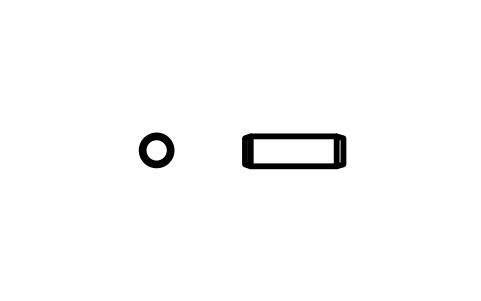
Parallel pin ISO 2338 1.2 m6 x 4
PIN_1_2X4Attributes
DESIGNATIONSTANDARDTOLERANCEMATERIALFINISHPART_NOMANUFACTURERQTYREMARKSDESC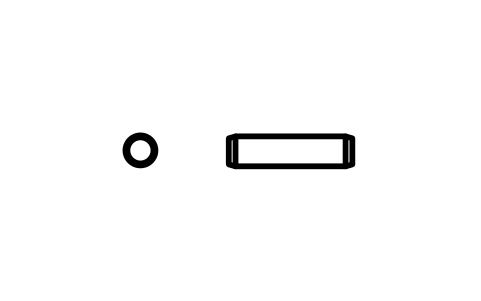
Parallel pin ISO 2338 1.2 m6 x 5
PIN_1_2X5Attributes
DESIGNATIONSTANDARDTOLERANCEMATERIALFINISHPART_NOMANUFACTURERQTYREMARKSDESC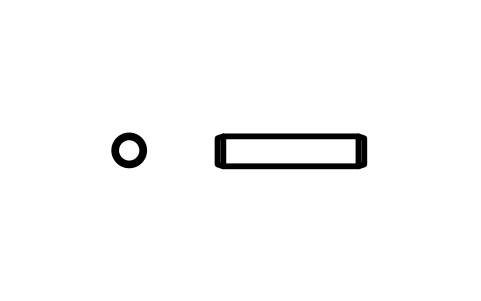
Parallel pin ISO 2338 1.2 m6 x 6
PIN_1_2X6Attributes
DESIGNATIONSTANDARDTOLERANCEMATERIALFINISHPART_NOMANUFACTURERQTYREMARKSDESC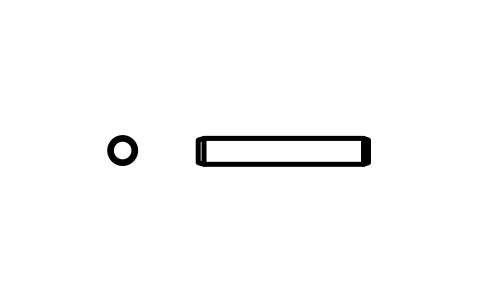
Parallel pin ISO 2338 1.2 m6 x 8
PIN_1_2X8Attributes
DESIGNATIONSTANDARDTOLERANCEMATERIALFINISHPART_NOMANUFACTURERQTYREMARKSDESC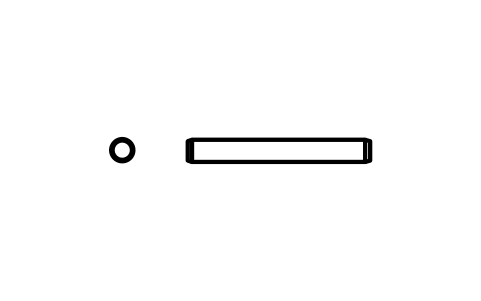
Parallel pin ISO 2338 1.2 m6 x 10
PIN_1_2X10Attributes
DESIGNATIONSTANDARDTOLERANCEMATERIALFINISHPART_NOMANUFACTURERQTYREMARKSDESC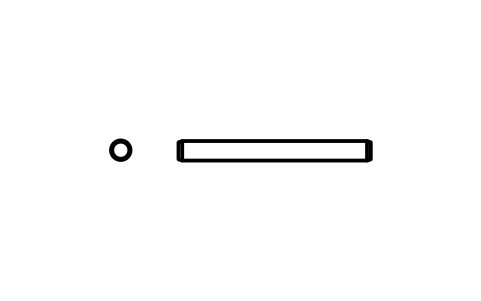
Parallel pin ISO 2338 1.2 m6 x 12
PIN_1_2X12Attributes
DESIGNATIONSTANDARDTOLERANCEMATERIALFINISHPART_NOMANUFACTURERQTYREMARKSDESC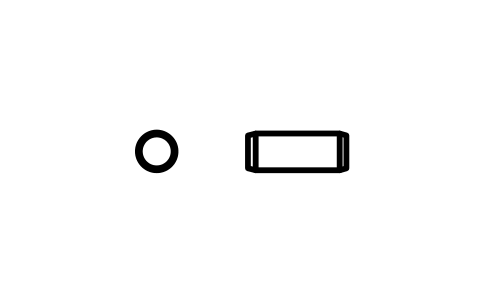
Parallel pin ISO 2338 1.5 m6 x 4
PIN_1_5X4Attributes
DESIGNATIONSTANDARDTOLERANCEMATERIALFINISHPART_NOMANUFACTURERQTYREMARKSDESC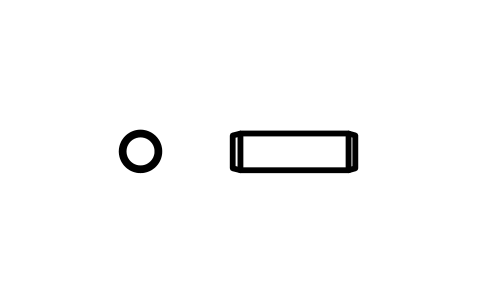
Parallel pin ISO 2338 1.5 m6 x 5
PIN_1_5X5Attributes
DESIGNATIONSTANDARDTOLERANCEMATERIALFINISHPART_NOMANUFACTURERQTYREMARKSDESC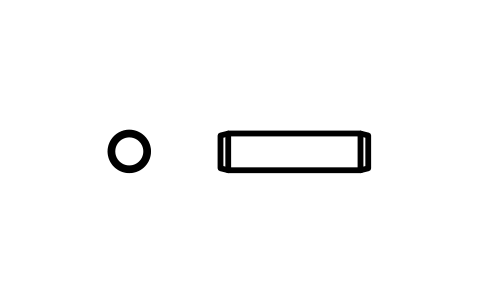
Parallel pin ISO 2338 1.5 m6 x 6
PIN_1_5X6Attributes
DESIGNATIONSTANDARDTOLERANCEMATERIALFINISHPART_NOMANUFACTURERQTYREMARKSDESC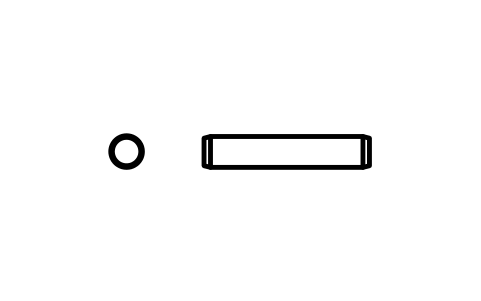
Parallel pin ISO 2338 1.5 m6 x 8
PIN_1_5X8Attributes
DESIGNATIONSTANDARDTOLERANCEMATERIALFINISHPART_NOMANUFACTURERQTYREMARKSDESC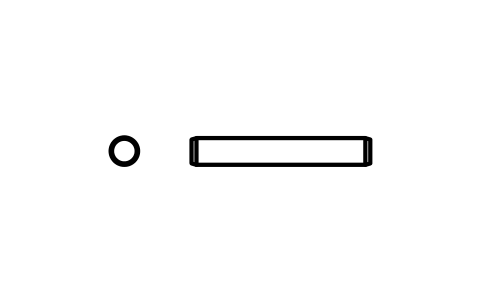
Parallel pin ISO 2338 1.5 m6 x 10
PIN_1_5X10Attributes
DESIGNATIONSTANDARDTOLERANCEMATERIALFINISHPART_NOMANUFACTURERQTYREMARKSDESC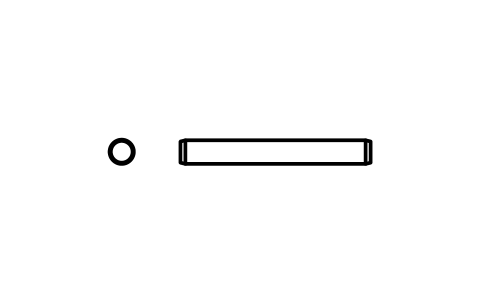
Parallel pin ISO 2338 1.5 m6 x 12
PIN_1_5X12Attributes
DESIGNATIONSTANDARDTOLERANCEMATERIALFINISHPART_NOMANUFACTURERQTYREMARKSDESC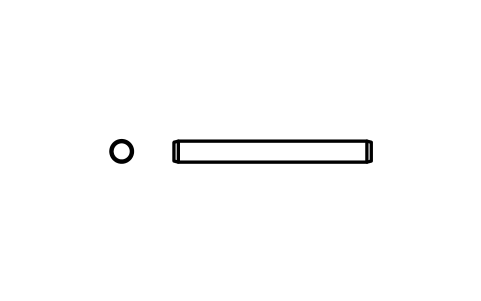
Parallel pin ISO 2338 1.5 m6 x 14
PIN_1_5X14Attributes
DESIGNATIONSTANDARDTOLERANCEMATERIALFINISHPART_NOMANUFACTURERQTYREMARKSDESC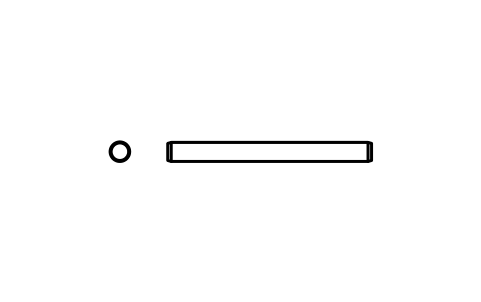
Parallel pin ISO 2338 1.5 m6 x 16
PIN_1_5X16Attributes
DESIGNATIONSTANDARDTOLERANCEMATERIALFINISHPART_NOMANUFACTURERQTYREMARKSDESC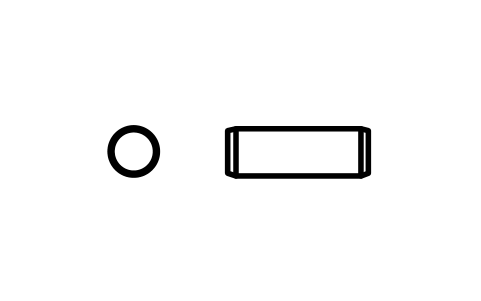
Parallel pin ISO 2338 2 m6 x 6
PIN_2X6Attributes
DESIGNATIONSTANDARDTOLERANCEMATERIALFINISHPART_NOMANUFACTURERQTYREMARKSDESC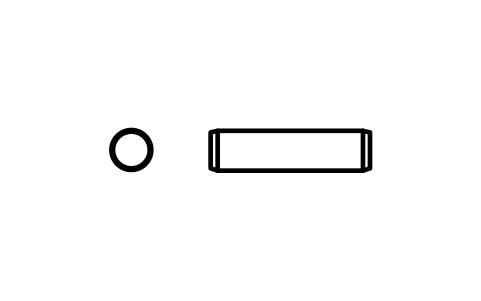
Parallel pin ISO 2338 2 m6 x 8
PIN_2X8Attributes
DESIGNATIONSTANDARDTOLERANCEMATERIALFINISHPART_NOMANUFACTURERQTYREMARKSDESC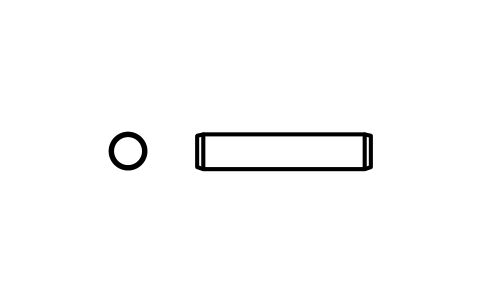
Parallel pin ISO 2338 2 m6 x 10
PIN_2X10Attributes
DESIGNATIONSTANDARDTOLERANCEMATERIALFINISHPART_NOMANUFACTURERQTYREMARKSDESC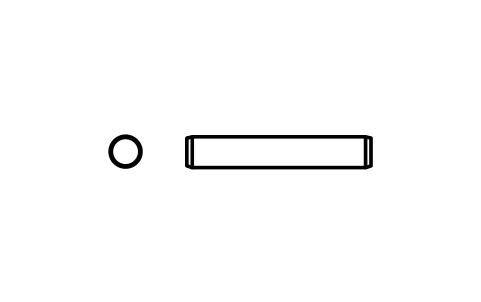
Parallel pin ISO 2338 2 m6 x 12
PIN_2X12Attributes
DESIGNATIONSTANDARDTOLERANCEMATERIALFINISHPART_NOMANUFACTURERQTYREMARKSDESC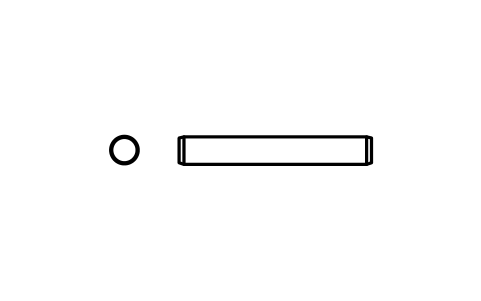
Parallel pin ISO 2338 2 m6 x 14
PIN_2X14Attributes
DESIGNATIONSTANDARDTOLERANCEMATERIALFINISHPART_NOMANUFACTURERQTYREMARKSDESC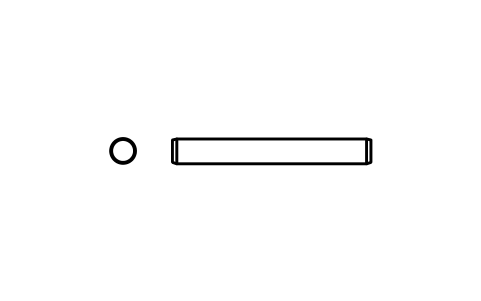
Parallel pin ISO 2338 2 m6 x 16
PIN_2X16Attributes
DESIGNATIONSTANDARDTOLERANCEMATERIALFINISHPART_NOMANUFACTURERQTYREMARKSDESC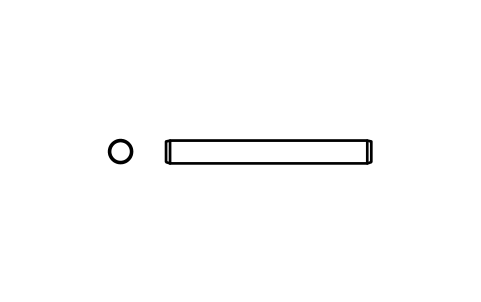
Parallel pin ISO 2338 2 m6 x 18
PIN_2X18Attributes
DESIGNATIONSTANDARDTOLERANCEMATERIALFINISHPART_NOMANUFACTURERQTYREMARKSDESC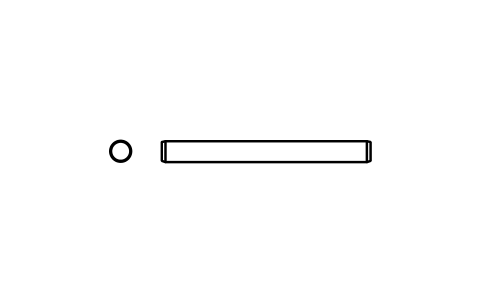
Parallel pin ISO 2338 2 m6 x 20
PIN_2X20Attributes
DESIGNATIONSTANDARDTOLERANCEMATERIALFINISHPART_NOMANUFACTURERQTYREMARKSDESC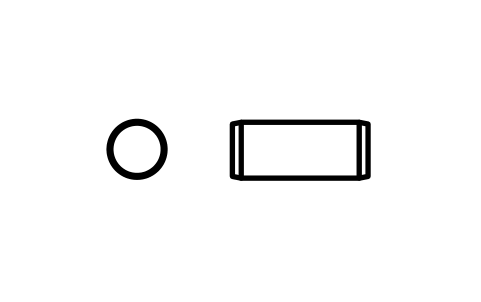
Parallel pin ISO 2338 2.5 m6 x 6
PIN_2_5X6Attributes
DESIGNATIONSTANDARDTOLERANCEMATERIALFINISHPART_NOMANUFACTURERQTYREMARKSDESC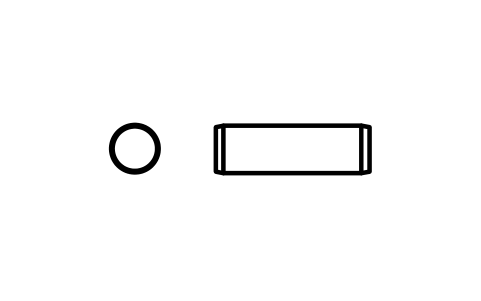
Parallel pin ISO 2338 2.5 m6 x 8
PIN_2_5X8Attributes
DESIGNATIONSTANDARDTOLERANCEMATERIALFINISHPART_NOMANUFACTURERQTYREMARKSDESC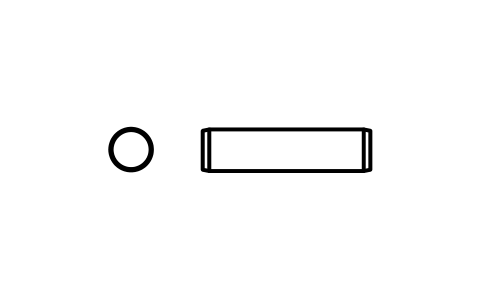
Parallel pin ISO 2338 2.5 m6 x 10
PIN_2_5X10Attributes
DESIGNATIONSTANDARDTOLERANCEMATERIALFINISHPART_NOMANUFACTURERQTYREMARKSDESC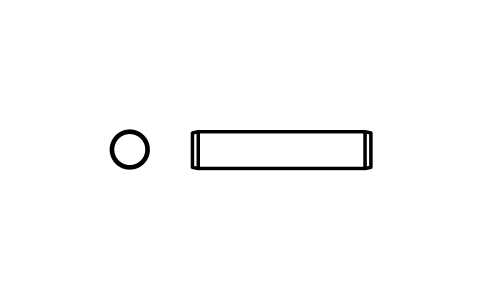
Parallel pin ISO 2338 2.5 m6 x 12
PIN_2_5X12Attributes
DESIGNATIONSTANDARDTOLERANCEMATERIALFINISHPART_NOMANUFACTURERQTYREMARKSDESC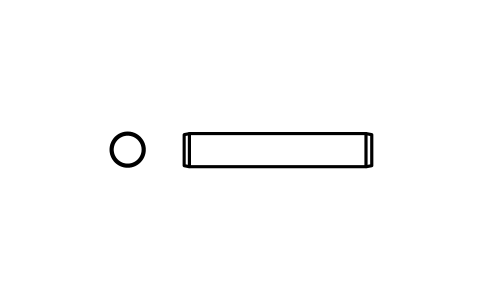
Parallel pin ISO 2338 2.5 m6 x 14
PIN_2_5X14Attributes
DESIGNATIONSTANDARDTOLERANCEMATERIALFINISHPART_NOMANUFACTURERQTYREMARKSDESC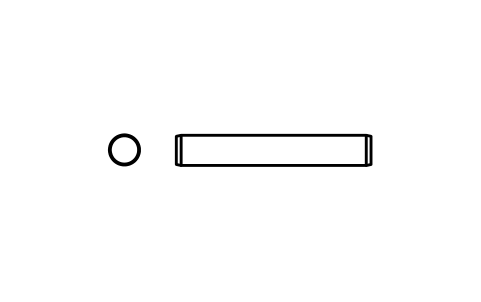
Parallel pin ISO 2338 2.5 m6 x 16
PIN_2_5X16Attributes
DESIGNATIONSTANDARDTOLERANCEMATERIALFINISHPART_NOMANUFACTURERQTYREMARKSDESC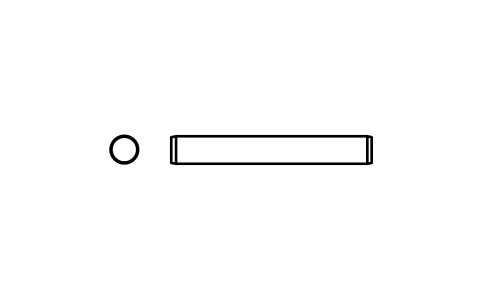
Parallel pin ISO 2338 2.5 m6 x 18
PIN_2_5X18Attributes
DESIGNATIONSTANDARDTOLERANCEMATERIALFINISHPART_NOMANUFACTURERQTYREMARKSDESC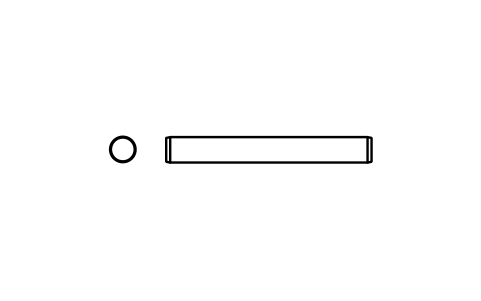
Parallel pin ISO 2338 2.5 m6 x 20
PIN_2_5X20Attributes
DESIGNATIONSTANDARDTOLERANCEMATERIALFINISHPART_NOMANUFACTURERQTYREMARKSDESC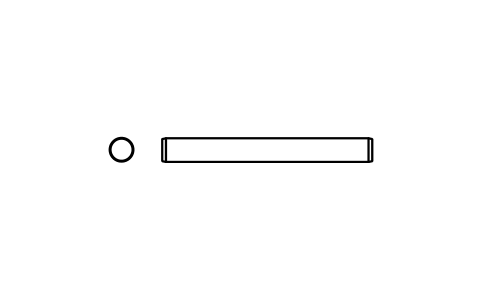
Parallel pin ISO 2338 2.5 m6 x 22
PIN_2_5X22Attributes
DESIGNATIONSTANDARDTOLERANCEMATERIALFINISHPART_NOMANUFACTURERQTYREMARKSDESC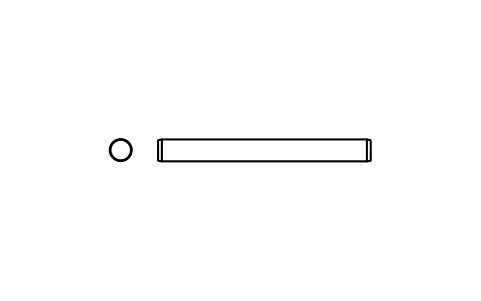
Parallel pin ISO 2338 2.5 m6 x 24
PIN_2_5X24Attributes
DESIGNATIONSTANDARDTOLERANCEMATERIALFINISHPART_NOMANUFACTURERQTYREMARKSDESC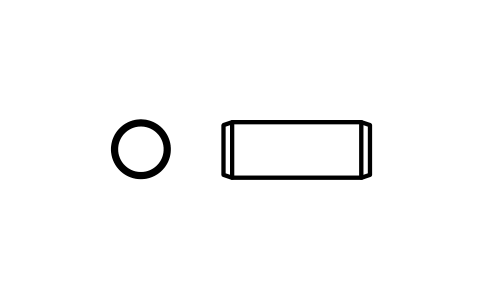
Parallel pin ISO 2338 3 m6 x 8
PIN_3X8Attributes
DESIGNATIONSTANDARDTOLERANCEMATERIALFINISHPART_NOMANUFACTURERQTYREMARKSDESC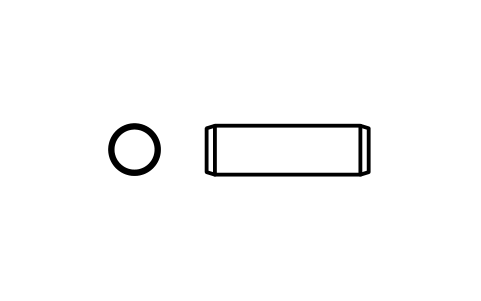
Parallel pin ISO 2338 3 m6 x 10
PIN_3X10Attributes
DESIGNATIONSTANDARDTOLERANCEMATERIALFINISHPART_NOMANUFACTURERQTYREMARKSDESC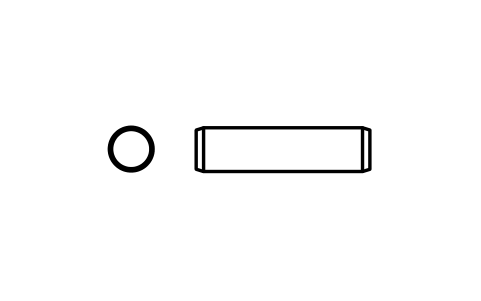
Parallel pin ISO 2338 3 m6 x 12
PIN_3X12Attributes
DESIGNATIONSTANDARDTOLERANCEMATERIALFINISHPART_NOMANUFACTURERQTYREMARKSDESC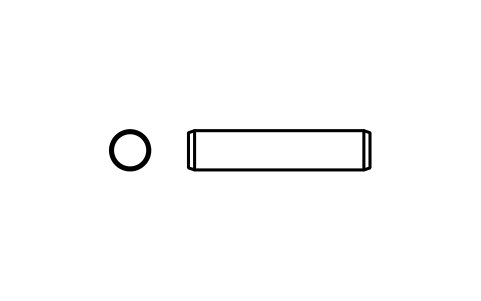
Parallel pin ISO 2338 3 m6 x 14
PIN_3X14Attributes
DESIGNATIONSTANDARDTOLERANCEMATERIALFINISHPART_NOMANUFACTURERQTYREMARKSDESC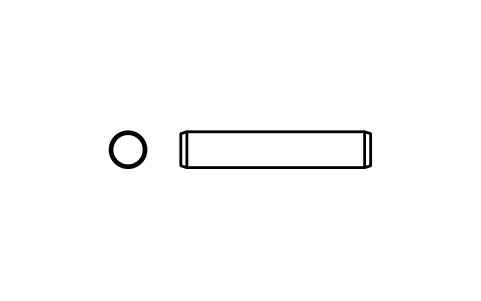
Parallel pin ISO 2338 3 m6 x 16
PIN_3X16Attributes
DESIGNATIONSTANDARDTOLERANCEMATERIALFINISHPART_NOMANUFACTURERQTYREMARKSDESC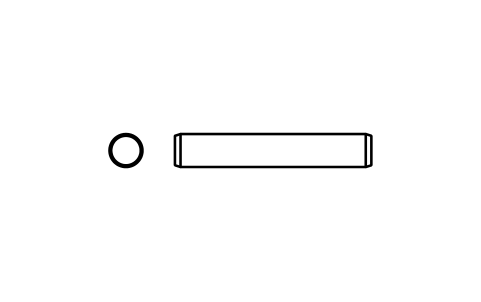
Parallel pin ISO 2338 3 m6 x 18
PIN_3X18Attributes
DESIGNATIONSTANDARDTOLERANCEMATERIALFINISHPART_NOMANUFACTURERQTYREMARKSDESC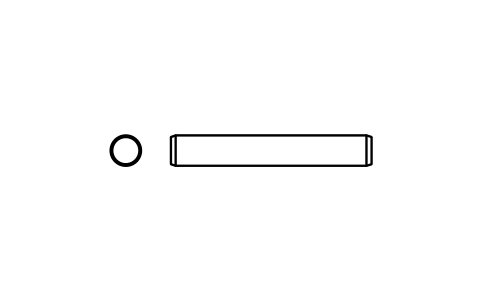
Parallel pin ISO 2338 3 m6 x 20
PIN_3X20Attributes
DESIGNATIONSTANDARDTOLERANCEMATERIALFINISHPART_NOMANUFACTURERQTYREMARKSDESC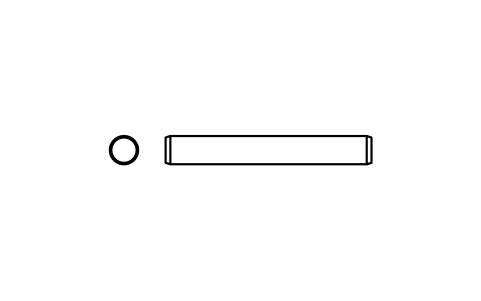
Parallel pin ISO 2338 3 m6 x 22
PIN_3X22Attributes
DESIGNATIONSTANDARDTOLERANCEMATERIALFINISHPART_NOMANUFACTURERQTYREMARKSDESC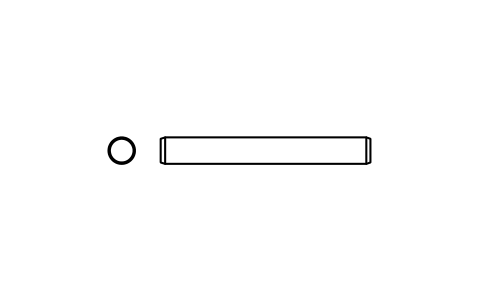
Parallel pin ISO 2338 3 m6 x 24
PIN_3X24Attributes
DESIGNATIONSTANDARDTOLERANCEMATERIALFINISHPART_NOMANUFACTURERQTYREMARKSDESC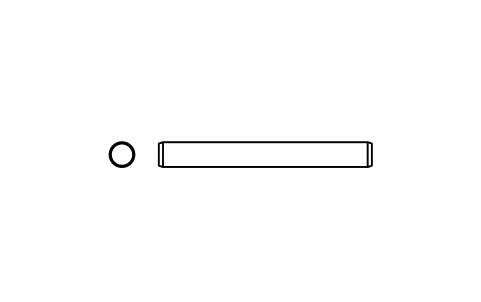
Parallel pin ISO 2338 3 m6 x 26
PIN_3X26Attributes
DESIGNATIONSTANDARDTOLERANCEMATERIALFINISHPART_NOMANUFACTURERQTYREMARKSDESC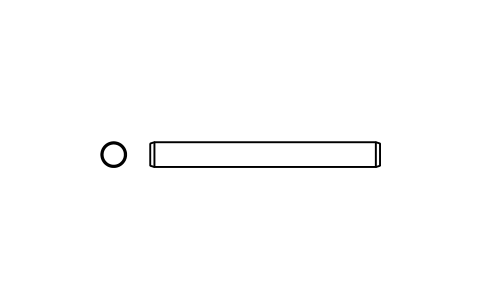
Parallel pin ISO 2338 3 m6 x 28
PIN_3X28Attributes
DESIGNATIONSTANDARDTOLERANCEMATERIALFINISHPART_NOMANUFACTURERQTYREMARKSDESC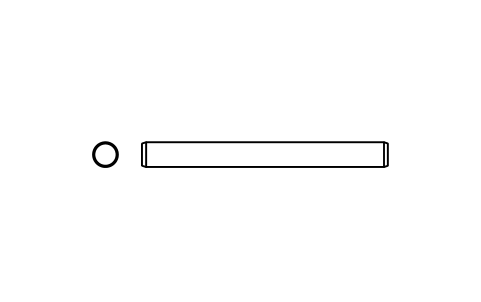
Parallel pin ISO 2338 3 m6 x 30
PIN_3X30Attributes
DESIGNATIONSTANDARDTOLERANCEMATERIALFINISHPART_NOMANUFACTURERQTYREMARKSDESC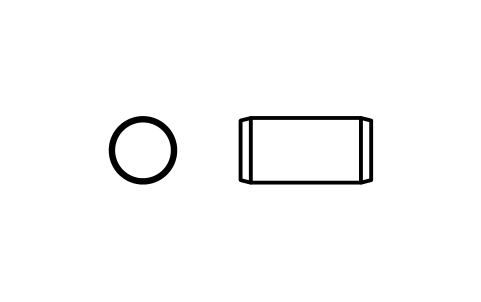
Parallel pin ISO 2338 4 m6 x 8
PIN_4X8Attributes
DESIGNATIONSTANDARDTOLERANCEMATERIALFINISHPART_NOMANUFACTURERQTYREMARKSDESC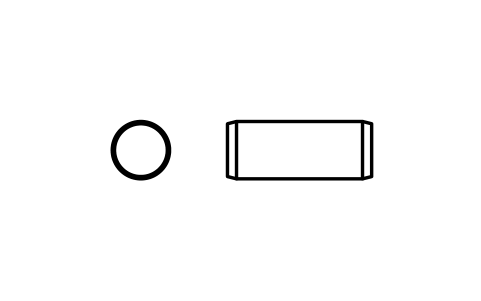
Parallel pin ISO 2338 4 m6 x 10
PIN_4X10Attributes
DESIGNATIONSTANDARDTOLERANCEMATERIALFINISHPART_NOMANUFACTURERQTYREMARKSDESC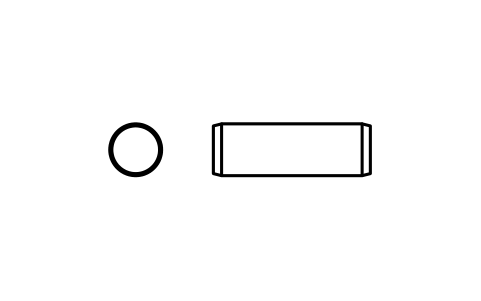
Parallel pin ISO 2338 4 m6 x 12
PIN_4X12Attributes
DESIGNATIONSTANDARDTOLERANCEMATERIALFINISHPART_NOMANUFACTURERQTYREMARKSDESC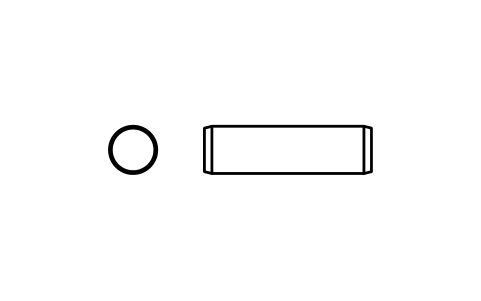
Parallel pin ISO 2338 4 m6 x 14
PIN_4X14Attributes
DESIGNATIONSTANDARDTOLERANCEMATERIALFINISHPART_NOMANUFACTURERQTYREMARKSDESC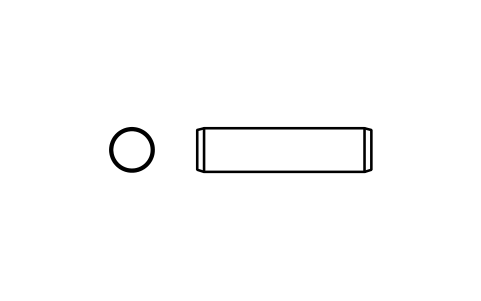
Parallel pin ISO 2338 4 m6 x 16
PIN_4X16Attributes
DESIGNATIONSTANDARDTOLERANCEMATERIALFINISHPART_NOMANUFACTURERQTYREMARKSDESC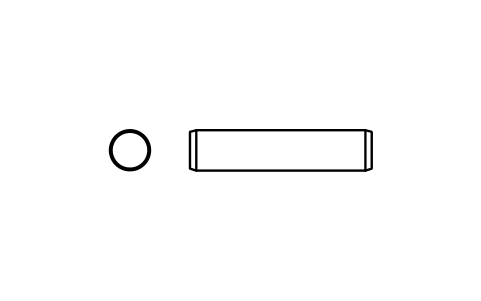
Parallel pin ISO 2338 4 m6 x 18
PIN_4X18Attributes
DESIGNATIONSTANDARDTOLERANCEMATERIALFINISHPART_NOMANUFACTURERQTYREMARKSDESC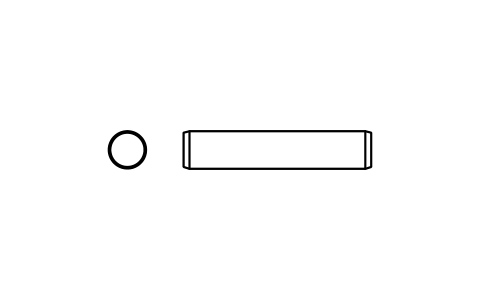
Parallel pin ISO 2338 4 m6 x 20
PIN_4X20Attributes
DESIGNATIONSTANDARDTOLERANCEMATERIALFINISHPART_NOMANUFACTURERQTYREMARKSDESC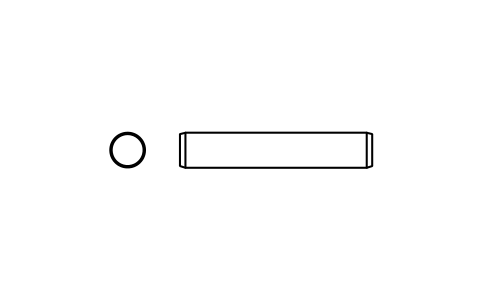
Parallel pin ISO 2338 4 m6 x 22
PIN_4X22Attributes
DESIGNATIONSTANDARDTOLERANCEMATERIALFINISHPART_NOMANUFACTURERQTYREMARKSDESC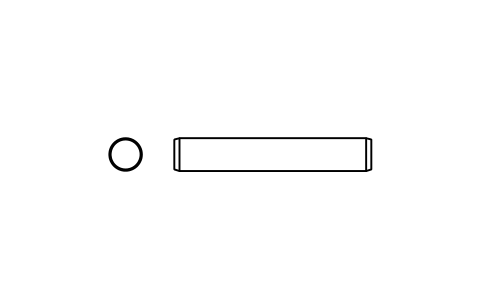
Parallel pin ISO 2338 4 m6 x 24
PIN_4X24Attributes
DESIGNATIONSTANDARDTOLERANCEMATERIALFINISHPART_NOMANUFACTURERQTYREMARKSDESC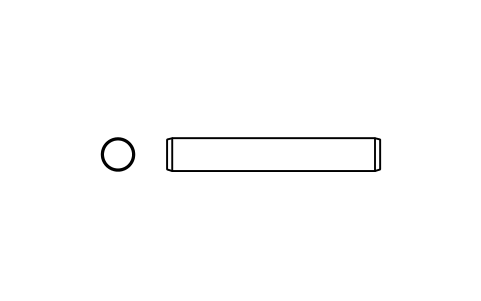
Parallel pin ISO 2338 4 m6 x 26
PIN_4X26Attributes
DESIGNATIONSTANDARDTOLERANCEMATERIALFINISHPART_NOMANUFACTURERQTYREMARKSDESC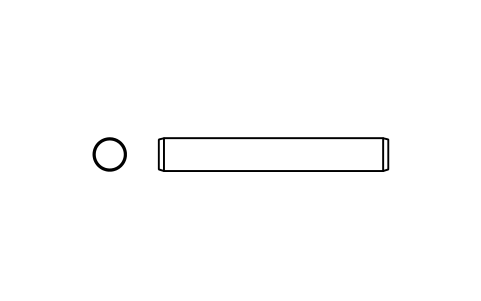
Parallel pin ISO 2338 4 m6 x 28
PIN_4X28Attributes
DESIGNATIONSTANDARDTOLERANCEMATERIALFINISHPART_NOMANUFACTURERQTYREMARKSDESC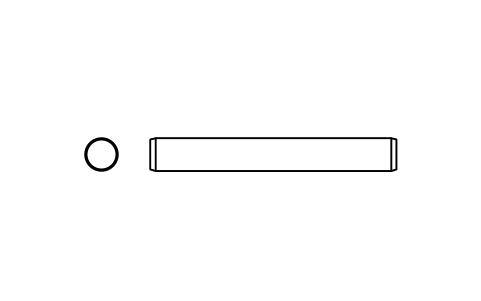
Parallel pin ISO 2338 4 m6 x 30
PIN_4X30Attributes
DESIGNATIONSTANDARDTOLERANCEMATERIALFINISHPART_NOMANUFACTURERQTYREMARKSDESC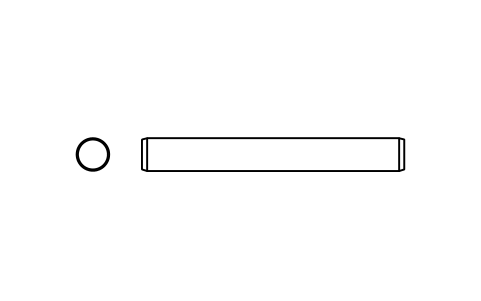
Parallel pin ISO 2338 4 m6 x 32
PIN_4X32Attributes
DESIGNATIONSTANDARDTOLERANCEMATERIALFINISHPART_NOMANUFACTURERQTYREMARKSDESC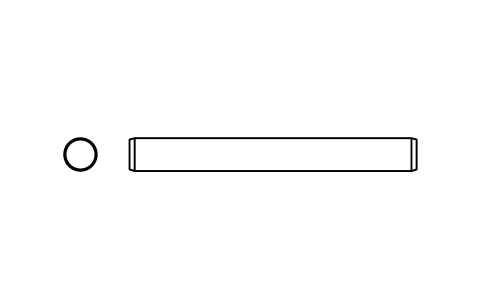
Parallel pin ISO 2338 4 m6 x 35
PIN_4X35Attributes
DESIGNATIONSTANDARDTOLERANCEMATERIALFINISHPART_NOMANUFACTURERQTYREMARKSDESC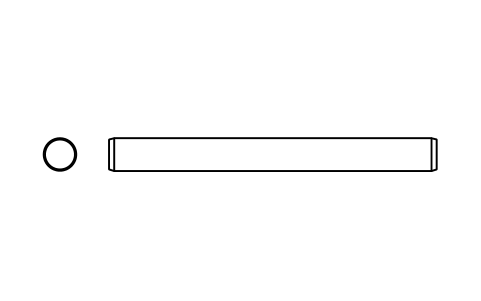
Parallel pin ISO 2338 4 m6 x 40
PIN_4X40Attributes
DESIGNATIONSTANDARDTOLERANCEMATERIALFINISHPART_NOMANUFACTURERQTYREMARKSDESC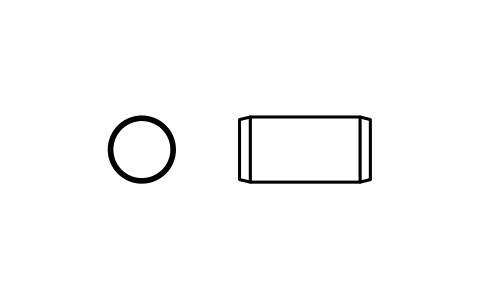
Parallel pin ISO 2338 5 m6 x 10
PIN_5X10Attributes
DESIGNATIONSTANDARDTOLERANCEMATERIALFINISHPART_NOMANUFACTURERQTYREMARKSDESC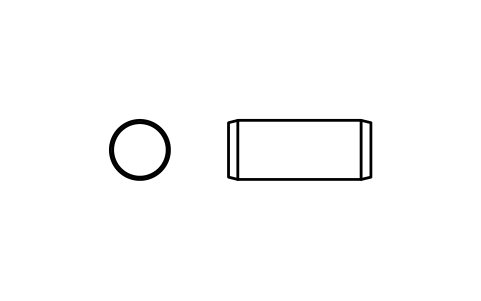
Parallel pin ISO 2338 5 m6 x 12
PIN_5X12Attributes
DESIGNATIONSTANDARDTOLERANCEMATERIALFINISHPART_NOMANUFACTURERQTYREMARKSDESC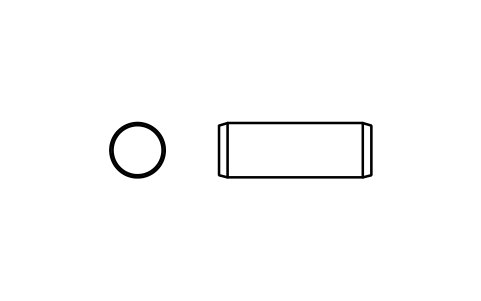
Parallel pin ISO 2338 5 m6 x 14
PIN_5X14Attributes
DESIGNATIONSTANDARDTOLERANCEMATERIALFINISHPART_NOMANUFACTURERQTYREMARKSDESC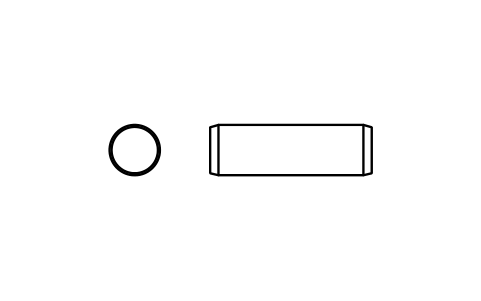
Parallel pin ISO 2338 5 m6 x 16
PIN_5X16Attributes
DESIGNATIONSTANDARDTOLERANCEMATERIALFINISHPART_NOMANUFACTURERQTYREMARKSDESC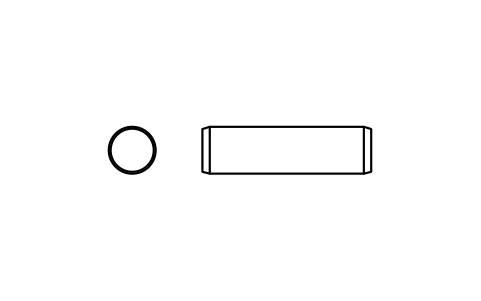
Parallel pin ISO 2338 5 m6 x 18
PIN_5X18Attributes
DESIGNATIONSTANDARDTOLERANCEMATERIALFINISHPART_NOMANUFACTURERQTYREMARKSDESC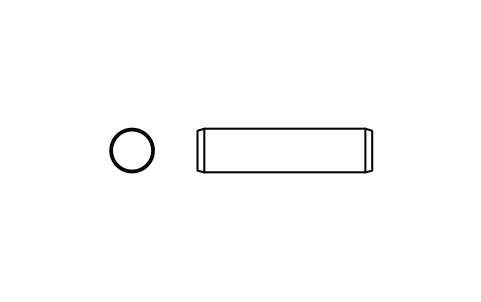
Parallel pin ISO 2338 5 m6 x 20
PIN_5X20Attributes
DESIGNATIONSTANDARDTOLERANCEMATERIALFINISHPART_NOMANUFACTURERQTYREMARKSDESC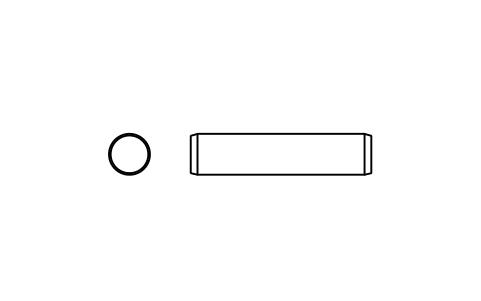
Parallel pin ISO 2338 5 m6 x 22
PIN_5X22Attributes
DESIGNATIONSTANDARDTOLERANCEMATERIALFINISHPART_NOMANUFACTURERQTYREMARKSDESC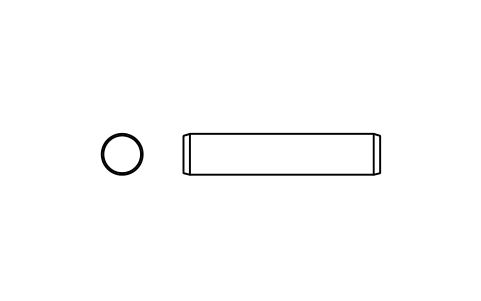
Parallel pin ISO 2338 5 m6 x 24
PIN_5X24Attributes
DESIGNATIONSTANDARDTOLERANCEMATERIALFINISHPART_NOMANUFACTURERQTYREMARKSDESC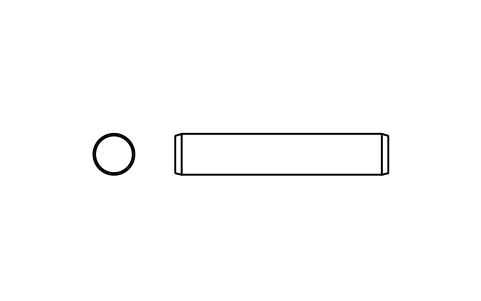
Parallel pin ISO 2338 5 m6 x 26
PIN_5X26Attributes
DESIGNATIONSTANDARDTOLERANCEMATERIALFINISHPART_NOMANUFACTURERQTYREMARKSDESC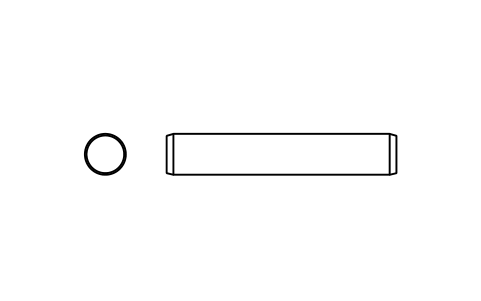
Parallel pin ISO 2338 5 m6 x 28
PIN_5X28Attributes
DESIGNATIONSTANDARDTOLERANCEMATERIALFINISHPART_NOMANUFACTURERQTYREMARKSDESC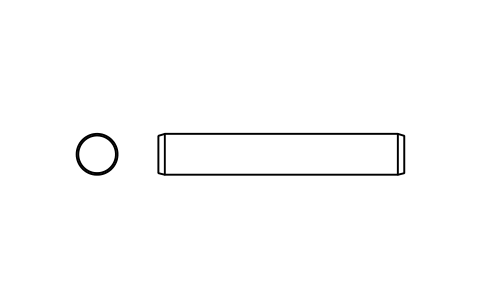
Parallel pin ISO 2338 5 m6 x 30
PIN_5X30Attributes
DESIGNATIONSTANDARDTOLERANCEMATERIALFINISHPART_NOMANUFACTURERQTYREMARKSDESC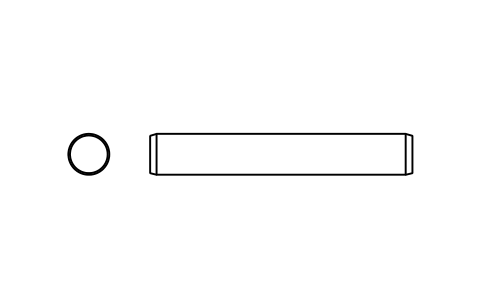
Parallel pin ISO 2338 5 m6 x 32
PIN_5X32Attributes
DESIGNATIONSTANDARDTOLERANCEMATERIALFINISHPART_NOMANUFACTURERQTYREMARKSDESC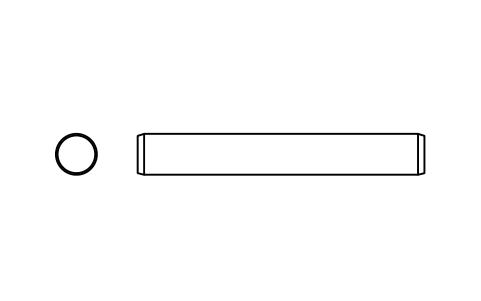
Parallel pin ISO 2338 5 m6 x 35
PIN_5X35Attributes
DESIGNATIONSTANDARDTOLERANCEMATERIALFINISHPART_NOMANUFACTURERQTYREMARKSDESC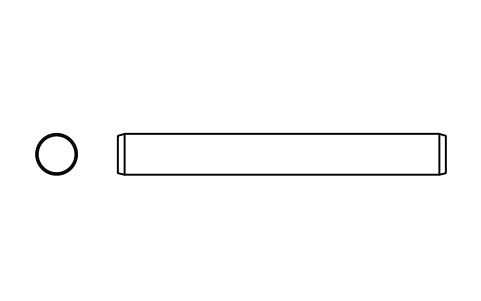
Parallel pin ISO 2338 5 m6 x 40
PIN_5X40Attributes
DESIGNATIONSTANDARDTOLERANCEMATERIALFINISHPART_NOMANUFACTURERQTYREMARKSDESC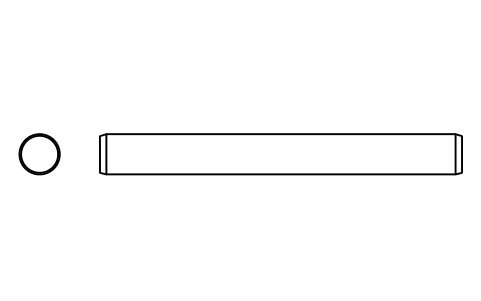
Parallel pin ISO 2338 5 m6 x 45
PIN_5X45Attributes
DESIGNATIONSTANDARDTOLERANCEMATERIALFINISHPART_NOMANUFACTURERQTYREMARKSDESC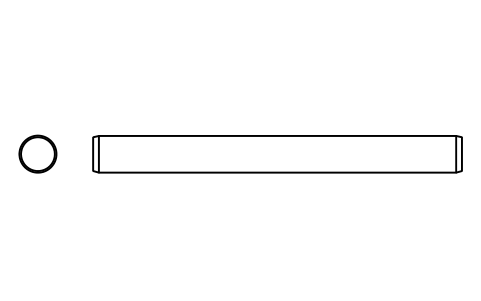
Parallel pin ISO 2338 5 m6 x 50
PIN_5X50Attributes
DESIGNATIONSTANDARDTOLERANCEMATERIALFINISHPART_NOMANUFACTURERQTYREMARKSDESC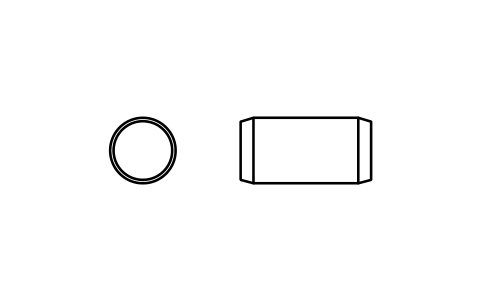
Parallel pin ISO 2338 6 m6 x 12
PIN_6X12Attributes
DESIGNATIONSTANDARDTOLERANCEMATERIALFINISHPART_NOMANUFACTURERQTYREMARKSDESC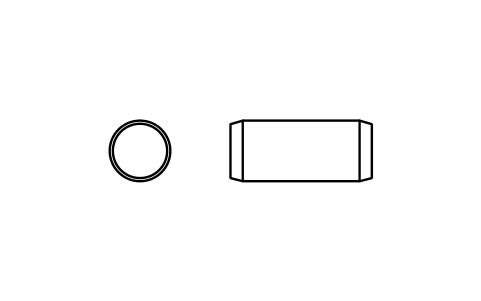
Parallel pin ISO 2338 6 m6 x 14
PIN_6X14Attributes
DESIGNATIONSTANDARDTOLERANCEMATERIALFINISHPART_NOMANUFACTURERQTYREMARKSDESC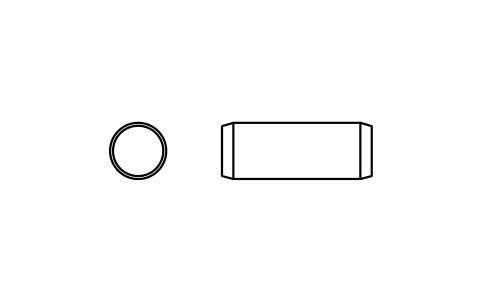
Parallel pin ISO 2338 6 m6 x 16
PIN_6X16Attributes
DESIGNATIONSTANDARDTOLERANCEMATERIALFINISHPART_NOMANUFACTURERQTYREMARKSDESC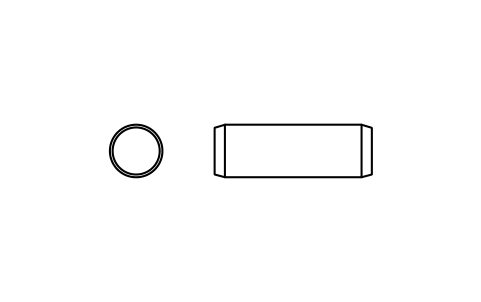
Parallel pin ISO 2338 6 m6 x 18
PIN_6X18Attributes
DESIGNATIONSTANDARDTOLERANCEMATERIALFINISHPART_NOMANUFACTURERQTYREMARKSDESC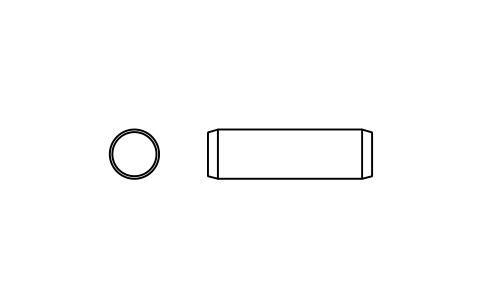
Parallel pin ISO 2338 6 m6 x 20
PIN_6X20Attributes
DESIGNATIONSTANDARDTOLERANCEMATERIALFINISHPART_NOMANUFACTURERQTYREMARKSDESC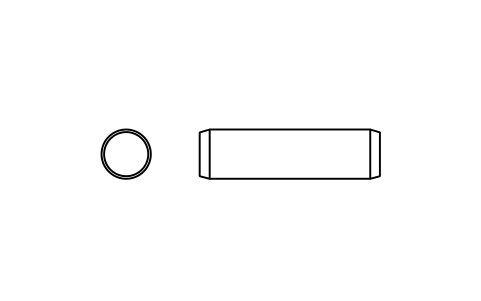
Parallel pin ISO 2338 6 m6 x 22
PIN_6X22Attributes
DESIGNATIONSTANDARDTOLERANCEMATERIALFINISHPART_NOMANUFACTURERQTYREMARKSDESC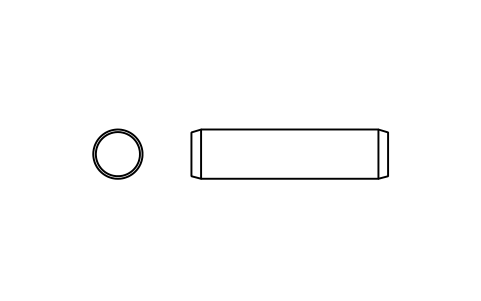
Parallel pin ISO 2338 6 m6 x 24
PIN_6X24Attributes
DESIGNATIONSTANDARDTOLERANCEMATERIALFINISHPART_NOMANUFACTURERQTYREMARKSDESC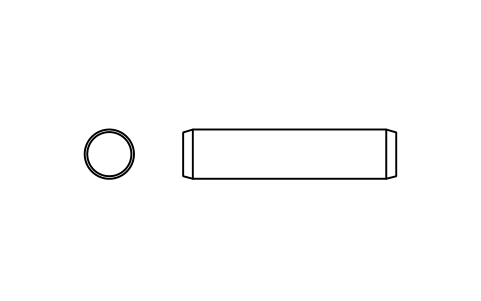
Parallel pin ISO 2338 6 m6 x 26
PIN_6X26Attributes
DESIGNATIONSTANDARDTOLERANCEMATERIALFINISHPART_NOMANUFACTURERQTYREMARKSDESC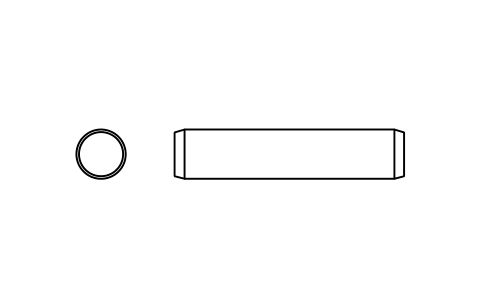
Parallel pin ISO 2338 6 m6 x 28
PIN_6X28Attributes
DESIGNATIONSTANDARDTOLERANCEMATERIALFINISHPART_NOMANUFACTURERQTYREMARKSDESC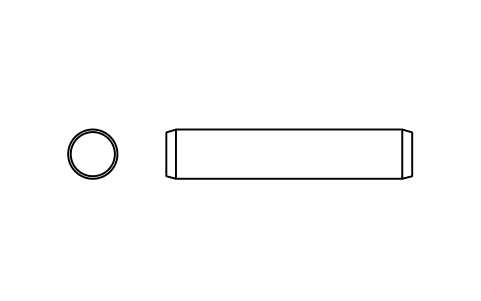
Parallel pin ISO 2338 6 m6 x 30
PIN_6X30Attributes
DESIGNATIONSTANDARDTOLERANCEMATERIALFINISHPART_NOMANUFACTURERQTYREMARKSDESC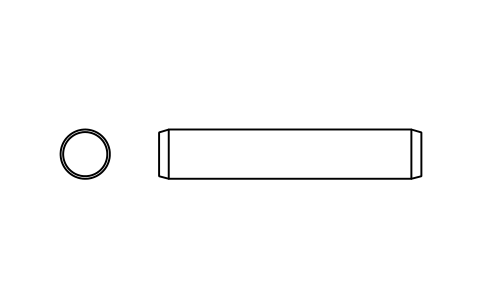
Parallel pin ISO 2338 6 m6 x 32
PIN_6X32Attributes
DESIGNATIONSTANDARDTOLERANCEMATERIALFINISHPART_NOMANUFACTURERQTYREMARKSDESC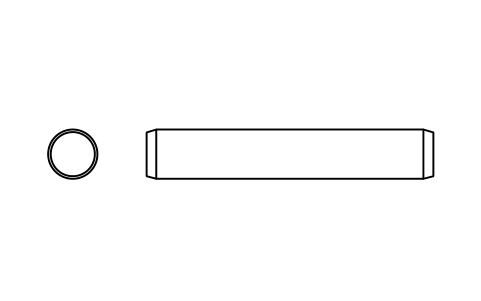
Parallel pin ISO 2338 6 m6 x 35
PIN_6X35Attributes
DESIGNATIONSTANDARDTOLERANCEMATERIALFINISHPART_NOMANUFACTURERQTYREMARKSDESC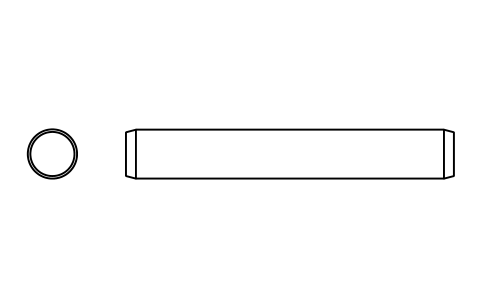
Parallel pin ISO 2338 6 m6 x 40
PIN_6X40Attributes
DESIGNATIONSTANDARDTOLERANCEMATERIALFINISHPART_NOMANUFACTURERQTYREMARKSDESC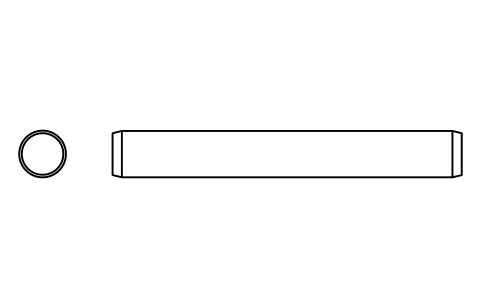
Parallel pin ISO 2338 6 m6 x 45
PIN_6X45Attributes
DESIGNATIONSTANDARDTOLERANCEMATERIALFINISHPART_NOMANUFACTURERQTYREMARKSDESC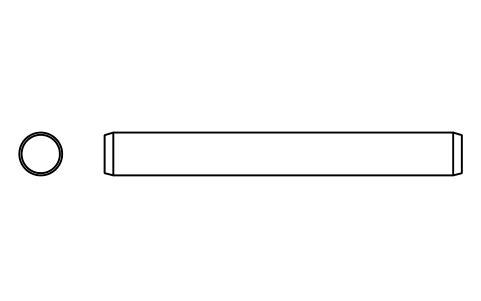
Parallel pin ISO 2338 6 m6 x 50
PIN_6X50Attributes
DESIGNATIONSTANDARDTOLERANCEMATERIALFINISHPART_NOMANUFACTURERQTYREMARKSDESC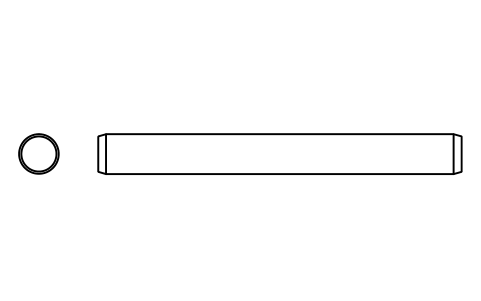
Parallel pin ISO 2338 6 m6 x 55
PIN_6X55Attributes
DESIGNATIONSTANDARDTOLERANCEMATERIALFINISHPART_NOMANUFACTURERQTYREMARKSDESC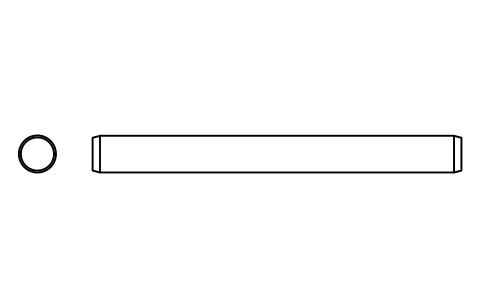
Parallel pin ISO 2338 6 m6 x 60
PIN_6X60Attributes
DESIGNATIONSTANDARDTOLERANCEMATERIALFINISHPART_NOMANUFACTURERQTYREMARKSDESC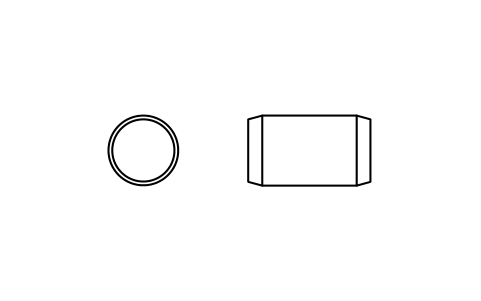
Parallel pin ISO 2338 8 m6 x 14
PIN_8X14Attributes
DESIGNATIONSTANDARDTOLERANCEMATERIALFINISHPART_NOMANUFACTURERQTYREMARKSDESC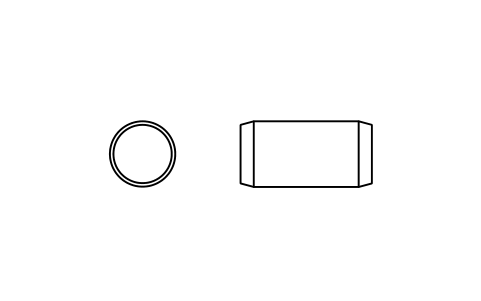
Parallel pin ISO 2338 8 m6 x 16
PIN_8X16Attributes
DESIGNATIONSTANDARDTOLERANCEMATERIALFINISHPART_NOMANUFACTURERQTYREMARKSDESC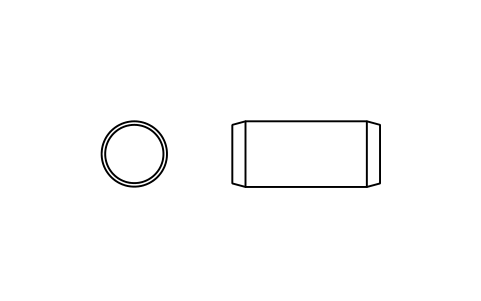
Parallel pin ISO 2338 8 m6 x 18
PIN_8X18Attributes
DESIGNATIONSTANDARDTOLERANCEMATERIALFINISHPART_NOMANUFACTURERQTYREMARKSDESC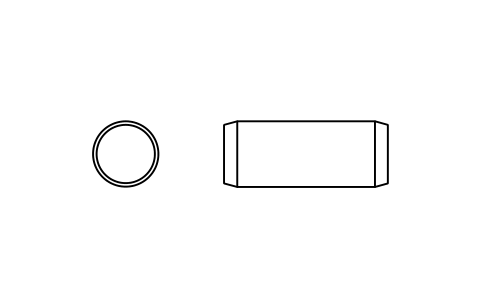
Parallel pin ISO 2338 8 m6 x 20
PIN_8X20Attributes
DESIGNATIONSTANDARDTOLERANCEMATERIALFINISHPART_NOMANUFACTURERQTYREMARKSDESC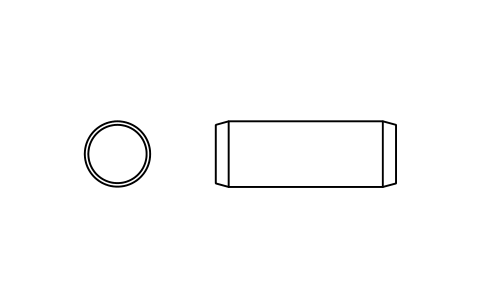
Parallel pin ISO 2338 8 m6 x 22
PIN_8X22Attributes
DESIGNATIONSTANDARDTOLERANCEMATERIALFINISHPART_NOMANUFACTURERQTYREMARKSDESC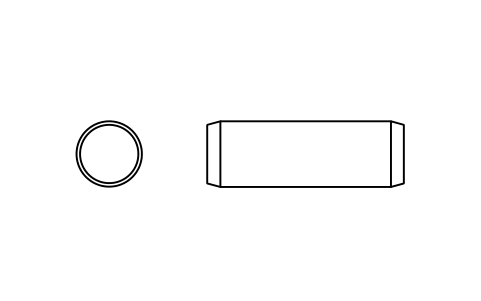
Parallel pin ISO 2338 8 m6 x 24
PIN_8X24Attributes
DESIGNATIONSTANDARDTOLERANCEMATERIALFINISHPART_NOMANUFACTURERQTYREMARKSDESC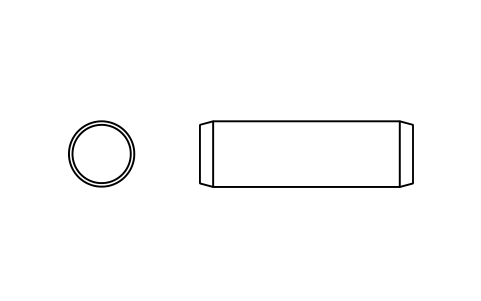
Parallel pin ISO 2338 8 m6 x 26
PIN_8X26Attributes
DESIGNATIONSTANDARDTOLERANCEMATERIALFINISHPART_NOMANUFACTURERQTYREMARKSDESC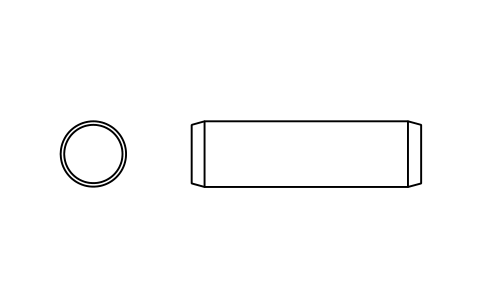
Parallel pin ISO 2338 8 m6 x 28
PIN_8X28Attributes
DESIGNATIONSTANDARDTOLERANCEMATERIALFINISHPART_NOMANUFACTURERQTYREMARKSDESC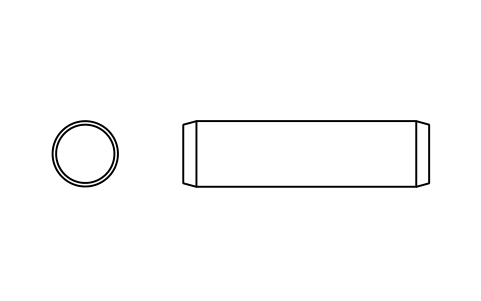
Parallel pin ISO 2338 8 m6 x 30
PIN_8X30Attributes
DESIGNATIONSTANDARDTOLERANCEMATERIALFINISHPART_NOMANUFACTURERQTYREMARKSDESC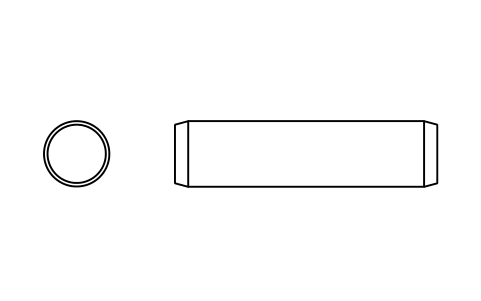
Parallel pin ISO 2338 8 m6 x 32
PIN_8X32Attributes
DESIGNATIONSTANDARDTOLERANCEMATERIALFINISHPART_NOMANUFACTURERQTYREMARKSDESC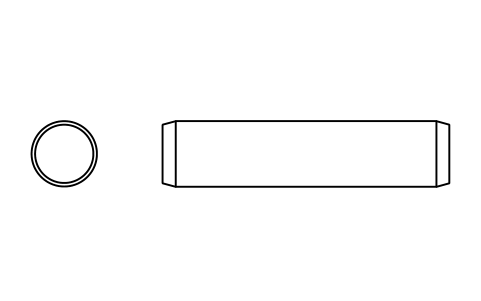
Parallel pin ISO 2338 8 m6 x 35
PIN_8X35Attributes
DESIGNATIONSTANDARDTOLERANCEMATERIALFINISHPART_NOMANUFACTURERQTYREMARKSDESC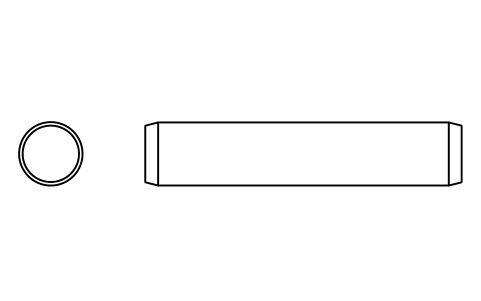
Parallel pin ISO 2338 8 m6 x 40
PIN_8X40Attributes
DESIGNATIONSTANDARDTOLERANCEMATERIALFINISHPART_NOMANUFACTURERQTYREMARKSDESC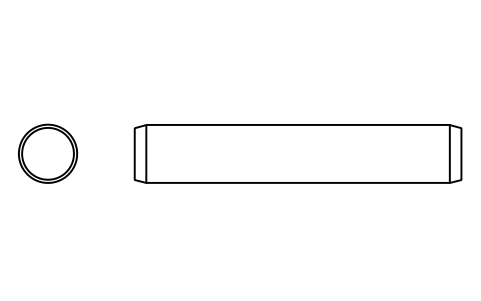
Parallel pin ISO 2338 8 m6 x 45
PIN_8X45Attributes
DESIGNATIONSTANDARDTOLERANCEMATERIALFINISHPART_NOMANUFACTURERQTYREMARKSDESC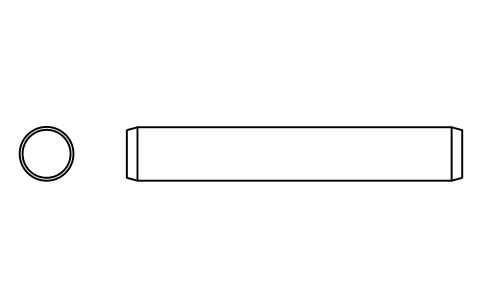
Parallel pin ISO 2338 8 m6 x 50
PIN_8X50Attributes
DESIGNATIONSTANDARDTOLERANCEMATERIALFINISHPART_NOMANUFACTURERQTYREMARKSDESC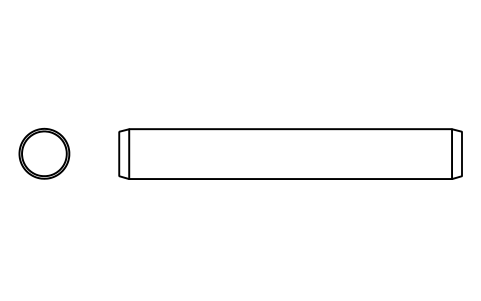
Parallel pin ISO 2338 8 m6 x 55
PIN_8X55Attributes
DESIGNATIONSTANDARDTOLERANCEMATERIALFINISHPART_NOMANUFACTURERQTYREMARKSDESC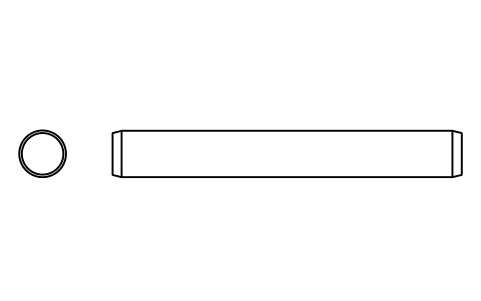
Parallel pin ISO 2338 8 m6 x 60
PIN_8X60Attributes
DESIGNATIONSTANDARDTOLERANCEMATERIALFINISHPART_NOMANUFACTURERQTYREMARKSDESC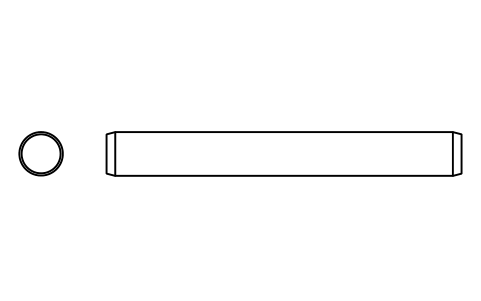
Parallel pin ISO 2338 8 m6 x 65
PIN_8X65Attributes
DESIGNATIONSTANDARDTOLERANCEMATERIALFINISHPART_NOMANUFACTURERQTYREMARKSDESC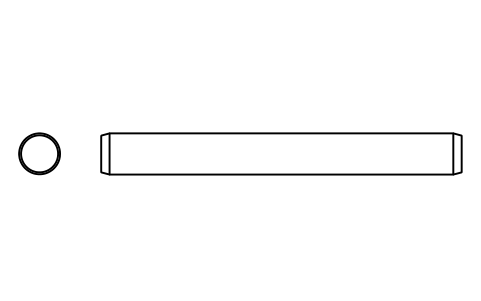
Parallel pin ISO 2338 8 m6 x 70
PIN_8X70Attributes
DESIGNATIONSTANDARDTOLERANCEMATERIALFINISHPART_NOMANUFACTURERQTYREMARKSDESC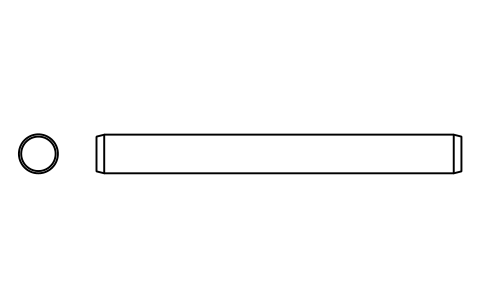
Parallel pin ISO 2338 8 m6 x 75
PIN_8X75Attributes
DESIGNATIONSTANDARDTOLERANCEMATERIALFINISHPART_NOMANUFACTURERQTYREMARKSDESC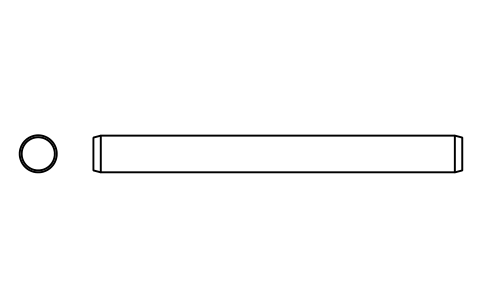
Parallel pin ISO 2338 8 m6 x 80
PIN_8X80Attributes
DESIGNATIONSTANDARDTOLERANCEMATERIALFINISHPART_NOMANUFACTURERQTYREMARKSDESC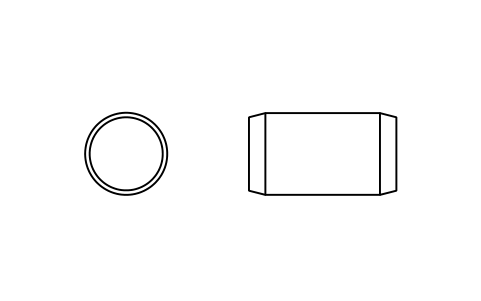
Parallel pin ISO 2338 10 m6 x 18
PIN_10X18Attributes
DESIGNATIONSTANDARDTOLERANCEMATERIALFINISHPART_NOMANUFACTURERQTYREMARKSDESC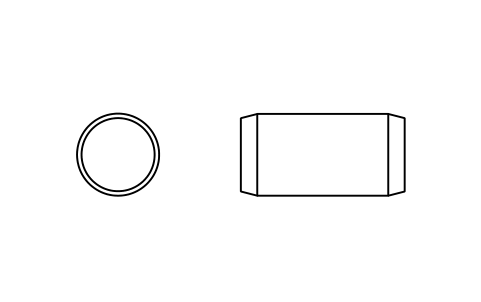
Parallel pin ISO 2338 10 m6 x 20
PIN_10X20Attributes
DESIGNATIONSTANDARDTOLERANCEMATERIALFINISHPART_NOMANUFACTURERQTYREMARKSDESC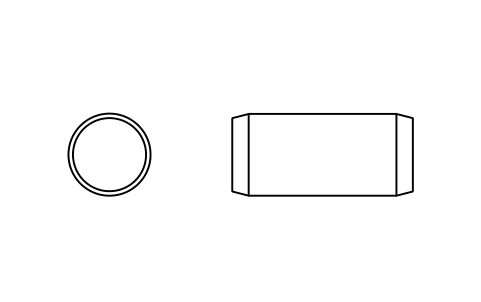
Parallel pin ISO 2338 10 m6 x 22
PIN_10X22Attributes
DESIGNATIONSTANDARDTOLERANCEMATERIALFINISHPART_NOMANUFACTURERQTYREMARKSDESC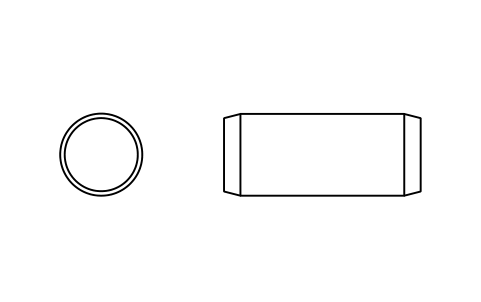
Parallel pin ISO 2338 10 m6 x 24
PIN_10X24Attributes
DESIGNATIONSTANDARDTOLERANCEMATERIALFINISHPART_NOMANUFACTURERQTYREMARKSDESC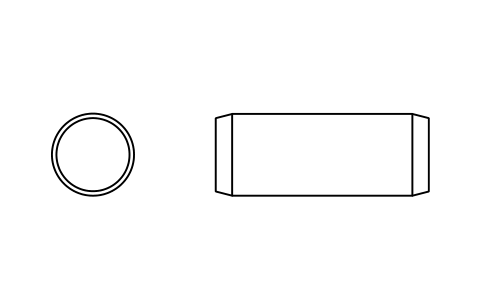
Parallel pin ISO 2338 10 m6 x 26
PIN_10X26Attributes
DESIGNATIONSTANDARDTOLERANCEMATERIALFINISHPART_NOMANUFACTURERQTYREMARKSDESC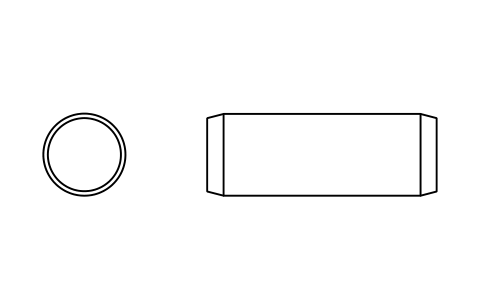
Parallel pin ISO 2338 10 m6 x 28
PIN_10X28Attributes
DESIGNATIONSTANDARDTOLERANCEMATERIALFINISHPART_NOMANUFACTURERQTYREMARKSDESC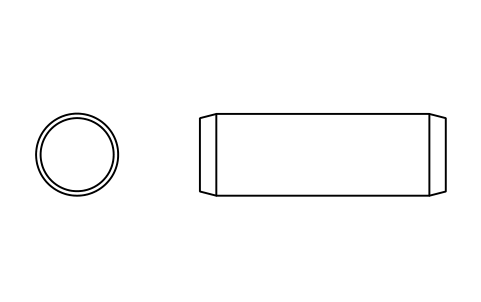
Parallel pin ISO 2338 10 m6 x 30
PIN_10X30Attributes
DESIGNATIONSTANDARDTOLERANCEMATERIALFINISHPART_NOMANUFACTURERQTYREMARKSDESC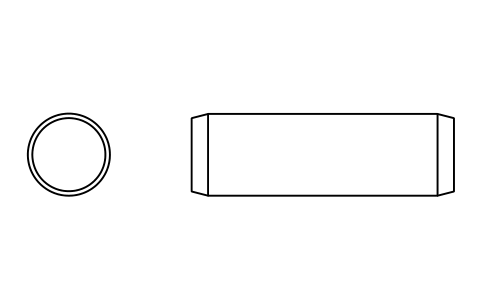
Parallel pin ISO 2338 10 m6 x 32
PIN_10X32Attributes
DESIGNATIONSTANDARDTOLERANCEMATERIALFINISHPART_NOMANUFACTURERQTYREMARKSDESC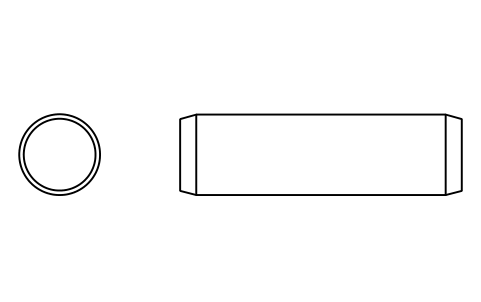
Parallel pin ISO 2338 10 m6 x 35
PIN_10X35Attributes
DESIGNATIONSTANDARDTOLERANCEMATERIALFINISHPART_NOMANUFACTURERQTYREMARKSDESC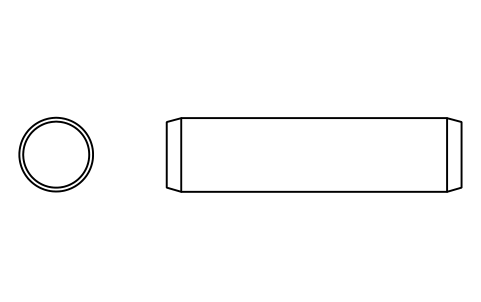
Parallel pin ISO 2338 10 m6 x 40
PIN_10X40Attributes
DESIGNATIONSTANDARDTOLERANCEMATERIALFINISHPART_NOMANUFACTURERQTYREMARKSDESC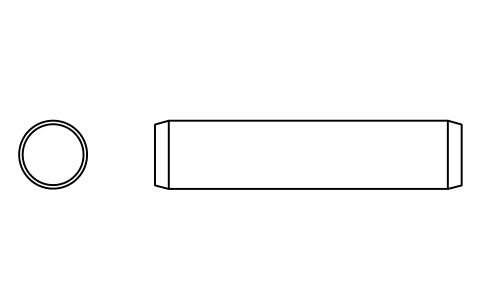
Parallel pin ISO 2338 10 m6 x 45
PIN_10X45Attributes
DESIGNATIONSTANDARDTOLERANCEMATERIALFINISHPART_NOMANUFACTURERQTYREMARKSDESC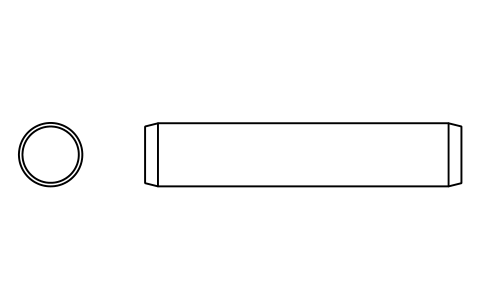
Parallel pin ISO 2338 10 m6 x 50
PIN_10X50Attributes
DESIGNATIONSTANDARDTOLERANCEMATERIALFINISHPART_NOMANUFACTURERQTYREMARKSDESC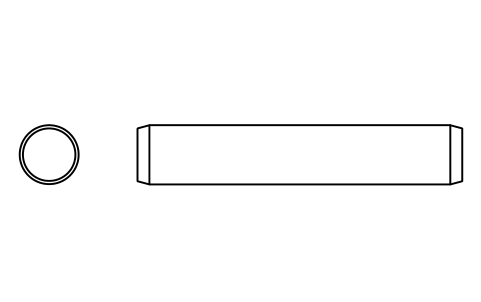
Parallel pin ISO 2338 10 m6 x 55
PIN_10X55Attributes
DESIGNATIONSTANDARDTOLERANCEMATERIALFINISHPART_NOMANUFACTURERQTYREMARKSDESC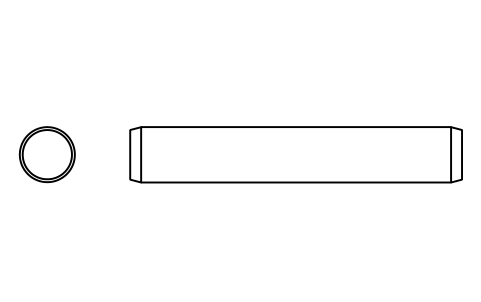
Parallel pin ISO 2338 10 m6 x 60
PIN_10X60Attributes
DESIGNATIONSTANDARDTOLERANCEMATERIALFINISHPART_NOMANUFACTURERQTYREMARKSDESC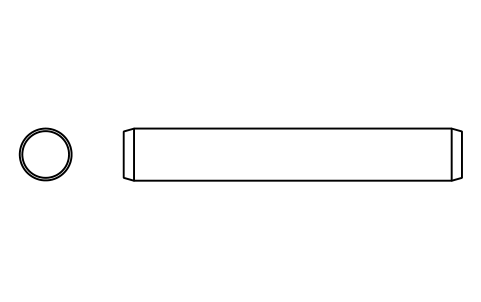
Parallel pin ISO 2338 10 m6 x 65
PIN_10X65Attributes
DESIGNATIONSTANDARDTOLERANCEMATERIALFINISHPART_NOMANUFACTURERQTYREMARKSDESC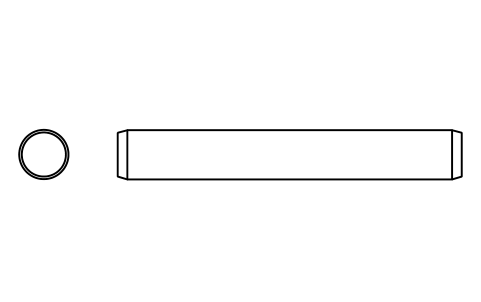
Parallel pin ISO 2338 10 m6 x 70
PIN_10X70Attributes
DESIGNATIONSTANDARDTOLERANCEMATERIALFINISHPART_NOMANUFACTURERQTYREMARKSDESC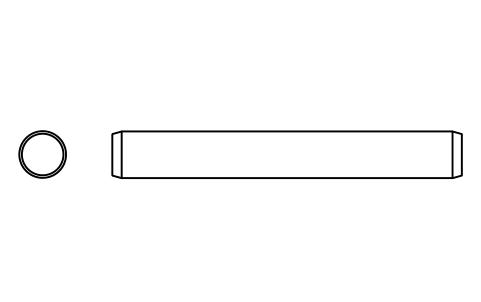
Parallel pin ISO 2338 10 m6 x 75
PIN_10X75Attributes
DESIGNATIONSTANDARDTOLERANCEMATERIALFINISHPART_NOMANUFACTURERQTYREMARKSDESC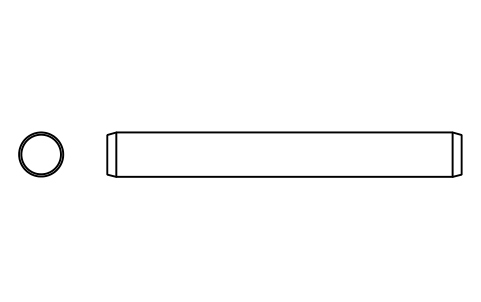
Parallel pin ISO 2338 10 m6 x 80
PIN_10X80Attributes
DESIGNATIONSTANDARDTOLERANCEMATERIALFINISHPART_NOMANUFACTURERQTYREMARKSDESC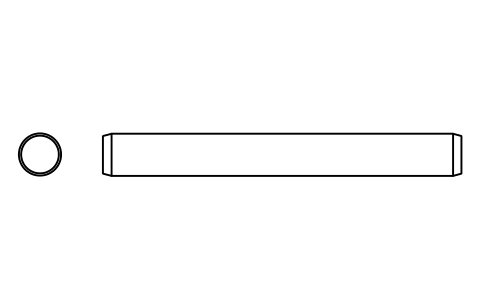
Parallel pin ISO 2338 10 m6 x 85
PIN_10X85Attributes
DESIGNATIONSTANDARDTOLERANCEMATERIALFINISHPART_NOMANUFACTURERQTYREMARKSDESC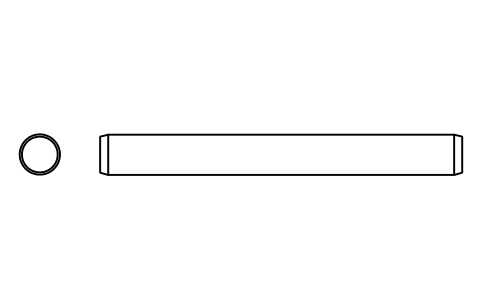
Parallel pin ISO 2338 10 m6 x 90
PIN_10X90Attributes
DESIGNATIONSTANDARDTOLERANCEMATERIALFINISHPART_NOMANUFACTURERQTYREMARKSDESC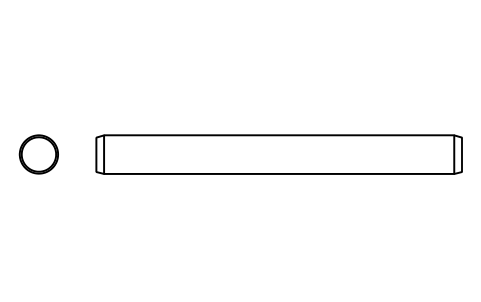
Parallel pin ISO 2338 10 m6 x 95
PIN_10X95Attributes
DESIGNATIONSTANDARDTOLERANCEMATERIALFINISHPART_NOMANUFACTURERQTYREMARKSDESC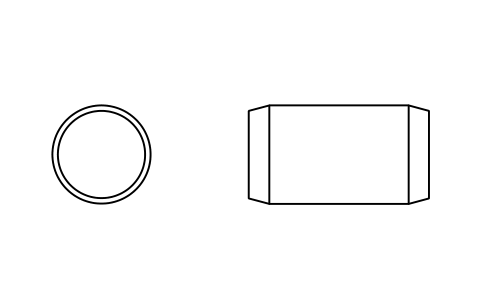
Parallel pin ISO 2338 12 m6 x 22
PIN_12X22Attributes
DESIGNATIONSTANDARDTOLERANCEMATERIALFINISHPART_NOMANUFACTURERQTYREMARKSDESC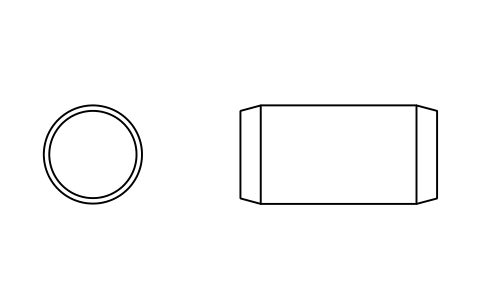
Parallel pin ISO 2338 12 m6 x 24
PIN_12X24Attributes
DESIGNATIONSTANDARDTOLERANCEMATERIALFINISHPART_NOMANUFACTURERQTYREMARKSDESC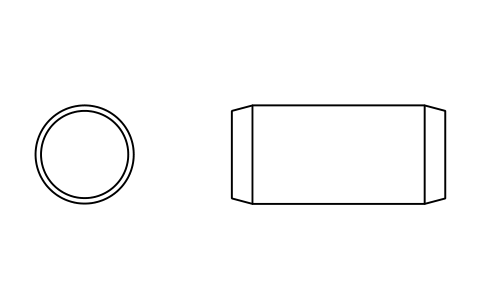
Parallel pin ISO 2338 12 m6 x 26
PIN_12X26Attributes
DESIGNATIONSTANDARDTOLERANCEMATERIALFINISHPART_NOMANUFACTURERQTYREMARKSDESC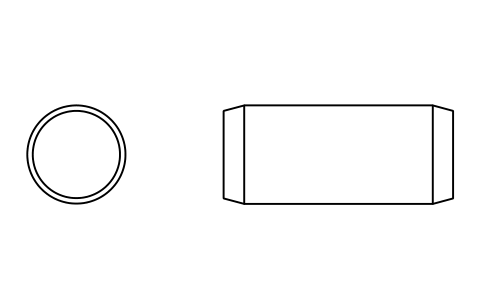
Parallel pin ISO 2338 12 m6 x 28
PIN_12X28Attributes
DESIGNATIONSTANDARDTOLERANCEMATERIALFINISHPART_NOMANUFACTURERQTYREMARKSDESC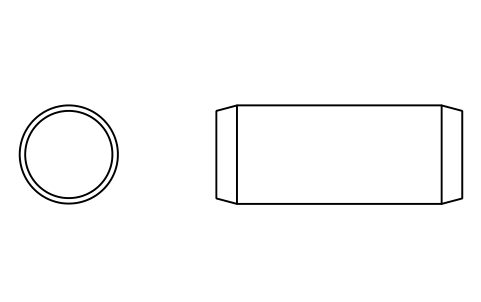
Parallel pin ISO 2338 12 m6 x 30
PIN_12X30Attributes
DESIGNATIONSTANDARDTOLERANCEMATERIALFINISHPART_NOMANUFACTURERQTYREMARKSDESC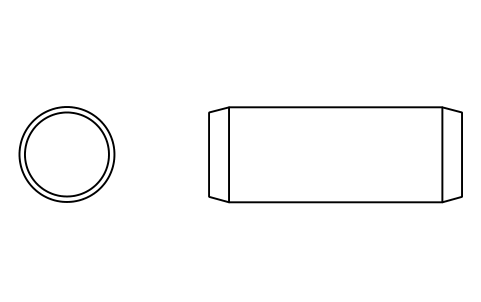
Parallel pin ISO 2338 12 m6 x 32
PIN_12X32Attributes
DESIGNATIONSTANDARDTOLERANCEMATERIALFINISHPART_NOMANUFACTURERQTYREMARKSDESC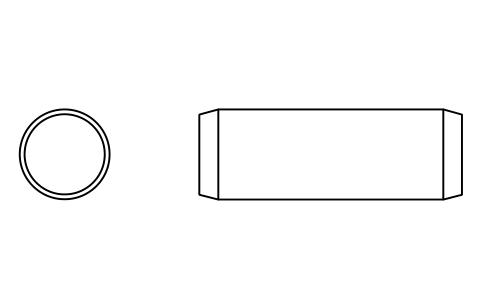
Parallel pin ISO 2338 12 m6 x 35
PIN_12X35Attributes
DESIGNATIONSTANDARDTOLERANCEMATERIALFINISHPART_NOMANUFACTURERQTYREMARKSDESC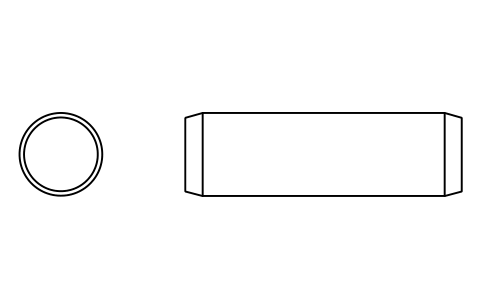
Parallel pin ISO 2338 12 m6 x 40
PIN_12X40Attributes
DESIGNATIONSTANDARDTOLERANCEMATERIALFINISHPART_NOMANUFACTURERQTYREMARKSDESC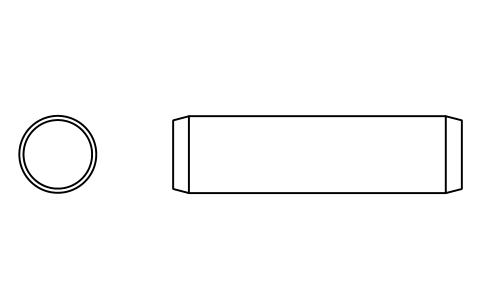
Parallel pin ISO 2338 12 m6 x 45
PIN_12X45Attributes
DESIGNATIONSTANDARDTOLERANCEMATERIALFINISHPART_NOMANUFACTURERQTYREMARKSDESC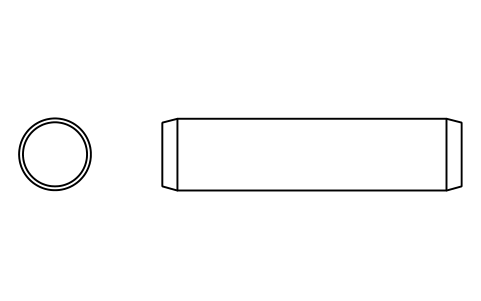
Parallel pin ISO 2338 12 m6 x 50
PIN_12X50Attributes
DESIGNATIONSTANDARDTOLERANCEMATERIALFINISHPART_NOMANUFACTURERQTYREMARKSDESC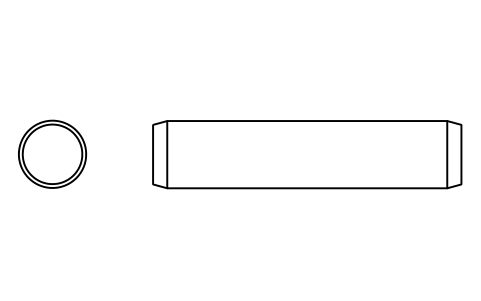
Parallel pin ISO 2338 12 m6 x 55
PIN_12X55Attributes
DESIGNATIONSTANDARDTOLERANCEMATERIALFINISHPART_NOMANUFACTURERQTYREMARKSDESC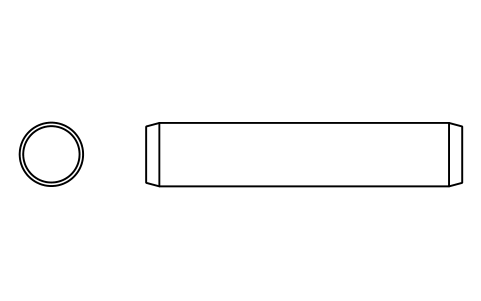
Parallel pin ISO 2338 12 m6 x 60
PIN_12X60Attributes
DESIGNATIONSTANDARDTOLERANCEMATERIALFINISHPART_NOMANUFACTURERQTYREMARKSDESC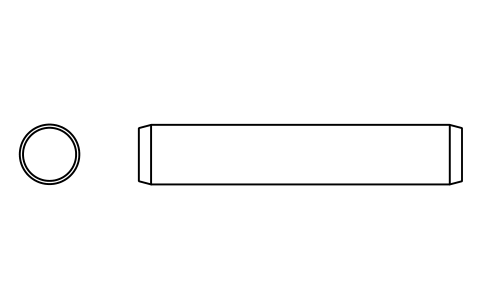
Parallel pin ISO 2338 12 m6 x 65
PIN_12X65Attributes
DESIGNATIONSTANDARDTOLERANCEMATERIALFINISHPART_NOMANUFACTURERQTYREMARKSDESC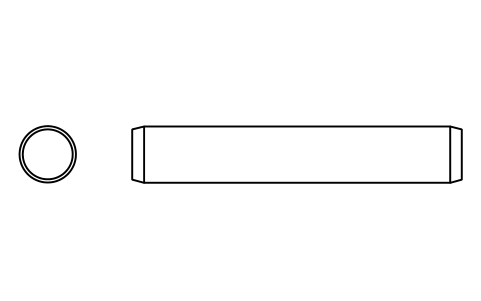
Parallel pin ISO 2338 12 m6 x 70
PIN_12X70Attributes
DESIGNATIONSTANDARDTOLERANCEMATERIALFINISHPART_NOMANUFACTURERQTYREMARKSDESC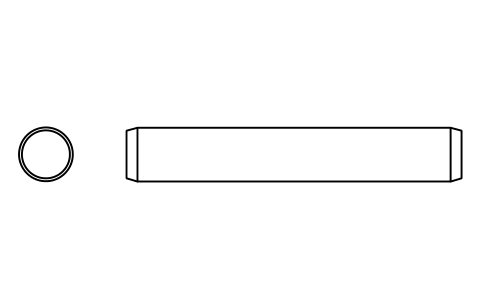
Parallel pin ISO 2338 12 m6 x 75
PIN_12X75Attributes
DESIGNATIONSTANDARDTOLERANCEMATERIALFINISHPART_NOMANUFACTURERQTYREMARKSDESC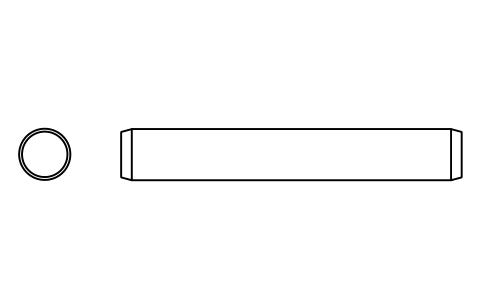
Parallel pin ISO 2338 12 m6 x 80
PIN_12X80Attributes
DESIGNATIONSTANDARDTOLERANCEMATERIALFINISHPART_NOMANUFACTURERQTYREMARKSDESC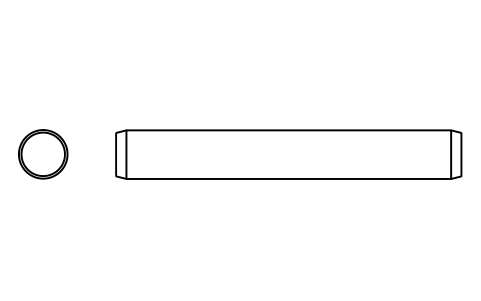
Parallel pin ISO 2338 12 m6 x 85
PIN_12X85Attributes
DESIGNATIONSTANDARDTOLERANCEMATERIALFINISHPART_NOMANUFACTURERQTYREMARKSDESC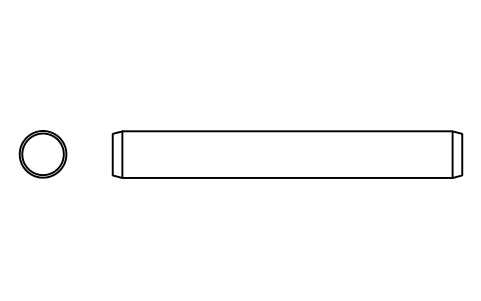
Parallel pin ISO 2338 12 m6 x 90
PIN_12X90Attributes
DESIGNATIONSTANDARDTOLERANCEMATERIALFINISHPART_NOMANUFACTURERQTYREMARKSDESC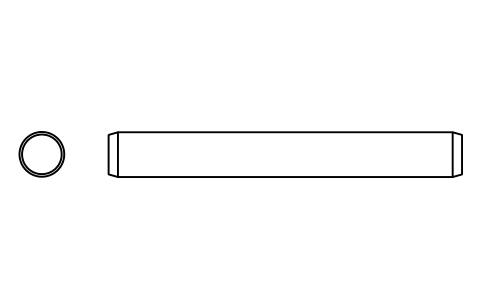
Parallel pin ISO 2338 12 m6 x 95
PIN_12X95Attributes
DESIGNATIONSTANDARDTOLERANCEMATERIALFINISHPART_NOMANUFACTURERQTYREMARKSDESC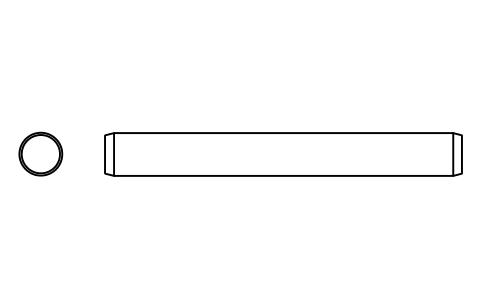
Parallel pin ISO 2338 12 m6 x 100
PIN_12X100Attributes
DESIGNATIONSTANDARDTOLERANCEMATERIALFINISHPART_NOMANUFACTURERQTYREMARKSDESC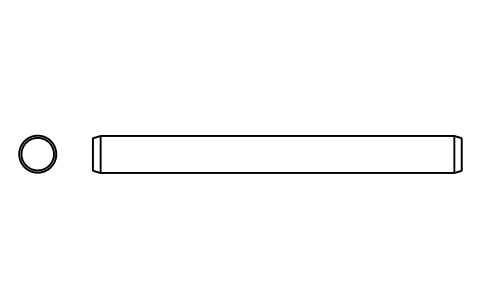
Parallel pin ISO 2338 12 m6 x 120
PIN_12X120Attributes
DESIGNATIONSTANDARDTOLERANCEMATERIALFINISHPART_NOMANUFACTURERQTYREMARKSDESC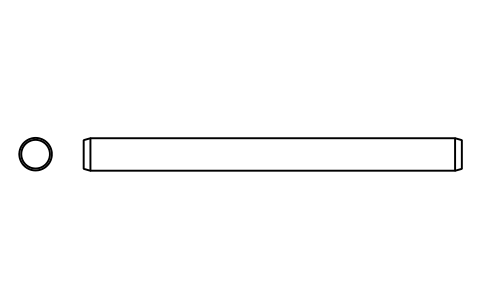
Parallel pin ISO 2338 12 m6 x 140
PIN_12X140Attributes
DESIGNATIONSTANDARDTOLERANCEMATERIALFINISHPART_NOMANUFACTURERQTYREMARKSDESC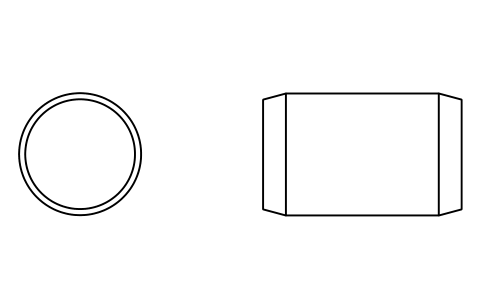
Parallel pin ISO 2338 16 m6 x 26
PIN_16X26Attributes
DESIGNATIONSTANDARDTOLERANCEMATERIALFINISHPART_NOMANUFACTURERQTYREMARKSDESC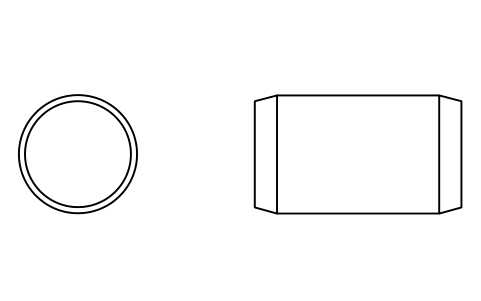
Parallel pin ISO 2338 16 m6 x 28
PIN_16X28Attributes
DESIGNATIONSTANDARDTOLERANCEMATERIALFINISHPART_NOMANUFACTURERQTYREMARKSDESC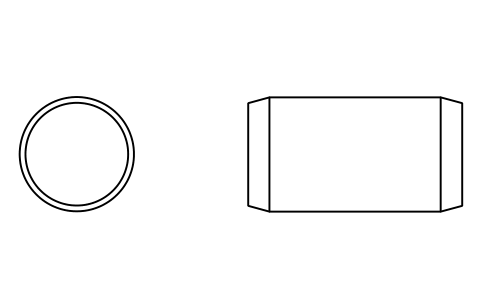
Parallel pin ISO 2338 16 m6 x 30
PIN_16X30Attributes
DESIGNATIONSTANDARDTOLERANCEMATERIALFINISHPART_NOMANUFACTURERQTYREMARKSDESC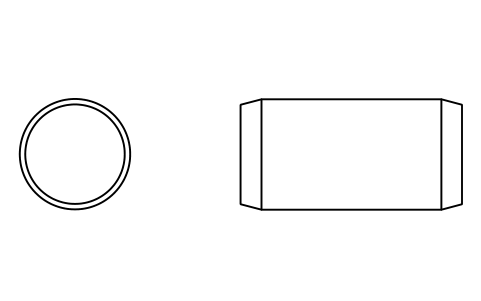
Parallel pin ISO 2338 16 m6 x 32
PIN_16X32Attributes
DESIGNATIONSTANDARDTOLERANCEMATERIALFINISHPART_NOMANUFACTURERQTYREMARKSDESC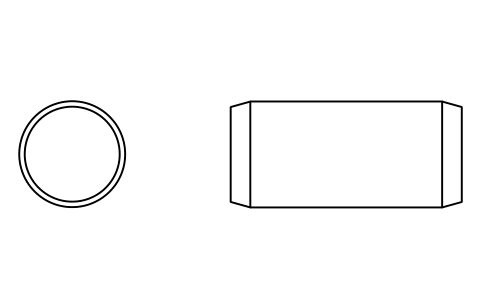
Parallel pin ISO 2338 16 m6 x 35
PIN_16X35Attributes
DESIGNATIONSTANDARDTOLERANCEMATERIALFINISHPART_NOMANUFACTURERQTYREMARKSDESC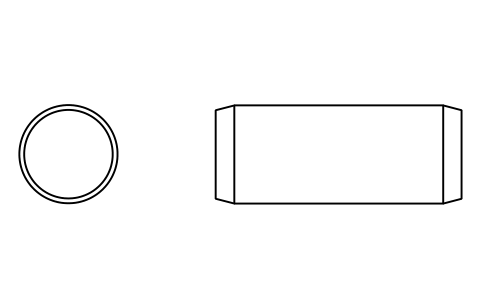
Parallel pin ISO 2338 16 m6 x 40
PIN_16X40Attributes
DESIGNATIONSTANDARDTOLERANCEMATERIALFINISHPART_NOMANUFACTURERQTYREMARKSDESC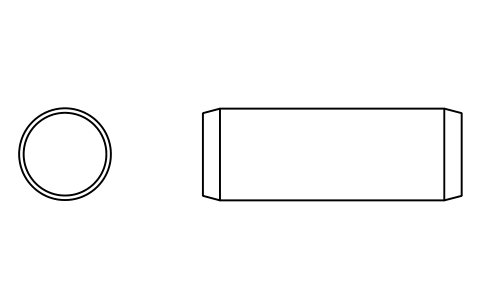
Parallel pin ISO 2338 16 m6 x 45
PIN_16X45Attributes
DESIGNATIONSTANDARDTOLERANCEMATERIALFINISHPART_NOMANUFACTURERQTYREMARKSDESC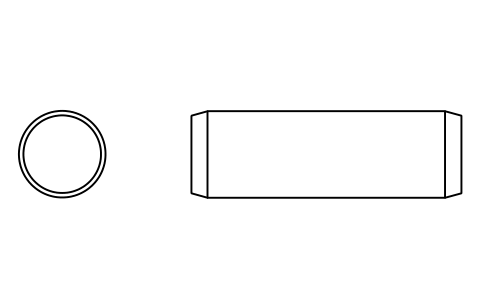
Parallel pin ISO 2338 16 m6 x 50
PIN_16X50Attributes
DESIGNATIONSTANDARDTOLERANCEMATERIALFINISHPART_NOMANUFACTURERQTYREMARKSDESC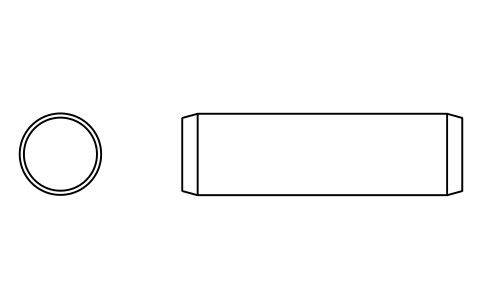
Parallel pin ISO 2338 16 m6 x 55
PIN_16X55Attributes
DESIGNATIONSTANDARDTOLERANCEMATERIALFINISHPART_NOMANUFACTURERQTYREMARKSDESC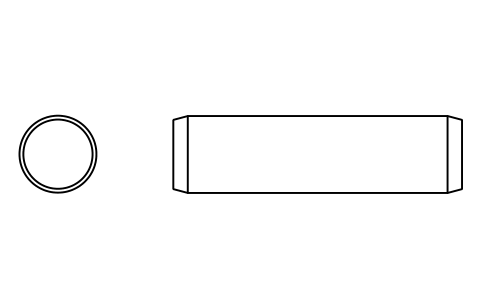
Parallel pin ISO 2338 16 m6 x 60
PIN_16X60Attributes
DESIGNATIONSTANDARDTOLERANCEMATERIALFINISHPART_NOMANUFACTURERQTYREMARKSDESC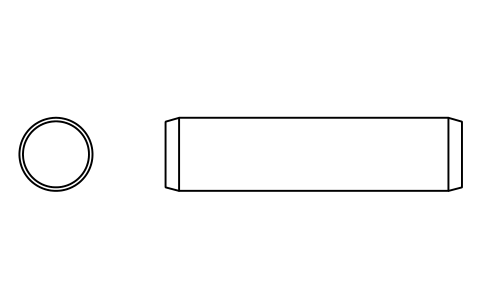
Parallel pin ISO 2338 16 m6 x 65
PIN_16X65Attributes
DESIGNATIONSTANDARDTOLERANCEMATERIALFINISHPART_NOMANUFACTURERQTYREMARKSDESC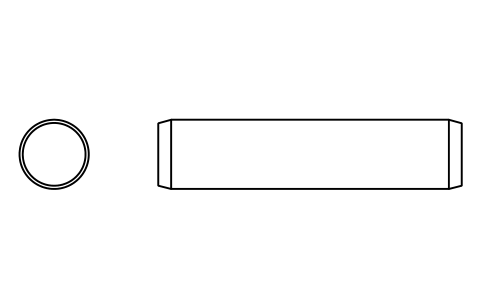
Parallel pin ISO 2338 16 m6 x 70
PIN_16X70Attributes
DESIGNATIONSTANDARDTOLERANCEMATERIALFINISHPART_NOMANUFACTURERQTYREMARKSDESC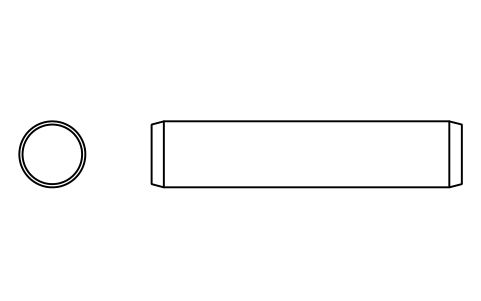
Parallel pin ISO 2338 16 m6 x 75
PIN_16X75Attributes
DESIGNATIONSTANDARDTOLERANCEMATERIALFINISHPART_NOMANUFACTURERQTYREMARKSDESC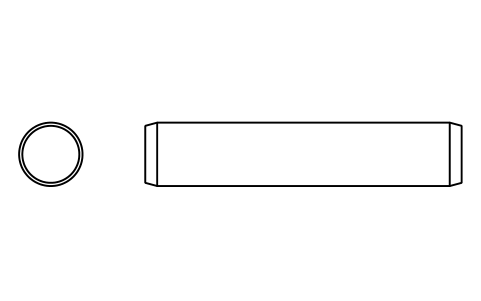
Parallel pin ISO 2338 16 m6 x 80
PIN_16X80Attributes
DESIGNATIONSTANDARDTOLERANCEMATERIALFINISHPART_NOMANUFACTURERQTYREMARKSDESC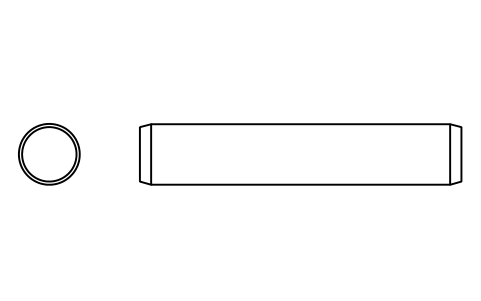
Parallel pin ISO 2338 16 m6 x 85
PIN_16X85Attributes
DESIGNATIONSTANDARDTOLERANCEMATERIALFINISHPART_NOMANUFACTURERQTYREMARKSDESC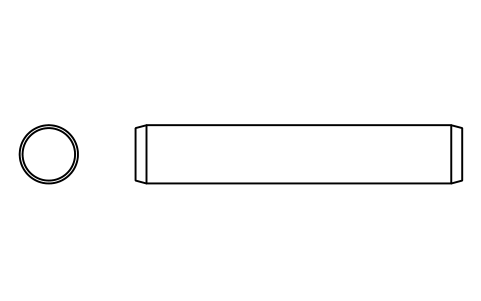
Parallel pin ISO 2338 16 m6 x 90
PIN_16X90Attributes
DESIGNATIONSTANDARDTOLERANCEMATERIALFINISHPART_NOMANUFACTURERQTYREMARKSDESC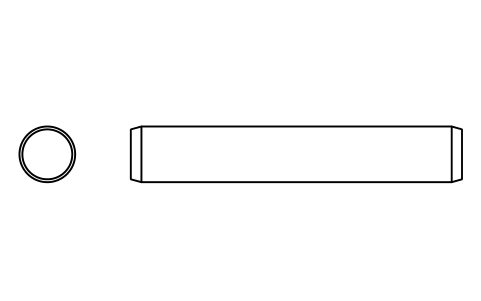
Parallel pin ISO 2338 16 m6 x 95
PIN_16X95Attributes
DESIGNATIONSTANDARDTOLERANCEMATERIALFINISHPART_NOMANUFACTURERQTYREMARKSDESC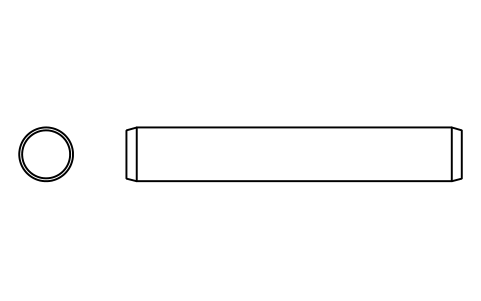
Parallel pin ISO 2338 16 m6 x 100
PIN_16X100Attributes
DESIGNATIONSTANDARDTOLERANCEMATERIALFINISHPART_NOMANUFACTURERQTYREMARKSDESC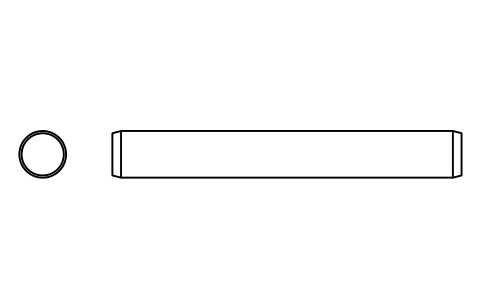
Parallel pin ISO 2338 16 m6 x 120
PIN_16X120Attributes
DESIGNATIONSTANDARDTOLERANCEMATERIALFINISHPART_NOMANUFACTURERQTYREMARKSDESC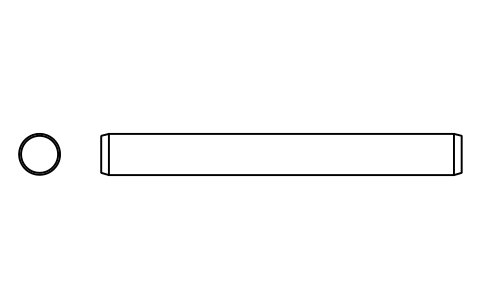
Parallel pin ISO 2338 16 m6 x 140
PIN_16X140Attributes
DESIGNATIONSTANDARDTOLERANCEMATERIALFINISHPART_NOMANUFACTURERQTYREMARKSDESC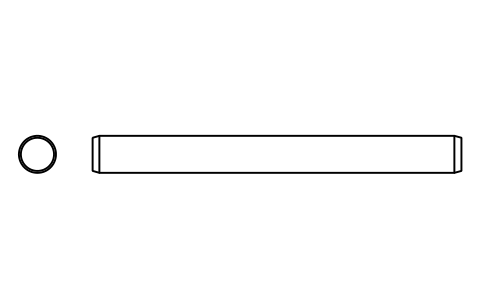
Parallel pin ISO 2338 16 m6 x 160
PIN_16X160Attributes
DESIGNATIONSTANDARDTOLERANCEMATERIALFINISHPART_NOMANUFACTURERQTYREMARKSDESC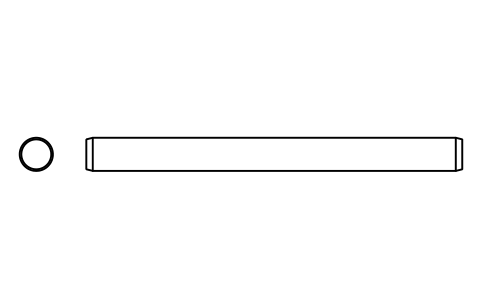
Parallel pin ISO 2338 16 m6 x 180
PIN_16X180Attributes
DESIGNATIONSTANDARDTOLERANCEMATERIALFINISHPART_NOMANUFACTURERQTYREMARKSDESC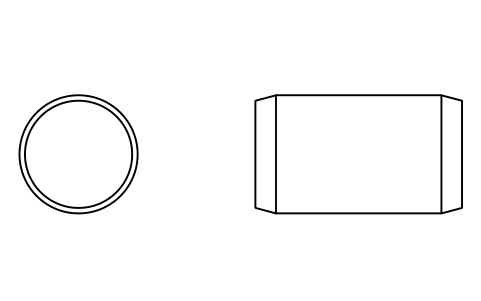
Parallel pin ISO 2338 20 m6 x 35
PIN_20X35Attributes
DESIGNATIONSTANDARDTOLERANCEMATERIALFINISHPART_NOMANUFACTURERQTYREMARKSDESC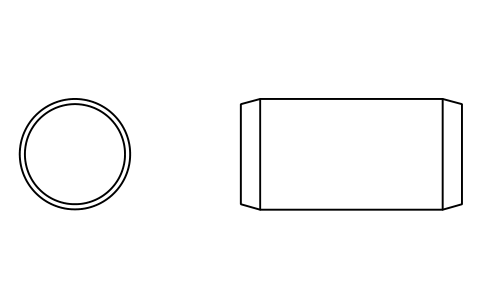
Parallel pin ISO 2338 20 m6 x 40
PIN_20X40Attributes
DESIGNATIONSTANDARDTOLERANCEMATERIALFINISHPART_NOMANUFACTURERQTYREMARKSDESC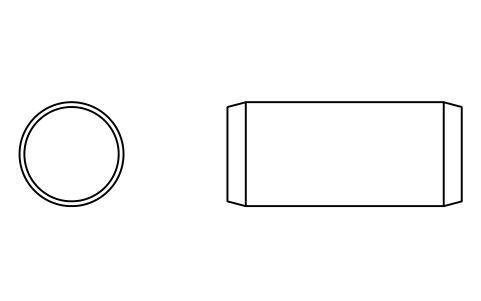
Parallel pin ISO 2338 20 m6 x 45
PIN_20X45Attributes
DESIGNATIONSTANDARDTOLERANCEMATERIALFINISHPART_NOMANUFACTURERQTYREMARKSDESC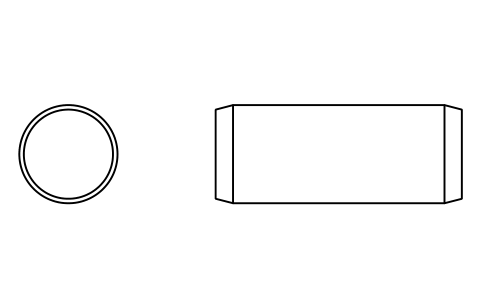
Parallel pin ISO 2338 20 m6 x 50
PIN_20X50Attributes
DESIGNATIONSTANDARDTOLERANCEMATERIALFINISHPART_NOMANUFACTURERQTYREMARKSDESC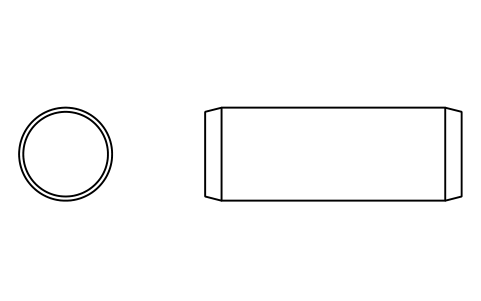
Parallel pin ISO 2338 20 m6 x 55
PIN_20X55Attributes
DESIGNATIONSTANDARDTOLERANCEMATERIALFINISHPART_NOMANUFACTURERQTYREMARKSDESC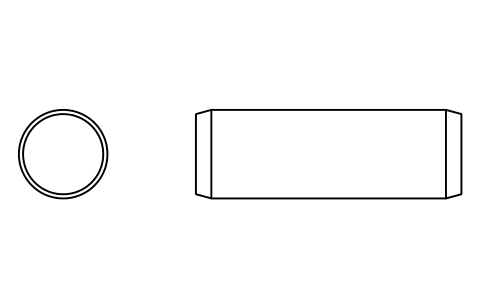
Parallel pin ISO 2338 20 m6 x 60
PIN_20X60Attributes
DESIGNATIONSTANDARDTOLERANCEMATERIALFINISHPART_NOMANUFACTURERQTYREMARKSDESC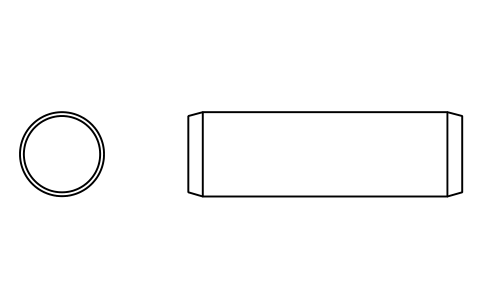
Parallel pin ISO 2338 20 m6 x 65
PIN_20X65Attributes
DESIGNATIONSTANDARDTOLERANCEMATERIALFINISHPART_NOMANUFACTURERQTYREMARKSDESC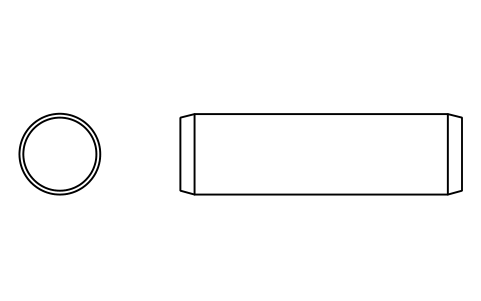
Parallel pin ISO 2338 20 m6 x 70
PIN_20X70Attributes
DESIGNATIONSTANDARDTOLERANCEMATERIALFINISHPART_NOMANUFACTURERQTYREMARKSDESC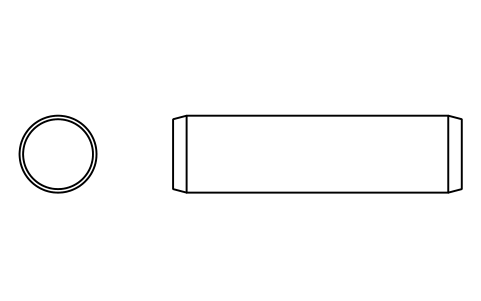
Parallel pin ISO 2338 20 m6 x 75
PIN_20X75Attributes
DESIGNATIONSTANDARDTOLERANCEMATERIALFINISHPART_NOMANUFACTURERQTYREMARKSDESC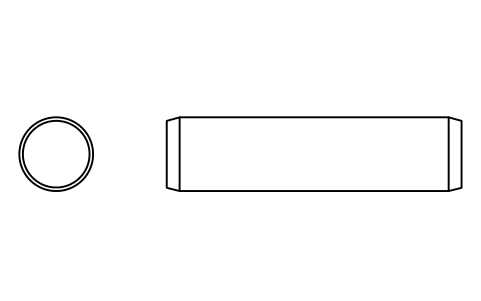
Parallel pin ISO 2338 20 m6 x 80
PIN_20X80Attributes
DESIGNATIONSTANDARDTOLERANCEMATERIALFINISHPART_NOMANUFACTURERQTYREMARKSDESC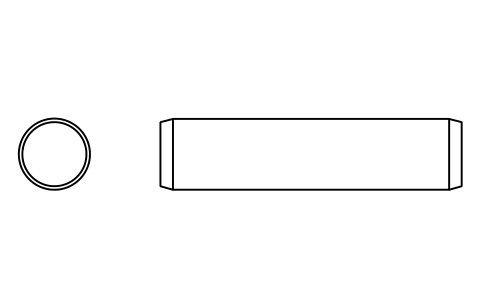
Parallel pin ISO 2338 20 m6 x 85
PIN_20X85Attributes
DESIGNATIONSTANDARDTOLERANCEMATERIALFINISHPART_NOMANUFACTURERQTYREMARKSDESC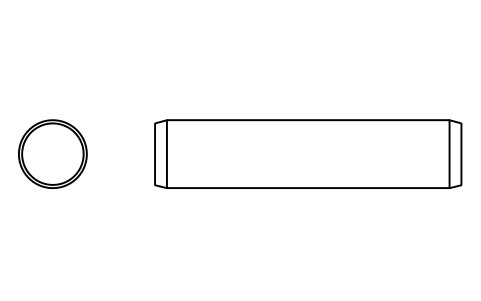
Parallel pin ISO 2338 20 m6 x 90
PIN_20X90Attributes
DESIGNATIONSTANDARDTOLERANCEMATERIALFINISHPART_NOMANUFACTURERQTYREMARKSDESC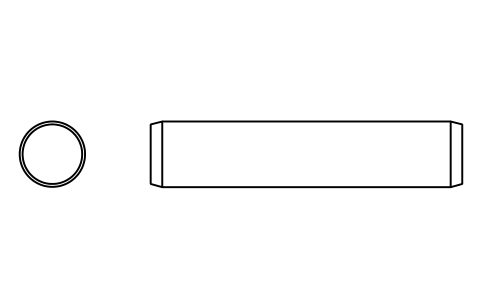
Parallel pin ISO 2338 20 m6 x 95
PIN_20X95Attributes
DESIGNATIONSTANDARDTOLERANCEMATERIALFINISHPART_NOMANUFACTURERQTYREMARKSDESC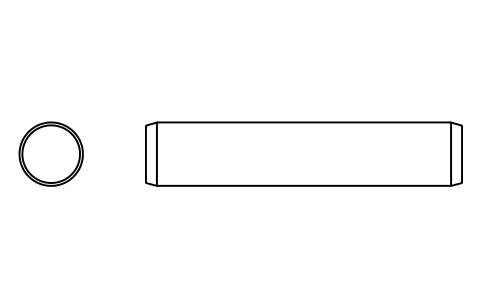
Parallel pin ISO 2338 20 m6 x 100
PIN_20X100Attributes
DESIGNATIONSTANDARDTOLERANCEMATERIALFINISHPART_NOMANUFACTURERQTYREMARKSDESC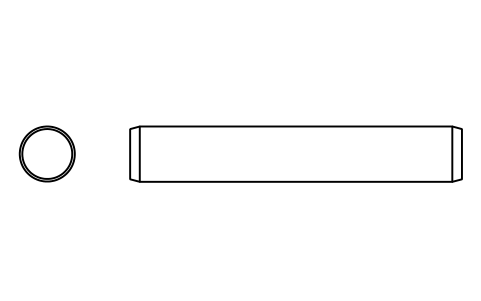
Parallel pin ISO 2338 20 m6 x 120
PIN_20X120Attributes
DESIGNATIONSTANDARDTOLERANCEMATERIALFINISHPART_NOMANUFACTURERQTYREMARKSDESC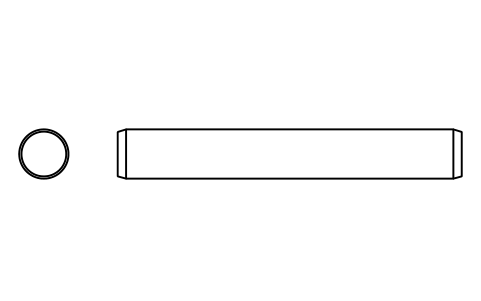
Parallel pin ISO 2338 20 m6 x 140
PIN_20X140Attributes
DESIGNATIONSTANDARDTOLERANCEMATERIALFINISHPART_NOMANUFACTURERQTYREMARKSDESC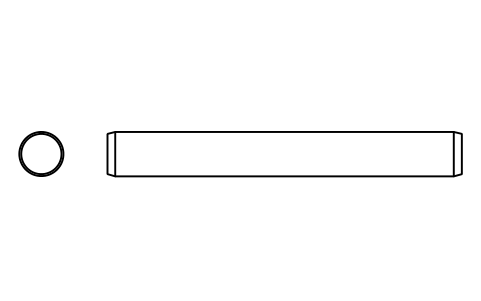
Parallel pin ISO 2338 20 m6 x 160
PIN_20X160Attributes
DESIGNATIONSTANDARDTOLERANCEMATERIALFINISHPART_NOMANUFACTURERQTYREMARKSDESC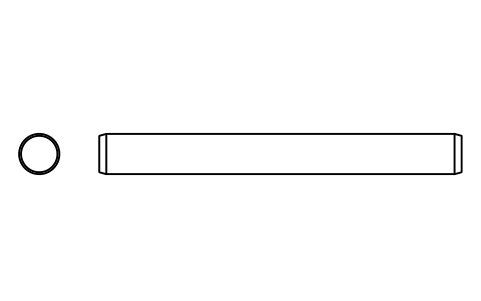
Parallel pin ISO 2338 20 m6 x 180
PIN_20X180Attributes
DESIGNATIONSTANDARDTOLERANCEMATERIALFINISHPART_NOMANUFACTURERQTYREMARKSDESC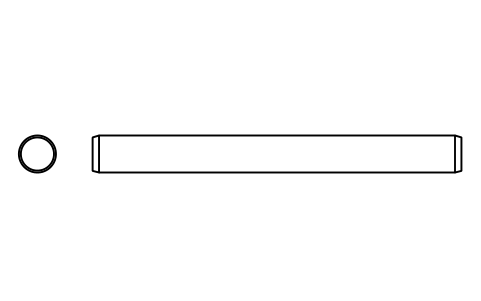
Parallel pin ISO 2338 20 m6 x 200
PIN_20X200Attributes
DESIGNATIONSTANDARDTOLERANCEMATERIALFINISHPART_NOMANUFACTURERQTYREMARKSDESC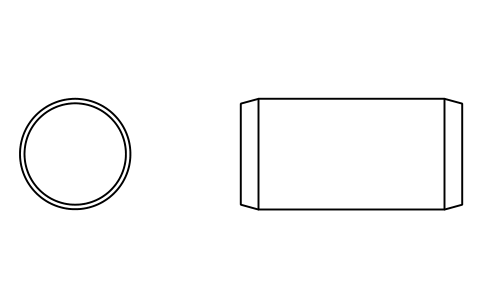
Parallel pin ISO 2338 25 m6 x 50
PIN_25X50Attributes
DESIGNATIONSTANDARDTOLERANCEMATERIALFINISHPART_NOMANUFACTURERQTYREMARKSDESC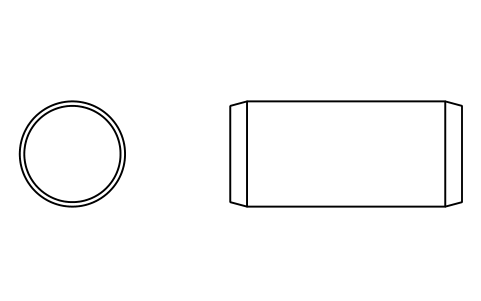
Parallel pin ISO 2338 25 m6 x 55
PIN_25X55Attributes
DESIGNATIONSTANDARDTOLERANCEMATERIALFINISHPART_NOMANUFACTURERQTYREMARKSDESC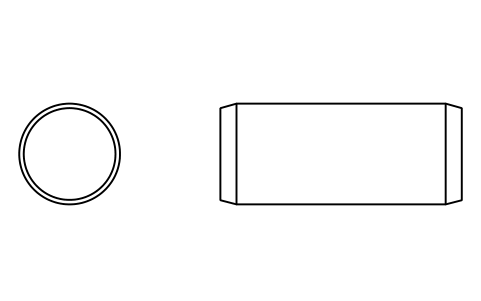
Parallel pin ISO 2338 25 m6 x 60
PIN_25X60Attributes
DESIGNATIONSTANDARDTOLERANCEMATERIALFINISHPART_NOMANUFACTURERQTYREMARKSDESC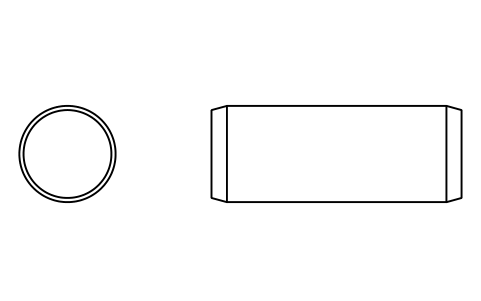
Parallel pin ISO 2338 25 m6 x 65
PIN_25X65Attributes
DESIGNATIONSTANDARDTOLERANCEMATERIALFINISHPART_NOMANUFACTURERQTYREMARKSDESC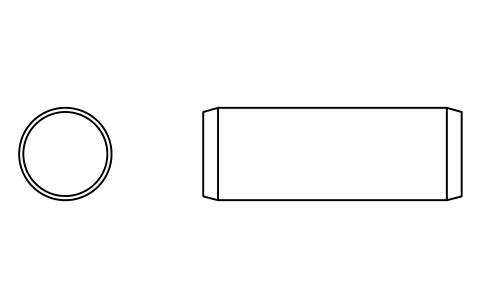
Parallel pin ISO 2338 25 m6 x 70
PIN_25X70Attributes
DESIGNATIONSTANDARDTOLERANCEMATERIALFINISHPART_NOMANUFACTURERQTYREMARKSDESC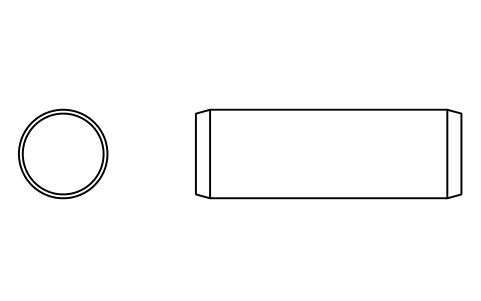
Parallel pin ISO 2338 25 m6 x 75
PIN_25X75Attributes
DESIGNATIONSTANDARDTOLERANCEMATERIALFINISHPART_NOMANUFACTURERQTYREMARKSDESC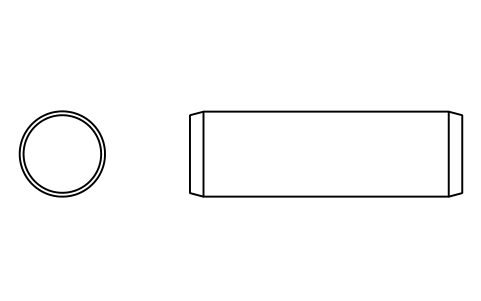
Parallel pin ISO 2338 25 m6 x 80
PIN_25X80Attributes
DESIGNATIONSTANDARDTOLERANCEMATERIALFINISHPART_NOMANUFACTURERQTYREMARKSDESC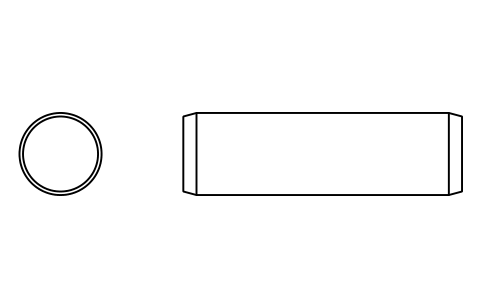
Parallel pin ISO 2338 25 m6 x 85
PIN_25X85Attributes
DESIGNATIONSTANDARDTOLERANCEMATERIALFINISHPART_NOMANUFACTURERQTYREMARKSDESC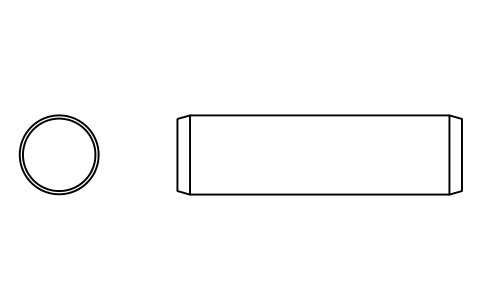
Parallel pin ISO 2338 25 m6 x 90
PIN_25X90Attributes
DESIGNATIONSTANDARDTOLERANCEMATERIALFINISHPART_NOMANUFACTURERQTYREMARKSDESC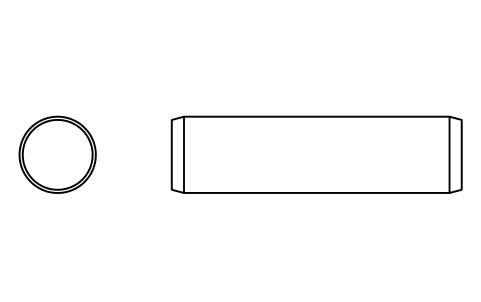
Parallel pin ISO 2338 25 m6 x 95
PIN_25X95Attributes
DESIGNATIONSTANDARDTOLERANCEMATERIALFINISHPART_NOMANUFACTURERQTYREMARKSDESC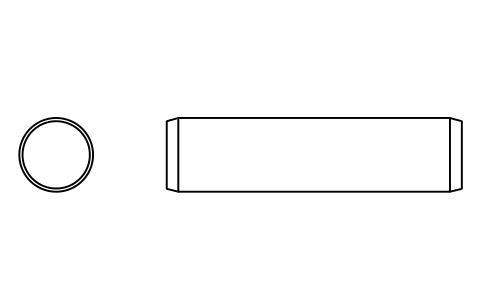
Parallel pin ISO 2338 25 m6 x 100
PIN_25X100Attributes
DESIGNATIONSTANDARDTOLERANCEMATERIALFINISHPART_NOMANUFACTURERQTYREMARKSDESC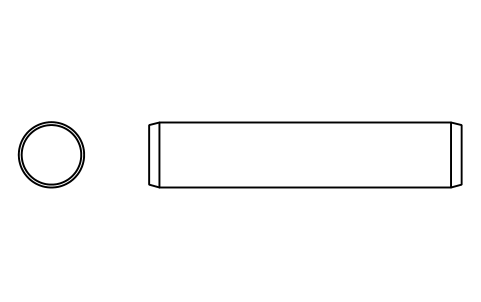
Parallel pin ISO 2338 25 m6 x 120
PIN_25X120Attributes
DESIGNATIONSTANDARDTOLERANCEMATERIALFINISHPART_NOMANUFACTURERQTYREMARKSDESC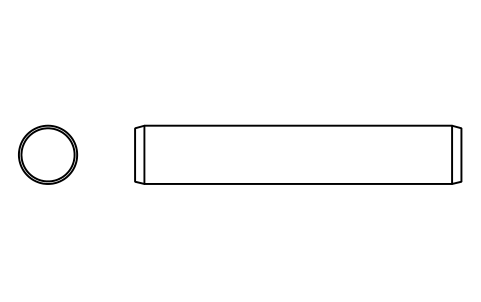
Parallel pin ISO 2338 25 m6 x 140
PIN_25X140Attributes
DESIGNATIONSTANDARDTOLERANCEMATERIALFINISHPART_NOMANUFACTURERQTYREMARKSDESC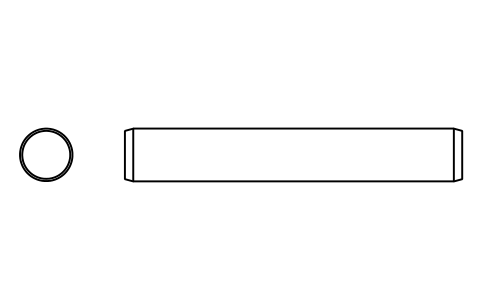
Parallel pin ISO 2338 25 m6 x 160
PIN_25X160Attributes
DESIGNATIONSTANDARDTOLERANCEMATERIALFINISHPART_NOMANUFACTURERQTYREMARKSDESC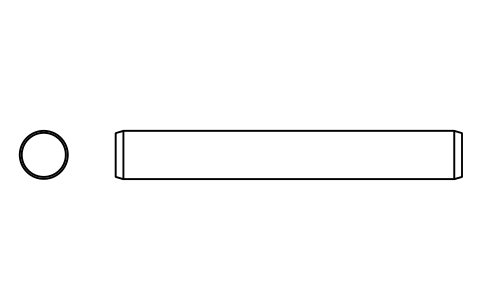
Parallel pin ISO 2338 25 m6 x 180
PIN_25X180Attributes
DESIGNATIONSTANDARDTOLERANCEMATERIALFINISHPART_NOMANUFACTURERQTYREMARKSDESC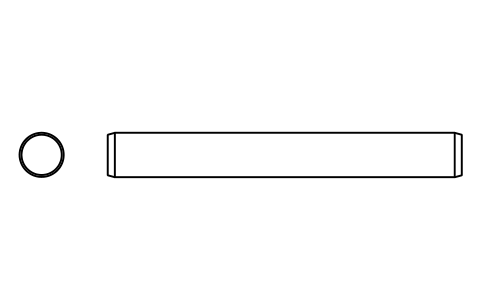
Parallel pin ISO 2338 25 m6 x 200
PIN_25X200Attributes
DESIGNATIONSTANDARDTOLERANCEMATERIALFINISHPART_NOMANUFACTURERQTYREMARKSDESC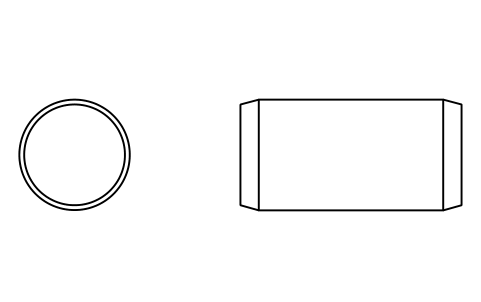
Parallel pin ISO 2338 30 m6 x 60
PIN_30X60Attributes
DESIGNATIONSTANDARDTOLERANCEMATERIALFINISHPART_NOMANUFACTURERQTYREMARKSDESC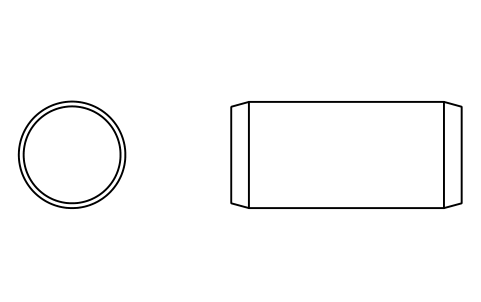
Parallel pin ISO 2338 30 m6 x 65
PIN_30X65Attributes
DESIGNATIONSTANDARDTOLERANCEMATERIALFINISHPART_NOMANUFACTURERQTYREMARKSDESC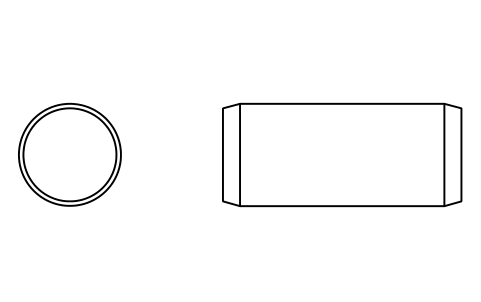
Parallel pin ISO 2338 30 m6 x 70
PIN_30X70Attributes
DESIGNATIONSTANDARDTOLERANCEMATERIALFINISHPART_NOMANUFACTURERQTYREMARKSDESC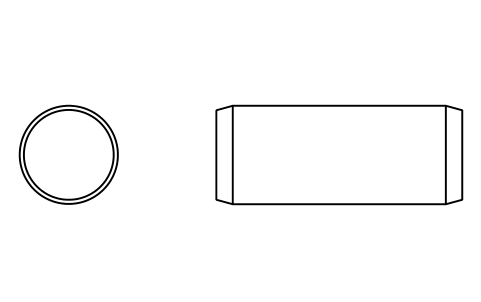
Parallel pin ISO 2338 30 m6 x 75
PIN_30X75Attributes
DESIGNATIONSTANDARDTOLERANCEMATERIALFINISHPART_NOMANUFACTURERQTYREMARKSDESC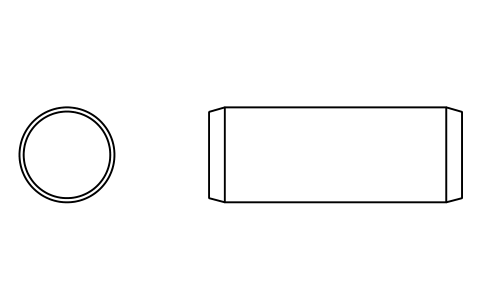
Parallel pin ISO 2338 30 m6 x 80
PIN_30X80Attributes
DESIGNATIONSTANDARDTOLERANCEMATERIALFINISHPART_NOMANUFACTURERQTYREMARKSDESC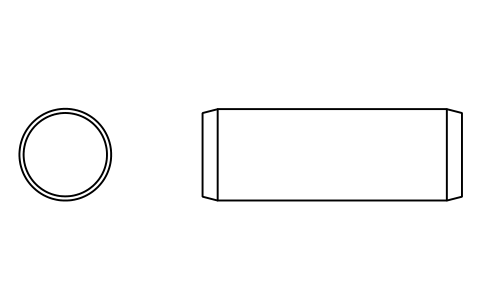
Parallel pin ISO 2338 30 m6 x 85
PIN_30X85Attributes
DESIGNATIONSTANDARDTOLERANCEMATERIALFINISHPART_NOMANUFACTURERQTYREMARKSDESC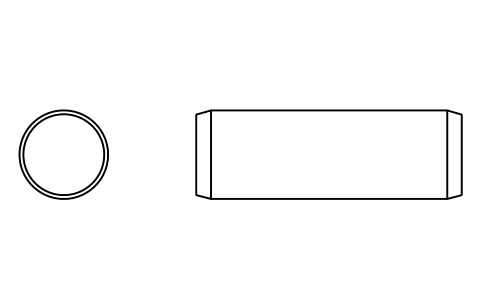
Parallel pin ISO 2338 30 m6 x 90
PIN_30X90Attributes
DESIGNATIONSTANDARDTOLERANCEMATERIALFINISHPART_NOMANUFACTURERQTYREMARKSDESC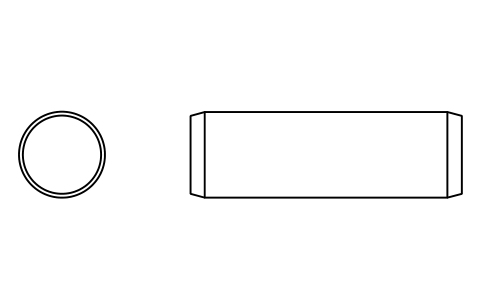
Parallel pin ISO 2338 30 m6 x 95
PIN_30X95Attributes
DESIGNATIONSTANDARDTOLERANCEMATERIALFINISHPART_NOMANUFACTURERQTYREMARKSDESC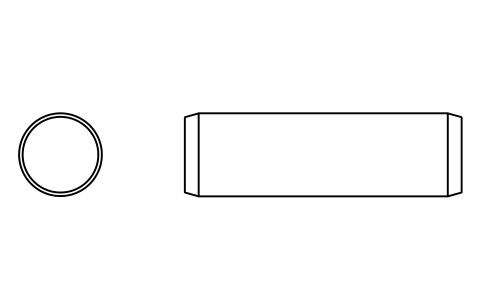
Parallel pin ISO 2338 30 m6 x 100
PIN_30X100Attributes
DESIGNATIONSTANDARDTOLERANCEMATERIALFINISHPART_NOMANUFACTURERQTYREMARKSDESC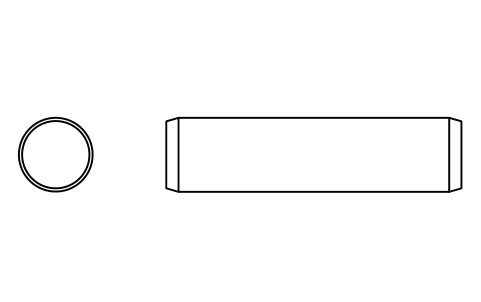
Parallel pin ISO 2338 30 m6 x 120
PIN_30X120Attributes
DESIGNATIONSTANDARDTOLERANCEMATERIALFINISHPART_NOMANUFACTURERQTYREMARKSDESC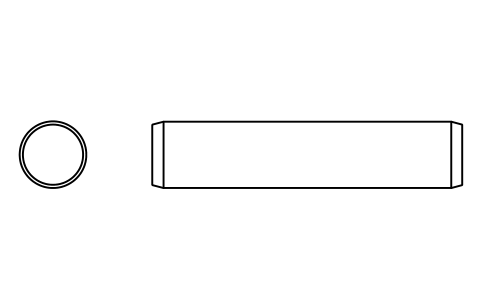
Parallel pin ISO 2338 30 m6 x 140
PIN_30X140Attributes
DESIGNATIONSTANDARDTOLERANCEMATERIALFINISHPART_NOMANUFACTURERQTYREMARKSDESC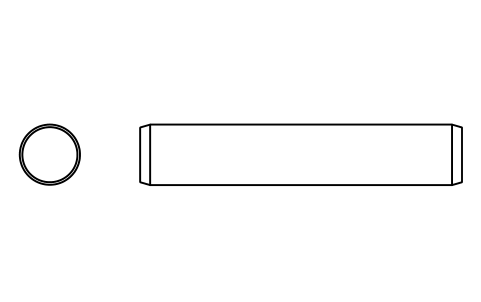
Parallel pin ISO 2338 30 m6 x 160
PIN_30X160Attributes
DESIGNATIONSTANDARDTOLERANCEMATERIALFINISHPART_NOMANUFACTURERQTYREMARKSDESC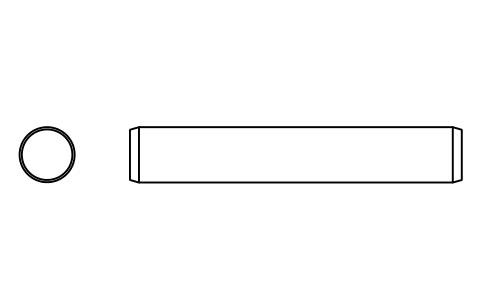
Parallel pin ISO 2338 30 m6 x 180
PIN_30X180Attributes
DESIGNATIONSTANDARDTOLERANCEMATERIALFINISHPART_NOMANUFACTURERQTYREMARKSDESC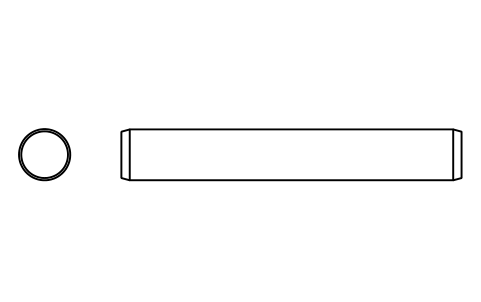
Parallel pin ISO 2338 30 m6 x 200
PIN_30X200Attributes
DESIGNATIONSTANDARDTOLERANCEMATERIALFINISHPART_NOMANUFACTURERQTYREMARKSDESC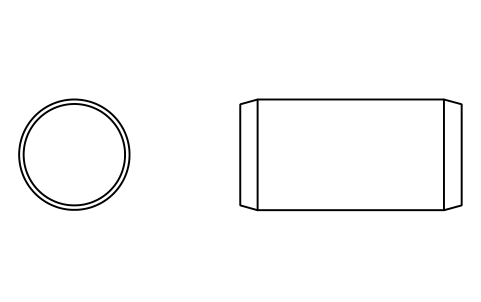
Parallel pin ISO 2338 40 m6 x 80
PIN_40X80Attributes
DESIGNATIONSTANDARDTOLERANCEMATERIALFINISHPART_NOMANUFACTURERQTYREMARKSDESC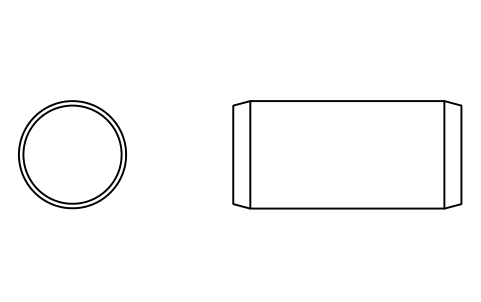
Parallel pin ISO 2338 40 m6 x 85
PIN_40X85Attributes
DESIGNATIONSTANDARDTOLERANCEMATERIALFINISHPART_NOMANUFACTURERQTYREMARKSDESC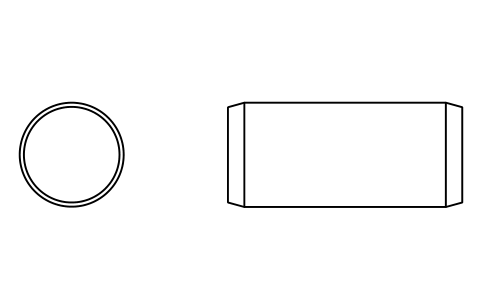
Parallel pin ISO 2338 40 m6 x 90
PIN_40X90Attributes
DESIGNATIONSTANDARDTOLERANCEMATERIALFINISHPART_NOMANUFACTURERQTYREMARKSDESC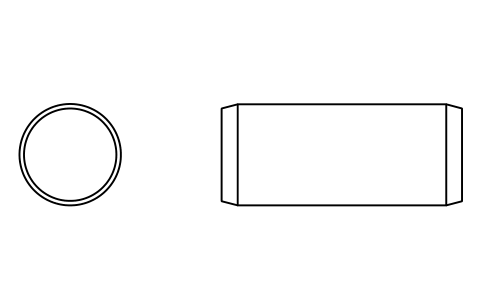
Parallel pin ISO 2338 40 m6 x 95
PIN_40X95Attributes
DESIGNATIONSTANDARDTOLERANCEMATERIALFINISHPART_NOMANUFACTURERQTYREMARKSDESC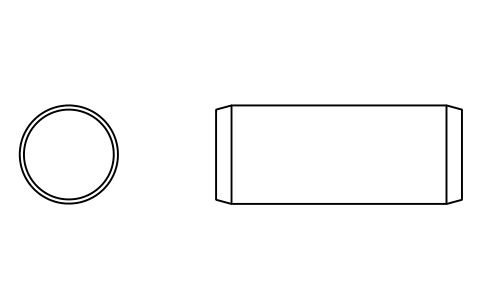
Parallel pin ISO 2338 40 m6 x 100
PIN_40X100Attributes
DESIGNATIONSTANDARDTOLERANCEMATERIALFINISHPART_NOMANUFACTURERQTYREMARKSDESC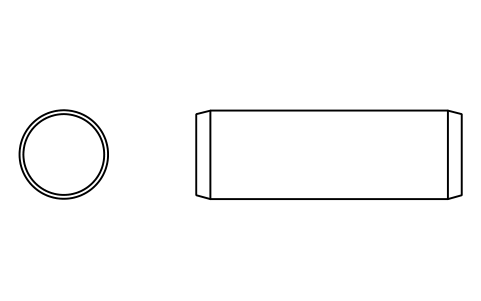
Parallel pin ISO 2338 40 m6 x 120
PIN_40X120Attributes
DESIGNATIONSTANDARDTOLERANCEMATERIALFINISHPART_NOMANUFACTURERQTYREMARKSDESC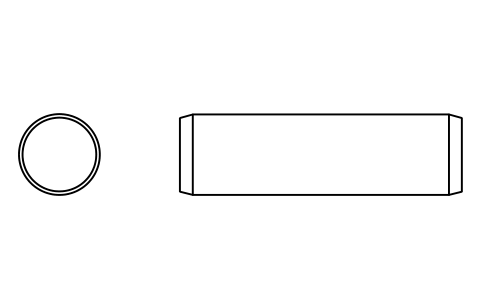
Parallel pin ISO 2338 40 m6 x 140
PIN_40X140Attributes
DESIGNATIONSTANDARDTOLERANCEMATERIALFINISHPART_NOMANUFACTURERQTYREMARKSDESC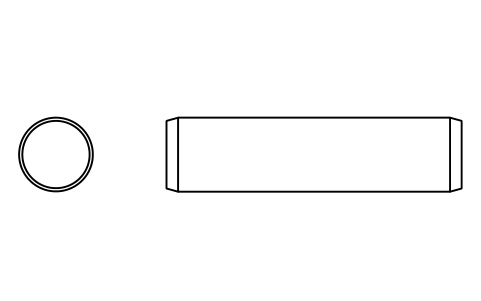
Parallel pin ISO 2338 40 m6 x 160
PIN_40X160Attributes
DESIGNATIONSTANDARDTOLERANCEMATERIALFINISHPART_NOMANUFACTURERQTYREMARKSDESC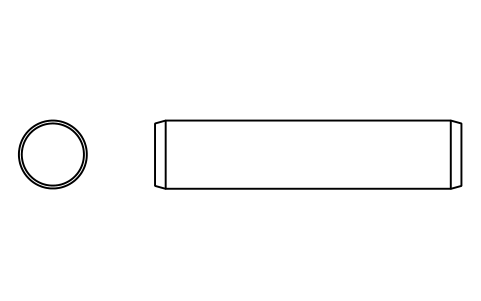
Parallel pin ISO 2338 40 m6 x 180
PIN_40X180Attributes
DESIGNATIONSTANDARDTOLERANCEMATERIALFINISHPART_NOMANUFACTURERQTYREMARKSDESC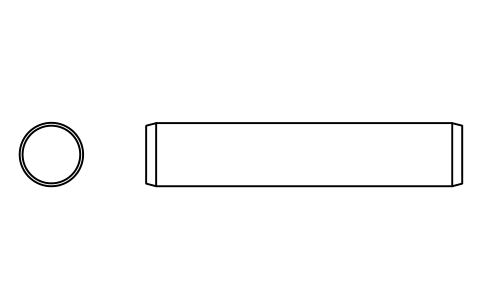
Parallel pin ISO 2338 40 m6 x 200
PIN_40X200Attributes
DESIGNATIONSTANDARDTOLERANCEMATERIALFINISHPART_NOMANUFACTURERQTYREMARKSDESC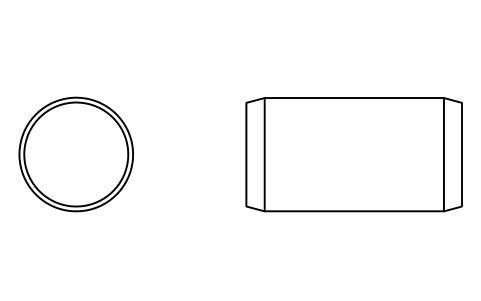
Parallel pin ISO 2338 50 m6 x 95
PIN_50X95Attributes
DESIGNATIONSTANDARDTOLERANCEMATERIALFINISHPART_NOMANUFACTURERQTYREMARKSDESC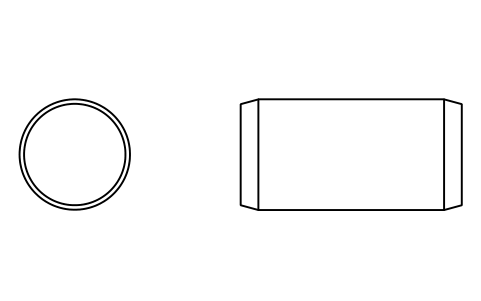
Parallel pin ISO 2338 50 m6 x 100
PIN_50X100Attributes
DESIGNATIONSTANDARDTOLERANCEMATERIALFINISHPART_NOMANUFACTURERQTYREMARKSDESC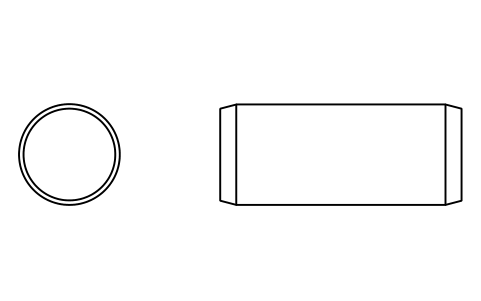
Parallel pin ISO 2338 50 m6 x 120
PIN_50X120Attributes
DESIGNATIONSTANDARDTOLERANCEMATERIALFINISHPART_NOMANUFACTURERQTYREMARKSDESC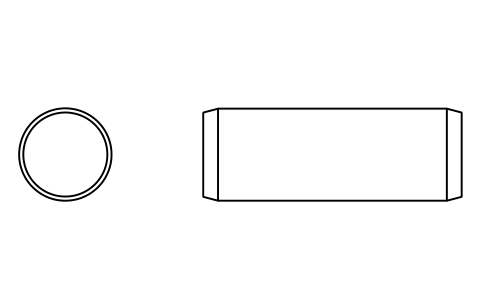
Parallel pin ISO 2338 50 m6 x 140
PIN_50X140Attributes
DESIGNATIONSTANDARDTOLERANCEMATERIALFINISHPART_NOMANUFACTURERQTYREMARKSDESC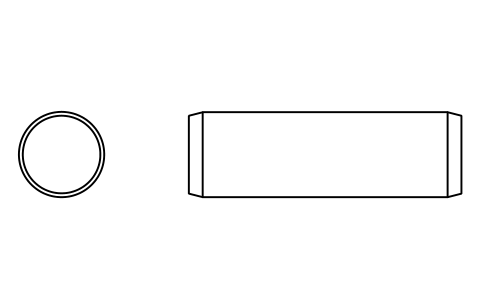
Parallel pin ISO 2338 50 m6 x 160
PIN_50X160Attributes
DESIGNATIONSTANDARDTOLERANCEMATERIALFINISHPART_NOMANUFACTURERQTYREMARKSDESC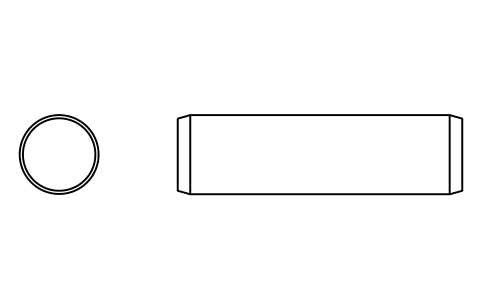
Parallel pin ISO 2338 50 m6 x 180
PIN_50X180Attributes
DESIGNATIONSTANDARDTOLERANCEMATERIALFINISHPART_NOMANUFACTURERQTYREMARKSDESC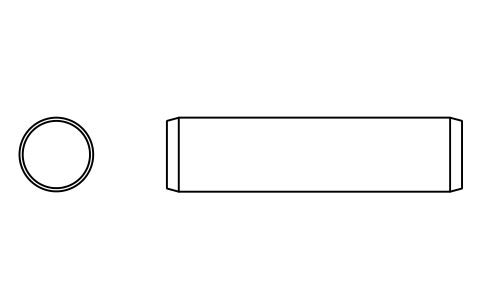
Parallel pin ISO 2338 50 m6 x 200
PIN_50X200Attributes
DESIGNATIONSTANDARDTOLERANCEMATERIALFINISHPART_NOMANUFACTURERQTYREMARKSDESC
Missing a symbol? Tell us which one.
Attributes for parts lists
The invisible attributes are DESIGNATION (for example 6 m6 x 30), STANDARD, TOLERANCE (m6, or h8 as agreed), MATERIAL (St for steel, A1 for stainless steel), FINISH, PART_NO, MANUFACTURER, QTY and REMARKS.
How to use the library
- Unzip the file and open the DWG. Copy the symbols you need into your plan, or drag the blocks in from DesignCenter (ADCENTER).
- The pins are drawn at real size in millimetres, 1 drawing unit = 1 mm: the side view with the end chamfers at about 15 degrees and, to the left of it, the end view with the outer circle and the chamfer circle. Insert them at 1:1; the scale of the drawing sheet does the rest.
- The insertion point is the left end of the pin axis, so a pin can be snapped to the centre line of a bore or a shaft and then rotated or mirrored to the position you need.
- The groups are the 20 nominal diameters. Each diameter holds the lengths that the table of the standard lists for it, for example 12 to 60 mm for a 6 mm pin and 95 to 200 mm for a 50 mm pin. Nominal lengths run through 2, 3, 4, 5, 6, 8, 10, 12 and so on up to 200 mm.
About the standard
ISO 2338 specifies parallel pins of unhardened steel (hardness 125 to 245 HV30) and austenitic stainless steel (grade A1, 210 to 280 HV30) with nominal diameters from 0.6 to 50 mm. The standard gives the tolerance classes m6 (roughness Ra up to 0.8 micrometre) and h8 (Ra up to 1.6 micrometre), the chamfer length c for each diameter, and the commercial length range of each diameter. A pin is designated, for example, as Parallel pin ISO 2338 - 6 m6 x 30 - St.
The blocks are our own drawings from the dimension table, not copies, and the library is not certified. Lengths above 200 mm (in steps of 20 mm) and the optional end shapes of the standard figure are not drawn.
What changed in each version
Version 1.0 · October 30, 2026
New symbols (260)
Parallel pin ISO 2338 0.6 m6 x 2 · Parallel pin ISO 2338 0.6 m6 x 3 · Parallel pin ISO 2338 0.6 m6 x 4 · Parallel pin ISO 2338 0.6 m6 x 5 · Parallel pin ISO 2338 0.6 m6 x 6 · Parallel pin ISO 2338 0.8 m6 x 2 · Parallel pin ISO 2338 0.8 m6 x 3 · Parallel pin ISO 2338 0.8 m6 x 4 · Parallel pin ISO 2338 0.8 m6 x 5 · Parallel pin ISO 2338 0.8 m6 x 6 · Parallel pin ISO 2338 0.8 m6 x 8 · Parallel pin ISO 2338 1 m6 x 3 · Parallel pin ISO 2338 1 m6 x 4 · Parallel pin ISO 2338 1 m6 x 5 · Parallel pin ISO 2338 1 m6 x 6 · Parallel pin ISO 2338 1 m6 x 8 · Parallel pin ISO 2338 1 m6 x 10 · Parallel pin ISO 2338 1.2 m6 x 4 · Parallel pin ISO 2338 1.2 m6 x 5 · Parallel pin ISO 2338 1.2 m6 x 6 · Parallel pin ISO 2338 1.2 m6 x 8 · Parallel pin ISO 2338 1.2 m6 x 10 · Parallel pin ISO 2338 1.2 m6 x 12 · Parallel pin ISO 2338 1.5 m6 x 4 · Parallel pin ISO 2338 1.5 m6 x 5 · Parallel pin ISO 2338 1.5 m6 x 6 · Parallel pin ISO 2338 1.5 m6 x 8 · Parallel pin ISO 2338 1.5 m6 x 10 · Parallel pin ISO 2338 1.5 m6 x 12 · Parallel pin ISO 2338 1.5 m6 x 14 · Parallel pin ISO 2338 1.5 m6 x 16 · Parallel pin ISO 2338 2 m6 x 6 · Parallel pin ISO 2338 2 m6 x 8 · Parallel pin ISO 2338 2 m6 x 10 · Parallel pin ISO 2338 2 m6 x 12 · Parallel pin ISO 2338 2 m6 x 14 · Parallel pin ISO 2338 2 m6 x 16 · Parallel pin ISO 2338 2 m6 x 18 · Parallel pin ISO 2338 2 m6 x 20 · Parallel pin ISO 2338 2.5 m6 x 6 · 220 more
Frequently asked questions
- Which lengths are included for each diameter?
- All nominal lengths of the standard's commercial range. A 3 mm pin comes in lengths from 8 to 30 mm, a 10 mm pin from 18 to 95 mm, a 20 mm pin from 35 to 200 mm. The range of each diameter follows the stepped limits of table 1.
- How do I write the designation of a pin?
- As the standard does: Parallel pin ISO 2338 - 6 m6 x 30 - St, that is diameter, tolerance class, length and material (St for steel, A1 for stainless steel). The DESIGNATION attribute of each block holds the size part, for example 6 m6 x 30; change m6 to h8 in TOLERANCE if the pin is made to that class.
- Can I use the symbols in commercial projects?
- Yes. They are free to use and modify in your own projects, including commercial ones. They are provided as is, without warranty. Please do not redistribute or resell the library; see the library terms.
- Are hardened pins and other pin types included?
- No. This library holds the parallel pins of ISO 2338 only, of unhardened steel and austenitic stainless steel. Hardened pins, taper pins, spring pins and other types are not part of it.
- Can I change a symbol or add attributes?
- Yes. Open the DWG, edit a block with BEDIT to change it or add attributes, and save. To update drawings that already contain the block, run ATTSYNC or replace the block. Make a backup first: attribute values can be lost if ATTSYNC is used carelessly.
- Where do I find a ready-made set of these symbols for AutoCAD?
- AutoCAD itself ships only a small set of sample blocks, so a full symbol set has to come from a library. Download the ZIP on this page and open the DWG: every symbol is a block. Insert one with INSERT (Blocks palette, Libraries tab, then pick the DWG) or drag it from DesignCenter (ADCENTER). You can also download a single symbol on its own.