
Guides/AutoCAD troubleshooting
Change the AutoCAD Default Template for New Drawings — Set QNEW to Your Own DWT
Updated November 24, 2026
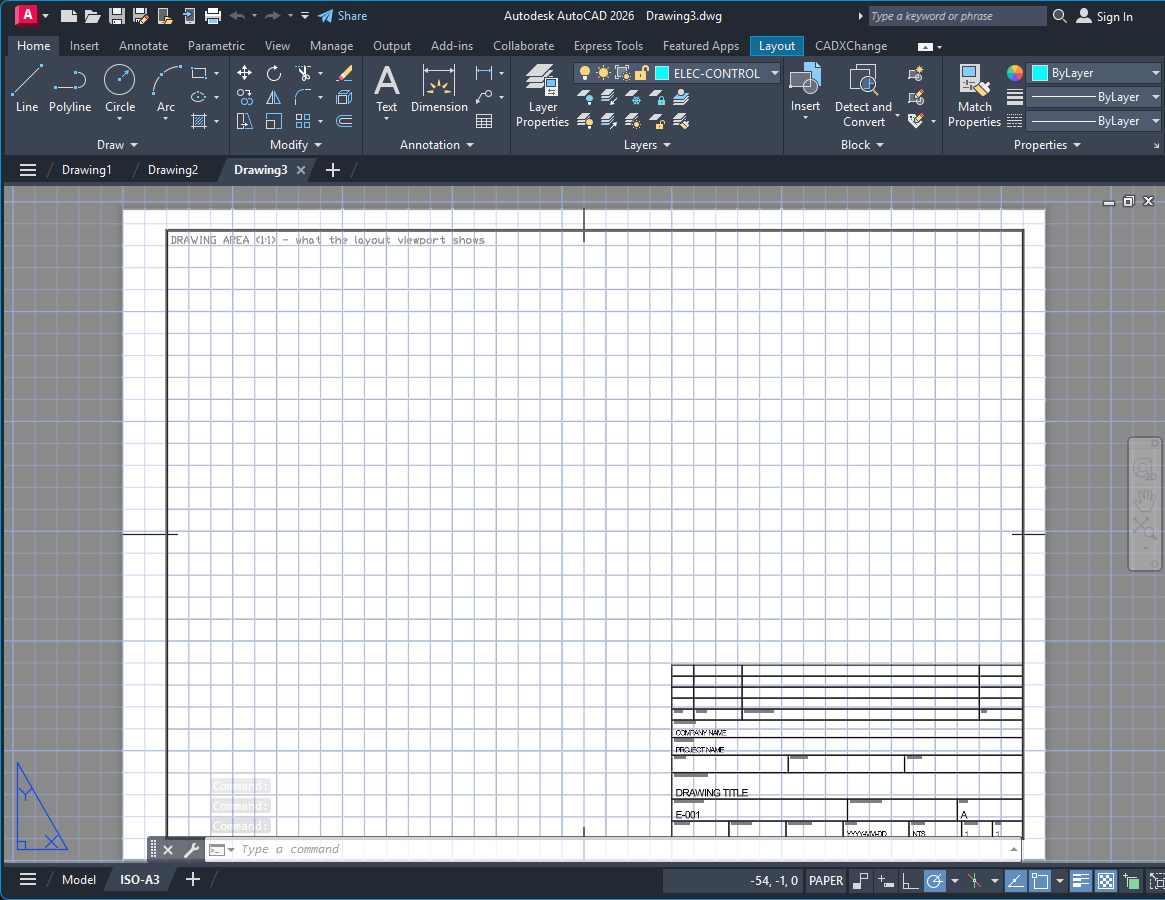
Every time you click the + button, press Ctrl+N or choose New, AutoCAD starts the drawing from a template. If you want your own layers, text styles, dimension styles and title block in every new drawing, you don't have to open a template by hand each time. You tell AutoCAD once which DWT file is the default.
That setting lives in Options, under Files, in an entry called Default Template File Name for QNEW. This guide sets it step by step and shows how to check that it worked. The screenshots are from AutoCAD 2026, and the setting is in the same place in recent releases.
1. What the setting controls
QNEW is AutoCAD's quick-new command: it creates a drawing straight from one template, without asking. Which template it uses is the Default Template File Name for QNEW setting. When that setting is None, which is the default, QNEW behaves like NEW and shows the Select Template dialog, so you pick a template every time.
In our test the same setting was used by the + button next to the drawing tabs, by the New button on the Start tab, and by the Drawing1 that AutoCAD opens at startup. So one setting covers the usual ways of starting a drawing. It only affects drawings you create from now on; existing drawings stay as they are.
2. Open Options and go to the Files tab
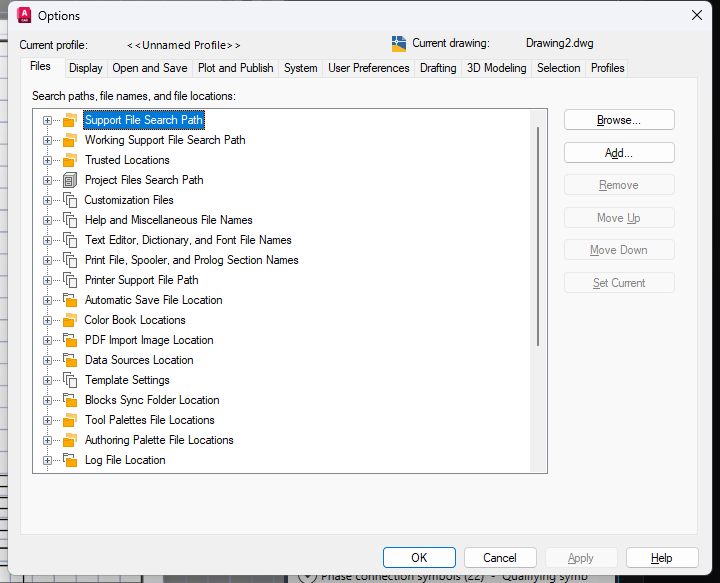
Type OPTIONS on the command line and press Enter. You can also right-click in the drawing area and choose Options. In the dialog, open the Files tab. It lists the search paths and file names AutoCAD uses.
3. Expand Template Settings
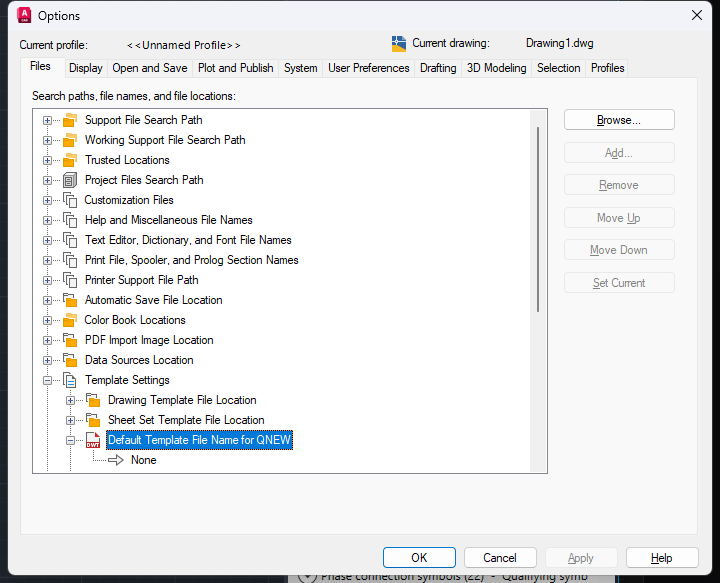
Expand Template Settings, then expand Default Template File Name for QNEW. Under it you see the current template. A fresh profile shows None, as in the picture.
The entry above it, Drawing Template File Location, is a different thing: it is the folder AutoCAD offers when you browse for a template. You can leave it alone.
4. Browse to your DWT file
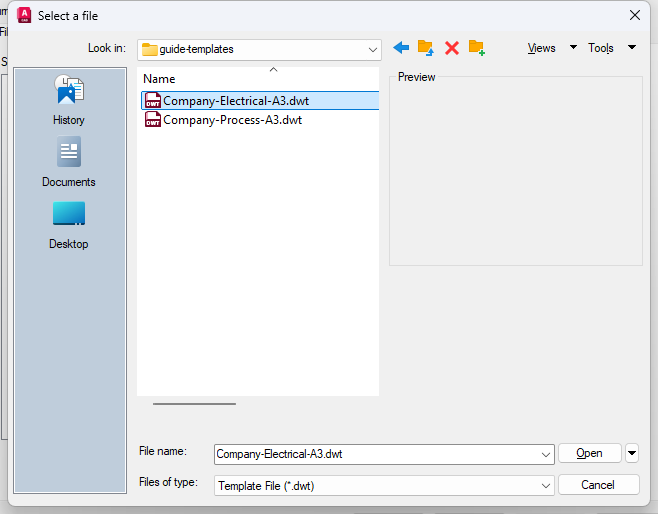
Select the value under Default Template File Name for QNEW (the line that says None) and click Browse. A Select a file dialog opens in the standard Template folder. Go to your own template, select it and click Open. You can also paste the full path into the File name box.
If you don't have a template yet, set up a drawing the way you want every new drawing to start, then use Save As and choose AutoCAD Drawing Template (*.dwt) as the file type. Keep the file somewhere stable, for example a shared folder if a whole team should use it.
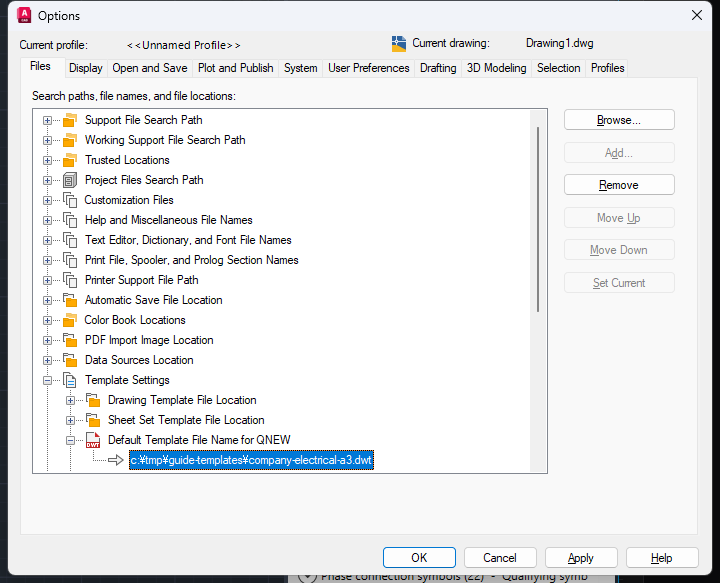
5. Check the path and click OK
The path now appears under Default Template File Name for QNEW. Click OK. Nothing else needs to be restarted.
The setting is saved with the current profile, not inside a drawing. If you use several profiles (Options, Profiles tab), each one has its own default template.
6. Start a new drawing and check it
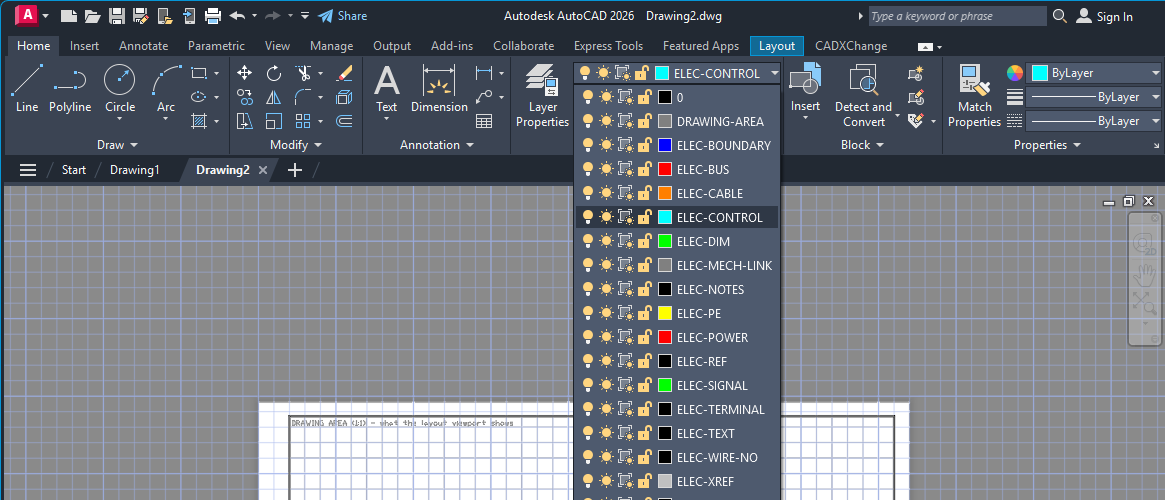
Click the + button next to the drawing tabs, or type QNEW. A new drawing opens straight away, without a dialog, and it carries everything from the template: layers, styles, blocks and layouts. In the picture the layer list is open and shows the layers that were saved in the template.
Our test template had a layout as its current tab when it was saved, and the new drawing opened on that layout tab. If you want new drawings to start in model space, make model space current before you save the template.
If the Select Template dialog keeps appearing
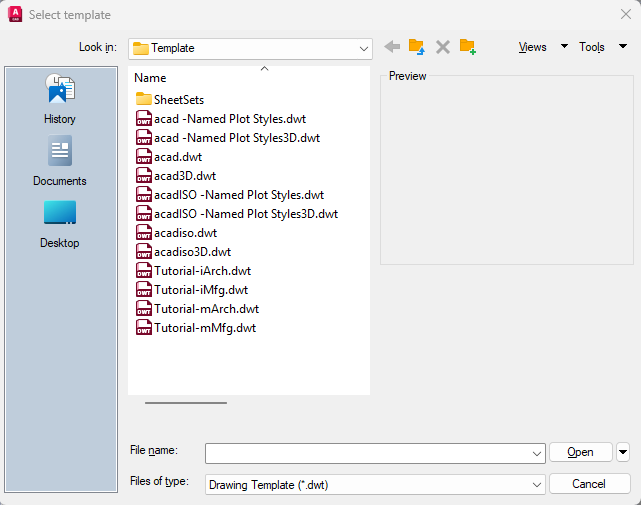
If you get a Select Template dialog every time you start a new drawing, Default Template File Name for QNEW is None (or points to a file that is no longer there). Repeat steps 2 to 5 and pick a template. The dialog can still be useful: type NEW at any time to choose a different template for one drawing, without changing the default.
The whole change is one line in Options: Files, Template Settings, Default Template File Name for QNEW. After that the + button, Ctrl+N and QNEW all start from your template, and NEW is still there for the occasions when you want a different one.
Before you start — common questions
- How do I change the default template in AutoCAD?
- Open Options (type OPTIONS), go to the Files tab, expand Template Settings, then Default Template File Name for QNEW. Select the value, click Browse, choose your DWT file and click OK. New drawings made with QNEW and the + button then start from that template.
- Why does AutoCAD ask me to choose a template every time I start a new drawing?
- Default Template File Name for QNEW is set to None (or to a file AutoCAD can't find), so QNEW falls back to showing the Select Template dialog. Set the entry to your template in Options, Files tab, Template Settings.
- Does the + button next to the drawing tabs use the default template?
- Yes. In AutoCAD 2026 the + button, the New button on the Start tab and the first Drawing1 at startup all used the template set for QNEW.
- Can I use a different template for one drawing without changing the default?
- Yes. Type NEW instead of using QNEW or the + button. NEW shows the Select Template dialog so you can pick any template, and the default stays as it was.
- Does changing the default template affect my existing drawings?
- No. It only decides what new drawings start from. Existing drawings keep their own layers and styles.
- Is the default template saved in the drawing?
- No. It is a setting of the current AutoCAD profile, so it applies to every drawing you create with that profile, and each profile can have its own.