
Guides/Block attributes
Edit Block Attributes in Multiple DWG Files — AutoCAD's Built-In Methods and When Each One Runs Out
 Made with BlockSync
Updated October 3, 2026
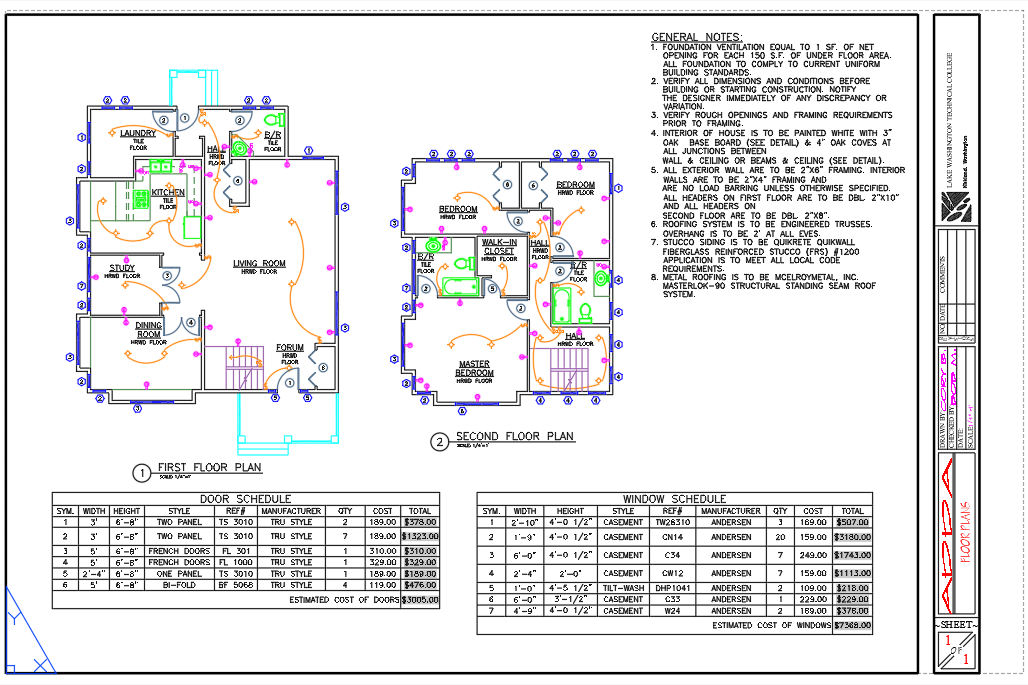
You need to change a block attribute in more than one drawing: a revision letter, a client name, a drawing number, a tag. Editing them one drawing at a time works, but it is slow and easy to get wrong on drawing 140 of 150. AutoCAD does have several ways to reach many drawings, and each one is the right answer for a different situation.
This guide walks through what AutoCAD gives you, what each method is good for, and where it stops. It then shows the same job as an Excel round trip with BlockSync. If you only have one or two drawings, ATTEDIT is the fastest tool and you can stop at step 1.
1. Edit attributes in the current drawing
ATTEDIT, and its command-line form -ATTEDIT, edit attribute values in the drawing that is open. -ATTEDIT can edit attributes one at a time, or globally, where it replaces one text string with another across the attributes you select. Both can be narrowed by block name, attribute tag or attribute value, and the values are case-sensitive.
Everything here happens inside a single drawing. For one title block or one revision change on a single sheet, this is the quickest route.
2. Sheet sets: update many drawings through fields
If your drawings belong to a sheet set, the Sheet Set Manager can update title block attributes across all the sheets at once. The attributes in the title block need to contain fields that point at sheet set properties (project name, sheet number, sheet title, or your own custom properties). When you change a property, Resave All Sheets updates the title block text in every sheet.
This is the cleanest method when it fits, and it can give each sheet its own sheet number and title because those are properties of each sheet. The catch is the setup: the sheet set has to exist, and the attributes have to be defined with fields. Drawings that already carry plain-text attributes, an archive of old projects, or drawings received from someone else are not covered until they are converted.
3. Scripts: run the same commands in every drawing
A script (.scr) that runs -ATTEDIT can be applied to a list of drawings with a batch script runner such as Autodesk's ScriptPro, which is a separate download rather than part of AutoCAD. The runner opens each drawing in turn and runs the script in it, ending with a save if the script includes one.
Because every drawing receives the same commands, this suits changes where the value is the same everywhere: a new client name, a new company address, a corrected project phase. It does not suit values that differ per drawing, such as sheet numbers, drawing titles or tags, unless you add code that reads the right value for each file.
4. ATTOUT and ATTIN: a text file for one drawing
The Express Tools commands ATTOUT and ATTIN export a drawing's attribute values to a text file and read the edited file back in. That lets you edit values outside AutoCAD, but each run covers one drawing, so with a hundred drawings you repeat the round trip a hundred times.
5. LISP or .NET: write the missing piece
A LISP routine or a .NET plug-in can open each drawing, look up the right value and write it, which covers any case. It also means someone has to write it, test it on real drawings, keep it working across AutoCAD versions and be around when it misbehaves. Teams with that person get exactly what they need; teams without one tend to fall back on editing by hand.
6. The same job with BlockSync: export, edit in Excel, preview, write back
BlockSync works on the drawings as they are, with no sheet set and no code. Add the drawings, check the block you want (for example the title block), and click Extract to Excel. You get one workbook with one row per block, across every file.
Edit the workbook like any spreadsheet. Fill a revision letter down a column, build a sheet number from the file name with a formula, or paste a list of new tags next to the old ones. Each row has its own value, so a different value in every drawing is as easy as the same value everywhere.
Switch to Excel → AutoCAD, point BlockSync at the workbook and the drawings, and review the diff preview. It lists every attribute that is about to change with the old value, the new value, the block and the handle, and nothing is written until you confirm. Automatic backup is on by default, BlockSync reads each changed attribute back out of the drawing to verify it, and Rollback All restores the run if something looks wrong.
7. Which one should you use?
One or two drawings: ATTEDIT. A drawing set that already lives in a sheet set with field-based title blocks: change the sheet set properties and Resave All Sheets. The same value across many drawings and a script runner you already trust: a script. Different values per drawing in drawings that are not set up with fields, or a one-off cleanup of an old project: an Excel round trip with BlockSync.
BlockSync needs a licensed, full version of AutoCAD on Windows. AutoCAD LT is not supported. The Free tier covers up to 10 drawings per batch with the diff preview, write-back and backup included.
None of these methods is wrong. They answer different situations, and the useful question is how many drawings you have, whether the values differ from one drawing to the next, and whether the drawings were prepared for automation in advance.
For the title block case with screenshots of every screen, see the guide on batch updating title blocks across multiple drawings. For the full list of settings, see the BlockSync docs.
Before you start — common questions
- Can ATTEDIT edit attributes in several drawings at once?
- No. ATTEDIT and -ATTEDIT work on the drawing that is open. To reach several drawings you need a sheet set with fields, a script run over a list of drawings, or a tool that opens the files for you.
- Can I give each drawing a different value, such as its own drawing number?
- Yes, with the right setup. A sheet set with fields in the title blocks supplies a different sheet number and title per sheet. A script applies the same commands to every drawing, so different values need extra code. In BlockSync each row of the Excel sheet has its own value, so every drawing can get a different one.
- Do my drawings need to be in a sheet set to use BlockSync?
- No. BlockSync reads the block attributes directly from ordinary DWG files in a folder, whether or not they belong to a sheet set and whether or not the attributes contain fields. A value that comes from a field is not written back; those rows are marked Blocked and skipped, and the rest of the run carries on.
- Will it change my drawings before I have checked the result?
- No. The diff preview lists every attribute that is about to change, and nothing is written until you confirm. Automatic backup is on by default, and Rollback All restores every file from the run.
- Does it work with AutoCAD LT?
- No. BlockSync needs a licensed, full version of AutoCAD 2021–2027 on Windows, because LT cannot run the background automation it depends on.