
Rehberler/Text & labels
Fix Missing SHX Fonts Across an Entire AutoCAD Project in One Pass
 TextSync ile hazırlandı
Güncelleme: September 26, 2026
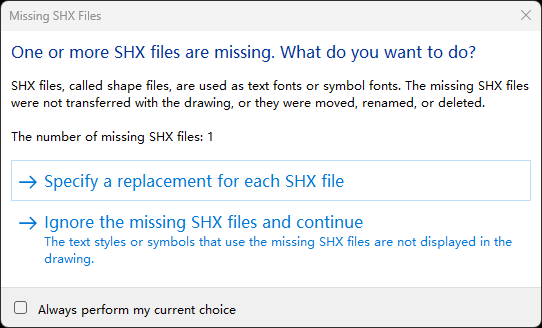
Open a drawing from a consultant or an old project and AutoCAD stops to say SHX files are missing — then says it again for the next sheet, and the next. Carry on without them and the text falls back to a substitute font: Chinese, Japanese or Korean characters turn into question marks, spacing shifts, and the plotted sheet no longer matches what was issued.
The usual fixes all work one drawing at a time, or only on your own machine: repointing each style in the STYLE dialog, a font mapping file that no one else has, or copying the missing fonts around — assuming anyone still has them. None of that fixes the drawings for the next person who opens them.
This guide uses TextSync's Batch Edit Styles to list every text style across a whole set of drawings, show which ones point to fonts this computer can't find, and repoint them to your standard fonts in one write-back — then uses the same screen to unify width factors across the set.
1. Load the drawings and see which fonts are missing
Open TextSync and switch to Batch Edit Styles from the pill in the title bar. Click Add Files… and pick the drawings — every text style in each file is read into one grid straight away, one row per style per drawing.
Any Font or Big Font that can't be found on this computer is shown in red, and the banner above the grid lists the missing font files along with how many styles and drawings use them. TextSync looks where AutoCAD looks: the drawing's own folder, the Support File Search Path in your AutoCAD profile, AutoCAD's Fonts folder and the Windows font folders.
Tick Show only missing fonts to hide every style that's already fine.
2. Choose the replacement fonts
An SHX text style has two slots. Font covers Latin letters and numbers; Big Font covers Chinese, Japanese or Korean characters. A missing Font can be replaced with whatever your office standardizes on — txt.shx, simplex.shx and romans.shx ship with every AutoCAD. A missing Big Font needs another big font, and AutoCAD installs one for each language: gbcbig.shx for Simplified Chinese, chineset.shx for Traditional Chinese, extfont.shx for Japanese and whgtxt.shx for Korean.
The Font and Big Font drop-downs list the SHX files in AutoCAD's Fonts folder, already split into regular fonts and big fonts the way AutoCAD's own Text Style dialog splits them. You can also type a file name, such as a company font kept on a shared support path.
Choose fonts that everyone who opens these drawings has. A font that exists only on your machine just moves the missing-font prompt to the next person.
3. Replace the fonts across every drawing
Narrow the grid to the rows you want to change. Type part of the missing file name into the filter on the Font column header, and only the styles using that font are left — across every drawing in the list.
In the Batch edit bar, tick Font, pick the replacement and click Apply to All. It applies to every row the filters currently show, selected or not. Tick Big Font as well to replace a missing big font in the same pass. Tick only the fields you want to change: a field whose checkbox isn't ticked is never touched. The screenshot also sets a standard width factor while it's at it — more on that in step 5.
The red marking updates as you go, and once no missing font is left the banner disappears.
Replacing a style's font changes only the font. Text height and width factor stay exactly as they were, including single-line text whose width factor was adjusted by hand.
4. Write back and check in AutoCAD
Click Write Styles Back. Only the styles you changed are written, and a drawing with no changed style isn't touched at all; the confirmation says how many drawings will be written.
Leave Automatic backup checked — each drawing is copied to the backup folder before it changes, and Restore Backup… brings any of them back later, even after TextSync has been closed.
Open one of the drawings in AutoCAD: the fixed styles no longer trigger the missing-SHX prompt, and their text displays in the new font.
5. Unify width factors on the same screen
The same batch edit bar handles the other half of text style cleanup. A project that grew out of several templates often has the same style at width factor 0.7 in one drawing and 0.8 in the next.
Filter by style name, tick Width Factor, type the standard value and click Apply to All. On write-back, every single-line text (DBText) using that style gets the new width factor, in model space and on every layout. MText keeps its own formatting.
Fixed Height works the same way, but only above zero: a Fixed Height of 0 means the style doesn't fix a height, so existing text keeps its own.
To add a standard style that some drawings don't have, Create Text Style adds it to every loaded drawing that has no style of that name yet, and skips the ones that do.
What this doesn't cover: the missing-SHX prompt can also come from a font applied directly inside MText (picked in the MText editor rather than through the style), from an attached xref — its styles are named XREF|STYLE and are fixed in the xref's own drawing — or from shape files used by complex linetypes, such as ltypeshp.shx. If AutoCAD still reports missing SHX files after the write-back, it's one of those.
The red marking reflects this computer only. A font kept in a folder that only a colleague's AutoCAD searches shows as missing here; if it's available on every machine that opens these drawings, there's no need to replace it.
For a full walkthrough of every screen and setting, see the TextSync docs. To try it on your own drawings, download TextSync — the Free tier covers up to 10 drawings per batch.
DWG File Won't Open? Causes and Fixes →