
Rehberler
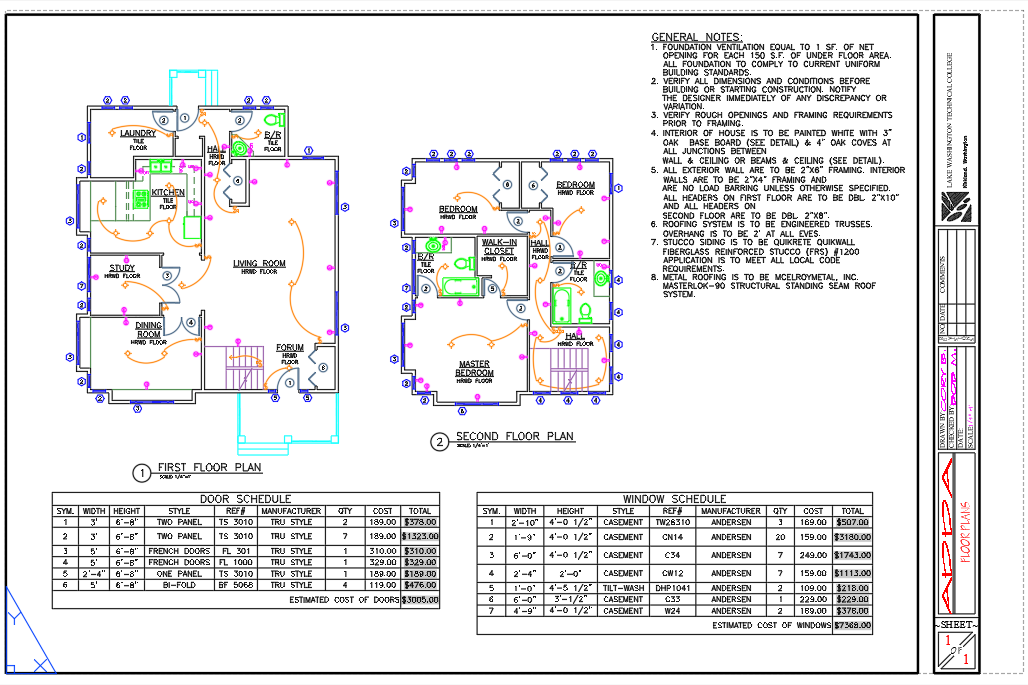
Batch Update Title Blocks in Multiple AutoCAD DWG Files — Values, Revisions and Sheet Numbers
Batch-update DWG title block attributes across multiple AutoCAD drawings at once — change a client name or date, roll the revision on every sheet, or renumber a whole set — with a diff preview and automatic backup, instead of opening each DWG by hand.
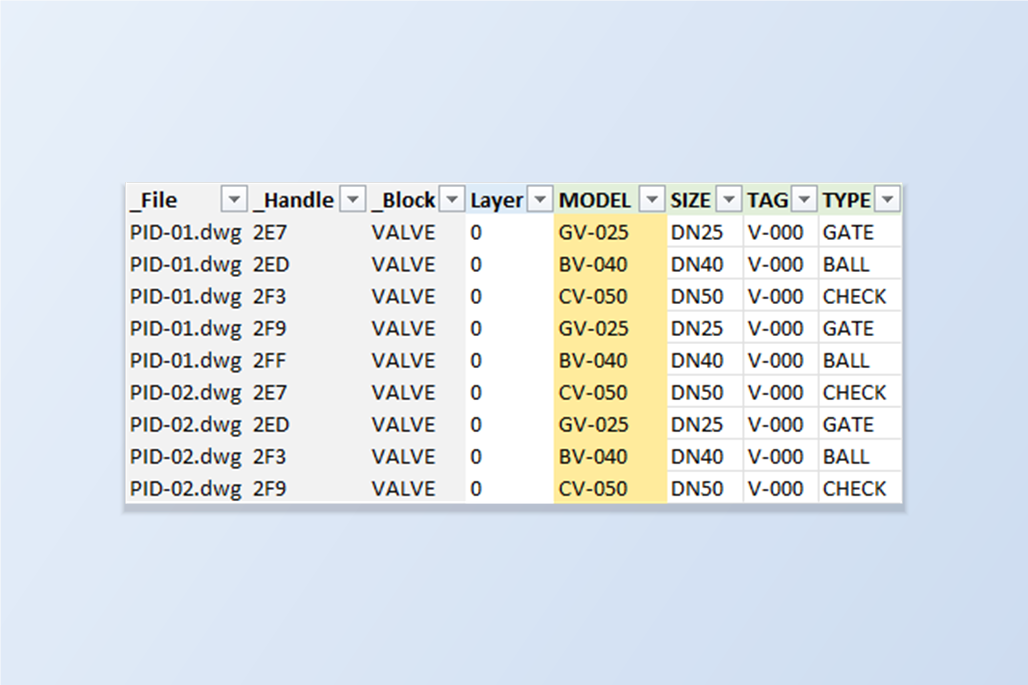
Batch Update Block Attributes in AutoCAD Drawings with Excel — Export, Edit in Bulk, Import Back
Batch update block attributes across AutoCAD DWG files: export to one Excel workbook, edit in bulk, import back with a preview and automatic backup. No LISP.
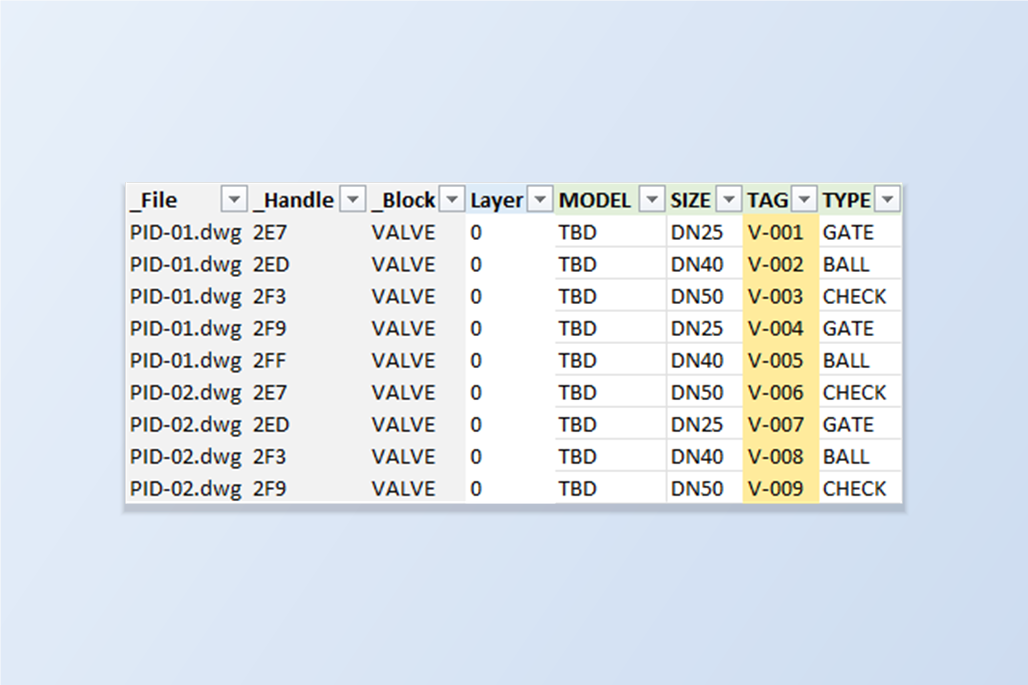
Auto-Number Block Attributes in Multiple AutoCAD Drawings — Sequential Tags Like V-001 to V-028 with Excel
Give the blocks in a whole set of AutoCAD drawings sequential tag numbers, such as V-001, V-002 and so on, either continuing across the drawings or restarting in each one. One Excel formula and BlockSync do it, with a preview and a backup, and without LISP.
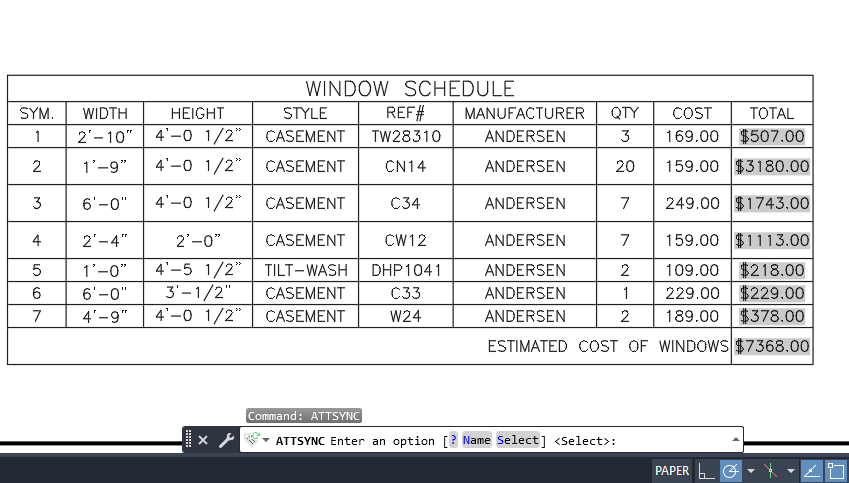
ATTSYNC Cleared My Attribute Values in AutoCAD — How to Update Block Definitions Safely
Why AutoCAD's ATTSYNC resets attribute values and positions after a block is redefined, and how to push a revised block definition into many AutoCAD drawings while keeping every value — with renamed tags mapped instead of lost.
Batch Translate Text and Labels Across Multiple AutoCAD Drawings
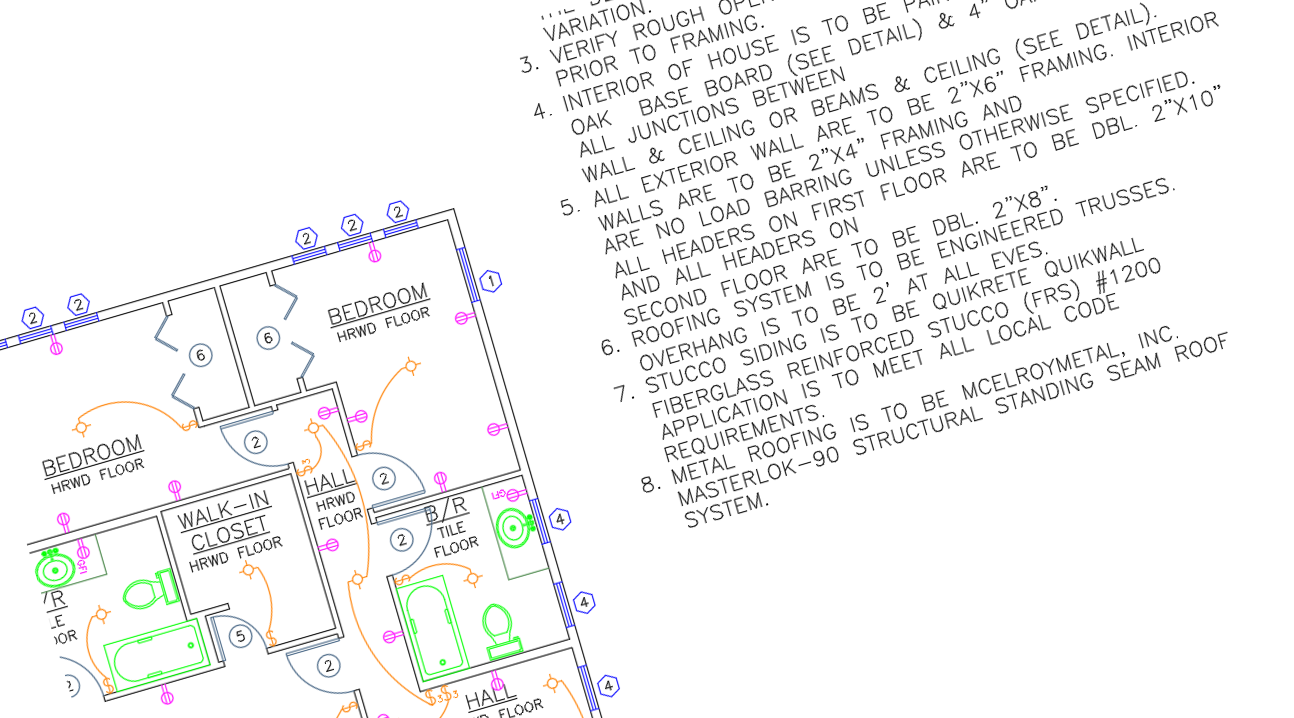
Batch-translate notes and labels across multiple AutoCAD drawings at once — export every text string from a batch of DWGs to Excel, translate it, and write it back to the exact entity it came from.
Fix Missing SHX Fonts Across an Entire AutoCAD Project in One Pass
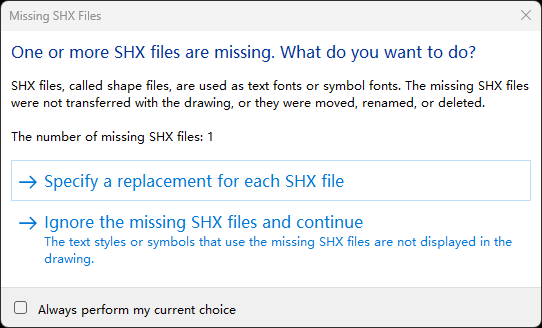
Find every text style that points to a missing SHX font or big font across a whole set of AutoCAD drawings, repoint them to your standard fonts in one write-back, and unify width factors while you're at it — no LISP, no opening each DWG.
Batch Compare Block Attributes Between Two AutoCAD Drawing Revisions
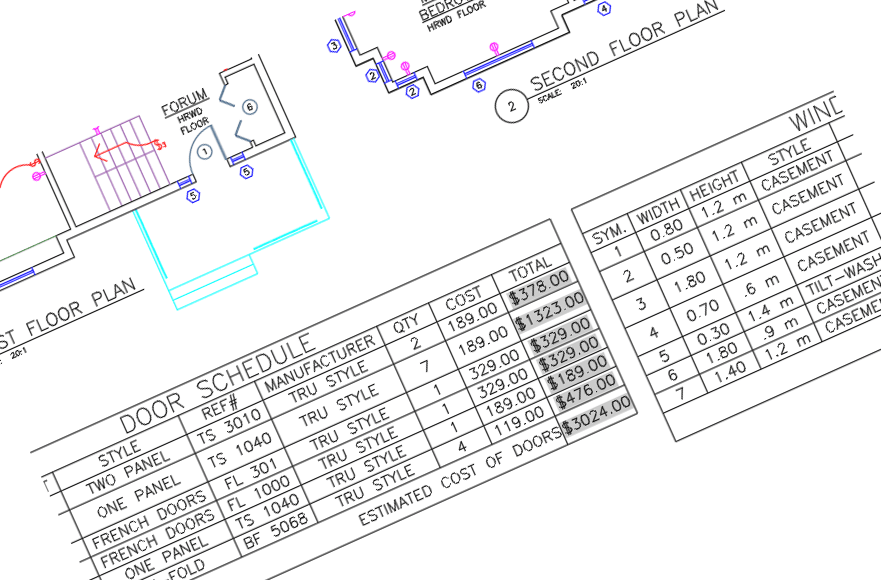
Compare block definitions and attributes between a 'before' and 'after' folder of AutoCAD drawings at once — matched by object handle, with a field-by-field diff and an Excel export, instead of opening both revisions side by side.
Batch Compare Text and Notes Between Two AutoCAD Drawing Revisions
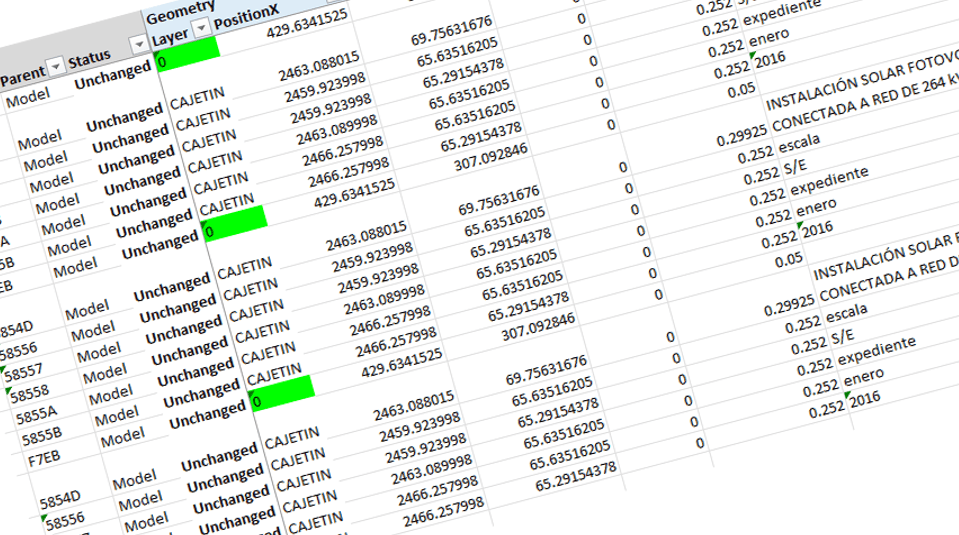
Compare DBText and MText between a 'before' and 'after' folder of AutoCAD drawings at once — matched by object handle, with a field-by-field diff of every wording change and an Excel export.
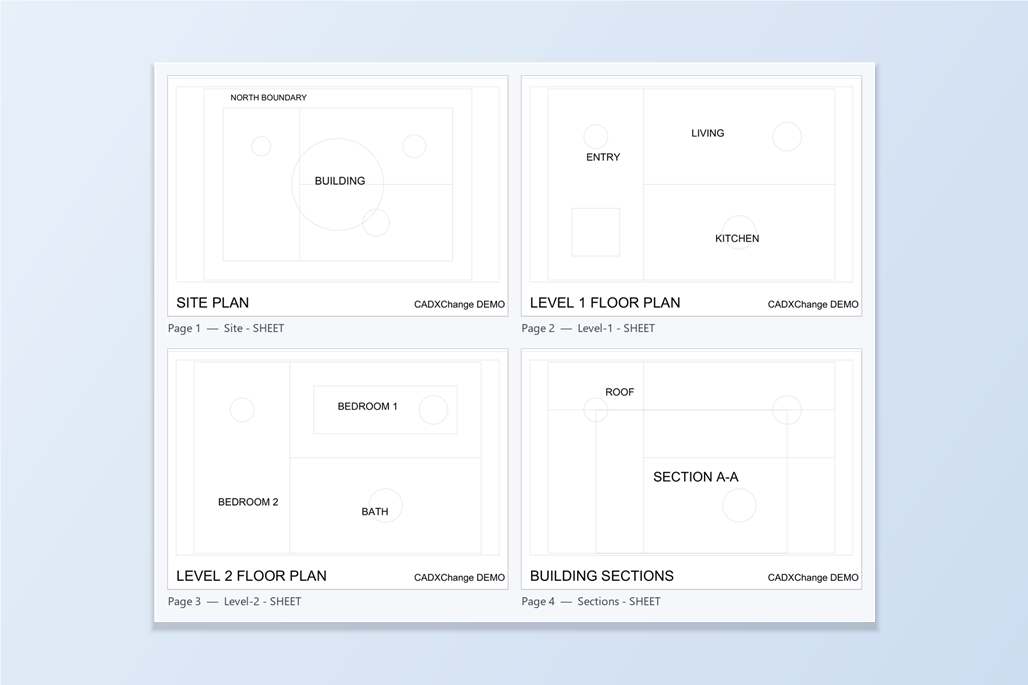
Batch Plot Multiple AutoCAD Drawings to One PDF — In the Order You Choose
Plot the layouts of many AutoCAD drawings into a single merged PDF in exactly the order you set — or one PDF per drawing, or per layout — without rebuilding a PUBLISH sheet list or merging PDFs in another tool afterward.
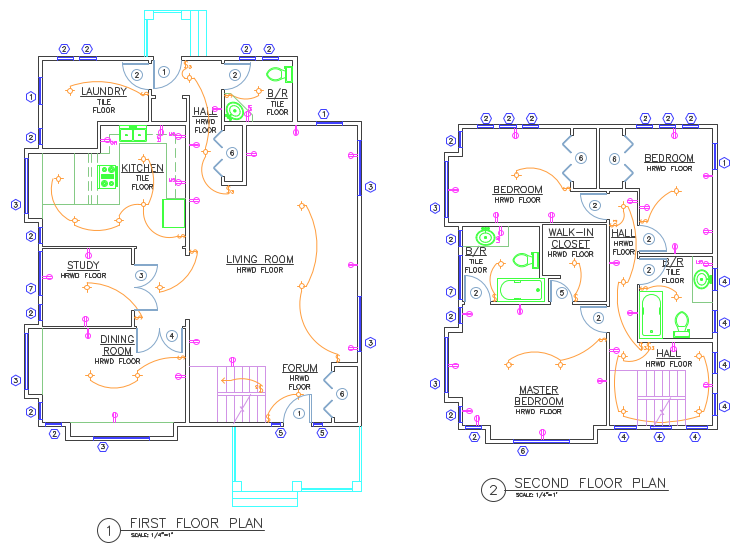
Plot Different CTBs for Different Drawing Types in One Merged PDF
Batch-plot a submittal set where the cover sheet, schedules and product drawings each need their own CTB plot style, and still get out one merged PDF — instead of PUBLISH's single global plot-style setting.
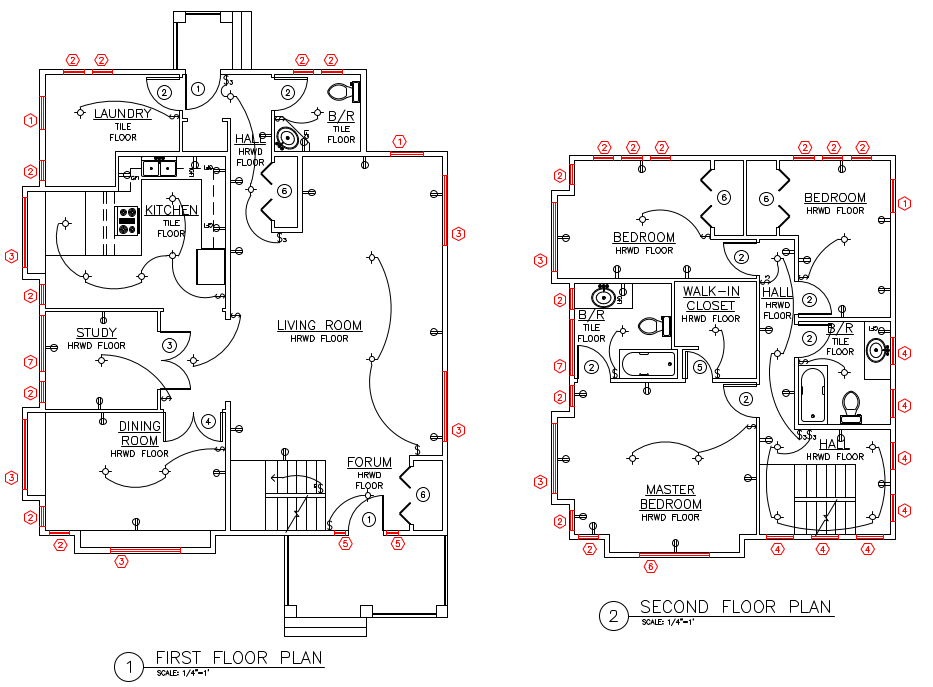
Highlight Just the Layers or Blocks You're Checking — Plot Everything Else in Black
Plot a PDF where only the layers or blocks you're reviewing — new work, a revision, one item type — come out in color, and everything else plots flat black, so what needs attention is obvious at a glance.
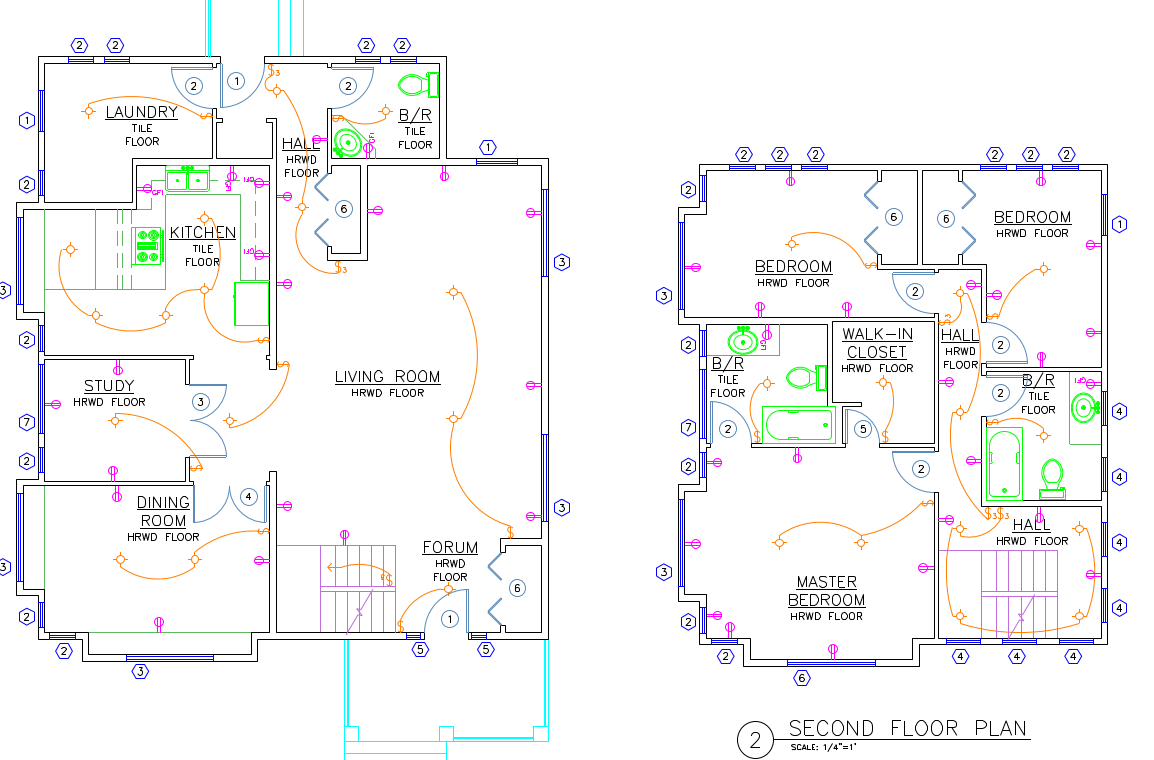
Turn Block Attributes into Searchable PDF Annotations for As-Built Archives
Plot an as-built archive where every block's attribute values — manufacturer, spec, cost, tag — come out as real, searchable PDF annotations over the drawing, instead of flat, unsearchable plotted lines.
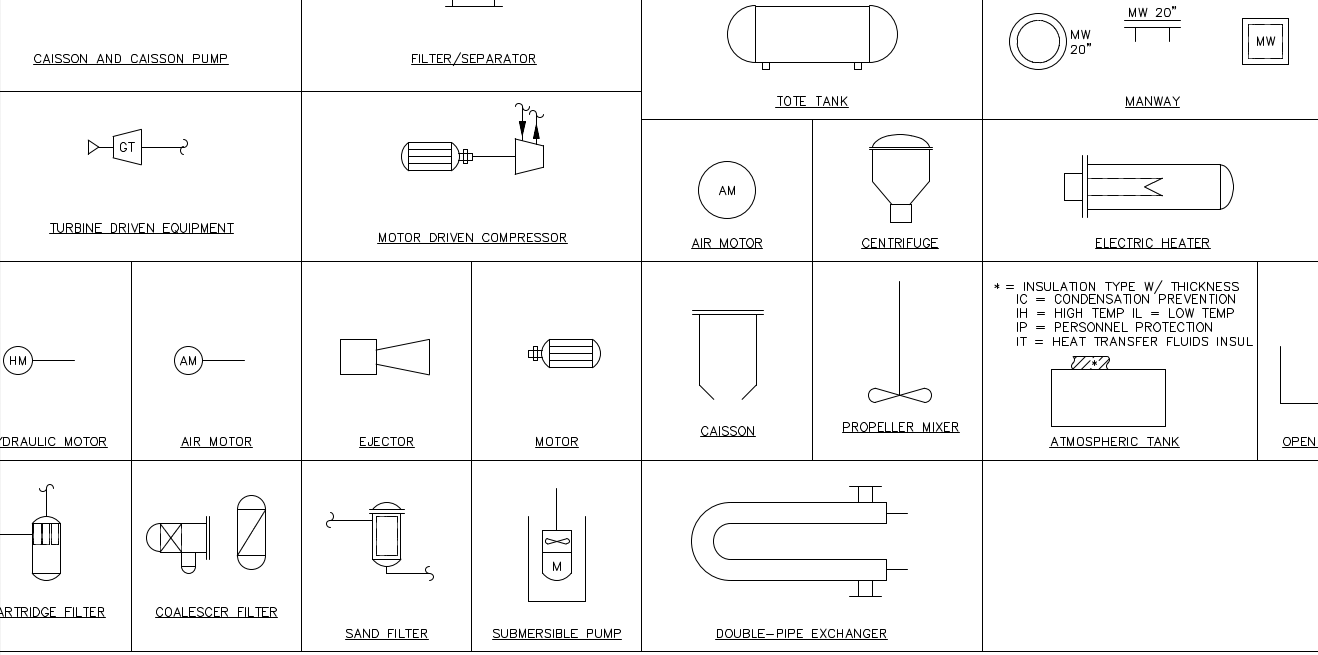
Verify a Procurement List Still Matches the Latest AutoCAD Drawing Revision
Check whether a procurement or bill-of-materials list issued from an earlier drawing revision still matches the current one — which items were added, removed or resized — before design and purchasing drift apart.
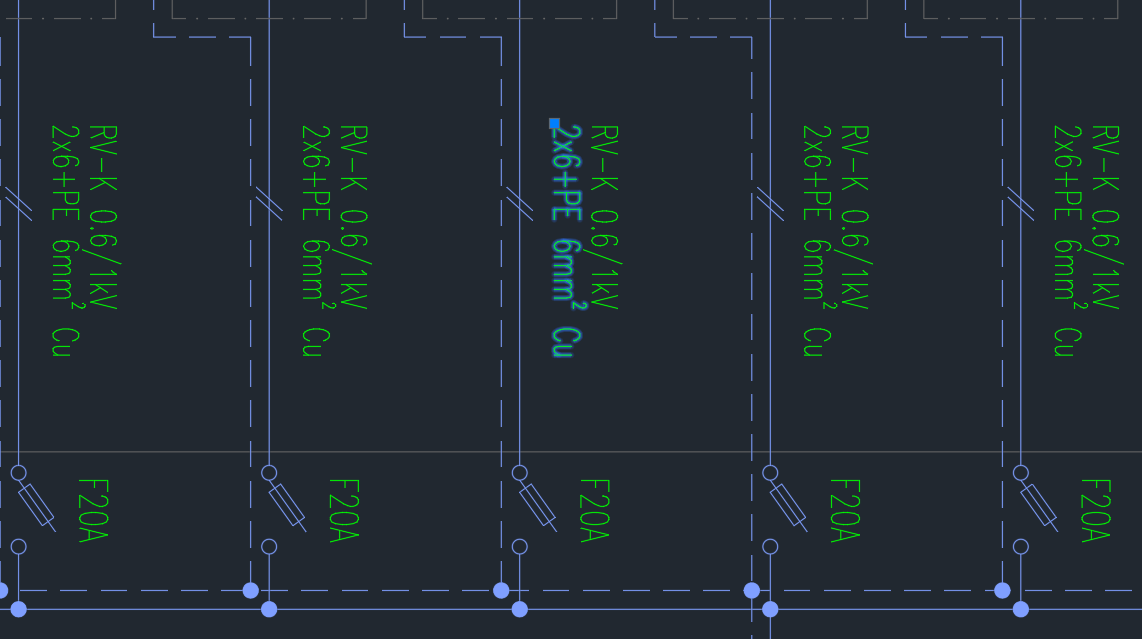
Find and Replace Text Across Multiple AutoCAD Drawings (Without LISP)
Find and replace text across a whole set of AutoCAD drawings at once — export every note and label to Excel, replace with Excel's own Find & Replace using filters, match case and whole-cell matching, then write back only what changed while keeping MText formatting.
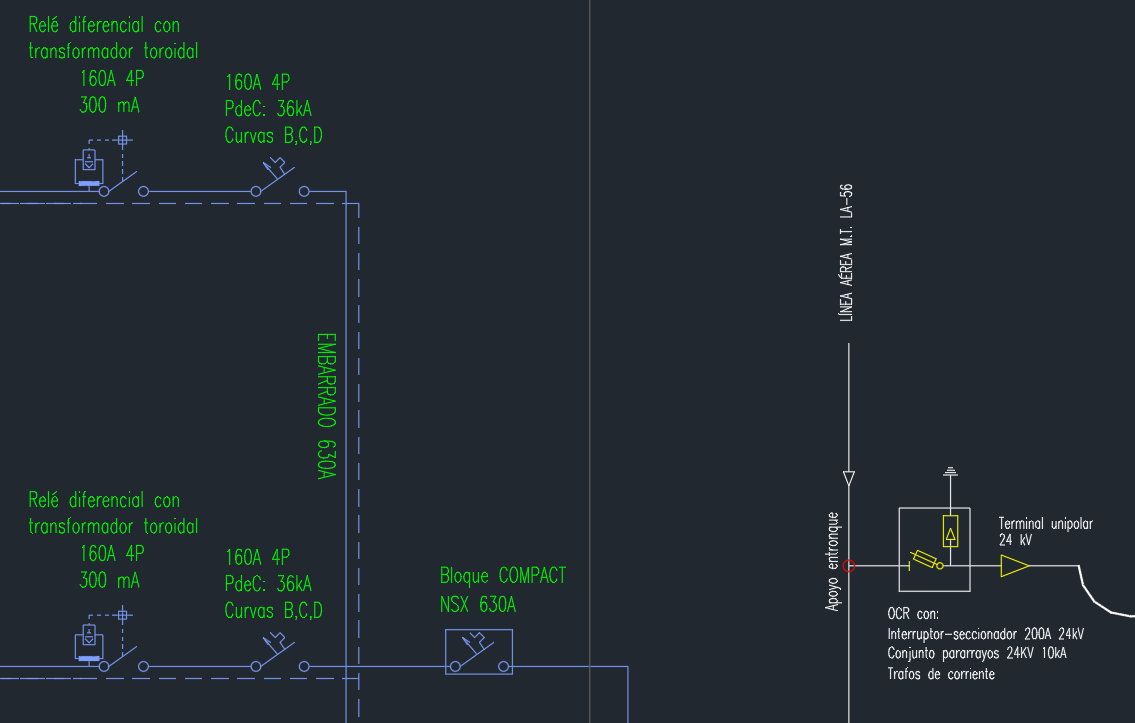
Search Text, Tags and Block Names Across Multiple DWG Files at Once
Find which AutoCAD drawings contain a piece of text, a tag number, an attribute value or a block — across a whole folder of DWG files at once, from a prebuilt index, without opening each drawing.
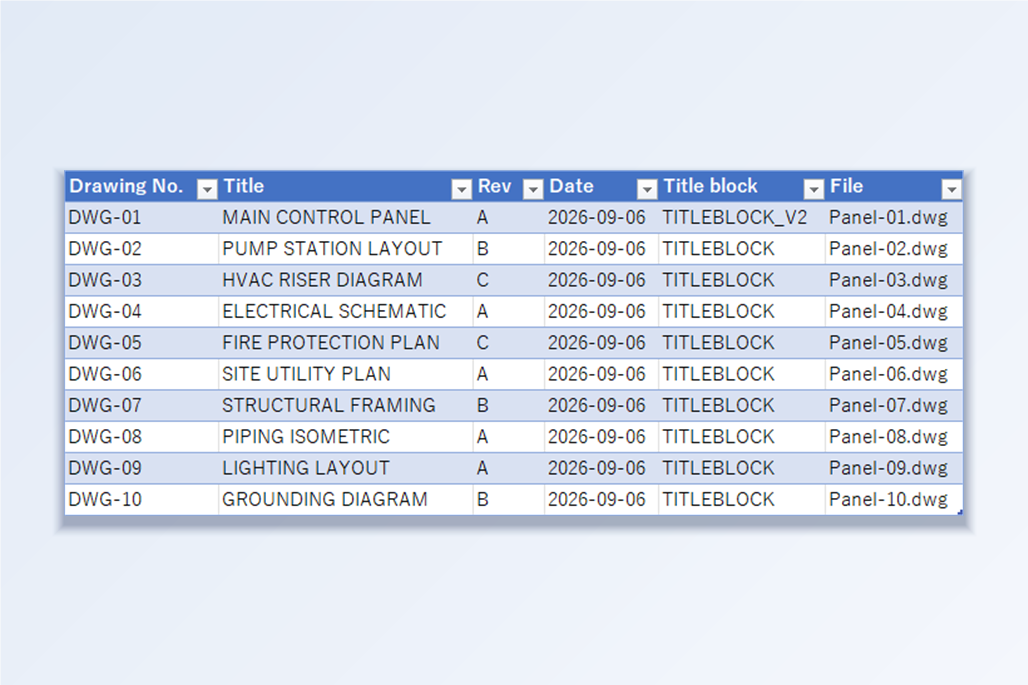
Generate a Drawing Register from Title Blocks — Export Sheet Numbers and Titles from Multiple DWGs to Excel
Build a drawing register (drawing list, sheet index) straight from the title blocks of a whole set of AutoCAD drawings — drawing number, title, revision and date for every sheet in one Excel table — without opening each DWG and without setting up a Sheet Set.
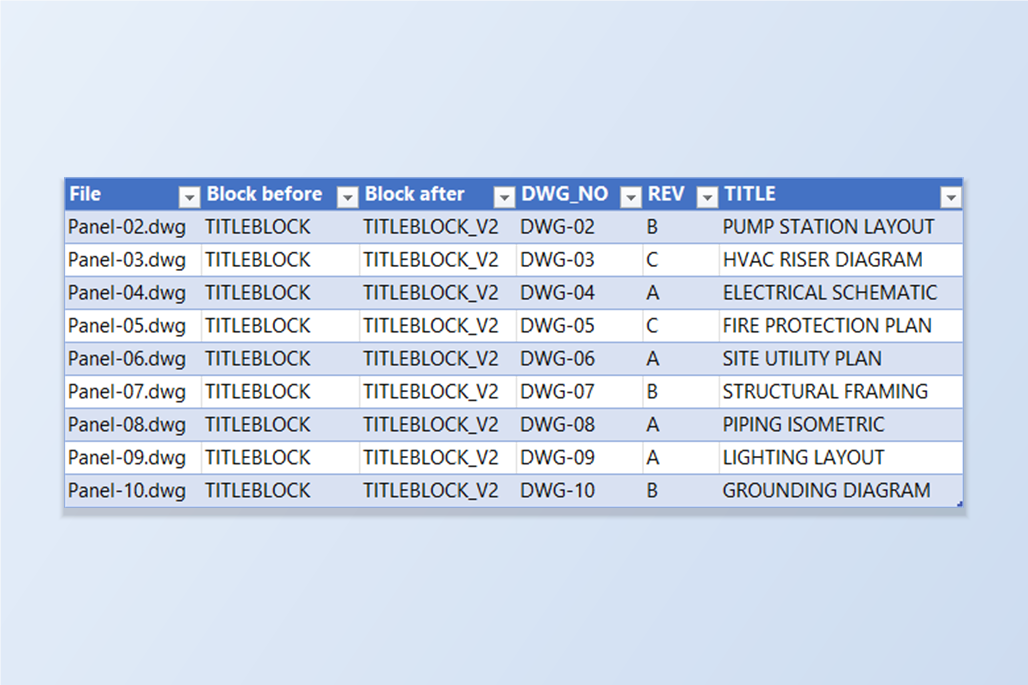
Replace an Old Block with a New One in Multiple Drawings — Swap a Title Block, Logo or Symbol in Every DWG
Swap one block definition for another in a whole set of AutoCAD drawings in a single run — every reference keeps its position, rotation, scale, layer and attribute values — with a backup first and no LISP or drawing-by-drawing BLOCK/REPLACE.
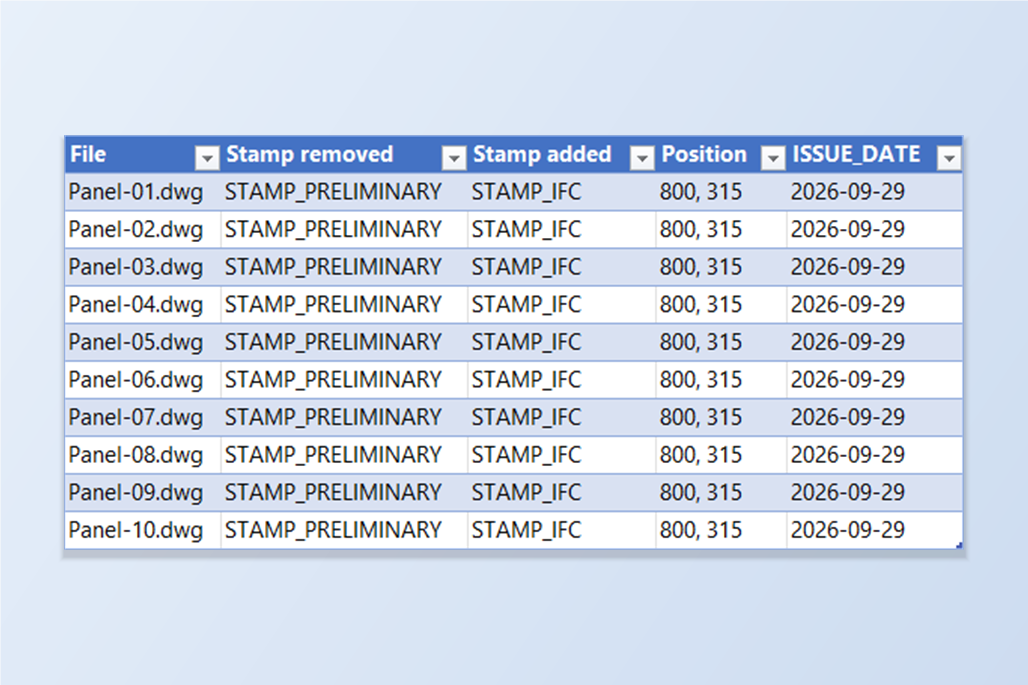
Add or Remove a Stamp Block in Every Drawing — Batch 'PRELIMINARY' and 'Issued for Construction' Stamps Across a Drawing Set
Put a status stamp such as PRELIMINARY or ISSUED FOR CONSTRUCTION into every drawing of an AutoCAD set at the same position with its date filled in, then remove or swap it when the status changes — in a few runs, with backups, instead of drawing by drawing.
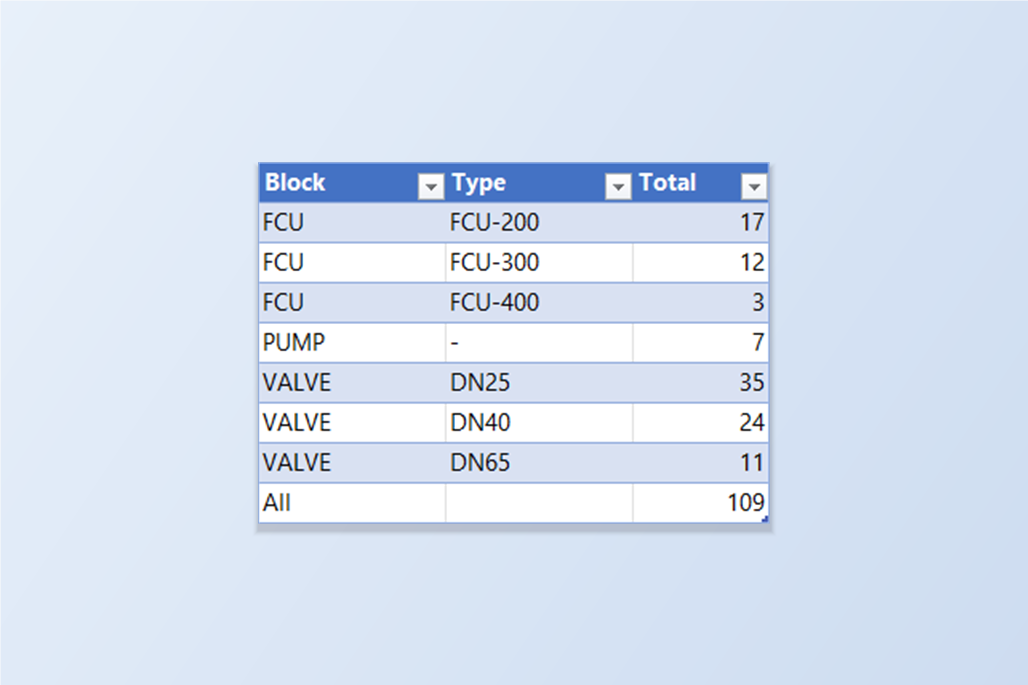
Count Blocks Across Multiple Drawings — Build a BOM / Material Take-Off in Excel from a Whole Drawing Set
Count how many times each block, and each variant of it, appears in every drawing of an AutoCAD set — one Excel pivot table with per-drawing and total counts, without opening the drawings or running COUNT on each one.
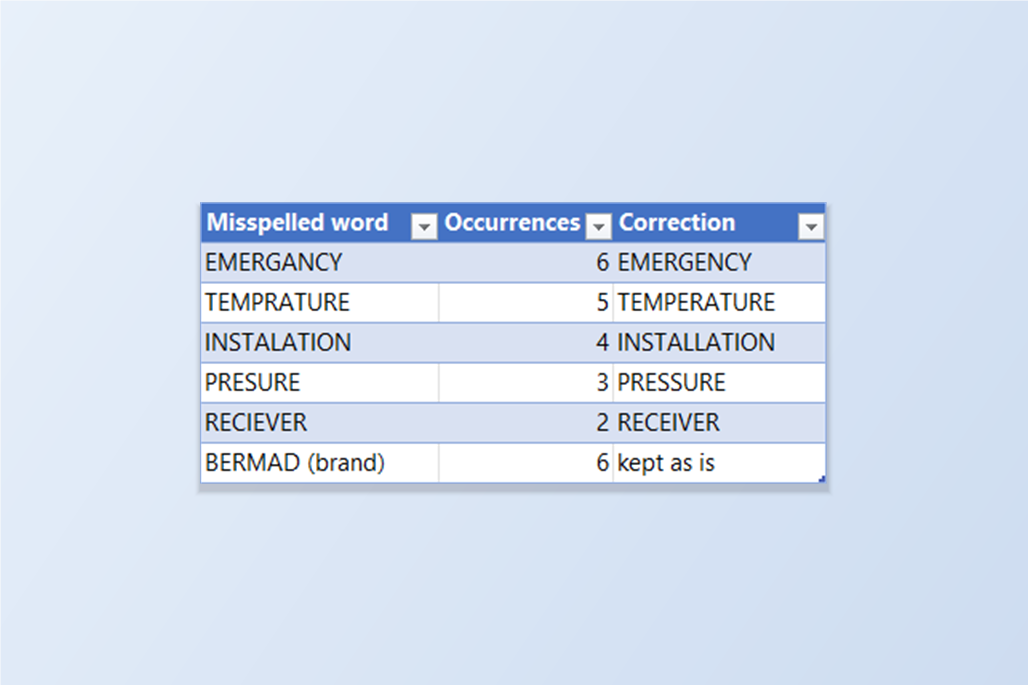
Spell-Check Multiple AutoCAD Drawings at Once — One Decision per Misspelled Word, Corrections Written Back to the DWGs
Run a spell check across a whole set of AutoCAD drawings: every misspelled word is listed once with its occurrences and suggestions, you decide once, and the corrections are written back to the DWGs with a backup — with part numbers, tags and abbreviations left alone.
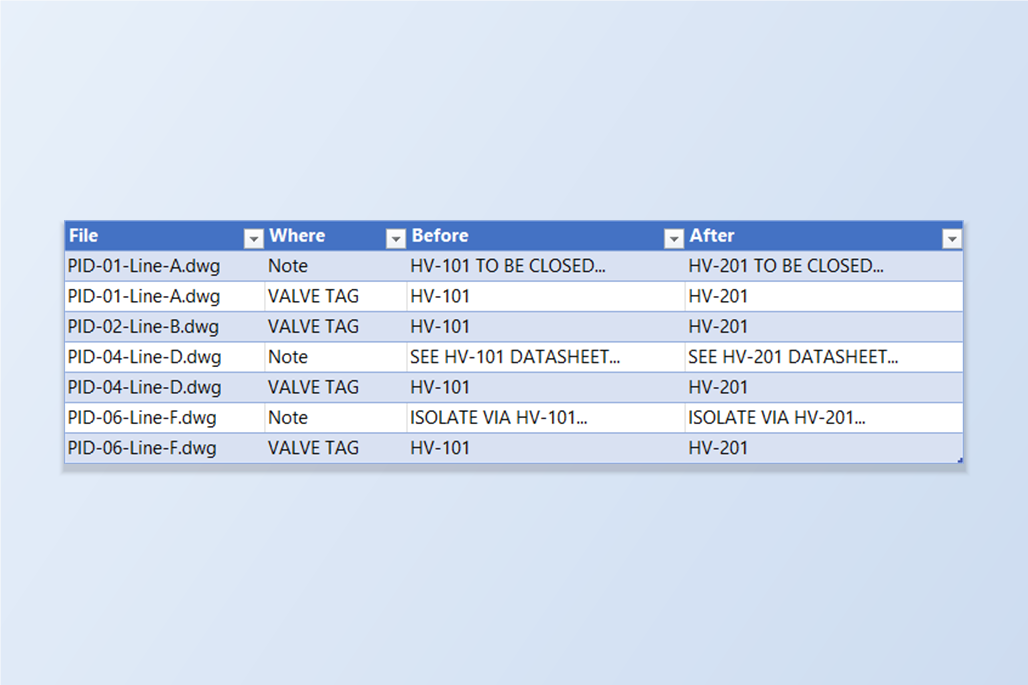
Find Every Drawing That Mentions a Tag, Then Change It in All of Them — Search, Edit in Excel, Write Back
A tag number changes and it appears in attributes and notes across dozens of AutoCAD drawings. Find every occurrence with DwgSearch, edit them once in Excel, and write the change back into the DWGs with BlockSync and TextSync — with backups and a check at the end.
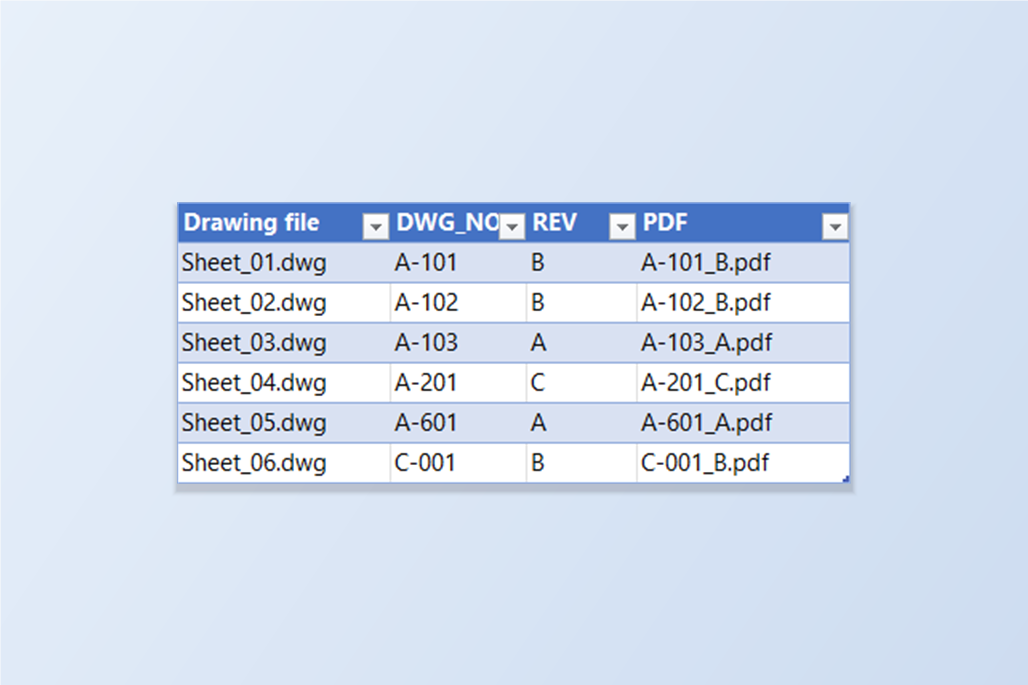
Name Batch-Plotted PDFs by Drawing Number and Revision — Instead of the DWG File Name
Plot a set of AutoCAD drawings to PDF with file names built from each drawing's own properties — A-101_B.pdf, not Sheet_01.pdf — one PDF per drawing or one per layout, without renaming anything by hand afterwards.
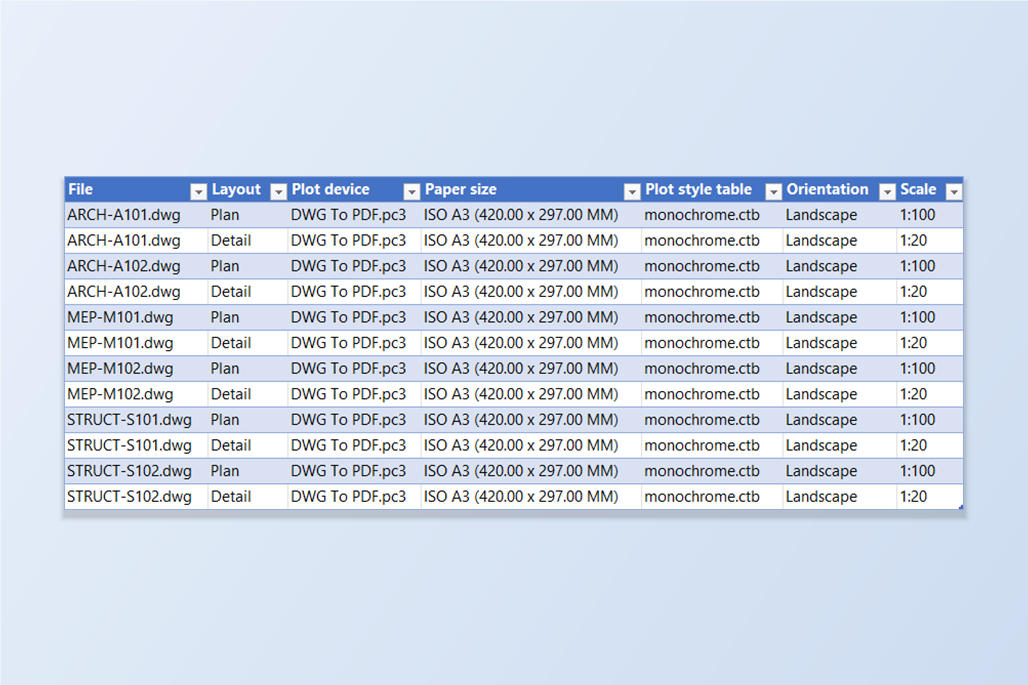
Change Page Setup in Multiple AutoCAD Drawings at Once — Plot Device, Paper Size, CTB and Scale
Give every layout in a whole set of AutoCAD drawings the same plot device, paper size, plot style table, orientation and scale in one run — pick the layouts by name, preview each change and keep a backup — instead of opening the Page Setup Manager drawing by drawing.
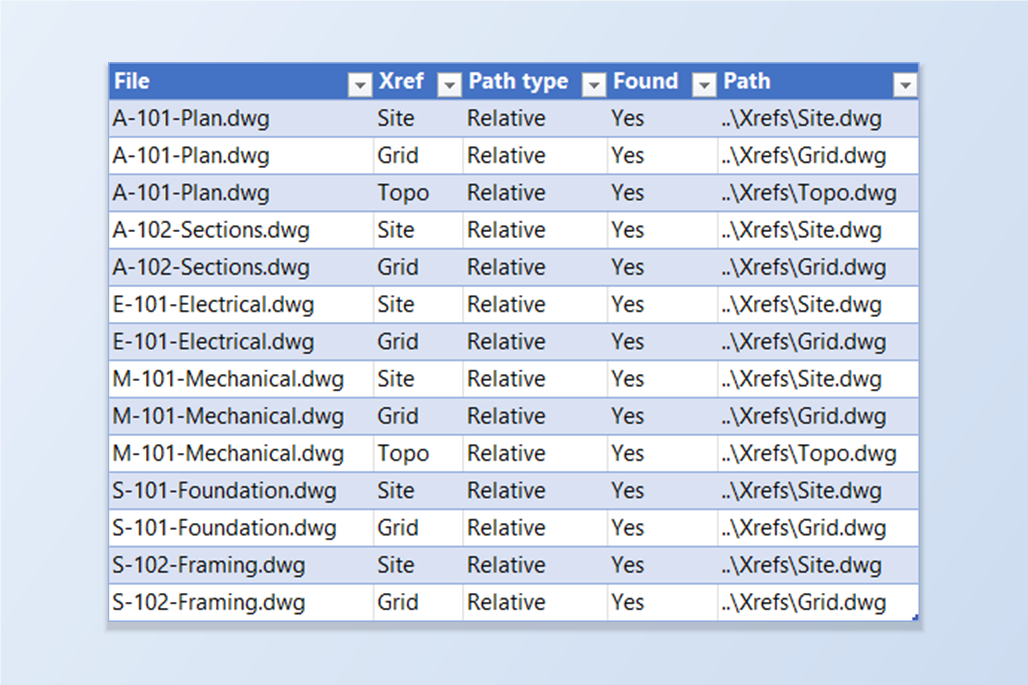
Fix Xref Paths in Multiple AutoCAD Drawings at Once — After Moving a Project, Make Paths Relative
Change the saved xref paths in a whole set of AutoCAD drawings in one run: replace an old server folder with the new location, or turn full paths into relative ones, so the references are found again after a project is moved. Preview every change and keep a backup.
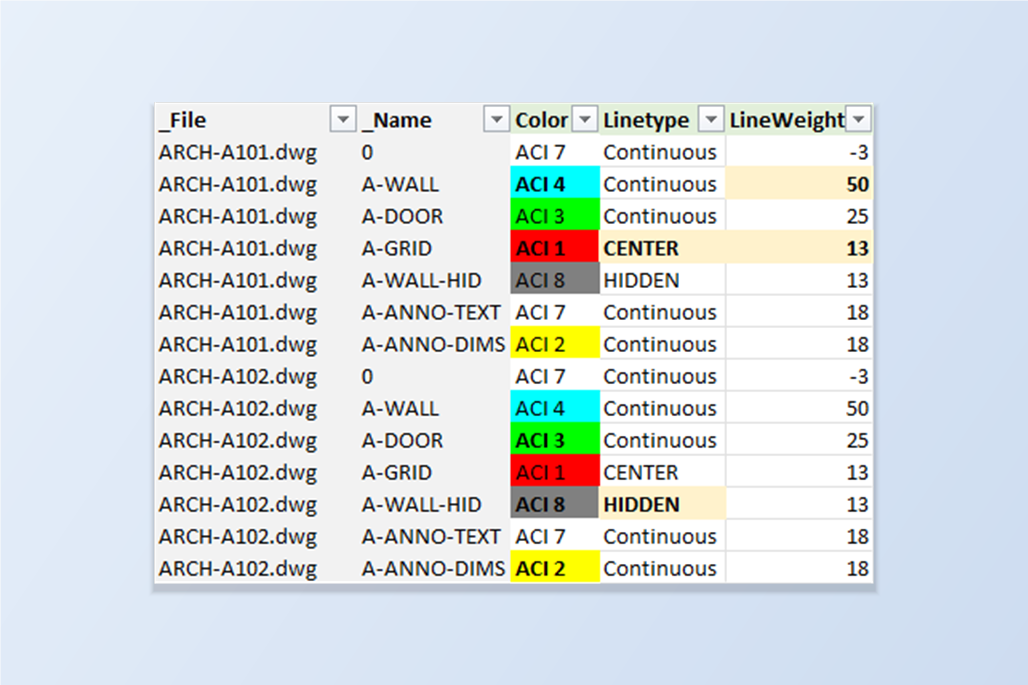
Set Layer Color, Linetype and Lineweight to Your Standard Across Many AutoCAD Drawings
Make the same layer look the same in every drawing — type your color, linetype and lineweight standard once in Excel, apply it to a whole set of AutoCAD drawings in one run, and check every change in a preview before anything is written.
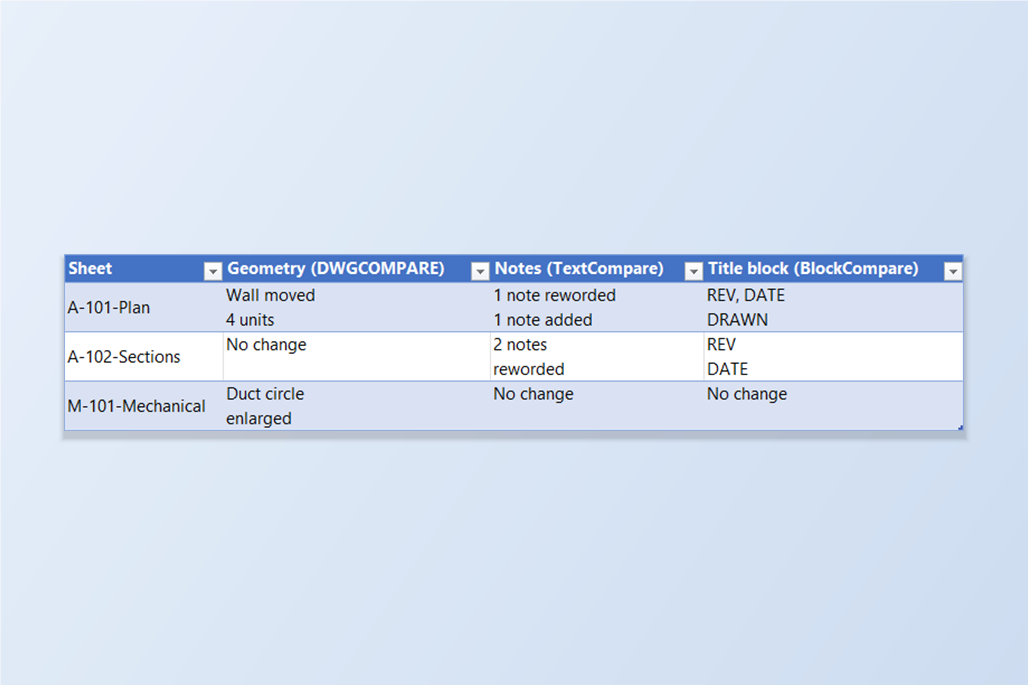
Compare Two AutoCAD Drawings and Find What Changed — Then Do It for a Whole Revision Set
Use DWGCOMPARE to see geometry changes between two AutoCAD drawings, and when you need the exact old and new wording of every note or the changed attributes of every title block across a whole set of drawings, compare two folders at once.
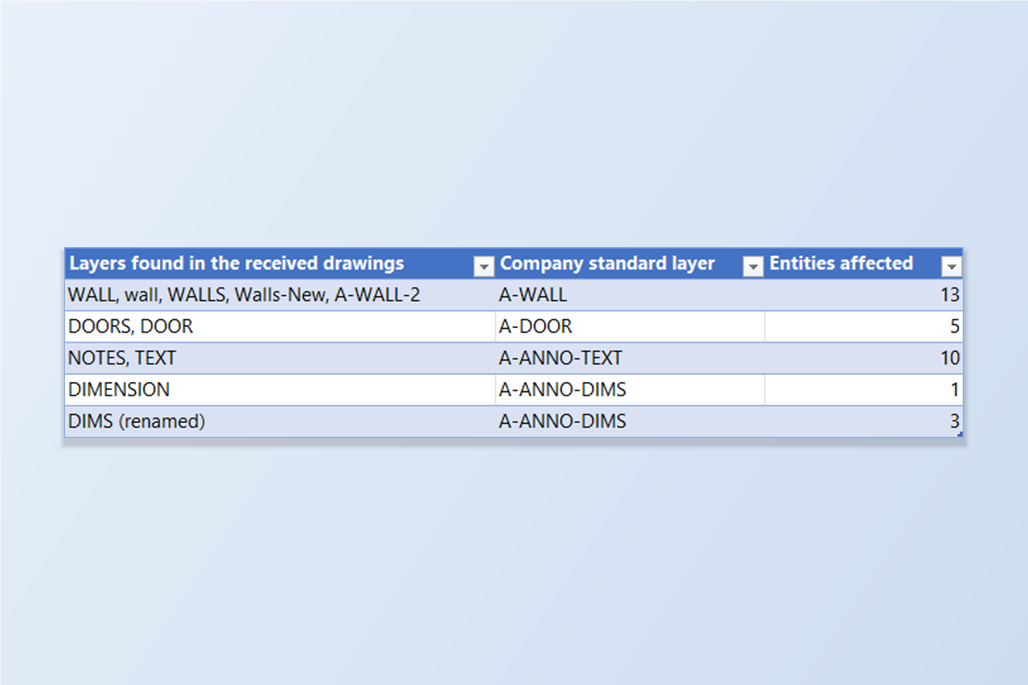
Rename and Merge Layers Across Many Drawings to Your Company Layer Standard
Bring AutoCAD drawings from different consultants into line with your layer standard — merge WALL, Walls-New and wall into A-WALL in every drawing at once, from one Excel sheet, with a preview before anything is written.
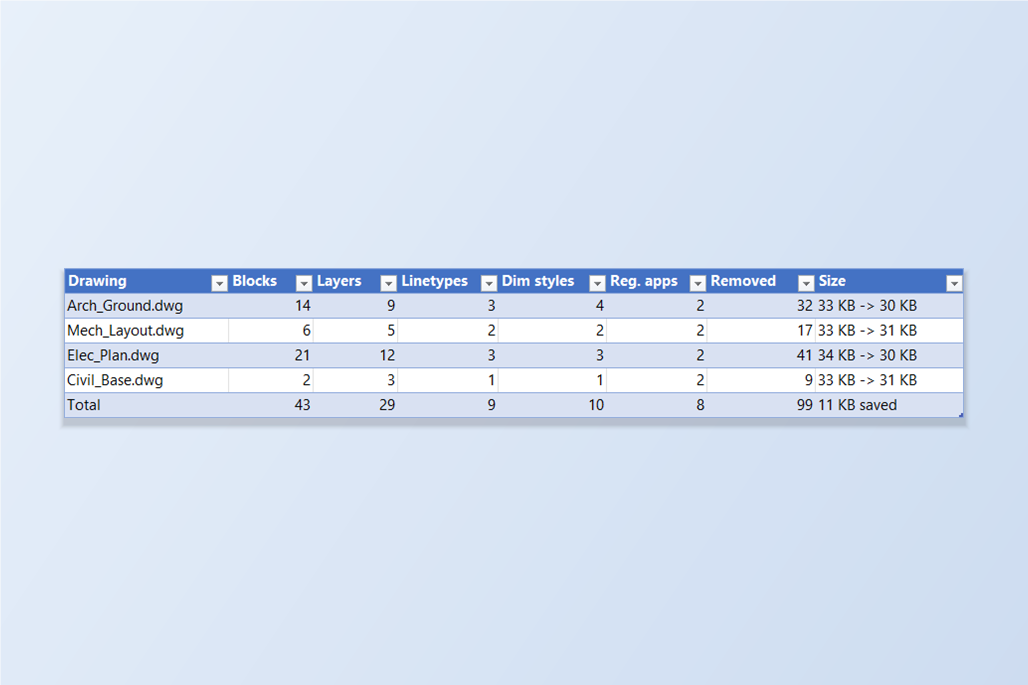
PURGE a Whole Folder of Received Drawings at Once — Blocks, Layers, Linetypes and Styles
Clean up unused blocks, layers, linetypes, dimension styles and other definitions in a folder of AutoCAD drawings in one run — see what would go per drawing first, with a backup taken before anything is written.
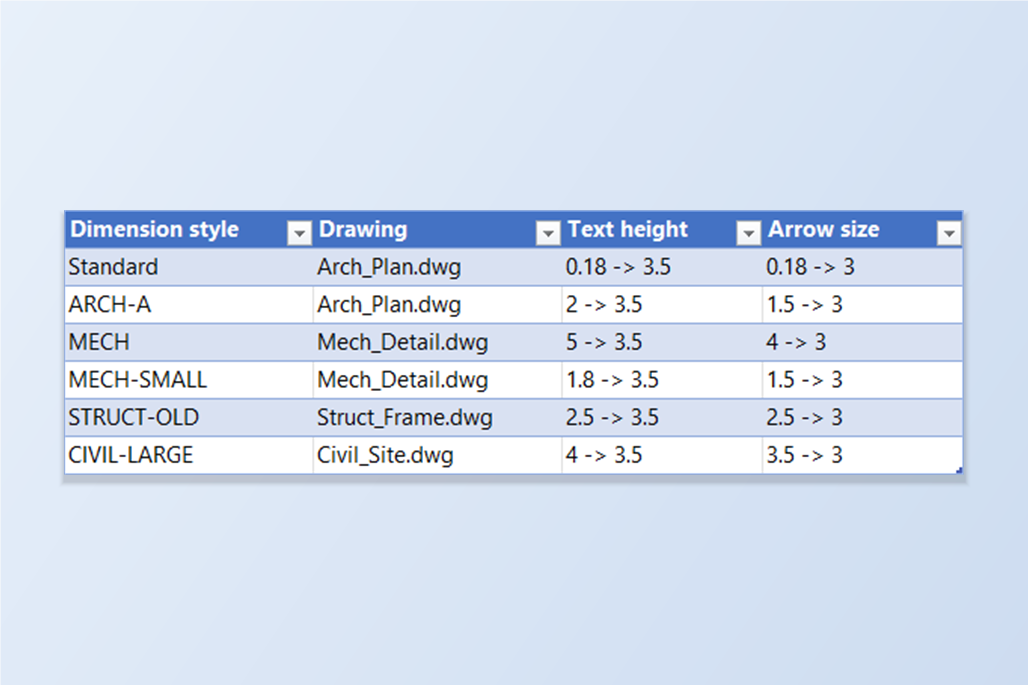
Unify Dimension Text Height and Arrow Size Across a Whole Drawing Set
Set the same dimension text height and arrow size in every dimension style of every AutoCAD drawing in one run — from one bar in LayerSync, with a preview of each change before it is written.
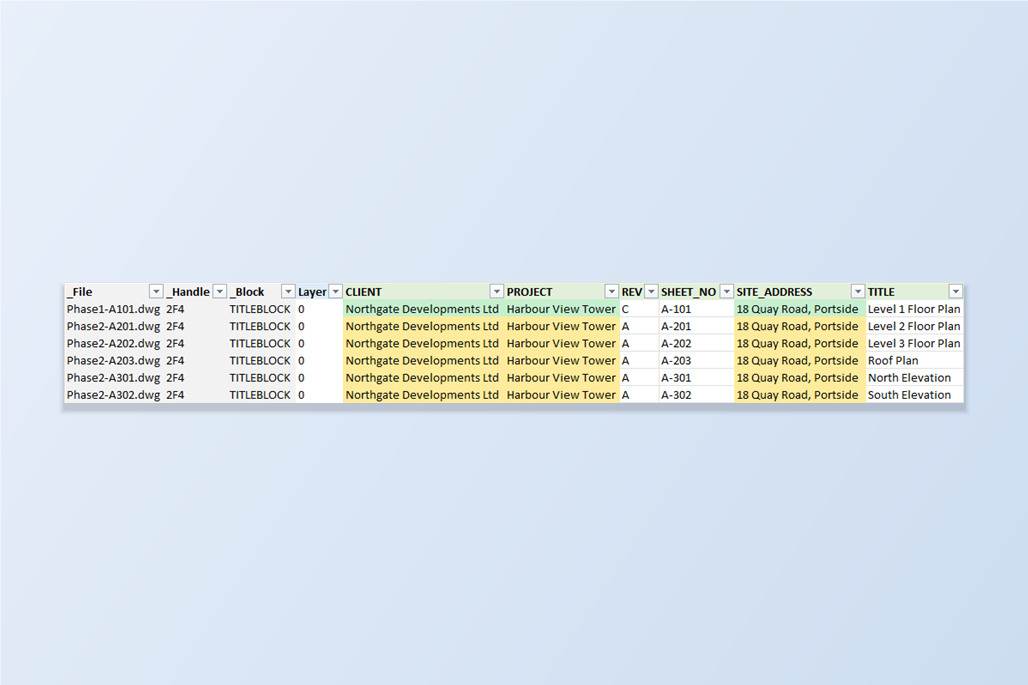
Copy Block Attribute Values from One AutoCAD Drawing to Many — Project Details, Client and Address
Copy attribute values — project name, client, site address — from one drawing's title block into the title blocks of many other drawings, without LISP and without touching each sheet's own number, title or revision. Export to Excel, fill down, preview, write back.
Edit Block Attributes in Multiple DWG Files — AutoCAD's Built-In Methods and When Each One Runs Out
How to edit block attributes across many AutoCAD drawings: what ATTEDIT, sheet sets with fields, scripts, ATTOUT/ATTIN and LISP can and can't do, and how an Excel round trip with BlockSync handles a different value in every drawing.
How to Plot Many AutoCAD Drawings to PDF at Once — PLOT, PUBLISH and Dwg2Pdf Compared
Plotting dozens of AutoCAD drawings to PDF: what Ctrl+P and PUBLISH can do, where setup, page order, bookmarks and attribute data get in the way, and how Dwg2Pdf handles a whole batch from one screen.
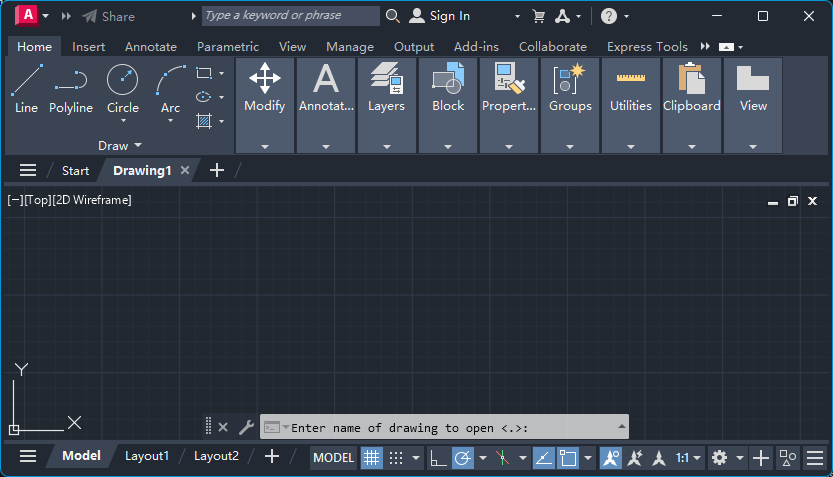
AutoCAD Open File Dialog Not Showing? Open Button Does Nothing — Fix FILEDIA = 0
The AutoCAD open file dialog is not showing: clicking Open or pressing Ctrl+O does nothing but print a prompt on the command line. The cause is the FILEDIA system variable set to 0. Here is how to check it, turn the dialog back on, use the ~ shortcut, and stop it happening again.