
Rehberler/Drawing standards
PURGE a Whole Folder of Received Drawings at Once — Blocks, Layers, Linetypes and Styles
 LayerSync ile hazırlandı
Güncelleme: September 29, 2026
Drawings arrive with everything their authors ever used: blocks nobody inserts any more, layers that were created for one xref, linetypes and dimension styles loaded from a template. Before they are archived, reused or passed on, they should be purged — in every drawing.
PURGE works on the drawing that is open, and one pass is rarely enough: removing an unused block frees the layers and linetypes it was the only user of, so you run it again, and again, until it reports nothing. For a folder of forty drawings that is forty files opened, forty rounds of PURGE, and nothing that tells you afterwards what was removed.
This guide uses LayerSync's Clean Up mode. It analyses each drawing without changing it, repeating the purge in memory until nothing more can be removed, shows what would go per drawing and per category, and only then cleans — with a backup first. The example is four received drawings; the Free tier handles up to 10 drawings per run.
1. Add the drawings and read the analysis
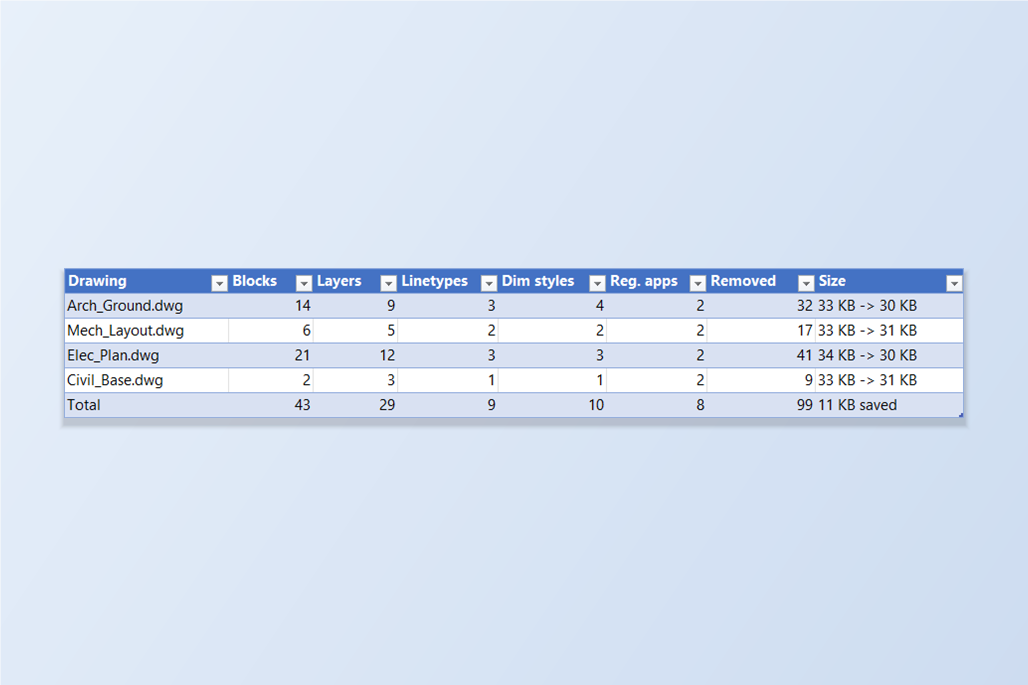
Open LayerSync, switch to Clean Up, and add the drawings with Add Files… or Add Folder…. Each file is analysed as soon as it is added; the file on disk is not touched. The table gives, per drawing, what can be removed by category — blocks, layers, linetypes, text styles, dimension styles, other styles and materials, registered apps — with the total and the file size.
The categories to remove are the checkboxes above the table. Everything that is only a definition is on by default. Two are off, because they delete drawing content instead of unused definitions: Zero-length lines, arcs and polylines, and Empty text. Here 99 objects can be removed across the four drawings.
2. Look at exactly what would be removed
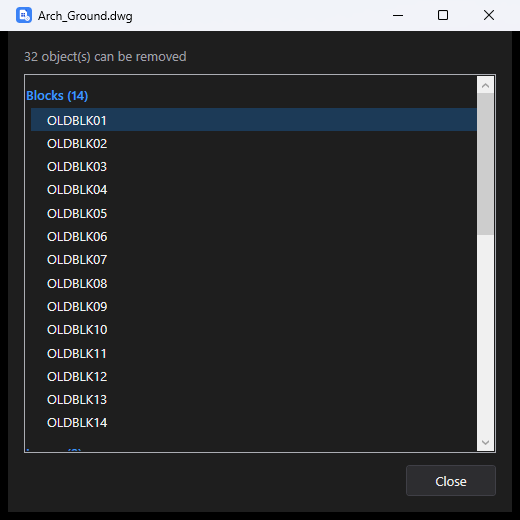
Double-click a drawing, or click Details in its row, to list every item that would be removed, grouped by category — OLDBLK01 to OLDBLK14 under Blocks, then the layers, the linetypes and the dimension styles. Because the analysis performs the whole purge in memory, items that only become unused after others go — a layer used only by an unused block, say — are already in the list, so the counts are the final ones, not the first pass.
If something on the list should stay, change the categories and click Analyze to run the analysis again; changing the options or the file list marks the old counts as out of date until you do.
3. Clean, with a backup first
Leave Automatic backup on and click Clean Now. A confirmation states how many files and objects are about to change. Each file is copied, unmodified, to the backup folder first; if the backup fails, that file is not touched. Then the file is purged and saved, and the saved file is analysed again to confirm nothing removable is left.
The Details column now reads, per drawing, how many objects were removed and how much smaller the file got, and the status line adds up the run: 4 files cleaned, 99 objects removed, 11 KB saved. Roll Back All restores the originals from the backup.
4. Confirm with a second analysis
Add the same files again. The analysis now shows zeros in every column and Nothing to clean for all four drawings, at 30 and 31 KB instead of 33 and 34 KB. The size drop here is small because the sample drawings are small; the unused definitions in a real project drawing are what make the difference.
5. Check that the drawing content is still there
Purging removes definitions nothing uses, so what the drawings actually contain is unchanged. In AutoCAD → Excel mode the four drawings now have 16 layers between them — layer 0 and the three that hold the drawing's walls, text and equipment — with the same object counts as before, for example 6 objects on A-WALL in Arch_Ground.dwg.
What is always kept: layer 0, Defpoints and the current layer, anything that depends on an XREF, the Standard text and dimension styles, anonymous and layout blocks, and any block that is still referenced. Zero-length geometry and Empty text — the two options that are off by default — only look at model space and paper space, and skip text that contains a field, attribute definitions and anything on a locked layer; turn them on only when you have looked at the counts.
Clean Up does PURGE only. It does not run AUDIT, because the AutoCAD .NET API has no equivalent that works on a drawing opened in the background. To try it on your own drawings, download LayerSync — the Free tier covers up to 10 drawings per run. For a walkthrough of every screen and setting, see the LayerSync docs.