
Rehberler/Drawing standards
Fix Xref Paths in Multiple AutoCAD Drawings at Once — After Moving a Project, Make Paths Relative
 LayerSync ile hazırlandı
Güncelleme: September 30, 2026
An external reference is saved in each drawing as a path, and that path is only as good as the folder layout it was made in. Move a project to a new server or drive, hand it to a consultant, or rename a top folder, and every reference that was attached with a full path such as D:\OldServer\Project\Xrefs\Site.dwg comes up as not found.
AutoCAD's External References palette works on the drawing that is open, so repairing a set of forty drawings means opening each one, re-pointing every reference, saving, and hoping the path type comes out relative rather than full. It is slow, and easy to miss one.
This guide uses LayerSync to list the xrefs of a whole set with their saved paths and whether AutoCAD finds them, change the paths in bulk, and write them back with a preview and a backup. The example is six drawings with fourteen references, twelve of them still pointing at the old server. The Free tier handles up to 10 drawings per run.
1. Scan the drawings and see which xrefs are not found
Open LayerSync, add the drawings with Add Files… or Add Folder…, and let it scan them. Collapse the Files list and open the Xrefs tab. It has one row per external reference attached directly to a drawing, with the drawing, the xref name, its Type (Attach or Overlay), its Path type (Full, Relative or None), whether it is Found, the Current path as saved in the drawing and an editable New path.
Found means that AutoCAD finds the file on this computer, resolving the saved path the way it does when it opens the drawing. Here the twelve references that use D:\OldServer\Project\Xrefs are not found, while two Grid references that already use ..\Xrefs\Grid.dwg are.
2. Replace the old folder in every path
The bar above the grid is Change paths of shown xrefs. Its three buttons act on every xref the search currently shows. Type OldServer into Search so only the references that use the old server are listed. The search matches the xref name, its path or the drawing's file name, and accepts wildcards.
Put D:\OldServer\Project\Xrefs in Find and ..\Xrefs in Replace with, then click Replace in shown. Each path is changed by replacing that text, case-insensitively, and the message next to the buttons reports it: 12 paths changed. The New path column now shows ..\Xrefs\Site.dwg, ..\Xrefs\Grid.dwg and so on, which means the folder Xrefs next to the folder that holds the drawing.
The other two buttons are for other cases. Make relative and Make full path use the file AutoCAD found on this computer, so a reference it could not find is skipped, and so is a file on another drive than the drawing, where no relative path exists. The message says how many were changed and how many skipped.
3. Preview before anything is written
Clear the search and click Write Directly…. LayerSync compares every edited path with the one in the drawing and lists each change on the Diff Preview screen. It reports 6 files previewed, 12 changes and 0 blocked. Select a drawing and open its Xrefs tab to see the paths: in A-101-Plan the Site, Grid and Topo references change from D:\OldServer\Project\Xrefs\… to ..\Xrefs\….
A path with a character Windows doesn't allow is listed as Cannot write. A new path that does not exist on this computer is still written, because a server or another machine's location is a normal target, but the preview shows the reason so a typo doesn't go unnoticed. Nothing is written until you confirm.
4. Write the paths
Click Write Selected Files and confirm. With Automatic backup checked, LayerSync copies each drawing to a backup folder first, writes the new paths and saves, then reads every changed path back out of the saved drawing. The report shows 6 files succeeded, 0 failed and 0 read-back mismatches, and where each backup went.
Rollback All on the same screen restores every drawing in the run from its backup, and Restore Backup… does the same later. Only the saved path changes: the references are not reloaded, and their type and insertion stay as they are.
5. Check that the references are found
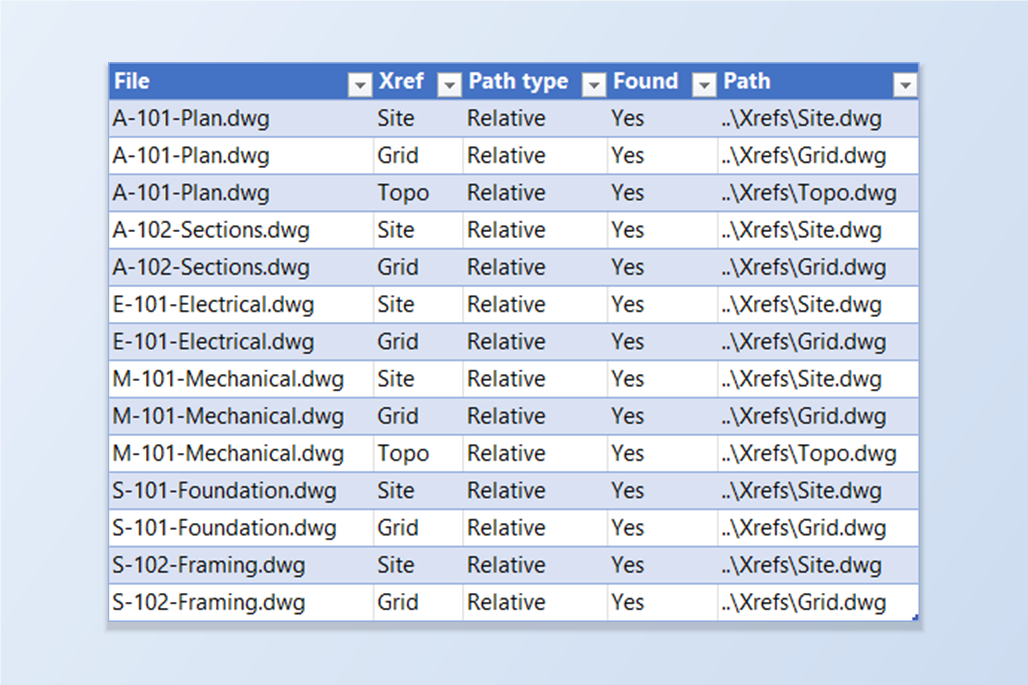
To check it independently, scan the drawings again. In this example all fourteen references now use the relative path ..\Xrefs\Site.dwg, ..\Xrefs\Grid.dwg or ..\Xrefs\Topo.dwg, and every one has its Found box ticked.
Because the paths are relative, the project can now be moved again, or handed over, as long as the Sheets and Xrefs folders stay side by side.
The same edit can be made in Excel: Export to Excel… adds an Xrefs sheet with the same information columns, and NewPath, filled with the current path, is the one to change. Edit it with any Excel technique, then use the Excel → AutoCAD screen to preview and write back. A column you delete is simply not written.
A few limits are worth knowing. Only references attached directly to a drawing are listed; a reference inside a referenced drawing belongs to that drawing, so add it to the batch to change it. Found describes this computer, not another one. Image and PDF underlays are not changed. For a full walkthrough of every screen and setting, see the LayerSync docs. To try it on your own drawings, download LayerSync — the Free tier covers up to 10 drawings per run.