
Rehberler/Printing & delivery
Name Batch-Plotted PDFs by Drawing Number and Revision — Instead of the DWG File Name
 Dwg2Pdf ile hazırlandı
Güncelleme: September 29, 2026
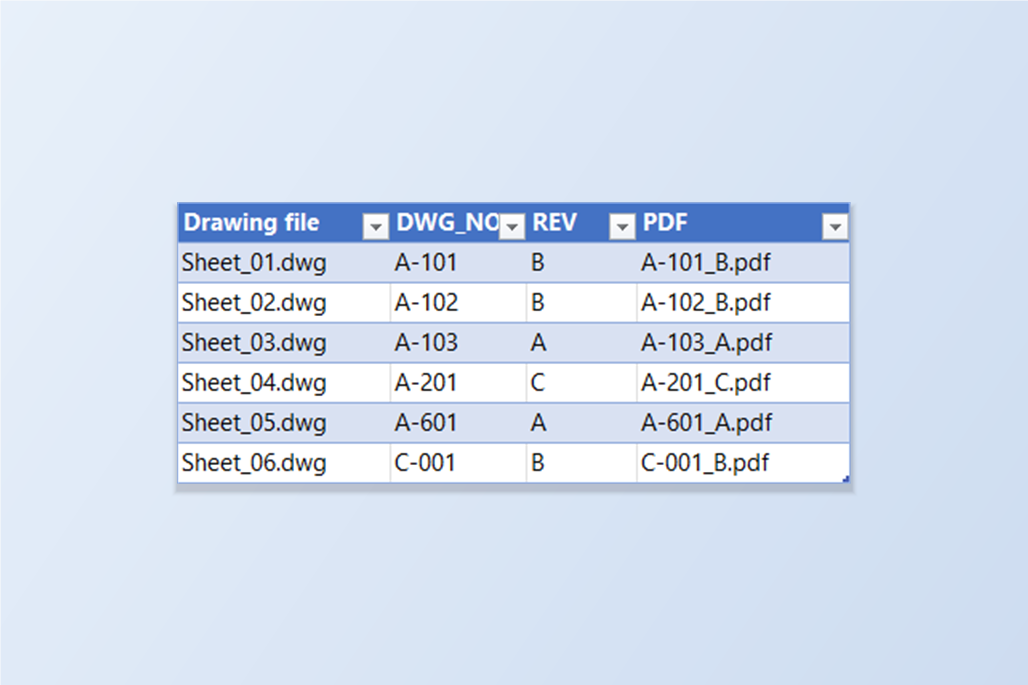
The drawings in a project rarely have the names the client wants on the PDFs. The DWG is Sheet_01, or a name inherited from the last consultant, and the transmittal asks for A-101_B — drawing number, underscore, revision. So the batch gets plotted, and then someone renames sixty PDFs by hand, and mistypes one.
AutoCAD's Publish names each PDF after the drawing file, and a layout name for multi-sheet output. Building a name from what's inside the drawing — its number, its revision — is what a Sheet Set does, but only for drawings that have been set up as a sheet set; for a folder of DWGs, the usual answer is a script or a rename tool after the fact.
This guide uses Dwg2Pdf's file name template. The drawing number and revision are stored in each drawing's properties (DWGPROPS custom properties); a template such as {Prop:DWG_NO}_{Prop:REV} is turned into the name of every PDF as it is plotted, and the dialog shows an example from your own drawings before you plot. The example is six drawings with two layouts each; the Free tier handles up to 10 drawings per run.
1. Put the number and revision in the drawings' properties
The template reads each drawing's properties: the standard fields (Title, Subject, Author, Keywords, Comments) and any custom property. If your drawings already carry the values — a title block that is driven by DWGPROPS custom properties is the common case — there is nothing to do here.
If they don't, set them once per drawing in DWGPROPS, or in bulk: LayerSync's Properties tab lists every drawing's properties, and a column you add for a new custom property becomes that property when the workbook is written back. Here DWG_NO and REV were added for six drawings, along with a Title.

2. One PDF per drawing, named from its properties
Open Dwg2Pdf, add the drawings, and choose Merge all layouts into one PDF — every drawing's ticked layouts go into a single PDF per drawing. In the File name template box under it, type {Prop:DWG_NO}_{Prop:REV}.
Below the box, Example shows what the template gives for the first drawing — A-101_B.pdf — so a typo in a property name shows up before anything is plotted. An unknown placeholder is flagged in a warning. The help text under it lists what the template understands: {File} (the drawing's name), {Layout}, {Index} (its position among the layouts plotted from that drawing), and {Prop:Key} for any drawing property.
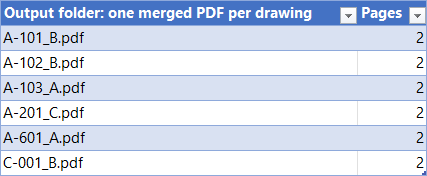
Click Plot. Six drawings, six PDFs, each with both its layouts as pages, named by number and revision. The DWG file names never appear.
3. Or one PDF per layout, with the layout name in it
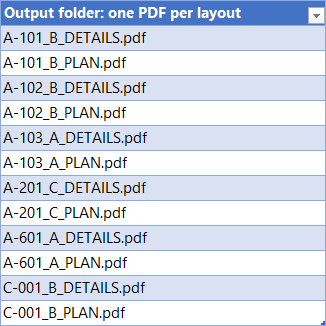
Choose One PDF per layout when each sheet has to be a file of its own. The default template there is {File}\{Layout}, which puts each drawing's layouts in a folder named after the drawing. To name the files by number and revision instead, use {Prop:DWG_NO}_{Prop:REV}_{Layout} — the example shows A-101_B_PLAN.pdf.
A backslash in a template starts a sub-folder, so {Prop:DWG_NO}\{Prop:REV}_{Layout} would sort the PDFs into a folder per drawing number. Values that come from the drawings can never add folders themselves, and characters Windows doesn't allow in file names are replaced with an underscore.
4. What the merged run produces
One PDF per drawing, each with two pages, one for every layout that was ticked: A-101_B.pdf, A-102_B.pdf, A-103_A.pdf, A-201_C.pdf, A-601_A.pdf and C-001_B.pdf.
Because the number and revision come from the drawing, they move with it: revise a drawing, change its REV property, plot again, and the PDF carries the new revision in its name.
5. What the per-layout run produces
Twelve one-page PDFs, with the layout name at the end of each — A-101_B_PLAN.pdf and A-101_B_DETAILS.pdf for the first drawing, and so on for the rest.
A few behaviours worth knowing. A property a drawing doesn't have expands to nothing, so a drawing without a revision would come out as A-101_ — check the Example line, and fill in gaps first. If a template expands to nothing at all for a drawing, Dwg2Pdf falls back to its default name for it. If two drawings resolve to the same name, the second PDF gets a number in brackets rather than overwriting the first.
A template applies to every drawing in the run, so keep drawings that follow a different convention in a separate run. For a full walkthrough of every screen and setting, see the Dwg2Pdf docs. To try it on your own drawings, download Dwg2Pdf — the Free tier covers up to 10 drawings per run.