
Rehberler/Block attributes
Auto-Number Block Attributes in Multiple AutoCAD Drawings — Sequential Tags Like V-001 to V-028 with Excel
 BlockSync ile hazırlandı
Güncelleme: September 30, 2026
Equipment tags, valve numbers and room numbers usually have to run in sequence across the whole drawing set: V-001 in the first drawing, V-006 in the second, and so on to the last valve. AutoCAD's own numbering tools work on the objects you pick in the open drawing, so a sequence that continues from one drawing to the next means opening each drawing, remembering where the last one stopped and typing the start number again.
A spreadsheet is much better at counting. This guide uses BlockSync to export the block attributes of the whole set to Excel, lets one formula generate the numbers, and writes them back with a preview and a backup. The example is six piping drawings with 28 VALVE blocks, every one still tagged V-000 as if copied from a template. When you are done they read V-001 to V-028.
The same method also numbers each drawing separately, restarting at 001 every time, and it works for any attribute on any block, not just valve tags. The Free tier handles up to 10 drawings per run.
1. Export the blocks to Excel
Open BlockSync and add the drawings with Add Files… or Add Folder…. BlockSync scans each file and lists every block definition it found, with how many times it is referenced and in how many files. Here VALVE has 28 references in 6 files.
Tick the block on the Blocks tab and click Extract to Excel. Only ticked blocks are exported, and each one becomes its own tab in a timestamped workbook in the output folder shown on screen.
2. Look at the starting point
The B_VALVE tab has one row per block reference, drawing after drawing. On the left are the system columns, the file name and the object handle that BlockSync uses to find each block again. On the right is one column per attribute tag. Here every valve still has TAG V-000, and the numbering will follow the order of these rows.
If you want a different order, sort the sheet first. Every row carries its own file name and handle, so rows can be sorted freely as long as you keep each row together, for example by drawing and then by the PosX column to number from left to right.
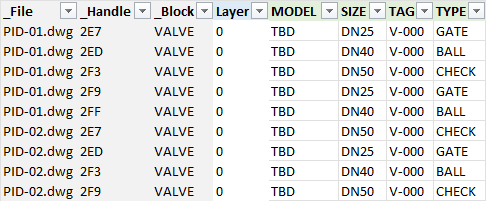
3. Number the tags with a formula
TAG is column M in this sheet and the first block is on row 3, so select M3 down to the last row and enter ="V-"&TEXT(ROW()-2,"000") in every cell of the range. ROW()-2 gives 1 on row 3, 2 on row 4 and so on, and TEXT(…,"000") pads it to three digits, so the sequence runs V-001, V-002, and continues through every drawing to V-028.
To restart the numbering in each drawing instead, use ="V-"&TEXT(COUNTIF(A$3:A3,A3),"000"). Column A holds the file name, so the count begins again at 001 whenever the drawing changes: V-001 to V-005 in the first drawing, V-001 to V-004 in the second. Change the prefix or the number of zeros to suit your tag standard. BlockSync writes back what the cell displays, so a formula is fine.
Save the workbook, in the same folder as the drawings if you can.
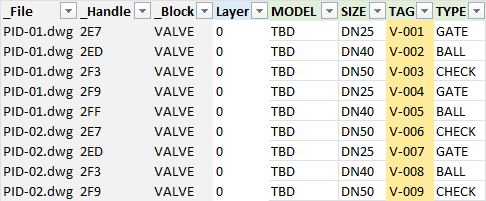
4. Preview before anything is written
Switch to the Excel → AutoCAD tab and pick the workbook. With Same folder as Excel file ticked it looks for the drawings next to it and matches them by file name, and each row is matched to its block by file and handle. Leave Automatic backup checked.
The Diff preview reports 6 files previewed, 28 attribute changes and 0 blocked. Select a drawing to see each change: in PID-01 the TAG attribute of the five valves goes from V-000 to V-001, V-002, V-003, V-004 and V-005. Nothing is written until you confirm.
5. Write back and verify
Click Write Selected Files and confirm. BlockSync backs up each drawing, writes it, then reads every changed attribute back out of the drawing. The results screen reports 6 succeeded, 0 failed and 0 read-back mismatches, and shows where each backup went. Rollback All puts every drawing back as it was.
To check it independently, export the drawings again. In this example the TAG column read V-001 to V-028 in order across the six drawings, and MODEL still said TBD, because only the changed attribute is written.
The numbering is a snapshot of the blocks that existed when you exported. If blocks are added or deleted later, export again, apply the formula again, and the diff preview shows exactly which tags change before you write them. A row that can't be written is marked Blocked and the rest of the run carries on, for instance when the handle no longer exists, the tag isn't on that instance, or the value comes from a field.
For the other half of this workflow, filling values such as model numbers from a lookup list, see the guide on exporting and importing block attributes with Excel. For a full walkthrough of every screen and setting, see the BlockSync docs. To try it on your own drawings, download BlockSync — the Free tier covers up to 10 drawings per batch.