
Rehberler/Block attributes
Batch Update Title Blocks in Multiple AutoCAD DWG Files — Values, Revisions and Sheet Numbers
 BlockSync ile hazırlandı
Güncelleme: September 26, 2026
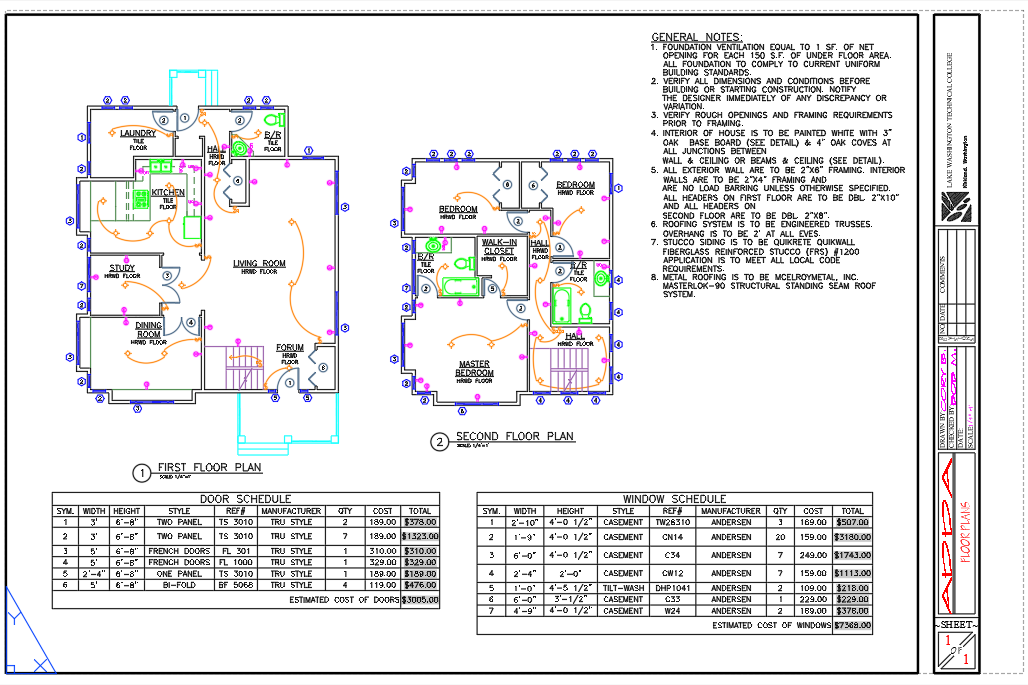
A title block attribute rarely changes on just one sheet. A project moves to a new revision, a client name changes, an address gets corrected, a sheet gets inserted and everything after it needs renumbering — and now the same kind of fix is needed on every drawing in the set.
AutoCAD doesn't have a built-in way to do this across files. ATTEDIT and the Properties panel only touch one block reference at a time, DATAEXTRACTION exports data out but can't write edited values back in, and the Express Tools pair ATTOUT/ATTIN round-trips through a text file one drawing at a time. That leaves opening each drawing, double-clicking the attribute, retyping it, and saving — which is slow and easy to get wrong on drawing 140 of 150.
This guide uses BlockSync to export the title block attributes from a batch of drawings to Excel, edit them there — including the two jobs that come up at every issue: rolling the revision and renumbering sheets — and write the changes back with a preview of exactly what will change before anything is touched.
1. Export the title block attributes to Excel
Open BlockSync and add the drawings you need to update — Add Files… for a specific set, or Add Folder… to pull in everything under a folder. BlockSync scans each file and lists every block definition it found, with how many times it's referenced and how many files it appears in.
On the Blocks tab, check the title block definition (here, ARCHBDR-D) and leave the rest unchecked — only checked blocks are included in the export, so the workbook stays focused on the fields you actually need to touch.
Click Extract to Excel. BlockSync writes one row per block instance, across every file, to a timestamped workbook in the output folder shown on screen.
2. Edit the values in Excel
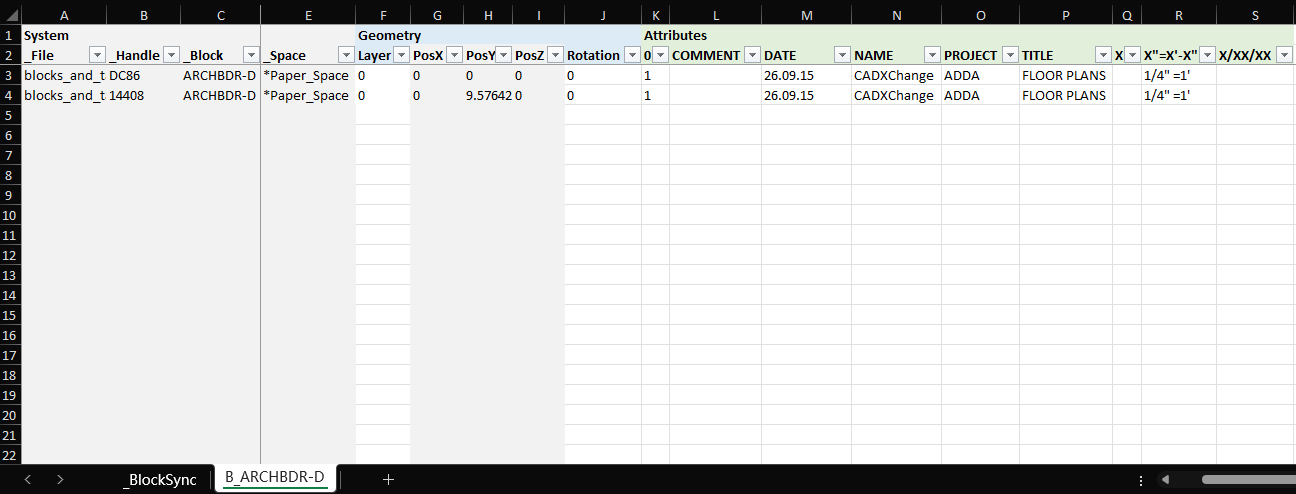
The exported sheet has one tab per block, with system columns (_File, _Handle, _Block) on the left and one column per attribute tag on the right — here, DATE, NAME, PROJECT and TITLE.
Edit the attribute columns directly, the same way you'd edit any spreadsheet: type new values, paste a column from another sheet, or use a formula to derive one field from another. Don't touch _File or _Handle — that's how BlockSync matches each row back to the exact block instance it came from when it writes the changes back.
Save the workbook when you're done.
3. Common edits: roll a revision, renumber sheets
Roll a revision across the whole set: type the new value (say, C) into the first row of the revision column, then fill it down — drag the fill handle, or select the column's cells and press Ctrl+D. Do the same for the revision date and description. If the title block has a revision table with one attribute per row (REV1, REV2, …), fill the next empty set of columns instead of overwriting the last one.
Type dates and zero-padded numbers as text. Excel quietly turns 2026-09-26 into a date value and 007 into the number 7, and BlockSync writes back what the cell displays — so the date comes back in whatever format Excel shows it in (9/26/2026, say) and 007 comes back as 7. Put an apostrophe in front ('2026-09-26, '007), or set the column's format to Text before typing, to keep exactly what you typed.
Renumber sheets: the most reliable source for a new sheet number is the file itself. If the file names contain the drawing number, a formula can build it from the _File column — for example ="TAF_"&MID(A3,FIND(".",A3)-3,3) on the first data row (data starts on row 3) turns blocks_and_titles_001.dwg into TAF_001; fill it down for the rest. Otherwise, type the new numbers in directly, reading each row's _File value as you go.
Rows follow the file list in BlockSync — the order files were added in, with Add Folder… adding them sorted by file name — so on a set whose file names already run in sheet order, a fill series lines up with the drawings. The exported sheet is protected (so the matching columns can't be edited by accident), which means it can be filtered but not re-sorted; use the filter on _File to narrow the view to the drawings being renumbered. Whichever way the new values were produced, the diff preview in the next step shows the final value BlockSync is about to write into each drawing, so a formula or a series that went wrong is caught there rather than in the drawings.

4. Preview the changes before writing anything back
Switch to the Excel → AutoCAD tab in BlockSync. Point it at the edited workbook and the folder holding the drawings — files are matched back to the workbook by exact file name, so there's no manual re-linking step.
Leave Enable automatic backup checked. BlockSync copies every file about to be touched into a backup folder before it writes anything, so a bad edit is always one click away from being undone.
The Diff preview tab lists every attribute that's about to change, file by file — old value, new value, and which block and handle it belongs to. Nothing is written to a drawing until you confirm this list looks right.
5. Write back and verify
Click Write Selected Files. BlockSync writes the changes, then reads every changed attribute straight back out of the drawing to confirm it actually took — the results screen reports success/fail per file, plus where the pre-write backup was saved.
If anything looks wrong afterward, Rollback All on this same screen restores every file in the run from its backup in one click.
The same export → edit → preview → write-back flow works for any attribute on any block, not just title blocks — tag numbers, part numbers, revision clouds' companion attributes, whatever's baked into a block instance across a set of drawings.
For a full walkthrough of every screen and setting, see the BlockSync docs. To try it on your own drawings, download BlockSync — the Free tier covers up to 10 drawings per batch.