
Rehberler/Block attributes
Count Blocks Across Multiple Drawings — Build a BOM / Material Take-Off in Excel from a Whole Drawing Set
 BlockSync ile hazırlandı
Güncelleme: September 29, 2026
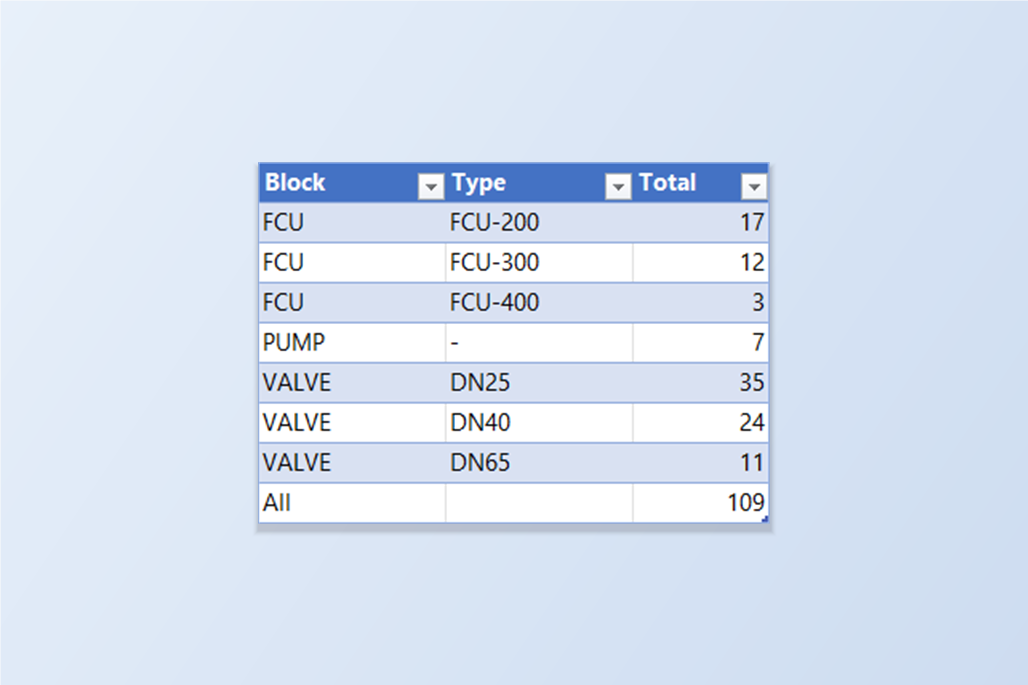
How many fan coil units are on the job? How many valves of each size? A bill of materials or a material take-off starts with counting blocks, and the blocks are spread over a whole drawing set — a plan per floor, a plant room, a riser diagram. Counting them drawing by drawing, by eye or with a selection, is slow and easy to get wrong the day the set is revised.
AutoCAD's own tools count in one place at a time. The COUNT command (2022 and later) reports the blocks in the drawing that's open. DATAEXTRACTION can read several drawings, but each run means walking its multi-page wizard again, choosing the blocks and properties, and cleaning up the table that comes out.
This guide uses BlockSync's export, which writes one row per block reference, and an Excel pivot table to turn those rows into counts — per drawing and in total, and split by an attribute value such as a size or model. Nothing is written back to the drawings. The example is a set of six HVAC drawings; the Free tier handles up to 10 drawings per batch.
1. Add the drawings and tick the blocks to count
Open BlockSync and add the drawings — Add Files… for a specific set, or Add Folder… for everything under a folder. BlockSync scans each file and lists every block definition it found on the Blocks tab, with the total number of references and the number of files the definition is in.
That list is already a first count: here FCU has 32 references, VALVE 70 and PUMP 7 across the six drawings. Keep those totals, because they are what the finished pivot table has to add up to. Note that In files counts the drawings that contain the block definition, not the ones where it's actually placed.
Tick the blocks you want in the count — Select All ticks every block, or use the search box and tick a few — and click Extract to Excel. Each ticked block becomes its own tab in a timestamped workbook.
2. Look at what the export gives you
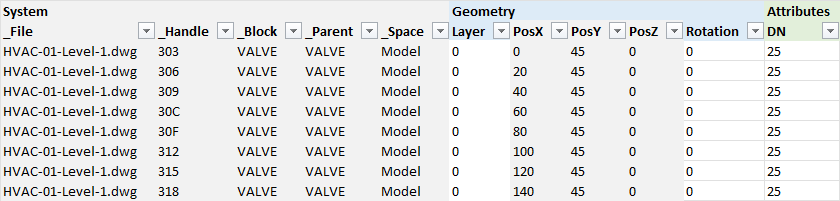
Each tab lists one block, with one row for every reference: the drawing it's in (_File), the object handle, the block name and where it sits (_Space: Model or a layout), then geometry columns and, at the right, one column per attribute tag — here DN on the VALVE tab and MODEL on the FCU tab.
The row per reference is what makes counting possible, and the attribute columns are what let you count variants: a 25 mm valve and a 65 mm valve are the same block, but different lines on a bill of materials.
3. Put all the blocks in one list
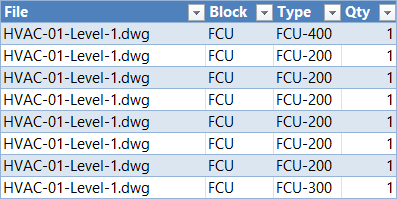
A pivot table needs a single list. Start a new sheet with the columns File, Block, Type and Qty. Copy _File and _Block from every block tab, stacking the tabs one below the other; for Type, copy the attribute that separates variants (MODEL for FCU, DN for VALVE, and a dash for a block that has none); fill Qty with 1 in every row.
Before going on, check the row count: it should equal the sum of the reference counts from step 1 — here 32 + 7 + 70 = 109 rows. If it doesn't, a tab was missed or pasted twice.
4. Count with a pivot table
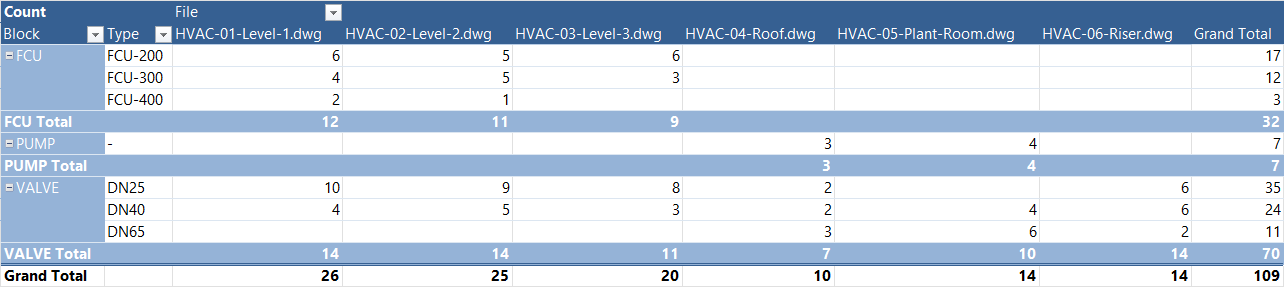
Select the list and choose Insert → PivotTable. Drag Block and then Type to Rows, File to Columns, and Qty to Values (Sum). The result is the take-off: one line per block and variant, one column per drawing, row totals on the right and drawing totals at the bottom.
Here it reads: 17 FCU-200, 12 FCU-300 and 3 FCU-400 units, 7 pumps, and 35 DN25, 24 DN40 and 11 DN65 valves — 109 blocks, matching the 32 + 7 + 70 from step 1. The per-drawing columns show at a glance where each item goes, which the total alone doesn't.
If a symbol can also appear on a layout, drag _Space into the pivot's Filters and choose Model so the same object isn't counted twice.
5. Keep it current
When the drawings change, extract again, paste the new rows over the old list, and use Data → Refresh All: the pivot table recalculates. Save Profile… on the Blocks tab remembers which blocks are ticked, and Load Profile ticks them again next time.
Counting is only as good as the drawings' block discipline: an item drawn as loose lines or exploded geometry has no block to count, and two names for the same symbol show up as two lines in the pivot table. The Blocks tab makes both easy to spot before you rely on the numbers.
For a full walkthrough of every screen and setting, see the BlockSync docs. To try it on your own drawings, download BlockSync — the Free tier covers up to 10 drawings per batch.