
Rehberler/Drawing standards
Unify Dimension Text Height and Arrow Size Across a Whole Drawing Set
 LayerSync ile hazırlandı
Güncelleme: September 29, 2026
Dimensions from different offices never look alike. One drawing has 2 mm text with 1.5 mm arrows, the next has 5 mm text, and the template styles that came along with every file — Standard, ISO-25 — are different again. Before a set goes out, the dimensions have to match the company standard.
In AutoCAD that means opening each drawing, DIMSTYLE, then the same fields in every style you can find — and doing it again on the next drawing. There is no command that reaches into a folder of drawings, so the usual answer is a script, or leaving the inconsistency in.
This guide uses LayerSync's Dim Styles tab. It lists every dimension style of every drawing with the settings a clean-up targets, sets one value across the whole list from a single bar, and shows each change before anything is written. The example is four drawings with 21 dimension styles between them; the Free tier handles up to 10 drawings per run.
1. List every dimension style of every drawing
Open LayerSync in AutoCAD → Excel mode, add the drawings, and open the Dim Styles tab. It shows one row per dimension style per drawing, with four settings: Text Height (DIMTXT), Text Style (DIMTXSTY), Arrow Size (DIMASZ) and Overall Scale (DIMSCALE). Other dimension variables are left exactly as they are.
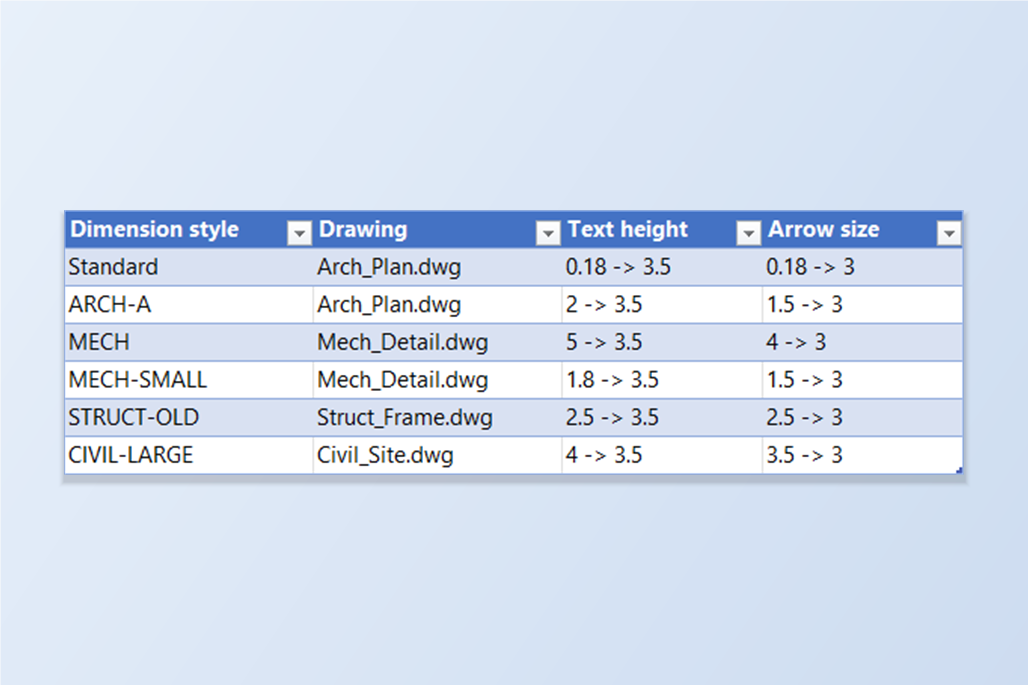
Here the four drawings have 21 styles between them, and none of them agree: Standard is 0.18, ISO-25 is 2.5, ARCH-A is 2 with 1.5 arrows, ARCH-B is 3 with 2.5 arrows, and the Mech, Struct and Civil drawings have styles of their own. The Search box narrows the list.
2. Set the values once for every shown style
Above the grid, the Set for shown styles bar has a box for each setting. Type 3.5 in Text Height and 3 in Arrow Size, leave the others blank, and click Apply to shown. Every style the search currently shows gets those values, and a blank box keeps that setting as it is — so the Text Style and Overall Scale columns are untouched, and an annotative style keeps its scale of 0.
The grid updates at once, and you can still edit any single cell by hand — for example to give one style a different arrow size — before going on. To change only some styles, narrow the list with the Search box first: the bar applies to what is shown.
3. Check the preview
Click Write Directly…. Only the rows you changed are carried to the diff preview: 39 changes in four drawings, none blocked. Select a drawing and open its Dim Styles tab to see each change as Style, Field, Current → New. Rows that don't change aren't listed — STRUCT already had 3.5 text and 3 arrows, and CIVIL-NOTE already had the arrow size.
Styles that come from an XREF are greyed out in the grid and can't be edited from the host drawing. A text style name that doesn't exist in a drawing fails only that style, and the results report says which.
4. Write with a backup
Leave Automatic backup on, tick the drawings and click Write Selected Files. Each drawing is copied to the backup folder first, then written, then reopened and compared with what was intended. The report shows every drawing succeeded — 5, 5, 4 and 6 styles written, no failures, no mismatches.
After the write, the existing dimensions that use a changed style are regenerated, so the drawing shows the new sizes at once rather than the next time each dimension is touched. Overrides applied to an individual dimension are left as they are. Rollback All on the report restores the originals.
5. Read the styles back
Add the drawings again and open Dim Styles: every style now reads text height 3.5 and arrow size 3, in all four drawings, while the Overall Scale column is as it was.
Two things to decide before you click. Overall Scale is worth setting only if your standard fixes it: styles that are meant to scale with the plot (a scale of 50 or 100) should keep it, and annotative styles use a scale of 0. And the bar applies to every style shown, so include or exclude the built-in Standard and ISO-25 styles on purpose — narrow the list with the Search box if you only want the styles your team actually draws with.
The same tab can also change the text style used by dimensions, and the Export to Excel… workbook has a DimStyles sheet for editing in bulk. For a full walkthrough of every screen and setting, see the LayerSync docs. To try it on your own drawings, download LayerSync — the Free tier covers up to 10 drawings per run.