
Rehberler/Symbols & blocks
Insert Blocks from a DWG Symbol Library in AutoCAD — Doors, Windows and Any Other Block
Güncelleme: October 28, 2026
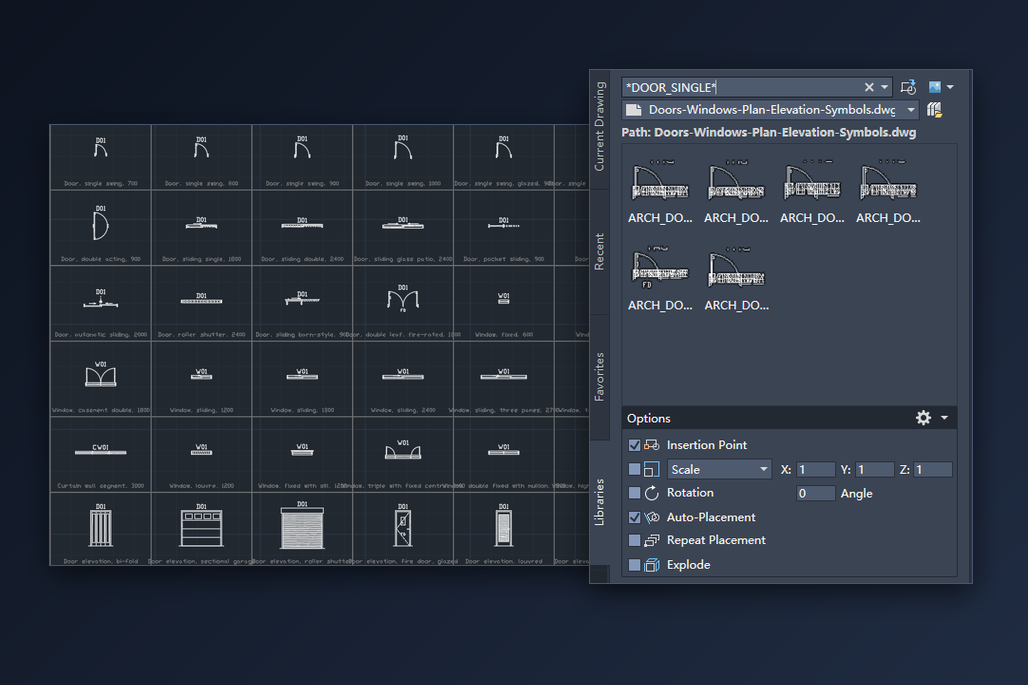
A downloaded symbol library is just a DWG file with a lot of blocks in it. The part that trips people up is getting those blocks into the drawing they are actually working on: opening the library, copying and pasting loses the insertion point, and re-drawing a door for the tenth time is slower than it should be.
AutoCAD can use a library file in place, without you opening it. This guide does it with a free door and window library (88 symbols, plan and elevation), but the steps are the same for any DWG that holds blocks: your own, a supplier's, or one of the other CADXChange libraries. It covers the Blocks palette first, then DesignCenter and tool palettes for the cases where they are the better choice.
1. Unzip the library and look inside once
The download is a ZIP with the DWG and a README. Unzip it to a folder you will keep, not to Downloads: tool palettes and some other lists point back at the file, and they break if it moves. The README lists every block by name, the unit and the insertion-point convention, so it is worth a minute.
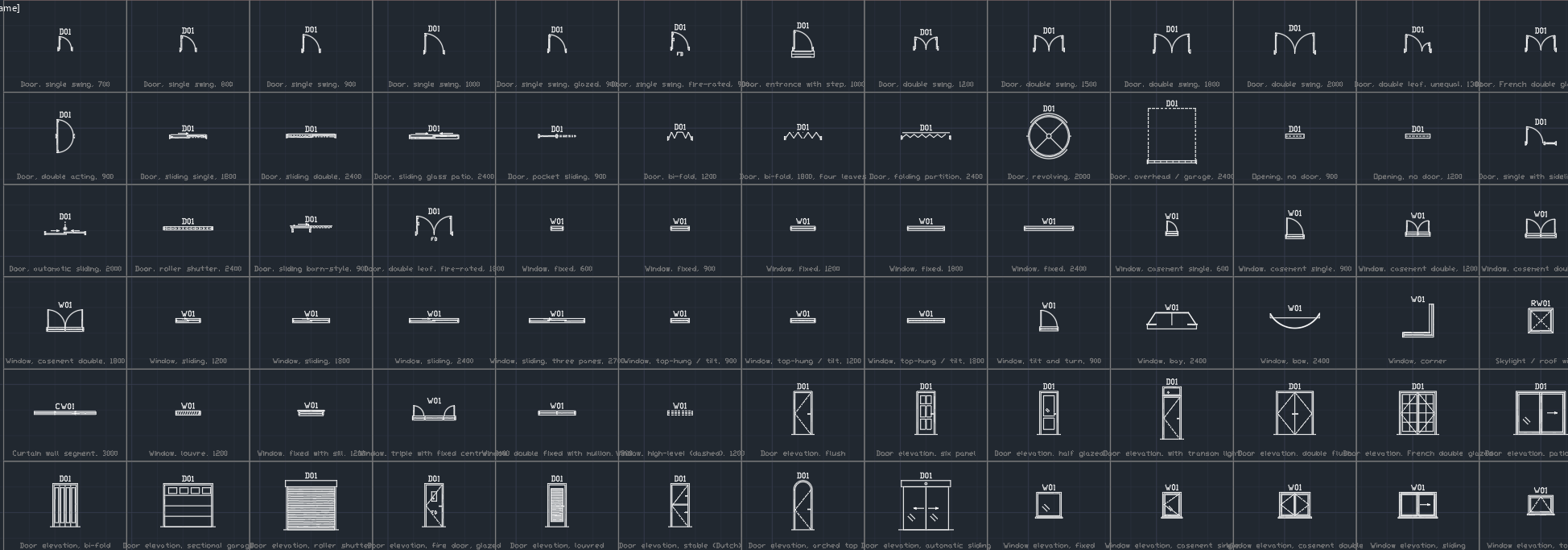
Open the DWG in AutoCAD once. This library keeps a catalog of all its symbols in model space, with the block's tag above each and its description below, and the same catalog on a CATALOG layout that plots on one sheet. It is the quickest way to see what is there and to read the descriptions, which carry the size, such as Door, single swing, 900.
You don't have to keep it open. Close it, or leave it open on its own tab, and go back to the drawing you are working on.
2. Point the Blocks palette at the library
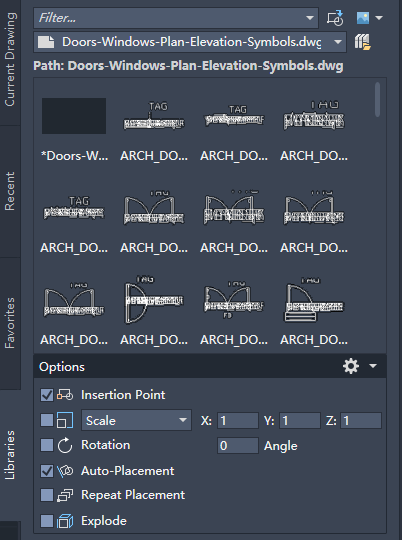
In the drawing you are working on, type BLOCKS to open the Blocks palette (it is also on the Insert tab, in the Block panel). The palette has four tabs; Libraries is the one for files on disk. Click Open Block Libraries, choose the library DWG, and its blocks are listed with previews. You can also pick a folder, and then every DWG in it is available. The Libraries tab shows the blocks of one file or folder at a time, and the same control switches to another.
Nothing is inserted yet and the library isn't opened as a drawing. In our test, AutoCAD listed the same library again the next time we started it.
This palette is in AutoCAD 2020 and later, including AutoCAD LT. In older releases the INSERT dialog's Browse button inserts a whole file as a single block, which is not what you want here; use DesignCenter (step 7) instead.
3. Find the block you want
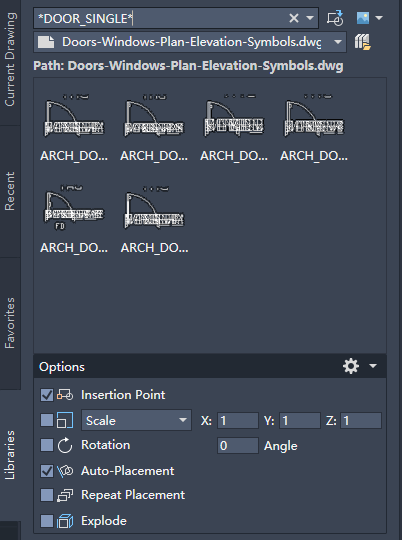
The Filter box at the top accepts wildcards, so *DOOR_SINGLE* shows only the single-swing doors, and *WINDOW_CASEMENT* the casement windows. The library's block names are descriptive, ARCH_DOOR_SINGLE for the 900 mm door and ARCH_DOOR_SINGLE_800, _1000 and so on for the other widths, and the README has the full list. Hover over a preview to see the full block name, or switch the view to a list.
The sizes come in whole steps. Pick the block with the width you need rather than stretching one: the opening stays honest, and a door schedule that reads the width will be right.
4. Place it on the wall
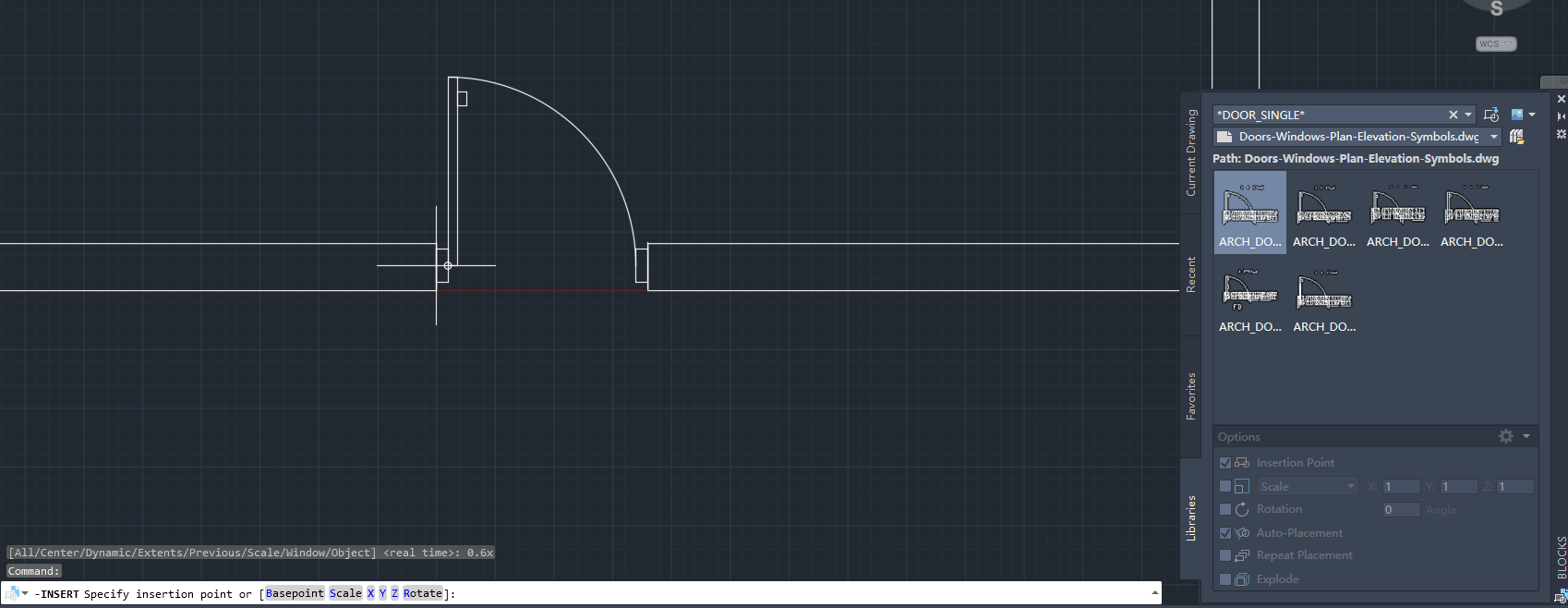
Click the block, then move the cursor into the drawing. The block follows the cursor and you click to place it. Click-and-place uses the palette's Options; dragging a block in uses only Scale and Rotation. The options you will touch most are Scale (type 1, or the factor from step 5), Rotation, Repeat Placement, which keeps asking for insertion points until you press Esc (handy for a row of windows) and Explode, which you usually leave off so the block stays a block.
Where the block lands is defined by its insertion point. In this library the hinge of a door sits on the wall centre line and the leaf is drawn open at 90 degrees into the +Y side; windows start at the left reveal on the centre line. That is why object snap can mislead you here: if it grabs the corner of the wall, the door ends up half a wall thickness off. Snap to the middle of the wall end, or type the coordinates.
Auto-Placement shows placement suggestions as you move the block, and a click accepts one. If the suggestions get in the way, clear the option in the palette.
5. Check the result: size, hand and units
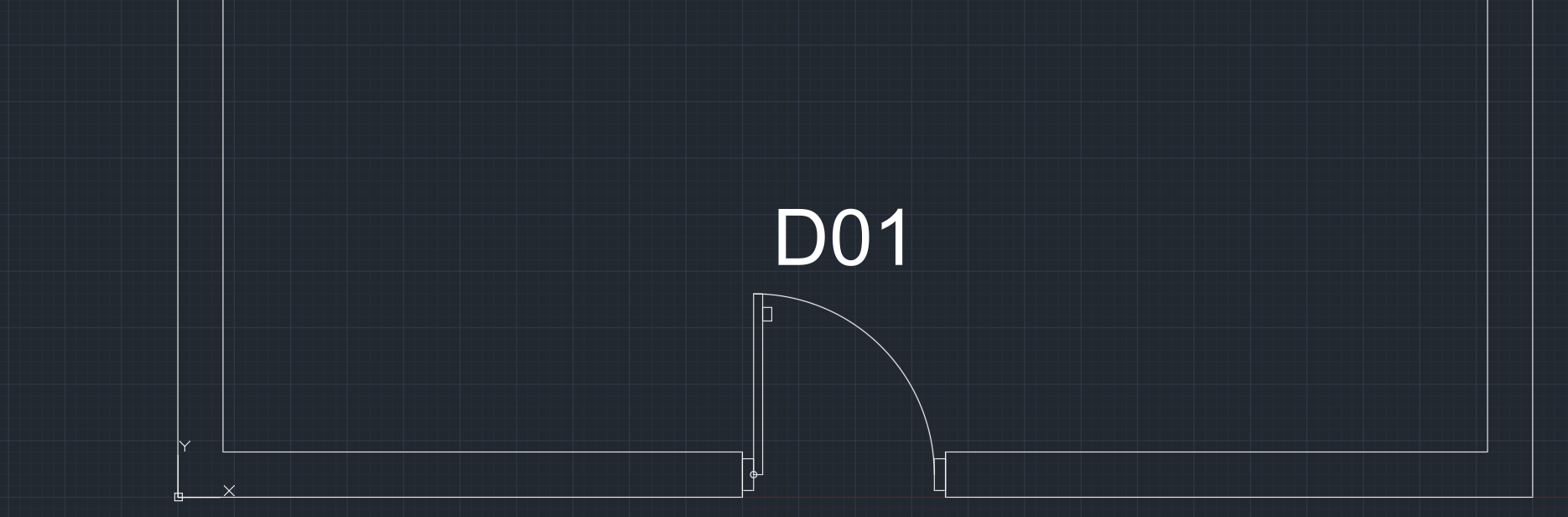
The door now sits in the opening, with its door number above it. The library assumes a 200 mm wall; for another thickness, keep the same block and adjust the wall, or tell the schedule the real size in the WIDTH_MM and HEIGHT_MM attributes.
For the other hand, put a negative number in the X scale of the palette's Options, which mirrors the block as it is inserted. A door that opens the wrong way is a mirror, not a new block.
Units are the usual surprise. The library is drawn in millimetres at 1:1. In a drawing that is also in millimetres the block arrives at the right size. If your drawing is in metres, the block comes in a thousand times too large unless you scale it: 0.001 in the Scale option. For inches the factor is 1/25.4, about 0.03937. Type UNITS to check what your drawing uses. AutoCAD can also convert for you when the drawing's insertion units and the block's units are both set, and the Source content units and Target drawing units in Options (User Preferences) cover blocks that have no unit, but it is quicker to know your unit and type the factor.
6. Fill in the attributes
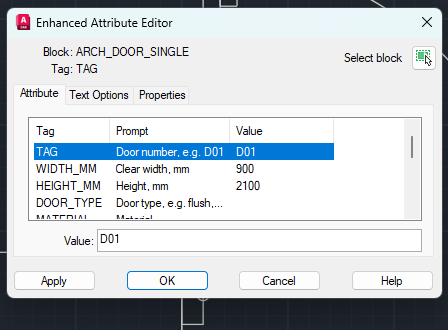
Double-click the door to open the Enhanced Attribute Editor. The visible tag is the door number, D01 here. The rest are invisible attributes for the schedule: WIDTH_MM, HEIGHT_MM, DOOR_TYPE, MATERIAL, FIRE_RATING, FINISH, HARDWARE_SET, MANUFACTURER, MODEL, REMARKS, and a DESC that already holds the description. Nothing shows on the sheet except the tag, so the drawing stays clean.
Fill in what you know now and the rest later; you can change them in the Properties palette or with ATTEDIT as well. When the drawing is done, those values are what a door schedule is built from. The guide on exporting block attributes to Excel shows how to pull them out for all doors in one drawing or in a whole set.
7. DesignCenter and tool palettes: when they are the better choice
DesignCenter (type ADCENTER, or Ctrl+2) is the older way and still has uses. It browses folders and drawings in a tree, lists a drawing's blocks under its Blocks node, and you drag a block into the drawing or double-click it. It also opens the other content of a drawing, such as layers, text styles and dimension styles, to drag in. It works in any AutoCAD release that has it, and in AutoCAD LT.
If you use the same set of blocks every day, right-click a drawing in the DesignCenter tree and choose Create Tool Palette of Blocks. You get a palette of those blocks that you can keep open, and put in your own order. Tool palette entries stay linked to the source file, so keep the library in a fixed folder, preferably one the whole team can reach, or the links break.
The short version: keep the library in a fixed folder, point the Blocks palette's Libraries tab at it, filter, click, place. Check the units once per drawing, and fill in the attributes if you will schedule the doors.
The same steps work for any block library, whatever it holds: electrical symbols, furniture, plumbing. Browse the free libraries on the Resources page, each one is a single DWG with the block names listed.